You can use emojis on a Mac by pressing Control + Command + Space or Fn/Globe + E while typing. This opens the Mac emoji keyboard, officially called the Character Viewer, where you can search for an emoji and click it to insert it into Messages, Mail, browsers, documents, social media, and most other apps.
MacBook keyboards with an Fn or Globe key can also be configured so pressing that key alone opens the emoji picker. You do not need to download an emoji keyboard or install an extension because emoji support is built into macOS.
The methods below work across current MacBook Air, MacBook Pro, iMac, Mac mini, Mac Studio, and Mac Pro models, although the exact appearance of the emoji picker varies slightly between macOS versions.
How to Get Emojis on Mac with a Keyboard Shortcut
The fastest way to open emojis on a Mac is with a keyboard shortcut. Click inside any text field first, then use one of these shortcuts:
| Mac emoji shortcut | What it does |
|---|---|
| Fn/Globe + E | Opens Emoji & Symbols on current macOS versions |
| Control + Command + Space | Opens the Character Viewer and works on many older and current Macs |
| Fn or Globe | Can open emojis when configured in Keyboard settings |
After the emoji picker appears, type a word such as heart, laugh, dog, or thumbs up into the search box. Click the emoji you want and macOS inserts it at the current cursor position.
How to Open the Emoji Keyboard on Mac
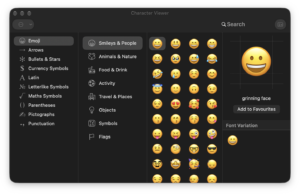
The Mac emoji keyboard is part of the Character Viewer, which also contains currency signs, arrows, mathematical symbols, punctuation, pictographs, and characters from other writing systems.
- Click where you want to type an emoji.
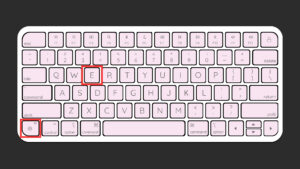
- Press Fn/Globe + E or Control + Command + Space.
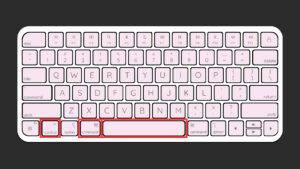
- Browse the emoji categories or use the search box.
- Click an emoji to insert it.
If the expanded Character Viewer is open, you may need to double-click a character instead of clicking it once.
The picker includes categories for smileys and people, animals, food, activities, travel, objects, symbols, flags, and frequently used emoji. macOS remembers the characters you use regularly so they are easier to find later.
How to Get Emojis on MacBook with the Fn or Globe Key
Many MacBook Air and MacBook Pro keyboards have an Fn or Globe key in the lower-left corner. You can configure this key to open the emoji picker without pressing a combination of keys.
- Click the Apple menu.
- Open System Settings.
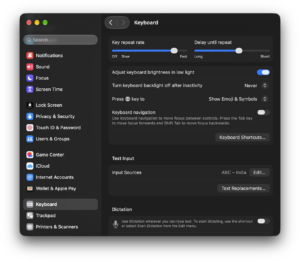
- Select Keyboard.
- Find Press fn key to or Press Globe key to.
- Select Show Emoji & Symbols.
After changing the setting, click inside a text box and press the Fn or Globe key. The Character Viewer should appear immediately.
If you use multiple keyboard languages, the Globe key may currently be configured to switch input sources instead. Changing this setting alters what happens when you press the key.
How to Get Emojis on Mac Without a Keyboard Shortcut
You can also open the emoji picker from an app’s menu bar, which is useful when you cannot remember the shortcut.
- Click inside a text field.
- Open Edit from the menu bar.
- Select Emoji & Symbols.
- Choose the emoji you want to insert.
This option appears in many Mac applications, including Safari, Notes, TextEdit, Pages, Mail, and Messages. Some third-party applications also expose the same command through their Edit menu.
How to Use Emojis in Messages on Mac
The Messages app provides direct access to the Mac emoji picker, so you can insert emojis without leaving the conversation.
- Open Messages.
- Select a conversation.
- Click inside the message field.
- Press Fn/Globe + E or Control + Command + Space.
- Select an emoji.
- Press Return to send the message.
You can also use the emoji button when it appears inside Messages.
Recent Mac versions support stickers, Memoji, Genmoji, and standard Unicode emoji inside Messages, although some of these features depend on your Mac model and macOS version.
How to Get Emojis in Mail, Safari, Chrome, and Other Apps
The same Mac emoji shortcut works in most applications that accept normal text. Click inside the field where you want the emoji before opening the picker.
You can use emojis in:
- Apple Mail and webmail services such as Gmail and Outlook.
- Safari, Chrome, Firefox, and Edge.
- Facebook, Instagram, X, Reddit, and other websites.
- Slack, Discord, WhatsApp, Teams, and similar messaging apps.
- Notes, Pages, Microsoft Word, and Google Docs.
- File and folder names in Finder.
Some applications display emojis slightly differently because the app or website controls the font and rendering. The underlying emoji remains the same Unicode character.
How to Search for an Emoji on Mac
You do not need to scroll through hundreds of emojis to find one. Open the Character Viewer and start typing the name or description of the emoji you want.
For example, searching for fire, birthday, coffee, crying, or check quickly narrows the results.
If the Character Viewer opens in its compact form, expand it using the button in the upper-right corner to access additional character categories and search controls.
How to Change Emoji Skin Tone on Mac
Emoji that support skin-tone variations can be changed directly from the Character Viewer.
- Open the emoji picker.
- Find an emoji that supports skin-tone options.
- Click and hold the emoji.
- Select the skin tone you want.
macOS remembers some emoji variations after you select them, which makes your preferred version easier to use again.
How to Get New Emojis on Mac
Apple adds support for new Unicode emojis through macOS updates. You do not normally download individual emoji packs.
To check for new macOS updates:
- Open the Apple menu.
- Select System Settings.
- Go to General > Software Update.
- Install an available macOS update.
If someone sends you a newer emoji that appears as an empty box, question mark, or unsupported symbol, your version of macOS may not yet contain the required emoji font data. Updating macOS is the first thing to check.
How to Create Custom Emojis with Genmoji on Mac
Compatible Macs with Apple Intelligence can create custom emojis called Genmoji. Instead of selecting an existing Unicode emoji, you describe the image you want and macOS generates options based on that description.
- Click inside a supported text field.
- Press Fn/Globe + E to open the Character Viewer.
- Click the Genmoji button.
- Describe the emoji you want to create.
- Select one of the generated results.
- Insert it into your message or document.
For example, you can describe something such as cat wearing sunglasses or birthday cake with headphones.
Genmoji requires a Mac with Apple silicon and Apple Intelligence enabled. Intel-based Macs can continue using the standard emoji library but do not support Apple Intelligence features.
Do You Need to Download Emojis for Mac?
No. Standard emojis are already included with macOS, and the built-in Character Viewer provides the emoji keyboard.
Websites offering an “emoji keyboard for Mac download” are unnecessary for normal emoji use. Browser extensions and third-party emoji apps can add extra functions such as text shortcuts or custom image libraries, but they are not required to type standard emojis.
If your Mac is missing recently released emojis, update macOS rather than installing an unofficial emoji font package.
Fix the Emoji Keyboard Not Working on Mac
Try both Mac emoji shortcuts
If Control + Command + Space does not open the picker, try Fn/Globe + E. Keyboard shortcuts and available commands vary between older and current macOS releases.
Check the Fn or Globe key setting
Open System Settings > Keyboard and check the setting for the Fn or Globe key. Select Show Emoji & Symbols if you want that key to open the Character Viewer.
Click inside a text field first
The emoji picker works best when an editable text field is active. Click inside a message, document, search box, or other typing area before using the shortcut.
Try Edit > Emoji & Symbols
If the shortcut does not respond, open the application’s Edit menu and choose Emoji & Symbols. If the menu option works, another app or custom keyboard shortcut may be intercepting the key combination.
Restart the app
Quit and reopen the application where emojis stopped working. If the Character Viewer fails across multiple applications, restart the Mac.
Update macOS
Install current macOS updates if emojis appear as boxes, the Character Viewer behaves incorrectly, or recently introduced emojis are missing.
Frequently Asked Questions
What is the emoji shortcut on Mac?
Press Fn/Globe + E or Control + Command + Space to open the Mac Character Viewer and select an emoji.
What is the emoji shortcut on MacBook Air?
MacBook Air supports Fn/Globe + E. You can also configure the Fn or Globe key in System Settings > Keyboard so a single press opens Emoji & Symbols.
What is the emoji shortcut on MacBook Pro?
Press Fn/Globe + E or Control + Command + Space. On compatible keyboards, you can configure the Fn or Globe key to open the emoji picker directly.
Where is the emoji keyboard on Mac?
The emoji keyboard is inside macOS Character Viewer. Open it with the emoji shortcut or select Edit > Emoji & Symbols from an application’s menu bar.
Can I get emojis on a Mac without downloading anything?
Yes. macOS includes emojis and the Character Viewer by default. No separate emoji keyboard download is required.
How do I get more emojis on Mac?
Install the latest macOS updates to receive support for newly added Unicode emojis. Compatible Apple-silicon Macs can also create custom Genmoji with Apple Intelligence.
Why are some emojis showing as boxes on my Mac?
Your current macOS version may not support that emoji yet, or the application may use a font that cannot display it correctly. Update macOS and test the emoji in another app.
Can I use iPhone emojis on a Mac?
Apple devices use the same underlying Unicode emoji standards, so most emojis available on a current iPhone also appear on an updated Mac. Very new emojis require compatible operating-system versions on both devices.
Can I type emojis in Google Chrome on Mac?
Yes. Click inside any editable field in Chrome and press Fn/Globe + E or Control + Command + Space. Select the emoji and macOS inserts it into the field.
Can I copy and paste emojis on Mac?
Yes. You can copy any emoji with Command + C and paste it with Command + V, just like normal text.
How do I make my own emoji on Mac?
Use Genmoji on a compatible Apple-silicon Mac with Apple Intelligence enabled. Open the Character Viewer, select Genmoji, describe the emoji you want, and choose a generated result.


![How to copy and paste on Chromebook [text & image shortcut]](https://techdows.com/wp-content/uploads/2026/10/Open-Chromebook-laptop-showing-its-keyboard-touchpad-and-ChromeOS-desktop-600x338.jpg)

How to Do the Fingers Crossed Emoji on Keyboard - Techdows
[…] More Mac keyboard routes, including Genmoji, are in How to Use Emojis on Mac, Keyboard Shortcut, Emoji Keyboard & Genmoji. […]
How to open emoji keyboard on Windows 10/11 - Techdows
[…] Mac emoji keyboard uses a different shortcut, so these keys apply only to Windows […]