You can reset a Mac to factory settings by using Erase All Content and Settings on supported Macs, or by erasing the startup disk from macOS Recovery and reinstalling macOS on older models. The correct method depends mainly on whether your Mac uses Apple silicon or an Intel processor, and whether it has Apple’s T2 Security Chip.
A factory reset deletes your personal files, user accounts, installed apps, and settings, so back up anything you want to keep before you start. If you only want to fix macOS problems, you can reinstall macOS without erasing your files first.
This guide covers MacBook Air, MacBook Pro, iMac, Mac mini, Mac Studio, Mac Pro, Apple silicon Macs, and Intel Macs, including how to reset a Mac before selling it and what to do when Erase All Content and Settings is unavailable.
How to Factory Reset a Mac
For most recent Macs, Apple’s Erase All Content and Settings feature is the fastest way to perform a complete factory reset. It removes your data and settings while keeping the currently installed operating system in place.
You can use this method when the Mac has Apple silicon or an Apple T2 Security Chip and runs macOS Monterey 12 or later.
Factory reset a Mac on macOS Ventura or later
- Click the Apple menu in the upper-left corner.
- Open System Settings.
- Select General.
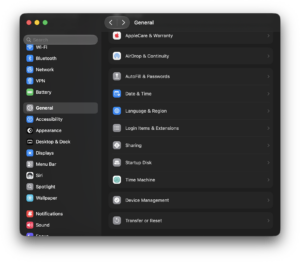
- Click Transfer or Reset.
- Select Erase All Content and Settings.
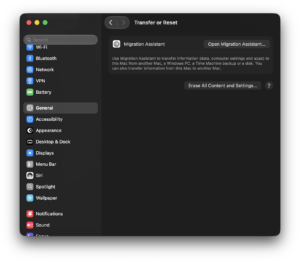
- Enter your administrator password when requested.
- Review what the Mac will remove.
- Follow the prompts to erase the Mac.
The Mac restarts during the process and can ask you to connect to Wi-Fi so it can activate. When the reset finishes, Setup Assistant appears as it would on a new Mac.
Factory reset a Mac on macOS Monterey
- Click the Apple menu.
- Open System Preferences.
- Click System Preferences in the menu bar at the top of the screen.
- Select Erase All Content and Settings.
- Enter the administrator password.
- Follow the instructions shown by Erase Assistant.
Apple introduced Erase All Content and Settings on Mac with macOS Monterey, so older macOS versions do not have this option.
What Does Erase All Content and Settings Remove?
Erase Assistant performs more than a basic file deletion. It removes your personal data and installed applications, signs the Mac out of Apple services, turns off Find My and Activation Lock, removes saved fingerprints used with Touch ID, and clears your settings.
The installed version of macOS remains available, which is why this method is considerably quicker than manually erasing the startup disk and reinstalling the operating system.
After the reset, the Mac starts at Setup Assistant so it can be configured again from the beginning.
How to Reset a MacBook Air
The reset procedure for a MacBook Air depends on its processor rather than the MacBook Air name itself.
If you have a MacBook Air with an Apple M-series chip, including M1 and later models, use:
Apple menu > System Settings > General > Transfer or Reset > Erase All Content and Settings
Older Intel MacBook Air models can use the same feature when they contain Apple’s T2 Security Chip and run macOS Monterey or later. Older Intel models without a T2 chip need to be erased through macOS Recovery.
How to check whether your MacBook Air has Apple silicon or Intel
- Click the Apple menu.
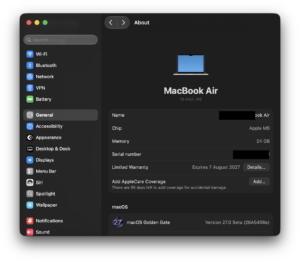
- Select About This Mac.
- Look for Chip or Processor.
If you see Apple followed by an M-series chip name, you have Apple silicon. If the window lists an Intel processor, you have an Intel Mac.
How to Reset a MacBook Pro
Current MacBook Pro models with Apple silicon support Erase All Content and Settings when running a compatible version of macOS.
- Open System Settings.
- Go to General > Transfer or Reset.
- Click Erase All Content and Settings.
- Enter the administrator password.
- Follow Erase Assistant until the Mac restarts.
Some Intel MacBook Pro models also support this procedure because they include Apple’s T2 Security Chip. If the option does not appear, use macOS Recovery instead.
How to Reset a Mac Without Erase All Content and Settings
If Erase All Content and Settings does not appear, you can erase the startup disk through macOS Recovery and then reinstall macOS. This method is particularly relevant to older Intel Macs.
Back up your files before continuing because erasing the startup disk permanently deletes them.
Step 1: Start the Mac in macOS Recovery
The Recovery shortcut differs between Apple silicon and Intel Macs.
Apple silicon Mac
- Shut down the Mac.
- Press and hold its power button.
- Continue holding it while the Mac starts.
- Release the button when Loading startup options appears.
- Select Options.
- Click Continue.
- Enter an administrator password if requested.
Intel Mac
- Shut down the Mac.
- Press the power button.
- Immediately press and hold Command (⌘) + R.
- Release the keys when the Apple logo or a spinning globe appears.
- Enter the requested password if prompted.
You should eventually see the macOS Recovery window containing options such as Disk Utility, Reinstall macOS, and Restore from Time Machine.
Step 2: Erase Macintosh HD
- Select Disk Utility.
- Click Continue.
- Select Macintosh HD under Internal in the sidebar.
- Click Erase.
- Use Macintosh HD as the name.
- Select APFS as the format.
- Click Erase Volume Group if that option appears. Otherwise, click Erase.
- Wait for Disk Utility to finish.
- Quit Disk Utility.
If you renamed the startup disk previously, it will appear under that name instead of Macintosh HD.
Step 3: Reinstall macOS
- Return to the macOS Recovery window.
- Select Reinstall macOS.
- Click Continue.
- Select Macintosh HD when asked where to install macOS.
- Follow the installation instructions.
Keep a MacBook connected to power and leave the Mac connected to the internet during installation. The computer can restart several times, display a progress bar, or show a blank screen for several minutes while macOS installs.
How to Factory Reset an Intel Mac
An Intel Mac with the T2 Security Chip and macOS Monterey or later can use Erase All Content and Settings. An older Intel Mac without the required hardware must use macOS Recovery.
For an older Intel Mac:
- Back up the files you want to keep.
- Restart the Mac while holding Command + R.
- Open Disk Utility.
- Select the internal startup volume.
- Erase it using APFS.
- Quit Disk Utility.
- Select Reinstall macOS.
- Complete the installation.
If you are resetting the Intel Mac because macOS is damaged rather than because you are selling it, try reinstalling macOS without erasing the disk first. A standard macOS reinstall normally keeps your personal data and applications.
How to Factory Reset an Apple Silicon Mac
Apple silicon includes Apple’s M-series processors. The easiest factory-reset method on these Macs is Erase All Content and Settings.
Open:
System Settings > General > Transfer or Reset > Erase All Content and Settings
If macOS cannot start or Erase Assistant does not work, start macOS Recovery by shutting down the Mac and holding its power button until startup options appear. From there, you can open Disk Utility, erase Macintosh HD, and reinstall macOS.
An erased Apple silicon Mac needs an internet connection to activate before you can continue with macOS installation or setup.
How to Reset a Mac Before Selling or Giving It Away
Use Erase All Content and Settings whenever your Mac supports it. Erase Assistant handles important ownership-related tasks such as signing out of Apple services and disabling Find My and Activation Lock.
Before erasing the Mac, make sure anything you want to keep exists in a backup or has already been transferred to your new computer.
Once the reset finishes and Setup Assistant appears, do not continue setting up the Mac if another person will own it. Shut down the Mac and leave Setup Assistant for the new owner.
If you had an AppleCare plan for the computer, also check whether you want to transfer or cancel that coverage.
How to Reset a Mac Without a Password
If you have forgotten the Mac login password, try resetting the password before erasing the computer. The login screen can display password-reset options after failed login attempts, depending on how the Mac was configured.
You can also start macOS Recovery and use Apple’s available password-recovery options.
A factory reset does not provide a legitimate way around Activation Lock. If Find My was enabled, Apple can require the Apple Account associated with the Mac before the computer can be activated again.
If you are resetting a used Mac that remains linked to the previous owner’s Apple Account, the previous owner needs to remove the Mac from their account.
How to Reset a Mac Without Losing Data
If by “reset” you mean fixing a damaged or unstable macOS installation, you do not necessarily need to erase the Mac.
Start the computer in macOS Recovery and select Reinstall macOS without erasing Macintosh HD in Disk Utility. Apple states that reinstalling macOS this way does not remove your apps or personal data.
Back up important files first anyway. A reinstall is designed to preserve them, but a current backup protects you if the disk has another problem.
How to Reset a Mac to Factory Settings Without Reinstalling macOS
Use Erase All Content and Settings if your Mac supports it. Erase Assistant removes your accounts, data, installed apps, and settings while maintaining the operating system currently installed.
This gives you the clean factory-reset result most people want without manually formatting Macintosh HD and downloading macOS again.
Older Macs that do not support Erase Assistant generally need the erase-and-reinstall procedure when you want a complete factory reset.
Which macOS Version Will Be Installed After a Reset?
Erase All Content and Settings keeps the version of macOS already installed on the Mac.
If you erase the startup disk and reinstall from Recovery, the version can differ. On Apple silicon, Recovery normally installs the current version of the most recently installed macOS, although erasing after an upgrade can result in the previous release being installed.
Intel Macs provide additional Recovery shortcuts:
| Startup keys | What they normally install |
|---|---|
| Command + R | The current version of the most recently installed macOS |
| Option + Command + R | The latest macOS compatible with the Mac |
| Shift + Option + Command + R | The macOS that came with the Mac, or the closest version still available |
You can install available macOS updates afterward from System Settings > General > Software Update.
Why Is Erase All Content and Settings Missing?
The option requires macOS Monterey 12 or later and a Mac with Apple silicon or Apple’s T2 Security Chip. An unsupported Intel Mac will not display it.
If your hardware supports the feature, check the installed macOS version under Apple menu > About This Mac and install available updates.
Boot Camp can also interfere with Erase Assistant. Apple advises removing Windows and its Boot Camp partition with Boot Camp Assistant if Erase Assistant reports that other volumes need to be erased first.
What to Do If Your Mac Won’t Reset
Macintosh HD does not appear in Disk Utility
Disconnect nonessential USB devices, external drives, hubs, and other peripherals, shut down the Mac, and start macOS Recovery again. Open Disk Utility and check the Internal section.
If the internal storage still does not appear, or Disk Utility cannot erase it, the Mac can have a storage or hardware problem that requires service.
macOS won’t reinstall
Make sure the Mac has a working internet connection. macOS Recovery requires internet access for activation and installation in many reset scenarios.
If the installer cannot find a destination disk, return to Disk Utility and check whether Macintosh HD appears and is formatted correctly.
The Mac keeps asking for the previous Apple Account
This indicates Activation Lock is still associated with an Apple Account. Enter the account credentials linked to the Mac or have the previous owner remove the Mac from their account.
Erasing the disk does not remove Activation Lock by itself.
The Mac starts at Setup Assistant after resetting
That is expected. If you plan to keep the Mac, complete Setup Assistant and create your user account. If you are selling or giving it away, shut down the computer and let the new owner complete setup.
Frequently Asked Questions
How do I completely factory reset my Mac?
On a supported Mac, open System Settings > General > Transfer or Reset > Erase All Content and Settings. On an older Mac, start macOS Recovery, erase Macintosh HD with Disk Utility, and reinstall macOS.
Does factory resetting a Mac delete everything?
Yes. A complete factory reset removes your personal files, accounts, settings, and installed applications. Back up anything you want to keep before starting.
What is the Mac equivalent of Reset This PC in Windows?
Erase All Content and Settings is the closest equivalent on supported Macs. Older Macs use Disk Utility and macOS Recovery for a complete reset.
Can I factory reset a Mac without a USB drive?
Yes. Macs include macOS Recovery, so a USB installer is not normally required. You need an internet connection for activation and some macOS installations.
What keys do I press to factory reset a Mac?
On an Intel Mac, Command + R starts macOS Recovery. On an Apple silicon Mac, shut it down and hold the power button until startup options appear. There is no single keyboard shortcut that immediately performs a factory reset.
How do I reset an M1, M2, M3, M4, or newer Mac?
These are Apple silicon Macs. When running a supported macOS version, open System Settings > General > Transfer or Reset > Erase All Content and Settings. Use macOS Recovery if Erase Assistant cannot be used.
Can I reset a Mac without my Apple Account password?
You can sometimes erase a Mac through Recovery, but Activation Lock can still require the Apple Account previously associated with the computer. A factory reset does not bypass Activation Lock.
Can I reset a Mac without losing my files?
A factory reset deletes your files. If you only need to repair macOS, reinstall macOS from Recovery without erasing Macintosh HD. That procedure normally preserves your apps and personal data.
Should I factory reset my Mac before selling it?
Yes. Back up your data and use Erase All Content and Settings when available. Once Setup Assistant appears, shut down the Mac instead of configuring it again.
Does resetting a Mac remove viruses or malware?
A complete erase removes software and user data stored on the startup disk, including ordinary malicious software installed there. Restore only trusted files and applications afterward rather than restoring questionable software from the old installation.
How long does a Mac factory reset take?
Erase All Content and Settings is usually much faster than erasing the disk and reinstalling macOS. A Recovery reinstall takes longer because the Mac needs to download and install operating-system files, with the total time depending on the Mac and internet connection.
Do I need to sign out of iCloud before factory resetting my Mac?
Erase Assistant signs you out of Apple services and turns off Find My and Activation Lock as part of its reset process. Older Macs that cannot use Erase Assistant require additional preparation when you are transferring ownership.
What should I do after resetting my Mac?
If you are keeping it, complete Setup Assistant and restore your files from a Time Machine backup or another source. If you are selling, trading in, or giving away the Mac, leave it at Setup Assistant and shut it down so the next owner can perform the initial setup.