Download Google Drive for PC or Mac from Google’s official website, open the installer, and sign in with your Google Account. The free Google Drive desktop app adds your cloud files to File Explorer on Windows or Finder on Mac and automatically syncs changes between your computer and Google Drive.
Can you really download Google Meet on a PC?
Yes. Here’s the official download: Download Google Drive for desktop
Download safely: Use Google’s official download page. Avoid third-party websites offering modified installers, old versions, or bundled software.
Google Drive for Desktop System Requirements
Check that your computer meets the current requirements before downloading the Google Drive desktop app.
| Platform | Supported versions | Installer |
|---|---|---|
| Windows 11 | 64-bit Intel or AMD and ARM64 | GoogleDriveSetup.exe |
| Windows 10 | 64-bit only | GoogleDriveSetup.exe |
| Mac | macOS Ventura 13 or later | GoogleDrive.dmg |
| Linux | No official desktop app | Use Google Drive in a browser |
Google Drive for desktop does not support 32-bit Windows or beta operating systems. Windows also requires Microsoft Edge WebView2. The Google Drive installer normally downloads WebView2 automatically when it is missing.
Download Google Drive for PC on Windows 11 or Windows 10
The same Google Drive installer works on supported Windows 11 and Windows 10 computers.
- Open the official Google Drive download page.
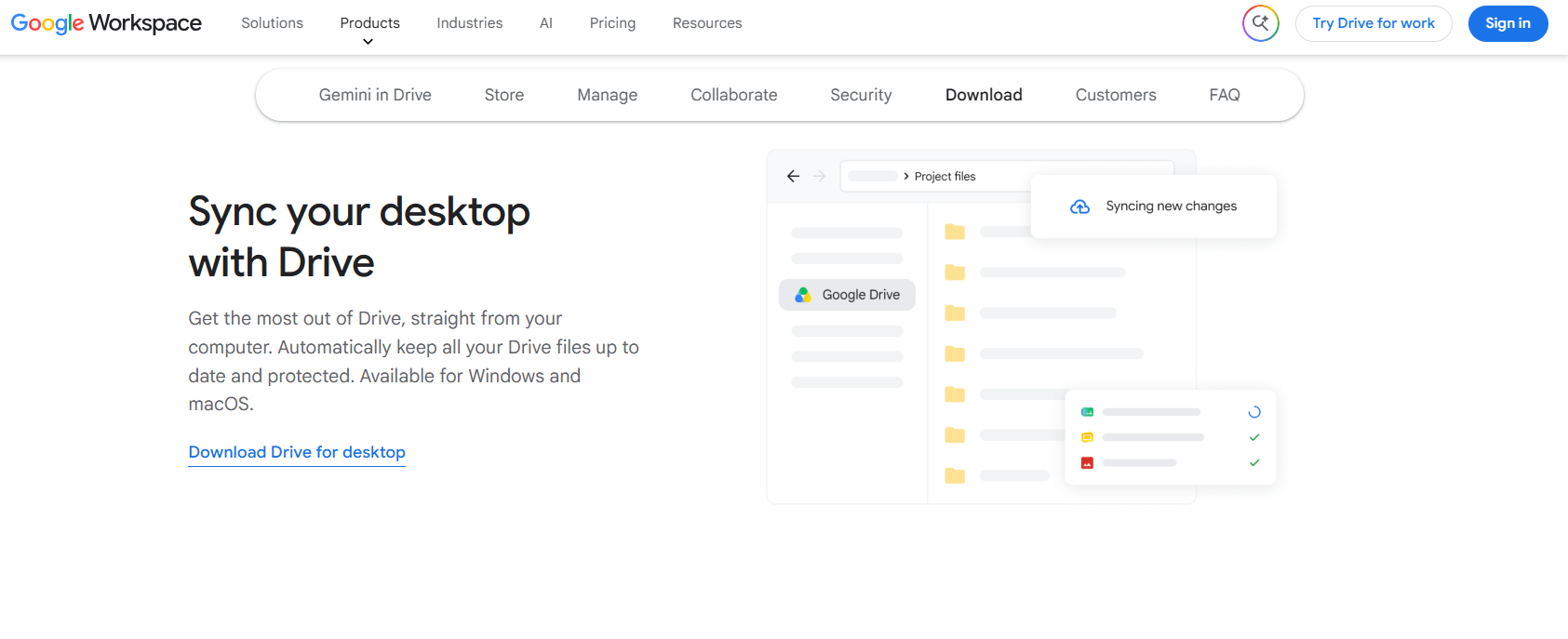
- Select Download Drive for desktop.
- Save the GoogleDriveSetup.exe file.
- Open your Downloads folder.
- Double-click GoogleDriveSetup.exe.
- Select Yes if Windows displays a User Account Control prompt.
- Follow the installation instructions.
- Select Launch or open Google Drive from the Start menu.
The installer may offer shortcuts for Google Drive and Google’s browser-based office apps. These shortcuts are optional and do not affect file synchronization.
How to Install Google Drive on Windows 11/10
After installing the app, connect it to your Google Account and choose which computer folders you want to sync.
- Open Google Drive from the Start menu.
- Select Get started or Sign in with browser.
- Choose your Google Account in the browser.
- Enter your password and complete two-step verification when requested.
- Confirm that you downloaded the app from Google.
- Select Sign in.
- Return to Google Drive for desktop.
- Choose the folders you want to sync, or skip folder backup and configure it later.
After setup, Google Drive appears in File Explorer. Its default streamed location commonly uses the G: drive letter, although Google Drive selects another available letter when G: is already in use.
Open Google Drive in Windows File Explorer
- Press Windows + E to open File Explorer.
- Select Google Drive in the left sidebar.
- Open My Drive to view your files.
You can open, rename, move, copy, and delete supported files from File Explorer. Drive for desktop syncs those changes with your Google Drive account.
Find the Google Drive Desktop Menu
Select the Google Drive icon in the notification area at the bottom-right corner of the taskbar. You may need to select the upward arrow to show hidden icons.
From this menu, you can view sync activity, search Drive, pause syncing, open your Drive folder, and access Preferences.
Download Google Drive for Mac
Google provides a separate DMG installer for Mac. The current release requires macOS Ventura 13 or later.
- Visit the official Google Drive for desktop download page.
- Select Download Drive for desktop.
- Save the GoogleDrive.dmg file.
- Open the downloaded DMG file.
- Double-click the Google Drive installer.
- Follow the installation instructions.
- Enter your Mac administrator password when requested.
- Open Google Drive from the Applications folder.
How to Install Google Drive on Mac
- Open Google Drive from Applications.
- Select Sign in with browser.
- Choose your Google Account.
- Enter your password and complete verification.
- Allow Google Drive to open after the browser confirms the sign-in.
- Approve the requested macOS permissions.
macOS may ask for permission to access Desktop, Documents, Downloads, removable drives, or other folders you choose to back up. Google Drive cannot sync a protected folder until you approve the required access.
Open Google Drive in Finder
- Open Finder.
- Look under Locations in the sidebar.
- Select Google Drive.
- Open My Drive.
Google Drive also places an icon in the menu bar at the top of the screen. Select it to check uploads, pause syncing, search files, or open Preferences.
How to Sync Google Drive with a Computer
Drive for desktop provides two separate sync controls:
- Folders from your computer: Upload selected local folders to Google Drive or Google Photos.
- Folders from Drive: Choose how files in My Drive are stored and accessed on the computer.
Sync a Windows or Mac Folder to Google Drive
- Select the Google Drive icon in the Windows system tray or Mac menu bar.
- Select the gear icon.
- Open Preferences.
- Select Folders from your computer.
- Choose Add folder.
- Select the folder you want to back up.
- Enable Sync with Google Drive.
- Select Done, followed by Save.
Files added to that computer folder upload to Google Drive. Changes made in the synced folder also update the cloud copy.
How to Use Google Drive Files Offline
Mirrored files are already available offline. When using stream mode, mark individual files or folders for offline access.
Make a Streamed File Available Offline
- Open Google Drive in File Explorer or Finder.
- Right-click the required file or folder.
- Select Offline access.
- Select Available offline.
- Wait for Drive to download the content.
Making a folder available offline also downloads its current contents. Files added to that folder later are downloaded automatically.
Google Docs, Sheets, and Slides files use Google’s browser-based offline feature. Marking other Drive files offline does not automatically enable offline editing for these web document formats.
How to Add Multiple Google Drive Accounts on a Computer
Drive for desktop supports several Google Accounts in the same app.
- Select the Google Drive icon in the system tray or menu bar.
- Select your profile picture.
- Choose Add another account.
- Sign in through the browser.
- Complete verification when requested.
Each account receives a separate location in File Explorer or Finder. Work or school administrators can restrict account access or require the organization to install the app.
Is Google Drive for PC Free?
Google Drive for desktop is free to download and install. You need a Google Account, and files stored in the cloud count toward the storage available to that account.
Installing Drive for desktop does not increase your Google storage allowance. Mirrored files also use space on the computer because the app stores a local copy in addition to the cloud copy.
Fix Google Drive for Desktop Download or Installation Problems
The Google Drive Installer Will Not Open
- Confirm that the computer runs a supported 64-bit version of Windows or macOS.
- Download a fresh installer from Google.
- Restart the computer.
- On Windows, right-click GoogleDriveSetup.exe and select Run as administrator.
- Temporarily close another Google Drive installer that may still be running.
A work or school computer may block software installation. Contact the administrator when Windows or macOS prevents installation through an organization policy.
Google Drive Does Not Appear in File Explorer or Finder
- Open Google Drive from the Start menu or Applications folder.
- Confirm that you are signed in.
- Select the Drive icon and check for an error message.
- Quit and reopen Drive for desktop.
- Restart the computer.
On Mac, open System Settings and confirm that Google Drive has the requested Files and Folders or File Provider permissions.
Google Drive Is Not Syncing
- Confirm that the computer has an internet connection.
- Open the Drive menu and select Resume syncing if synchronization is paused.
- Check the activity list for a filename or permission error.
- Confirm that the Google Account has available cloud storage.
- Check that the computer has free local storage for cached or mirrored files.
- Restart Drive for desktop.
Windows Says WebView2 Is Missing
Drive for desktop requires Microsoft Edge WebView2 on Windows. The installer normally adds it automatically. When that process fails, install the current WebView2 Evergreen Standalone Installer from Microsoft and run Google Drive setup again.
Google Drive Uses the Wrong Drive Letter
- Open the Google Drive desktop menu.
- Select the gear icon and open Preferences.
- Select the gear icon inside Preferences.
- Find Google Drive streaming location.
- Open the Drive letter menu.
- Select an unused drive letter.
This setting applies to streamed files. A mirrored Google Drive uses the local folder selected during setup.
How to Uninstall Google Drive for Desktop
Allow pending uploads to finish before removing the app. Uninstalling Drive for desktop does not delete files already stored in Google Drive.
Uninstall Google Drive on Windows 11/10
- Select the Google Drive icon in the system tray.
- Select the gear icon and choose Quit.
- Open Settings > Apps > Installed apps on Windows 11.
- On Windows 10, open Settings > Apps > Apps & features.
- Find Google Drive.
- Select Uninstall.
- Follow the removal instructions.
Uninstall Google Drive on Mac
- Select the Google Drive icon in the menu bar.
- Select the gear icon and choose Quit.
- Open Finder and select Applications.
- Drag Google Drive to the Trash.
- Empty the Trash when ready.
Mirrored files remain in their local folder after the account is disconnected or the app is removed. Streamed cloud files require Drive for desktop and are no longer available through the virtual drive after uninstalling it.
FAQs
What is the official Google Drive download for PC?
The official desktop app is called Google Drive for desktop. Download it from Google’s Drive download page rather than a third-party software website.
Can I download Google Drive on Windows 11?
Yes. Google Drive for desktop supports 64-bit Windows 11 computers and Windows 11 devices using ARM64 processors.
Does Google Drive work on Windows 10?
Yes. It supports 64-bit Windows 10. Google no longer supports 32-bit Windows installations.
Can I download Google Drive for Mac?
Yes. The current Google Drive for desktop app supports macOS Ventura 13 and later.
Is Google Drive available in the Microsoft Store?
Use Google’s official Drive download page to obtain the Windows desktop installer. The standard installation file is named GoogleDriveSetup.exe.
Can I install Google Drive without administrator rights?
Installation can require administrator approval, particularly when Windows needs to install WebView2 or an organization controls the computer. Contact the administrator on a managed work or school device.
Can I use Google Drive without installing the desktop app?
Yes. Open Google Drive in a supported web browser to upload, download, organize, and share files without installing Drive for desktop.
Can I use Google Drive for desktop on Linux?
Google does not offer an official Drive for desktop app for Linux. Use the Google Drive website or a file-management option supported by your Linux distribution.
Where is the Google Drive folder on Windows?
Streamed files appear under Google Drive in File Explorer, commonly as the G: drive. Mirrored files appear in the local folder selected in Drive Preferences.
Where is Google Drive on a Mac?
Open Finder and select Google Drive under Locations. On recent macOS versions, streamed files use Apple’s File Provider system.
Does Google Drive download all files to my computer?
It depends on the sync setting. Stream mode keeps most files in the cloud, while mirror mode downloads a complete local copy of My Drive.
Does deleting a synced file delete it from Google Drive?
Yes. Deleting a file from a synced Drive location also moves the cloud copy to Trash after the change synchronizes. Copy important files elsewhere before deleting them from a synced folder.
Can I stop Google Drive from syncing temporarily?
Yes. Select the Drive icon, open the gear menu, and choose Pause syncing. Return to the same menu and select Resume syncing when ready.