Microsoft has made a mess in communicating about system requirements for Windows 11, this made users believe they need to buy new PCs even if their device probably supports TPM, but is disabled by default in BIOS. It’s worth noting, Intel 8th Generation CPU, Secure boot, and TPM 2.0 are the most discussed new OS requirements among users.
If your system passed other requirements, still, Micorsoft won’t allow running Windows 11 for missing the Trusted Platform Module chip in the motherboard that encrypts the data.

TPM 2.0 is required for features such as Windows Hello for identity protection and Bitlocker for data protection.
Though you can bypass the requirements when you install Windows 11 using ISO manually, such unsupported devices won’t get security and feature updates, Microsoft warns.
Here is interesting information on TPM that may please you:
In the last five years, most PCs shipped with the capability of running TPM 2.0.
The following instructions could help If you can’t upgrade to Windows 11 because the PC has TPM 2.0 not enabled or PC capable of running it but that was not set up.
Ways to find the TPM version on your PC
1. See Device Security
Visit Settings > Update & Security > Windows Security > Device Security
If you can’t see Security Processor in the section, you may have TPM disabled.
Security Processor details reveal the TPM specification version, it should be 2.0. Your device does not meet Windows 11 requirements if the TPM Specification version is less than 2.0.

Note: Security Processor is Trust Protection Module that provides additional encryption to the device, according to Windows
II. Use Microsoft management console.
- . Open Run dialog and type tpm.msc.
- This provides a report of TPM status and its specification version. Check the TPM MMC console to ensure it shows “TPM is ready to use”.

Tip 1:Running get-tpm command in Powershell as administrator displays “TPMenabeld” status on your PC.
Tip2: Device Security and msinfo32.exe tool report Secure Boot and UEFI BIOS Mode status which are also Windows 11 requirements.
How to enable TPM 2.0 for Windows 11 on your PC
To enable TPM, you need to enter UEFI BIOS settings and these may change depending on your device.
- Go to Settings >Update & Security > Recovery, click Restart now.
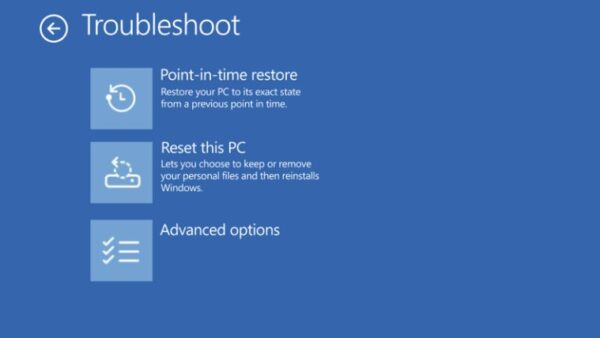
- To start making these changes, on the next screen, choose Troubleshoot >Advanced Options > UEFI Firmware Settings > Restart
note: The above settings may have been available in UEFI BIOS named Trusted computing or Advanced security.
Important note: The TPM option may be named as Security device, Security device Support, AMD FTPM switch, AMD PSP TPM, Intel PTT, or Intel Platform Trust Technology.
If you’re using PCs from the following manufacturers, check the respective support links to enable TPM 2.0 on your device
Enable TPM 2.0 in BIOS in Gigabyte Motherboard:
MY PC is a custom build where Gigabyte is Motherboard. I found “Intel Platform Trust Technology (PTT)” was the option needed to turn on TPM for Windows 11 in BIOS, here is how you can do that.
- Restart your device, keep hitting the Del key
- Click on PeriPherals > Intel Platform Trust Technology(PTT)

Intel Platform Trust Technology (PTT) - Select Enabled and apply the changes.

Closing Words: In layman’s terms, all you need to do is enter into BIOS by pressing the supported key and look for TPM options mentioned in the important note and turn on and save changes to BIOS.


Download PC Health Check App for Windows 10 & Windows 11 - Techdows
[…] turn it on, enable TPM 2.0 in the BIOS. The setting may be called Security Device, TPM State, Intel PTT, Intel Platform Trust Technology, […]