Vivaldi browser-based on Chromium, doesn’t have hardware acceleration setting in current Vivaldi 1.15 or earlier versions, Vivaldi team has finally added the missing ‘Use hardware acceleration when available’ option to Settings in Vivaldi 1.16 Vivaldi 2.0 and enabled it by default, which you can toggle to disable hardware acceleration in browser if you’ve any issues related to Vivaldi display such as browser appearing with black screen, etc.
Vivaldi lacks hardware acceleration setting, version 1.16 2.0 adds it
Vivaldi has improved so much these days, but the browser doesn’t offer the hardware acceleration option as well as ‘continue running background apps when Vivaldi is closed‘, the user needs to visit Chrome settings in Vivaldi to reach them, which no longer required in case of hardware acceleration from Vivaldi 1.16 Vivaldi 2.0 onwards.
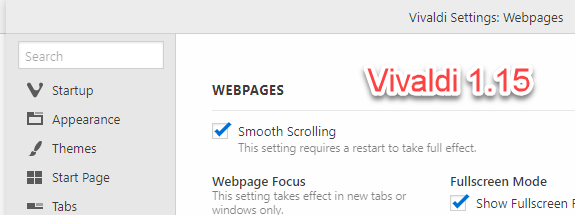
How to disable hardware acceleration in Vivaldi browser
Ensure you’re using Vivaldi 1.16 Vivaldi 2.0 or later
- Click on V icon > Tools > Settings
- Select Webpages, uncheck ‘Use Hardware Acceleration When Available’ under Web pages.
- Restart the Vivaldi browser for the change to take effect.

To re-enable hardware acceleration in Vivaldi, you need to reverse the change in the second step.
Note: As of this writing, Vivaldi 2.0 is in the snapshot, the stable version will be released soon.
What’s your take on this addition? Are you welcoming this? What other settings you’re missing in Vivaldi browser when compared with Chrome or Opera browser? How you’ve disabled hardware acceleration in Vivaldi browser till now? Let us know in the comments below.
Do note Vivaldi team has bumped Vivaldi version number from 1.16 to 2.0, we’ve updated the article to reflect that change in this article.
Also see
- Firefox Quantum: How to disable Hardware Acceleration?
- Disable Hardware Acceleration in IE9

![Find passwords stored on this computer [3 ways]](https://techdows.com/wp-content/uploads/2026/10/Find-passwords-stored-on-this-computer-3-ways.jpg)
How to Turn off or Disable Hardware Acceleration in Windows 11/10 - Techdows
[…] similar wording. Vivaldi, for example, keeps its toggle on its own settings page, covered in the Vivaldi hardware acceleration guide. If Chrome is merely heavy on memory rather than glitchy, Memory Saver is the setting to look at […]