Windows Server 2016 reaches end of support on January 12, 2027, when its extended support phase ends and free security updates stop.
This guide lists every date that matters, what the paid Extended Security Updates program offers, where to move each server, and the order to do the work in.
Windows Server 2016 end of life date
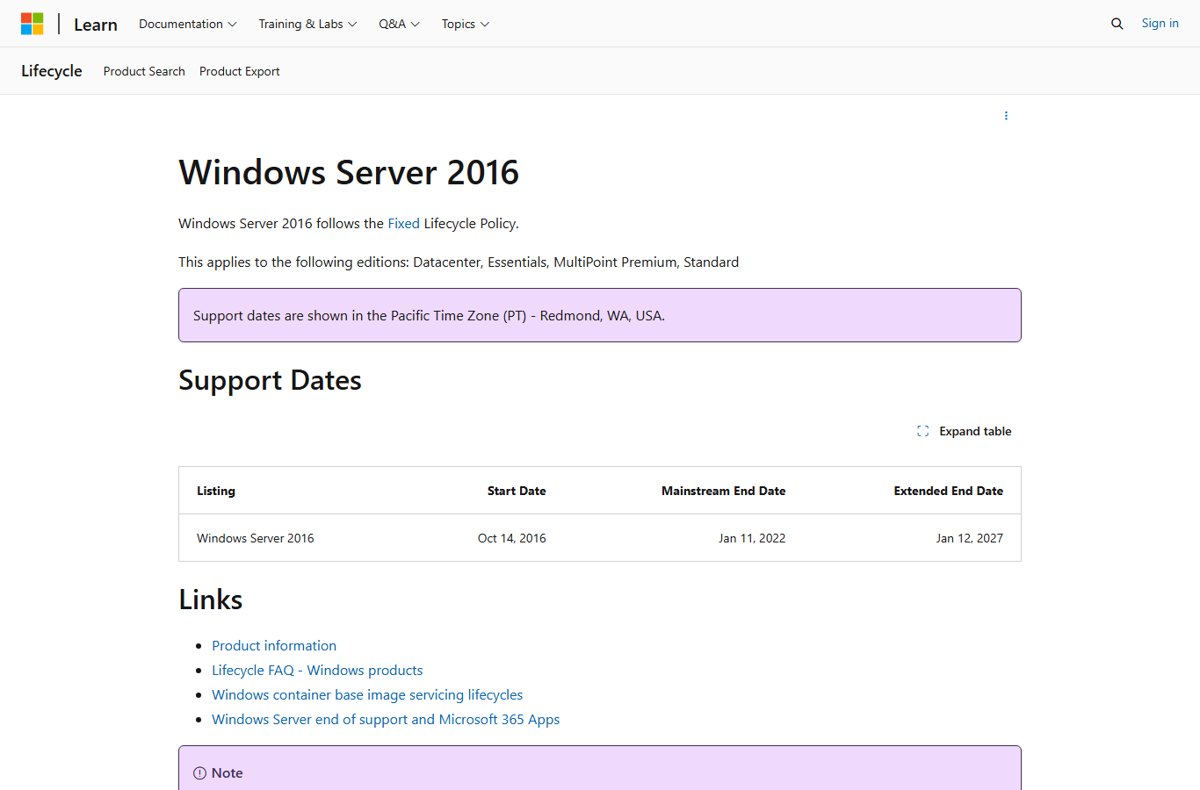
Windows Server 2016 follows Microsoft's Fixed Lifecycle Policy, so the date is set and will not slide.
The date applies to the Datacenter, Essentials, MultiPoint Premium and Standard editions, and to containers released with Windows Server 2016.
Plan for January 12, 2027 as the last day of supported, free security updates for every Windows Server 2016 machine you run. Mainstream support already ended on January 11, 2022. After January 12, 2027, the only way to keep receiving security fixes is a paid Extended Security Updates subscription, which runs for up to three years.
Microsoft publishes lifecycle dates in Pacific Time (Redmond). January 12, 2027 is also the second Tuesday of the month, the regular monthly security update day.
Windows Server end of support dates in one table
The table puts Windows Server 2016 next to the versions people usually compare it with. All dates come from Microsoft's lifecycle pages.
| Version | Released | Mainstream support ended or ends | Extended support ends | Status on October 17, 2026 |
|---|---|---|---|---|
| Windows Server 2012 R2 | Nov 24, 2013 | Oct 9, 2018 | Oct 10, 2023 (paid ESU ended Oct 13, 2026) | Out of support |
| Windows Server 2016 | Oct 14, 2016 | Jan 11, 2022 | Jan 12, 2027 | Extended support, security fixes only |
| Windows Server 2019 | Nov 13, 2018 | Jan 9, 2024 | Jan 9, 2029 | Extended support, security fixes only |
| Windows Server 2022 | Aug 17, 2021 | Oct 13, 2026 | Oct 14, 2031 | Extended support, security fixes only |
| Windows Server 2025 | Oct 31, 2024 | Nov 13, 2029 | Nov 14, 2034 | Mainstream support |
Windows Server 2016 is version 1607 of the Long-Term Servicing Branch, OS build 14393. Mainstream support covers feature and non-security fixes; extended support delivers security updates only.
Check if a server runs Windows Server 2016
Run this on each server you are not sure about. It reads the product name straight from Windows.
Get-ComputerInfo -Property WindowsProductName,WindowsBuildLabExOpen Windows PowerShell as administrator and run the line. WindowsProductName shows the edition and version; WindowsBuildLabEx shows the build string.
You should see: A product name such as Windows Server 2016 Standard or Windows Server 2016 Datacenter, and a build string that starts with 14393, mean the server reaches end of support on January 12, 2027.
Get-ComputerInfo needs PowerShell 5.1, which Windows Server 2016 includes. Collect the output for every server into one inventory before you choose a target.
That inventory is the first step of any exit plan: you cannot price ESUs or schedule upgrades until you know where every Windows Server 2016 machine runs, physical or virtual, and what it hosts.
Windows Server 2016 Extended Security Updates: what Microsoft has published
Extended Security Updates (ESUs) are a paid, last-resort bridge for servers that cannot move before the deadline. They do not extend the product lifecycle or add technical support.
| Question | What Microsoft states |
|---|---|
| What the ESUs contain | Critical and Important security updates only. No new features, no customer-requested non-security hotfixes, no design changes. |
| How long they run | Up to three years after January 12, 2027, through 2030. |
| Editions covered | Windows Server 2016 Standard and Datacenter. |
| When you can set them up | In the Azure portal through Azure Arc, starting August 3, 2026. |
| When billing starts | January 13, 2027, for ESUs enabled by Azure Arc. |
| Licensing requirement | Software Assurance through a Volume Licensing program (EA, EAS, EES, SCE or Open Value), or servers licensed through SPLA or a Server Subscription. |
| Servers already in Azure | Microsoft's ESU FAQ states ESUs are free for VMs hosted in Azure, including Azure Dedicated Host, Azure VMware Solution and the Azure Stack portfolio. |
| Support beyond patches | None. ESUs give no troubleshooting, bug fixes or guidance for issues unrelated to security updates. |
ESU licenses are sold per core, and Microsoft's FAQ sets an 8-core minimum per VM for virtual-core licensing, plus 8 cores per processor and 16 per server for physical-core licensing. Microsoft has not published ESU prices on its lifecycle pages, so ask your Microsoft partner or account team for a quote.

Enroll Windows Server 2016 in ESUs through Azure Arc
Each server first needs the Azure Connected Machine agent, version 1.62 or later, so it shows up as an Azure Arc-enabled server. You also need the Contributor role on the subscription.
- Sign in to the Azure portal and open the Azure Arc page.
- In the service menu, under Licenses, select Windows Server 2016 ESU licenses.
- Select Create, then fill in Resource group, License name, Activation status, Region, SKU (Windows Server 2016 Standard or Windows Server 2016 Datacenter) and Number of cores.
- Select Next, confirm that your Windows Server licenses have Software Assurance, and select Create.
- Open the Eligible resources tab, select the Windows Server 2016 machines to cover, and select Enable ESUs.
- In the Enable ESUs dialog, choose Physical cores or Virtual cores, pick the license you created, and select Enable.
- Return to Eligible resources and confirm the ESUs status column shows Enabled.
You can create the license in a deactivated state so it does not bill until you need it. The updates still arrive through your normal patching tool, such as Windows Server Update Services, Microsoft Update or Azure Update Manager.
Verify Windows Server 2016 ESU enrollment on the server
The portal status is not the only proof. Check the agent on the server itself.
azcmagent showRun it from an elevated prompt on the Arc-enabled Windows Server 2016 machine. It prints the Connected Machine agent's status and the server's Azure details.
You should see: The Extended Security Updates section of the output shows a status of Active.
Where to move from Windows Server 2016: three targets, three very different runways
Windows Server 2016 can upgrade in place directly to Windows Server 2019, 2022 or 2025. The difference is how long each target stays supported.
| Target | Supported until | Runway from January 2027 | Choose it when |
|---|---|---|---|
| Windows Server 2019 | Jan 9, 2029 | About 2 years, already in extended support | An application vendor certifies nothing newer and you need a short, low-risk hop |
| Windows Server 2022 | Oct 14, 2031 | About 5 years, extended support only from Oct 2026 | Your apps are certified for 2022 but not yet for 2025 |
| Windows Server 2025 | Nov 14, 2034 | About 8 years, mainstream support to Nov 13, 2029 | You want the longest runway and one migration instead of two |
| Azure virtual machine (as-is) | ESUs included at no extra charge in Azure | Up to three years of ESUs | You cannot upgrade the OS before the deadline but can move the workload |
Moving to Windows Server 2019 now means planning the next move almost straight away. For most servers, Windows Server 2025 is the target that avoids a second project before 2030. The new features in Windows Server 2022 are worth reviewing if your vendors stop at 2022.
Upgrade Windows Server 2016 in place with installation media
An in-place upgrade keeps roles, settings and data. It applies to non-Azure, non-clustered servers; use Cluster-Aware Updating or a cluster OS rolling upgrade for clusters.
Do not upgrade a domain controller in place. Microsoft recommends building a new server, promoting it, and demoting the old domain controller.
- Take a full backup of the operating system, apps, data and VMs, and test a restore.
- Shut down or migrate any VMs running on the server.
- Mount the installation media for the target version, open File Explorer, and run
setup.exefrom its root. Select Yes at the User Account Control prompt. - Select Next to let Setup download updates, or select Change how Setup downloads updates first.
- Enter your product key if prompted, select the edition, and select Next.
- Review the license terms and select Accept.
- Select Keep files, settings, and apps, then select Next.
- On the Ready to install screen, select Install. The server restarts several times.
Afterwards, run Get-ComputerInfo -Property WindowsProductName and confirm the new version name. If the upgrade fails, the Setup logs are in C:\Windows\Panther. Language changes and edition downgrades are not supported in place.
What else is on the same Windows Server 2016 machine
A Windows Server 2016 box often hosts Microsoft server software that has its own, earlier deadline. Check these before you plan the OS move alone.
| Product on the server | Support status | What it means for your plan |
|---|---|---|
| SQL Server 2016 | Extended support ended Jul 14, 2026; ESU Year 1 runs to Jul 12, 2027, Year 3 to Jul 16, 2029 | Upgrade SQL Server in the same project, or buy SQL Server ESUs |
| SharePoint Server 2016 | Extended support ended Jul 14, 2026 | Already out of support; migrate it before or with the OS |
| Exchange Server 2016 | Extended support ended Oct 14, 2025 | Already out of support; move mailboxes off the server |
| Microsoft 365 Apps | Support on Windows Server 2016 ended Oct 14, 2025; security updates continue to Oct 10, 2028 on Version 2602 | Apps keep working, but feature updates stopped at Version 2602 |
| Active Directory domain controller | Windows Server 2016 is the last release that supports FRS for SYSVOL | Migrate SYSVOL replication to DFSR before adding newer domain controllers |
January 2027 end of support: .NET Framework 4.6.2, System Center, BizTalk, NAV and TFS
Several Microsoft products that often sit on Windows Server 2016 hosts reach end of support in the same week. Four of them end on January 11, 2027, one day before the OS.
| Product | End of support | What to do |
|---|---|---|
| .NET Framework 4.6.2 | Jan 12, 2027 | It ships with Windows Server 2016 and also installs on Windows Server 2012 R2, 2012 and 2008 R2 SP1, so this quiet deadline has the widest reach. Install .NET Framework 4.8, an in-place update that keeps .NET Framework 4.x apps running. |
| System Center 2016 Operations Manager | Jan 11, 2027 | Move monitoring to a newer System Center release before the OS project starts |
| BizTalk Server 2016 | Jan 11, 2027 | Plan the BizTalk migration alongside the server move, since both deadlines fall in the same week |
| Team Foundation Server 2017 (TFS), Update 3 | Jan 11, 2027 | Upgrade TFS to a supported release before the deadline |
| Dynamics NAV 2017 | Jan 11, 2027 | Talk to your Dynamics partner about an upgrade path before the deadline |
Check the installed .NET Framework release on each server before you upgrade it. A Release value of 394802 means .NET Framework 4.6.2 on Windows Server 2016.
What to do before Windows Server 2016 end of support, in order
Use this list as the action plan and triage order: work through it from the top, because each step feeds the next one.
The first five steps are for preparing the transition, the next three are the implementation phase, and the last two cover post-migration work. Taking them in this order is the safest path forward.
- Inventory every Windows Server 2016 machine, physical and virtual, with its roles and installed apps.
- Check the other products on each server (SQL Server, SharePoint, Exchange, Microsoft 365 Apps) against their own end dates.
- Ask each application vendor which Windows Server versions they support.
- Check what your industry's compliance rules say about unsupported software, and tailor the migration playbook for each server to those rules.
- Pick a target per server: Windows Server 2025 by default, 2022 or 2019 only where an app requires it, or Azure.
- Decide which servers cannot move by January 12, 2027 and enroll only those in ESUs through Azure Arc.
- Back up, test a restore, and schedule maintenance windows for each upgrade or migration.
- Replace domain controllers by promoting new ones rather than upgrading them in place.
- Post-migration considerations: after each move, confirm that apps, backups and monitoring work on the new server.
- Retire the old servers and unlink any ESU licenses once the move is complete.
What happens after Windows Server 2016 end of support
Treat any Windows Server 2016 machine still running after January 12, 2027 without ESUs as unpatched, and isolate or replace it. The server keeps booting and running, but Microsoft stops releasing security updates for it. New vulnerabilities stay open, which creates security and compliance risk for the apps and data on it.
Waiting also has hidden costs. ESUs enabled by Azure Arc bill from January 13, 2027, per core, for every server you have not moved, and they include no technical support. Servers that also run SQL Server 2016, SharePoint Server 2016 or Exchange Server 2016 are already past those products' deadlines, so each month you ignore the date adds unpatched software, not just an unpatched OS.
Windows Server 2016 end of life FAQ
What is the end of life for Windows Server 2016?
Windows Server 2016 end of life is January 12, 2027. That is the end of extended support, after which Microsoft stops free security updates. Mainstream support already ended on January 11, 2022.
Is Windows Server 2016 end of life?
Not yet. As of October 2026, Windows Server 2016 is in extended support and still receives monthly security updates. It reaches end of life on January 12, 2027.
Is Server 2019 end of life?
No. Windows Server 2019 left mainstream support on January 9, 2024, but extended support with security updates continues until January 9, 2029.
Is Server 2012 end of life?
Yes. Windows Server 2012 and 2012 R2 extended support ended on October 10, 2023, and the paid Extended Security Updates for them ended on October 13, 2026. No further updates are planned.
Can I get Extended Security Updates for Windows Server 2016?
Yes. Microsoft offers paid ESUs for Windows Server 2016 Standard and Datacenter for up to three years, through 2030. You can set them up through Azure Arc from August 3, 2026, and billing starts January 13, 2027.
Is Windows Server 2016 end of life in Azure too?
The end of support date is the same in Azure, but Microsoft's ESU FAQ states that Extended Security Updates are free for VMs hosted in Azure. Moving a Windows Server 2016 VM to Azure is one way to keep it patched while you upgrade.
Did Windows Server 2016 reach end of life in October 2025?
No. October 14, 2025 was the end of support for Microsoft 365 Apps on Windows Server 2016 and for Exchange Server 2016. The operating system itself is supported until January 12, 2027.
Do Windows Server 2016 Standard and Datacenter have different end dates?
No. Standard, Datacenter, Essentials and MultiPoint Premium all share the same lifecycle: mainstream support ended January 11, 2022, and extended support ends January 12, 2027.
When is SQL Server 2016 end of life?
SQL Server 2016 extended support ended on July 14, 2026. Paid Extended Security Updates for it run in yearly terms through July 16, 2029.
Can I upgrade Windows Server 2016 directly to Windows Server 2025?
Yes. Microsoft's supported upgrade paths allow an in-place upgrade from Windows Server 2016 straight to Windows Server 2019, 2022 or 2025, provided the server is not clustered and is not a domain controller.
Bottom line: Windows Server 2016 after January 2027
Move Windows Server 2016 machines to Windows Server 2025 before January 12, 2027, and buy ESUs only for the servers that genuinely cannot move in time. Windows Server 2025 is supported until November 14, 2034, so one migration covers the next eight years. ESUs cost money every month, last three years at most, and include no support beyond security patches.