To configure Microsoft Edge with policy settings on Windows, add the msedge.admx administrative template to Group Policy, set the policies you want under Microsoft Edge, and confirm them on the edge://policy page.
This guide covers the template install for a single PC and for Active Directory, mandatory versus recommended policies, common policy names and registry values, testing, removal and fixes when a policy does not apply.
The fastest way to set a Microsoft Edge policy on one PC
This route uses Local Group Policy Editor and affects only the computer you are sitting at.
- Download the Microsoft Edge policy templates file from the Microsoft Edge for Business download page and extract it.
- Copy
msedge.admxfrom windows > admx toC:\Windows\PolicyDefinitions. - Copy
msedge.admlfrom the matching language folder, such as en-US, toC:\Windows\PolicyDefinitions\en-US. - Press Windows key + R, type
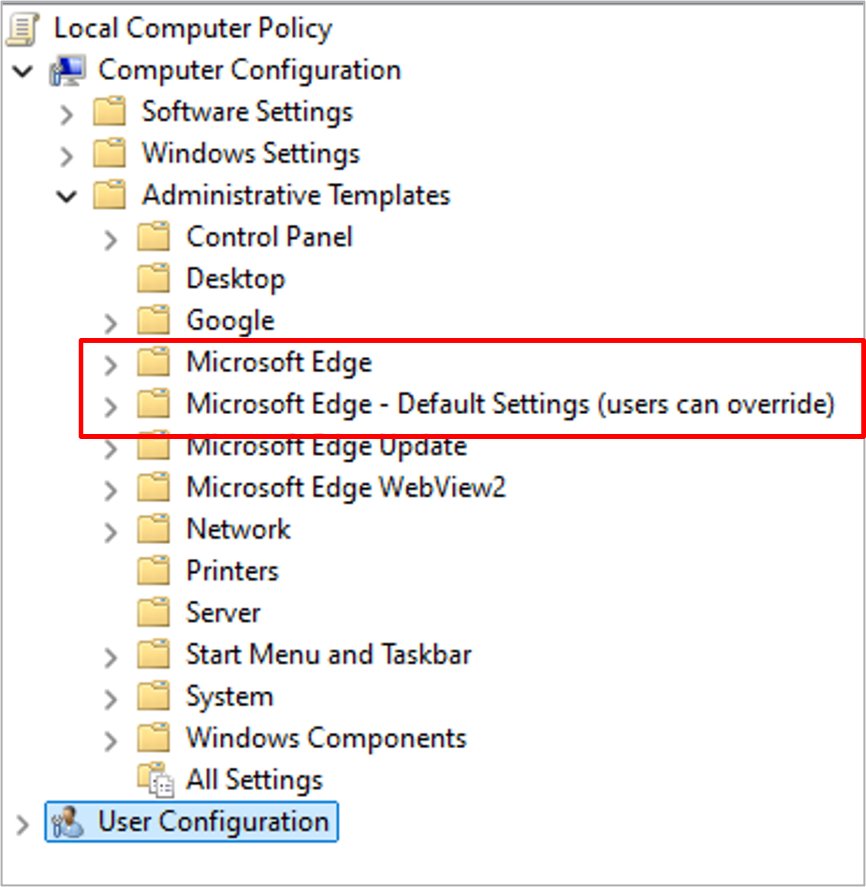
gpedit.mscand press Enter. - Go to Computer Configuration > Administrative Templates > Microsoft Edge and open the policy you want.
- Select Enabled, set any options, then select OK.
- Close and reopen Edge, then type
edge://policyin the address bar to confirm the policy is listed.
Group Policy, registry or Intune for Edge policies
| Your situation | Use this | Why |
|---|---|---|
| One computer, Pro or Enterprise edition | Local Group Policy Editor with msedge.admx | Applies only to that device and shows every Edge policy with its description |
| Many computers in an Active Directory domain | Group Policy Management Console and the Central Store | One GPO can target OUs, and WMI filters can narrow it to specific users or computers |
| Devices enrolled in Microsoft Intune | Intune configuration profiles | Microsoft documents Intune as a supported way to push Edge policy settings |
| Scripted or single-value change on a managed device | Registry under HKLM\SOFTWARE\Policies\Microsoft\Edge | Each policy page lists the exact value name and type |
| Microsoft 365 tenant that wants a simpler console | Microsoft Edge management service in the Microsoft 365 admin center | A dedicated Edge management tool that Microsoft is rolling out |
Introduction to policy settings on Windows
Group policy objects (GPO) configure both Edge browser settings and managed Edge updates on all versions of Windows.
Policies set through the registry are supported on devices joined to an Active Directory domain and on Windows 10 Pro or Enterprise devices enrolled in Intune.
| Item | What it is | What it controls |
|---|---|---|
| msedge.admx | Administrative template for the browser | Browser settings such as home page, pop-ups, cookies and downloads |
| msedgeupdate.admx | Administrative template for Microsoft Edge Update | Install, update, rollback and channel policies |
| Mandatory policy | Set under Microsoft Edge | Overrides user preferences and locks the setting |
| Recommended policy | Set under Microsoft Edge – Default Settings (users can override) | Provides a default the user can change |
| Central Store | PolicyDefinitions folder in SYSVOL on a domain controller | Shares ADMX files with every Group Policy editor in the domain |
| edge://policy | Internal Edge page | Lists every policy applied to the browser |
Most Edge policies are mandatory only, but a subset can also be recommended. If both versions of one policy are set, the mandatory setting wins.
A recommended policy only takes effect when the user has not already changed that setting. Since Edge 116, some policies do not apply to a profile signed in with a Microsoft account, and each policy page states whether it does.
1. Download and install the Microsoft Edge administrative template
For Active Directory, save the templates to a network location you can reach from a domain controller or a workstation with Remote Server Administration Tools (RSAT). For one PC, save them to that PC.
Once the files are in place, Edge policies appear in the Group Policy editor immediately.
Add the administrative template to Active Directory
Use this when policies will be managed for a whole domain.
- On a domain controller or RSAT workstation, open the PolicyDefinitions folder (the Central Store), for example
%systemroot%\sysvol\domain\policies\PolicyDefinitions. Create it first on older Windows Server versions if it is missing. - Open MicrosoftEdgePolicyTemplates and go to windows > admx.
- Copy
msedge.admxinto the PolicyDefinitions folder. - Open the language folder for your region, such as en-US, and copy
msedge.admlto the matching folder inside PolicyDefinitions, for examplePolicyDefinitions\EN-US. Create that folder if it does not exist. - Wait for the next domain replication interval if the domain has more than one domain controller.
- Open Group Policy Management Editor and expand Computer Configuration > Policies > Administrative Templates > Microsoft Edge to confirm the nodes appear.
Add the administrative template to an individual computer
Use this for a single PC managed with Local Group Policy Editor.
- On the target computer, open MicrosoftEdgePolicyTemplates and go to windows > admx.
- Copy
msedge.admxtoC:\Windows\PolicyDefinitions. - Open the language folder, such as en-US, and copy
msedge.admltoC:\Windows\PolicyDefinitions\en-US. - Press Windows key + R, enter
gpedit.msc, and check that Microsoft Edge appears under Administrative Templates.
Repeat the same copy for msedgeupdate.admx and its .adml file if you also want to manage how Edge updates.
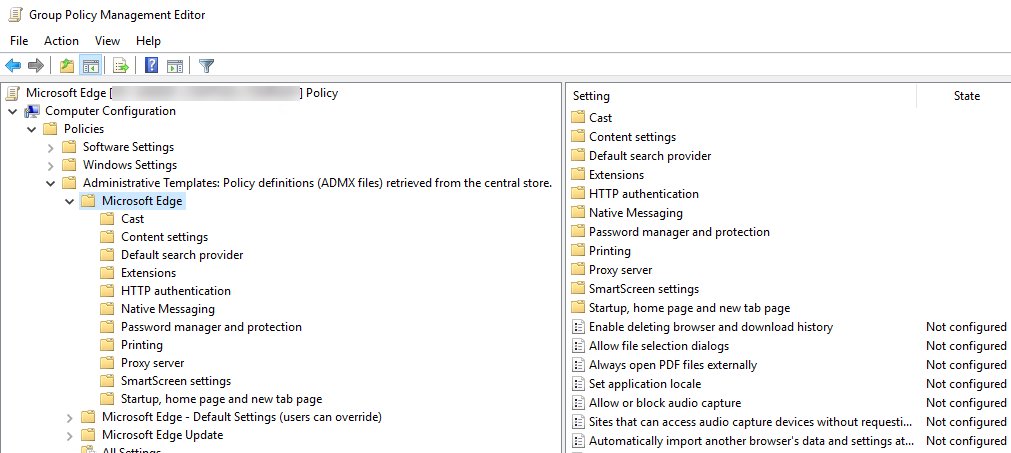
2. Set mandatory or recommended policies
Scope each policy to Computer Configuration or User Configuration by picking the matching node. The same steps work for a domain GPO and for Local Group Policy Editor.
- Open the Group Policy editor you use:
gpedit.mscfor one PC, or edit a GPO in Group Policy Management for a domain. - For a mandatory policy, go to Computer Configuration (or User Configuration) > Policies > Administrative Templates > Microsoft Edge. Local Group Policy Editor shows the same tree without the Policies level.
- For a recommended policy, go to Administrative Templates > Microsoft Edge – Default Settings (users can override) instead.
- Open the category you need, such as Content settings or Startup, home page and new tab page.
- Double-click the policy, select Enabled, and fill in the value, list or drop-down option.
- Select OK to save the policy.
A list policy, such as Allow pop-up windows on specific sites, takes one entry per line. Patterns like https://www.contoso.com and [*.]contoso.edu are both valid.
Common Microsoft Edge policy names and registry values
Every policy writes a value under HKLM\SOFTWARE\Policies\Microsoft\Edge. Recommended versions go under ...\Edge\Recommended, and list policies use a subkey with values named 1, 2, 3.
| Goal | Policy name | Group Policy location | Registry type and values |
|---|---|---|---|
| Allow or block pop-ups on all sites | DefaultPopupsSetting | Microsoft Edge > Content settings | REG_DWORD: 1 allow, 2 block |
| Allow pop-ups on listed sites only | PopupsAllowedForUrls | Microsoft Edge > Content settings | Subkey PopupsAllowedForUrls with REG_SZ values 1, 2, 3 |
| Block pop-ups on listed sites | PopupsBlockedForUrls | Microsoft Edge > Content settings | Subkey list of REG_SZ URL patterns |
| Block third-party cookies | BlockThirdPartyCookies | Microsoft Edge | REG_DWORD: 1 block, 0 allow |
| Restrict downloads | DownloadRestrictions | Microsoft Edge | REG_DWORD: 0 none, 1 dangerous, 2 potentially dangerous, 3 all, 4 malicious |
| Control media autoplay | AutoplayAllowed | Microsoft Edge | REG_DWORD: 1 allow, 0 limit (Edge 148 and later) |
| Block mixed content | DefaultInsecureContentSetting | Microsoft Edge > Content settings | REG_DWORD: 2 block, 3 allow user exceptions |
| Block site notifications (push messages) | DefaultNotificationsSetting | Microsoft Edge > Content settings | REG_DWORD: 1 allow, 2 block, 3 ask |
| Hide local IP address from WebRTC | WebRtcLocalhostIpHandling | Microsoft Edge > WebRtc settings | REG_SZ: default_public_interface_only or disable_non_proxied_udp |
| Set the home page | HomepageLocation | Microsoft Edge > Startup, home page and new tab page | REG_SZ: the URL |
Before you begin editing these values by hand, back up the Edge key and check the policy's reference page for its exact name and type. Registry-only policies apply on domain-joined PCs and on Windows Pro or Enterprise devices enrolled in Intune.
Applying policies this way needs no template: create the value, restart Edge, then confirm it on edge://policy.
Users can hide the password reveal button themselves, and the PasswordRevealEnabled policy enforces that choice for everyone.
Edge also has a DnsOverHttpsMode policy, so the DNS over HTTPS setting in Edge can be locked the same way.
Available, new, deprecated and obsolete Microsoft Edge policies
Microsoft's Edge browser policy reference splits the policy list four ways. Check the new, deprecated and obsolete lists after each Edge release before you change a GPO.
| List | What it contains | Example | What to do |
|---|---|---|---|
| Available policies | Every browser policy in the current release, grouped by category such as Content settings, Downloads, Extensions and Startup, home page and new tab page | DefaultPopupsSetting under Content settings | Open a policy's page for its Group Policy path, registry value and supported versions |
| New policies | Policies added in the latest release | Edge 156 added RemixAvailability (Control Remix availability); Edge 157 added none | Update msedge.admx and msedge.adml so the new policy appears in the editor |
| Deprecated policies | Policies that still work but will become obsolete in a future release; the name ends in (deprecated) | AllowGamesMenu, which HubsSidebarEnabled now covers | Move to the replacement policy the policy page names |
| Obsolete policies | Policies that no longer work after a stated Edge version; the name ends in (obsolete) | GamerModeEnabled, which stopped working after Edge 140 when Gamer Mode was removed | Set it to Not Configured so the GPO stops carrying a dead setting |
Update policies such as rollback and target channel come from msedgeupdate.admx and have their own reference, separate from the browser policy list.
3. Test your policies
- On the target device, open Microsoft Edge and type
edge://policyin the address bar. - Find the policy name in the list and check that its value matches what you set.
- Close and reopen Edge if it was open while you changed the policy.
- On a domain computer, run
gpupdate /forcefrom Command Prompt or PowerShell to pull new Group Policy settings without waiting, then reopen Edge. - Open Registry Editor and browse to
HKLM\SOFTWARE\Policies\Microsoft\Edgeto see the stored values directly.
Local policies appear straight away. Domain policies arrive at the refresh interval your domain administrator sets, so a target PC may not show them immediately.
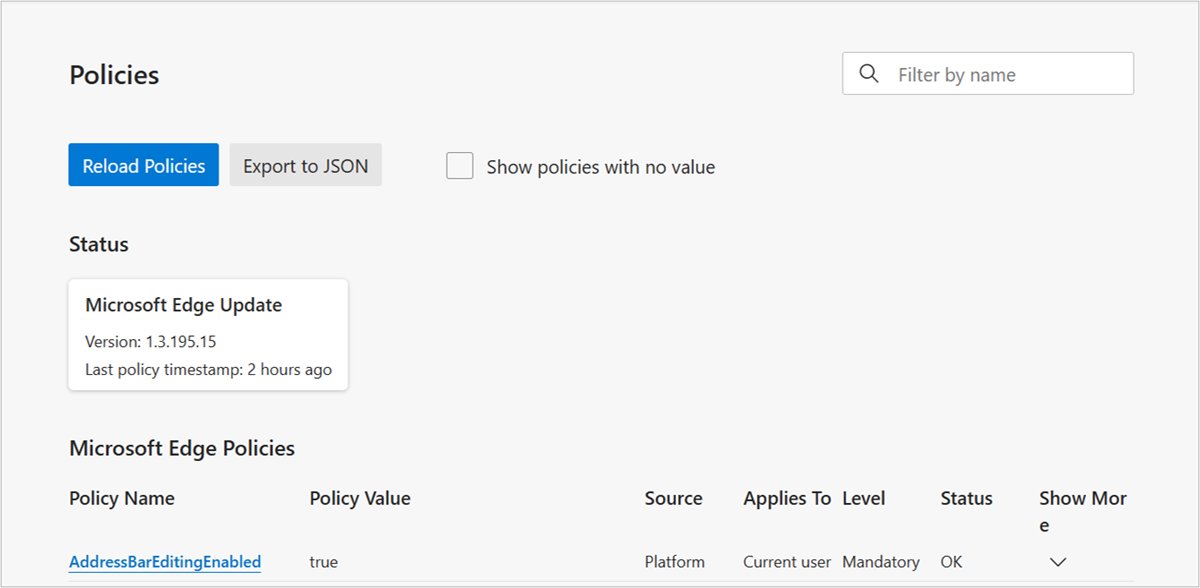
Refresh Edge group policy with gpupdate /force
gpupdate /forceReapplies all Group Policy settings on the computer immediately instead of waiting for the next background refresh.
You should see: The command reports that Computer and User Policy updates completed. Reopen Edge and the new values appear on edge://policy.
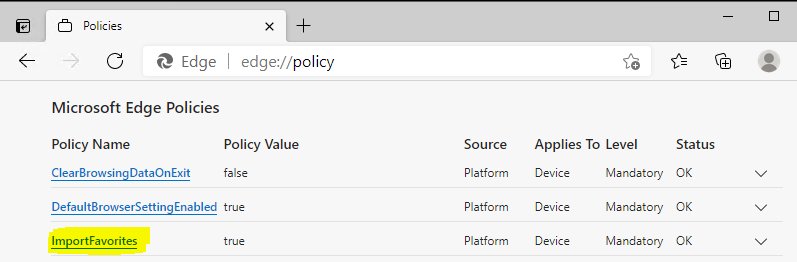
Remove a Microsoft Edge policy setting
- Open the same Group Policy editor and GPO you used to set the policy.
- Go back to the policy under Administrative Templates > Microsoft Edge.
- Double-click it, select Not Configured, then select OK.
- Run
gpupdate /forceon the target computer. - Restart Edge and check that the policy is gone from
edge://policy.
If a value was written straight to the registry rather than through Group Policy, delete that value under HKLM\SOFTWARE\Policies\Microsoft\Edge instead. Back up the key first.
Remove the “browser is managed by your organization” message in Microsoft Edge
Edge policies are settings written to the computer that set up or restrict browser features, and the browser counts as managed whenever at least one is present. An employer or school usually sets them, but unexpected policies can also turn up on a personal device, and edge://policy lists every one.
- On a work or school PC, leave the policies in place and ask your administrator; removing them can break settings the organization requires.
- On a personal PC, open Edge and type
edge://policyin the address bar to list every policy applied to the browser. - Note each policy name you did not set yourself.
- Set each one to Not Configured in the Group Policy editor, or delete its value under
HKLM\SOFTWARE\Policies\Microsoft\Edgeafter you back up the key. - Uninstall programs you do not recognize from Settings > Apps > Installed apps.
- Open Settings > Accounts > Access work or school. If a work or school account you no longer need is listed, select it, select Disconnect and confirm.
- Restart the PC, open
edge://policyagain and confirm the list is empty.
When policies come from your organization, disconnecting the account is not a shortcut: the device loses access to work apps, data, internal file shares and other school or work resources. Ask the IT team that manages it instead.
To prevent policies from coming back on a personal PC, remove the program or account that wrote them, not just the registry values. If the same entries reappear after a restart, contact the support team for the software or organization behind them before you try a reset.
Microsoft Edge policy not applying: fixes
Microsoft Edge does not appear under Administrative Templates
The ADMX or ADML file is in the wrong folder, which is the usual reason for a template load error.
- Check that
msedge.admxsits directly in PolicyDefinitions, not inside a subfolder. - Check that
msedge.admlsits in the language subfolder that matches your editor, such asen-US. - Close and reopen the Group Policy editor.
The policy is set but edge://policy does not show it
Edge was open during the change, or a domain computer has not refreshed policy yet.
- Close every Edge window and reopen the browser.
- Run
gpupdate /forceon the target computer. - Reopen
edge://policyand look for the policy name again.
A policy works on some devices but not on a home PC
Some policies, such as HomepageLocation, are available only on devices joined to Active Directory or Microsoft Entra ID, or enrolled in device management.
- Open the policy's page in the Microsoft Edge browser policy reference.
- Read the description for a line about domain-joined or enrolled devices.
- Apply that policy through a domain GPO or Intune on a managed device instead.
The policy is ignored for one user profile
Since Edge 116, some policies do not apply to a profile signed in with a Microsoft account.
- Check Applies to a profile that is signed in with a Microsoft account on the policy's reference page.
- If it says No, use a work or school profile, or accept that personal profiles are excluded.
The setting changes back after the user edits it
The policy was set as recommended, which only supplies a default.
- Remove it from Microsoft Edge – Default Settings (users can override).
- Set the same policy under Microsoft Edge to make it mandatory.
- Refresh policy and reopen Edge.
Edge still shows it is managed after clearing policies
A policy remains in another place, a program wrote it again, or a work or school account still manages the device.
- Open
edge://policyand note which policy names are still listed. - Check both Computer Configuration and User Configuration in the Group Policy editor, and set those policies to Not Configured.
- Uninstall any program that reinstalled the entries.
- Check Settings > Accounts > Access work or school for a connected account.
- Run
gpupdate /force, restart the PC and reopenedge://policy.
A WebRTC or autoplay policy has no effect yet
WebRtcLocalhostIpHandling needs a browser restart, and AutoplayAllowed needs tabs closed and reopened.
- Close all Edge windows, including background instances.
- Reopen Edge and load the site again.
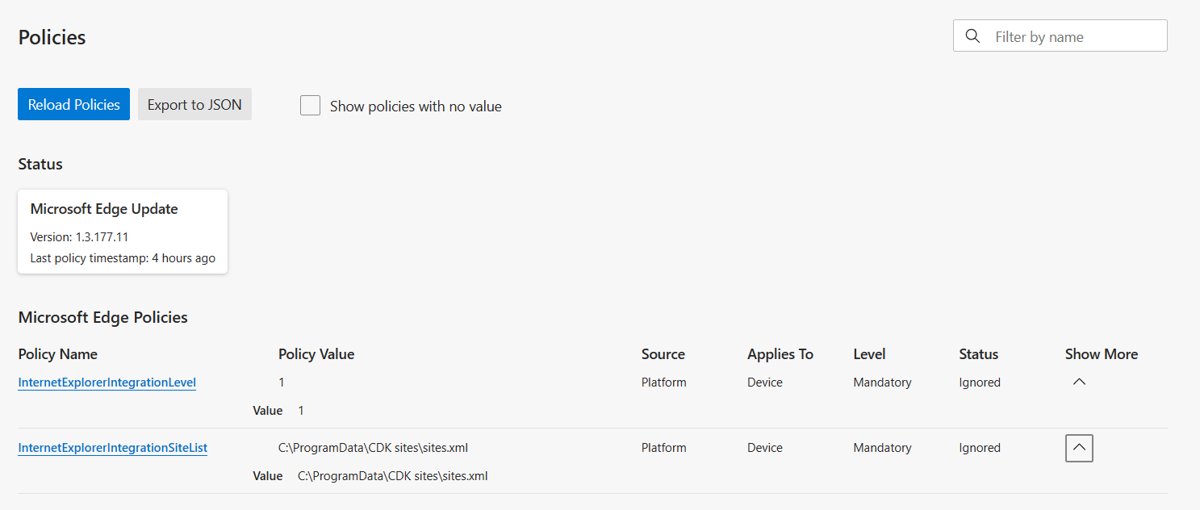
Microsoft Edge policy settings FAQ
What is the edge://policy page?
edge://policy is a built-in Microsoft Edge page that lists every policy currently applied to the browser and its value. Type it in the address bar on the target device to test whether Group Policy, Intune or registry settings have reached Edge.
How do I reload Edge policies after a change?
Run gpupdate /force on the computer to pull new Group Policy settings, then close and reopen Edge. Policies marked Dynamic Policy Refresh: Yes in the reference can apply without a restart, while others, such as WebRtcLocalhostIpHandling, need the browser restarted.
Where do I download the Microsoft Edge policy templates?
The policy templates are on the Microsoft Edge for Business download page, next to each Windows installer as Download Windows 64-bit Policy, 32-bit Policy or ARM64 Policy. Extract the file, then copy msedge.admx and msedge.adml into PolicyDefinitions.
Where are Microsoft Edge policy settings stored?
Edge policy values are stored in the registry under HKLM\SOFTWARE\Policies\Microsoft\Edge, with recommended policies under the Recommended subkey. The template files themselves live in C:\Windows\PolicyDefinitions on one PC or in the SYSVOL Central Store for a domain.
Where is the full list of Microsoft Edge policies?
Microsoft publishes the full list in the Microsoft Edge browser policy reference on Microsoft Learn, grouped by category. A separate Microsoft Edge update policy reference covers the msedgeupdate.admx policies for installs, updates and channels.
How do I block pop-ups in Edge with a policy?
Set DefaultPopupsSetting to Do not allow any site to show popups (value 2) under Microsoft Edge > Content settings. Add sites that still need pop-ups to PopupsAllowedForUrls, one URL pattern per line.
How do I block third-party cookies in Edge with a policy?
Enable the Block third party cookies policy under Administrative Templates > Microsoft Edge, which writes BlockThirdPartyCookies as 1. It does not affect InPrivate windows, where third-party cookies are already blocked by default.
What is the difference between mandatory and recommended Edge policies?
A mandatory policy overrides user preferences and stops users changing the setting. A recommended policy only sets a default that users can override, and it applies only if the user has not already changed that setting.
How do I remove an Edge policy?
Set the policy to Not Configured in the same Group Policy editor, run gpupdate /force and restart Edge. If the value was added directly to the registry, delete it under HKLM\SOFTWARE\Policies\Microsoft\Edge after backing up the key.

![6 best free virtual webcam software for Windows [2026 update]](https://techdows.com/wp-content/uploads/2026/10/6-best-free-virtual-webcam-software-for-Windows-2026-update-600x338.jpg)