To set up Microsoft Family Safety, sign in at account.microsoft.com/family, add your family members, connect their Windows, Xbox or Android devices, and then set screen time limits and content filters.
A Microsoft family account is a family group: a set of Microsoft accounts linked through Family Safety, where organizers manage limits, filters, spending and activity reports for members.
This guide covers creating the group, adding children, connecting devices, every main control, removing people or deleting the group, and fixes when limits do not apply.
Getting started with Microsoft Family Safety
You can set up a family group from any browser, and the Family Safety app for Android and iPhone manages the same settings afterwards.
- Go to account.microsoft.com/family and sign in with your own Microsoft account. The account that creates the group becomes a family organizer.
- Select Add a family member, choose Member for a child or Organizer for another adult, and select Next.
- Enter the person's email address or phone number and select Next. They get an email link to accept the invite.
- Have the child sign in to a Windows PC, Xbox console or Android phone with their own Microsoft account so the device connects to the group.
- Select the child's tile and turn on Activity reporting, screen time limits and Filter inappropriate websites and searches.
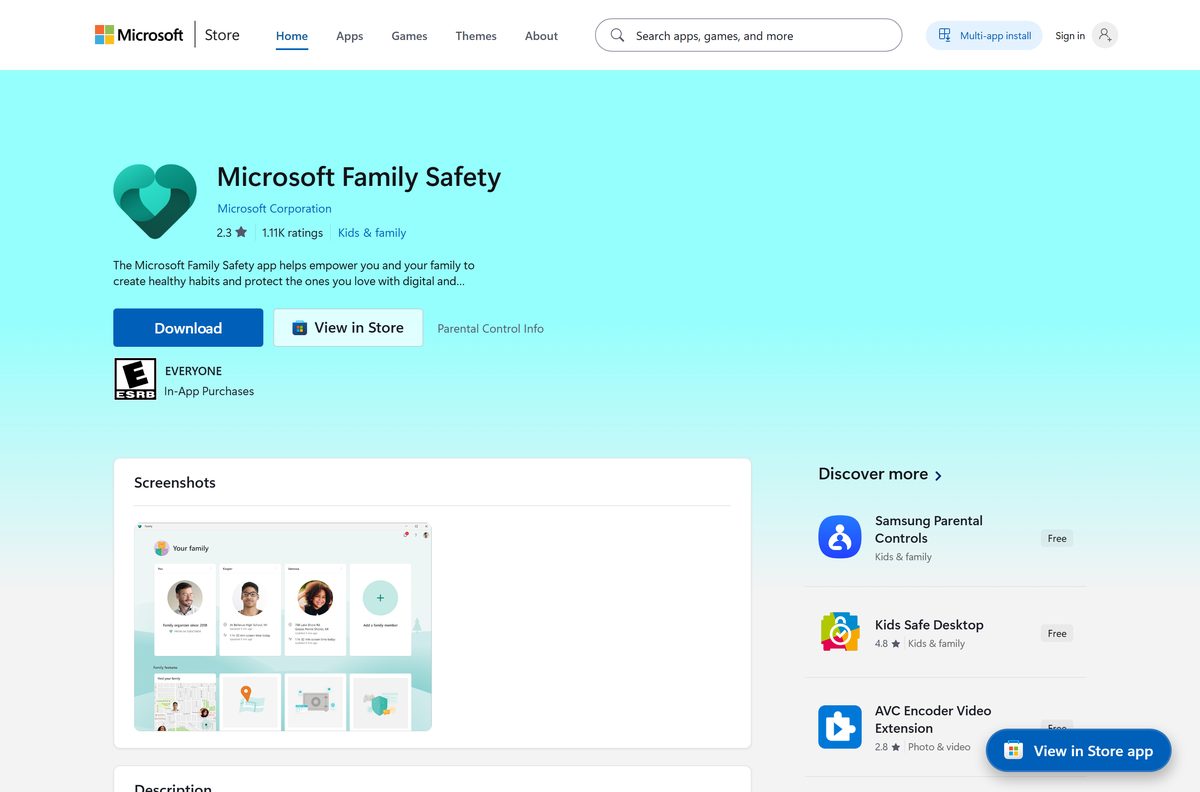
- Install the Microsoft Family Safety app from Google Play or the Apple App Store on your own phone to approve requests on the go.
On a PC, the Family Safety app for Windows 11 and 10 gives you the same dashboard outside the browser.
How do Microsoft family accounts work?
A Microsoft family group has two roles. Organizers are the administrators, and members are the people they manage, of any age.
Each person keeps a separate Microsoft account. The family group links those accounts, and a person can belong to only one family group at a time.
| Role | Best for | What they can do |
|---|---|---|
| Organizer | Parents and other adults | Add and remove members, set screen time, website and app filters, add money and spending rules, give or remove consent, and view activity reports |
| Member | Children (people of any age can be members) | Add a device so limits apply, ask for more screen time, and request purchase or content approvals from the Family Safety app |
| Shared-subscription member | Adults who share Microsoft 365 Family | Use the shared subscription only; they appear in the list but have no Family Safety controls, so organizers cannot see their screen time |
Activity reporting only exists for a member who has connected a device. Without a connected device, the organizer sees the account but no usage data.
What a Microsoft family account needs before setup
| Requirement | Why it matters |
|---|---|
| A Microsoft account for every person | Invites, limits and reports are tied to each person's own Microsoft account |
| Not already in another family group | A person must leave or be removed from their current group before joining yours |
| Adult consent for children under the statutory age | A child under the age limit is asked to request consent from an adult when they accept the invite (age 13 in the United States) |
| A standard user account on the child's Windows PC | Family features may not work properly if the child's account is an administrator |
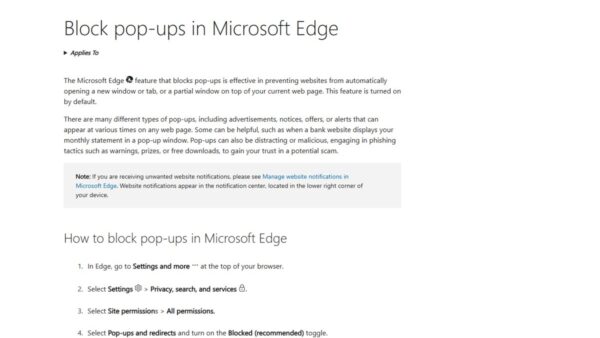
| Microsoft Edge on the child's devices | Web and search filters and web activity reports only work in a supported browser, currently Edge, so make Edge the default browser there |
Add a family member to your Microsoft family account
Only an organizer can add people. The web route below works in any browser on a PC, Mac or phone.
- Sign in at account.microsoft.com/family with an organizer account.
- Select Add a family member.
- Choose Member for a child or Organizer for an adult, then select Next.
- Enter the family member's email address or phone number and select Next.
- Ask the person to open the email invite, sign in to their Microsoft account and accept it.
- If the child is under the statutory age, approve the consent request that arrives from their invite.
In the Family Safety mobile app, scroll down and tap Add a family member, enter the email or phone number, tap Next, pick the role and tap Invite to family group.
If the person is already in another family group, they must leave it first, or create a new Microsoft account for your group.
Add a child to a Microsoft family group on Xbox
Xbox has its own add-to-family flow, which also lets a child create a new Microsoft account at the console.
- Press the Xbox button to open the guide, select Sign in and sign in to your own account.
- Press the Xbox button again and select Profile & system > Settings > Account > Family settings > Manage family members > Add to family.
- If the child already has a profile on the console, select it and press A.
- If the child's account is not on the console, select Add new and let them sign in to their Microsoft account.
- If the child has no account, select Add new, press B at the sign-in prompt and select Get a new account.
- When prompted, select Add to family.
Connect a child's Windows, Xbox or Android device to Family Safety
Screen time limits and activity reports only apply to devices connected to the family group, so this step makes the controls work.
- On a Windows PC, open Settings > Accounts > Family & other people.
- Under Your family, select the child and select Allow. The device appears in their connected devices once they sign in.
- Make sure the child's Windows account is a Standard user, not an administrator.
- On an Xbox console, press the Xbox button, sign in, select Add new and sign in with the child's Microsoft account.
- On an Android phone, install the Microsoft Family Safety app, sign in with the child's Microsoft account and turn on every app permission it asks for.
Set screen time limits in Microsoft Family Safety
Device screen time limits cover Windows and Xbox, and the Mobile tab applies to Android. You can use one schedule all week or a different one each day.
- Sign in at account.microsoft.com/family as an organizer.
- Select the family member's tile.
- Select the Windows, Xbox or Mobile tab.
- If no limits show, select Turn limits on.
- Select a day, add a schedule or change the time limit, and select Finished.
- Use the check boxes to copy the change to other days or Every day.
Xbox screen time counts for as long as the child stays signed in, so remind them to sign out when they leave the console. To remove limits, open the same tab and select Turn limits off.
Set app and game limits for a family member
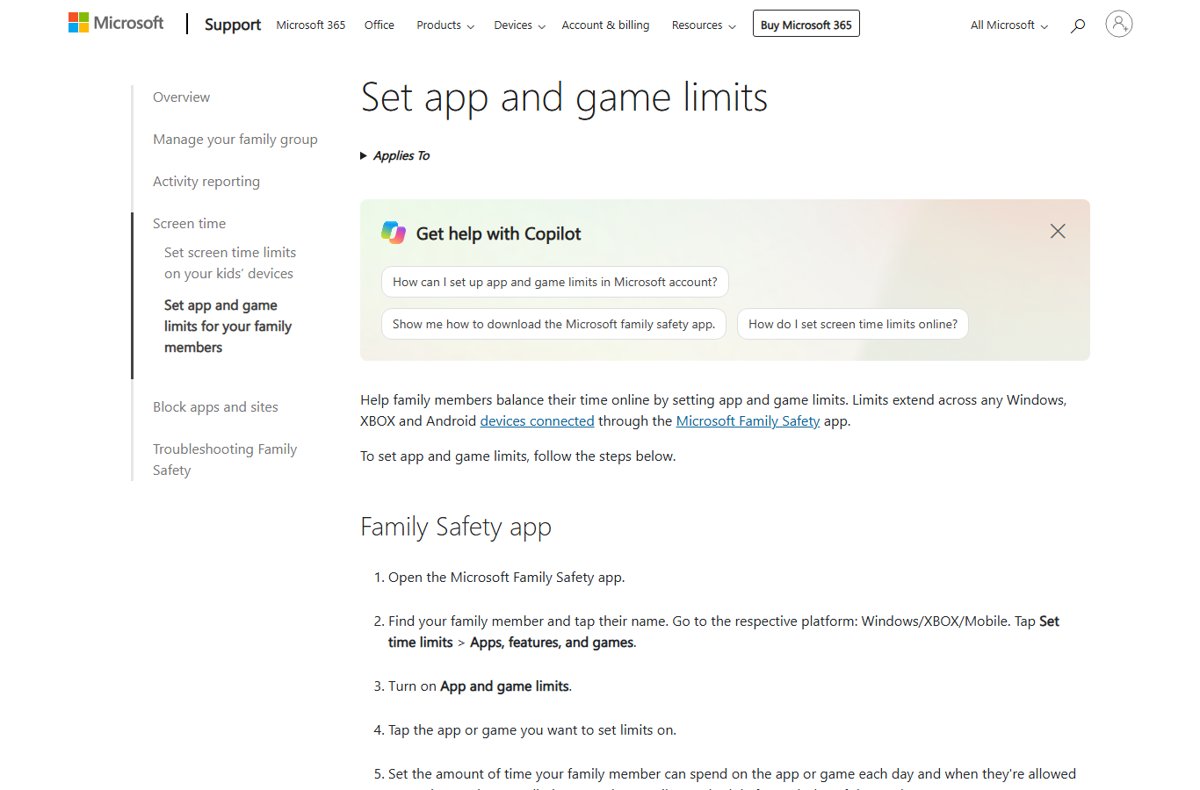
App and game limits cap time in one app or game across connected Windows, Xbox and Android devices, instead of the whole device.
- Sign in at account.microsoft.com/family.
- Select the family member and the Windows, Xbox or Mobile platform.
- Select the Apps, features, and games tab and turn on App and game limits.
- Select the app or game you want to limit.
- Set the daily time allowed and the hours it can be used, for every day or day by day.
- To stop the browser version of the same game, scroll to Block related websites and tick the matching site.
Time limits do not apply to websites themselves, which is why the related-website block exists.
Turn on Microsoft Family Safety content filters for websites and searches
Web and search filters block mature sites and filter Bing results in Microsoft Edge on Windows, Xbox and mobile devices. Mature sites are blocked by default once filtering is on.
- Sign in to your Microsoft account and select Family Safety from the menu on the left.
- Find the family member, select the More options menu next to their name and select Go to overview.
- Select Edge as the platform.
- Turn on Filter inappropriate websites and searches.
- Add sites to Blocked sites or Allowed sites as needed.
- For young children, turn on Only use allowed websites or Always allow educational websites.
With filtering on, unsupported browsers are blocked so the child cannot bypass Edge. You can unblock a browser in App and game filters. In the mobile app, the same settings sit under Content filters.
Family Safety also works inside Microsoft Edge settings, where a signed-in child profile picks up these filters.
Block apps, games and Copilot on a child account
App and game filters work on Windows and Xbox. Blocking an app is per app, per platform and per member.
- Sign in at account.microsoft.com and open the family member's tile.
- Select the Windows, Xbox, Web safety or Mobile tab under the child's name.
- Select the Apps, features, and games tab to list installed apps.
- Select the More options menu next to an app and select Block app.
- To block Copilot, block Copilot on the Windows tab, then add copilot.microsoft.com under Blocked sites on the Web safety tab.
- To lift a block, open the same menu and select Unblock app.
Set spending limits and purchase approval in Family Safety
A child's Microsoft account balance acts as the spending limit, because it cannot be overdrawn. Purchases above the child's age limit always need approval.
- Open the Family Safety app or sign in at account.microsoft.com/family.
- Select the child. In the mobile app, tap their name and scroll to the bottom of their details.
- If the child has no funds, select Add Money and choose an amount.
- Select Manage spending.
- Turn on Get notified about every purchase and Activity reporting.
- If the child's account has a credit card, turn on Require approval for every purchase.
Turn on and view Microsoft Family Safety activity reports
Activity reports show the apps and games a child used, websites visited and Bing searches in Edge, and daily and weekly screen time. Only organizers can turn them on or view them.
- Sign in at account.microsoft.com/family and select the family member's card.
- Open each platform tab in turn: Windows, Xbox, Web safety and Mobile.
- Turn on the Activity reporting toggle on each tab.
- Return later and select a platform to review its report.
- Select Apps, features and games for per-app usage, including blocked apps the child tried to open.
In the mobile app, tap the member, tap the settings icon in the top right corner and turn Activity reporting on per platform. Screen time is under Today > Screen time > Devices.
Check that Microsoft Family Safety is working
- Sign in at account.microsoft.com/family. A person who has not yet accepted shows as Pending member at the bottom of the page.
- Select the child's tile and confirm their PC, console or phone appears under connected devices.
- On the child's Windows PC, open Edge while signed in as the child and visit a site you added to Blocked sites. Edge should refuse it.
- After a day of use, open the child's Windows tab and confirm screen time and app activity appear.
How to delete a Microsoft family account group or remove a member
Only organizers can remove people. Anyone who leaves or is removed also loses shared products such as a Microsoft 365 Family subscription.
- Sign in at account.microsoft.com/family with an organizer account.
- Select the More options menu next to a person's name and select Remove from family group.
- If Remove from family group is missing, select Remove consent for that child's account first.
- Select Remove to confirm.
- Repeat for every other organizer and member.
- To delete the group, open the menu next to your own name, select Leave family group and select Remove.
A family group without an organizer and at least one other member is deleted automatically. Deleting the group does not close the Microsoft accounts themselves.
Microsoft family account troubleshooting
Screen time limits or blocks are not working
The child is an administrator on the PC, the device is not connected, or a limit setting is stuck.
- On the child's PC, open the other accounts list in Settings > Accounts, select the child's account, select Change account type, choose Standard user and select OK.
- Confirm the device appears in the child's connected devices at account.microsoft.com/family.
- Turn the screen time limits off, then turn them back on.
- Change your own passwords so the child cannot sign in as you and change the settings.
Cannot remove a family member even though you are the organizer
Consent is still active on the child account.
- Sign in at account.microsoft.com/family and select the member.
- Select Remove consent next to the child's name.
- Go back to the family group and select Remove from family group.
Activity reporting is off or missing
Children aged 13 or older (in the United States) can opt out of sharing usage data, or the child's Microsoft account needs verifying.
- Check the Activity reporting toggles on each platform tab.
- If the child opted out, ask for their consent before you turn reporting back on.
- On the child's PC, select Start > Settings > Accounts and select Verify if it appears.
Activity report does not match the time the child spent
Limits count signed-in idle time, but usage reports do not, and a wrong time zone shifts usage to another day.
- Remind the child to sign out of devices they are not using.
- Check the time zone on your Microsoft account and correct it.
"Screen time information is not shared with you"
You are not an organizer, or the person is only in your list because you share Microsoft 365 with them.
- Check your role: only organizers can view another member's screen time, so ask an organizer to check the report.
- If the person only shares your Microsoft 365 subscription, their screen time is not available to anyone in the group.
An adult is treated as a child in the family group
The birth date on the Microsoft account says the person is under age.
- Sign in to the adult's Microsoft account and correct the birth date in the profile.
- Follow the consent steps Microsoft shows for an adult account flagged as a child.
Microsoft family account FAQ
What is a Microsoft family account?
A Microsoft family account is a family group that links several Microsoft accounts through Microsoft Family Safety. Organizers in the group set screen time limits, content filters and spending rules, and view activity reports for members on Windows, Xbox and Android.
How do Microsoft family accounts work?
Each person keeps their own Microsoft account, and the family group links them. Organizers manage limits, filters, purchases and consent, while members connect their devices so those rules apply. Members can ask for more time or approve purchases through the Family Safety app.
How do I log into my Microsoft family account?
Go to account.microsoft.com/family and sign in with your own Microsoft account email and password. The family page lists every member as a tile. You can also sign in to the Microsoft Family Safety app on Android or iPhone with the same account.
How do I access my Microsoft family account settings?
Sign in at account.microsoft.com/family and select a family member's tile. Their page has tabs for Windows, Xbox, Web safety and Mobile, where you change screen time, app limits, content filters and activity reporting. Only organizers see these settings.
How do I manage a Microsoft family account?
Manage it from account.microsoft.com/family or the Family Safety app as an organizer. Select a member to set screen time, app and game limits, website filters, and spending, and use the menu next to each name to remove someone or cancel a pending invite.
How do I connect a device to a Microsoft family account?
On Windows, open Settings > Accounts > Family & other people, select the child under Your family and select Allow. On Xbox, sign in and add the child's account. On Android, install the Family Safety app and sign in with the child's account.
How do I delete a Microsoft family account?
Sign in at account.microsoft.com/family as an organizer and remove every other member with Remove from family group. Then select Leave family group next to your own name. Once everyone else is gone, the group is deleted.
Can a child be in two Microsoft family groups?
No. A person can belong to only one family group. They must leave or be removed from their current group before joining another, or use a different Microsoft account for the new group.
Does Microsoft Family Safety work in Chrome?
Web and search filters and web activity reports only work in Microsoft Edge. When Filter inappropriate websites and searches is on, other browsers are blocked on the child's device so the filter cannot be bypassed, unless you unblock a browser manually.
Who can see a child's activity in Family Safety?
Only family organizers can turn on and view activity reports. Reports cover apps and games used, websites visited and Bing searches in Edge, and screen time, and only for devices the child has connected to the family group.