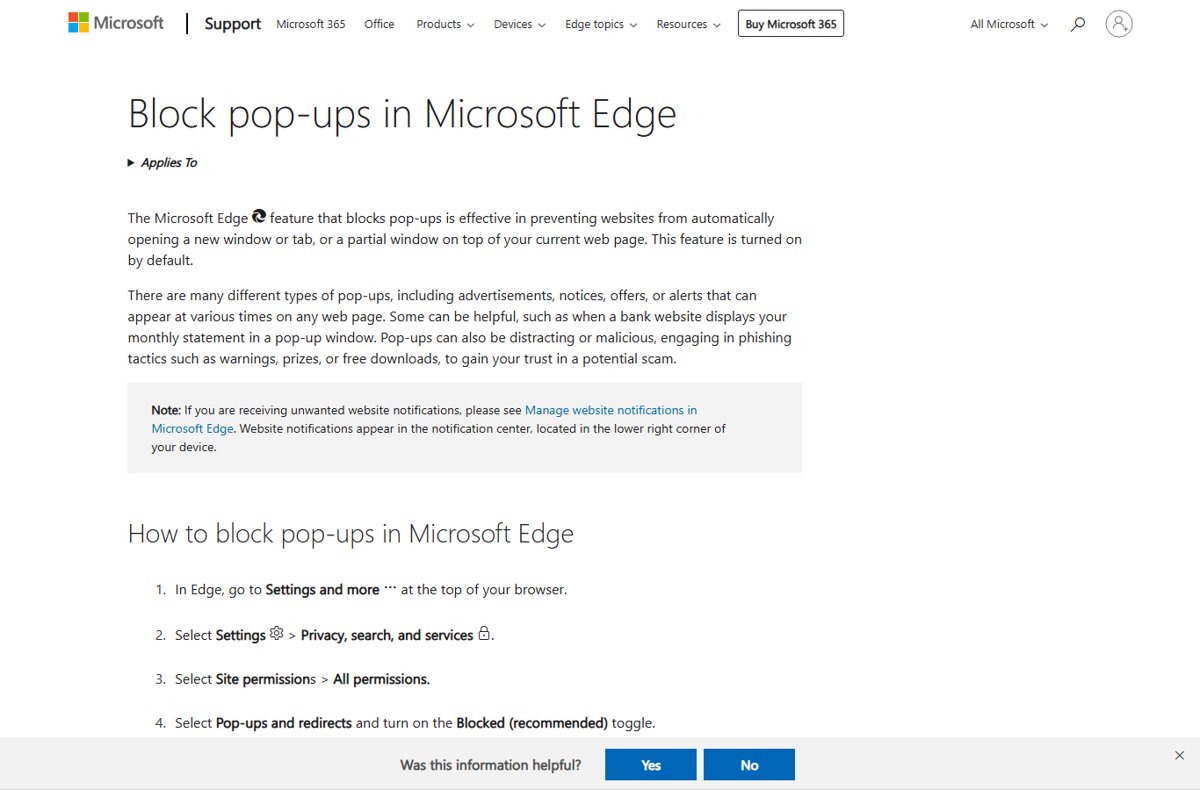
To disable pop-ups in Microsoft Edge, open Settings > Privacy, search, and services > Site permissions > All permissions > Pop-ups and redirects and turn on Blocked (recommended).
This guide also covers intrusive ad blocking, tracking prevention, notification spam, autoplay, the new tab page, Edge on Android and iPhone, and what to do when pop-ups keep coming back.
Block pop-ups and redirects in Microsoft Edge
The pop-up blocker stops sites from opening a new window, a new tab or a partial window over the page you are reading. It is on by default, so these steps confirm it or switch it back on.
- Select Settings and more (the three dots) at the top right of Edge.
- Select Settings > Privacy, search, and services.
- Select Site permissions > All permissions.
- Select Pop-ups and redirects.
- Turn on the Blocked (recommended) toggle.
When Edge stops a pop-up, a blocked-pop-up icon appears in the address bar. To let one trusted site open pop-ups, use Add site under Allowed to send pop-ups and use redirects and type the full address starting with https://, or switch the Edge pop-up blocker on or off for every site at once.
Quick recommended Edge setup for most people
Match what you are seeing to a row and apply that setting first. Most readers need only the first three rows.
| What annoys you | Setting to change | Recommended value |
|---|---|---|
| New windows or tabs open by themselves | Site permissions > Pop-ups and redirects | Blocked (recommended) |
| Flashing, full-page or misleading ads inside sites | Site permissions > Ads | Block on sites with intrusive ads (default) |
| Ads that follow you from site to site | Tracking prevention | Balanced, or Strict if sites still work |
| Alerts in the lower-right corner of the screen | Site permissions > Notifications, or per-site Block | Block for each unwanted site |
| Videos that start playing with sound | Site permissions > Media autoplay | Limit or Block |
| Fake virus warnings that take over the screen | Security > Scareware blocker | On |
| Every ad on every site | An ad-blocking extension from Edge Add-ons | Installed and enabled |
| News and promoted tiles on the new tab page | New tab page settings > Content | Content off |
What Edge can block by default
Edge ships with several blockers already switched on. It does not block ordinary website ads, so an ad drawn inside the page can still look like a pop-up.
| Protection | What it stops | On by default? |
|---|---|---|
| Pop-ups and redirects | Sites opening new windows, tabs or overlays on their own | Yes |
| Intrusive ads | Ads on sites flagged for intrusive or misleading ads | Yes (Windows and macOS) |
| Tracking prevention | Harmful trackers, plus trackers from sites you have not visited at Balanced | Yes, set to Balanced |
| Scareware blocker | Full-screen scam pages with fake virus alerts | Yes on PCs with more than 2 GB of RAM and at least 5 cores |
| Microsoft Defender SmartScreen | Known malicious sites and downloads | Yes |
| Normal website ads | Nothing; these need an extension | Not blocked |
| Pop-ups you open by clicking a link or button | Nothing; Edge treats them as requested | Not blocked |
Turn on Edge’s built-in intrusive ad blocking
Edge can remove ads on sites known for intrusive or misleading ad formats, while leaving ads on other sites alone. Microsoft sets this to block by default on Windows and macOS.
- Select Settings and more > Settings.
- Select Privacy, search, and services > Site permissions > All permissions.
- Select Ads.
- Turn on the toggle that blocks ads on sites showing intrusive or misleading ads.
- Reload any open tab so the setting applies.
On a work PC the toggle can be greyed out. An administrator controls it through the Ads setting for sites with intrusive ads policy, and its default value is to block.
Use tracking prevention to reduce targeted ads in Edge
Tracking prevention does not remove ads, but it cuts the cross-site trackers that make one ad follow you around the web.
- Select Settings and more > Settings > Privacy, search, and services.
- Select Tracking prevention and make sure it is turned On.
- Choose Balanced (Recommended) to block harmful trackers and trackers from sites you have not visited.
- Choose Strict instead to block most trackers across sites, accepting that some videos or sign-ins may break.
- To exempt a trusted site, select Exceptions > Add a site, type the full URL and select Add.
Basic blocks only harmful trackers such as cryptominers and fingerprinters and allows ad personalization. To stop Microsoft itself from using your browsing for ads, go to Privacy, search, and services > Privacy and turn off the setting that lets Microsoft save your browsing activity to personalize ads, search, shopping and news.
Stop website notification pop-ups in Edge
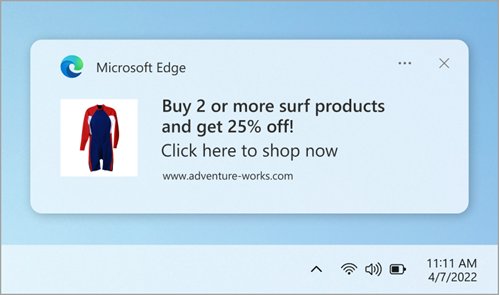
Website notifications are not pop-ups. They appear in the lower-right corner of the screen and the Windows notification center, even when Edge is closed. The pop-up blocker does not touch them.
- Select Settings and more > Settings > Privacy, search, and services.
- Select Site permissions > All sites.
- Select the website that sends the alerts.
- Find the Notifications setting and choose Block from the drop-down menu.
- Repeat for every site you do not recognise.
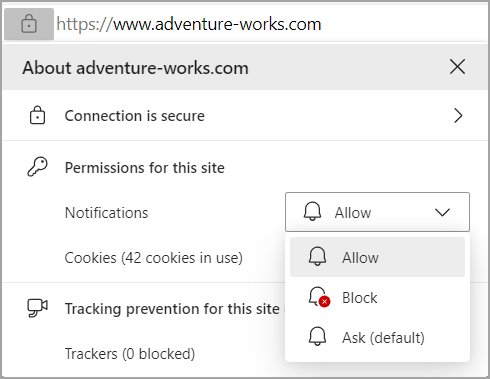
While you are on the site, a faster route works too: select View site information to the left of the address bar, then under Permissions for this site > Notifications choose Block. You can switch it back to Allow later from the same menu.
Block autoplaying video and audio in Edge
Autoplaying video ads are the loudest kind of intrusive ad. Edge offers three levels: Allow, Limit and Block.
- Select Settings and more > Settings > Privacy, search, and services.
- Select Site permissions > All permissions.
- Select Media autoplay.
- Choose Limit to stop autoplay on most sites, or Block to stop it everywhere.
- Reload the page that was playing to confirm it now waits for you.
Limit still allows autoplay on pages you engage with heavily, such as a video site you use daily. If the option is locked, the Allow media autoplay for websites policy is set by your organisation.
Use an ad-blocking extension in Edge for stronger protection
Edge's own tools skip normal website ads. An ad-blocking extension from the Microsoft Edge Add-ons store removes most of them. Install one blocker only, since two can conflict and break pages.
- Select Extensions to the right of the address bar, or Settings and more > Extensions.
- Select Get Extensions for Microsoft Edge.
- Search the store for an ad blocker and open its page.
- Select Get.
- Review the permissions it asks for, then select Add extension.
- Wait for the confirmation that the extension was added.
Chrome Web Store extensions also run in Edge after you select Allow extensions from other stores. To pause a blocker later, turn the Edge extension off instead of removing it.
Disable annoying ads and content on the Edge new tab page
The Edge new tab page shows Microsoft news and promoted content by default. Switching the content off leaves a clean search box and your quick links.
- Press Ctrl + T to open a new tab.
- Select the page settings icon on the new tab page.
- Under Content, choose Content off.
- Choose Headings only or Content visible on scroll instead if you want some news without the full feed.
- Close the flyout; the change applies to every new tab.
Coupon and price-comparison banners on shopping sites come from Shopping in Microsoft Edge, a separate feature that shows under the address bar. On a managed PC, the Allow Microsoft content on the new tab page policy can lock the content to off.
Check for malware, adware, or suspicious extensions
Pop-ups that appear on every site, or in other browsers too, usually come from adware or a rogue extension rather than a website.
- Select Extensions > Manage extensions and turn every extension off.
- Browse for a few minutes. If the pop-ups stop, turn extensions back on one at a time to find the culprit.
- Remove the bad one: right-click its icon and select Remove from Microsoft Edge > Remove.
- Open the Windows Security app and select Virus & threat protection.
- Under Current threats, select Quick scan.
- If the problem survives, select Scan options > Microsoft Defender Antivirus (offline scan); save your work first because the PC restarts.
Check the results under Protection history in Windows Security after the offline scan finishes.
Block pop-ups and ads in Edge on Android
Edge for Android has its own pop-up switch and a built-in ad blocker based on Adblock Plus. Neither syncs from your PC.
- Tap the menu … > Settings > Site permissions > Pop-ups and redirects.
- Toggle Pop-ups and redirects off to block pop-ups.
- Go back and tap Settings > Content blockers.
- Toggle Block ads on.
- For no ads at all, tap Advanced settings and toggle Allow acceptable ads off.
To clean up the Android new tab page as well, tap … > Settings > New tab page and toggle Show my news feed off.
Block pop-ups and ads in Edge on iPhone and iPad
Edge on iPhone and iPad includes the same Adblock Plus-based blocker as Android.
- Open Edge and tap the menu ….
- Tap Settings > Content blockers.
- Toggle Block ads on.
- Tap Advanced settings and toggle Allow acceptable ads off to hide the ads Adblock Plus allows by default.
- To clean up the new tab page, tap … > Settings > New tab page and toggle Show my news feed off.
Use Edge site permissions to control problem websites
When one site is the problem, change its permissions only. Other sites keep working normally.
- Open the problem website in Edge.
- Select View site information to the left of the address bar.
- Under Permissions for this site, set Notifications to Block.
- Open Settings > Privacy, search, and services > Site permissions > All sites and select the same site.
- Set Pop-ups and redirects, Ads and Media autoplay to Block for that site.
- To reverse a mistake, return here and set the entry back to Allow.
To take a site off the pop-up allow list, open Pop-ups and redirects, find it under Allowed to send pop-ups and use redirects and remove it.
Adjust Windows settings that can look like Edge ads
Some prompts that look like Edge ads come from Windows itself: notification banners, tips and suggested content.
- Select Start > Settings > System > Notifications.
- Under Notifications from apps and other senders, select Microsoft Edge and turn off Show notification banners, or turn its notifications off.
- Select Privacy & security > Recommendations & offers.
- Turn off Show me suggested content in the Settings app.
- Turn off Let apps show my personalized ads by using my advertising ID.
- Select Privacy & security > Personalized offers and turn off Get personalized tips, ads, and recommendations based on my Windows activity.
Turning off the advertising ID does not reduce how many ads you see; it only makes them less personalized.
What to do if a site says “disable your ad blocker”
Some sites refuse to load their content while an ad blocker runs. Allow ads on that one site instead of switching your ad blocker off everywhere.
- Select your ad-blocking extension's icon to the right of the address bar.
- Choose its option to pause or allow ads on this site only.
- Reload the page.
- If the message stays, open View site information and set Ads to Allow for the site.
- If a trusted site needs pop-ups, add it under Pop-ups and redirects > Allowed to send pop-ups and use redirects.
Never allow pop-ups or notifications on a site just because it asks. Allow only sites you already trust, such as your bank or a site you pay for.
How to check Edge pop-up and ad blockers are working
- Visit a site that used to open pop-ups and watch the address bar for the blocked-pop-up icon.
- Select View site information and select Trackers to see how many trackers tracking prevention blocked.
- Open Site permissions > All permissions and confirm Pop-ups and redirects reads Blocked.
- Open a new tab and confirm the news feed no longer appears.
- Check the Windows notification center; blocked sites should send nothing new.
Troubleshooting: if pop-ups still appear in Edge
Pop-ups continue after turning on the blocker
An outdated browser, a rogue extension or third-party cookies can let pop-ups through.
- Select Settings and more > Settings > About Microsoft Edge and install any update.
- Turn off all extensions under Manage extensions, then re-enable them one at a time.
- Open Privacy, search, and services > Cookies and turn on Block third-party cookies.
- Select Settings and more > History > Open history page > Delete browsing data, pick All time, tick Cached images and files and select Clear now.
Virus or security pop-ups that lock the screen
A scareware scam page is imitating a Windows alert; it is not a real infection warning.
- Do not call any phone number shown on the page.
- Open Settings > Privacy, search, and services > Security and turn on Scareware blocker.
- Run a Quick scan in Windows Security to rule out real malware.
- If Edge exits full screen and shows a warning, select Close page.
Pop-ups appear on Windows even with Edge closed
A site you once allowed is sending website notifications through Windows.
- Open Site permissions > All sites in Edge.
- Set Notifications to Block for each unwanted site.
- In Windows, open Settings > System > Notifications and turn off banners for Microsoft Edge if needed.
Ads still show inside the page
The pop-up blocker cannot block ads drawn inside the web page, and pop-ups you trigger by clicking are allowed.
- Confirm Ads is set to block intrusive ads under Site permissions.
- Install one ad-blocking extension from Edge Add-ons.
- Raise Tracking prevention to Strict if the ads are heavily personalized.
Edge misbehaves after the changes
Corrupted browser files or conflicting settings.
- Close Edge and select Start > Settings > Apps > Installed apps.
- Select Microsoft Edge > Modify and select Yes at the prompt.
- Select Repair; your browsing data and settings are kept.
Edge pop-ups and intrusive ads: frequently asked questions
How do I stop pop-ups in Microsoft Edge?
Open Settings > Privacy, search, and services > Site permissions > All permissions > Pop-ups and redirects and turn on Blocked (recommended). Edge then stops sites from opening new windows or tabs on their own.
How do I temporarily disable the pop-up blocker for one site?
Add the site under Allowed to send pop-ups and use redirects in Pop-ups and redirects, using its full https:// address. Remove it from that list when you finish, and the blocker applies to it again.
How do I permanently disable pop-ups on every site?
Leave Pop-ups and redirects set to Blocked and keep the allow list empty. The setting stays on until you change it, and it is on by default in current versions of Edge.
How do I stop specific pop-ups from one website?
Select View site information next to the address bar while on the site. Set Notifications to Block, then block Pop-ups and redirects and Ads for that site under Site permissions > All sites.
How do I get rid of virus pop-ups in Edge?
Fake virus pop-ups are scareware scam pages. Close the tab, turn on Scareware blocker under Privacy, search, and services > Security, and run a Quick scan in Windows Security. Never call a number the page shows.
How do I disable Windows pop-ups that are not from Edge?
Open Settings > System > Notifications and turn off notifications or banners for the app that sends them. Tips and suggestions are controlled under Privacy & security > Recommendations & offers.
How do I make sure pop-ups are enabled when a site needs them?
Add the site to Allowed to send pop-ups and use redirects. Pop-ups that open when you click a button or link are allowed anyway, so a bank statement link usually works without changes.
How do I stop continual pop-ups that keep coming back?
Constant pop-ups on every site point to a rogue extension or adware. Turn off all extensions, remove the one causing it, and run a Quick scan or an offline scan in Windows Security.
Does Microsoft Edge have a built-in ad blocker?
Edge on Windows and macOS blocks ads only on sites with intrusive or misleading ads. Edge for Android and iPhone has a full Block ads switch under Settings > Content blockers. For every ad on the desktop, add an extension.
Best way to stop pop-ups and intrusive ads in Microsoft Edge
Keep the pop-up blocker and intrusive ad blocking on, set tracking prevention to Balanced, block notifications from every site you do not trust, and add one ad-blocking extension only if in-page ads still bother you. Those four changes remove the pop-ups, alerts and ad tracking that cause most complaints without breaking sign-ins or video, and each one is easy to reverse for a single trusted site.