To download all photos from Google Photos to your computer, export them with Google Takeout at takeout.google.com and download the zip archives it emails you.
This guide covers the full Takeout export, single photos and albums, phone-to-PC transfers, external drives, the JSON files in the archive, and fixes for exports that fail.
The best method for downloading all Google Photos: Google Takeout
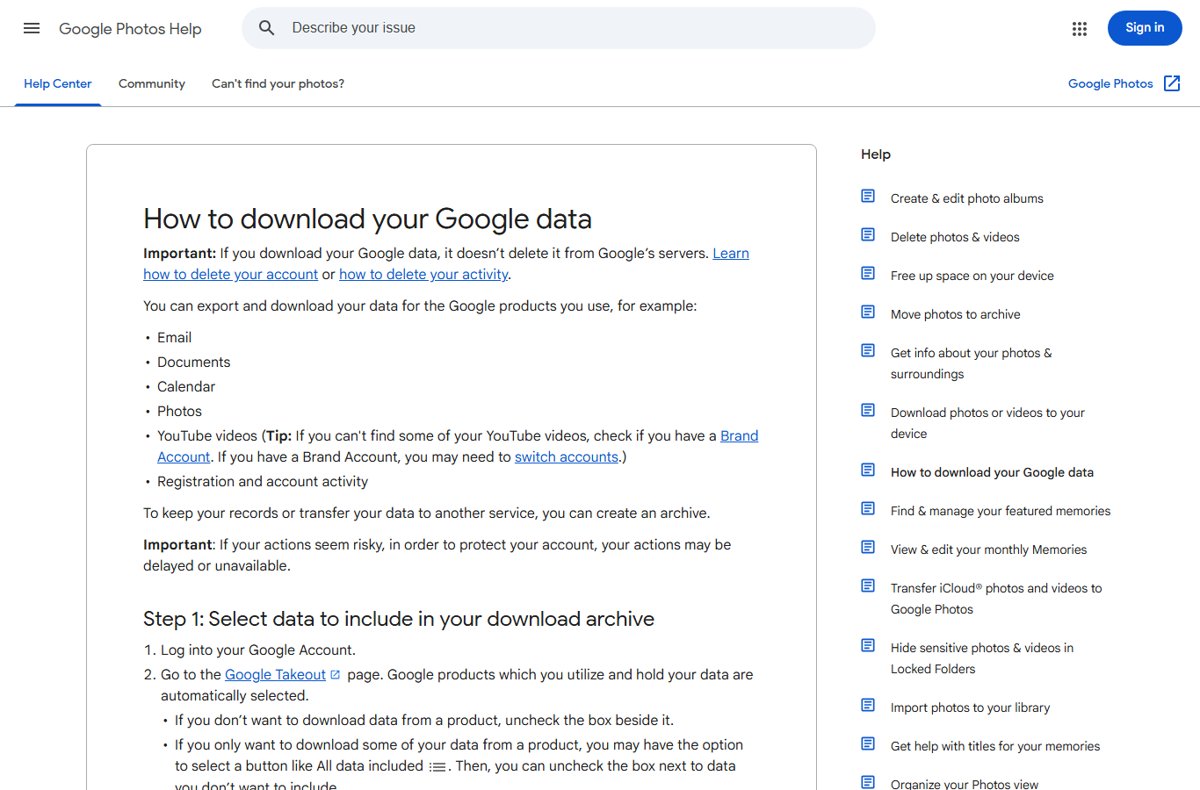
Google Photos has no "select all and download" button for a whole library. Google's own help page sends every "download all" request to Takeout, the same tool you use to export any Google data.
- On your computer, sign in to your Google Account and open takeout.google.com.
- Uncheck every product except Google Photos. Takeout preselects every product you use, so clear the rest to keep the archive to photos only.
- Leave the All photo albums included button as it is to export the full library.
- Select Next step.
- Under delivery method, choose Send download link via email.
- Under export type, choose One-time archive.
- Set the file type to Zip files and pick an archive size. Choose 50GB to get the fewest parts.
- Confirm the export, then wait for the email from Google with the download link.
- Open the link, re-enter your password if asked, and download every archive part to your computer.
Most exports finish the same day, but a large library can take from a few minutes to a few days. Downloading does not remove anything from Google Photos.
Google Takeout vs Google Photos download: Which should you use?
| Your situation | Use this | Why |
|---|---|---|
| You want the entire library | Google Takeout, all albums | The only official way to export everything in one request |
| You want a few photos or videos | photos.google.com > More > Download | Instant, no email and no archive to unpack |
| You want one or two albums | Google Takeout with only those albums selected | Keeps the export small and fast |
| The photos are on your phone and not in the cloud | USB cable or the Apple Devices app | Copies straight from the device to the PC |
| You want copies on an external drive | Takeout, saved directly to the drive | Skips filling your internal disk |
| You want to move photos to another cloud service | Takeout's transfer option | Copies to the other service without a local download |
Before you download Google Photos: What you need to know
| Check | What it means for your download |
|---|---|
| Free disk space | Takeout archives are roughly the size of your library. Check storage used in Google Photos and keep at least that much free, plus room to extract. |
| Archive expiry | A Takeout archive expires in about 7 days. Download every part before then or create a new export. |
| Download limit | Each archive can be downloaded a maximum of 5 times. |
| Account password | Google asks for your password again before the download, plus 2-Step Verification if it is on. |
| Account type | Work and school accounts may not be able to use Takeout. Accounts with Advanced Protection get archives scheduled two days out. |
| Deleted items | Photos still being deleted, and changes made after you request the export, may be missing from the archive. |
| No date range | Takeout cannot export a specific time period. It exports the whole library or the albums you pick. |
How to download selected photos from Google Photos to a computer
Use this for a handful of shots. It is quicker than Takeout because nothing is queued or emailed.
- On your computer, go to photos.google.com and sign in.
- Open the photo or video you want, or point to it and select its checkmark.
- At the top right, click More (three dots).
- Click Download.
- Open your browser's downloads list and click Show in folder to find the file.
If a downloaded video will not play, Google suggests trying another browser or a player such as VLC Media Player.
How to download Google Photos albums to a computer
Takeout lets you export chosen albums instead of the whole library. This works well for large albums that are slow to handle photo by photo.
- Open takeout.google.com and uncheck every product except Google Photos.
- Select All photo albums included under Google Photos.
- Deselect the albums you do not want, keep the ones you do, and select OK.
- Select Next step, then choose Send download link via email and One-time archive.
- Pick Zip files and an archive size, then confirm the export.
- Download the archive from the email link and extract it.
Shared albums that someone else created are a different case. Save the photos you want to your own library first, then export them.
How to download Google Photos from a phone and move them to a computer
Download the photos to the phone with the Google Photos app first, then copy them to the PC over USB. The Download option is hidden for photos already stored on the phone.
| Step | On Android | On iPhone |
|---|---|---|
| 1. Save to the phone | Open Google Photos, select a photo, tap More > Download | Open Google Photos, select a photo, tap More > Download |
| 2. Prepare the PC | Nothing to install | Install the Apple Devices app from the Microsoft Store |
| 3. Connect | Unlock the phone and connect it with a USB cable | Connect with a USB cable and unlock the iPhone |
| 4. Allow access | Tap the Charging this device via USB notification, then pick File Transfer | Tap Trust or Allow on the iPhone when prompted |
| 5. Copy | Drag the photos from the file transfer window to a folder on the PC | Import the photos with the Microsoft Photos app |
| 6. Finish | Eject the device in Windows, then unplug | Disconnect when the import finishes |
Apple also recommends setting Settings > Camera > Formats to Most Compatible so future iPhone shots save as JPEG and H.264 for Windows. Once imported, the shots open in the Microsoft Photos app on Windows like any other picture.
How to save Google Photos to an external hard drive
Send the Takeout download straight to the external drive so a large library never fills your internal disk. These steps use Chrome.
- Connect the external drive and confirm it has more free space than your Google Photos library.
- In Chrome, open Settings > Downloads.
- Turn on Ask where to save each file before downloading, or click Change and select a folder on the external drive.
- Open the Takeout email link and download each archive part to the external drive.
- Right-click each zip file on the drive, select Extract All…, and extract it to a folder on the same drive.
- Turn the Chrome download location back to your usual folder when finished.
Recommended full Google Photos backup workflow
A single download is one copy. The common 3-2-1 rule keeps three copies on two kinds of storage, with one kept elsewhere; Google Photos already counts as the off-site copy.
- Run a full Takeout export of Google Photos with Zip files and the 50GB size.
- Download every part to your computer before the 7-day expiry.
- Extract the archives with Extract All… into one master folder.
- Check the folder against your library, as described in the next section.
- Copy the master folder to an external hard drive and store the drive away from the PC.
- Repeat the export on a schedule, or set Takeout to Scheduled exports to create new archives every 2 months for a year.
How to check the Google Photos download is complete
- Count the archive parts in the Takeout email and confirm the same number of files are in your download folder.
- Open Chrome's Downloads list and confirm no part shows as failed or paused.
- Extract every part. Each should open without an error.
- Open archive_browser.html from the extracted archive in a browser to see what the export contains.
- Open a few photos from different years and a few videos to confirm they play.
- Compare the total size of the extracted folders with the storage Google Photos reports for your library.
Understanding the JSON metadata files in Google Takeout
Takeout puts extra details, such as Google Photos comments, into separate JSON files that sit next to your photos.
| Question | Answer |
|---|---|
| What is a JSON file here? | A text file holding extra metadata from Google Photos, such as comments, that is not stored inside the image. |
| Is the photo's date inside the JSON only? | No. Original timestamps stay in the photo's embedded metadata. |
| Why do photos show the wrong date in File Explorer? | Your operating system can give the file a new timestamp based on the download time. The original date remains in the file details. |
| Do you need to keep the JSON files? | Keep them if you want comments and extra details. Deleting them does not damage the photos. |
| How do you open one? | Open it in any text editor or browser. |
Can you automatically sync all Google Photos to a computer?
| Option | Does it sync Google Photos to your PC? | Detail |
|---|---|---|
| Google Drive for desktop | No | It only backed up from the PC to Google Photos, and that support ended on August 10, 2026 |
| Google Photos backup of folders | No | It uploads PC folders to the cloud, not the other way |
| Takeout scheduled exports | Closest option | Creates an archive every 2 months for one year; Photos includes new and updated items |
| Takeout delivery to Drive or OneDrive | Partly | The archive lands in that cloud; its own desktop app can then copy it to the PC |
No official tool keeps a live two-way copy of your Google Photos library on a computer. The Google Photos web app for PC is a viewer and uploader, not a local sync.
How to open and organize your downloaded Google Photos
- Right-click the first zip archive and select Extract All…, then follow the prompts.
- Extract every remaining part into the same destination folder so the albums merge.
- Open archive_browser.html to read how the export is laid out.
- Move the photo folders into your Pictures folder, or into a dated folder structure such as one folder per year.
- Delete duplicate copies you find after merging, since a photo in several albums can appear more than once.
- Open the folder in the Photos app in Windows or any image viewer to browse the library.
Common Google Photos download problems and fixes
Google Takeout export is taking too long
Large libraries take from a few minutes to a few days, and Advanced Protection accounts are delayed two days.
- Wait for the email; most exports finish the same day.
- If nothing arrives after several days, create a new export.
- Export Google Photos on its own instead of alongside other products.
Download fails before finishing
A dropped connection, an expired link, or the 5-download limit.
- Pick a smaller archive size so each part is quicker to finish.
- Download one part at a time rather than all at once.
- If the link has expired after about 7 days, create a new export.
- Re-enter your password when prompted; the download will not start without it.
ZIP file will not extract
The part is incomplete, or you chose tgz, which may need extra software on Windows.
- Confirm the part finished downloading in Chrome's Downloads list.
- Download that part again from the Takeout email.
- For future exports, choose Zip files instead of Tgz files.
Some photos are missing
Items being deleted, or changed after you requested the export, are not included.
- Check that every archive part was downloaded and extracted.
- Search for the photo in Google Photos to confirm it is still in the library, and find photos missing from Google Photos before exporting again.
- Create a new export to pick up recent additions.
Downloaded photos show the wrong date
Windows stamps the file with the download time.
- Open the photo's file details to read the original date from its metadata.
- Sort the library in a photo app that reads the taken date, not the file date.
Privacy and security tips for downloaded photo archives
| Risk | What to do |
|---|---|
| Public or shared computer | Do not download the archive there. Deliver it to Google Drive or another storage where you are the only user. |
| Personal details in the archive | Photos and their JSON files can carry details such as comments and embedded metadata. Review files before sharing them. |
| Lost external drive | Keep the drive somewhere secure. Zip-level encryption is not supported by Windows' built-in tools. |
| Third-party transfer services | Once files reach another provider, that provider's terms apply, not Google's. |
Downloading all Google Photos: frequently asked questions
Can I download all photos from Google Photos?
Yes. Use Google Takeout at takeout.google.com, select only Google Photos, and export the library as zip files. Google emails a link, and you download the archive parts to your computer within about 7 days.
How do I download all Google Photos to a PC at once?
Google Photos itself has no download-all button, so use Takeout. Choose Google Photos, keep all albums included, choose a 50GB zip size to get fewer parts, and download every part from the email link.
How do I download all photos from Google Drive?
Go to drive.google.com, click one photo, then hold Ctrl and click the others. Right-click the selection and click Download. For a whole Drive, Google Takeout with Drive selected exports everything.
How long does a Google Takeout photo export take?
It takes from a few minutes to a few days depending on library size. Most people receive the download link the same day they request it.
Does downloading my Google Photos delete them from Google?
No. Downloading or exporting with Takeout only makes a copy. Your photos stay in Google Photos until you delete them yourself, so clearing your Google Photos library is always a separate step.
How do I download photos from the Google Photos app?
Open the Google Photos app, select the photo, and tap More, then Download. The option does not appear when the photo is already stored on the phone.
How do I see downloaded photos on my computer?
Chrome saves downloads to the Downloads folder in your user profile by default. Open More, then Downloads in Chrome, and click Show in folder next to the file.
How do I move downloaded photos to the Pictures folder?
Open File Explorer, select the extracted photos in Downloads, and drag them into the Pictures folder. You can also drag a finished download from Chrome's download tray straight to a folder.
Why are my downloaded Google Photos split into several zip files?
Takeout splits any export larger than the archive size you chose. Pick the 50GB size to reduce the number of parts.