To put an arrow in Google Docs, click Insert > Symbols > Special characters, type arrow in the search box and click the arrow you want.
This guide covers that route plus drawn arrows, arrow images, equation arrows, Unicode codes and keyboard pickers on Windows and Mac, with a table to help you choose.
Method 1: Using the special characters tool to insert arrows
The special characters tool places an arrow inside your text, so it moves with the sentence, takes the font color and size, and copies like any other letter.
- Open your document in Google Docs and click where the arrow should go.
- Click Insert > Symbols > Special characters.
- In the search box on the right, type arrow.
- Scroll the results and click the arrow you want, such as → or ⇒.
- Click again to add more arrows, then close the Insert special characters window.
The same window also lets you pick from categories, enter a character's Unicode value, or draw the symbol by hand in the box on the right. Drawing a rough arrow there is a quick way to find curved and hooked styles.
Which Google Docs arrow method should you use?
| Your situation | Use this | Why |
|---|---|---|
| An arrow inside a sentence, such as Step 1 → Step 2 | Special characters (Method 1) or a Unicode value (Method 4) | The arrow is text, so it wraps, resizes and copies with the line |
| An arrow pointing at part of a picture or a diagram | Google Drawings (Method 3) | You control length, angle, color and thickness |
| A ready-made decorative or 3D arrow graphic | Insert an image (Method 2) | Stock & web images give styles the character set does not have |
| Arrows inside a formula, such as x → ∞ | Equation editor (Method 5) | The arrow sits in the math layout with the other symbols |
| You already know the code point | Unicode value in Special characters (Method 4) | One exact character with no browsing |
| You want an arrow without opening Docs menus | Windows emoji panel or Mac Character Viewer (Method 6) | System pickers work in any text box, including Docs |
Understanding why arrows are useful in Google Docs
Arrows do three different jobs in a document, and the job decides whether the arrow should be text or a drawing.
| What the arrow does | Example | Better as |
|---|---|---|
| Shows a sequence or a menu path | File → Download → PDF | Text character |
| Points the reader at something | An arrow over a screenshot labelling a button | Drawing |
| Shows a relationship or flow | Boxes joined by arrows in a process chart | Drawing with connector lines |
| Expresses a math or logic relation | x → 0, A ⇒ B | Equation or text character |
| Marks direction in a list or table | ↑ for an increase, ↓ for a decrease | Text character |
Method 2: Inserting arrows as images
Use an image when you want an arrow graphic with shading, a hand-drawn look or a style that no font offers.
- Click where you want the arrow image in the document.
- Click Insert > Image.
- Choose a source: Upload from computer, Stock & web, Drive & Photos, Camera or By URL.
- Search for or select an arrow image.
- Click Insert or Open to place it in the document.
An image arrow cannot be recolored like text, and a large image adds to the file size. Only use pictures you have the right to reuse.
Method 3: Drawing arrows using Google Drawings
A drawing is the right choice for an arrow you need to angle, stretch or color, or for a flow chart made of boxes and arrows.
- Click where the drawing should go, then click Insert > Drawing > New.
- In the drawing toolbar, click Select line and choose Arrow.
- Click on the canvas where the arrow should start and drag to where it should point.
- With the arrow selected, use the buttons above the canvas to change the line color, line thickness and line style.
- To add a label, click Shape, draw a box on the canvas, then double-click it and type your text.
- Save the drawing to place it in the document.
The line menu also has Elbow Connector and Curved Connector, which suit flow charts. When a label only needs to sit beside the arrow rather than inside the drawing, you can add a text box in Google Docs instead. To reuse a drawing kept in Google Drive, click Insert > Drawing > From Drive; that copy stays linked to the original, and you can click it and choose Update after the original changes.
Method 4: Using Unicode characters for various arrow styles
The basic arrows sit in the Unicode Arrows block, which runs from U+2190 to U+21FF. Enter a code in the special characters search box to jump straight to one arrow.
| Arrow | Unicode value | Name |
|---|---|---|
| ← | U+2190 | Leftwards arrow |
| ↑ | U+2191 | Upwards arrow |
| → | U+2192 | Rightwards arrow |
| ↓ | U+2193 | Downwards arrow |
| ↔ | U+2194 | Left right arrow |
| ↕ | U+2195 | Up down arrow |
To use a code, click Insert > Symbols > Special characters, type the value (for example 2192) in the search box, and click the matching arrow. You can also copy an arrow from this table and paste it into your document with Ctrl + V on Windows or Command + V on a Mac.
Method 5: Using equations to create arrows
Equation arrows belong in formulas, where they line up with fractions, variables and operators.
- Click where the formula should go.
- Click Insert > Symbols > Equation.
- In the equation toolbar, open the Arrows menu and click the arrow you need.
- Type the rest of the expression in the equation box.
- Click New equation if you need another formula box.
Inside an equation box you can also type a backslash, the symbol's name and a space to insert that symbol. If the toolbar is hidden, click View > Show equation toolbar.
Method 6: Using keyboard shortcuts for common arrows
Google Docs has no dedicated arrow shortcut, but the system character pickers in Windows and macOS type into a Docs page like any other app.
| Device | Shortcut | What to do next |
|---|---|---|
| Windows 11 or Windows 10 | Windows key + . (period) | Select Symbols in the emoji panel and pick an arrow from the symbol lists |
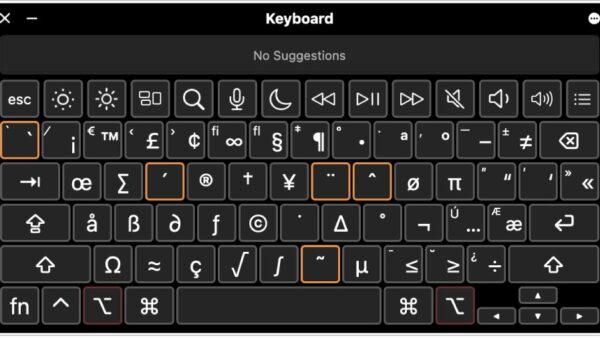
| Mac | Fn + E or Globe + E | Type arrow in the Character Viewer search field and click the arrow |
| Mac (menu route) | Edit > Emoji & Symbols | Same Character Viewer, opened from the browser menu bar |
| Any computer, inside Docs | Alt + / (Windows, ChromeOS) or Option + / (Mac) | Type special characters in the tool finder and press Enter to open the picker |
On a Mac, select an arrow in the Character Viewer and click Add to Favorites to keep it at the top of the viewer for next time.
How to check the arrow in Google Docs is text or a drawing
Text arrows and drawn arrows behave differently when you edit, search or export, so confirm which one you have.
- Copy one of your arrows, then press Ctrl + F on Windows or Command + F on a Mac.
- Paste the arrow into the search box.
- Step through the results: the search finds every text arrow of that style in the document.
- Any arrow the search skips is a drawing or an image, so edit it by clicking the object rather than the text.
Best practices and tips for using arrows in Google Docs
| Tip | How to do it |
|---|---|
| Swap typed -> for a real arrow everywhere | Click Edit > Find and replace, enter -> next to Find and → next to Replace with, then click Replace all |
| Keep one arrow style per document | Pick → or ⇒ for sequences and use it throughout, so readers do not wonder whether they mean different things |
| Match the arrow to the text | Text arrows take the font size and color you apply, so select them with the words and format together |
| Use drawings for pointers, not for menu paths | A drawn arrow does not move with the text, so reserve it for diagrams and labelled screenshots |
| Check the arrow in other fonts | Some fonts draw arrows thin or small; change the font of the arrow alone if it looks out of place |
| Copy arrows into Google Sheets | Sheets has no special characters picker, so copy the arrow in Docs and paste it into a cell |
If you also mark edits in a shared draft, you can strike through text in Google Docs next to an arrow that points to the replacement wording.
Google Docs arrow FAQ
How do I put an arrow in text in Google Docs?
Click where the arrow should go, then choose Insert > Symbols > Special characters, search for arrow and click the one you want. The arrow becomes part of the line, so it wraps, resizes and changes color with the surrounding text.
How do I put an arrow on an image in Google Docs?
Click Insert > Drawing > New, add the picture with the drawing's image tool, then choose Select line > Arrow and drag across the picture. Save the drawing and it appears in the document with the arrow on top of the image.
How do I make an arrow longer or change its color?
In the drawing editor, select the arrow and drag the blue dots at its ends to change its length or angle; the buttons above the canvas change line color, thickness and style. Text arrows change with the font size and text color you apply to them.
Is there a keyboard shortcut to insert an arrow in Google Docs?
Google Docs has no single arrow shortcut. On Windows, press Windows key + period and choose Symbols. On a Mac, press Fn + E or Globe + E to open the Character Viewer. In Docs, Alt + / or Option + / opens the tool finder.
How do I add an arrow using its Unicode value?
Open Insert > Symbols > Special characters and type the code in the search box, such as 2192 for the rightwards arrow →. The right, left, up and down arrows are U+2192, U+2190, U+2191 and U+2193.
How do I create a curved or bent arrow in Google Docs?
Open Insert > Drawing > New, click Select line and choose Curved Connector or Elbow Connector, then drag across the canvas. For a curved arrow character instead, draw a rough curved arrow in the box on the right of the special characters window.
Can I insert an arrow in Google Sheets the same way?
No. Google Sheets has no special characters picker. Insert the arrow in Google Docs or Slides, copy it, and paste it into a cell in your spreadsheet.
How do I update an arrow drawing that I inserted from Google Drive?
A drawing inserted with Insert > Drawing > From Drive stays linked to the original file. After you change the original, click the drawing in your document and choose Update to pull in the new version, or Unlink to stop syncing.
Final tips for adding arrows in Google Docs
Use Insert > Symbols > Special characters for arrows in sentences, and Insert > Drawing > New for arrows that point at pictures or join boxes. A text arrow stays attached to its words and is easy to search and replace, while a drawing gives you the length, angle and color control that a single character cannot.
To keep adding arrows on a flight or a weak connection, use Google Docs offline and the document syncs later.