Your Samsung account backup codes live under Two-step verification > Backup codes, on any Galaxy phone, tablet or PC that is still signed in, or on account.samsung.com.
To use one, pick Didn't get the verification code? > Verify with backup code on the sign-in screen and type a single code.
This guide covers where to find the codes, how to sign in with them, what to do when you never saved any, and how to change a lost phone number.
How to find my Samsung Account backup code
Samsung shows backup codes only to someone who is already signed in. Match your situation to a row and go straight to that route.
| Your situation | Where to find the codes | What you need |
|---|---|---|
| Another Galaxy phone or tablet is still signed in | Settings > Security and privacy > Account security > Samsung account security > Two-step verification > Backup codes | That device unlocked |
| A PC or browser is still signed in | account.samsung.com > Security tab > Two-step verification > Backup codes | Access to the account email for a confirmation code |
| You saved the codes earlier | Check places where you previously saved the codes: a password manager, a printout, a notes app or a screenshot | Nothing else |
| Every device is signed out and you saved nothing | The codes cannot be viewed until you sign in another way | Text message, a Galaxy device notification, an authenticator app or Samsung Support |
Each backup code works once. Cross out or delete a code as soon as you use it.
What is a Samsung Account backup code?
Samsung accounts now require two-step verification. After your password, Samsung asks for a second code, and a backup code is one of the accepted second steps.
Samsung account backup codes are a set of single-use codes you generate in advance. They work when your phone is lost, the SIM has changed or text messages do not arrive.
| Property | Samsung account backup code |
|---|---|
| Purpose | Completes the second step of Samsung account sign-in |
| Where it is created | Two-step verification > Backup codes in the account settings |
| How many times each code works | Once |
| Needs a phone signal? | No. You type the code yourself |
| Can it be viewed while locked out? | No. Viewing or creating codes requires a signed-in session |
| Replaces your password? | No. You still enter your email and password first |
How do you find Samsung backup codes on a Galaxy phone or tablet?
Use any Galaxy phone, tablet or Galaxy Book that is still signed in to the same Samsung account. Menu names differ slightly between One UI versions, so a second path is listed after the steps.
- Open Settings on the signed-in Galaxy device.
- Tap Security and privacy.
- Tap Account security, then Samsung account security.
- Tap Two-step verification and confirm your password or fingerprint if asked.
- Tap Backup codes.
- Save the codes somewhere you can reach without this device.
On some devices the route starts from your name instead: Settings > your Samsung account at the top > Security and privacy > Two-step verification > Backup codes.
How do you find Samsung backup codes in a web browser?
This route works on a computer, Chromebook or any phone browser. You need your password and a working second step for this sign-in.
- Go to account.samsung.com and select Sign in.
- Enter your email and password, then enter the verification code sent by text or as a notification on another device.
- Select the Security tab.
- Enter the code Samsung sends to your account email and select Verify.
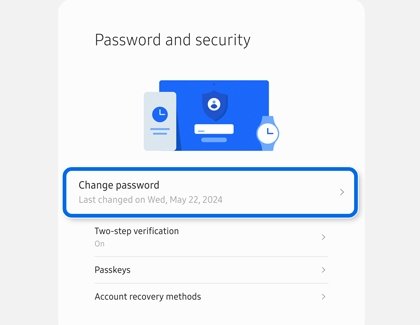
- Under Password and security, select Two-step verification.
- Select Backup codes and save them.
If the confirmation email does not appear, look in spam. Gmail users can open your Gmail inbox in a second tab while the Samsung page waits.
How do I use a Samsung Account backup code to sign in?
The backup code replaces the text message or device notification, not the password. Have one unused code ready before you start.
- Go to account.samsung.com and select Sign in.
- Enter your Samsung account email, select Next, then enter your password.
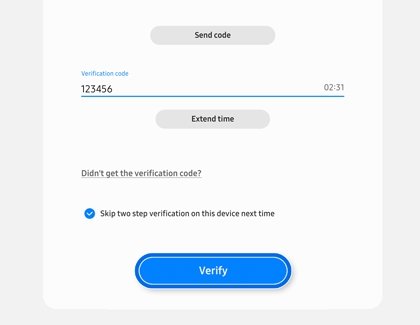
- On the verification code screen, select Didn't get the verification code?
- Select Verify with backup code.
- Type one backup code you saved and select Verify.
- If Samsung asks about this browser, choose Stay signed in on your own computer or Not now on a shared one.
The same code cannot be used again. Mark it as spent so you do not try it at the next lockout.
How to check the Samsung account backup code sign-in worked
A successful sign-in lands on your Samsung account dashboard instead of returning to the verification screen.
- Confirm the dashboard shows your name and the Profile and Security tabs.
- Open the Security tab and enter the emailed code when asked.
- Select Two-step verification and check that your phone number under Text message is still current.
- Select Trusted device(s) and check that every listed device is yours.
- Open Backup codes and save a fresh copy before you sign out.
Which alternatives can I use if I do not have a backup code?
Two-step verification accepts several second steps. The first one that still reaches you is the one to use.
| What you still have | Use this | Why |
|---|---|---|
| Another Galaxy device signed in to the account | Galaxy device notification: tap Yes, then type the code it shows | No phone number or SIM needed |
| The phone number on the account | Text message code | Default route on most accounts |
| Microsoft Authenticator or another authenticator app set up earlier | Authenticator app code | Works offline once set up |
| Access to the account email only | Verify with one-time email on the sign-in page | Replaces the password; the code expires after five minutes and a second step still follows |
| Google sign-in or QR code set up earlier | Google sign-in or the QR code option on the sign-in page | Skips typing the Samsung password |
| None of the above | Change the phone number from the browser, or contact Samsung Support | The number change takes two weeks |
Can I use another Samsung phone or tablet? Yes, if it is signed in to the same account and has Galaxy device notification turned on. An authenticator app cannot be added after you are locked out, because adding one requires a signed-in session.
What is the difference between a Samsung Account backup code and a Samsung Cloud recovery code?
They protect different things. A backup code gets you into the Samsung account. Samsung Cloud encryption decides who can read the data stored in that account.
| Samsung account backup code | Samsung Cloud Enhanced Data Protection | |
|---|---|---|
| What it protects | Sign-in to the Samsung account | Backed-up and synced Samsung Cloud data |
| Where it is set | Two-step verification > Backup codes | Settings > Samsung account > Samsung Cloud > More > Settings > Enhanced data protection |
| How it protects | Second step after the password | End-to-end encryption; data is readable only on trusted devices |
| Requirements | Any Samsung account with two-step verification | One UI 5.1.1 or later on a device that supports Samsung Cloud backup and sync |
| Interchangeable? | No | No |
What is the difference between Samsung backup codes and Samsung Cloud backups?
The words overlap, but one is a sign-in code and the other is a copy of your phone data.
| Samsung backup codes | Samsung Cloud backup | |
|---|---|---|
| What it is | Single-use sign-in codes | A stored copy of phone data |
| What it holds | Nothing but the code | Call and message history, contacts, calendar, alarms, settings, home screen layout, apps and voice recordings |
| When you use it | At the two-step verification screen | When you set up a new or reset Galaxy device |
| Needs the other? | No | Yes. You must sign in to the Samsung account to restore it |
Samsung Cloud also offers Temporary Cloud Backup, which keeps photos, videos, apps and files for up to 30 days while you switch or repair a phone.
What should I do if SMS verification codes are not arriving?
The text message never arrives
A weak connection, a blocked sender, or an out-of-date Samsung account app.
- Move to a strong Wi-Fi or mobile data connection.
- Check that the sender is not in your blocked numbers or spam messages.
- Update the phone software and the Samsung account app if you are signing in on a Galaxy device.
- Select Didn't get the verification code? and choose Verify with backup code instead.
"The number is not correct"
Samsung expects the full number, including the country code.
- Enter the full number shown on screen, including the country code.
- In the US, use the format 1-(area code)-(phone number).
- After several wrong attempts, wait 30 minutes before trying again.
Samsung says to try again in a few hours
Too many code requests in a short time trigger a security block on text and voice verification.
- Stop requesting new codes.
- Wait at least 24 hours, as Samsung recommends.
- Sign in again and request a single code.
What if I changed or lost the phone number?
The old number is still on the account and you no longer have it
Text codes go only to the registered number.
- Sign in with a backup code or a Galaxy device notification if either is available.
- Once in, add the new number under Two-step verification > Text message > Add.
- If neither is available, start a phone number change from the browser sign-in screen.
- Wait the two-week security period, then sign in with the new number.
It has been two weeks and the number has not changed
A new request cancels the earlier one and restarts the wait.
- Look for Samsung's completion message in spam email and blocked texts.
- Try signing in once.
- If the old number still appears, do not submit another request unless you accept a fresh two-week wait.
How do you change a Samsung account phone number?
Use this browser route when you are locked out. It takes two weeks for security reasons, and a typo ends the request; you can retry after 30 minutes.
- Go to account.samsung.com, select Sign in and enter your email and password.
- At the verification screen, select Didn't get the verification code?, then Need to change your phone number?
- Read the two-week notice and select Continue.
- Select the number currently on the account, enter it in full and select Continue.
- Enter the code sent to your account email and select Verify.
- Enter the new phone number and select Send code.
- Enter the code sent to the new number and select Verify.
- Choose whether to stay signed in on your other devices and select Done.
Samsung confirms the finished change by email or text message once the two weeks have passed.
Change the Samsung account phone number from a Galaxy phone
If a Galaxy device is still signed in, you can add the new number there and skip most of the browser process.
- Open Settings, tap your Samsung account at the top, then tap Security and privacy.
- Tap Two-step verification and sign in.
- Tap Text message, then Add.
- Enter the new number and tap Send code.
- Enter the code from the text and tap Verify.
- To remove the old number, tap More options (three dots) in the Text message menu, tap Delete, select the old number and tap Delete.
What should you do if you lost your phone?
The lost phone was the only device getting codes
Device notifications and texts both went to that phone.
- Sign in at account.samsung.com with a saved backup code.
- Open Security > Two-step verification > Trusted device(s).
- Select Remove all devices, then sign back in on the devices you still own.
- Change your password from Security > Change password.
No backup code and the SIM went with the phone
No second step reaches you.
- Ask your carrier for a replacement SIM on the same number, then use a text code.
- If the number is gone too, start the browser phone number change and wait two weeks.
What if I used every backup code?
Every saved code is rejected
Each code works once, so a list used over time runs out.
- Sign in with a text message, Galaxy device notification or authenticator app instead.
- Open Two-step verification > Backup codes and save a new set.
- Replace every older copy of the codes so you never type a spent one.
What if you never saved your Samsung backup codes?
No copy of the codes exists anywhere
Samsung shows codes only inside a signed-in session.
- Check any Galaxy device, tablet or PC that is still signed in, and open Backup codes there.
- If none is signed in, use a text message or Galaxy device notification to sign in.
- If neither works, change the phone number from the browser and wait two weeks.
- After you are back in, save a set of backup codes straight away.
Can you regenerate Samsung backup codes?
Yes, but only while signed in: open Two-step verification > Backup codes on a Galaxy device or on account.samsung.com and save the set it shows. Creating or viewing codes sits behind two-step verification, so you cannot create a Samsung account backup code after you are locked out. Save the newest set and discard older copies.
What if I forgot the Samsung Account password too?
A backup code does not replace the password. Reset the password first; the reset itself accepts a backup code as its verification step.
You know the email but not the password
Sign-in needs the password before the second step.
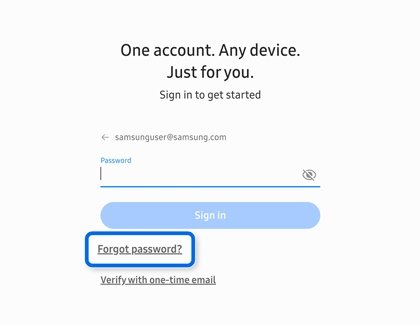
- On the account.samsung.com sign-in page, enter your email and select Next.
- Select Forgot password?
- Choose the phone number on the account, enter it in full and select Continue.
- If no code reaches your phone, select Didn't get the verification code? and choose Text message or a backup code.
- Create a new password. Other devices on the account will ask you to sign in again.
The reset password link in the email does not work
The link stays valid for 30 minutes after the email arrives.
- Select the blue Reset password button within 30 minutes.
- If the button does nothing, select the web address printed in the email.
- If the link has expired, start the reset again from the sign-in page.
You do not remember the email address either
The Samsung account ID is the email address you signed up with.
- On the sign-in page, select Find ID.
- Enter your name and date of birth and select Continue.
- Read the partly masked account details and select Sign in now.
What if I lost the Samsung Cloud Enhanced Data Protection recovery code?
Enhanced Data Protection encrypts Samsung Cloud data end to end, so encrypted data is readable only on trusted devices. A Samsung account backup code does not unlock it.
You can sign in, but encrypted Samsung Cloud data will not open
The device is not one of the trusted devices for encrypted data.
- On a Galaxy device you still own, open Settings > Samsung account > Samsung Cloud > More > Settings > Enhanced data protection.
- Check the trusted device list under Encrypt backup data or Encrypt synced data.
- Restore or view the data from a device on that list.
- If no trusted device remains, contact Samsung Support before resetting anything.
What should I do when no recovery method works?
"Sorry, there's no matching information"
The email or password does not match an account, or the connection dropped.
- Sign in again and check the email and password character by character.
- Check your internet connection.
- If the message persists, contact Samsung Support.
An SSL connection error appears during sign-in
The device clock does not match the real date and time.
- Set the device date and time to automatic.
- Restart the browser or app and sign in again.
Account suspended or locked after failed phone verification
Repeated code requests trigger a temporary security block.
- Wait at least 24 hours without requesting codes.
- Sign in and use a backup code or a single text code.
How can I prevent the next Samsung Account lockout?
Every lockout fix above is slower than five minutes of setup while you are signed in.
- Open Two-step verification and save a fresh set of Backup codes.
- Add a second phone number under Text message > Add, such as a family member's.
- Turn on Galaxy device notification for a tablet or Galaxy Book you keep at home.
- Set up Authenticator app with Use Microsoft Authenticator or Use another authenticator.
- Update the number under Text message before you cancel or port an old phone number.
- Review Trusted device(s) and remove devices you sold or lost.
How should you store Samsung backup codes safely?
Store the codes where you can reach them when the phone is gone, and where nobody else can.
| Storage option | Reachable without your phone? | Notes |
|---|---|---|
| Password manager entry for the Samsung account | Yes, from any device you sign in to | Keeps codes next to the account they unlock |
| Printed copy at home | Yes | Keep it with other personal documents, not in a phone case or wallet |
| Screenshot on the same phone | No | Lost along with the phone |
| Email to yourself | Only if the mailbox is not on the lost phone alone | Anyone who gets into the mailbox gets the codes |
When should you contact Samsung Support?
Contact Samsung when you cannot reach the email address or the phone number on the account, or when two weeks have passed without a completed number change. Support works online by chat, and through the Samsung Members app on a Galaxy phone.
- Contact Samsung Support (US) — Chat with an agent from a computer, phone or tablet
- Trouble signing in to Samsung account — Samsung's own sign-in and two-step verification troubleshooting page
- Samsung account reset password page — Start a password reset when the emailed link has expired
Samsung account backup code: frequently asked questions
How do I find my Samsung account backup code?
Open Settings > Security and privacy > Account security > Samsung account security > Two-step verification > Backup codes on a signed-in Galaxy device. On a computer, sign in at account.samsung.com and open Security > Two-step verification > Backup codes.
How do I find my Samsung account on my phone?
Open Settings on your Galaxy phone. The Samsung account name and email appear at the top of the Settings list. Tap it to see profile, security and two-step verification options for that account.
How do I find my Samsung account ID?
Your Samsung account ID is the email address you signed up with. If you forgot it, select Find ID on the account.samsung.com sign-in page, enter your name and date of birth, and Samsung shows the matching account with parts masked.
How do I find my Samsung account password?
Samsung never displays a saved password. Select Forgot password? on the sign-in page, verify with the phone number on the account or a backup code, and create a new password. The reset email link stays valid for 30 minutes.
How do I check my Samsung account login?
Go to account.samsung.com and select Sign in. A successful sign-in opens the dashboard with Profile and Security tabs. Under Security > Two-step verification > Trusted device(s), you can see which devices are signed in.
Can Samsung email me a lost Samsung account backup code?
No sign-in option sends lost backup codes by email. Backup codes appear only inside a signed-in session under Two-step verification. Samsung can email a one-time sign-in code through Verify with one-time email, but that replaces the password, not the second verification step.
Can I create a Samsung account backup code after I am locked out?
No. Creating or viewing backup codes requires a signed-in session. Sign in first with a text code, a Galaxy device notification or an authenticator app, or change the phone number from the browser, then save new codes.
How long does Samsung take to change a phone number for two-step verification?
Two weeks from the day you submit the request. Submitting a new request cancels the old one and restarts the two-week wait. A typo ends the request, and you can retry after 30 minutes.
Can I use an authenticator app after being locked out?
Only if you set it up before the lockout. Adding Microsoft Authenticator or another authenticator app happens inside Two-step verification, which requires a signed-in session.
Is a Samsung Cloud recovery code the same as a Samsung account backup code?
No. A backup code completes Samsung account sign-in. Samsung Cloud Enhanced Data Protection is a separate encryption setting that limits encrypted cloud data to trusted devices, and a backup code does not unlock it.
The bottom line on Samsung account backup codes
Save your Samsung account backup codes today from Two-step verification > Backup codes, and keep them somewhere that survives losing your phone. Once you are locked out, Samsung cannot show or email the codes, and the fallback of a phone number change takes two weeks.