To apply for Apple Card, open the Wallet app on your iPhone, tap the Add button, select Apply for Apple Card and complete the short application.
This guide covers the iPhone, iPad and online routes, what you need before you start, how Goldman Sachs decides, and what to do after approval or a decline.
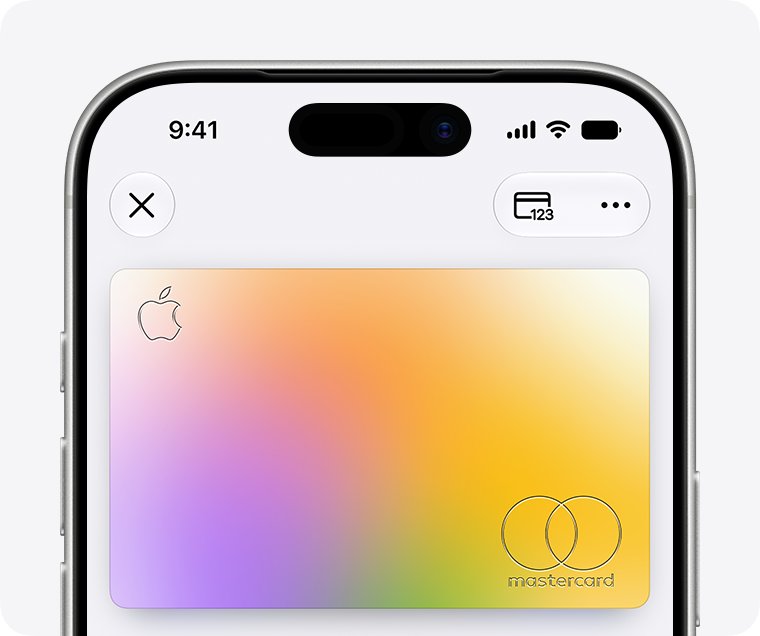
How to apply for Apple Card
The iPhone route is the fastest, and it adds the card to Wallet the moment you accept the offer.
Your iPhone region must be set to the United States before the application will start.
- Update your iPhone to the latest version of iOS.
- Open the Wallet app and tap the Add button.
- Select Apply for Apple Card, then tap Continue.
- Complete your application, including your income, and scan your driver's license or state ID if Wallet asks for it.
- Review and agree to the Apple Card Terms & Conditions.
- Check the credit limit and APR you are offered, then accept the offer to add Apple Card to Wallet.
Applying runs only a soft inquiry. A hard inquiry happens only when you accept an approved offer.
Apply for Apple Card on iPhone, iPad or online
| Your situation | Where to apply | What you get |
|---|---|---|
| You have an iPhone on the latest iOS | Wallet app on iPhone | Card added to Wallet straight away, all features, Apple Pay ready |
| You only have an iPad | Settings > Wallet & Apple Pay on iPad | Same account and features, managed on the iPad |
| You have no iPhone or iPad, or prefer a browser | Apply now on apple.com/apple-card (card.apple.com) | Usable only for eligible purchases online and in-store at Apple until you add it to an iPhone or iPad you own |
| You are buying an Apple product at checkout | Apply during Apple Store checkout with Apple Card Installments | Card plus a 0% APR installment plan if your limit covers the device |
| Someone already has Apple Card and invited you | Accept the Apple Card Family co-owner invitation | You are prompted to apply, then share one account |
Preparing to apply
Goldman Sachs Bank USA issues Apple Card and checks every requirement below before it decides.
Clear the items in this table first, because a frozen credit file or a mismatched ID stops the application.
| Requirement | Detail | How to meet it |
|---|---|---|
| Age | 18 or older, depending on your state | Apply in your own name once you reach the legal age where you live |
| Residency | U.S. citizen or lawful U.S. resident | Non-residents and other countries are not eligible |
| Address | Physical U.S. residential address, not a P.O. Box | A military address is also accepted |
| Device | iPhone or iPad on the latest iOS or iPadOS | Not needed for the online route, but needed to use every feature |
| Apple Account | Signed in, with two-factor authentication turned on | Turn on two-factor authentication in your Apple Account settings first |
| Credit file | Not frozen | Temporarily lift any freeze with TransUnion before you apply |
| Identity | Driver's license or state-issued photo ID may be requested | Make sure the ID is current and its name, birth date and address match what you type |
| Income | The income you report is part of the decision | Have your annual income figure ready |
Check your credit report before you apply. You can get a free copy at annualcreditreport.com and dispute errors with TransUnion.
Apply for Apple Card online without an iPhone
Apple accepts applications in a supported web browser, signed in with your Apple Account.
An online-only card works for eligible purchases online and in-store at Apple. Add it to an iPhone or iPad you own later to use it anywhere Mastercard is accepted.
- Go to apple.com/apple-card in Safari, Chrome or another supported browser.
- Select Apply now to open the application at card.apple.com.
- Sign in with your Apple Account and approve the two-factor authentication code.
- Fill in your name, address, date of birth and income exactly as they appear on your ID.
- Review and agree to the Apple Card Terms & Conditions, then submit.
- Accept the offered credit limit and APR within 30 days if you are approved.
Apply for Apple Card on iPad
- Update the iPad to the latest version of iPadOS and set its region to the United States.
- Open the Settings app.
- Scroll down and tap Wallet & Apple Pay.
- Tap Add Card, then select Apple Card.
- Complete the application, agree to the terms and accept your offer.
Understanding the Apple Card
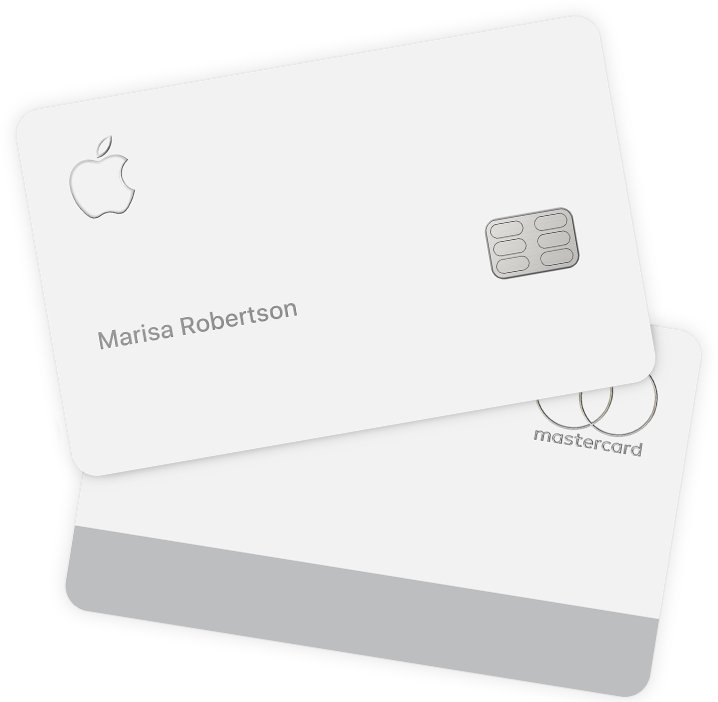
Apple Card is a Mastercard credit card that lives in the Wallet app, with a titanium card available on request.
| Key feature | What it means for you |
|---|---|
| Fees | No annual, over-the-limit, foreign-transaction or late fees; late payments still add interest |
| Daily Cash | 3% at Apple and select merchants with Apple Pay, 2% with Apple Pay, 1% with the titanium card |
| APR | Variable 17.74% to 27.99% based on creditworthiness, as of October 1, 2026 |
| Apple Card Monthly Installments | 0% APR on eligible Apple products when you choose it at checkout |
| Where it works | Apple Pay on iPhone, Apple Watch, iPad, Mac and Vision Pro; the titanium card or virtual card number anywhere Mastercard is accepted |
| Savings | Daily Cash can go to an optional Savings account from Goldman Sachs |
| Apple Card Family | Share one account with a co-owner or participants in your Family Sharing group |
| Issuer | Goldman Sachs Bank USA, Salt Lake City Branch; U.S. applicants only |
Understanding the approval process
Goldman Sachs looks at your credit score, your credit report including current debt, and the income you report.
It uses your TransUnion FICO Score 9, which can differ from the VantageScore that Credit Karma shows.
| Stage or outcome | What happens | Effect on your credit score |
|---|---|---|
| Credit check on applying | A soft inquiry is made | None |
| Approved | Wallet shows your credit limit and APR; you have up to 30 days to accept | A hard inquiry is made only if you accept |
| Approved with too little credit for a device | Pick a cheaper device, another payment method or Apple Trade In | Hard inquiry only if you accept |
| In review | Wallet says the application is in review; updates go to your Apple Account email | None until you accept an offer |
| Declined | An email to your Apple Account address explains why and may show your score | None |
| Declined with a Path to Apple Card invitation | Personalised steps, then a 14-day invitation to reapply | Monthly program review does not lower your score |
Your initial credit limit is based on your income and the minimum payments on your existing debt.
Check your Apple Card credit limit and APR after approval
- Open the Wallet app and tap Apple Card; the card balance and payment due date appear below it.
- Tap the More button, then tap Account Details.
- Scroll to Credit Details to see your Credit Limit, Available Credit and APR.
- Go to card.apple.com in a browser and sign in to confirm the account also opens on the web.
Activating your card
The virtual card in Wallet works as soon as you accept. The titanium card needs a request and an activation on a compatible iPhone with the latest iOS.
- Update your billing address in Wallet first, because the titanium card ships there.
- Open Wallet, tap Apple Card, tap the More button, then tap Account Details.
- Scroll down, tap Get a titanium Apple Card and follow the prompts.
- When the card arrives, follow the activation steps printed in the packaging.
- Without the packaging, go to Account Details, tap Activate Your Card, tap Having trouble activating your card, then tap Do Not Have Card Packaging.
- Add the card to other devices: on Apple Watch use Wallet & Apple Pay in the Watch app, and on iPad use Settings > Wallet & Apple Pay.
Managing your Apple Card
| Task | Where to do it | Detail |
|---|---|---|
| Monitor your spending | Wallet > Apple Card | Balance, due date and transactions sit below the card |
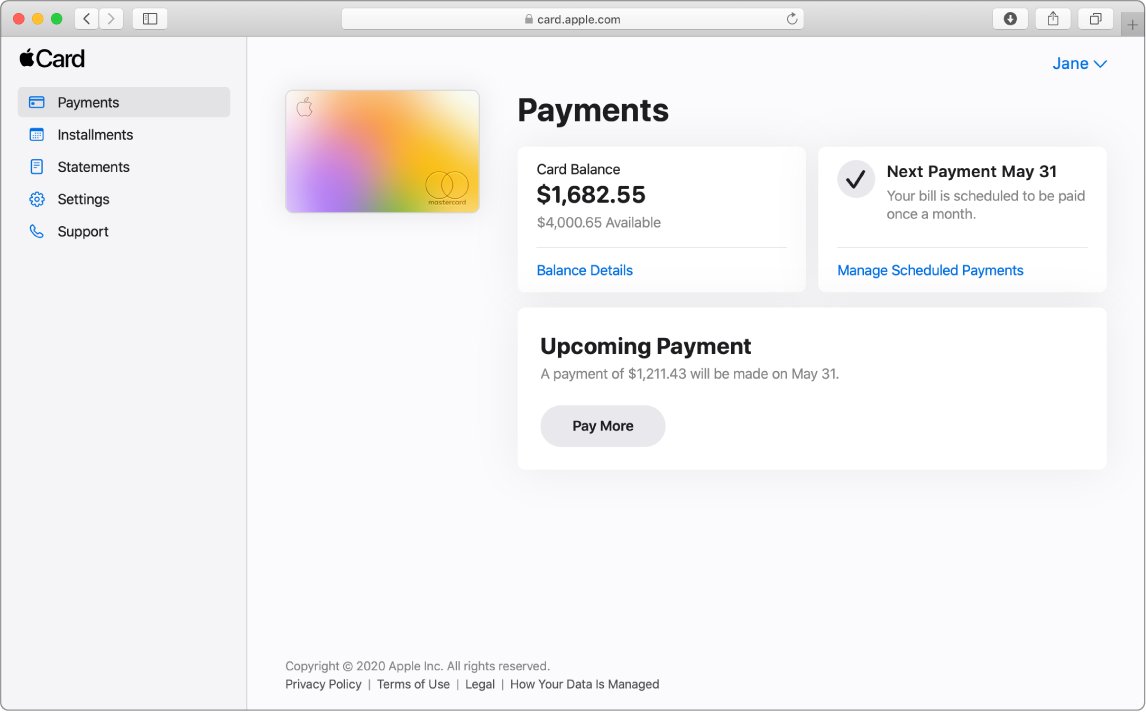
| Pay your balance | Wallet, or card.apple.com > Payments | Pay the minimum, the monthly balance or another amount, now or on a date |
| Set up autopay | card.apple.com > Payments > Set Up Autopay > Set Up Now | Choose Monthly Balance, Minimum Payment Due or Other Amount |
| Use your Daily Cash | Apple Cash, Savings, or card.apple.com > Settings | Spend it, save it, or apply it to your statement balance |
| Pay with a card number | Wallet > Apple Card > virtual card number | For online checkouts and stores without Apple Pay |
| Ask for a higher limit | Wallet > Apple Card > More > Account Details > Message button | No credit score impact; wait about six months on a new account |
| Download statements | card.apple.com | PDF statements and installment details |
Paying the full monthly balance avoids interest, and regular full payments are what Goldman Sachs looks for before raising a limit.
Apple Card application declined or not working: fixes
Your Apple Card application is denied
A condition in your credit report, such as a past-due debt, recent bankruptcy, high debt-to-income ratio or a low FICO Score 9.
- Read the decline email sent to your Apple Account address for the stated reason.
- Request the free credit report named in that email and dispute any errors with the bureau.
- Bring past-due accounts current and pay down card balances before you reapply.
- Enroll in Path to Apple Card if you are invited, then reapply within 14 days of the invitation.
Your identity could not be verified
The details you typed do not match your ID, the ID has expired, or the scan was blocked.
- Check that your name, address and date of birth on the application are correct.
- Confirm the ID has not expired and that its last name, date of birth and address match your entries.
- Rescan with nothing between the camera and the ID, then submit again.
- Contact an Apple Card Specialist at Goldman Sachs if you are declined again for the same reason.
The application will not start, or you see Cannot Add Card
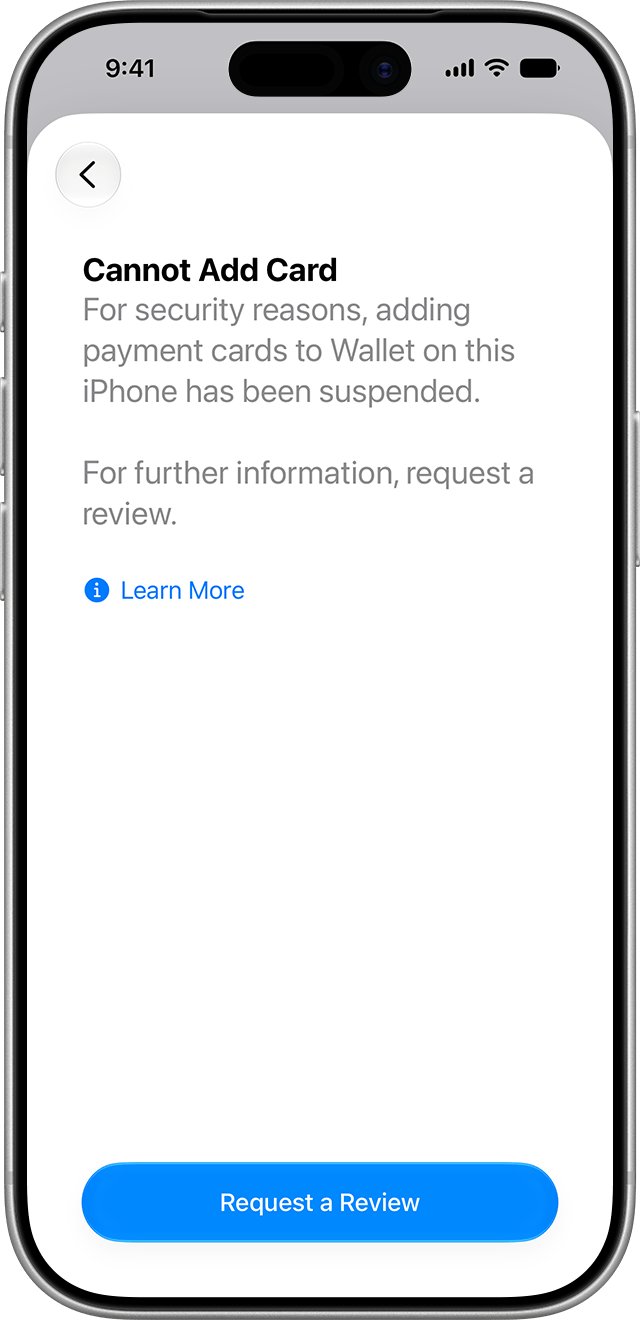
A credit freeze, a non-U.S. device region, or a device flagged for unusual Apple Pay activity.
- Lift any credit freeze with TransUnion temporarily.
- Set the device region to the United States and update to the latest iOS or iPadOS.
- If you see Cannot Add Card, tap Request a Review, then tap Send to Apple on that same device.
- Wait for Apple's review, which can take a few days, before trying again.
Your application is pending or in review
Goldman Sachs needs more time or more information to verify you.
- Watch the primary email address on your Apple Account for updates.
- Respond promptly if Goldman Sachs asks for more information to verify your identity.
- Contact an Apple Card Specialist at Goldman Sachs if you have questions about the review.
Apple Card application: frequently asked questions
Can I apply for Apple Card without an iPhone?
Yes. You can apply online with your Apple Account or on an iPad. Without an iPhone or iPad you own, the card works only for eligible purchases online and in-store at Apple, not everywhere Mastercard is accepted.
How do I apply for Apple Card online?
Go to apple.com/apple-card, select Apply now and sign in with your Apple Account. Complete the application, agree to the terms and accept your offer within 30 days. Add the card to an iPhone or iPad later for full use.
Does applying for the Apple Card impact my credit score?
No. Applying uses a soft inquiry that does not affect your score. A hard inquiry is made only if you are approved and accept the offer, and that hard inquiry may lower your score.
What if my Apple Card application is denied?
Check the decline email, review your credit report for errors and fix past-due debts. You can reapply, but the same report usually produces the same decision. Some applicants are invited to Path to Apple Card, which leads to a reapply invitation.
Can I use the Apple Card internationally?
Yes. The titanium card works anywhere in the world Mastercard is accepted, and Apple Card charges no foreign-transaction fees. Apple Pay works wherever merchants accept it. You still need to be a U.S. resident to apply.
Is there a spending limit on the Apple Card?
Yes. Goldman Sachs sets your credit limit from your income, existing debt payments and credit score. You can see it under Credit Details in Wallet and ask for an increase through the Message button.
Can I add an Apple Card to multiple devices?
Yes. Add it to Apple Watch, iPad, a Mac with Touch ID and Vision Pro, as long as each device is signed in with the Apple Account you used to apply on iPhone.
How do I use Apple Card for a purchase?
Pay with Apple Pay on your iPhone, Apple Watch, iPad or Mac. Where Apple Pay is not accepted, use the titanium card or the virtual card number in Wallet. If an Apple Pay payment fails, you can contact Apple Pay support.
Why get an Apple Card?
Apple Card charges no annual, foreign-transaction or late fees and pays Daily Cash on every purchase. It also offers 0% APR installments on eligible Apple products and manages everything from the Wallet app.
What is the Apple Card good for?
It suits Apple Pay users and Apple buyers most. You get 2% Daily Cash with Apple Pay, 3% at Apple and select merchants, and 0% APR Apple Card Monthly Installments on eligible Apple products.
How long do I have to accept an Apple Card offer?
You have up to 30 days to accept an approved Apple Card offer. Your credit score is not affected until you accept, at which point a hard inquiry is made.
Should you apply for Apple Card?
Apply in the Wallet app on iPhone if you use Apple Pay often and can pay the balance in full each month. The soft-inquiry check lets you see the offer risk-free, the 2% and 3% Daily Cash rates reward Apple Pay use, and there are no fees. A variable APR of up to 27.99% makes it costly if you carry a balance, and accepting adds a hard inquiry.


![How to use a laptop screen as an external monitor [tutorial]](https://techdows.com/wp-content/uploads/2026/10/macOS-Displays-settings-with-an-iPad-added-as-an-extended-display-600x338.jpg)