To find your motherboard model on Windows 11 or Windows 10, press Windows + R, type msinfo32, press Enter, and read the BaseBoard Manufacturer and BaseBoard Product rows in System Summary.
This guide also covers the PowerShell command that returns the same data, the firmware screen, CPU-Z, the label on the board itself, and what to do when Windows reports a placeholder instead of a model.
Check the motherboard model in System Information
System Information (msinfo32) ships with Windows 11 and Windows 10, so there is nothing to install. It reads the board details the firmware stores in its SMBIOS tables.
- Press Windows + R to open the Run box.
- Type
msinfo32and press Enter. - Keep System Summary selected in the left pane.
- Read BaseBoard Manufacturer for the board maker, such as ASUS, MSI or Gigabyte.
- Read BaseBoard Product for the model name, and BaseBoard Version for the board revision if the maker filled it in.
Write down the manufacturer and the product exactly as shown. That pair is what a vendor's support site asks for when you look for a BIOS or firmware update, a manual or a chipset driver.
Which way to check the motherboard model should you use?
Every Windows route reads the same firmware data. The routes differ in speed, in whether they work without Windows, and in what they can show when that data is blank.
| Your situation | Use this | Why |
|---|---|---|
| You want the answer in under a minute | System Information (msinfo32) |
Built in, no typing beyond one word, shows maker, product and version together |
| You need the model as text to paste or script | Get-CimInstance -ClassName Win32_BaseBoard in PowerShell or Windows Terminal |
Returns the Win32_BaseBoard properties as copyable text, on one PC or many |
An older guide gives you a wmic command |
The PowerShell command instead | WMIC is removed from current Windows 11 builds |
| Windows will not boot | The BIOS or UEFI firmware screen, or the board label | Neither needs Windows to be running |
| Windows shows To Be Filled By O.E.M. or a blank value | The printed board label, the box or invoice | Every software tool reads the same empty firmware field |
| You also want chipset and BIOS details in one window | CPU-Z from cpuid.com, Mainboard tab | Shows mainboard and chipset data alongside the BIOS |
| You own a laptop or a prebuilt desktop | The PC model from Win32_ComputerSystem or the maker's label |
The maker's support site is organised by PC model, not by board code |
Find the motherboard model with Command Prompt, PowerShell, or Windows Terminal
The Win32_BaseBoard WMI class represents the motherboard, which Microsoft also calls the baseboard or system board. Its Product property maps to the SMBIOS Type 2 Product string, the board's model as the maker defined it.
Open Windows PowerShell or Windows Terminal from Start search and run the first line. If you open Command Prompt instead, run the second line, which calls PowerShell for you.
Get-CimInstance -ClassName Win32_BaseBoard | Select-Object -Property Manufacturer, Product, Version, SerialNumber
powershell -Command "Get-CimInstance -ClassName Win32_BaseBoard | Select-Object -Property Manufacturer, Product, Version"
Get-CimInstance -ClassName Win32_ComputerSystem | Select-Object -Property Manufacturer, Model
The first line reads the baseboard record and keeps four properties: Manufacturer (the organisation that made the board), Product (the board's model or part number), Version and SerialNumber. The second line runs the same query from a Command Prompt window. The third line reads Win32_ComputerSystem, which returns the PC maker and PC model rather than the board, and is the one to use on a laptop or a branded desktop.
You should see: PowerShell prints a small table, for example Manufacturer and Product columns with the board maker and model under them. A placeholder such as To Be Filled By O.E.M. means the firmware left the field empty; see the fixes further down.
WMIC was deprecated in Windows 10, version 21H1. From August 2026, Windows 11, versions 24H2 and 25H2 no longer include it, and it cannot be added back as a Feature on Demand. WMI itself still works, which is why the Get-CimInstance commands above keep working.
Use DirectX Diagnostic Tool and other built-in Windows clues
DxDiag, the DirectX Diagnostic Tool, summarises the PC as a whole on its System tab and does not report the board itself. It is still useful on a laptop or prebuilt PC, where the PC model is what the maker's support site needs.
- Type
dxdiagin the search box on the taskbar. - Select dxdiag in the results to open the DirectX Diagnostic Tool.
- Select the System tab.
- Read the entries under System Information for the PC manufacturer and model as the firmware reports them.
- For the board itself, close DxDiag and use System Information or the
Win32_BaseBoardcommand instead.
Settings is not a shortcut here. Settings > System > About lists the processor, installed RAM and whether Windows is 32-bit or 64-bit under Device specifications, but it has no motherboard entry.
Check the BIOS or UEFI firmware screen
The firmware's own setup screen usually names the board on its main or information page. Use it when Windows will not start or when you want to see the board name without any Windows tool in between.
- On Windows 11, open Settings > System > Recovery. On Windows 10, open Settings > Update & Security > Recovery.
- Next to Advanced startup, select Restart now.
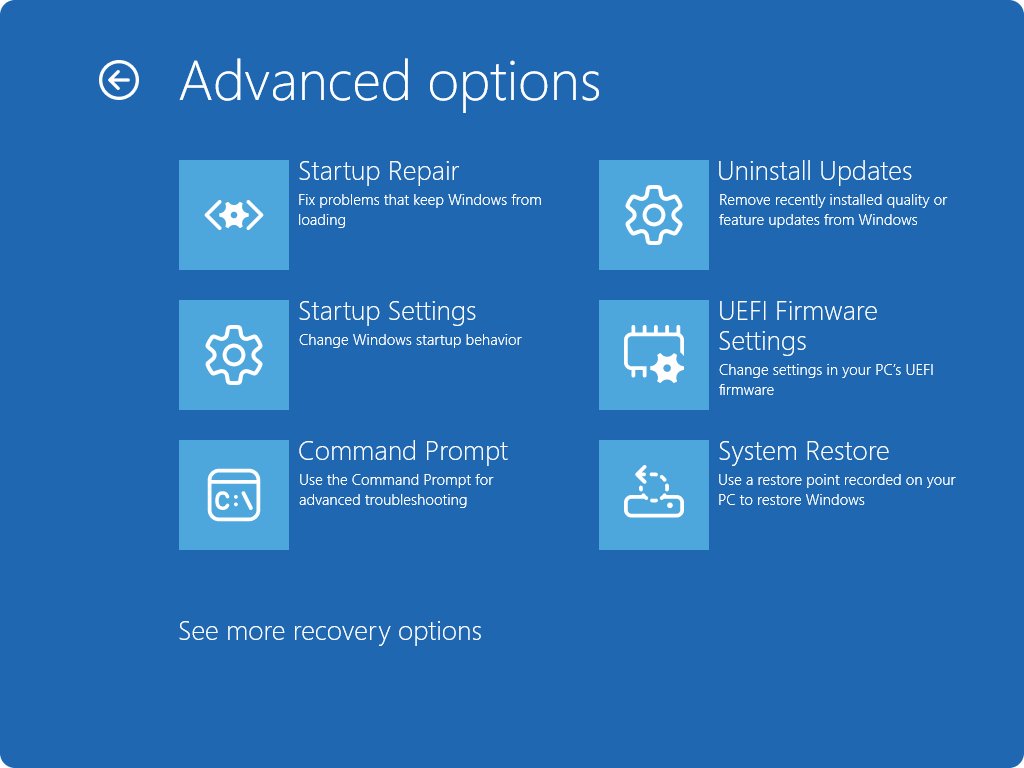
- On the blue screen that appears, select Troubleshoot > Advanced options > UEFI Firmware Settings.
- Select Restart. The PC restarts into the firmware setup screen.
- Look on the main or system information page for the board name, then exit without saving changes.
Firmware menus vary by manufacturer, so the board name may sit on a page called Main, Information or similar. Change nothing else while you are there; boot order and Secure Boot live on these same screens.
Use trusted third-party tools like CPU-Z or HWiNFO
CPU-Z is free software from CPUID that reports the processor, memory, and the mainboard and chipset. CPUID states it is fully supported on Windows 11. Get it only from cpuid.com, not from a download portal.
- Open
cpuid.comin your browser and go to Softwares > CPU-Z. - Download the Windows x86/x64 setup and install it, or use the Windows ARM64 build on an ARM PC.
- Open CPU-Z from the Start menu.
- Select the Mainboard tab to see the board manufacturer, model and chipset.
- Press F6 to copy the current page to the clipboard if you need to paste the details into a support request.
CPU-Z reads the motherboard vendor and revision from the same DMI (SMBIOS) data Windows uses, so it cannot invent a name the firmware left blank. Its chipset line can still help, because it is read from the hardware rather than the firmware strings. HWiNFO is a similar free hardware reporting tool; download it only from its developer's own site.
Physically inspect the motherboard or PC documentation
This is the route that works when software shows nothing useful. Board makers print the model name on the board and on the retail box.
- Check the motherboard box, the manual, or the order invoice if you built or upgraded the PC yourself.
- On a laptop or branded desktop, read the label on the underside or back for the PC model and serial number.
- If you need to see the board, shut down Windows and unplug the power cable.
- Open the side panel of the desktop case and touch a bare metal part of the case to discharge static.
- Look for the model name printed in large text on the board's surface, then close the case.
Do not open a laptop to read the board. The maker's support site identifies the parts from the PC model or serial number on the label, and opening the chassis can affect the warranty.
Is the motherboard model the same as the PC model?
Not on laptops and prebuilt PCs. Microsoft's SMBIOS guidance for PC makers defines separate fields, and Windows tools show different ones.
| Firmware field | Where Windows shows it | What it identifies |
|---|---|---|
| System Manufacturer (SMBIOS Type 1) | Win32_ComputerSystem Manufacturer |
The brand the PC is sold under, such as the laptop maker |
| Product Name (SMBIOS Type 1) | Win32_ComputerSystem Model |
The PC model a customer sees, without processor or storage variants |
| Baseboard Manufacturer (SMBIOS Type 2) | BaseBoard Manufacturer in msinfo32, Win32_BaseBoard Manufacturer |
The company that made the motherboard |
| Baseboard Product (SMBIOS Type 2) | BaseBoard Product in msinfo32, Win32_BaseBoard Product |
The board itself; on prebuilt PCs it can be an internal code that is not marketed to buyers |
| Serial Number (SMBIOS Type 1) | Win32_BIOS SerialNumber |
The individual PC; meant to match the serial number printed on the device |
On a self-built desktop, the Baseboard Product is the retail board name, and that is what you search on the board maker's site. On a laptop, search the maker's support site with the PC model or serial number instead; the board code alone often returns nothing.
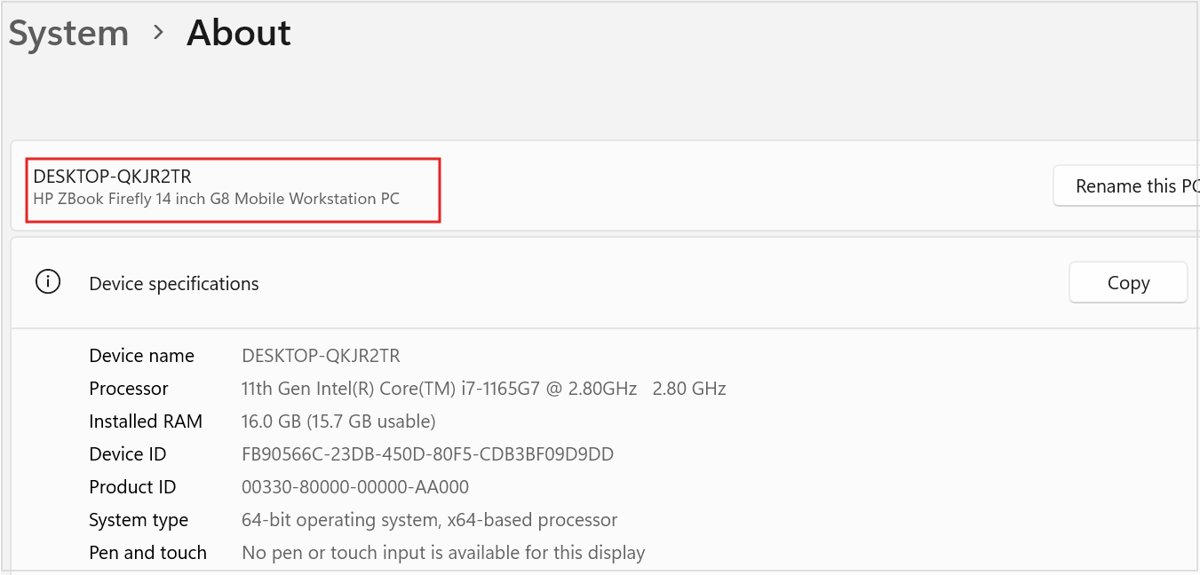
How to confirm the motherboard model is correct
A board name copied wrongly sends you to the wrong BIOS file, which is the one mistake here that can cost you a working PC.
- Compare BaseBoard Product in msinfo32 with the Product value from
Get-CimInstance -ClassName Win32_BaseBoard; they should match character for character. - Search the exact product name on the manufacturer's own support site and confirm a product page exists for it.
- Check that the page's photo and port layout match your PC's rear panel.
- Compare any revision printed on the board or box with BaseBoard Version, because some boards ship in several revisions with separate BIOS files.
- If the two Windows tools disagree with the printed label, trust the printed label and the box.
What to do if Windows shows “to be filled by O.E.M.” or missing details
Windows does not detect the board name on its own. It displays the strings the firmware stores, so an empty or placeholder field looks the same in every tool.
BaseBoard Product says To Be Filled By O.E.M. or is blank
The board maker or system builder left the SMBIOS string at its placeholder, so there is no name for Windows to read.
- Run
Get-CimInstance -ClassName Win32_BaseBoardto confirm the placeholder is in the firmware data and not a display issue. - Check BaseBoard Manufacturer; a real maker name there narrows the search to one brand.
- Open the firmware screen through UEFI Firmware Settings and check its information page.
- Read the model printed on the board, the box or the invoice.
- Use the chipset shown on the CPU-Z Mainboard tab to narrow the list on the maker's site.
The motherboard model shows as a short code on a laptop or prebuilt PC
PC makers can use an internal board code in Baseboard Product that is never marketed to buyers.
- Run
Get-CimInstance -ClassName Win32_ComputerSystem | Select-Object -Property Manufacturer, Modelto get the PC model. - Read the serial number on the label or from
Get-CimInstance -ClassName Win32_BIOS. - Enter the PC model or serial number on the maker's support site.
- Download drivers and firmware from that PC's page, not from a page found with the board code.
Command Prompt says 'wmic' is not recognized
WMIC is no longer included in Windows 11, versions 24H2 and 25H2, and cannot be added back as a Feature on Demand.
- Open Windows PowerShell or Windows Terminal from Start search.
- Run
Get-CimInstance -ClassName Win32_BaseBoard | Select-Object -Property Manufacturer, Product, Version. - In Command Prompt, run the same query wrapped in
powershell -Command "...".
Motherboard model on Windows FAQ
How do I find my motherboard model on Windows 11?
Press Windows + R, type msinfo32 and press Enter. In System Summary, read BaseBoard Manufacturer and BaseBoard Product. Together they give the board maker and model. The same data is available in PowerShell with Get-CimInstance -ClassName Win32_BaseBoard.
How do I find my motherboard model on Windows 10?
Use the same steps as on Windows 11: open msinfo32 from the Run box and read the BaseBoard rows in System Summary. The PowerShell Get-CimInstance -ClassName Win32_BaseBoard command also works on Windows 10 without any changes.
Where do I find the motherboard model in Windows?
It lives in System Information under System Summary, in the rows named BaseBoard Manufacturer and BaseBoard Product. Windows Settings does not show it; the About page lists only the processor, RAM and system type.
How do I check my motherboard model with CMD?
Run powershell -Command "Get-CimInstance -ClassName Win32_BaseBoard | Select-Object -Property Manufacturer, Product, Version" in Command Prompt. The old wmic route no longer works on current Windows 11 builds because WMIC has been removed.
Can I find my motherboard model without opening the computer case?
Yes. System Information, the PowerShell Win32_BaseBoard command, the UEFI firmware screen and CPU-Z all show the model without opening anything. Open the case only when every tool shows a placeholder such as To Be Filled By O.E.M.
Why does Windows show To Be Filled By O.E.M. for my motherboard?
Windows displays the board strings stored in the firmware. When the maker or system builder leaves that string at its placeholder, every tool shows the placeholder. Read the model from the board, the box or the firmware screen instead.
Is the motherboard model the same as the PC or laptop model?
No. On laptops and prebuilt PCs, the PC model and the board model are separate firmware fields, and the board can carry an internal code. Use the PC model or serial number on the maker's support site for drivers and BIOS updates.
Which result should I trust if different tools show different motherboard names?
Trust the name printed on the board or its box. Windows tools and CPU-Z read the same firmware strings, so a mismatch usually means you are comparing the PC model with the board model, or reading a placeholder.
How do I find my motherboard model if Windows will not boot?
Enter the firmware setup screen at startup and check its main or information page, or read the model printed on the board. Firmware menus differ by manufacturer, so the page name varies.
Bottom line: the best way to find your motherboard model
Use msinfo32 and read BaseBoard Manufacturer and BaseBoard Product first; switch to the printed board label only when Windows shows a placeholder. Every software method reads the same firmware strings, so System Information gives the full answer in seconds when those strings are filled in. On laptops and prebuilt PCs, the PC model or serial number is the identifier the maker's support site actually needs.