Apple Weather is the built-in forecast app on iPhone, iPad, Mac and Apple Watch, and it shows hourly and 10-day forecasts, weather maps, air quality, severe weather alerts and next-hour rain notifications for any place you save.
This guide covers every main feature, how to manage locations, maps, units and notifications, where the data comes from, what Apple does with your location, and fixes for the most common problems.
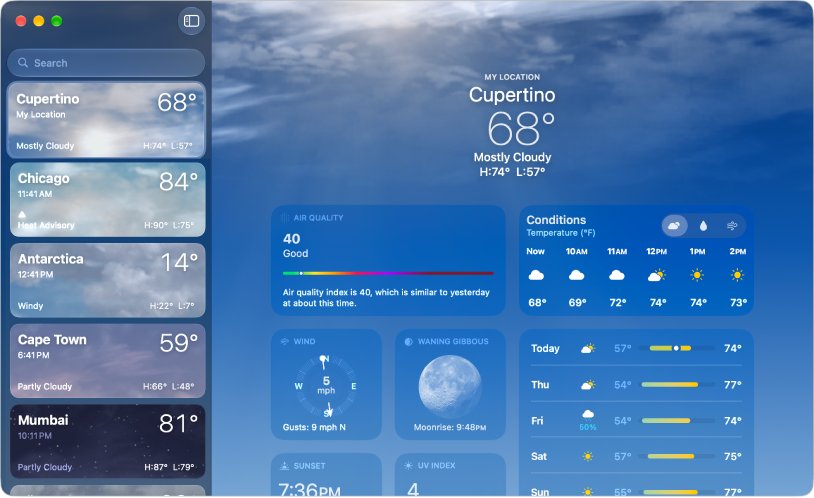
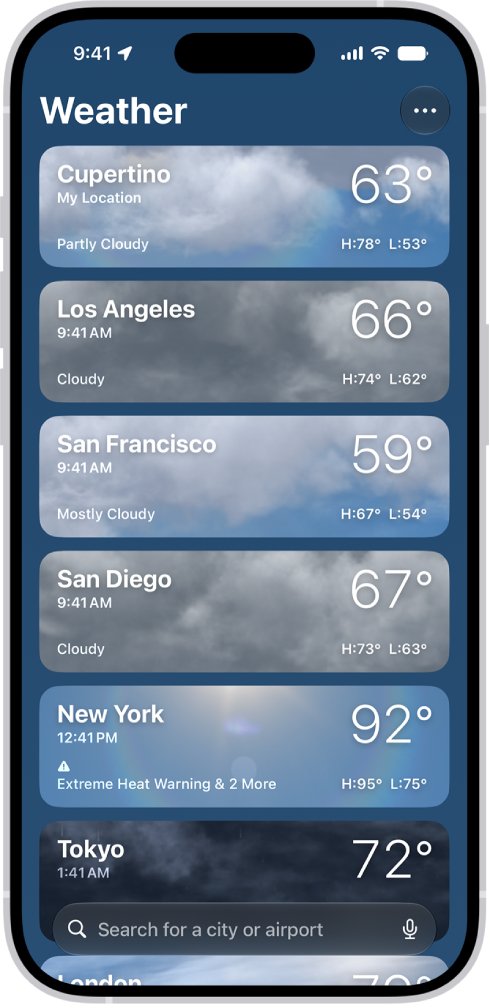
How to check the weather in the Apple Weather app
The app opens on your current location as long as Location Services is on for Weather. The steps below are for iPhone; iPad and Mac follow the same pattern.
- Open the Weather app on your iPhone.
- If you are asked to share your location, allow it so the first screen shows the weather where you are.
- Read the current temperature and conditions at the top, then scroll for the hourly and 10-day forecasts.
- Tap any weather detail, such as UV index, wind or air quality, to open its full chart.
- Swipe left or right to move between the other locations saved in your list.
On a Mac, swipe left or right with two fingers on a trackpad to scroll the hourly forecast. On Apple Watch, tap the display to cycle through the views.
All you need to know about the Apple Weather app features
Each location page in Weather is built from the same set of panels. Some panels depend on where you are.
| Feature | What it shows | Availability |
|---|---|---|
| Hourly forecast | Conditions and temperature for the next 24 hours | All locations |
| 10-day forecast | Conditions, chance of precipitation, highs and lows for the coming days | All locations |
| Severe weather alerts | Major government-issued alerts, with the full alert text on tap | Not in all countries or regions |
| Weather maps | Precipitation, temperature, air quality and wind for the area | Air quality and forecast ranges vary by region |
| Weather details | Sunrise, sunset, UV index, air quality and wind, with interactive charts and extended forecasts | Air quality not in all locations |
| Averages | How today's temperature or precipitation compares with the historical average, plus monthly averages | All locations |
| Moon phase | Current phase, the next full moon and an interactive timeline | All locations |
| Weather news | Weather stories picked by Apple News editors | Not in all countries or regions |
| Siri | Spoken answers to requests such as "Is it going to rain today?" | Wherever Siri is available |
Weather details also compare today's weather with yesterday's, which helps when you want to know whether it will feel colder than it did this morning.
Apple Weather on iPhone, iPad, Mac and Apple Watch compared
| Device | What is different | Extra features |
|---|---|---|
| iPhone | Full app with search, location list and weather maps | Add a location straight from the map; Home and Work labels in search |
| iPad | Same features as iPhone on a larger layout | Same Home and Work setting under Settings > Apps > Weather |
| Mac | Separate Weather app with a sidebar location list and a Weather > Settings window | Menu bar weather status, desktop widgets and keyboard shortcuts |
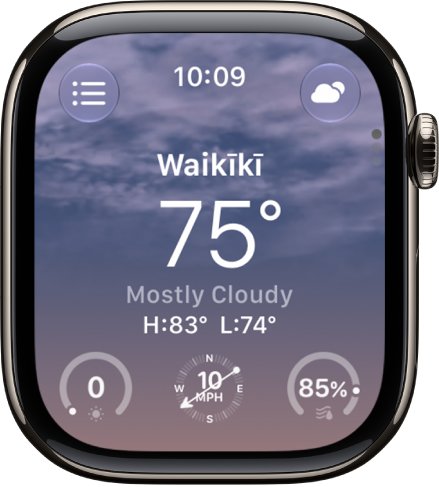
| Apple Watch | Compact views you cycle through by tapping the display | Rain alerts for Calendar appointments and 5-day trip forecasts in the Smart Stack |
Your saved locations stay in sync on every device signed in to the same Apple Account, and the Apple Watch list mirrors the one on your iPhone.
How to add, rearrange and remove locations in Apple Weather
These steps are for iPhone. Neighborhood results in search are not available in every location.
- Open Weather and tap the list button to show your saved locations.
- Tap the search field, then type a city, neighborhood or place name.
- Tap the result to preview its forecast, then tap the add button to save it to your list.
- To reorder the list, touch and hold a location, then drag it up or down.
- To remove a location, swipe left on it in the list, then tap the delete button.
On a Mac, click the add button next to the search field to save a location, Control-click a location in the sidebar and choose Delete to remove it, or drag it to reorder the list.
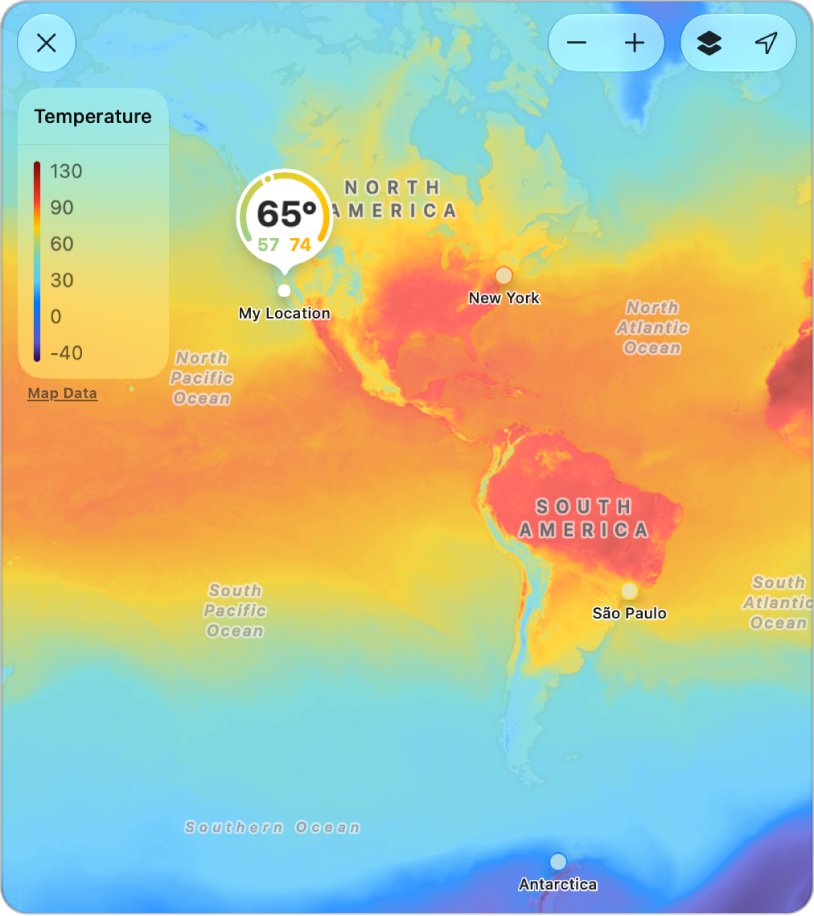
How to use Apple Weather maps for rain, temperature, air quality and wind
The map that appears on a location page changes with the conditions, so a rainy day usually shows precipitation first. The steps below are for Mac.
- Open the Weather app on your Mac and click a location's weather map to expand it.
- Click the map layers button, then choose the temperature, precipitation, air quality or wind map.
- Drag to pan, and use the zoom buttons or pinch on a trackpad to zoom.
- Click the Forecast pop-up menu and choose 1h or 12h to change the time range of the precipitation or wind map, where available.
- Control-click a spot on the map and choose Add [location] to save it to your list.
- Click a location pin, then click Open in Maps to see the place in the Maps app.
On iPhone, tap the map button in the bottom-left corner while viewing a forecast, then touch and hold a point on the map to add that place to your list.
How to change Apple Weather from Fahrenheit to Celsius on Mac
Weather uses the units from your Language & Region settings by default. Changing them here affects only Weather and its widgets, not other apps.
- Open the Weather app on your Mac.
- Choose Weather > Settings, or press Command-Comma.
- Click the General pane.
- Choose Fahrenheit or Celsius for temperature.
- Use the pop-up menus to set wind (mph, km/h or Beaufort), precipitation, pressure and distance units.
- Click Restore Defaults if you want to go back to your region's units.
For a quick temperature switch without opening Settings, use the View menu to toggle between Fahrenheit and Celsius.
How to turn on Apple Weather severe weather and rain notifications
Weather can alert you to government-issued severe weather warnings and to rain or snow that is about to start or stop. Both depend on your country or region.
- On your Mac, choose Apple menu > System Settings, then click Notifications in the sidebar.
- Under Application Notifications, click Weather and turn on Allow notifications.
- Open the Weather app, choose Weather > Settings and click the Notifications pane.
- For each location, select Severe Weather to get government-issued alerts.
- Select Next-Hour Precipitation for a heads-up when rain or snow is about to start or stop.
On iPhone and iPad, open the location list in Weather, tap the More button, then tap Notifications to choose the same options per location.
How to show Apple Weather in the Mac menu bar
The menu bar item shows current conditions and temperature for the first location in your Weather list.
- Choose Apple menu > System Settings, then click Menu Bar in the sidebar.
- Go to Menu Bar Controls and select the box next to Weather.
- Check that the temperature and a condition symbol now appear in the menu bar.
- To change the location shown, click the weather status, choose Open Weather, then drag the location you want to the top of the list.
Apple Weather on Apple Watch: rain alerts and trip forecasts
Apple Watch uses your Calendar to warn you about rain where you are going. Rain alerts cover appointments at locations within 150 miles.
- Open the Calendar app and add an appointment or trip that includes the destination address.
- As the appointment nears, look for the Precipitation widget in the Smart Stack if rain is forecast there.
- For a trip, scroll the Smart Stack to the Trip widget to see a 5-day forecast for the destination.
- Tap either widget to open detailed weather, including hourly forecasts.
If local weather does not show when you open Weather on the watch, make sure Location Services is turned on.
Apple Weather keyboard shortcuts on Mac
| Action | Shortcut |
|---|---|
| Open Weather settings | Command-Comma (,) |
| Add the previewed location to your list | Shift-Command-L |
| Close window | Command-W |
| Minimize window | Command-M |
| Enter full screen | Fn-F |
| Hide Weather | Command-H |
| Hide other apps | Option-Command-H |
| Quit Weather | Command-Q |
Shortcuts can differ with your keyboard layout and language, so the Weather menus in the menu bar always show the correct ones for your Mac.
Apple Weather symbols and what they mean
The icons on each forecast row and in the menu bar follow one set of condition symbols.
| Symbol group | Conditions it covers |
|---|---|
| Sun | Sunrise, sunset, clear or mostly clear |
| Cloud | Partly cloudy, cloudy or mostly cloudy |
| Low visibility | Haze and fog |
| Wind | Windy or breezy |
| Rain | Drizzle, freezing drizzle, rain and heavy rain |
| Storm | Thunderstorm |
| Snow and ice | Snow, heavy snow or blizzard, freezing rain, sleet and wintry mix |
| Night variants | Separate night versions of clear or mostly clear, partly cloudy and drizzle |
Where does Apple Weather get its data?
Apple Weather runs on Apple's own weather service, WeatherKit, which combines forecasts from national weather agencies.
| Data type | Sources Apple lists |
|---|---|
| Weather models | National Weather Service/NOAA, Environment and Climate Change Canada, Deutscher Wetterdienst, the Met Office/ECMWF, Japan Meteorological Agency, Meteo-France |
| Weather station data | National Weather Service/NOAA, Japan Meteorological Agency |
| Radar | National Weather Service/NOAA, the Met Office |
| Severe weather alerts | National Weather Service, Environment and Climate Change Canada, Servicio Meteorologico Nacional, EUMETNET Meteoalarm |
Apple publishes this list on its WeatherKit data source page, and severe alert coverage follows these agencies, which is why some countries get no alerts.
Apple Weather privacy: what location data Apple collects
| What Weather uses | What Apple does with it | How to control it |
|---|---|---|
| Your current location | Sent to Apple to get your forecast, not linked to your identity | Turn Weather off under Location Services |
| Locations you follow | Sent to Apple to get their forecasts, not linked to your identity | Remove them from your list |
| Home and Work addresses | Read from My Card in Contacts to label those places | Settings > Apps > Weather on iPhone or iPad; Weather > Settings > General on Mac |
| Severe weather notification regions | The region list can be associated with your Apple Account to deliver alerts | Turn off Severe Weather for each location |
| Predicted travel destinations | Used for alerts only if location access is Always and Significant Locations is on | Change Weather's location access or turn off Significant Locations |
Apple also collects limited, unlinked information about the first time you open the app each day. The full policy is on Apple's Weather and privacy page.
How to stop Apple Weather from using your location on Mac
- Choose Apple menu > System Settings, then click Privacy & Security in the sidebar.
- Click Location Services on the right.
- Scroll down and turn off Weather to stop only this app from using your location.
- Turn off Location Services at the top instead if you want every app to stop using it.
Weather asks for location access again the next time it tries to use your location. Saved locations still work without it.
How to check Apple Weather is showing your current location
- Open the Weather app on your Mac.
- Click the sidebar button in the toolbar to show your location list.
- Look for My Location at the top of the list and click it.
- Confirm the forecast matches the town you are in, then expand the map and click the current-location button to see your position on it.
On Apple Watch, the local weather appears as soon as you open Weather; if it does not, Location Services is off.
Apple Weather not showing location, alerts or Home and Work: fixes
Apple Weather does not show your local weather
Location Services is off for Weather, or off for the whole device.
- On Mac, open System Settings > Privacy & Security > Location Services.
- Turn on Location Services if it is off, then turn on Weather.
- Reopen Weather and click My Location in the list.
Severe weather alerts or rain notifications never arrive
Notifications are off, the location has no alert options selected, or the feature is not offered in your region.
- Check that Allow notifications is on for Weather in System Settings > Notifications (or the Notifications settings on iPhone).
- In Weather, open Weather > Settings > Notifications on Mac, or More > Notifications on iPhone.
- Select Severe Weather and Next-Hour Precipitation for each location you care about.
- If those options are missing for a location, the alerts are not offered in that country or region.
Home and Work do not appear in Weather search
The labels are off, Location Services is off for Weather, or My Card has no addresses.
- On iPhone, go to Settings > Apps > Weather and turn on Home and Work.
- Make sure Location Services is on for Weather.
- Add your home and work addresses to My Card in the Contacts app.
The Mac menu bar shows the wrong city
The menu bar always follows the first location in the Weather list.
- Click the weather status in the menu bar and choose Open Weather.
- Drag the city you want to the top of the location list.
Apple Weather app FAQ
Is the Apple Weather app free?
Yes. Weather comes built into iPhone, iPad, Mac and Apple Watch, so there is nothing to download or buy before you can check forecasts, maps and alerts. Some panels, such as weather news and certain alerts, depend on your country or region.
Where does Apple Weather get its forecasts?
Apple Weather uses Apple's WeatherKit service, which draws on national agencies such as the US National Weather Service and NOAA, Environment and Climate Change Canada, Deutscher Wetterdienst, the Met Office and ECMWF, the Japan Meteorological Agency and Meteo-France.
Does Apple Weather track my location?
Weather sends your location to Apple to fetch a forecast, but Apple says that location is not associated with your identity. Only the regions you enable severe weather notifications for can be linked to your Apple Account.
Do my saved Apple Weather locations sync between devices?
Yes. Your location list stays up to date on every device signed in to the same Apple Account, and the list on Apple Watch is synced with the one on your iPhone.
Can Apple Weather tell me when it is about to rain?
Yes, where the feature is offered. Turn on Next-Hour Precipitation for a location in the Weather notification settings, and Weather alerts you when rain or snow is about to start or stop there.
How do I switch Apple Weather between Celsius and Fahrenheit on Mac?
Choose Weather > Settings, click General, then pick Fahrenheit or Celsius. You can also switch from the View menu. The change affects only Weather and its widgets, not other apps on your Mac.
Does Apple Weather show air quality?
Yes, for supported locations. Air quality appears as a weather detail and as one of the weather maps, and Apple Watch shows it in its hourly views. It is not available for every location.
Is there an Apple Weather app for Mac?
Yes. Weather is a separate app on Mac, and Apple's Mac Weather User Guide covers macOS Ventura 13 and later. It adds menu bar weather status, desktop widgets and keyboard shortcuts on top of the iPhone features.
Is the Apple Weather app good enough to replace other weather apps?
For most people in the US, yes: keep Apple Weather and turn on Severe Weather and Next-Hour Precipitation for the places you care about. It draws on national agency data, syncs your locations across every Apple device, and keeps your location unlinked from your identity. A specialist app only adds value if you need features Weather does not offer in your region, such as severe alerts outside its covered countries.

![How to force restart on Windows 10 [revive your frozen PC]](https://techdows.com/wp-content/uploads/2026/10/Windows-10-recovery-Choose-an-option-screen-with-Troubleshoot-tile-590x338.jpg)