To fix a second monitor that Windows does not detect, press Windows logo key + P, choose Extend, then open Settings > System > Display > Multiple displays and select Detect.
If that fails, the cause is almost always the cable, the monitor's input source, the graphics driver or a dock, and each fix below applies to Windows 11 and Windows 10.
Force Windows to detect the second display
These three steps clear most detection failures in under a minute. They work on Windows 11, and the same keys work on Windows 10.
- Make sure the second monitor is plugged into power, switched on and connected to the PC.
- Press Windows logo key + P and select Extend.
- Select Start > Settings > System > Display.
- Expand Multiple displays and select Detect.
- If nothing appears, press Windows logo key + Ctrl + Shift + B to reset the graphics driver. A beep or a brief screen flicker means the reset ran.
- If the monitor is still missing, select Start > Power > Restart.
The monitor is detected when a second numbered box appears at the top of the Display page.
Quick troubleshooting order for a second monitor not detected
Match what you see to a row and start there. The cheap checks come first because they solve most cases.
| What you see | Start with | Why |
|---|---|---|
| Monitor shows "No signal" and Settings lists one display | Cable, port and monitor input | Windows cannot detect a display that receives no connection |
| Monitor worked yesterday and stopped today | Windows + Ctrl + Shift + B, then restart | A stuck graphics driver is the usual cause of sudden failures |
| Stopped after a Windows or driver update | Roll back the graphics driver | Returns the driver that worked |
| Two displays listed but the second is blank | Win + P mode, resolution and refresh rate | The display is detected, but the output settings are wrong |
| Second monitor connects through a dock, hub or USB-C adapter | Connect the monitor directly to the PC | Separates a dock fault from a PC fault |
| One external monitor works, the second never does | Display adapter limits and splitter check | The graphics card or single port may support only one external monitor |
| Device Manager shows Microsoft Basic Display Adapter | Install the manufacturer's graphics driver | The generic driver offers limited multi-monitor support |
| Wireless TV or projector | Win + K and Miracast checks | Wireless displays use a different connection path |
Check the second monitor cable, port, power and input source
A loose cable or the wrong input source causes more "not detected" reports than any software fault. Work through these before touching drivers.
- Unplug the monitor from the wall outlet, wait a few seconds, plug it back in and turn it on.
- Reseat the video cable firmly at both ends.
- Open the monitor's on-screen menu and set Input or Source to the port in use, such as HDMI, DisplayPort or USB-C.
- Swap in a different cable. If the new cable works, the old one was faulty.
- Plug the monitor into another video output port on the PC, such as HDMI, DisplayPort, DVI or VGA.
- On a desktop with a graphics card, connect the monitor to the card's ports rather than the motherboard's ports.
- Check the monitor's on-screen menu for a port version setting and try the other option.
Some monitors do not switch input automatically, so a correct cable on the wrong input still shows "No signal".
Fix second monitor is not detected in Windows 10
Windows 10 keeps the detection controls under slightly different labels. The keyboard shortcuts are the same as on Windows 11.
| Task | Windows 10 | Windows 11 |
|---|---|---|
| Force Windows to detect the second PC monitor | Settings > System > Display > Multiple displays > Detect | Settings > System > Display > Multiple displays > Detect |
| Identify which screen is which | Settings > System > Display > Rearrange your displays > Identify | Settings > System > Display > Identify |
| Connect a wireless display | Settings > System > Display > Connect to a wireless display | Settings > System > Display > Multiple displays > Connect |
| Pick the display mode | Windows logo key + P | Windows logo key + P |
| Reset the graphics driver | Windows logo key + Ctrl + Shift + B | Windows logo key + Ctrl + Shift + B |
| Change resolution and scale | Settings > System > Display > Scale and layout | Settings > System > Display > Scale & layout |
The cable, Device Manager and driver fixes below work the same way on Windows 10.
Set the correct display mode, resolution, refresh rate and scale
A second monitor set to PC screen only, or to a resolution it cannot show, looks undetected even when Windows sees it. These display and projection settings fix that.
- Press Windows logo key + P and select Extend to use both screens, or Duplicate to mirror them.
- Select Start > Settings > System > Display and select the second monitor's box at the top.
- In the Display resolution list, choose the option marked (Recommended).
- Under Scale & layout, open Scale and choose the (Recommended) value.
- Select Advanced display and check the Display information panel for the current resolution and refresh rate.
- Choose a lower rate next to Choose a refresh rate if the screen stays black. Rates marked with an asterisk (*) also change the resolution.
Manage your displays: identify and arrange a second monitor
Once both screens are detected, arrange them so the mouse moves across them the way they sit on your desk.
- Select Start > Settings > System > Display.
- Select Identify. A number appears on each screen.
- Drag the numbered boxes to match the physical layout of the monitors.
- Select Apply.
- Move the pointer across the edge between the screens to test the layout.
- Expand Multiple displays and tick or clear Remember window locations based on monitor connection and Minimize windows when a monitor is disconnected.
Connect a wireless display as a second monitor
Wireless TVs, projectors and adapters use Miracast, not a cable, so the Detect button will not find them.
- Turn on Wi-Fi from the network icon on the taskbar.
- Turn on the wireless display or plug the Miracast adapter into the TV's HDMI port.
- Press Windows logo key + K to open Cast and select the display.
- If Windows says you need to connect with a cable, the PC does not support Miracast.
- If the display does not appear, select Start > Settings > System > Display > Multiple displays > Connect.
- If it connected before but now fails, open Settings > Bluetooth & devices > Devices, select it under Wireless displays & docks, select Remove device, then connect again.
Projecting to another Windows PC also needs the Wireless display optional feature on that PC and Settings > System > Projecting to this PC set to be discoverable.
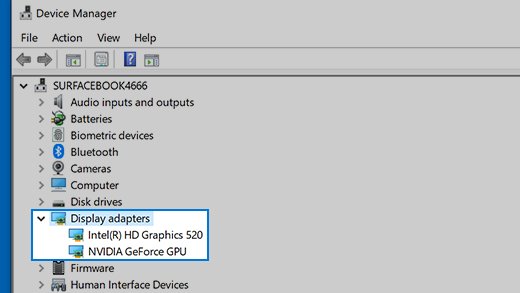
Check your display adapter in Device Manager
If Windows is running the generic Microsoft Basic Display Adapter driver, multi-monitor support is limited until the manufacturer's driver is installed.
- Right-click Start and select Device Manager.
- Select the arrow next to Display adapters.
- Read the name listed. It shows the graphics card manufacturer, such as Intel, AMD or NVIDIA.
- If you see Microsoft Basic Display Adapter, install the manufacturer's driver through Windows Update or the manufacturer's website.
- For a second check, press Windows logo key + R, type
dxdiag.exeand select OK. - Open the Display tab and read the Name field. Several Display tabs mean several adapters.
Update or reinstall graphics drivers for a second monitor
A missing or damaged graphics driver stops Windows from reporting new screens. Try Windows Update first, then a clean reinstall.
- Select Start > Settings > Windows Update > Advanced options and turn on Receive updates for other Microsoft products.
- Under Additional options, select Optional updates, tick any display driver listed and select Download and install.
- Restart the PC, even if Windows does not ask.
- If the monitor is still missing, open Device Manager and expand Display adapters.
- Right-click the adapter, select Uninstall device, tick Attempt to remove the driver for this device and select Uninstall.
- Restart, open Device Manager again, right-click the adapter and select Update driver.
- Select Search automatically for updated driver software and finish the installation.
Write the last three steps down before you restart. If Windows Update has no driver for your card, get it from the PC or graphics card manufacturer's website, never from a driver-download site.
Update, reinstall, or roll back the graphics driver after an update
If the second monitor stopped working right after a driver or Windows update, rolling back is faster than a reinstall.
- Type
device managerin the taskbar search box and open Device Manager. - Expand Display adapters.
- Right-click the adapter and select Properties.
- Open the Driver tab and select Roll Back Driver.
- Pick a reason, select Yes and restart the PC.
- If Roll Back Driver is greyed out, no earlier driver is stored. Use the reinstall steps above instead.
Fix docking station, USB-C, Thunderbolt and adapter problems
Docks, hubs and adapters sit between the PC and the monitor, and any of them can drop the signal. The fastest test is to take them out of the chain.
- Disconnect every dock, dongle and adapter, then connect the monitor directly to a video port on the PC.
- If the direct connection works, reconnect the USB-C or Thunderbolt dock and reseat its cable firmly.
- Remove the USB-C display adapter and plug it back in firmly.
- Connect the adapter to a different TV or monitor. If it fails there too, replace the adapter.
- Install the dock or adapter firmware and driver updates from its manufacturer's support site.
- Stop using a display splitter to extend the desktop. A splitter duplicates one signal and cannot create two independent screens.
- For DisplayPort daisy chaining, set both monitors to DisplayPort 1.2 or Multi-Stream Transport (MST) in their on-screen menus.
A PC with one video output port supports one external monitor on its own. A second external monitor needs a docking station or a USB-C adapter that adds an output. If the dock's USB ports also stop seeing storage, fix USB drives not detected on the same PC before blaming the monitor.
Check GPU control panel and docking station settings
Graphics vendors ship their own display software, and a setting there can override Windows. Laptops with two graphics chips are the usual case.
- Right-click the desktop and open the graphics software listed for your adapter, such as the Intel, AMD or NVIDIA control panel.
- Open its display or multiple displays page and check that the second monitor is enabled.
- On a PC with two display adapters, check which adapter the monitor port belongs to and switch the default adapter if needed.
- Confirm with the card's manufacturer how many monitors the adapter supports.
- If the monitor connects through a dock, open the dock maker's utility, if it has one, and confirm the video ports are enabled.
Menu names differ between vendors and driver versions, so follow the labels in your own control panel.
Wake, restart and reset the monitor detection chain
When a setup that worked suddenly stops, reset each link in the chain in this order: driver, Windows, monitor, PC.
- Press Windows logo key + Ctrl + Shift + B to reset the graphics driver.
- Press Windows logo key + P, then press P again and Enter to cycle the display mode.
- Select Start > Power > Restart.
- If that fails, select Start > Power > Shut down, unplug the monitor from power, then turn both back on.
- Reconnect the video cable after the PC reaches the desktop.
Check Device Manager, BIOS/UEFI and graphics control panels for display output
Firmware settings on some desktops decide whether the motherboard ports or the graphics card ports are active. Option names vary by manufacturer.
- Confirm in Device Manager > Display adapters that the adapter for the port you use is listed, as shown above.
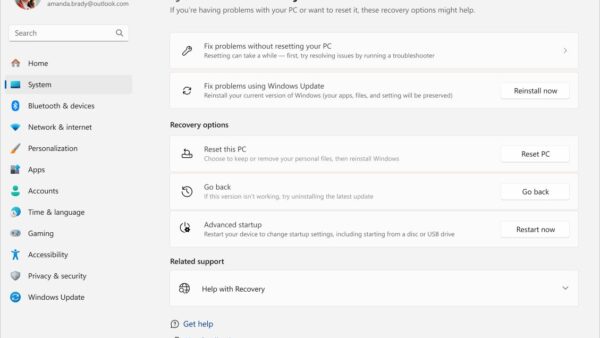
- Select Start > Settings > System > Recovery.
- Next to Advanced startup, select Restart now.
- Select Troubleshoot > Advanced options > UEFI Firmware Settings > Restart.
- Look for the graphics or display output settings and check which adapter is primary.
- Save, exit and test the monitor on the port that matches the active adapter.
Have your BitLocker recovery key ready, since Windows may ask for it after a firmware change. Check your PC manufacturer's manual for the exact option names.
Run Windows troubleshooters and system updates for display problems
The old Hardware and Devices troubleshooter is being removed from Windows and is not replaced in Get Help. Windows Update is the better route, because it carries display drivers and fixes.
- Select Start > Settings > Windows Update.
- Select Check for updates and install everything offered.
- Open Advanced options > Optional updates and install any display driver listed.
- Restart the PC and test the second monitor again.
If the latest feature update never appears, get 26H2 to show in Windows Update before you chase newer display drivers.
Repair Windows system files with DISM and SFC
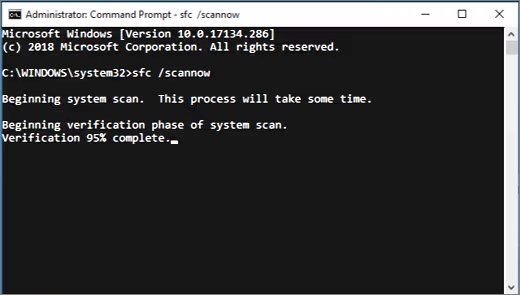
Damaged Windows components can break device detection. Run these from an elevated Command Prompt: type cmd in search, right-click Command Prompt and select Run as administrator.
DISM.exe /Online /Cleanup-image /Restorehealth
sfc /scannow
DISM fetches clean copies of Windows files from Windows Update, then SFC scans every protected system file and replaces damaged ones. Run DISM first and keep the window open until SFC reaches 100%.
You should see: "Windows Resource Protection did not find any integrity violations" or "found corrupt files and successfully repaired them".
Try advanced fixes for persistent detection problems
These steps help when the monitor works on other PCs and every driver fix has failed.
- Perform a clean boot: run
msconfig, open Services, tick Hide all Microsoft services and select Disable all. - On the Startup tab, select Open Task Manager and disable startup apps, then restart and test the monitor.
- If the monitor works after a clean boot, re-enable services in halves to find the software that blocks it.
- Return to normal by selecting Normal startup in
msconfig. - If the problem began recently, open Windows Recovery and select Troubleshoot > Advanced options > System Restore, then pick a restore point from before it started.
- On a Surface, use the Surface display cache file from Microsoft's Surface external display support page, then restart and reconnect.
Test the monitor and PC hardware
Two swaps tell you whether the fault is in the monitor or in the PC.
| Test | Result | What it means |
|---|---|---|
| Connect the second monitor to another PC or laptop | It works | The monitor is fine; the fault is in your PC, port, cable or driver |
| Connect the second monitor to another PC or laptop | It still shows nothing | The monitor or its cable is faulty |
| Connect a different monitor to the same PC port | It works | The original monitor or its input setting is the problem |
| Connect a different monitor to the same PC port | It fails | The port, graphics card or driver is the problem |
| Try every video output port on the PC | Only one port works | The other ports may be disabled in firmware or belong to an inactive adapter |
How to check Windows detects the second monitor
- Select Start > Settings > System > Display. Two numbered boxes should appear at the top.
- Select Identify. A large number should appear on each screen.
- Select Advanced display and switch the display picker to the second monitor. The Display information panel should show its resolution and refresh rate.
- Drag a window across to the second screen to confirm Extend mode works.
What to do if Windows detects the monitor but it is still blank
Second monitor not displaying anything, but Settings lists it
The display mode, resolution or refresh rate is wrong for that screen.
- Press Windows logo key + P and select Extend.
- In Settings > System > Display, select the second monitor and set Display resolution to (Recommended).
- In Advanced display, choose a lower value under Choose a refresh rate.
Second monitor shows "No signal" even though Windows is on
The monitor is on the wrong input, or the driver output stalled.
- Set the monitor's Input or Source to the port in use.
- Press Windows logo key + Ctrl + Shift + B.
- Restart the PC.
Second monitor not displaying correctly: stretched, blurry or wrong size
The resolution or scale is not the monitor's recommended value, or the driver is generic.
- Set Display resolution and Scale to their (Recommended) values.
- Check Device Manager > Display adapters for Microsoft Basic Display Adapter and install the manufacturer's driver if it is listed.
What to do if the second monitor keeps disconnecting
Second monitor suddenly not working after it worked for a while
A loose cable, a failing dock or a driver that stopped responding.
- Reseat the cable at both ends, or swap it for a new one.
- Connect the monitor directly to the PC, bypassing the dock.
- Press Windows logo key + Ctrl + Shift + B when the screen drops.
Second monitor not connecting after a driver or Windows update
The new graphics driver has a fault with your hardware.
- Open Device Manager > Display adapters, right-click the adapter and select Properties.
- On the Driver tab, select Roll Back Driver.
- Restart the PC.
Windows lose their position each time the monitor reconnects
The multiple display options control where windows go.
- Open Settings > System > Display > Multiple displays.
- Tick Remember window locations based on monitor connection.
Second monitor not turning on or not working at all
Second monitor will not come on
No power reaches the monitor, or it is in standby waiting for a signal.
- Check the power cable and press the monitor's power button.
- Unplug the monitor from the outlet, wait a few seconds and plug it back in.
- Connect it to another PC to confirm it powers on.
One external monitor works, but a second or third does not
The display adapter or single video port cannot drive another monitor, or a splitter is in use.
- Ask the graphics card or PC manufacturer how many monitors the adapter supports.
- Replace any display splitter with a docking station or a USB-C adapter that adds an output.
When to suspect a second monitor hardware failure
Suspect hardware when the monitor stays dark on a second PC with a known-good cable, or when no monitor works on a port that worked before. Those two tests remove Windows, the driver and your settings from the picture. A monitor that fails everywhere needs repair or warranty service, and a dead port needs the PC or graphics card manufacturer.
Second monitor not detected FAQ
How do I fix a second monitor not detected in Windows?
Press Windows logo key + P and select Extend, then open Settings > System > Display > Multiple displays and select Detect. If that fails, check the cable and the monitor's input source, press Windows logo key + Ctrl + Shift + B, and update or roll back the graphics driver.
Why is my second monitor not displaying?
The most common causes are a loose or faulty cable, the monitor set to the wrong input, Windows set to PC screen only, or a graphics driver fault. Check the cable and input first, then press Windows logo key + P and choose Extend or Duplicate.
Why won't my second monitor come on?
A monitor that stays dark usually has no power or no signal. Check the power cable, unplug the monitor from the outlet for a few seconds, then plug it in again. If it still does not turn on when connected to another PC, the monitor itself is likely faulty.
Why can't I use my second monitor with a splitter?
A display splitter duplicates one video signal, so both screens show the same image and Windows cannot extend the desktop across them. To use two independent external monitors, use two video ports, a docking station, or a USB-C adapter that adds a video output.
How do I force Windows 10 to detect my second monitor?
On Windows 10, select Start > Settings > System > Display, then select Detect under Multiple displays. If the monitor still does not appear, press Windows logo key + Ctrl + Shift + B to reset the graphics driver, then restart the PC.
Can a bad HDMI, DisplayPort or USB-C cable stop a second monitor being detected?
Yes. A damaged or loose cable can stop the signal entirely, so Windows sees no second display. Swap in a different cable of the same type. If the new cable works, the old one was faulty and should be replaced.
Should I update or reinstall the graphics driver if Windows cannot detect the monitor?
Update it first through Windows Update optional updates. If the problem started after an update, roll the driver back in Device Manager instead. Reinstall it by uninstalling the device with the driver removal box ticked, then restarting, when neither of those helps.
What should I check if my second monitor connects through a docking station?
Connect the monitor directly to the PC first. If it works directly, reseat the dock cable, install the dock's firmware and driver updates from its manufacturer, and confirm the dock supports the number of monitors you are connecting.
Why does my second monitor suddenly stop working?
Sudden failures usually come from a stalled graphics driver, a recent driver update, or a cable that worked loose. Press Windows logo key + Ctrl + Shift + B, restart the PC, reseat the cable, then roll back the graphics driver if an update installed recently.
Bottom line: fixing a second monitor not detected in Windows
Start with Windows logo key + P, the Detect button and the monitor's input source, then move to the graphics driver and the dock only if those fail. Most second monitors that Windows cannot see have a connection or input problem, not a software one. Driver rollback fixes most failures that start after an update, and a test on another PC settles any hardware doubt.

![Allow apps to access your microphone Windows 11 [tutorial]](https://techdows.com/wp-content/uploads/2026/10/Windows-10-Privacy-Microphone-page-with-the-apps-access-switch-on.jpg)