Press Windows key + . (period) while your cursor is in a text box to open the emoji keyboard on Windows 11 and Windows 10; Windows key + ; (semicolon) does the same.
This guide covers both shortcuts, the touch keyboard route for tablets, searching, skin tones, GIFs, kaomoji, symbols, clipboard history and fixes for a panel that will not open.
Use the Windows emoji keyboard shortcut (Windows key + period)
The shortcut is the same on Windows 11 and Windows 10, and it works in any app where you can type text.
- Click inside a text field, such as a chat box, a document or the browser address bar, so the text cursor blinks there.
- Press Windows key + . (period). If that does nothing on your keyboard layout, press Windows key + ; (semicolon) instead.
- Select an emoji with the mouse, or keep typing to search for one by name.
- Press Esc or select the close button when you are done.
The Mac emoji keyboard uses a different shortcut, so these keys apply only to Windows PCs.
Ways to open the emoji keyboard on Windows compared
| Your situation | Use this | Why |
|---|---|---|
| Physical keyboard with a Windows key | Windows key + . or Windows key + ; | Fastest route, opens the panel at the cursor on Windows 10 and 11 |
| Tablet or 2-in-1 PC folded into tablet shape | Touch keyboard emoji view | No physical keys needed |
| You need a GIF, kaomoji or symbol on Windows 11 | Windows key + . then the matching tab | All four content types sit in one panel |
| You keep pasting the same emoji or text | Windows key + V (clipboard history) | Pinned items stay available after a restart |
| You need a typographic symbol such as © or — | Alt code on the numeric keypad | Works without opening any panel |
How to open and use the emoji keyboard on Windows 11
Windows 11 puts emoji, GIFs, kaomoji and symbols in the same panel, so one shortcut reaches all of them.
- Open the app you want to type in and click where the emoji should go.
- Press Windows key + . (period) to open the emoji panel.
- Type a word such as
heartto filter the emoji, or scroll through the list. - Select the emoji to insert it at the cursor.
- Select another tab at the top of the panel to switch to GIFs, Kaomoji or Symbols.
- Press Esc to close the panel.
Support for Emoji 17.0, including distorted face and hairy creature, reached Windows 11 Insider builds in September 2026 and arrives in the panel through Windows updates.
Open emoji keyboard on Windows 10
The Windows 10 panel opens with the same keys, and it stays open until you close it, so you can insert several emoji in a row.
- Click inside the text box where you want the emoji.
- Press Windows key + . (period) or Windows key + ; (semicolon).
- Type a keyword to search, or pick a category along the panel.
- Select as many emoji as you need; each one is inserted at the cursor.
- Press Esc or select the close button to dismiss the panel.
Microsoft ended free Windows 10 software updates on October 14, 2025, so emoji added in later Unicode releases reach Windows 11 first.
Use the touch keyboard to access emojis on Windows 11 and 10
On a tablet or a 2-in-1 PC used as a tablet, tapping a text field opens the touch keyboard automatically. On a laptop, add the touch keyboard icon to the taskbar first.
- On Windows 11, right-click the taskbar, select Taskbar settings, and under System tray icons set Touch keyboard to Always.
- On Windows 10, right-click the taskbar and make sure Show touch keyboard button is selected.
- Tap the text field you want to type in.
- Select the Touch keyboard icon in the system tray if the keyboard did not open on its own.
- Select the emoji key on the touch keyboard to switch to its emoji view.
- Tap an emoji to insert it, then switch back to letters to keep typing.
The touch keyboard also suggests emoji in the candidate bar as you type related words, which is often faster than opening the emoji view.
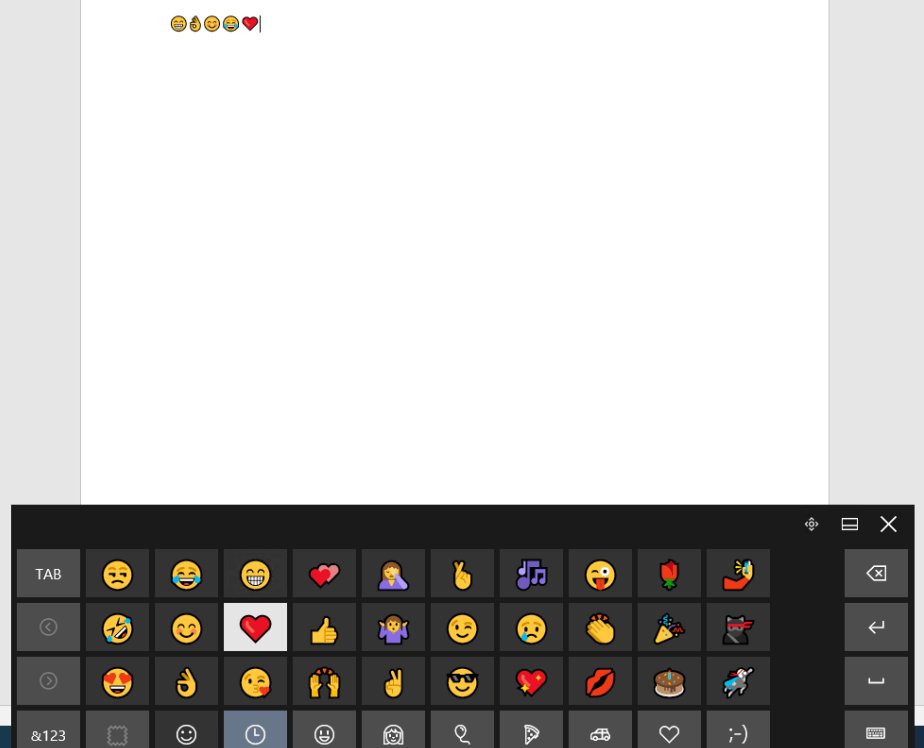
Touch keyboard and emoji on tablets or 2-in-1 PCs
| Touch keyboard detail | Windows 11 | Windows 10 |
|---|---|---|
| Opens by itself | Yes, when you tap a text field in tablet use | Yes, when you tap a text field in tablet use |
| Taskbar icon setting | Taskbar settings > System tray icons > Touch keyboard > Always | Right-click taskbar > Show touch keyboard button |
| Layouts | Default, Split, Small, Traditional, Handwriting panel | Standard, Narrow (one-handed), Split, Handwriting panel, Expanded standard |
| Emoji access | Emoji view on the touch keyboard, or Windows key + . from a type cover | Emoji view on the touch keyboard, or Windows key + . from a type cover |
| Emoji suggestions while typing | Shown in the candidate bar | Shown in the candidate bar |
Windows 11 emoji keyboard shortcuts quick reference
These are the essential emoji keyboard commands for everyday Windows use. The panel shortcuts are identical on Windows 10.
| Shortcut | What it does | Works on |
|---|---|---|
| Windows key + . (period) | Opens the emoji panel at the text cursor | Windows 11 and 10 |
| Windows key + ; (semicolon) | Opens the emoji panel at the text cursor | Windows 11 and 10 |
| Type a word after opening | Searches emoji by name | Windows 11 and 10 |
| Arrow keys | Move between emoji | Emoji panel |
| Tab / Shift + Tab | Switch emoji category | Emoji panel |
| Enter | Inserts the selected emoji | Emoji panel |
| Esc | Closes the panel | Emoji panel |
| Windows key + V | Opens clipboard history (turn it on first) | Windows 11 and 10 |
Use the keyboard to navigate the emoji panel
You never have to touch the mouse. Microsoft documents these keys for moving around the panel.
- Press Windows key + . in a text field to open the panel.
- Press Tab to move to the next emoji category, or Shift + Tab to move back.
- Use the arrow keys to highlight an emoji.
- Press Enter to insert the highlighted emoji.
- Press Esc to close the panel and return to your text.
Search for emoji by name in the Windows emoji panel
Typing is the quickest way to find one emoji among thousands. You can find the fingers crossed emoji or the crying laughing emoji in two or three keystrokes this way.
- Press Windows key + . in a text field.
- Start typing a describing word, such as
cat,fireorthumbs, without clicking anything first. - Watch the results narrow with each letter you type.
- Press the arrow keys to highlight the match and Enter to insert it, or click it.
Keyword search works in more than 150 languages. On older Windows 10 builds, type-to-search only filters the emoji section, not kaomoji or symbols.
Browse emoji categories and panel tabs in Windows 11 and 10
You can insert emojis, GIFs, symbols and kaomoji from one panel on Windows 11. Windows 10 shows emoji categories, and its 2019 updates added kaomoji and symbol sections.
| Panel section | What it holds | Windows 11 | Windows 10 |
|---|---|---|---|
| Emoji | Faces, people, animals, food, travel, objects and flags, plus a recently used group | Yes | Yes |
| GIFs | Animated images from an online provider | Yes | No |
| Kaomoji | Text faces built from characters, such as ¯\_(ツ)_/¯ | Yes | Yes, on 2019 and later updates |
| Symbols | Punctuation, currency, geometric, math, Latin and language symbols | Yes | Yes, on 2019 and later updates |
| Clipboard history | Your last 25 copied items | Windows key + V | Windows key + V |
Use emoji skin tone and variant options
People and hand emoji can take one of five skin tone modifiers defined by Unicode. The panel applies your choice to every emoji that supports it.
- Press Windows key + . to open the panel.
- Go to the People category, or search for a people emoji such as
wave. - Select the skin tone button; on Windows 10 it sits at the top right of the People category.
- Pick one of the skin tone swatches.
- Insert the emoji with your chosen tone.
Use kaomoji in Windows 11
Kaomoji is Japanese for face characters: emoticons such as (⌐■_■) built from ordinary text, so they display in apps that do not render color emoji.
- Click in the text field and press Windows key + ..
- Select the Kaomoji tab at the top of the panel.
- Browse the groups of text faces.
- Select a kaomoji to insert it as plain text.
Insert symbols with the Windows 11 emoji panel
The symbols tab covers punctuation marks, accented letters, currency and math signs, which saves looking up an Alt code.
- Place the cursor where the symbol belongs.
- Press Windows key + . and select Symbols in the emoji panel.
- Pick a symbol group, such as currency or math.
- Select the symbol to insert it; it then appears in the recently used group for next time.
Use GIFs from the Windows 11 emoji panel
GIF search runs through an online provider. Tenor retired its service on June 30, 2026, and Windows 11 now uses GIPHY from the June 23, 2026 update (KB5095093) onward.
- Click in a chat or email field that accepts images.
- Press Windows key + . and select the GIFs tab.
- Type a word to search for a GIF.
- Select a GIF to insert it into the message.
Use clipboard history alongside emoji (Windows key + V)
Clipboard history keeps your last 25 copied items, up to 4 MB each, so a hard-to-find emoji or symbol you copied once stays one shortcut away.
- Press Windows key + V.
- Select Turn on the first time; you can also switch on Clipboard history in Start > Settings > System > Clipboard.
- Copy an emoji or text you reuse often.
- Press Windows key + V again and select the item to paste it.
- Pin the item from its menu so it survives a restart.
History clears every time you restart the PC, except items you pin.
Insert emoji in apps, documents and file names
The panel works wherever a text cursor is active. What the reader sees afterwards depends on whether their app and font can draw that emoji.
| Where you type | How to insert | What to expect |
|---|---|---|
| Word, Outlook, Teams and other apps | Windows key + . at the cursor | Color emoji in the Segoe UI Emoji font |
| Web browsers and web forms | Windows key + . in the text field | The site decides how the emoji renders |
| File names in File Explorer | Select the file, press F2, then Windows key + . | Other systems and older software may show a box instead |
| Command-line tools | Windows key + . in Windows Terminal | Windows Terminal supports Unicode and UTF-8, including emoji |
| Tablet without a keyboard | Touch keyboard emoji view | Same emoji set as the panel |
Emoji shortcuts vs Alt codes on Windows
Alt codes insert typographic symbols, not color emoji. They only work with the numeric keypad: hold Alt, type the four-digit code including any leading 0, then release Alt.
| Need | Emoji panel shortcut | Alt code |
|---|---|---|
| Color emoji such as a smiley | Windows key + . then search | Not available |
| Copyright sign © | Symbols tab | Alt + 0169 |
| Trademark sign ™ | Symbols tab | Alt + 0153 |
| Em dash — | Symbols tab | Alt + 0151 |
| Euro sign | Symbols tab | Alt + 0128 |
| Laptop without a numeric keypad | Works | Does not work with the top number row |
Emoji privacy and professional use tips on Windows
| Situation | What to keep in mind |
|---|---|
| GIF search | Search terms go to the online GIF provider, so keep work searches neutral |
| Clipboard history | Copied passwords and private text stay in the list until you restart or clear it; unpin anything sensitive |
| Work email and documents | Kaomoji and symbols are plain text and display almost everywhere; new emoji may show as boxes on older systems |
| Flags | Some Windows apps, including Chromium browsers, show flag emoji as two letters |
| Meaning across cultures | The same emoji can read differently to readers in other languages and regions |
Tips for opening emoji keyboard in Windows 11
| Tip | Why it helps |
|---|---|
| Click in a text box before pressing the shortcut | The panel opens only during text entry |
| Use Windows key + ; if the period key sits elsewhere on your layout | Both shortcuts open the same panel |
| Start typing right after the panel opens | Search beats scrolling through categories |
| Pin frequent emoji in clipboard history | Windows key + V pastes them without searching |
| Show the touch keyboard icon on touch PCs | One tap opens emoji without a type cover |
Check the emoji inserted correctly on Windows
- Look at the text cursor: the emoji should sit right before it, in color.
- Send or save the text, then open it again to confirm the emoji survived.
- If you see an empty box or two letters instead, the app or font cannot draw that emoji; try it in another app.
Fix emoji keyboard not opening on Windows
Windows key + period does nothing
No text field has focus, so Windows has nowhere to insert the emoji.
- Click inside a text box until the cursor blinks.
- Press Windows key + . again.
- Try Windows key + ; if your keyboard layout puts the period elsewhere.
The emoji panel opened once but now stays closed
The text input process behind the emoji panel and clipboard history has stopped responding.
- Save your work and sign out of Windows, then sign back in.
- If the panel still does not open, restart the PC.
- Open Settings > Windows Update and install the latest updates.
Emoji keyboard does not open on a tablet
The touch keyboard icon is hidden or the device is not in tablet use.
- Right-click the taskbar and select Taskbar settings on Windows 11.
- Under System tray icons, set Touch keyboard to Always.
- On Windows 10, right-click the taskbar and select Show touch keyboard button.
- Select the Touch keyboard icon, then the emoji key.
Windows emoji panel common problems and fixes
"GIF service is not available" in the emoji panel
The old GIF provider, Tenor, retired its service on June 30, 2026; Windows 11 24H2, 25H2 and 26H1 need the update that switches to GIPHY.
- Open Start > Settings > Windows Update.
- Select Check for updates and install everything offered, including KB5095093 or later.
- Restart the PC and open the GIFs tab again.
Windows key + V shows nothing
Clipboard history is off by default.
- Press Windows key + V and select Turn on.
- Or open Start > Settings > System > Clipboard and turn on Clipboard history.
Emoji appear as boxes or letters
The app, browser or font in use cannot draw that emoji; flags are the most common case.
- Paste the same emoji into another app to confirm the panel inserted it.
- Update Windows so newer emoji designs are installed.
- Use a kaomoji or symbol instead when the recipient may be on older software.
Wrong emoji inserted
Enter inserted the highlighted result before the search finished.
- Press Ctrl + Z to undo the last insert.
- Open the panel again and type a more specific word before pressing Enter.
Windows emoji keyboard FAQ
How do I open the emoji keyboard on Windows 11?
Click in any text field and press Windows key + . (period). Windows key + ; (semicolon) opens the same panel. From there you can search emoji by typing, or switch to the GIFs, Kaomoji and Symbols tabs.
How do I open the emoji keyboard on Windows 10?
Press Windows key + . (period) or Windows key + ; (semicolon) while the cursor is in a text box. The panel stays open until you press Esc or close it, so you can insert several emoji in a row.
What is the shortcut to open the emoji keyboard on Windows 11?
The shortcut is Windows key + . (period), with Windows key + ; (semicolon) as an alternative. Both work only when a text field has focus, because the panel inserts the emoji at the cursor.
How do I open emoji using the keyboard only?
Press Windows key + . to open the panel, type a word to search, use the arrow keys to highlight an emoji and press Enter to insert it. Tab and Shift + Tab switch categories, and Esc closes the panel.
How do I open the Microsoft emoji keyboard on a touch screen?
Tap a text field so the touch keyboard opens, or select the Touch keyboard icon in the system tray. Then select the emoji key to switch the touch keyboard to its emoji view and tap the emoji you want.
How do I use emoji on a Windows keyboard without the panel?
Copy an emoji once, then turn on clipboard history with Windows key + V and pin it. Pinned items survive restarts. Alt codes only insert symbols such as © and ™, not color emoji.
Bottom line: best way to open the emoji keyboard on Windows
Use Windows key + . (period) in any text field, then type to search; switch to the touch keyboard's emoji view only on a tablet without a type cover. The shortcut is identical on Windows 10 and 11, reaches emoji, kaomoji and symbols from one panel, and on Windows 11 adds GIFs, while Windows key + V keeps your most-used picks one keystroke away.