Fix ERR_CONNECTION_CLOSED in Chrome by reloading the page, restarting your router, clearing cookies and cached files, turning off extensions, a VPN or a proxy, then flushing DNS and resetting TCP/IP in Windows.
This guide covers ten fixes in the order that solves the error fastest, how to tell it apart from ERR_CONNECTION_RESET and ERR_CONNECTION_REFUSED, and what to do when it only hits one website.
Quick fix for ERR_CONNECTION_CLOSED in Chrome
Work down this list and stop as soon as the page loads. Each step points to the fuller fix below.
- Check the address bar for a typo, then reload the page.
- Open two unrelated websites. If they load, the fault is limited to that one site.
- Press Ctrl + Shift + N and load the page in an Incognito window. If it opens there, an extension or stored site data is the cause.
- Disconnect any VPN and turn off any proxy you did not set up yourself.
- Select Search on the taskbar, type
cmd, and choose Run as administrator. - Run
ipconfig /flushdns, thennetsh winsock resetandnetsh int ip reset. - Restart the PC and reload the page in Chrome.
If the error is still there, match what you see to the decision table below before changing anything else.
What ERR_CONNECTION_CLOSED means in Chrome
Chrome shows an error page when it cannot connect to a site or load a page. ERR_CONNECTION_CLOSED is the code for a connection that was opened and then shut before the page finished arriving.
| Where the connection can be closed | Typical cause | Fix to start with |
|---|---|---|
| The website's server | Server downtime, maintenance or overload, which Google lists among the causes of loading errors | Fix 1, then wait or contact the site owner |
| Your router or modem | A router that needs a restart, or a line fault at your internet provider | Fix 1 |
| Software between Chrome and the network | A VPN, a proxy, or a firewall or antivirus rule that cuts the connection | Fixes 4 and 5 |
| Chrome itself | A misbehaving extension, stale cookies, an outdated build or changed settings | Fixes 2, 3, 8 and 9 |
| The Windows network stack | A stale DNS cache or damaged Winsock and TCP/IP settings | Fixes 6 and 7 |
Which ERR_CONNECTION_CLOSED fix to try first
Find the row that matches your situation, then go straight to the fix it names.
| What you see | Go to | Why |
|---|---|---|
| One site fails; every other site loads | Fixes 1 and 2 | The fault is that site's server or your stored data for it |
| The page opens in Incognito but not in a normal window | Fixes 2 and 3 | Extensions and cookies are off in Incognito |
| It started after installing a VPN, proxy or security app | Fixes 4 and 5 | That software now sits between Chrome and the site |
| Every site fails in Chrome and in Microsoft Edge on one PC | Fixes 6 and 7 | The PC's DNS or network stack is at fault, not the browser |
| Every device on your Wi-Fi fails | Fix 1 | The router, modem or internet line is the problem |
| Only Chrome fails; Edge loads the same page | Fixes 8 and 9 | The fault sits in Chrome's settings or profile |
| Nothing above worked | Fix 10 | Clock, startup software and the route to the site are left |
1. Check the website, internet connection, and router
- Read the full URL in the address bar for typos, then reload the page.
- Open two or three large, unrelated websites. If they all load, the problem is the one site.
- Load the failing page on a phone using mobile data, with Wi-Fi off. If it fails there too, the website's server is down.
- Select the network icon on the taskbar and confirm Wi-Fi or Ethernet shows as connected, and that Airplane mode is off.
- Switch off the router and modem, wait until every light is out, then power on the modem first.
- Power on the router once the modem's lights settle, wait for its internet light, and reload the page.
Restart the router rather than resetting it. A factory reset wipes its Wi-Fi name, password and settings.
2. Clear Chrome cache, cookies, and site data
Stale cookies and cached files for one site can make the connection fail every time you return to it. Start with the cookies and cache; leave passwords unticked.
- In Chrome, select More (the three dots) > Delete browsing data.
- Set the time range to All time.
- Tick Cookies and other site data and Cached images and files.
- Leave passwords and autofill data unticked.
- Select Delete data, then reload the page.
Deleting cookies signs you out of most websites. Saved passwords stay in Chrome unless you tick them.
3. Disable Chrome extensions and test in Incognito mode
- Press Ctrl + Shift + N, or select More > New Incognito window, and load the page.
- If the page loads in Incognito, return to a normal window and select More > Extensions > Manage extensions.
- Turn every extension off with its toggle, then reload the page.
- Turn the extensions back on one at a time, reloading the page after each.
- When the error returns, select Remove on the extension you just turned on.
Ad blockers, VPN extensions, download managers and privacy tools handle the connection itself, so test those first.
4. Turn off VPN and proxy connections in Windows
A VPN or proxy routes Chrome's traffic through another server, and that server can close the connection before the page arrives. Switch these off for a test, then turn them back on.
- Disconnect your VPN app, then open Settings > Network & internet > VPN and confirm no connection is active.
- Reload the page. If it loads, switch to another VPN server or contact the VPN provider.
- Open Settings > Network & internet > Proxy.
- Select Set up next to Use a proxy server and turn it off if you did not configure it.
- Turn off Use setup script if you do not recognise the address it lists.
- Leave Automatically detect settings on, and reload the page in Chrome.
On a work or school PC, VPN and proxy settings are usually managed. Ask your administrator before you change them.
5. Check antivirus, firewall, and web protection blocking Chrome
Keep your firewall and antivirus switched on. Google lists them as a cause of Chrome connection errors, but the fix is to find the rule that cuts the connection, not to remove protection.
| Security tool | What to check | What the result tells you |
|---|---|---|
| Windows Firewall or a third-party firewall | The app's blocked or quarantined list for Chrome | A block rule on Chrome explains the error on every site; restore the default rule in the app's own settings |
| Antivirus web protection | Its web-protection or threat history for the site you opened | If the site is listed as blocked, the closed connection is deliberate |
| HTTPS or encrypted-traffic scanning | Whether the app's web shield inspects secure connections | Update the app first; contact the vendor if secure sites fail only while scanning runs |
| The security app itself | Pending updates in the app | An outdated app can mishandle newer connections; install the update and restart |
If you believe a block is wrong, report it to the security vendor rather than turning protection off.
6. Reset DNS, TCP/IP, and network settings in Windows
Run these commands in one elevated Command Prompt, in this order. They flush the DNS cache, request a new IP address and reset Winsock and TCP/IP.
- Select Search on the taskbar, type
cmd, and choose Run as administrator. - Run
ipconfig /flushdnsto flush and reset the DNS client resolver cache. - Run
ipconfig /releaseto discard the current IP configuration, thenipconfig /renewto request a new one. - Run
netsh winsock reset, thennetsh int ip reset. - Restart the PC and reload the page in Chrome.
- If the error continues, open Settings > Network & internet > Advanced network settings > Network reset on Windows 11, or Network & internet > Status > Network reset on Windows 10.
- Select Reset now, then Yes, and reconnect to your network after the restart.
The two netsh commands need the restart to take effect. A full network reset reinstalls your network adapters, so reconnect to Wi-Fi and set up any VPN again afterwards.
7. Change DNS servers and check Chrome secure DNS settings
Try another DNS provider when some sites open and others close, or when a page loads on mobile data but not on your Wi-Fi. Write down your current settings first.
- Open Start > Settings > Network & internet.
- For Wi-Fi, select Wi-Fi > Manage known networks and choose your network. For Ethernet, select Ethernet and your connection.
- Next to IP assignment, select Edit, choose Manual, then turn on IPv4.
- Enter
8.8.8.8in Preferred DNS and8.8.4.4in Alternate DNS. These are Google Public DNS. - Select Save, run
ipconfig /flushdns, and reload the page. - In Chrome, open More > Settings > Privacy and security > Security and find Use secure DNS.
- Test the page with secure DNS set to your current provider, then with a different provider, and keep whichever works.
To undo the Windows change, return to the same Edit screen and choose Automatic (DHCP). Secure DNS is not available in Chrome on managed devices or devices with parental controls.
8. Update or reset Chrome settings
Update Chrome first. Reset its settings only if the update does not help, because a reset turns off every extension and clears cookies and site data.
- Select More > Help > About Google Chrome. Chrome checks for updates automatically.
- If an update is installed, select Relaunch. Chrome reopens the tabs and windows you had open.
- Reload the page. If the error remains, select More > Settings > Reset settings.
- Select Restore settings to their original defaults, then Reset settings.
- Reload the page, then turn back on only the extensions you need.
A reset restores the search engine, homepage, startup tabs, pinned tabs and content settings, and turns off extensions and themes. Bookmarks and saved passwords are kept.
9. Test a new Chrome profile and reset Chrome flags
A damaged profile or a changed experimental flag can survive a settings reset. A fresh profile shows whether the problem lives in your current one.
- Select the Profile icon at the top right of Chrome, then Add Chrome profile.
- Skip the Google Account sign-in, which is optional, then choose a name, photo and color for the profile.
- Load the failing page in the new profile. If it opens, move your bookmarks to the new profile and use it instead.
- If the error appears in both profiles, type
chrome://flagsin the address bar and press Enter. - Changed flags are listed first. Set each one back to its default value.
- Relaunch Chrome and reload the page.
Google warns that flags can cause data loss or weaken security or privacy, and they can stop working without notice. Leave them at their defaults unless you need one for testing. Another Windows user account is an equally good test of whether the fault is in your profile.
10. Try advanced fixes when ERR_CONNECTION_CLOSED persists
These fixes rule out the clock, startup software and the route between your PC and the site. Each is safe to undo.
| Check | How to do it | What it rules out |
|---|---|---|
| Date, time and time zone | Open Settings > Time & language > Date & time and turn on Set time automatically and Set time zone automatically | A wrong clock makes certificates look invalid, so secure connections fail |
| Clean boot | Type msconfig in Search, open System Configuration, tick Hide all Microsoft services on Services, select Disable all, then disable startup items in Task Manager and restart |
A background app or service that cuts Chrome's connections |
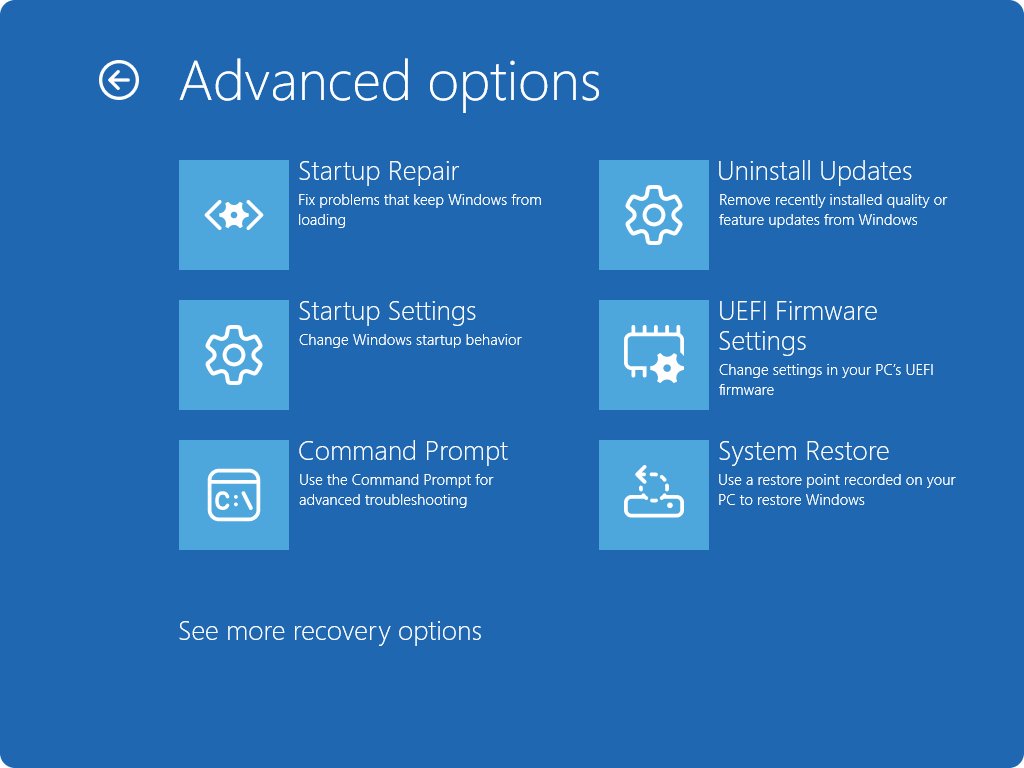
| Safe Mode with Networking | Open Settings > System > Recovery (Windows 10: Update & Security > Recovery), select Restart now next to Advanced startup, then Troubleshoot > Advanced options > Startup Settings > Restart, and press 5 | Third-party drivers and software; only the network drivers Windows needs are loaded |
| Compare networks | Load the page on a phone hotspot, then on your home Wi-Fi | If it works on the hotspot only, the router or internet provider is closing the connection |
| Inspect the route | Run tracert followed by the site's address, such as tracert www.example.com, in Command Prompt |
Shows each hop to the site; rows of asterisks near the end point away from your PC |
| Network adapter driver | Install everything in Windows Update, which Microsoft names as the preferred driver source, then restart | An outdated Wi-Fi or Ethernet driver |
After a clean boot, return to normal startup: on the General tab of System Configuration select Normal Startup, select Enable all on Services, re-enable your startup items in Task Manager, and restart. Safe Mode ends with a normal restart.
ERR_CONNECTION_CLOSED vs ERR_CONNECTION_RESET and ERR_CONNECTION_REFUSED
These codes look alike on Chrome's error page, but each name points at a different stage of the connection. Read the exact code before you start fixing.
| Code on the page | What the name tells you | Start with |
|---|---|---|
| ERR_CONNECTION_CLOSED | The connection was opened, then closed before the page arrived | Fixes 1 to 6 in order |
| ERR_CONNECTION_RESET | The connection was cut off abruptly while in use | The same fixes; VPN, proxy and security software (fixes 4 and 5) are the usual suspects |
| ERR_CONNECTION_REFUSED | The other end rejected the connection outright | Proxy settings (fix 4) and the website's own status |
| ERR_NETWORK_CHANGED | Your network connection changed while the page loaded | Steps to fix ERR_NETWORK_CHANGED in Chrome |
| NET::ERR_CERT_COMMON_NAME_INVALID | The site's certificate does not match its address | Steps to fix the certificate name privacy error |
How to check ERR_CONNECTION_CLOSED is fixed
- Reload the page that failed. It should render instead of Chrome's error page.
- Open four unrelated sites in new tabs and confirm each one loads.
- Load the same page in Microsoft Edge to confirm both browsers agree.
- Run
ipconfig /allin Command Prompt and confirm your adapter lists an IPv4 Address and a Default Gateway. - If you changed DNS, confirm DNS Servers in the same output shows the addresses you entered.
- Leave Chrome open for ten minutes, then reload the page to confirm the fix holds.
ERR_CONNECTION_CLOSED still showing in Chrome: fixes by symptom
ERR_CONNECTION_CLOSED only happens on one website
The site's server is down, your stored data for it is stale, or the site blocks your network.
- Load the site's home page instead of the deep link.
- Delete that site's cookies and cached files (fix 2).
- Open the site over mobile data on a phone. If it fails there too, wait and try later.
- If it loads on mobile data only, disconnect any VPN and run
ipconfig /flushdns.
www.google.com shows ERR_CONNECTION_CLOSED
When even major sites close the connection, the cause is almost always on your side: a proxy, VPN, security rule or DNS.
- Check Settings > Network & internet > Proxy and turn off any proxy you did not set.
- Disconnect the VPN and reload.
- Run the commands in fix 6 and restart the PC.
- Change DNS servers as in fix 7.
Every site closes the connection, in every browser
The Windows network stack, the adapter or the router is at fault.
- Restart the modem and router (fix 1).
- Run Network reset under Advanced network settings.
- Test the PC on a phone hotspot. If it works there, contact your internet provider.
- Install all updates from Windows Update, then restart.
Chrome shows ERR_CONNECTION_RESET instead
A related failure where the connection is cut while in use; the same fixes apply.
- Turn off the VPN and proxy (fix 4).
- Check your security app's blocked list for Chrome (fix 5).
- Run
netsh winsock resetandnetsh int ip reset, then restart. - Reset Chrome settings (fix 8).
ERR_CONNECTION_CLOSED in Chrome FAQ
What is ERR_CONNECTION_CLOSED?
ERR_CONNECTION_CLOSED is a Chrome error code shown when a connection to a website opens and then closes before the page arrives. The cause can be the website's server, your router, a VPN or proxy, security software, DNS, or Chrome's own data and settings.
How do I fix ERR_CONNECTION_CLOSED?
Reload the page, restart the router, and test the page in an Incognito window. Then clear cookies and cached files, turn off extensions, a VPN and any proxy, and run ipconfig /flushdns, netsh winsock reset and netsh int ip reset as administrator before restarting.
Is ERR_CONNECTION_CLOSED caused by Chrome or my internet connection?
Test the page in Microsoft Edge and on a phone using mobile data. If only Chrome fails, the cause is an extension, cookies or settings in Chrome. If every browser on the PC fails, it is Windows networking. If every device fails, it is the router or provider.
Can a VPN, proxy, or antivirus cause ERR_CONNECTION_CLOSED?
Yes. A VPN or proxy routes traffic through another server that can drop the connection, and Google lists firewall and antivirus software as a cause of Chrome connection errors. Switch off the VPN and proxy to test, but keep security software on and check its blocked list.
What should I do if ERR_CONNECTION_CLOSED only happens on one website?
Delete that site's cookies and cached files, then open it over mobile data on a phone. If it fails everywhere, the website's server is the problem and only the site owner can fix it. If it loads on mobile data, flush DNS and disconnect any VPN.
Will clearing Chrome cache and cookies delete my passwords?
No. Saved passwords are a separate item in Delete browsing data, and they stay unless you tick them. Clearing cookies does sign you out of most websites, so have your sign-in details ready before you clear them.
How do I fix ERR_CONNECTION_RESET in Chrome?
Use the same fixes as ERR_CONNECTION_CLOSED. Turn off any VPN and proxy, check your security app's blocked list for Chrome, run netsh winsock reset and netsh int ip reset as administrator, restart the PC, and reset Chrome settings if the error remains.
What is the difference between ERR_CONNECTION_CLOSED and ERR_CONNECTION_REFUSED?
ERR_CONNECTION_CLOSED means a connection opened and then closed before the page loaded. ERR_CONNECTION_REFUSED means the other end turned the connection down from the start, which points at a proxy setting or a website that is not accepting connections.
Does resetting Chrome delete bookmarks?
No. Resetting Chrome restores the search engine, homepage, startup tabs and content settings, clears cookies and site data, and turns off extensions and themes. Bookmarks and saved passwords are not deleted.
Bottom line: the fastest way to fix ERR_CONNECTION_CLOSED
Test the page in Incognito, in Edge and on mobile data first. If one site fails everywhere, wait for the site; if only Chrome fails, clear cookies, turn off extensions and reset Chrome; if every browser fails, turn off the VPN and proxy, then flush DNS and reset TCP/IP. ERR_CONNECTION_CLOSED only says the connection ended early, not who ended it. Three quick tests show whether the site, Chrome or Windows networking is responsible, so you only apply the fixes that match.