To show local files in the Spotify desktop app, click your profile picture, select Settings, scroll to Library and switch Show Local Files on; your music then appears under Local Files in Your Library.
This guide covers choosing folders, adding local tracks to playlists, getting the same files onto your phone, and what to do when Local Files stays empty.
How to Add Local Files in Spotify (Guide with Pictures)
These steps are the same in the Spotify desktop app for Windows and Mac.
- Open the Spotify desktop app and click your profile picture at the top.
- Select Settings.
- Scroll to Library and switch Show Local Files on.
- Under Show songs from, turn on the folders you want Local Files to have access to.
- Go to Your Library and open Local Files to see your tracks.
Understanding Local Files
| Question | Answer |
|---|---|
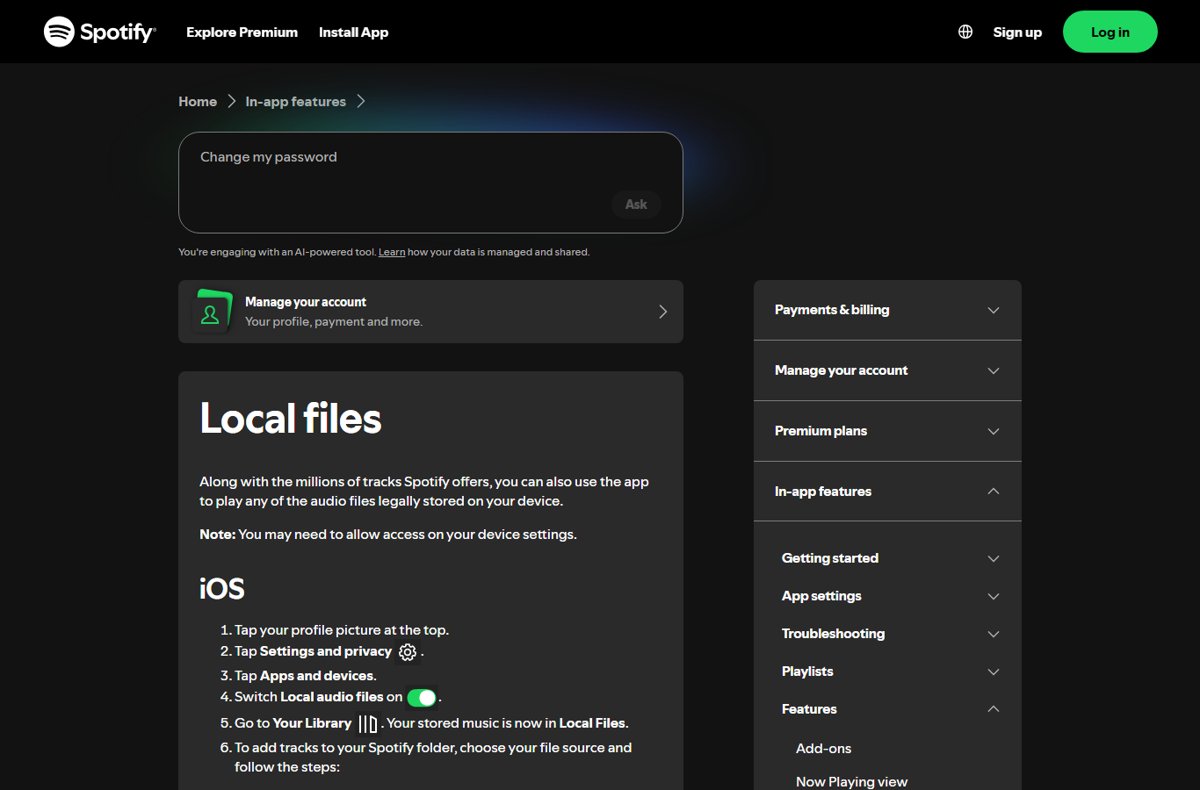
| What are local files? | Audio files legally stored on your own device, played through the Spotify app alongside its catalogue |
| Where do they appear? | In Your Library, under Local Files |
| Which folders does Spotify read? | Only the folders switched on under Show songs from, plus any you add with Add a source |
| Do they upload to Spotify? | No. Each device reads files stored on that device |
| Does Spotify need permission? | Spotify notes you may need to allow access in your device settings |
How to Add Files to Your Spotify Library
Use Add a source when your music sits in a folder Spotify does not list, such as an external drive or a custom music folder.
- Click your profile picture and select Settings.
- Scroll to Library and confirm Show Local Files is on.
- Under Show songs from, click Add a source.
- Browse to the folder that holds your music and select it.
- Make sure the new folder's switch is on.
- Return to Your Library > Local Files to see the added tracks.
Steps to Import Local Music Files to Spotify
To import new music, put the files into a folder Spotify already watches. The app then lists them in Local Files without any separate import step.
- Copy the audio files you own into one of the folders switched on under Show songs from.
- Or add their folder with Add a source in Settings > Library.
- Open Your Library > Local Files in Spotify.
- Play a track to confirm it imported correctly.
Compatibility of File Formats
Spotify's Local Files help page does not publish a list of supported file formats, so test one track before moving a large library. What Spotify does document is that it plays audio files legally stored on your device, and that crossfade between local files only works when they share the same sample rate and channel count (mono or stereo). If one file shows up and another does not, compare their formats and sample rates.
Creating Playlists with Local Files
- Go to Your Library, click Create at the top and select Playlist, or press Ctrl + N on Windows or Cmd + N on Mac.
- Edit the name and other details, then click SAVE.
- Open Local Files in Your Library.
- Right-click a track, or click the menu next to it, and click Add to Playlist.
- Select your playlist; you can also drag and drop tracks straight into it.
- To remove a local track later, right-click it in the playlist and select Remove from this Playlist.
Syncing Local Files to Mobile Devices
The phone app reads files stored on the phone itself, so copy the music to the device and switch Local audio files on in the app.
| Phone | Turn it on in Spotify | Get the files onto the phone |
|---|---|---|
| iPhone | Profile picture > Settings and privacy > Apps and devices > switch Local audio files on | From a Mac, open Finder, select the iPhone, click Music or Files and drag the file into the Spotify folder; from Windows, do the same in iTunes |
| iPhone, from the Files app | Same as above | Copy or move the file, browse to On My iPhone, open the Spotify folder and select Paste or Move Item here |
| Android | Profile picture > Settings and privacy > Apps and devices > switch Local audio files on | Connect by USB to Windows, tap Allow on the phone, select Open device to view files and drag the files across |
After copying, open Your Library on the phone; the tracks appear in Local Files.
How to check local files are showing
- Open Your Library and confirm a Local Files entry is listed.
- Open it and check the track count matches the files in your chosen folders.
- Play a track and confirm it plays from start to finish.
- Add one track to a playlist and confirm it appears there.
Troubleshooting Common Issues
Local Files does not appear in Your Library
Show Local Files is off, or no folder is switched on.
- Open Settings and scroll to Library.
- Switch Show Local Files on.
- Turn on at least one folder under Show songs from, or use Add a source.
Local files still do not show up after setup
An outdated app or a broken entry in a playlist.
- Update the Spotify app and your operating system.
- Remove local files from any playlists you added them to.
- Repeat the steps for adding Local Files.
- If nothing changes, do a clean reinstall of Spotify; you then need to re-download any downloaded music and podcasts.
The Spotify folder is missing from On My iPhone
The Help file inside the folder was deleted.
- Close the Spotify app completely.
- Open Spotify again; the folder reappears.
Spotify cannot see your music folder
The device has not granted Spotify access to its files.
- Open your device's privacy or app permission settings.
- Allow Spotify access to files or media.
- Reopen Spotify and check Local Files again.
Best Practices for Enhancing Your Spotify Experience with Local Files
| Practice | Why |
|---|---|
| Keep music in one or two dedicated folders | A short Show songs from list is easier to check when a track goes missing |
| Use only files you legally own | Spotify's feature is for audio files legally stored on your device |
| Keep the same sample rate across an album | Crossfade between local files only works when sample rate and channel count match |
| Group local tracks into playlists | Playlists make them easy to find next to streaming tracks |
| Keep Spotify updated | Spotify's first fix for missing local files is updating the app |
Frequently asked questions
How do I turn on local files in Spotify?
On desktop, click your profile picture, select Settings, scroll to Library and switch Show Local Files on. On iPhone or Android, tap your profile picture, then Settings and privacy, then Apps and devices, and switch Local audio files on.
Where are my local files in Spotify?
Go to Your Library and open Local Files. The section appears once Show Local Files is on and at least one folder is switched on under Show songs from. The tracks remain stored in their original folders on your device.
How do I get local files from my PC to my phone in Spotify?
Copy the files to the phone itself. On Android, connect by USB to Windows and drag the files across. On iPhone, drag them into the Spotify folder through Finder on a Mac or iTunes on Windows. Then switch Local audio files on in the app.
How do I see local files in a Spotify playlist?
Open Local Files in Your Library, right-click a track, click Add to Playlist and choose a playlist. You can also drag tracks into a playlist. The local tracks then appear in that playlist alongside streaming songs.
Why are my local files not showing in Spotify?
Usually Show Local Files is off or the right folder is not switched on. If they still do not show, update the app, remove local files from any playlists, repeat the setup steps, and as a last resort do a clean reinstall.
What is a local file in Spotify?
A local file is an audio file stored on your own computer or phone rather than streamed from Spotify's catalogue. Spotify can play files legally stored on your device and lists them under Local Files in Your Library.
How do I access a folder Spotify does not list?
Open Settings, scroll to Library, and under Show songs from click Add a source. Select the folder that holds your music and make sure its switch is on. Its tracks then appear in Local Files.