To use 7-Zip, right-click a file in File Explorer and open the 7-Zip menu: choose an extract command to unpack an archive, or Add to archive to compress files into 7z or ZIP.
This guide covers extracting, compressing, splitting large archives into volumes, joining multi-part .001 files, the command line, and the errors 7-Zip reports.
How to extract archives with 7-Zip
7-Zip adds itself to the File Explorer right-click menu. On Windows 11, the 7-Zip entry may sit under Show more options.
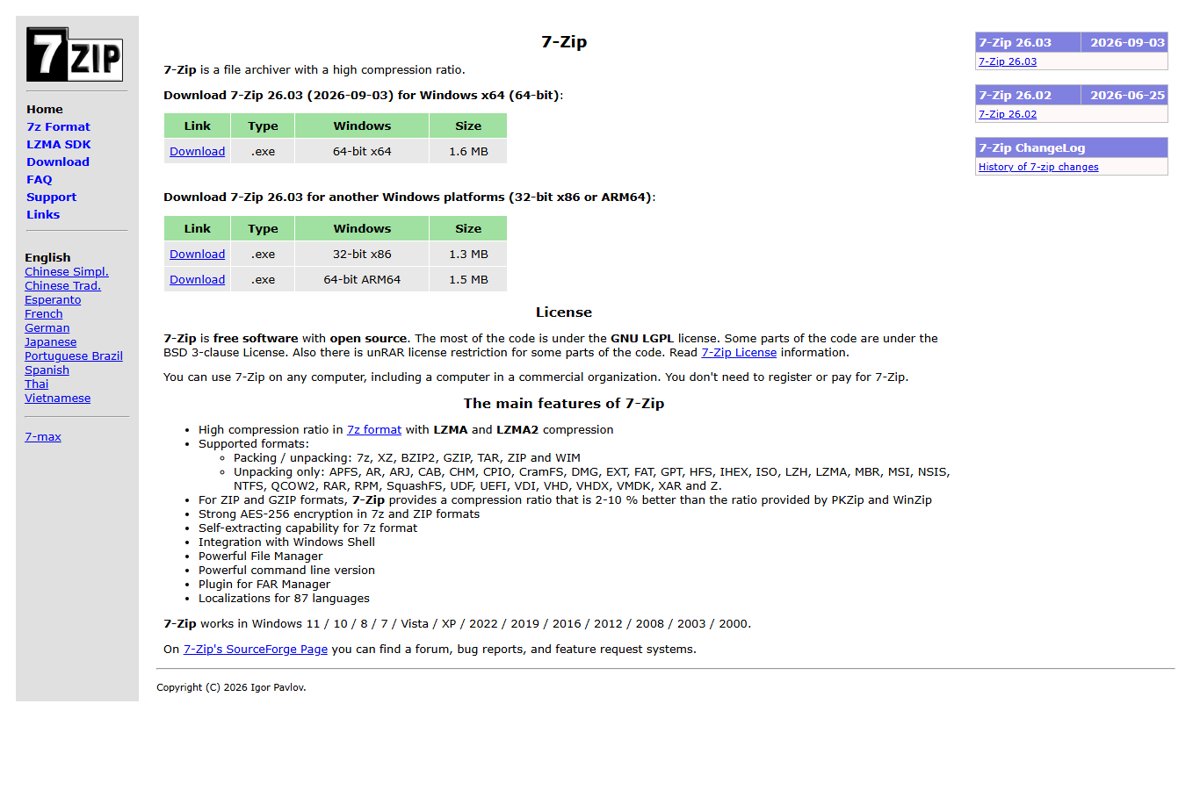
- Install 7-Zip from 7-zip.org; the current release is 7-Zip 26.03, dated September 3, 2026.
- In File Explorer, right-click the archive, such as a .7z, .zip, .rar or .iso file.
- Select Show more options if needed, then point to 7-Zip.
- Choose an extract command: extract into the current folder, into a new folder named after the archive, or to a location you pick.
- Type the password if the archive is encrypted.
- Open the destination folder to find the extracted files.
To look inside first, select 7-Zip > Open Archive. The 7-Zip File Manager lists the contents, and its Extract button unpacks them.
What 7-Zip supports: formats, compression levels, and use cases
7-Zip is free, open-source software. You can use it on any computer, including in a business, without registering or paying. It runs on Windows 11 and 10 as well as older versions back to Windows 2000.
| Format group | Formats | What 7-Zip can do |
|---|---|---|
| Pack and unpack | 7z, XZ, BZIP2, GZIP, TAR, ZIP, WIM | Create and extract |
| Unpack only, common | RAR (including RAR5), ISO, CAB, MSI, DMG, VHD, VHDX, VMDK, LZH, ARJ | Extract only; 7-Zip cannot create RAR |
| Unpack only, disk and file systems | APFS, EXT, FAT, NTFS, HFS, GPT, MBR, UDF, SquashFS, QCOW2, VDI | Browse and extract contents |
| Encryption | 7z and ZIP | AES-256 with a password; 7z can also hide file names |
| Self-extracting | 7z | Creates an .exe that unpacks itself |
The 7z format uses LZMA and LZMA2 compression by default, with dictionary sizes up to 4 GB, and also offers PPMd, BZip2 and Copy (no compression). For ZIP and GZIP, 7-Zip compresses 2-10% better than PKZip and WinZip.
Which archive format should you choose?
| Your situation | Choose | Why |
|---|---|---|
| Smallest file for your own backups | 7z with LZMA2 | Highest compression ratio in 7-Zip |
| Sending files to people without 7-Zip | ZIP | Windows opens ZIP natively |
| Sensitive files | 7z with a password and encrypted file names | AES-256, and the file list stays hidden |
| Linux or developer tooling | TAR, GZIP or XZ | Standard on Unix-like systems |
| Already-compressed files such as JPEG or MP4 | ZIP or 7z at low compression | Further compression saves little space |
| File too big for email, a disc or an upload limit | Any format, split into volumes | Each part stays under the limit |
How to create and compress archives
- Select the files or folder you want to compress in File Explorer.
- Right-click, select Show more options if needed, then 7-Zip > Add to archive.
- In the Add to archive window, name the archive and pick its format, such as 7z or ZIP.
- Choose a compression level and method; higher levels make smaller files but take longer.
- To protect the archive, enter a password and, for 7z, turn on file name encryption.
- Select OK and wait for the new archive to appear next to the original files.
For better compression of many similar files, type qs in the Parameters field. It sorts files by type instead of by name, which can shrink some archives.
How to split large archives into smaller volumes
Volumes are numbered parts such as archive.7z.001, archive.7z.002 and so on. 7-Zip supports volumes of variable sizes, which suits removable media and upload limits.
- Open the 7-Zip File Manager and browse to the file you want to split.
- Select the file, then run the Split file… command.
- In the Split to volumes, bytes: field, type a size, for example
1Gfor parts of up to 1 GB each. - To give parts different sizes, type several values separated by spaces; the last value applies to the remaining parts.
- Select OK. 7-Zip creates numbered parts in the destination folder.
How to combine split archives and multi-part files
You do not need to join the parts by hand. 7-Zip reads all volumes in order when you open the first one.
- Put every part, such as archive.7z.001 to archive.7z.009, in the same folder.
- Check that no part is missing and none is smaller than expected.
- Right-click the first part, ending in .001, and choose a 7-Zip extract command.
- For a multi-part RAR set, right-click the first part of the set instead.
- Wait for 7-Zip to read every volume and write out the original files.
If one part is missing, 7-Zip cannot rebuild the data in it. Download or copy that part again before extracting.
Using 7-Zip from the command line
7-Zip for Windows comes with the console program 7z.exe. Run it from Command Prompt or PowerShell in the 7-Zip folder, or add that folder to your PATH.
7z a C:\backup.7z "C:\Projects"a adds files to an archive. This compresses the Projects folder, including all subfolders, into backup.7z. Use 7z a -r C:\notes.zip C:\dir\*.txt to collect only .txt files from a folder and its subfolders. Add -mqs to sort files by type for better compression. Use the * wildcard, not *.*, because *.* skips files without an extension.
You should see: backup.7z appears in C:\ and opens in 7-Zip with the Projects folder inside.
Windows 11 also has a built-in tar command that extracts .7z and .zip archives without 7-Zip, for example tar -xf archive.7z.
How to check an archive is intact
- Open the archive in the 7-Zip File Manager, or right-click it and select 7-Zip > Open Archive.
- Select the Test command on the toolbar.
- Wait for the check to finish and confirm no errors are reported.
- If Data Error or CRC Error appears, the archive is damaged; see the fixes below.
Troubleshooting common 7-Zip errors
"Can not open file as archive"
7-Zip cannot read a header at the start or end of the archive, often because the file is incomplete or a volume is missing.
- Update to the latest 7-Zip, which may handle the file.
- For a multi-volume set, make sure every part is present and full size.
- Download or copy the archive again; an interrupted transfer cuts off the end header.
"Data Error" or "CRC Failed" during Extract or Test
Part of the compressed data is damaged.
- Get a fresh copy of the archive from its source.
- Run Test again on the new copy.
- For a damaged 7z with no clean copy, follow 7-Zip's recovery guide on 7-zip.org to rescue what you can.
7-Zip cannot open a ZIP that other programs open
The ZIP has incorrect headers, or uses a method 7-Zip does not support, such as WinZip's WAVPack.
- Open it with the program that created it.
- Ask the sender to recreate it as standard ZIP or 7z.
7-Zip cannot open a RAR archive
Old 7-Zip 9.20 reads RAR 2, 3 and 4 only; RAR5 extraction support arrived in 7-Zip 15.06.
- Install the current 7-Zip from 7-zip.org, which extracts RAR5.
- Retry the extraction.
Wrong password, or files will not extract from an encrypted archive
Passwords are case-sensitive, and only the exact password derives the AES-256 key.
- Check Caps Lock and retype the password carefully.
- Ask the sender to confirm the password; there is no way to bypass AES-256.
Extraction fails partway with a write or access error
The destination is out of space, protected, or the path is too long.
- Free disk space or extract to another drive.
- Extract to a short path such as C:\Extract.
- Pick a folder you can write to, such as one inside your user folder.
Bottom line
Install the current 64-bit 7-Zip if you open RAR, ISO or encrypted archives or want the smallest files; for plain ZIP files, the tools built into Windows 11 are enough. Windows 11 version 24H2 extracts ZIP, RAR, 7z and TAR but cannot handle encrypted archives, while 7-Zip adds AES-256 encryption, volume splitting and much wider format support for free.
Frequently asked questions
How do I use 7-Zip to zip files?
Select the files in File Explorer, right-click, choose 7-Zip > Add to archive, set the format to ZIP, and select OK. For the smallest file, choose 7z instead; for files others will open on any PC, keep ZIP.
How do I open a file with 7-Zip?
Right-click the archive in File Explorer and select 7-Zip > Open Archive to browse it in the 7-Zip File Manager. On Windows 11 the 7-Zip menu may sit under Show more options.
Do I need 7-Zip on my computer?
Not for basic ZIP files. Windows 11 version 24H2 extracts ZIP, RAR, 7z and TAR. You need 7-Zip for encrypted archives, ISO and many other formats, volume splitting and stronger compression.
Which 7-Zip should I download?
Download the 64-bit x64 .exe installer from 7-zip.org for most Windows PCs. Pick the ARM64 build for Windows on Arm and the 32-bit x86 build only for 32-bit Windows. 7-Zip recommends the .exe over the .msi.
Is 7-Zip safe and free?
7-Zip is free, open-source software under the GNU LGPL, usable at home and in businesses without payment. Download it only from 7-zip.org and keep it updated, since older versions had security flaws that newer releases fixed.
How does 7-Zip work?
7-Zip compresses files with algorithms such as LZMA and LZMA2, which find repeated data and store it once. It bundles the result into a single archive, optionally encrypted with AES-256, and reverses the process when you extract.
How do I extract a split archive with .001 and .002 files?
Put all parts in one folder, right-click the .001 file and choose a 7-Zip extract command. 7-Zip reads the remaining parts in order. Every part must be present and complete.
Can I password-protect files with 7-Zip, and is it secure?
Yes. 7z and ZIP archives support AES-256 encryption with a password. The 7z format can also encrypt file names, so nobody sees the file list without the password. Use a long, unique password.
How do I install 7-Zip silently?
Run the .exe installer with /S, and add /D="C:\Program Files\7-Zip" to set the folder; both are case-sensitive. For the .msi, use /q INSTALLDIR="C:\Program Files\7-Zip".