To view hidden files and folders in Windows 11, open File Explorer and select View > Show > Hidden items.
This guide also covers the Settings and Folder Options switches, protected system files, AppData, Command Prompt and PowerShell, and fixes when hidden items still do not appear.
The fastest way: show hidden files in File Explorer
- Press Windows + E to open File Explorer.
- Select View on the toolbar.
- Point to Show.
- Select Hidden items so a check mark appears next to it.
Hidden files and folders now appear in every folder you open. To hide them again, repeat the steps and clear Hidden items.
Which method should you use?
| Your situation | Use this | Why |
|---|---|---|
| You just want to see hidden files | File Explorer View > Show > Hidden items | Two clicks, takes effect at once |
| You also need protected system files | Settings > System > Advanced > Show hidden and system files | Shows hidden and system files with one switch |
| You want every option in one dialog | Folder Options View tab | Hidden files and protected system files are separate check boxes |
| You only need AppData | Type %appdata% in the Run box |
Opens the folder without unhiding anything |
| You want a list or a script | dir /a or Get-ChildItem -Force |
Lists hidden items without changing Explorer settings |
What “hidden” means in Windows 11
Hidden is a file attribute, a flag stored with the file. It does not move, encrypt or protect the file; it only tells File Explorer and dir to leave it out of the list.
| Attribute | What it does | Shown by Hidden items? |
|---|---|---|
| Hidden (H) | Keeps the item out of normal folder views | Yes |
| System (S) | Marks an operating system file; Explorer hides these as protected files | No, needs the protected files option turned off |
| Hidden plus System | Both flags set; attrib requires clearing System before other attributes change | No, same as System |
| Read-only (R) | Blocks changes; does not hide the file | Always visible |
Show hidden and system files from Settings
In Windows 11, version 25H2 and later, this switch lives on the Advanced page, which replaced For developers.
- Right-click Start and select Settings.
- Select System > Advanced.
- Select File Explorer to expand the section.
- Turn Show hidden and system files to On.
The same section has a Show file extensions switch and a Show full path in title bar switch.
How to show hidden files using Folder Options
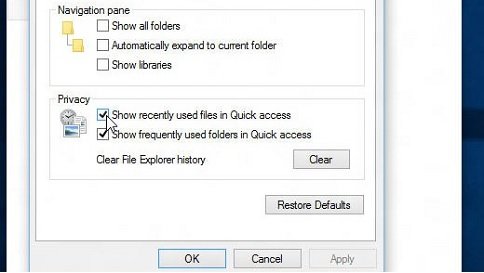
Folder Options is the only place with separate controls for ordinary hidden files and protected operating system files.
- Open File Explorer and select See more (the three dots) on the toolbar.
- Select Options to open the Folder Options dialog.
- Select the View tab.
- Under Advanced settings, select Show hidden files, folders, and drives.
- To see protected system files too, clear Hide protected operating system files (Recommended).
- Select OK.
Turn Hide protected operating system files back on when you are done. Those files are hidden to stop accidental changes.
How to show file name extensions alongside hidden files
Extensions help you tell hidden settings, log and data files apart at a glance.
| Where | Path | Setting |
|---|---|---|
| File Explorer, Windows 11 | View > Show | File name extensions |
| Settings, Windows 11 | System > Advanced > File Explorer | Show file extensions |
| Folder Options, Windows 11 | See more > Options > View | Clear Hide extensions for known file types |
| File Explorer, Windows 10 | View > Options > Change folder and search options > View | Clear Hide extensions for known file types; select Show hidden files, folders, and drives for hidden items |
How to find the hidden AppData folder
AppData holds app settings and caches for each user. You can open it directly without showing hidden items.
- Press Windows + R to open Run.
- Type
%appdata%and press Enter to openC:\Users\<username>\AppData\Roaming. - For local, non-roaming app data, type
%localappdata%instead to openC:\Users\<username>\AppData\Local. - To browse there by hand, turn on Hidden items, open
C:\Users\<username>, then open AppData.
How to view hidden files from Windows Search
File Explorer search lists hidden files once Hidden items is on. Search inside the folder you care about to keep results short.
- Turn on View > Show > Hidden items in File Explorer.
- Open the folder to search, or select This PC to search every drive.
- Type the file name in the search box at the top right.
- Use a wildcard to search by type, for example
*.inior*.log. - Right-click a result and select Open file location to see where it lives.
How to view hidden files with Command Prompt
By default dir lists every file except hidden and system files. The /a switch changes that.
dir /a:h/a:h lists only hidden files and folders in the current folder. Plain dir /a lists everything, including hidden and system files. Add /s to include subfolders.
You should see: Files that a normal dir leaves out now appear in the list.
How to view hidden files with PowerShell or Windows Terminal
Get-ChildItem does not show hidden items by default. Run these in PowerShell, either on its own or in a Windows Terminal tab.
Get-ChildItem -Force-Force includes hidden and system items in the list. Use Get-ChildItem -Hidden to list only hidden items, or Get-ChildItem -Path .\*.txt -Recurse -Force for hidden .txt files in all subfolders.
You should see: Hidden items show an h in the Mode column, for example -a-h--.
How to check hidden items are showing
- Open your user folder at
C:\Users\<username>. - Confirm an AppData folder now appears in the list.
- Open View > Show and confirm Hidden items has a check mark.
- Run
dir /a:hin that folder; the same hidden items should appear in the list.
How to unhide a file or folder
Showing hidden items only changes the view. To make one item permanently visible, clear its Hidden attribute.
- Select Start, type
cmdand select Command Prompt. - Type
attrib -h "C:\path\to\file.txt"and press Enter to clear the Hidden attribute. - If the item also has the System attribute, use
attrib -s -h "C:\path\to\file.txt"; attrib needs System cleared first. - For a folder and everything in it, add
/s /dto the command. - Turn off Hidden items in File Explorer and confirm the item still appears.
How to hide your own files or folders
- Open Command Prompt or Terminal.
- Type
attrib +h "C:\path\to\folder"and press Enter. - Turn off Hidden items in File Explorer to check the folder disappears.
- Reverse it at any time with
attrib -h.
Hiding is not security. Anyone who turns on Hidden items sees the file, so use a password or encryption for private data.
Useful hidden folders and files you may encounter
| Item | Typical path | What it holds |
|---|---|---|
| AppData\Roaming | C:\Users\<username>\AppData\Roaming | App settings that roam with your account; opened by %appdata% |
| AppData\Local | C:\Users\<username>\AppData\Local | Local, non-roaming app data and caches |
| ProgramData | C:\ProgramData | Application data shared by all users |
| Event Viewer saved logs | C:\ProgramData\Microsoft\Event Viewer\ExternalLogs | Saved log locations; hidden and protected |
| AppData | C:\Users\<username>\AppData | Parent folder for Roaming and Local; hidden by default |
Best practices when working with hidden files
- Leave Hide protected operating system files on unless a specific task needs it off.
- Turn protected file hiding back on as soon as the task is done.
- Never delete a hidden file in
C:\WindowsorC:\ProgramDataunless official documentation tells you to. - Copy a hidden settings file before you edit it so you can restore it.
- Prefer
%appdata%and%localappdata%over unhiding whole folders.
Why you might not see a hidden file even after enabling hidden items
The file is a protected operating system file
Hidden items does not reveal files with the System attribute.
- Turn on Settings > System > Advanced > File Explorer > Show hidden and system files.
- Or clear Hide protected operating system files (Recommended) in Folder Options.
- Check with
dir /ain that folder.
You are in the wrong user profile
AppData and similar folders exist separately for every account.
- Open
C:\Usersand pick the folder for the account that owns the file; its Documents folder and AppData sit side by side there. - Use
%appdata%to jump to the current account's folder directly.
The file is somewhere else
It moved, or it was never in the folder you expect.
- Select This PC and search for the file name with Hidden items on.
- Use
dir /a /s file.txtfrom the drive root to search every folder.
Troubleshooting: hidden items setting does not stay on
The Settings switch is greyed out or turns itself off
On devices managed by an organization, policies can disable the Advanced settings toggles.
- Use View > Show > Hidden items in File Explorer instead.
- Ask your IT department whether a policy controls the setting.
The Advanced page or File Explorer section is missing
The device runs an older Windows 11 version where the switches sit under For developers.
- Open Settings > System > For developers and look for the File Explorer section.
- Install pending updates from Windows Update, then check System > Advanced again.
- Use Folder Options as a fallback.
Hidden items show in one window but not after a restart
The setting was changed in a session or account that is not yours.
- Sign in to your own account and set Hidden items again.
- Set it in Folder Options and select OK, not just close the dialog.
Frequently asked questions
How do I view hidden files and folders in Windows?
In Windows 11, open File Explorer and select View > Show > Hidden items. In Windows 10, select View > Options > Change folder and search options, open the View tab, select Show hidden files, folders, and drives, then OK.
How do I show hidden files without changing settings?
Use a command. In Command Prompt, dir /a lists all files including hidden and system ones. In PowerShell, Get-ChildItem -Force does the same. Neither changes how File Explorer displays the folder.
Why are some files hidden?
Windows and apps hide files that people rarely need to open, such as app settings in AppData and system files. Hiding keeps folders tidy and reduces accidental deletion. It is a display flag, not a security measure.
How do I reveal hidden system files?
Turn on Show hidden and system files under Settings > System > Advanced > File Explorer. Or open Folder Options from See more > Options, and on the View tab clear Hide protected operating system files (Recommended).
How do I view hidden files in folders on a USB drive?
The same File Explorer setting applies to every drive. Turn on View > Show > Hidden items, then open the USB drive. From Command Prompt, switch to the drive letter and run dir /a.
How do I make a hidden file visible permanently?
Clear its Hidden attribute. Run attrib -h followed by the file path in Command Prompt. If the file also has the System attribute, run attrib -s -h, because attrib needs System cleared first.
How do I view hidden files on a Mac?
macOS uses a different method from Windows. On a Mac you show hidden files in Finder with a keyboard shortcut or a Terminal command, not with File Explorer settings.
Where is the AppData folder in Windows 11?
AppData sits in each user folder at C:\Users\<username>\AppData. Press Windows + R and type %appdata% to open the Roaming folder, or %localappdata% for the Local folder, without showing hidden items.