The Windows 11 September 2026 security update is KB5124008, released September 8, 2026 as OS builds 26200.9445 (version 25H2) and 26100.9445 (version 24H2); 23H2 got KB5122880 and 26H1 got KB5124012.
Microsoft followed it with an out-of-band fix on September 14 and the optional preview KB5124010 on September 22. This guide lists every KB and build, what each one fixed, how to install them, and the known issues still open.
Affected Windows 11 Versions and Updates
Find your version in Settings > System > About, then read across. The Patch Tuesday column is the mandatory security update; later columns replace it cumulatively.
| Your version | Sept 8 security update | Sept 14 out-of-band | Sept 22 optional preview |
|---|---|---|---|
| Windows 11 26H2 | Not yet released | KB5129195, build 26300.9457 (published for 26H2 on Sept 29) | KB5124010, build 26300.9550 (published for 26H2 on Sept 29) |
| Windows 11 25H2 | KB5124008, build 26200.9445 | KB5129195, build 26200.9457 | KB5124010, build 26200.9550 |
| Windows 11 24H2 | KB5124008, build 26100.9445 | KB5129195, build 26100.9457 | KB5124010, build 26100.9550 |
| Windows 11 26H1 | KB5124012, build 28000.2954 | KB5129194, build 28000.2956 | KB5124006, build 28000.3086 |
| Windows 11 23H2 (Enterprise and Education) | KB5122880, build 22631.7582 | KB5129242, build 22631.7584 | None |
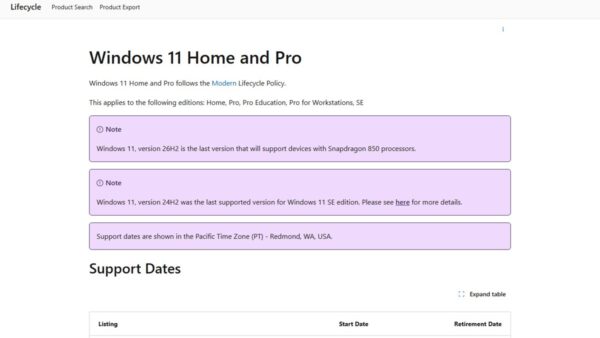
Windows 11 23H2 Home and Pro no longer receive updates. Enterprise and Education editions of 23H2 are supported until November 10, 2026.
Every September 2026 release in date order
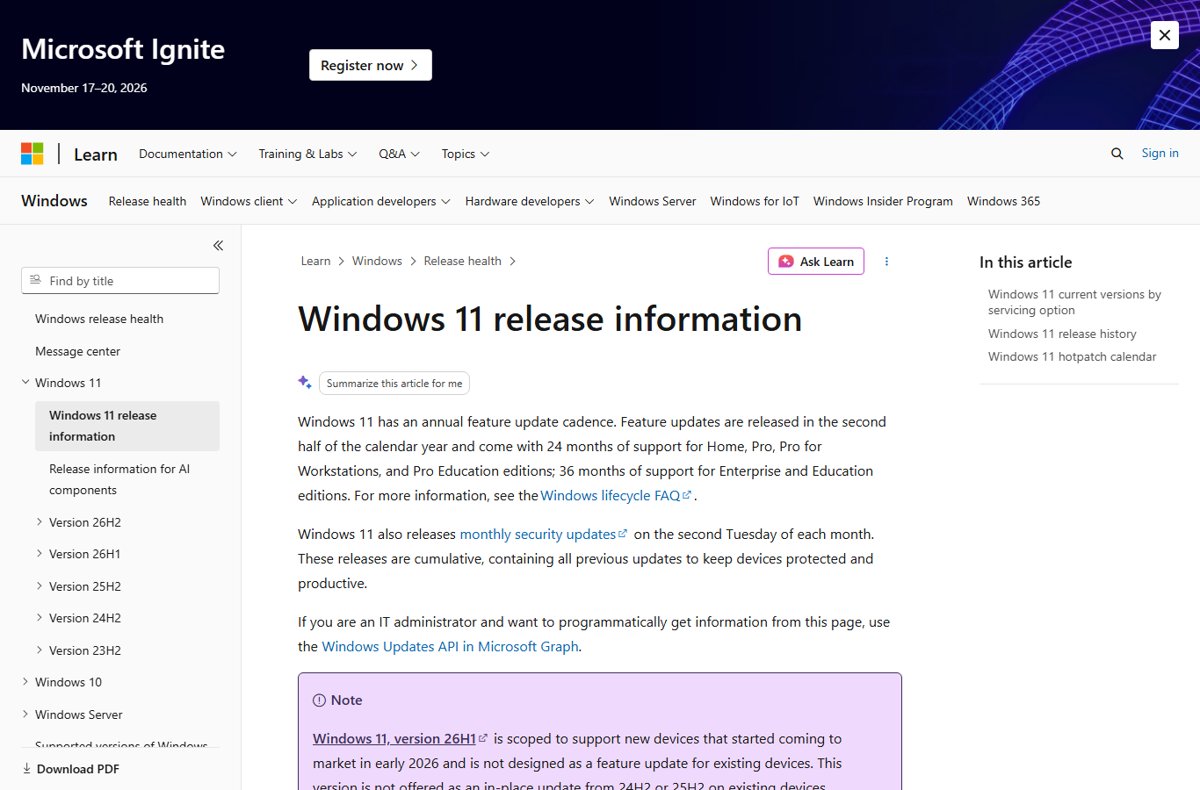
September 2026 was a busy month: a security release, an emergency fix, a preview and a new Windows version. Microsoft's Windows 11 release information page records each one.
| Date | Update type | KB | What it was |
|---|---|---|---|
| September 8 | 2026-09 B (Patch Tuesday) | KB5124008, KB5122880, KB5124012 | Monthly security updates for 25H2/24H2, 23H2 and 26H1 |
| September 14 | 2026-09 OOB | KB5129195, KB5129242, KB5129194 | Out-of-band fixes for Remote Desktop Services, Hyper-V Plan9 shares, multichannel USB audio and a power service vulnerability |
| September 22 | 2026-09 D (preview) | KB5124010, KB5124006 | Optional non-security preview with new features and fixes |
| September 29 | Feature update | KB5121794 | Windows 11 26H2 general availability through an enablement package |
KB5124010 is the final non-security preview update for Windows 11 24H2. Supported 24H2 editions keep getting monthly security updates only, and 24H2 Home and Pro reach end of updates on October 13, 2026.
Install the September 2026 non-Security Update
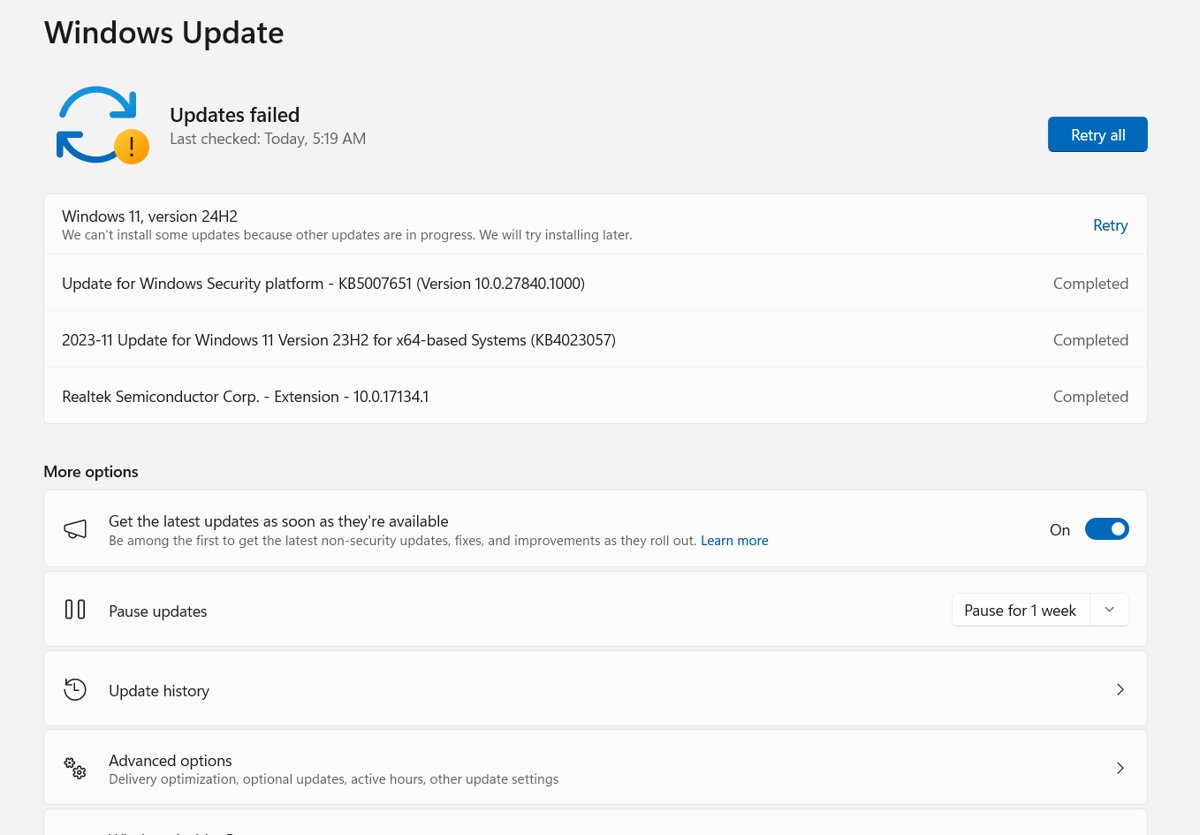
The September 8 security update installs automatically. The September 22 preview, KB5124010, is optional and waits for you to request it.
- Select Start > Settings > Windows Update.
- Select Advanced options, then Optional updates.
- In the Optional updates available area, find the 2026-09 cumulative update preview (KB5124010).
- Select the update and choose to download and install it.
- Restart the PC when prompted.
Some KB5124010 features arrive by gradual rollout, so a feature can appear days or weeks after the update installs. In organisations using Windows Update for Business, Microsoft says these changes appear in the next security update instead.
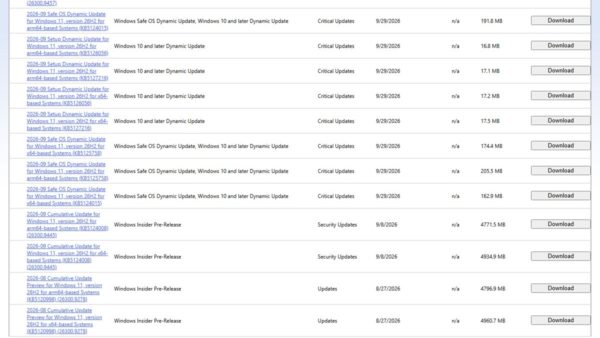
Windows 11 KB5124008 direct download
The Microsoft Update Catalog carries standalone .msu files for KB5124008 and every other September release. Each x64 package is about 4.9 GB and each Arm64 package about 4.8 GB. Microsoft's catalog instructions for the September updates require the checkpoint cumulative update KB5043080 to be installed first; DISM finds and installs it for you if both files sit in one folder.
- Open
https://www.catalog.update.microsoft.comand search for KB5124008 (or KB5129195 for the later out-of-band build). - Pick the row that matches your version and processor, for example 2026-09 Cumulative Update for Windows 11, version 25H2 for x64-based Systems.
- Download its .msu files, plus the KB5043080 checkpoint file for the same processor, into one folder such as
C:\Packages. - Search the Start menu for Command Prompt, right-click it and select Run as administrator.
- Run
DISM /Online /Add-Package /PackagePath:C:\Packages\<file name>.msu, using the KB5124008 file name. DISM scans the folder and installs any required checkpoint update first. - Restart the PC when DISM finishes.
PowerShell users can run Add-WindowsPackage -Online -PackagePath "C:\Packages\<file name>.msu" instead. Other ways to fetch these files are covered in the Update Catalog download guide.
What’s new in the September 2026 Update
The security update fixed several August regressions. The optional preview added features, some of which reach devices gradually.
| Update | Area | Change |
|---|---|---|
| KB5124008 | Security | Security fixes listed in Microsoft's Security Update Guide |
| KB5124008 | Secure Boot | More device-targeting data so more PCs automatically receive the new Secure Boot certificates |
| KB5124008 | Desktop background | Fixes backgrounds turning black and personalization settings not loading after the August 27 preview |
| KB5124008 | Mouse | Fixes custom cursor style and colour not displaying correctly |
| KB5124008 | Arm64 PCs | Fixes Microsoft Teams and Outlook closing unexpectedly |
| KB5124008 | Date and time | Morocco Standard Time moves to permanent UTC+00:00 from September 20, 2026 |
| KB5124008 | Remote Desktop | Fixes audio from a remote session not playing on the local device in some setups |
| KB5124010 | Copilot key | New setting to remap the Copilot key to Right Ctrl or the Context Menu key |
| KB5124010 | Touchpad | More gesture controls in Settings > Bluetooth & devices > Touchpad |
| KB5124010 | Widgets and emoji | New Tips widget; Emoji 17.0 support |
| KB5124010 | Accessibility | New Open apps maximized setting |
| KB5124010 | Camera roll | Camera roll backup to OneDrive in Settings for eligible users |
| KB5124010 | Windows Backup | PC-to-PC Migration is removed |
| KB5124010 | Camera and File History | Fixes the built-in camera stopping and File History failing to back up or restore |
What the September 14 out-of-band update fixed
KB5129195 is cumulative, so installing it also installs everything in KB5124008. Microsoft recommends the latest update over the original Patch Tuesday build.
| Problem after KB5124008 | Status in KB5129195 |
|---|---|
| Remote Desktop Services unstable: RDP connections failing, servers stuck at "Please wait for the Remote Desktop Configuration" | Fixed |
| Plan9 host folder shares missing in Hyper-V Linux VMs, affecting WSL | Fixed; admins who used the Group Policy mitigation must re-enable it, install the update and restart |
| USB Audio Class 1.0 devices failing in 8-channel or 3D audio modes | Fixed; other USB audio symptoms remain open |
| CVE-2026-62721, a Windows User-Mode Power Service elevation of privilege flaw | Protections added |
How to check which September update you have
- Right-click Start and select Settings.
- Select System, then About.
- Under Windows specifications, read OS build.
- Match the number after the dot: .9445 is the September 8 update, .9457 the September 14 fix and .9550 the September 22 preview on 24H2, 25H2 and 26H2.
Fix problems after the September 2026 update
These symptoms are listed on Microsoft's release health pages for the September 2026 updates. The 26H2 known issues tracker follows the ones that also affect the new version.
Domain sign-in fails with a trust relationship error
KB5124008 and later updates make Windows honour existing Machine Identity Isolation enforcement, supported only with Windows Server 2025 domain functional level.
- Disable Machine Identity Isolation with the tool that enabled it: Intune or Group Policy.
- If it was set in the registry, change
MachineIdentityIsolationfrom2to0underHKLM\SYSTEM\CurrentControlSet\Control\Lsa\MachineIdentityIsolationorHKLM\SOFTWARE\Policies\Microsoft\Windows\DeviceGuard\MachineIdentityIsolation. - Restart the device.
- Run
Test-ComputerSecureChannel -Repair -Credential (Get-Credential)in PowerShell to reset the secure channel.
USB audio device shows Code 10, no sound or stuck volume
A known issue with some USB Audio Class 1.0 devices after KB5124008; only the multichannel symptom is fixed so far.
- Install KB5129195 or a later update through Settings > Windows Update.
- If audio fails only in 8-channel or 3D mode on an older build, switch the device to 2-channel mode.
- IT administrators who need an immediate workaround can contact Microsoft Support for Business.
Remote Desktop connections drop or servers hang at "Please wait for the Remote Desktop Configuration"
An RDS regression in the September 8 security update.
- Install KB5129195 (24H2 and 25H2) or KB5129242 (23H2), or any later update.
- Restart the server or PC.
WSL or other Linux VMs cannot see Windows host folders
Plan9 host folder shares broke in HCS-managed Hyper-V VMs after KB5124008.
- If you applied the Group Policy mitigation, re-enable that policy.
- Install KB5129195 or a later update.
- Restart the PC.
File History stops backing up or restoring
Listed as a known issue in the September security and out-of-band updates.
- Open Settings > Windows Update > Advanced options > Optional updates.
- Install KB5124010, which addresses File History failing to back up or restore to an external drive or network location.
- Restart and run a File History backup again.
Black screen after sign-in on Azure Virtual Desktop
A desktop loading issue after the August 27 preview and later updates, seen mostly on AVD hosts using FSLogix.
- Press Ctrl + Shift + Esc to open Task Manager.
- Select Run new task, type
explorer.exeand select OK. - On managed devices, deploy the KB5124010 Known Issue Rollback Group Policy from Microsoft's release health page, then restart.
Notifications say "Microsoft Defender Antivirus is turned off"
A Defender update bug; the antivirus stayed active throughout.
- Open Settings > Windows Update and select Check for updates.
- Install the Microsoft Defender Antivirus update version 4.18.26080.4 or later, released September 17, 2026, which resolves the notifications.
How administrators can work around the Always On VPN issue
Microsoft's release health pages for Windows 11 26H2, 26H1, 25H2, 24H2 and 23H2 and Windows Server 2025 list no Always On VPN known issue for the September 2026 updates as of September 30, so there is no official workaround to apply.
- Install the newest September update for the device, KB5129195 or KB5124010 on 24H2 and 25H2, before troubleshooting further.
- Check the release health page for your Windows version for a new entry before rolling anything back.
- Report the failure through the Feedback Hub app, or open a case with Microsoft Support for Business for managed fleets.
Frequently Asked Questions
What is the KB number of the Windows 11 September 2026 update?
The September 8, 2026 security update is KB5124008 for Windows 11 versions 25H2 and 24H2. Version 23H2 received KB5122880 and version 26H1 received KB5124012. The optional September 22 preview for 24H2, 25H2 and 26H2 is KB5124010.
What build number is the September 2026 Windows 11 update?
KB5124008 brings Windows 11 25H2 to build 26200.9445 and 24H2 to 26100.9445. The September 14 out-of-band update raises them to .9457, and the September 22 preview to .9550. Windows 11 26H2 reports build 26300.9550 with KB5124010.
Is KB5124010 required?
No. KB5124010 is an optional non-security preview and installs only when you choose it under Optional updates. Its fixes and features roll into the next monthly security update, which installs automatically. It is also the final preview update for Windows 11 24H2.
What did the September 14, 2026 out-of-band update fix?
KB5129195 fixed Remote Desktop Services instability, missing Plan9 host folder shares in Hyper-V Linux VMs such as WSL, and USB audio failures in 8-channel or 3D modes. It also added protections for CVE-2026-62721, a User-Mode Power Service elevation of privilege flaw.
Can I download KB5124008 as an offline installer?
Yes. The Microsoft Update Catalog lists KB5124008 .msu packages for Windows 11 24H2 and 25H2 on x64 and Arm64. Download the checkpoint update KB5043080 into the same folder, then install with DISM, which applies the checkpoint first.
Does Windows 11 23H2 still get the September 2026 update?
Only Enterprise and Education editions do. They received KB5122880 on September 8 and the out-of-band KB5129242 on September 14. Windows 11 23H2 Home and Pro no longer receive updates, and Enterprise and Education support ends November 10, 2026.
When is the next Windows 11 update after September 2026?
Microsoft releases Windows 11 security updates on the second Tuesday of each month, which makes October 13, 2026 the next Patch Tuesday. That date is also the last day of updates for Windows 11 24H2 Home and Pro editions.
Does the September 2026 update install Windows 11 26H2?
No. The September updates keep 24H2 and 25H2 on their current version. Windows 11 26H2 arrived separately on September 29, 2026 as the enablement package KB5121794, which requires KB5124010 or a later cumulative update.
Should you install this update?
Yes: install the September security update, and on 24H2 or 25H2 go straight to KB5129195 or later rather than stopping at KB5124008. KB5124008 closes security holes but introduced Remote Desktop, Hyper-V share and audio regressions that the cumulative September 14 update fixes. Install the optional KB5124010 only if you need its File History or camera fixes, or plan to move to 26H2, which requires it.
The version upgrade itself is covered in what the 26H2 enablement package does, and later builds appear in the 26H2 update history.