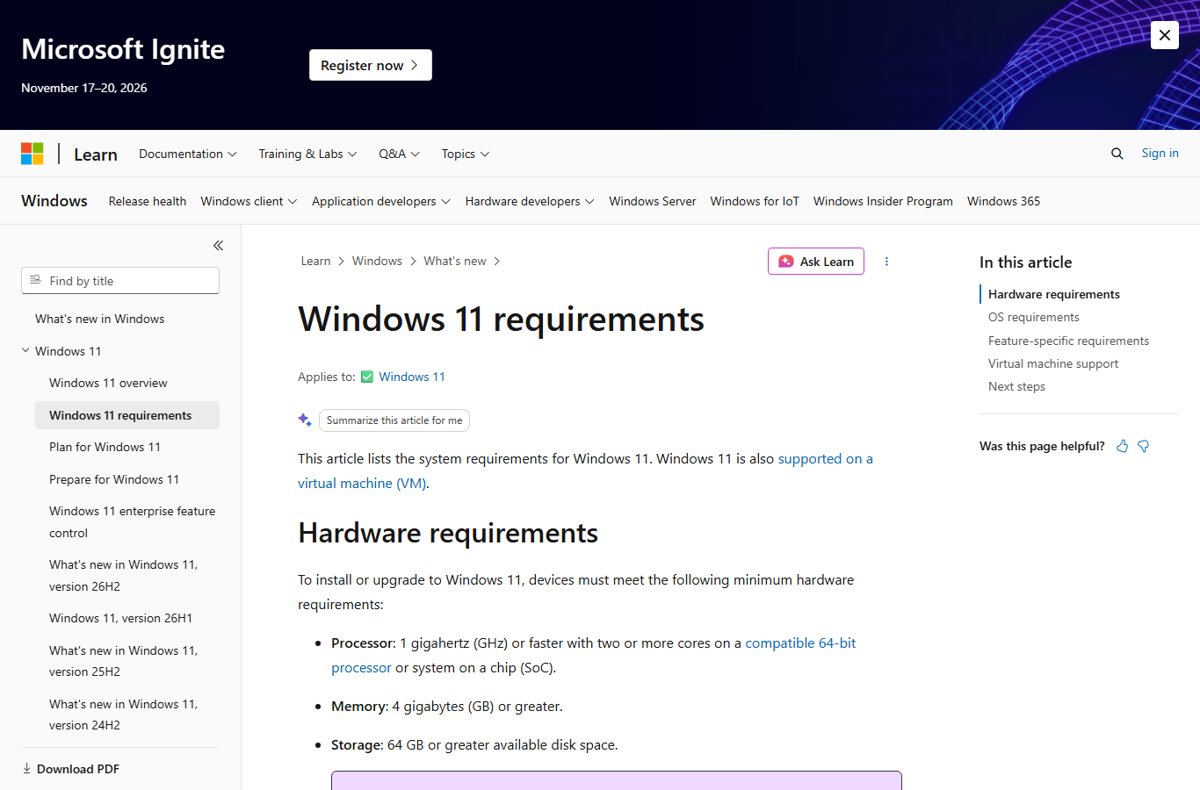
Windows 11 26H2 has the same system requirements as every other Windows 11 release: a compatible 64-bit processor with two or more cores at 1 GHz, 4 GB of RAM, 64 GB of storage, UEFI with Secure Boot, TPM 2.0 and a DirectX 12 graphics card.
This guide lists the full requirements, which processors qualify, the extra specifications for Copilot+ PCs, which PCs get 26H2 and how, and how long each edition is supported.
How to tell if your PC can run Windows 11 26H2
If your PC already runs Windows 11, version 24H2 or 25H2, it qualifies. Microsoft delivers 26H2 to those versions as a small enablement package, because they share the same core operating system.
- Right-click Start and select Settings.
- Select System, then About.
- Under Windows specifications, read the Version line.
- If it says 24H2 or 25H2, your PC is eligible for 26H2 through Windows Update.
- If it says an older version or the PC runs Windows 10, check the hardware against the table below, or run PC Health Check.
Eligible does not mean offered today. Microsoft is rolling 26H2 out in phases over the next few months, and the Windows 11 26H2 overview explains the rollout.
Windows 11 26H2 hardware requirements
Microsoft has not announced any new hardware requirement for 26H2. These are the Windows 11 minimums from Microsoft's requirements page, which apply to every version.
| Component | Minimum requirement |
|---|---|
| Processor | 1 GHz or faster with two or more cores on a compatible 64-bit processor or system on a chip (SoC) |
| Memory (RAM) | 4 GB or more |
| Storage | 64 GB or more available; updates and some features may need more over time |
| System firmware | UEFI, Secure Boot capable |
| TPM | Trusted Platform Module (TPM) version 2.0 |
| Graphics card | Compatible with DirectX 12 or later, with a WDDM 2.0 driver |
| Display | High definition (720p), larger than 9 inches diagonally, 8 bits per color channel |
| Internet and account | Windows 11 Home, and Pro for personal use, need an internet connection and a Microsoft account to finish first-time setup |
| Virtual machines | Generation 2 VM, 64 GB disk, 4 GB RAM, two virtual processors, Secure Boot and a virtual TPM enabled |
Some features need more: Client Hyper-V needs a processor with SLAT, DirectStorage needs an NVMe SSD, and three-column Snap layouts need a screen at least 1920 effective pixels wide.
Windows 11 26H2 supported processors
As of September 30, 2026, Microsoft has not published a processor list specific to version 26H2. Its processor requirements index stops at 25H2 and 26H1, and Microsoft says the lists are updated at each general availability release, so a 26H2 list may still appear.
Until then, the 25H2 lists are the most recent official reference. They name the chips OEMs may use in new PCs; later chips that meet the same principles count as supported even if unlisted.
| Maker | Supported families on the 25H2 list | Notes |
|---|---|---|
| Intel | 8th to 14th Generation Core i3, i5, i7 and i9; Core Ultra Series 1, 2 and 3; Core Series 1 and 2; Core N300; Intel N100, N200 and N90; Celeron, Pentium Gold and Silver, Atom X7000; Xeon W, E, D and Scalable families | 8th Generation Core is the oldest Intel generation on the 25H2 list |
| AMD | Ryzen 3000 (G and GE only) through Ryzen 9000; Ryzen PRO 3000 to 9000; Ryzen AI 300 and AI Max 300; Ryzen Z1 and Z2; Threadripper 3000, 7000 and 9000; Athlon 7000 U Series; EPYC 4004 to 9005 | Other Ryzen 3000 models are not on the 25H2 list |
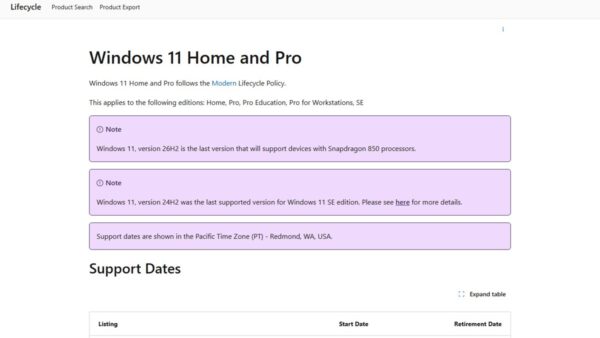
| Arm (Qualcomm) | Snapdragon X, X Plus and X Elite | Microsoft's Lifecycle pages state 26H2 is the last version that will support devices with Snapdragon 850 processors |
| Unsupported | Any 32-bit processor, and any chip missing from all of Microsoft's Windows 11 processor lists | The 25H2 lists cover chips for new PCs only; for an older chip, check Microsoft's general Windows 11 Intel, AMD and Qualcomm lists, which decide upgrade eligibility |
The Windows 11 26H2 supported CPU list tracks each processor model in more detail.
Copilot+ PC system requirements for version 26H2
Copilot+ PCs must meet every Windows 11 minimum plus the specifications below. A PC with a 40+ TOPS NPU but less RAM or storage still runs 26H2, but it does not get the Copilot+ features such as improved Windows search and Click to Do.
| Component | Copilot+ PC minimum |
|---|---|
| Processor | Processor or SoC with an NPU capable of 40+ TOPS |
| Qualifying chips today | AMD Ryzen AI 300 and 400 series, Intel Core Ultra 200V and 300V series, Snapdragon X series |
| Memory | 16 GB DDR5 or LPDDR5 |
| Storage | 256 GB SSD or UFS |
| Feature-specific limits | Some features, such as Paint Generative fill and Photos Relight, are only on Snapdragon X Series Copilot+ PCs |
For Arm-specific details, see 26H2 on Arm64 and Copilot+ PCs.
Which PCs get Windows 11 26H2, and how
| Your PC runs | How it gets 26H2 | Why |
|---|---|---|
| Windows 11, version 25H2 | Windows Update, enablement package KB5121794 | Shares the 26H2 code base; one restart |
| Windows 11, version 24H2 | Windows Update, enablement package KB5121794 | Same servicing branch; needs the September 22, 2026 update KB5124010 or later first |
| Windows 11, version 23H2 or older | Installation Assistant or an ISO | The enablement package only applies to 24H2 and 25H2; Home and Pro 23H2 no longer get updates |
| Windows 11, version 26H1 | Microsoft has not published an upgrade path yet | 26H1 is a separate release scoped to new devices that shipped in early 2026 |
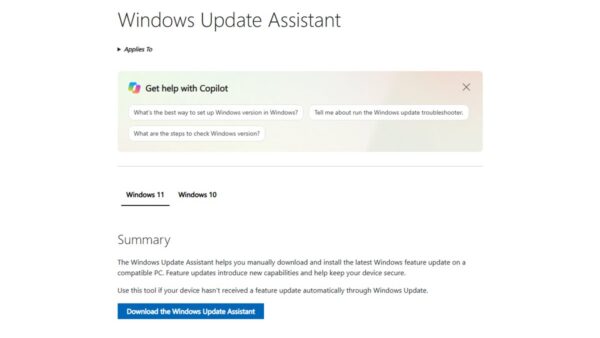
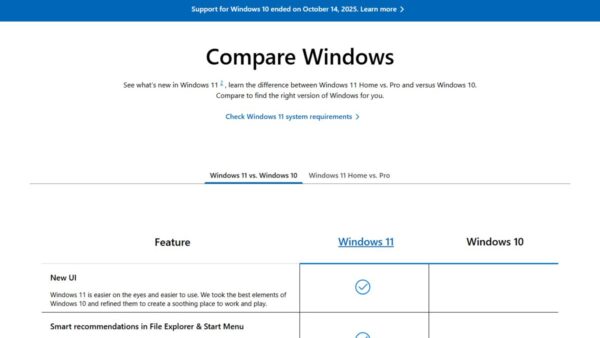
| Windows 10 on hardware that meets the requirements | Installation Assistant or an ISO | Needs Windows 10, version 2004 or later; Windows 10 support ended October 14, 2025 |
| Hardware below the requirements | Not offered | Windows Update does not offer Windows 11 to PCs that fail the checks |
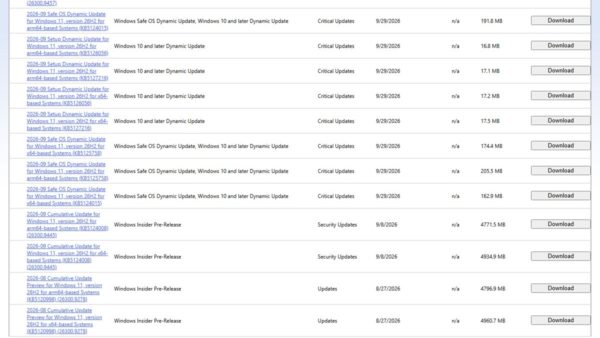
For every download route, including the ISO and Installation Assistant, use the guide to install Windows 11 26H2.
Check TPM 2.0 before you upgrade
TPM 2.0 is the requirement most often switched off on older desktops. Many retail motherboards ship with TPM disabled even though the hardware supports it.
- Press Windows logo key + R.
- Type
tpm.mscand select OK. - If the console confirms the TPM is ready to use, check Specification Version under TPM Manufacturer Information.
- Confirm the version is 2.0. Anything lower does not meet the Windows 11 requirement.
- If you see Compatible TPM cannot be found, the TPM may be disabled in the UEFI firmware; see the fix below.
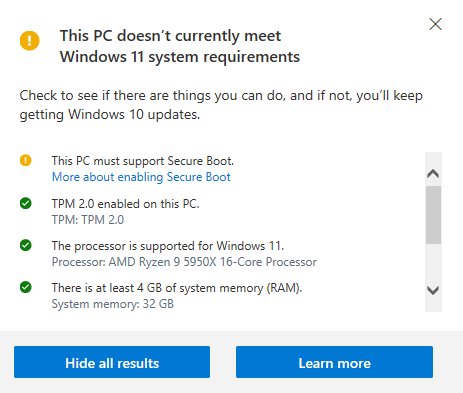
Run PC Health Check to confirm eligibility
PC Health Check is Microsoft's own eligibility checker for PCs running Windows 10. It does not test the graphics card or display.
- Download PC Health Check from
https://aka.ms/GetPCHealthCheckAppand install it. - Search for PC Health Check on the taskbar and open it.
- Select Check now.
- Read the result. It states whether the PC meets the Windows 11 requirements and, if not, which one fails.
How long is Windows 11 26H2 supported?
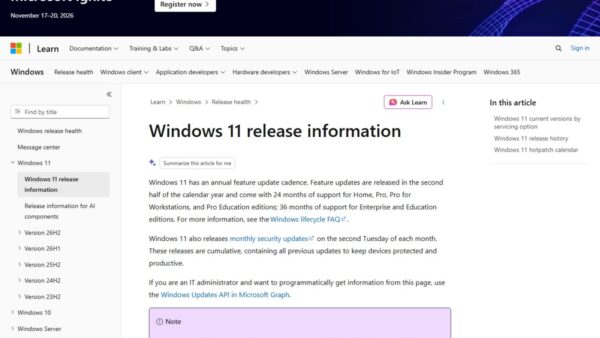
Installing 26H2 resets the support clock. Microsoft gives Home and Pro editions 24 months and Enterprise and Education editions 36 months from the September 29, 2026 release.
| Edition | Support length | End of updates |
|---|---|---|
| Home, Pro, Pro Education, Pro for Workstations | 24 months | October 10, 2028 |
| Enterprise, Education, IoT Enterprise, Enterprise multi-session | 36 months | October 9, 2029 |
| For comparison: 25H2 Home and Pro | 24 months | October 12, 2027 |
| For comparison: 24H2 Home and Pro | 24 months | October 13, 2026 |
Dates are from Microsoft's Windows 11 release information page; the Lifecycle site shows them one day earlier in Pacific Time. The 26H2 end of support timeline covers servicing in detail.
Fix Windows 11 26H2 compatibility problems
TPM 2.0 not found or TPM is below 2.0
The TPM is turned off in the UEFI firmware, or the PC only has an older TPM.
- On Windows 10, select Settings > Update & Security > Recovery > Restart now.
- Choose Troubleshoot > Advanced options > UEFI Firmware Settings > Restart.
- Look in the Advanced, Security or Trusted Computing menu.
- Enable the option labelled Security Device, TPM State, AMD fTPM switch, AMD PSP fTPM, Intel PTT or Intel Platform Trust Technology.
- Save, restart and check
tpm.mscagain. If the version is still below 2.0, the PC does not meet the requirement.
"Unsupported hardware" or error 80240037 in Windows Update
Windows detected a processor that is not supported with the Windows version installed.
- Note your processor model under Settings > System > About > Device specifications.
- Compare it with Microsoft's Windows processor requirements lists for your maker.
- Ask your PC maker which Windows versions it supports on that model.
The PC meets every requirement but 26H2 is not offered
Microsoft is using a phased rollout and may place safeguard holds on devices with a known compatibility issue.
- Open Settings > Windows Update and turn on Get the latest updates as soon as they're available.
- Select Check for updates.
- Check the Windows 11, version 26H2 known issues page for a safeguard hold that matches your hardware.
The full checklist is in the guide to 26H2 not showing in Windows Update.
Frequently Asked Questions
What are the Windows 11 26H2 system requirements?
They are the standard Windows 11 minimums: a compatible 64-bit processor with two or more cores at 1 GHz or faster, 4 GB of RAM, 64 GB of storage, UEFI with Secure Boot, TPM 2.0, a DirectX 12 graphics card with a WDDM 2.0 driver, and a 720p display over 9 inches.
Does Windows 11 26H2 need TPM 2.0?
Yes. TPM 2.0 is a Windows 11 requirement and applies to 26H2 like every other version. Press Windows logo key + R, run tpm.msc, and check that Specification Version reads 2.0. If no TPM is found, it may be switched off in the UEFI firmware.
Did the hardware requirements change in 26H2?
No. Microsoft has announced no new minimum for 26H2, and the Windows 11 requirements page still lists the same specifications. PCs on version 24H2 or 25H2 move to 26H2 through a small enablement package, so any PC already running those versions qualifies.
Can I install Windows 11 26H2 on an unsupported PC?
Microsoft does not offer 26H2 through Windows Update to PCs that fail the Windows 11 requirements. Forcing an install on unsupported hardware leaves the PC outside Microsoft's support. Replacing the PC or enabling a switched-off TPM are the supported options.
Is Snapdragon 850 supported by Windows 11 26H2?
Yes, for now. Microsoft's Lifecycle pages state that Windows 11, version 26H2 is the last version that will support devices with Snapdragon 850 processors, so those PCs will not move to later feature updates.
Do I need a Copilot+ PC for Windows 11 26H2?
No. Any PC that meets the Windows 11 minimums can run 26H2. Copilot+ PCs, with a 40+ TOPS NPU, 16 GB of RAM and 256 GB of storage, only add exclusive AI features such as improved Windows search and Click to Do.
How much storage does Windows 11 26H2 need?
The minimum is 64 GB of available storage. Microsoft notes that updates and some features may need more space over time. Upgrading from 24H2 or 25H2 uses a small enablement package, so the download itself is small.
How long will Windows 11 26H2 be supported?
Home and Pro editions get updates until October 10, 2028, which is 24 months. Enterprise and Education editions get 36 months, until October 9, 2029, according to Microsoft's Windows 11 release information page.
Bottom Line
If your PC runs Windows 11 24H2 or 25H2, it meets the Windows 11 26H2 requirements; wait for the Windows Update offer or turn on early updates. 26H2 adds no new hardware minimum and installs as a small enablement package on those versions. Only PCs on older versions or Windows 10 need a TPM, Secure Boot and processor check first.

Windows 11 version 26H2: what you need to know about Microsoft's feature update for your PC - Techdows
[…] has not published a separate 26H2 processor list yet. Details on eligibility are in the 26H2 system requirements […]