A Cisco Secure Client download comes from your organisation, either its VPN portal or the package your IT team shares, and installs on Windows 11, Windows 10 and macOS in a few minutes. Administrators take the same packages from Cisco Software Central with a Cisco.com login tied to a licence contract.
Cisco Secure Client is the new name for AnyConnect, and the VPN module inside it still carries the AnyConnect name. The client costs the user nothing, and the organisation running the VPN holds the licence.
This guide covers which package fits your machine, the Windows and Mac install steps, the Microsoft Store app, silent MSI deployment, licensing, fixes for failed installs and clean removal.
Check the Cisco Secure Client version, licence and system requirements
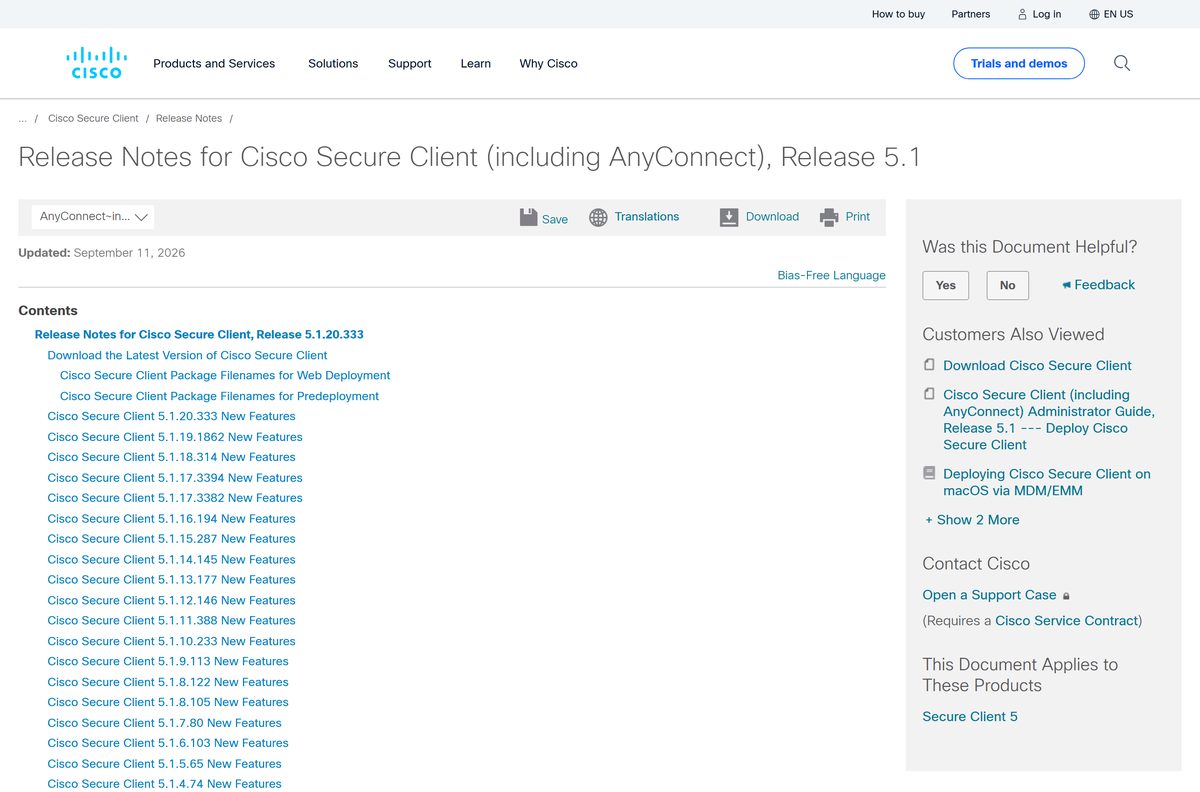
Cisco maintains one release line, 5.1, and adds new macOS and Linux versions to it as they ship.
| Item | Detail |
|---|---|
| Software | Cisco Secure Client (including AnyConnect) |
| Developer | Cisco Systems, Inc. |
| Latest version | 5.1.20.333, released 11 September 2026 |
| Licence | No charge to the user; the organisation needs an Advantage, Premier or VPN Only licence |
| Download size | Not published for the Windows or macOS packages, which sit behind a Cisco.com login |
| Supported OS | Windows 11 and Windows 10 (Microsoft-supported versions), macOS 14 Sonoma to macOS 27, Red Hat 8.x to 10.x, Ubuntu 22.04, 24.04 and 26.04 |
| Architecture | x64 and ARM64 on Windows 11; Intel and Apple silicon on macOS; x86_64 and ARM64 on Linux |
| Official download source | Cisco Software Central, linked from the 5.1 release notes |
| Offline installer | Yes for administrators: a predeploy zip for Windows and a DMG for macOS |
| Last verified | 25 September 2026 |
Which Cisco Secure Client download do you need?
Match your device to the package name. Cisco names every file by platform, so the right one is easy to spot in Software Central or on a shared drive.
| Your device | Package to use | What to know |
|---|---|---|
| Windows 11 or 10 PC (x64) | cisco-secure-client-win- |
Run setup.exe inside the zip to pick modules |
| Windows 11 on ARM64 | cisco-secure-client-win-arm64- |
No setup.exe; run the MSI files directly |
| Mac with Intel or Apple silicon | cisco-secure-client-macos- |
One DMG carries every module |
| Linux x86_64 or ARM64 | RPM or DEB predeploy .tgz package | Pick RPM for Red Hat and SUSE, DEB for Ubuntu |
| Windows PC that needs only the VPN | AnyConnect in the Microsoft Store | Free Store app with x64, x86 and ARM packages |
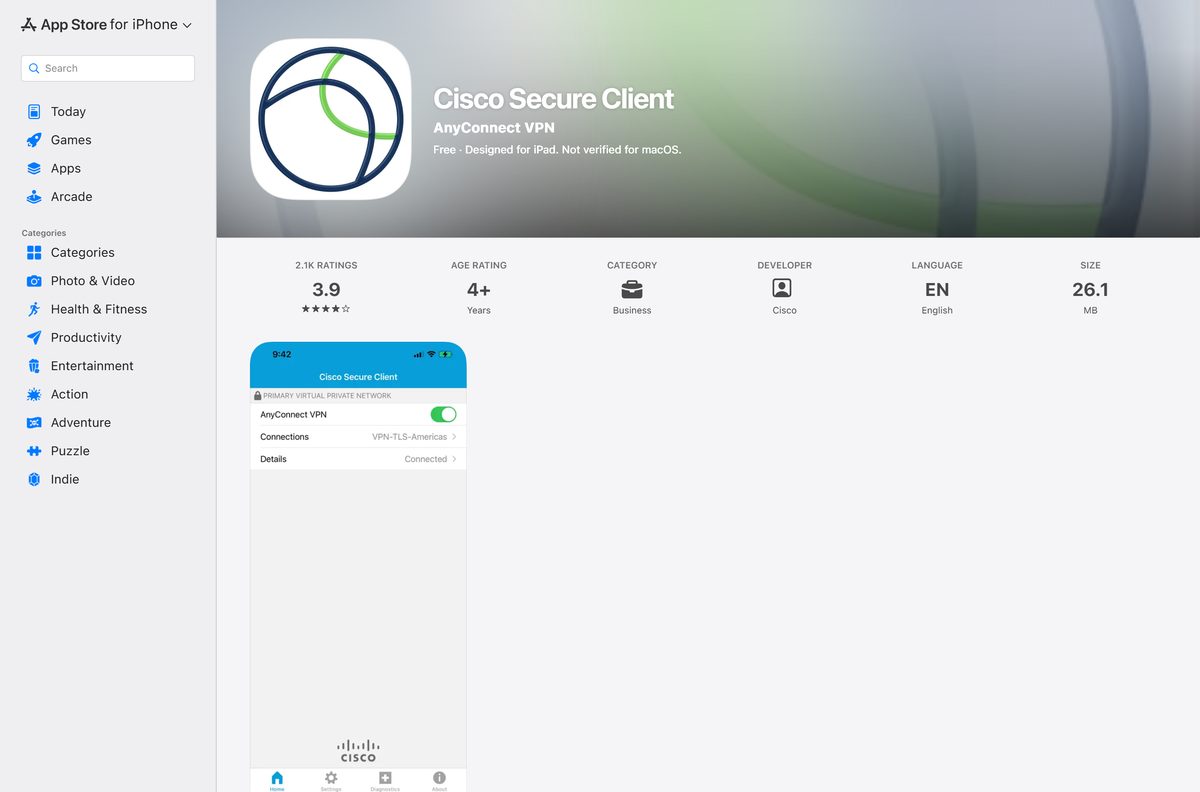
| iPhone or iPad | Cisco Secure Client on the App Store | Free, 26.1 MB |
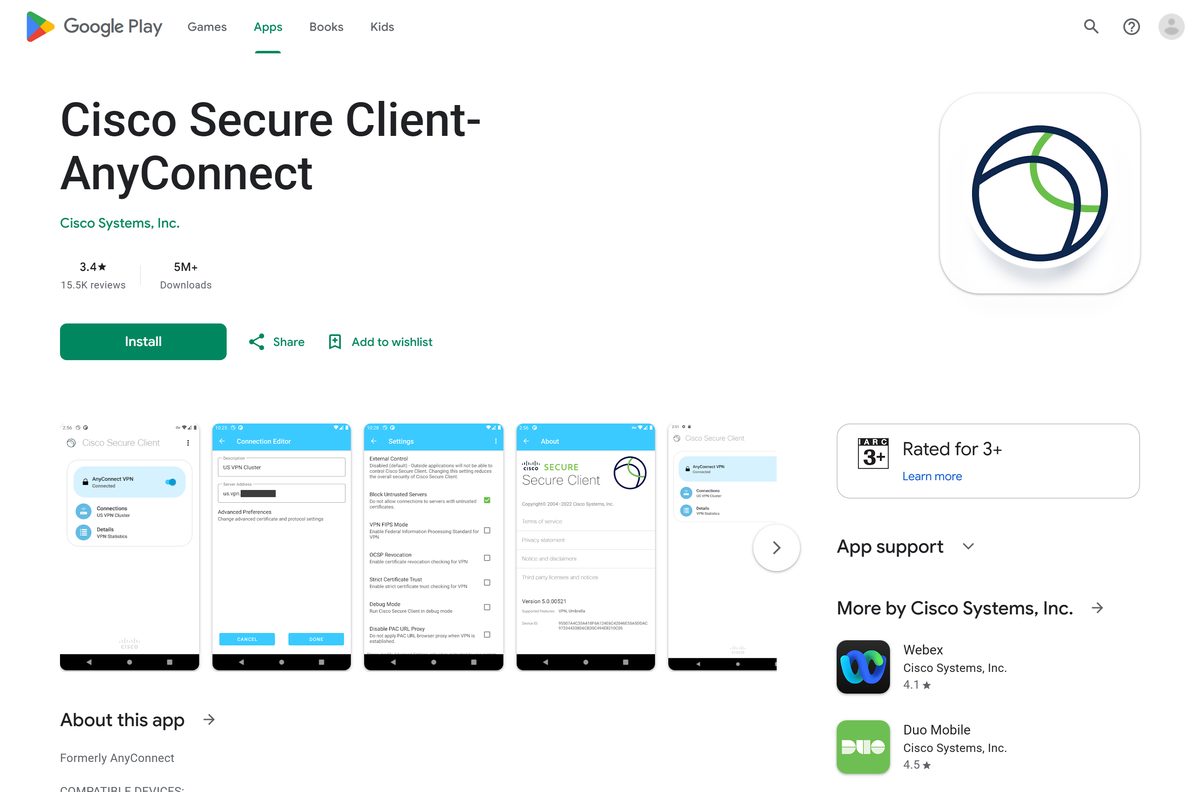
| Android phone or tablet | Cisco Secure Client-AnyConnect on Google Play | Free; skips features such as Trusted Network Detection |
Press Windows + I, open System > About and read System type to tell an x64 PC from an ARM64 one.
Where to get the official Cisco Secure Client download
Cisco keeps the desktop packages in Cisco Software Central. Signing in needs a Cisco.com account linked to your organisation’s licence contract, which is why most staff never see that page.
Ask your IT help desk first. They either give you a VPN portal address or a package that already carries your company’s connection profile.
- Cisco Secure Client 5.1 release notes — The Download the Latest Version section walks through Software Central
- Cisco Secure Client product page — What the client and its modules do
- Cisco Secure Client data sheet — States that downloads come from the Cisco.com Software Center
- AnyConnect in the Microsoft Store — Free Store app from Cisco Systems
- Cisco Secure Client on the App Store — iPhone and iPad
- Cisco Secure Client-AnyConnect on Google Play — Android phones and tablets
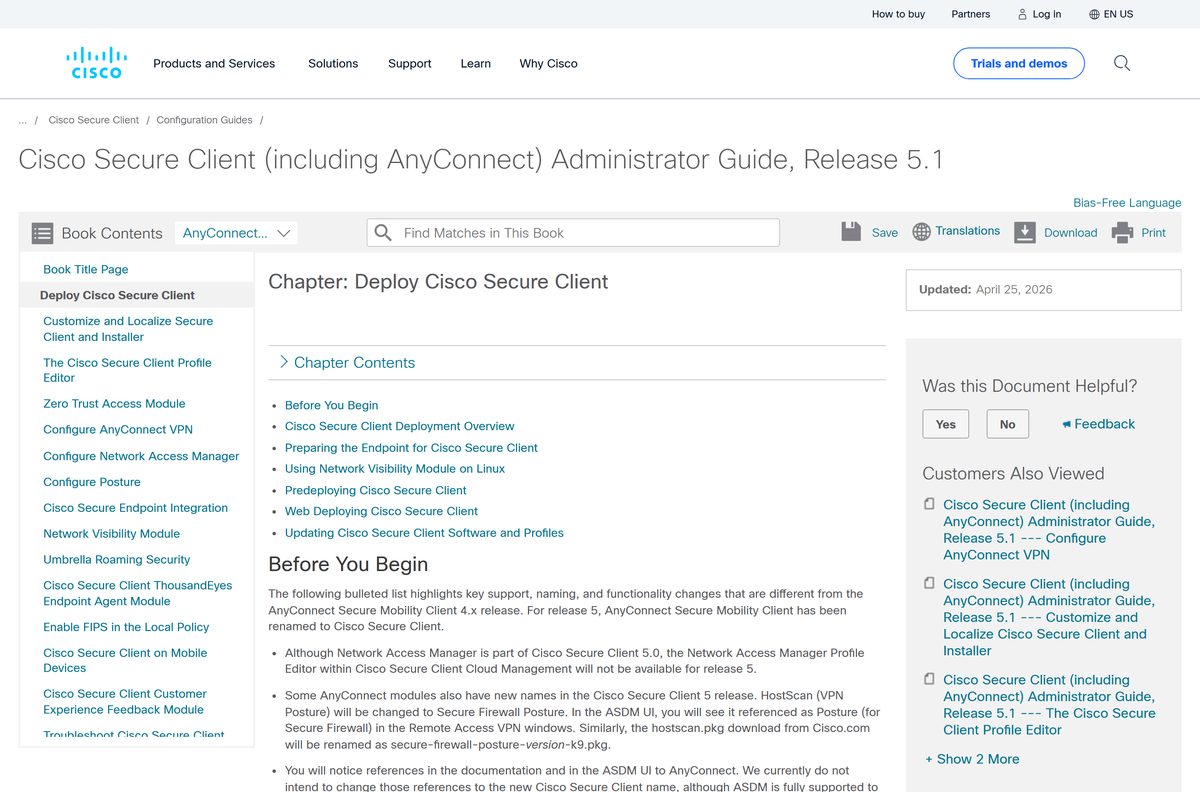
Administrators then log in, select Download Software, open Latest Releases, and select Download beside each package they need.
How to install Cisco Secure Client on Windows 11 and Windows 10
Most companies hand out the predeploy zip or a trimmed copy of it. The first install needs an administrator account.
- Copy the cisco-secure-client-win-
-predeploy-k9.zip file from your IT team to your PC. - Right-click the zip, select Extract All, then select Extract.
- Open the extracted folder and double-click Setup.exe to launch the Install Utility.
- Tick the core VPN module plus any modules your IT team asked for.
- Select Install Selected, then accept the licence agreement.
- Select Yes when Windows asks for administrator permission.
- Wait for each module to finish, then select OK.
- Open Cisco Secure Client from the Start menu.
- Type the VPN server address your IT team gave you, then select Connect and sign in.
The client installs to C:\Program Files (x86)\Cisco\Cisco Secure Client .
Companies using a Secure Firewall ASA portal skip the zip: sign in to the portal in your browser, select Start AnyConnect Client, and download the package it offers.
Install the AnyConnect app from the Microsoft Store
Cisco publishes a separate VPN app in the Microsoft Store under the old AnyConnect name. It is version 5.1.7093.70 and needs Windows 10 build 17134 or later.
- Open the AnyConnect listing in the Microsoft Store.
- Check that the publisher reads Cisco Systems.
- Select Get and let the Store install the package for your PC.
- Select Open when the download finishes.
- Enter the connection details your IT team supplied, then connect.
The Store app covers the VPN only. Posture, Umbrella and the other modules come from the full desktop package.
Download the Cisco Secure Client MSI packages for deployment
The predeploy zip holds one MSI per module, so a software distribution tool can push them silently.
| Task | File or tool | What to do |
|---|---|---|
| Get the packages | Cisco Software Central | Log in to Cisco.com and download the predeploy zip for x64 or ARM64 |
| Install the VPN core first | cisco-secure-client-win- |
Run msiexec /package cisco-secure-client-win- |
| Add DART next | DART module MSI | Install it straight after the core for diagnostics |
| Add optional modules | Umbrella, Network Visibility, NAM, Posture, ZTA MSIs | Install them in any order after the core |
| Deploy to Macs | Predeploy DMG and MDM guidance | Pre-approve the app through MDM to avoid the admin prompt |
| Web deploy instead | Secure Firewall ASA web deployment | Load the webdeploy .pkg on the headend and let users pull it |
Test a new build on a single machine first. Only one web-deploy package per operating system can be loaded on an ASA.
Which Cisco Secure Client download do you need for your Mac?
The Mac client is one DMG for every chip. What changes is the macOS version your build supports.
| Your Mac | Minimum client version | What to expect |
|---|---|---|
| macOS 27 | 5.1.20.333 | Support arrived in the newest build |
| macOS 26 Tahoe | 5.1.12.146 or later | Older 5.1 builds are not supported |
| macOS 15 Sequoia | 5.1.6.103 or later | Update the client before upgrading macOS |
| macOS 14 Sonoma | Current 5.1 release | Supported on the maintained 5.1 line |
| Apple silicon or Intel | cisco-secure-client-macos- |
The same package installs on both |
Open the DMG, run cisco-secure-client.pkg, choose modules on the Installation Type screen, then select Install.
Approve the system extensions popup when setup finishes. A fresh install on macOS 13 or later needs administrator rights once.
Is Cisco Secure Client free?
The app has no price tag, yet it is not a consumer VPN you can sign up for.
Cisco Secure Client is free to install, and useful only if your employer or school runs a licensed Cisco VPN. Cisco licenses the organisation, not the device. An Advantage or Premier licence is sold per unique user with a 25-user minimum, and a VPN Only licence is sold per headend by concurrent connections. Administrators can request a 4-week Premier evaluation. Cisco also forbids using the client with non-Cisco VPN servers, so it cannot replace a home VPN service.
A site charging you for the Cisco Secure Client installer is not Cisco.
Which Cisco Secure Client version should you install, 5.1 or AnyConnect 4.x?
Old AnyConnect 4.x installers still circulate on shared drives and in old tickets.
Install the current 5.1 build, 5.1.20.333, or the 5.1 release your IT team approved. Cisco names 5.1.20.333 the primary recommended release for all users, and future fixes for any 5.x release land only on the 5.1 path. Anyone on 5.0.x must upgrade to keep receiving maintenance, and software maintenance for AnyConnect 4.x ended on 31 March 2024.
Upgrade the client before upgrading macOS, because each new macOS version needs a minimum 5.1 build.
Fix Cisco Secure Client not installing or not working
Cisco’s release notes document the causes behind most failed installs.
The installer stops with a permission error
The first install of Cisco Secure Client needs administrator privileges.
- Sign in with an administrator account.
- Right-click Setup.exe or the MSI and select Run as administrator.
- Ask IT to push the MSI through its deployment tool if your account has no admin rights.
There is no Setup.exe on a Windows ARM64 PC
Cisco ships no Install Utility in the ARM64 package.
- Open the extracted cisco-secure-client-win-arm64-
-predeploy-k9 folder. - Run the core VPN MSI first.
- Run the DART MSI, then any optional module MSIs.
Network Access Manager or posture fails on Windows 11 24H2
Windows 11 24H2 restricts Wi-Fi network details unless location access is on.
- Open Settings > Privacy & security > Location.
- Turn on Location services.
- Turn on Let desktop apps access your location.
- Restart the PC.
The Mac install finishes but the VPN will not start
macOS blocks the client’s system extension until you approve it.
- Watch for the system extensions popup that appears after setup.
- Open System Settings > Privacy & Security and allow the Cisco extension.
- Enter an administrator password when asked.
- Reopen Cisco Secure Client and connect.
Web launch from the company portal does nothing
Automatic web install works only in limited browsers, and Windows 11 on ARM64 needs Chrome or Edge.
- Open the portal in Microsoft Edge or Google Chrome.
- Sign in and select Start AnyConnect Client.
- Download the package manually when the page offers it, then run it.
Cisco keeps further fixes in the troubleshooting chapter of the administrator guide.
How to uninstall Cisco Secure Client from Windows or a Mac
Removing the core VPN module removes most other modules with it.
Remove it from Windows 11 or Windows 10
- Open Settings > Apps > Installed apps.
- Uninstall optional modules such as Umbrella, Network Visibility or Posture first.
- Uninstall the core Cisco Secure Client VPN entry next.
- Uninstall the DART entry last.
- Remove the ThousandEyes Endpoint Agent separately if it was installed.
Remove it from a Mac
- Open Finder and go to Applications > Cisco.
- Double-click Uninstall and follow the prompts.
- Enter an administrator password when macOS asks.
- Run vpn_uninstall.sh from /opt/cisco/secureclient/bin with sudo if you prefer Terminal.
Some XML profile files stay behind by design. Delete them only if IT asks, because a reinstall reuses them.
What to use when Cisco Secure Client is not an option
The right substitute depends on why the desktop client will not work for you.
| Situation | What to use | The limit |
|---|---|---|
| Locked-down Windows PC | AnyConnect in the Microsoft Store | VPN only, no extra security modules |
| iPhone or iPad | Cisco Secure Client on the App Store | Needs an active Plus, Apex or VPN Only term on the headend |
| Android device | Cisco Secure Client-AnyConnect on Google Play | No Trusted Network Detection, Split Exclude or Local LAN Exception |
| No company VPN at all | Nothing to install | The client connects only to Cisco headends an organisation runs |
The mobile apps cover the VPN on the go. The desktop package remains the only route to the security modules.
Frequently asked questions
Is Cisco Secure Client free?
The app costs you nothing, and its Microsoft Store, App Store and Google Play listings are $0. It only works against a Cisco VPN headend whose owner holds an Advantage, Premier or VPN Only licence, so the organisation pays, not the person installing it.
Where is the official Cisco Secure Client download?
Cisco Software Central on cisco.com hosts the Windows, macOS and Linux packages, and it requires a Cisco.com login linked to a licence contract. Staff normally get the client from their company’s VPN portal or from the package their IT team hands out.
Is Cisco Secure Client the same as AnyConnect?
Yes. Cisco renamed AnyConnect to Cisco Secure Client with the move to version 5, and the VPN module inside it is still called AnyConnect VPN. Software maintenance for AnyConnect 4.x ended on 31 March 2024.
Does Cisco Secure Client work on Windows 11?
Yes. Cisco supports all Microsoft-supported versions of Windows 11 and Windows 10, and Windows 11 on ARM64 PCs. Windows 10 on ARM64 lost support in version 5.1.2.42.
How big is the Cisco Secure Client download?
Cisco lists no size for the full Windows or macOS packages, which sit behind a Cisco.com login. The separate AnyConnect app in the Microsoft Store has an x64 package of about 12.5 MB, and the iPhone and iPad app is 26.1 MB.
Is there a Cisco Secure Client offline installer?
Yes, for administrators. The Windows predeploy zip contains the setup.exe Install Utility and one MSI per module, and the macOS predeploy DMG carries every module. Both come from Cisco Software Central, not from a public link.
How do I install Cisco Secure Client on a Mac?
Open the predeploy DMG from your IT team, run cisco-secure-client.pkg, pick the modules on the Installation Type screen and finish the wizard. Approve the system extension prompt afterwards, and use an administrator account for the first install.
Does Cisco Secure Client support ARM64 and Apple silicon?
Yes. Windows 11 on ARM64 has its own package, cisco-secure-client-win-arm64-
Is Cisco Secure Client safe to install?
The package from Cisco Software Central, your company’s VPN portal or the official app stores comes straight from Cisco. Copies on other download sites cannot be matched to your organisation’s headend, and Cisco forbids using the client with non-Cisco VPN servers.
What is the latest version of Cisco Secure Client?
Version 5.1.20.333, released on 11 September 2026, is the newest build and the release Cisco recommends for all users. It added support for macOS 27 and Endpoint Data Loss Prevention deployment.
Why will Cisco Secure Client not install?
The first install needs administrator rights on Windows and on macOS 13 or later. On Windows 11 on ARM64 there is no setup.exe, so run the ARM64 MSI instead, and on a Mac approve the system extension prompt.