The ChromeOS Flex download is free from Google, and it turns an older Windows PC or Intel Mac into a fast, cloud-based machine. You get it by building a bootable USB drive with the Chromebook Recovery Utility extension in Chrome.
You can run ChromeOS Flex straight from the USB stick to test your hardware, then install it over the old system when you are happy.
This guide covers the official download links, the hardware you need, USB and install steps for PCs and Macs, and fixes for boot and install errors.
Check the ChromeOS Flex system requirements
Check your hardware before you make the USB drive. On Windows, open Settings, then System, then About, and confirm System type reads x64-based. On a Mac, open the Apple menu and select About This Mac to read the processor.
| Specification | Detail |
|---|---|
| Software | ChromeOS Flex |
| Developer | Google LLC |
| Latest version | Stable channel 16765.41.0 (recovery image dated September 14, 2026) |
| License / price | Free; paid ChromeOS Enterprise or Education Upgrade only for managed devices |
| Download size | 1.28 GB compressed image (.bin.zip) |
| Processor | Intel or AMD x86-64; ARM is not supported |
| Memory | 4 GB RAM |
| Internal storage | 16 GB |
| Boot | Must boot from USB, with full BIOS administrator access |
| Not recommended | Intel or AMD processors and graphics from 2012 and earlier; Nvidia graphics from 2014 and earlier |
| USB drive | 8 GB or larger; everything on it is erased |
| Offline installer | Yes, the USB drive holds the full image |
| Official download source | ChromeOS Flex Help: Create the USB installer |
| Last verified | 2026-09-25 |
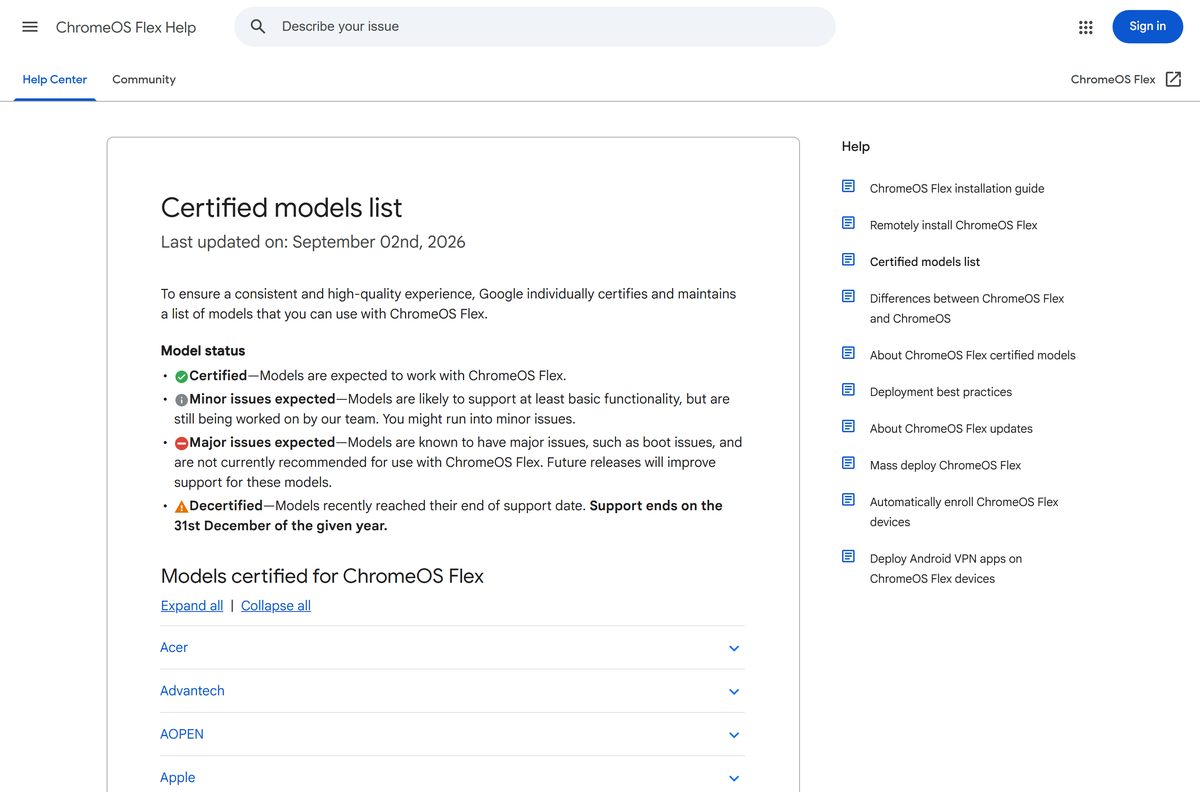
Google tests specific models and lists them on the certified models list. Uncertified machines often work, but Google does not guarantee features between updates.
Which ChromeOS Flex download method do you need?
Google offers two routes to the same image. Pick the one that matches the computer you are using to build the USB drive.
| You are on | Use this | Link |
|---|---|---|
| Windows 11, Windows 10, macOS or ChromeOS with Chrome | Chromebook Recovery Utility extension (downloads and writes the image for you) | Chrome Web Store listing |
| Linux, or you manage many devices | Manual 1.28 GB image written with dd | latest.bin.zip from dl.google.com |
| A machine you want to test first | Either method, then choose Try it first at boot | Start using ChromeOS Flex |
The Recovery Utility is the simpler choice for most people. It fetches the current stable image and handles the write in one flow.
Download ChromeOS Flex from the official Google pages
Every official ChromeOS Flex link lives on Google domains. Avoid ISO mirrors and repacked images from download portals.
- Chromebook Recovery Utility on the Chrome Web Store — 1.87 MiB · Google extension, version 0.2.3
- ChromeOS Flex image (latest.bin.zip) — 1.28 GB · manual method
- Create the USB installer (Google guide)
- ChromeOS Flex installation guide
- Certified models list
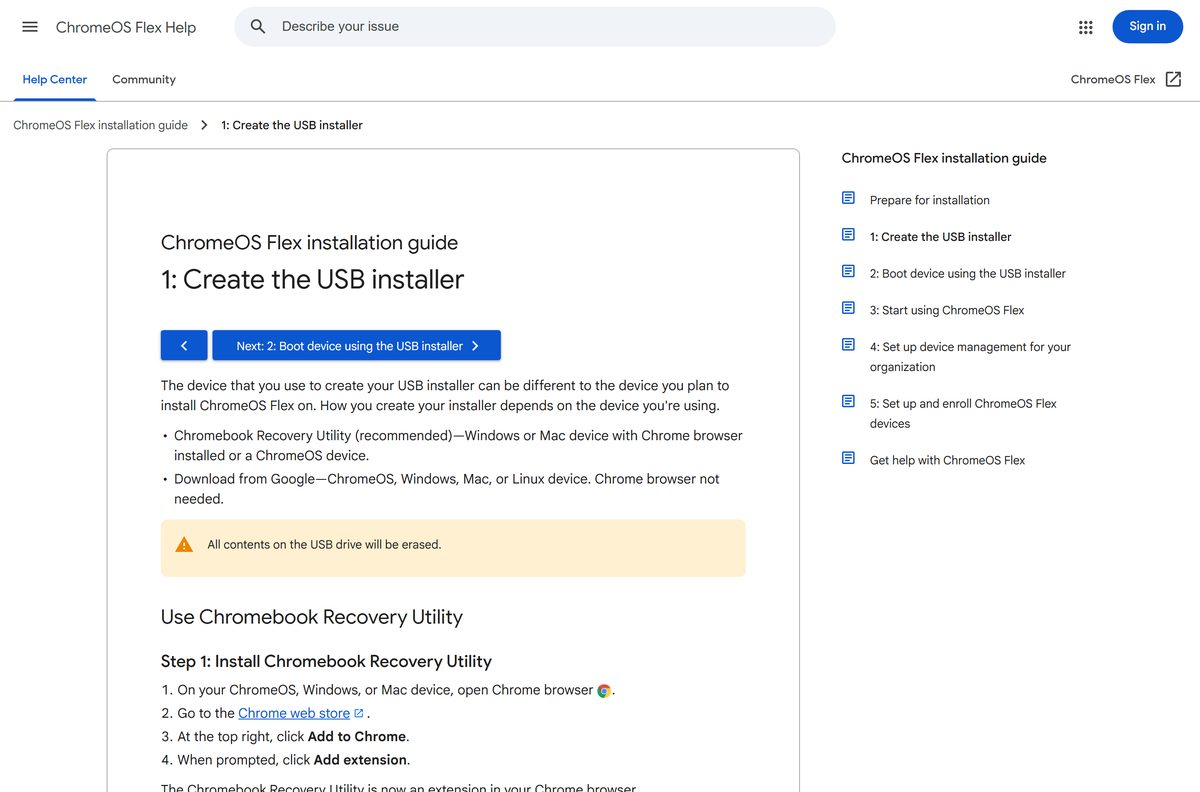
How to create the ChromeOS Flex USB installer on Windows or Mac
Use a USB drive of 8 GB or more. The utility erases everything on it, so copy off any files first. Some SanDisk and other drives fail as installers.
- Open Chrome on your Windows PC, Mac or Chromebook and go to the Chromebook Recovery Utility listing.
- Click Add to Chrome, then Add extension.
- Click the Extensions icon, select Manage extensions, and turn on Chromebook Recovery Utility.
- Launch the extension and click Get started.
- Click Select a model from a list.
- Choose Google ChromeOS Flex as the manufacturer and ChromeOS Flex as the product, then click Continue.
- Insert the USB drive, pick it from the drop-down menu, and click Continue.
- Click Create now and wait. Odd percentage figures during the write are normal.
- Remove the drive when the message says your recovery media is ready.
How to install ChromeOS Flex on a Windows 11 or Windows 10 PC
Installing ChromeOS Flex erases the whole internal drive, including Windows, your apps and your files. Google warns that lost data cannot be recovered, even if the install fails. Back up first and unplug other storage drives.
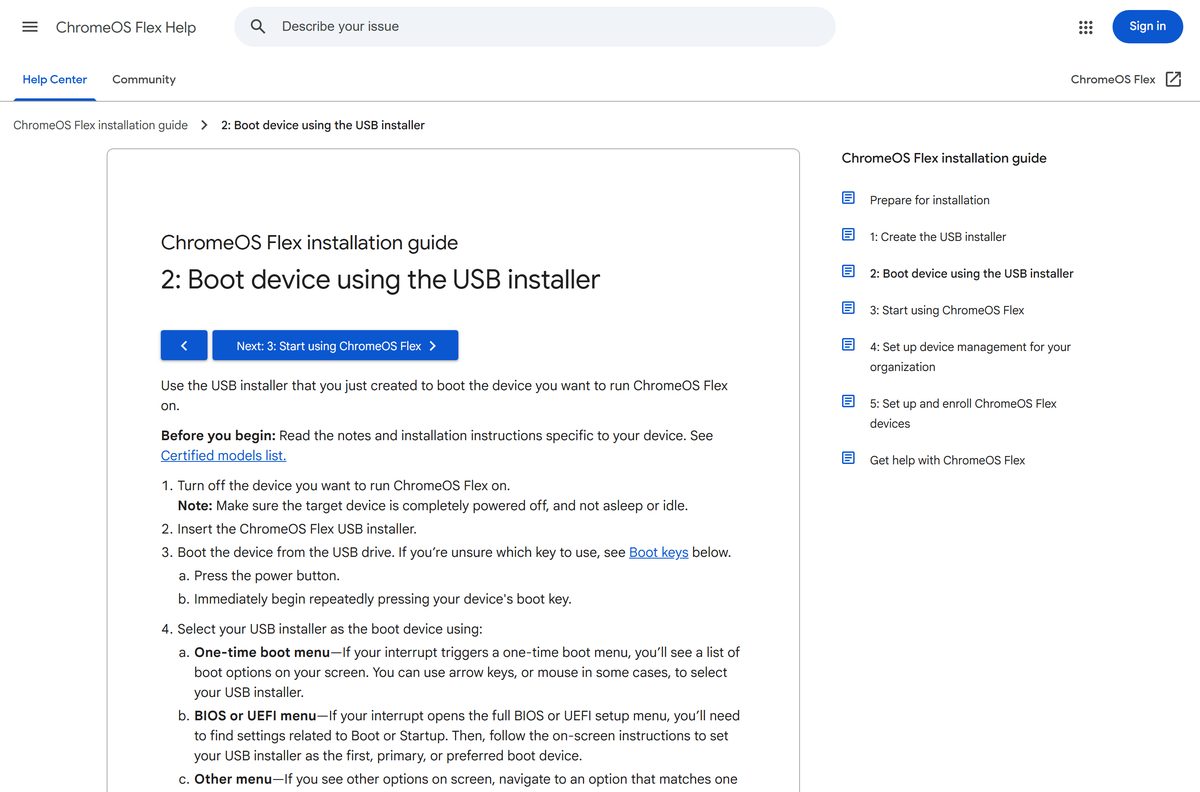
- Shut the PC down fully. Sleep or hibernate is not enough.
- Insert the ChromeOS Flex USB installer.
- Press the power button, then tap the boot key right away: F12 on Dell and Lenovo, F9 on HP, F2 on Acer, Del on Asus.
- Select the USB drive in the boot menu, or set it as the first boot device in the BIOS or UEFI settings.
- On the Welcome screen, select Get started.
- Choose Install ChromeOS Flex, read the data erasure warning, and confirm.
- Wait for the device to shut down on its own, then remove the USB drive.
- Power the PC on and sign in with your Google Account to finish setup.
Microsoft Surface devices use the volume buttons instead: hold Volume-down to boot from USB. Other brands use Esc, Enter or a key from F1 to F12.
Run ChromeOS Flex from the USB drive without installing it
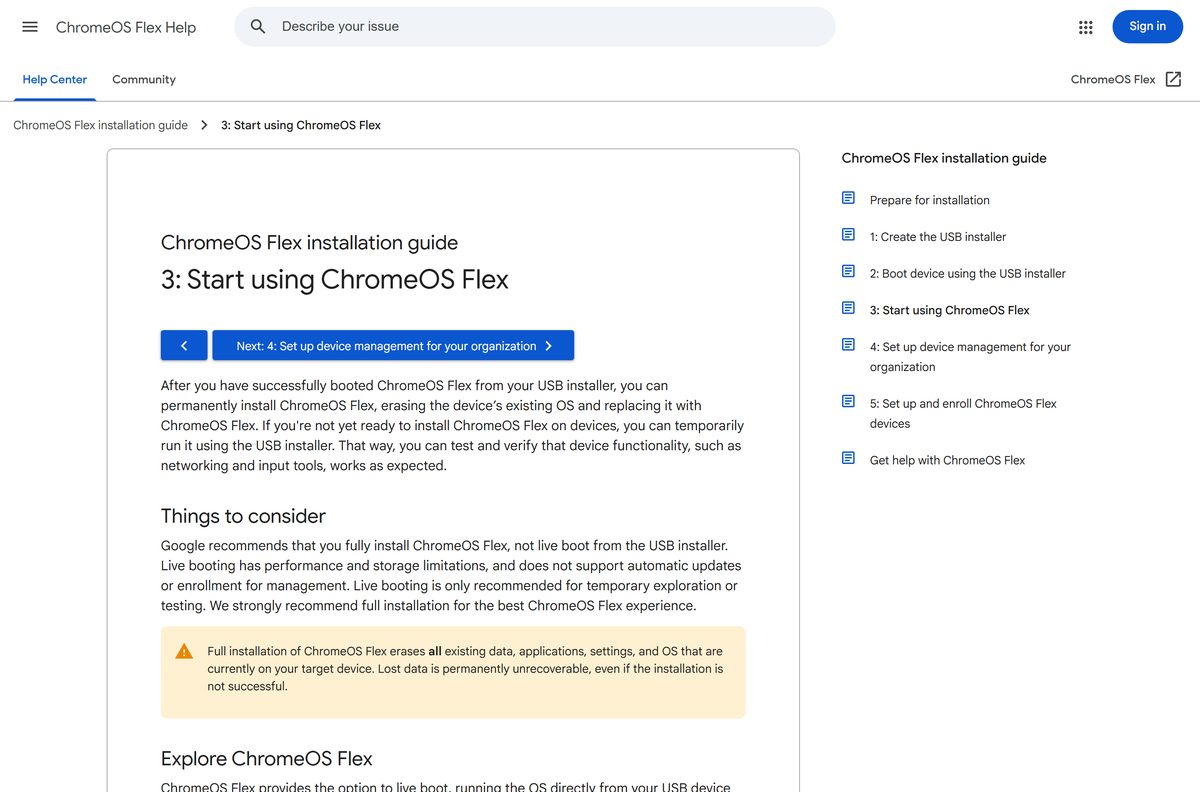
Live boot runs ChromeOS Flex from the stick and leaves your internal drive alone. It is the safest way to check Wi-Fi, audio, the touchpad and the webcam before you commit.
- Boot from the USB installer using your device’s boot key.
- On the Welcome screen, select Get started.
- Choose Try it first.
- Follow the on-screen prompts and sign in.
- Test the hardware you rely on, then shut down and remove the drive to return to your old system.
- Check the full Start using ChromeOS Flex guide before a permanent install.
Live boot gets no automatic updates and cannot be enrolled for management. Anything you save during the trial does not carry over to a full install.
How to write the ChromeOS Flex image manually with dd
Admins who prefer the command line can skip the extension. Download the image, unzip it, and remove every other removable drive before you write.
sudo dd if=image_name.bin of=/dev/sdN bs=4M status=progress Get the image from dl.google.com/chromeos-flex/images/latest.bin.zip. Replace image_name.bin with the unzipped file and /dev/sdN with your USB device. A wrong device name overwrites that disk, so check it with lsblk first.
Which Macs can run ChromeOS Flex?
ChromeOS Flex needs an Intel or AMD x86-64 processor, so only Intel-based Macs can install it. To boot a Mac from the USB drive, power it on while holding the Option key.
| Your Mac | What to do | Link |
|---|---|---|
| Intel Mac on the certified list, such as MacBook Air 6,1 or 7,2 | Install it; the webcam does not work on those two models | Certified models list |
| MacBook Air 5,1, MacBook Pro 9,2 or MacBook Pro 11,2 | Decertified, support ended in 2025; keep macOS or expect gaps | About certified models |
| Apple silicon Mac (M-series) | Cannot run it, because ARM is not supported; use it only to build the USB drive | ChromeOS Flex vs ChromeOS |
| Any Mac with Chrome | Create the USB installer for another computer | Chromebook Recovery Utility |
If a Mac boots to a black screen after the install, pick the internal drive from the Option boot menu, then reset NVRAM with Command + Option + P + R.
Is ChromeOS Flex free?
You pay nothing to download the image, build the USB drive or install ChromeOS Flex on your own PC or Mac.
Yes, ChromeOS Flex is free for personal use. Organizations pay only when they enroll devices for central management, which needs a ChromeOS Enterprise Upgrade or ChromeOS Education Upgrade for each device. Any site that charges for a Flex ISO or a pre-made USB stick is reselling a free Google download.
Should you choose ChromeOS Flex or a Chromebook?
Install ChromeOS Flex to reuse a PC or Intel Mac that still runs well; buy a Chromebook if you need Android apps or hardware-backed security. ChromeOS Flex has no Google Play Android apps and no Google security chip for verified boot. It relies on UEFI Secure Boot, and firmware updates come from the device maker rather than Google. Chromebooks have all of these built in.
Check what works and what does not on ChromeOS Flex
| Feature | On ChromeOS Flex |
|---|---|
| Chrome browser and web apps | Supported |
| Android apps from Google Play | Not supported |
| Linux development environment | Depends on the model |
| Dual boot with Windows or macOS | Not supported |
| Parallels Desktop Windows VMs | Not supported |
| CD/DVD drives, fingerprint readers, Thunderbolt, stylus, face recognition cameras | Not supported |
| Automatic OS updates | Yes, on the same release cycle as ChromeOS |
| BIOS/UEFI firmware updates | From the device maker, not Google |
| Killer ax500 (QCA3690) and MediaTek MT7902 Wi-Fi | Not supported |
From ChromeOS version 150, updates stop for Intel and AMD graphics from 2010 and older and Nvidia graphics from 2014 and older.
Fix ChromeOS Flex not installing or booting
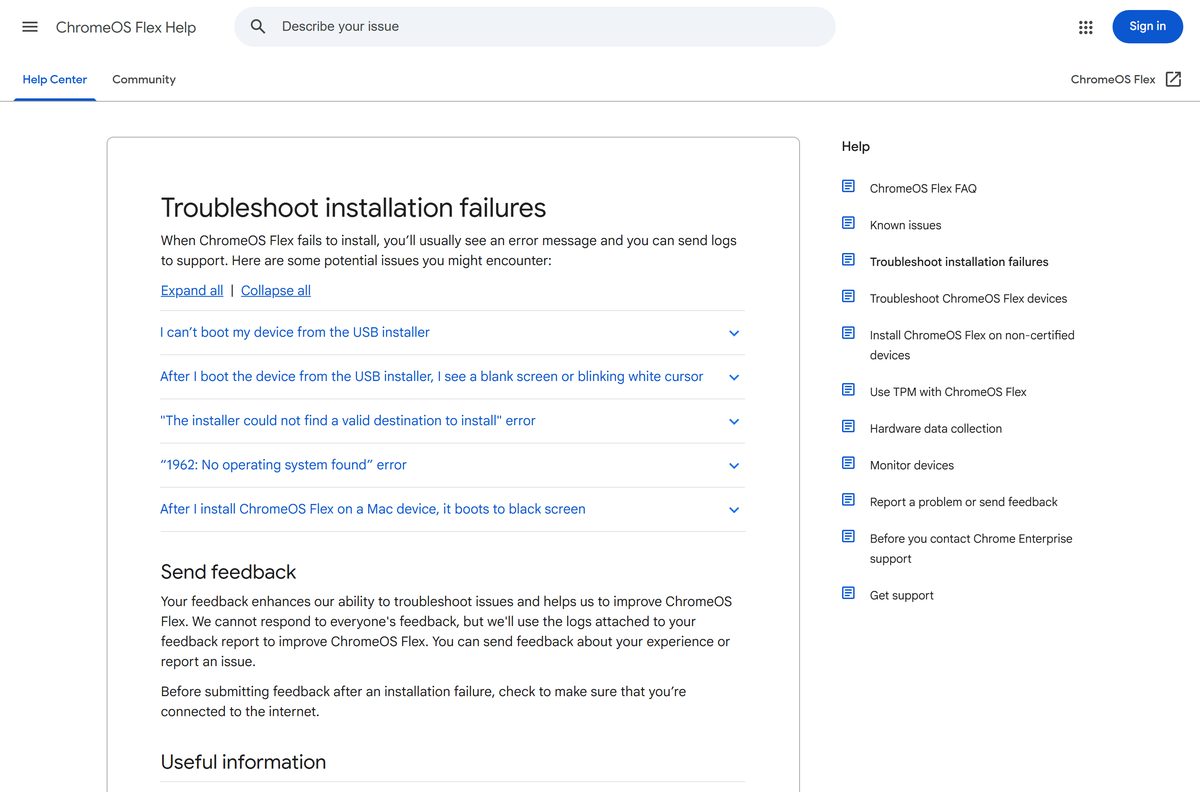
The PC will not boot from the USB installer
USB boot is disabled, or the drive does not work as a boot device.
- Open the BIOS or UEFI settings and enable USB boot or Boot from external media.
- Rebuild the installer on a USB drive from a different manufacturer.
- Try another USB port, and skip hubs and dongles.
Blank screen or blinking white cursor after booting
The model may not be certified, or the installer is damaged.
- Look up your model on the certified models list.
- Recreate the USB installer and test it on another computer.
- Boot again from a different USB port.
The installer could not find a valid destination to install
The internal drive is too small, or storage runs in RAID mode.
- Confirm the internal drive is larger than 16 GB.
- Reset the BIOS to its default settings and rebuild the installer.
- Disable Trusted Platform Module (TPM) in the BIOS.
- Change the storage mode from RAID to AHCI in the BIOS Storage menu.
Error 1962: No operating system found
The firmware is not booting the USB drive in UEFI mode.
- Select UEFI: USB name from the startup device menu.
- Enable CSM and set Boot Mode to UEFI Only.
- On ASUS models, add a boot option that points to /efi/boot/bootx64.efi .
Writing the USB drive stops at 0%
The USB drive cannot be written to reliably.
- Format the USB drive.
- Run the Chromebook Recovery Utility again and click Create now.
- Switch to a drive from another brand if it stalls again.
How to remove ChromeOS Flex and go back to Windows or macOS
ChromeOS Flex has no uninstall button, and there is no rollback. You replace it by installing another operating system with the instructions from your device maker or OS provider.
- Copy your files from ChromeOS Flex to Google Drive or an external drive.
- Create installation media for Windows or macOS using the maker’s official instructions.
- Shut down fully and insert the new installation media.
- Press your boot key, or hold Option on a Mac, and select that drive.
- Follow the installer and choose the internal drive that holds ChromeOS Flex as the install target.
- Finish setup, then reinstall your apps and restore your files.
Frequently asked questions
Is ChromeOS Flex free?
Yes. ChromeOS Flex is free to download and install on your own PC or Mac. Only organizations that enroll devices for central management pay, through a ChromeOS Enterprise Upgrade or ChromeOS Education Upgrade for each device.
Where is the official ChromeOS Flex download?
The official route is the Chromebook Recovery Utility extension on the Chrome Web Store, which downloads the image and writes it to USB. Google also links the raw image, latest.bin.zip on dl.google.com, from its Create the USB installer help page.
Can I install ChromeOS Flex on a Windows 11 or Windows 10 PC?
Yes, if the PC has an Intel or AMD 64-bit processor, 4 GB of RAM and 16 GB of storage. Installing ChromeOS Flex replaces Windows and erases the drive, so back up your files first or use Try it first from USB.
How big is the ChromeOS Flex download?
The compressed ChromeOS Flex image is about 1.28 GB. You need a USB drive of 8 GB or larger to write it, and the target computer needs at least 16 GB of internal storage for the full install.
Is there an offline installer for ChromeOS Flex?
Yes. The USB drive you create holds the full ChromeOS Flex image, so the install itself does not download anything. You need internet access to build the drive and to sign in with a Google Account afterward.
Does ChromeOS Flex work on a Mac?
It works on Intel-based Macs, and Google certifies models such as the MacBook Air 6,1 and 7,2. Apple silicon Macs cannot run it because ChromeOS Flex does not support ARM, but they can still build the USB installer in Chrome.
Does ChromeOS Flex support 32-bit or ARM64 computers?
No. ChromeOS Flex needs an Intel or AMD x86-64 processor. Google states that ARM architecture is not compatible, and the minimum requirements list only 64-bit Intel or AMD hardware.
Is ChromeOS Flex safe to download?
Yes, when it comes from Google. The Chromebook Recovery Utility is published by Google, and the image is served from dl.google.com. The real risk is data loss, because a full install wipes the internal drive.
What is the latest version of ChromeOS Flex?
The current stable ChromeOS Flex image is platform version 16765.41.0, dated September 14, 2026. ChromeOS Flex follows the same release cycle as ChromeOS and updates itself automatically after installation, with staged rollouts that can take one to two weeks.
Why won’t ChromeOS Flex install?
The usual causes are USB boot being disabled, storage set to RAID instead of AHCI, an internal drive of 16 GB or less, or a faulty USB stick. Enable USB boot, switch to AHCI, and rebuild the installer on another brand of drive.
Can I dual boot ChromeOS Flex with Windows?
No. Google states that dual booting is not supported on ChromeOS Flex devices. The installer takes over the whole internal drive, so run it from USB with Try it first if you want to keep Windows.