To enable or disable an extension in Microsoft Edge, select Extensions (the puzzle piece icon) next to the address bar, choose Manage extensions, and flip the toggle next to the extension.
This guide covers turning extensions on and off, blocking them on one site, InPrivate access, site permissions, removal, sync, phones, and extensions locked by an organization.
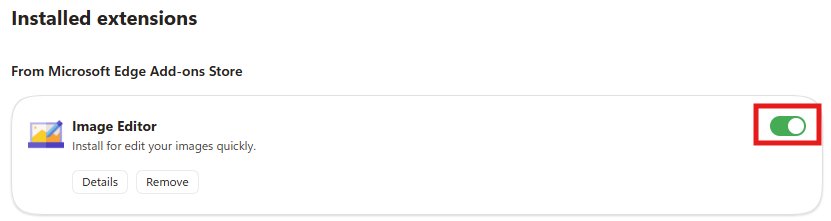
The fastest way to turn an Edge extension on or off
These steps work in Edge on Windows and Mac. The extension stays installed either way; the toggle only decides whether it runs.
- Select Extensions (the puzzle piece icon) to the right of the address bar. If it is missing, select Settings and more (…) > Extensions.
- Select Manage extensions.
- Find the extension under Installed extensions.
- Turn the toggle next to it off to disable the extension, or on to enable it.
What Happens When You Enable or Disable an Edge Extension?
Edge has several switches that sound alike but do different things. Pick the one that matches how long and how widely you want the extension gone.
| Action | What happens to the extension | How to reverse it |
|---|---|---|
| Turn it off (toggle) | Stays installed but stops running on every site and in every window | Turn the same toggle back on |
| Turn it on (toggle) | Runs according to its permissions and site access settings | Turn the toggle off |
| Turn off the site-level toggle in the Extensions menu | Extensions you installed stop running on the current website only; extensions installed by an administrator keep running | Turn the site toggle back on for that site |
| Change site access to When you click the extension | Reads the current tab only after you select it, and needs another click after you close the tab | Pick On all sites or a specific site again |
| Remove it | Uninstalled from the Edge profile | Install it again from the store |
| Blocked by an organization policy | Disabled but not uninstalled, and you cannot turn it back on | Only the administrator can lift the block |
Which switch should you use?
| Your situation | Use this | Why |
|---|---|---|
| You want an extension paused for a while | The toggle on Manage extensions | One click to turn it back on, nothing is lost from the list |
| One website breaks, but the extension is fine elsewhere | The site-level toggle in the Extensions menu | Blocks your extensions on that site only |
| You want the extension to read a page only when asked | Site access: When you click the extension | It stays idle until you select it |
| You never use it | Remove from Microsoft Edge | Removes its permissions and its place in the menu |
| You browse InPrivate and want it there too | Allow in InPrivate in the extension's Details | Extensions do not run InPrivate unless you allow them |
| The toggle is grey or has a briefcase icon | Ask your IT department | The extension is managed by your organization |
How to Open the Extensions Page in Microsoft Edge
The Extensions page is where every toggle, Details link and Remove button lives. There are three ways to reach it.
- Select Extensions (the puzzle piece icon) to the right of the address bar, then select Manage extensions.
- Or select Settings and more (…), or press Alt + F, then choose Extensions > Manage extensions.
- Or type
edge://extensionsin the address bar and press Enter. - Look under Installed extensions for the full list, each with a toggle, Details and Remove.
How to Disable an Extension in Microsoft Edge
Disabling is the safest first move when an extension misbehaves. It keeps the extension installed, so you can switch it back on in seconds.
- Select Extensions next to the address bar and choose Manage extensions.
- Under Installed extensions, find the extension you want to turn off.
- Select the toggle next to it so it switches to off.
- Reload any open tabs where the extension was active so the page loads without it.
To turn off everything you installed on one problem site only, use the site-level toggle described in the toolbar section below instead.
How to Enable an Extension in Microsoft Edge
A disabled extension keeps its place in the list, so enabling it is the same toggle in reverse.
- Type
edge://extensionsin the address bar, or choose Extensions > Manage extensions. - Find the extension under Installed extensions.
- Select the toggle next to it so it switches to on.
- Reload the page you want to use it on.
- If the extension needs site access, select Details and check the Site access setting before you use it.
If the toggle will not move or shows a briefcase icon, the extension is controlled by a policy. See the troubleshooting section below.
How to Enable or Disable Extensions from the Toolbar
The Extensions menu next to the address bar has a site-level toggle. It controls whether extensions run on the website you are viewing, without touching any other site.
- Open the website where you want extensions off.
- Select Extensions (the puzzle piece icon) to the right of the address bar.
- Turn off the site-level toggle in the menu. Extensions you installed stop running on that site.
- Reload the page.
- To switch them back on, open the same menu on that site and turn the toggle on again.
Extensions installed by an administrator ignore this toggle and keep running. When they are present, an information icon next to the toggle says so. Some extensions can also open in the Edge sidebar; the sidebar itself is a separate feature, covered in how to enable or disable Office Sidebar in Microsoft Edge.
How to Hide or Show an Extension Icon Without Disabling It
An icon on the toolbar and an enabled extension are two separate things. By default Edge keeps installed extensions hidden inside the Extensions menu, and a hidden extension still runs normally.
- Select Extensions (the puzzle piece icon) to the right of the address bar.
- Find the extension in the pop-up list.
- Use the show or hide control beside the extension's name to put its icon next to the address bar, or take it off.
- To hide an icon that is already on the toolbar, open the same menu and switch that control back.
- Check that the extension still works by selecting its name in the Extensions menu.
If an icon refuses to hide, your organization may pin it. Microsoft's ExtensionSettings policy has a force_shown state that keeps an extension's icon on the toolbar so users cannot hide it.
How to Remove an Extension Completely
Removing uninstalls the extension from your Edge profile. Microsoft documents three routes, and each ends with the same confirmation.
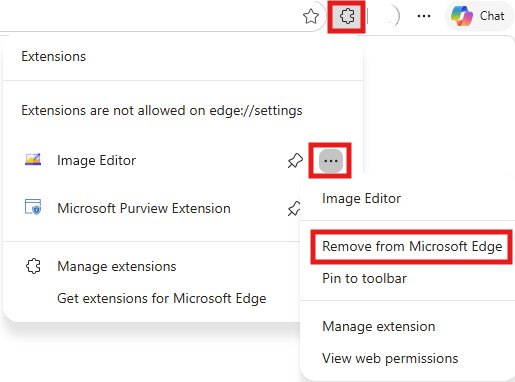
- Right-click the extension's icon next to the address bar and select Remove from Microsoft Edge.
- Or select Extensions, then More actions (…) next to the extension, and select Remove from Microsoft Edge.
- Or open Manage extensions, find the extension under Installed extensions and select Remove.
- Select Remove in the small prompt window.
- Look for the "Extension removed" confirmation.
Removal cannot be undone from the Extensions page. If you might want the extension again, turn it off instead and remove it later.
How to Control Extension Permissions
Site access decides which websites an extension may read and change. Microsoft splits it into a quick per-extension choice and a fuller settings page.
- Select Extensions next to the address bar.
- Next to the extension, select More actions (…) and hover over This can read and change site data.
- Choose When you click the extension to limit it to the current tab after you select it.
- Choose On [current site] to let it read and change the site you are on automatically.
- Choose On all sites to let it read and change data on every site.
- For more control, open Manage extensions, select Details under the extension and use the Site access section.
- In Site access, choose Automatically allow access on the following sites or On specific sites and enter the addresses where it may run.
- Use Allow access to file URLs to let it open or block local files on your PC.
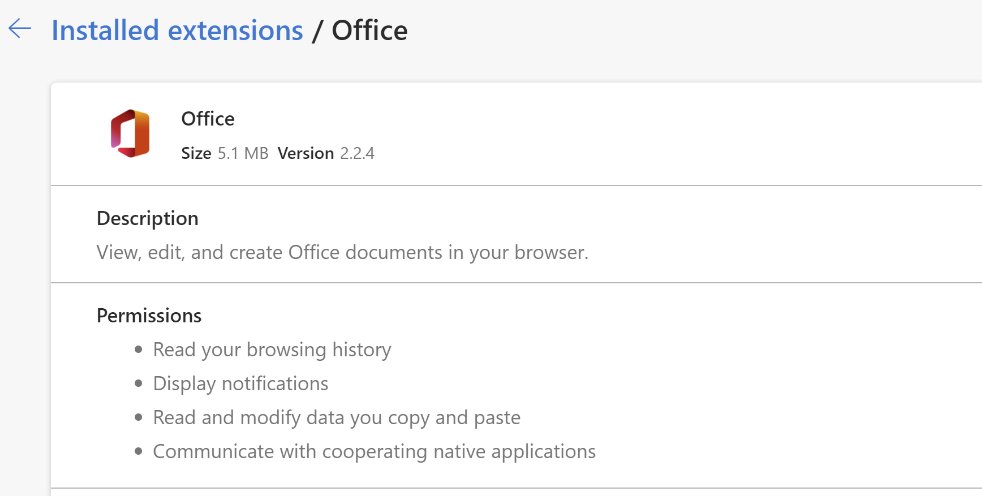
The permissions an extension requested at install time, such as reading browsing history or showing notifications, are listed on its Details page. If they look broader than the job it does, remove it.
How to Allow or Block Extensions in InPrivate Browsing
InPrivate windows run only the extensions you have given permission. Microsoft notes that Edge cannot stop an allowed extension from saving your browsing history while you are InPrivate.
- Open Manage extensions, or type
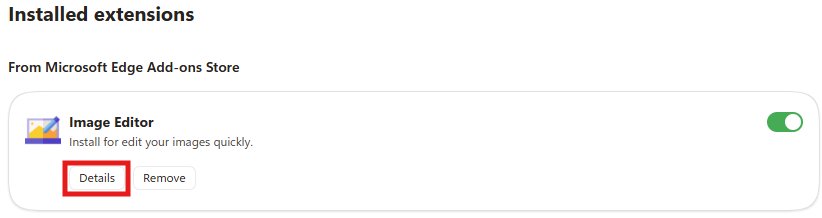
edge://extensionsin the address bar. - Select Details under the extension.
- In Site access, turn on Allow in InPrivate to let it run in InPrivate windows.
- Turn Allow in InPrivate off to block it there again.
- Press Ctrl + Shift + N to open a new InPrivate window and check the result.
On a work PC, Edge 139 and later supports a policy that lists extensions you must allow in InPrivate. If you do not allow every listed extension, or one is not installed, InPrivate browsing is blocked until you do.
How to Install an Extension Before Enabling It
An extension has to be installed before any toggle appears. Edge accepts extensions from its own Add-ons store and from the Chrome Web Store. For ideas, techdows keeps the complete list of Microsoft Edge browser extensions.
- Select Extensions next to the address bar, then select Get Extensions for Microsoft Edge.
- Find the extension you want and select Get.
- Read the permissions prompt carefully, then select Add extension.
- For a Chrome extension, open the Chrome Web Store in Edge, open the extension's page and select Get extension or Get.
- If Edge shows Allow extensions from other stores, select Allow, then review the permissions and select Add extension.
- Wait for the prompt confirming the extension was added, then check its toggle on Manage extensions.

How to check an extension is really on or off
- Open
edge://extensionsand confirm the toggle next to the extension shows the state you chose. - Open the Extensions menu on the site you care about and confirm the site-level toggle is on or off as intended.
- Reload the page and check that the extension's effect, such as blocked ads or a changed layout, appears or disappears.
- Press Ctrl + Shift + N and test InPrivate if you changed Allow in InPrivate.
- Look for a briefcase icon next to the toggle; it means your organization controls that extension.
How to Troubleshoot an Extension That Will Not Enable
The toggle is locked and shows a briefcase icon
The extension is managed by your organization, usually through group policy.
- Hover over the briefcase icon on
edge://extensionsto confirm it says the extension is managed by your organization. - Type
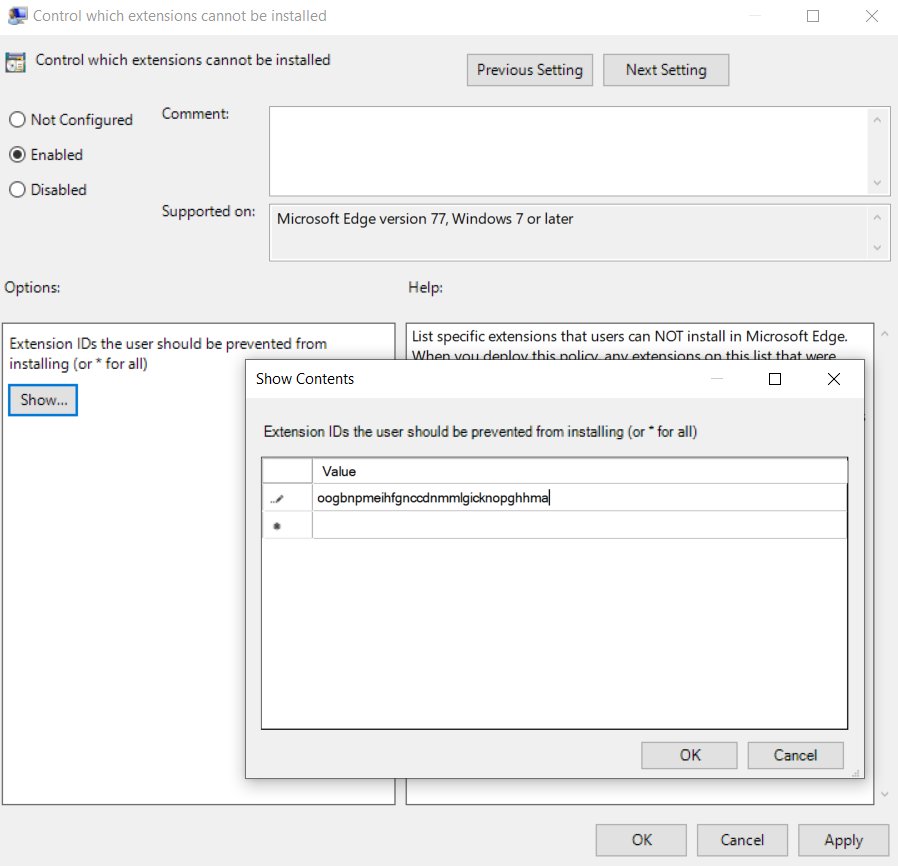
edge://policyin the address bar and look for ExtensionSettings, ExtensionInstallForcelist or ExtensionInstallBlocklist. - Ask your IT department; force-installed extensions cannot be turned off or removed by the user.
Some extensions are disabled and will not turn back on
A policy blocklist or a blocked permission disables an installed extension without uninstalling it.
- Check
edge://policyfor ExtensionInstallBlocklist or ExtensionSettings entries. - If a policy lists the extension, only the administrator can re-enable it.
- Use a different extension that your organization allows, or request an exception.
An extension says "managed by your organization" on a personal PC
Microsoft warns that extensions claiming to be managed can be malware.
- Run a full scan with Microsoft Defender or another reputable antivirus program.
- Check
edge://policyfor extension entries you did not create. - If you still cannot remove it, select Settings and more > Help and feedback > Send feedback and report the extension.
The extension is on but does not work
It is out of date, lacks permissions, or Edge itself needs an update.
- Turn the extension off and on again on
edge://extensions. - Select Details and confirm its Site access includes the site you are using.
- Select Settings and more > Help and feedback > About Microsoft Edge, install any update and select Restart.
- If it still fails, remove it and add it again from the store.
A new extension does not appear in the Extensions menu
It was installed turned off, or Edge has not refreshed the menu.
- Open Manage extensions and make sure its toggle is on.
- Restart Microsoft Edge.
- Reinstall the extension if it is still missing.
An extension stops running in InPrivate
Extensions run InPrivate only when Allow in InPrivate is on.
- Open the extension's Details page.
- Turn on Allow in InPrivate.
- Close and reopen the InPrivate window.
How to Find Which Extension Is Causing a Problem
Extensions can change your search engine, your new tab page and how websites look. Microsoft's advice is to disable suspects one at a time until the problem stops.
- Press Ctrl + Shift + N and open the problem site in an InPrivate window, where only extensions you allowed run.
- If the site works there, the cause is likely an extension. Go back to a normal window.
- Open Manage extensions and turn off one extension.
- Reload the problem page and check again.
- Repeat, one extension at a time, until the problem disappears. The last one you turned off is the culprit.
- Turn the others back on, then remove or keep the culprit disabled.
- If your search engine changed, reset it under Settings > Privacy, search, and services > Search and connected experiences > Address bar and search.
Pop-ups blocking a site often come from ad-blocking extensions, and fake "critical virus" pop-ups can come from antivirus extensions. Microsoft suggests temporarily disabling those first. If the new tab page keeps changing, reset it under Settings > Start, home, and new tab page and disable the extension that changed it.
How to Manage Extensions Across Devices
Edge sync copies your extensions to every PC and Mac signed in to the same profile. You choose whether extensions are part of it.
- Select Settings and more (…), or press Alt + F, and select Settings.
- Under Profiles, select the profile you want and then select Sync.
- Find Extensions in the list of data types.
- Turn its toggle on to sync extensions, or off to keep each device's extensions separate.
- Sign in to Edge with the same account on your other computers.
You can also pick what syncs before sync starts: select Customize when Edge prompts you to sync after you sign in.
Can You Enable or Disable Edge Extensions on iPhone, iPad, or Android?
Microsoft's mobile documentation describes built-in features rather than an extension store. Adblock Plus is included in Edge for Android and iOS, and you switch it on from the app's settings.
| Platform | What Microsoft documents | Where to switch it |
|---|---|---|
| Windows and Mac | Full extension support from Edge Add-ons and the Chrome Web Store | Manage extensions or edge://extensions |
| Android | Built-in Adblock Plus and a Coupons feature | Block ads in the app's Settings |
| iPhone and iPad | Built-in Adblock Plus | Block ads in the app's Settings |
| Old Edge Legacy extensions | Not compatible with the current Edge | Install a current version from Edge Add-ons |
What "managed by your organization" means for extensions
On a work or school device, administrators control extensions through Edge policies. This table shows what each control does to the toggle you see.
| Admin setting | What you see | Can you change it? |
|---|---|---|
Force-installed (ExtensionInstallForcelist or force_installed) |
Installed silently, briefcase icon | No; you cannot disable or remove it |
Normal-installed (normal_installed) |
Installed automatically | You can disable it, but not remove it |
| Blocklisted (ExtensionInstallBlocklist) | Disabled, not uninstalled | No; you cannot re-enable it |
Blocked permission (blocked_permissions) |
Extension will not run | No |
Blocked hosts (runtime_blocked_hosts) |
Extension stops working on named sites | No, but it works elsewhere |
Pinned icon (toolbar_state: force_shown) |
Icon always on the toolbar | You cannot hide it |
| Required for InPrivate (Edge 139+) | InPrivate blocked until you allow listed extensions | Yes, by turning on Allow in InPrivate |
Security Tips Before Enabling Extensions
An enabled extension with site access can read and change the pages you visit. Check these points before you switch one on.
| Risk | What to do |
|---|---|
| Extensions you never use still hold permissions | Install only what you need and remove the rest |
| Copycat or harmful extensions | Install from Microsoft Edge Add-ons or the Chrome Web Store, and report abuse on the Add-ons site |
| Broad permissions such as reading browsing history | Read the permission prompt before selecting Add extension; decline if it asks for more than its job needs |
| Access to banking or work sites | Set site access to When you click the extension or to specific sites |
| Private browsing leaks | Leave Allow in InPrivate off unless you need it; allowed extensions can still save history |
| Settings changed without asking | Watch for a new search engine or new tab page after installing, and disable the extension responsible |
Useful Edge Extension Pages and Shortcuts
| Page or shortcut | What it opens |
|---|---|
edge://extensions |
The Extensions page with every toggle, Details and Remove |
edge://policy |
Policies applied to Edge, including extension policies |
edge://settings/help |
About Microsoft Edge, where Edge checks for updates |
| Microsoft Edge Add-ons website | Microsoft's extension store, reviews and Report abuse |
| Alt + F or Alt + E | The Settings and more menu, which contains Extensions |
| Ctrl + Shift + N | A new InPrivate window for testing extensions |
| Developer mode toggle on the Extensions page | Load unpacked for testing an extension from a local folder |
Common Questions About Edge Extensions
How do I disable extensions in Microsoft Edge?
Select Extensions (the puzzle piece icon) next to the address bar, choose Manage extensions, and turn off the toggle next to the extension. It stays installed and stops running until you turn the toggle back on.
How do I enable extensions in Edge?
Open edge://extensions or choose Extensions > Manage extensions, then turn on the toggle next to the extension. If the toggle will not move and shows a briefcase icon, your organization controls that extension.
How do I temporarily disable extensions in Edge?
Turn off the extension's toggle on Manage extensions and turn it back on later. To pause your extensions on one site only, open the Extensions menu on that site and turn off the site-level toggle.
How do I disable extensions on my browser for just one website?
Open the website, select Extensions next to the address bar, and turn off the site-level toggle. Extensions you installed stop running on that site only. Extensions installed by an administrator keep running regardless.
How do I prevent Edge extensions from being disabled?
Microsoft documents this as an administrator policy. Force-installing an extension through ExtensionInstallForcelist or ExtensionSettings stops users from disabling or removing it. If an extension keeps turning off on its own, check edge://policy for a blocklist or blocked permission.
Why can't I turn off an extension in Edge?
A briefcase icon next to the toggle means your organization manages the extension, usually through group policy. Force-installed extensions cannot be disabled or removed by the user. Check edge://policy and ask your IT department.
Does disabling an extension remove it?
No. Disabling keeps the extension installed and listed on the Extensions page; it simply stops running. Use Remove from Microsoft Edge when you want it uninstalled from your profile.
Do extensions run in InPrivate windows?
Only the ones you allow. Open the extension's Details page on edge://extensions and turn on Allow in InPrivate. Microsoft notes Edge cannot stop allowed extensions from saving browsing history while you browse InPrivate.
Can I use Chrome extensions in Microsoft Edge?
Yes. Open the Chrome Web Store in Edge, open the extension's page and select Get extension. Select Allow if Edge asks to allow extensions from other stores, then review the permissions and select Add extension.
Can I disable web extensions in Edge on my phone?
Edge for Android and iOS does not offer the desktop extension store. It includes Adblock Plus, which you turn on or off with Block ads in the app's settings.


How to Enable or Disable Pop-up Blocker in Microsoft Edge - Techdows
[…] If the pop-up now opens, turn extensions back on one at a time to find the one responsible. The full process is in how to enable or disable extensions in Microsoft Edge. […]