Every .NET Framework installer, from 4.8.1 back to 4.0 and 3.5 SP1, is published on Microsoft's own download pages at dotnet.microsoft.com, and the table below links each one.
It also covers which version to pick, the offline installer, turning on .NET Framework 3.5 in Windows 10 and 11, checking what is installed, and fixing failed installs.
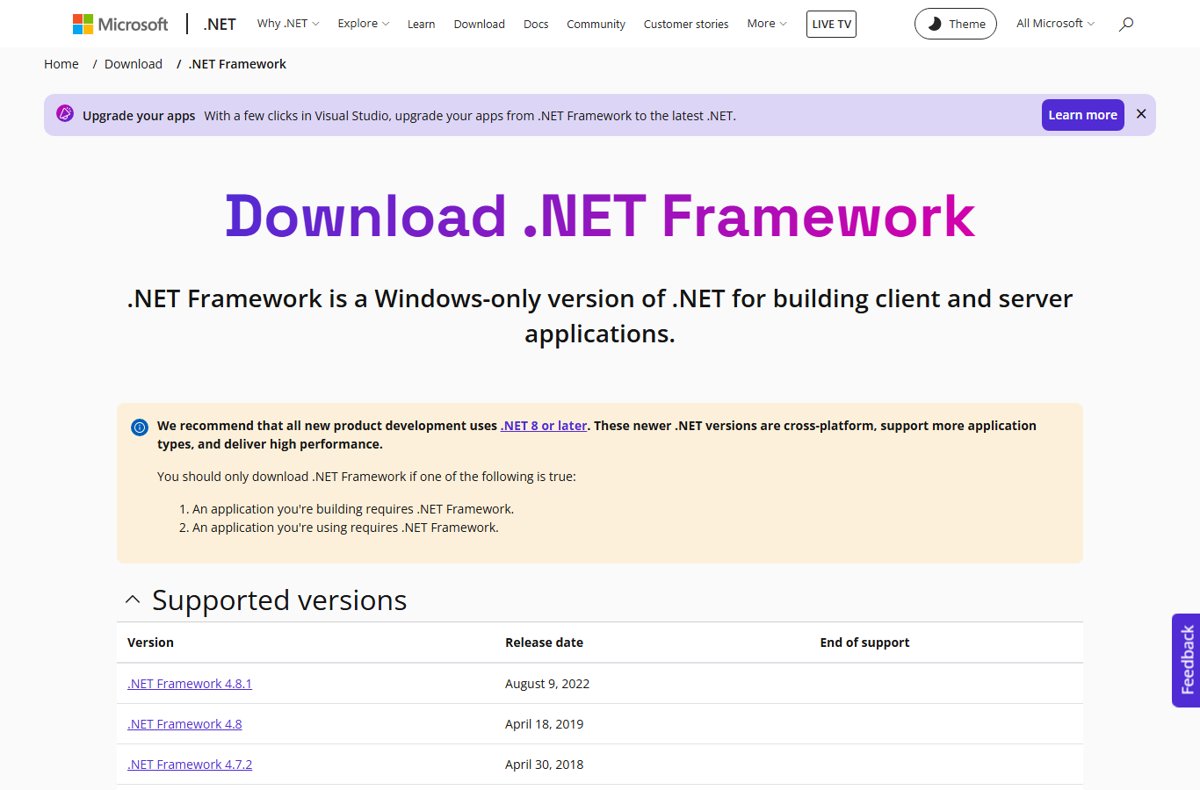
Quick download table for .NET Framework installers
Each link opens Microsoft's official page for that version. The page offers the web installer, the offline installer, the Developer Pack and language packs, so pick the file there.
Support dates come from the Microsoft Lifecycle page. From 4.5.2 onward, a supported 4.x version is supported for as long as the Windows version it runs on.
| Version | Official download page | Support status | Where it fits |
|---|---|---|---|
| 4.8.1 | .NET Framework 4.8.1 | Supported, follows the Windows lifecycle | Windows 11, Windows 10 20H2 and later, Windows Server 2022 and 2025 |
| 4.8 | .NET Framework 4.8 | Supported, follows the Windows lifecycle | Latest version for Windows 7 SP1, Windows 8.1 and older Windows 10 releases |
| 4.7.2 | .NET Framework 4.7.2 | Supported, follows the Windows lifecycle | Only when an installer insists on this exact version |
| 4.7.1 | .NET Framework 4.7.1 | Supported, follows the Windows lifecycle | Only when an installer insists on this exact version |
| 4.7 | .NET Framework 4.7 | Supported, follows the Windows lifecycle | Only when an installer insists on this exact version |
| 4.6.2 | .NET Framework 4.6.2 | Support ends January 12, 2027 | Oldest 4.x version still supported |
| 4.6.1 | .NET Framework 4.6.1 | Ended April 26, 2022 | Install 4.6.2 or later instead |
| 4.6 | .NET Framework 4.6 | Ended April 26, 2022 | Install 4.6.2 or later instead |
| 4.5.2 | .NET Framework 4.5.2 | Ended April 26, 2022 | Install 4.6.2 or later instead |
| 4.5.1 | .NET Framework 4.5.1 | Ended January 12, 2016 | Install 4.6.2 or later instead |
| 4.5 | .NET Framework 4.5 | Ended January 12, 2016 | Install 4.6.2 or later instead |
| 4.0 | .NET Framework 4.0 | Ended January 12, 2016 | Any later 4.x version runs 4.0 apps |
| 3.5 SP1 | .NET Framework 3.5 SP1 | Supported until January 9, 2029 | Runs 2.0, 3.0 and 3.5 apps; on Windows 10 and 11 turn it on in Windows Features |
| 3.0 and 2.0 | No separate download; both are included in 3.5 SP1 | Ended July 12, 2011 | Install 3.5 SP1 |
| 1.1 and 1.0 | No download for current Windows | Windows no longer supports them | Install 3.5 SP1 or retarget the app to 4.x |
The full list, with the same links, lives on Microsoft's .NET Framework downloads page. Techdows also has a walkthrough for the .NET Framework 4.7.2 offline installer if an app asks for that release.
Important notes before you download
| Rule | What it means for you |
|---|---|
| Windows 10 and 11 already include .NET Framework 4.x | Windows 11 22H2 and later ship with 4.8.1; Windows 10 22H2 ships with 4.8. Check your version before downloading anything. |
| Only one 4.x version can exist at a time | Every 4.x release is an in-place update. You cannot install an older 4.x over a newer one, and you never need to uninstall first. |
| .NET Framework 3.5 sits beside 4.x | 3.5 uses a different runtime (CLR 2.0), so it installs side by side with 4.8.1. On Windows 10 and 11 it comes from Windows Features, not from a downloaded redistributable. |
| Administrator rights are required | Setup refuses to run for a standard account with the message about insufficient privileges. |
| Language packs need the base install first | Install the English runtime, then the language pack. The offline installer contains no language packs. |
| Download only from Microsoft | Installers for 4.5.2, 4.6 and 4.6.1 were SHA-1 signed and retired. Microsoft publishes SHA-2 signed installers for 3.5 SP1 and 4.6.2 through 4.8. |
| Do not uninstall existing versions | Apps may depend on a specific version. On Windows 8 and later, .NET Framework 4.x is part of Windows and cannot be removed separately. |
Which .NET Framework version should you install?
Match the version the app's error message names. The 4.x releases run apps built for any earlier 4.x release, and 3.5 runs apps built for 2.0 and 3.0.
| If the app asks for | Install this | Why |
|---|---|---|
| .NET Framework 4.0, 4.5, 4.6, 4.7 or 4.8 | 4.8.1 on Windows 11 or Windows 10 20H2 and later; 4.8 on Windows 7 SP1 or 8.1 | In-place updates run apps built for 4.0 and later without recompiling |
| .NET Framework 3.5, 3.0 or 2.0 | Turn on .NET Framework 3.5 in Windows Features | 3.5 installs the 2.0 and 3.0 layers with it |
| .NET Framework 1.1 or 1.0 | Turn on .NET Framework 3.5, and ask the publisher for an updated build | Windows no longer supports 1.1 and 2.0; the app can also be retargeted to 4.x with a supportedRuntime entry of v4.0 in its config file |
| A developer targeting a 4.x version in Visual Studio | The Developer Pack for that version | It adds the reference assemblies; without it MSBuild reports error MSB3644 |
| You are starting new development | Modern .NET (8 or later) from dotnet.microsoft.com/download | Microsoft recommends it for all new development; download .NET Framework only when an app requires it |
How to install .NET Framework 3.5 on Windows 10 and Windows 11
Windows 10 and Windows 11 up to version 25H2 include .NET Framework 3.5 as an optional feature. Windows downloads its files from Windows Update, so stay online.
If an app triggers a prompt asking for .NET Framework 3.5, select Download and install this feature instead. It runs the same install.
- Select Start and type Windows Features.
- Open Turn Windows features on or off.
- Select the .NET Framework 3.5 (includes .NET 2.0 and 3.0) check box.
- Leave Windows Communication Foundation (WCF) HTTP Activation and Windows Communication Foundation (WCF) Non-HTTP Activation cleared unless you run a server that needs them.
- Select OK and wait while Windows downloads the files.
- Restart the computer if Windows asks you to.
Windows 11 26H1 (build 28000) and later no longer offer 3.5 as a Windows feature. Use the standalone installer linked from Microsoft's Install .NET Framework 3.5 on Windows 11 page; it works only on the Windows version it names.
On Windows Server, open Add Roles and Features Wizard, go to Features, select .NET Framework 3.5 Features and choose Install.
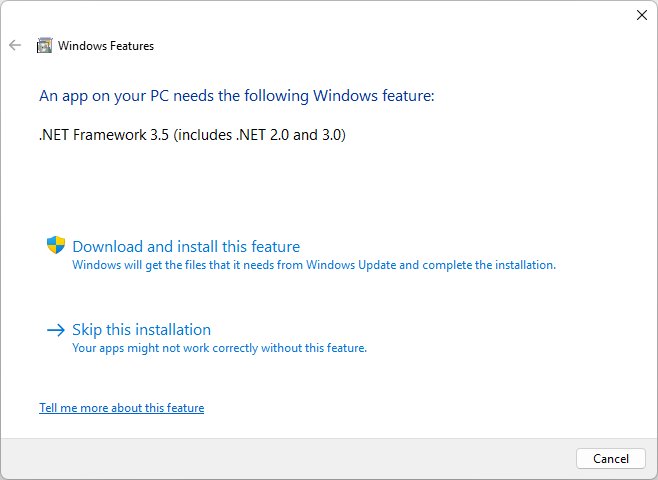
Install .NET Framework 3.5 from Command Prompt with DISM
DISM does the same job as Windows Features and suits scripts or remote sessions. Open Command Prompt with Run as administrator first.
DISM /Online /Enable-Feature /FeatureName:NetFx3 /All/Online targets the running copy of Windows, /FeatureName:NetFx3 is .NET Framework 3.5, and /All also enables its parent features. The files come from Windows Update.
You should see: .NET Framework 3.5 shows as turned on in Turn Windows features on or off.
Without internet access, mount Windows installation media of the same version and point DISM at it: DISM /Online /Enable-Feature /FeatureName:NetFx3 /All /LimitAccess /Source:D:\sources\sxs. Replace D: with the media's drive letter. /LimitAccess stops DISM contacting Windows Update, and /Source names the folder with the files.
Media from a different Windows version can install a mismatched 3.5 or fail outright, so match the build exactly.
Runtime, web installer, offline installer, developer pack: what is the difference?
Every download page on dotnet.microsoft.com offers the same set of packages. Most people need only the runtime.
| Package | What it contains | Who needs it | Internet during install |
|---|---|---|---|
| Runtime, web installer | A small bootstrapper that downloads the components and the language pack matching your Windows language | One PC with a steady connection | Yes, throughout |
| Runtime, offline installer | Every component needed to install; no language packs | PCs without internet, several PCs, or bundling with an app | No |
| Developer Pack | One specific version plus its SDK and targeting pack | Developers building for that version | Depends on the package |
| Targeting Pack | Reference assemblies, IntelliSense files and language packs so Visual Studio can target that version | Developers; 4.6 ships as a targeting pack | Depends on the package |
| Language pack | Translated error messages and UI text | Non-English systems after the offline install | Separate download |
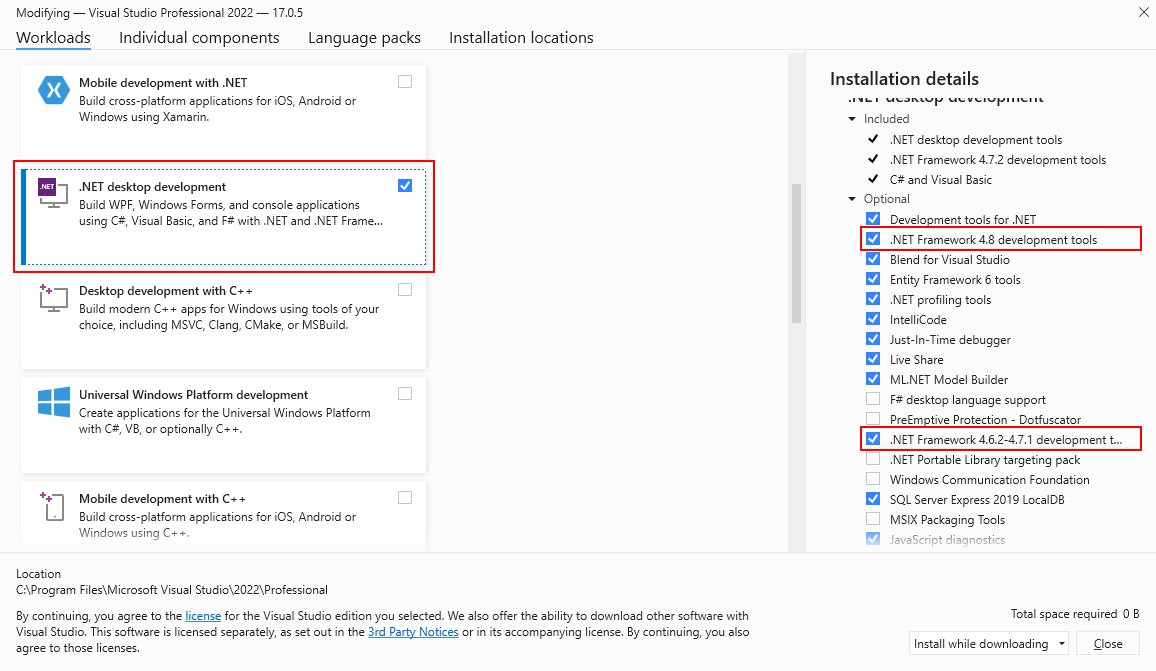
A Developer Pack covers only its own version. The 4.8 Developer Pack, for example, does not include 4.7. Visual Studio users can also add packs through the .NET desktop development workload in the Visual Studio Installer.
How to install a .NET Framework offline installer
The offline installer is the one to keep on a USB drive for machines that cannot reach the internet. Sign in with an administrator account first.
- Open the version's page from the download table above, for example .NET Framework 4.8.1.
- In the Advanced downloads table, under Run apps – Runtime, select Offline installer.
- Save the file and copy it to the target PC if that PC is offline.
- Double-click the file on the target PC and follow the setup prompts.
- Restart when setup asks, and run setup again if it reports a pending restart from an earlier install.
- Install a language pack from the same page afterwards if you need non-English messages.
If setup reports that the redistributable does not apply to this operating system, that version does not support your Windows build. Check the compatibility table below before trying another file.
How to check which .NET Framework versions are installed
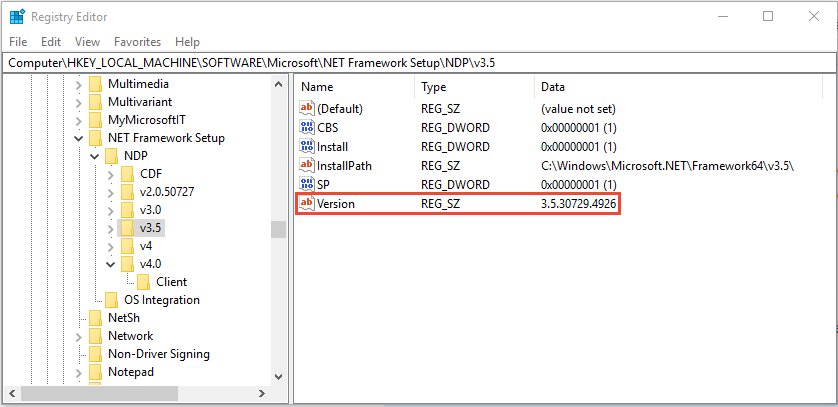
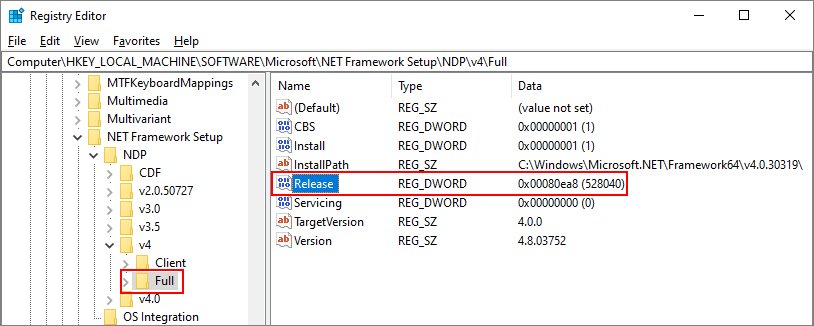
Windows records the installed 4.x version as a Release number in the registry. PowerShell can read it without opening Registry Editor.
- Select Start, type PowerShell and open Windows PowerShell.
- Run
Get-ItemPropertyValue -LiteralPath 'HKLM:SOFTWARE\Microsoft\NET Framework Setup\NDP\v4\Full' -Name Releaseto print the Release number. - Compare that number with the table in the next section to read the version.
- To test for a minimum version instead, run
(Get-ItemPropertyValue -LiteralPath 'HKLM:SOFTWARE\Microsoft\NET Framework Setup\NDP\v4\Full' -Name Release) -ge 394802. True means 4.6.2 or later is installed. - For 3.5, open Turn Windows features on or off and confirm the .NET Framework 3.5 (includes .NET 2.0 and 3.0) box is filled.
- In Registry Editor, the same 3.5 check is an Install value of
1underHKEY_LOCAL_MACHINE\SOFTWARE\Microsoft\NET Framework Setup\NDP\v3.5.
If the v4\Full key does not exist, .NET Framework 4.5 or later is not installed. Techdows covers the same check with screenshots in Check .NET Framework Version in Windows 10, and a way to find which .NET Framework versions are not installed.
Match the Release number to a .NET Framework version
Microsoft documents a minimum Release value for each 4.x version. A number equal to or higher than a row means that version, or a later one, is present.
| Release value at least | .NET Framework version | Example exact values |
|---|---|---|
| 533320 | 4.8.1 | 533509 on Windows 11 2025 Update; 533320 on Windows 11 22H2 and 23H2; 533325 elsewhere |
| 528040 | 4.8 | 528449 on Windows 11 and Server 2022; 528372 on Windows 10 2004 through 22H2 |
| 461808 | 4.7.2 | 461814 on most systems |
| 461308 | 4.7.1 | 461310 on most systems |
| 460798 | 4.7 | 460805 on most systems |
| 394802 | 4.6.2 | 394806 on most systems |
| 394254 | 4.6.1 | 394271 on most systems |
| 393295 | 4.6 | 393297 outside Windows 10 |
| 379893 | 4.5.2 | 379893 on all systems |
| 378675 | 4.5.1 | 378758 outside Windows 8.1 |
| 378389 | 4.5 | 378389 on all systems |
Compatibility and support by Windows version
Windows 7, Windows 8.1 and older Windows 10 releases are themselves out of support, so the .NET Framework on them no longer gets updates either.
| Windows version | Comes with | Newest 4.x you can install | How to get 3.5 |
|---|---|---|---|
| Windows 11 22H2, 23H2, 24H2 and 25H2 | 4.8.1 | 4.8.1 (already present) | Windows Features or DISM |
| Windows 11 26H1 (build 28000) and later | 4.8.1 | 4.8.1 (already present) | Standalone 3.5 installer from Microsoft Learn |
| Windows 11 21H2 | 4.8 | 4.8.1 | Windows Features or DISM |
| Windows 10 21H2 and 22H2 | 4.8 | 4.8.1 | Windows Features or DISM |
| Windows 8.1 and Windows Server 2012 R2 | 4.5.1 | 4.8, after update KB2919355 | Windows Features, or Server Manager on the server |
| Windows 7 SP1 and Windows Server 2008 R2 SP1 | 3.5 SP1, no 4.x | 4.8; Service Pack 1 is required | Built in on Windows 7; Server Manager on the server |
| Windows Server 2022 | 4.8 | 4.8.1 | Add Roles and Features Wizard |
| Windows Server 2025 | 4.8.1 | 4.8.1 (already present) | Add Roles and Features Wizard |
Microsoft's system requirements page lists every older Windows 10 release, and the lifecycle page holds the support dates. .NET Framework 4.8.1 runs on Windows on Arm only from Windows 11.
Common installation errors and fixes
Microsoft's blocked installation guide lists every setup message. These are the ones people hit most.
"A newer version is already installed"
4.x versions are in-place updates, so setup refuses an older 4.x when a newer one, or the one built into Windows, is present.
- Close setup; nothing is broken and no action is needed.
- Read the installed version with the PowerShell check above.
- If the app still fails, check whether it actually needs 3.5, which installs separately.
Error 0x800F081F when enabling .NET Framework 3.5
Windows cannot find the 3.5 files: the source path is wrong, unreadable, or from a different Windows version. A related code, 0x800F0906, means the download from Windows Update failed.
- Confirm the PC can reach Windows Update, then retry Turn Windows features on or off.
- If the PC gets updates from WSUS, ask the administrator to enable the Specify settings for optional component installation and component repair policy with Contact Windows Update directly to download repair content instead of Windows Server Update Services (WSUS).
- Otherwise mount installation media that matches your exact Windows version.
- Run the DISM command with
/LimitAccess /Source:D:\sources\sxs, using the media's drive letter. - Check that your account can read the
sources\sxsfolder, and try a different copy of the media if the error persists.
Installer fails because Windows is not up to date
Some versions need a prerequisite update, a service pack, or a restart that is still pending.
- Restart the PC if setup says a previous installation requires a restart, then run setup again.
- Run Windows Update and install everything offered.
- On Windows 8.1 or Windows Server 2012 R2, install update KB2919355 before 4.6.2 or later.
- On Windows 7, install Service Pack 1 before any supported 4.x version.
- If setup says the component store is corrupted, run
DISM /Online /Cleanup-Image /RestoreHealthfrom an administrator Command Prompt.
The app still says .NET Framework is missing after installation
The app needs a different version family than the one installed, or the installation is damaged.
- Read the exact version in the app's message.
- If it names 2.0, 3.0 or 3.5, turn on .NET Framework 3.5; 4.8.1 does not run those apps.
- Run the .NET Framework Repair Tool from Microsoft's Repair .NET Framework page.
- Restart and open the app again.
- Contact the app publisher if it still fails, since the fault is then in the app.
Frequently asked questions
What is a direct download link for .NET Framework?
It is Microsoft's own download page for a version, such as dotnet.microsoft.com/en-us/download/dotnet-framework/net481. Selecting a button there starts the installer download straight from Microsoft's servers, so a third-party mirror is never needed for any version listed there.
Can I install multiple .NET Framework versions side by side?
Yes, but only one 4.x version at a time. .NET Framework 3.5 (which includes 2.0 and 3.0) installs side by side with 4.x because it uses a different runtime. A newer 4.x replaces the older 4.x in place, and apps built for the older one keep working.
Is .NET Framework the same as .NET 8 or .NET 9?
No. .NET Framework is the Windows-only runtime that ends at 4.8.1. Modern .NET, such as .NET 8, is a separate cross-platform runtime downloaded from dotnet.microsoft.com/download. Installing one does not satisfy an app that asks for the other.
Should I install the web installer or offline installer?
Use the web installer for a single PC with a steady internet connection, because it is small and adds the matching language pack. Use the offline installer for PCs without internet, for several machines, or to keep a copy, since it needs no connection during setup.
Do I need the Developer Pack?
Only if you build software. The Developer Pack adds the SDK and reference assemblies Visual Studio needs to target that version, and it fixes MSBuild error MSB3644. To run an app, the runtime alone is enough.
Can I download a .NET Framework 3.5 offline installer for Windows 10 or 11?
Not for Windows 10 or Windows 11 up to 25H2. On those versions, turn on 3.5 in Windows Features, or use DISM with the sources\sxs folder from matching installation media. Windows 11 26H1 and later use a standalone 3.5 installer linked from Microsoft Learn.
Does .NET Framework 4.8.1 work on Windows 7?
No. Windows 7 SP1 and Windows 8.1 top out at .NET Framework 4.8. Version 4.8.1 needs Windows 10 20H2 or later, Windows 11, or Windows Server 2022 or 2025.
Is .NET Framework 3.5 still supported?
Yes. Since Windows 10 version 1809 and Windows Server 2019, .NET Framework 3.5 SP1 is a standalone product with its own lifecycle, and Microsoft Learn lists its end of support as January 9, 2029. On older Windows versions it follows that Windows version's lifecycle.
Should I uninstall old .NET Framework versions?
No. Microsoft advises against removing .NET Framework versions because installed apps may depend on them. On Windows 8 and later, 4.x is part of Windows and cannot be uninstalled separately, and a newer 4.x replaces the older one without an uninstall.


![Java JRE latest version: Download & Install [32-bit, 64-bit]](https://techdows.com/wp-content/uploads/2026/09/javacom-download-page-listing-Version-8-Update-503-and-its-release-date-600x338.jpg)