To clear cookies on a Mac, open the privacy or browsing-data settings in the browser you use, select cookies or website data, and remove either all stored cookies or only the data for a specific website. Clearing cookies can fix login loops, broken websites, old account sessions, shopping-cart problems, and other issues caused by stale site data.
The exact steps depend on whether you use Safari, Google Chrome, Firefox, or Microsoft Edge. You do not need to delete your entire browsing history, saved passwords, or bookmarks just to remove cookies.
If only one website is causing trouble, clear cookies for that site first. This keeps you signed in to other websites and avoids resetting preferences everywhere else.
How to Clear Cookies on Mac in Safari
Safari stores cookies together with other website data, including local storage and cached site information. You can remove data for individual websites or clear everything.
Clear all cookies in Safari on Mac
- Open Safari.
- Click Safari in the menu bar.
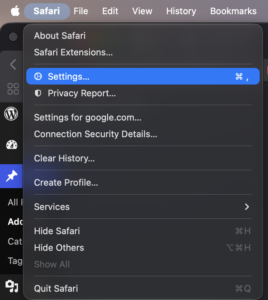
- Select Settings.
- Open the Privacy tab.
- Click Manage Website Data.
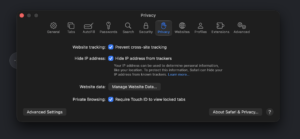
- Wait for the list of websites to load.
- Click Remove All.
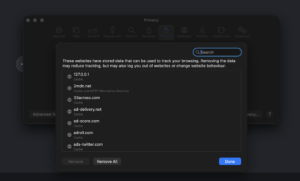
- Confirm the removal.
Safari removes the cookies and website data stored by those sites. Expect to be signed out of many websites, and some sites will forget preferences such as language, location, or consent choices.
Clear cookies for one website in Safari
Removing cookies for one website is usually the better option when a single login or page is broken.
- Open Safari > Settings > Privacy.
- Click Manage Website Data.
- Use the search box to find the website.
- Select the website.
- Click Remove.
- Click Done.
Open the website again and sign in. Safari creates fresh cookies and site data for it.
How to Clear Cookies and Cache on Mac in Safari
Cookies and cache solve different problems. Cookies usually store login sessions and preferences, while cached files include copies of images, scripts, and other website resources.
If Safari shows an outdated page, loads a site incorrectly, or keeps returning an error after you clear its cookies, removing its website data through Manage Website Data also removes associated cached data for the selected site.
You can also clear Safari browsing history:
- Open Safari.
- Select History > Clear History.
- Choose the period you want to remove.
- Click Clear History.
Clearing Safari history affects more than cookies. It removes visited-page history, recent searches, frequently visited entries, and other browsing records, so use the Privacy settings when cookies are the only thing you want to reset.
How to Clear Cookies on Chrome on Mac
Chrome lets you delete cookies for a chosen time range or remove data belonging to one website.
Clear all Chrome cookies on Mac
- Open Google Chrome.
- Click the three-dot menu in the upper-right corner.
- Select Delete browsing data.
- Choose a Time range.
- Select Cookies and other site data.
- Clear other checkboxes if you do not want those items deleted.
- Click Delete data.
Select All time if you want to remove every stored cookie covered by the Chrome profile.
Chrome does not automatically delete saved passwords when you clear cookies, unless you separately select a password-related data category.
Clear cookies for one website in Chrome on Mac
- Open Chrome.
- Click the three-dot menu.
- Select Settings.
- Open Privacy and security.
- Select Third-party cookies.
- Click See all site data and permissions.
- Search for the website.
- Click the delete icon beside it.
- Confirm the removal.
This is useful when Gmail, Facebook, Amazon, a banking site, or another service keeps signing into the wrong account or displays an outdated session.
Chrome keyboard shortcut for clearing cookies on Mac
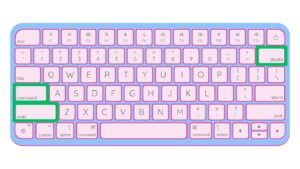
Press Command + Shift + Delete in Chrome to open the Delete browsing data window quickly. Select the time range and cookie option, then delete the data you want removed.
How to Clear Cookies on Firefox on Mac
Firefox groups cookies with site data and gives you controls for clearing everything or removing one website.
Clear all Firefox cookies on Mac
- Open Firefox.
- Click the menu button in the upper-right corner.
- Select History.
- Click Clear Recent History.
- Set When to Everything if you want all cookies removed.
- Select Cookies and site data.
- Uncheck other categories you want to keep.
- Click Clear.
You can choose a shorter time period when you only want to remove cookies created recently.
Clear cookies for the current website in Firefox
Firefox provides a quick option for the website currently open:
- Open the website.
- Click the padlock or site-information icon beside the address bar.
- Select the option to clear cookies and site data.
- Confirm the removal.
Reload the page after clearing the data. You will usually need to sign in again.
How to Clear Cookies on Microsoft Edge on Mac
Microsoft Edge uses Chromium, so its cookie controls are similar to Chrome even when Edge runs on macOS.
Clear all Edge cookies on Mac
- Open Microsoft Edge.
- Click the three-dot menu.
- Select Settings.
- Open Privacy, search, and services.
- Find Clear browsing data.
- Select Choose what to clear.
- Choose a Time range.
- Select Cookies and other site data.
- Click Clear now.
Leave Passwords, Browsing history, and other categories unchecked if you want to remove cookies only.
Clear cookies for one website in Edge
- Open Edge Settings.
- Go to Privacy, search, and services.
- Open the cookie controls.
- Select See all cookies and site data.
- Search for the website.
- Delete its stored data.
Removing one site’s data gives you a clean session on that website without signing you out of unrelated services.
How to Clear Cookies on a Mac Without Deleting Passwords
You can safely clear cookies without deleting passwords as long as you select only the cookie or website-data option in your browser.
| Browser data | Deleted when you clear cookies? |
|---|---|
| Website login sessions | Usually yes |
| Site preferences | Often yes |
| Saved browser passwords | No, unless selected separately |
| Bookmarks | No |
| Downloaded files | No |
| Browsing history | No, unless selected separately |
| Autofill data | No, unless selected separately |
Being signed out of a website after clearing cookies does not mean the browser deleted your saved password. The saved credential remains available through Safari Passwords, Google Password Manager, Firefox passwords, or Microsoft Edge password storage unless you explicitly remove it.
How to Clear Cookies for One Website on Mac
Clearing cookies for a single site should usually be your first troubleshooting step because it fixes that site’s stored session without disrupting every other login.
| Browser | Where to remove one site’s cookies |
|---|---|
| Safari | Settings > Privacy > Manage Website Data |
| Chrome | Settings > Privacy and security > Third-party cookies > See all site data and permissions |
| Firefox | Site-information control or Cookies and Site Data settings |
| Edge | Settings > Privacy, search, and services > Cookies |
Use this method when a website repeatedly logs you out, shows an old account, gets stuck in a redirect loop, says your session expired, or behaves correctly in a Private or Incognito window but not in a normal browser window.
Clear Cookies vs Clear Cache on Mac
Cookies and cache store different types of browser data, so deleting one does not always fix a problem caused by the other.
| Data | What it stores | What happens when cleared |
|---|---|---|
| Cookies | Login sessions, preferences, identifiers, site state | Sites can sign you out and reset preferences |
| Cache | Images, scripts, stylesheets, and temporary page files | Websites download fresh files on the next visit |
| History | Websites and pages you visited | Entries disappear from browser history |
Clear cookies when the problem involves authentication, sessions, account switching, consent settings, or stored website preferences. Clear the cache when a page looks outdated, images fail to update, or website files appear corrupted.
If you do not know which one is responsible, clearing both cookies and cache for the affected website is reasonable.
What Happens When You Clear Cookies on a Mac?
Most websites treat you as a new browser session after their cookies are removed. You can expect some sites to ask you to sign in again, accept cookie preferences, select a location, rebuild a shopping cart, or repeat other settings they previously remembered.
Clearing cookies does not uninstall the browser, erase files from your Mac, remove bookmarks, or delete documents in your Downloads folder.
Some browser sync features can also affect data on other devices. For example, Chrome can synchronize certain browsing information when you are signed in, while Safari history can sync through iCloud. Check the selected data category before deleting information you want to keep.
Should You Clear Cookies on Your Mac Regularly?
You do not need to clear all cookies on a fixed daily or weekly schedule. Modern browsers already provide tracking controls, private browsing, third-party cookie restrictions, and site-specific data management.
Clearing cookies makes sense when a website stops working correctly, you want to remove an old login session, you used a shared Mac, or you want to remove data stored by particular websites.
For routine privacy management, deleting cookies for specific sites causes less disruption than removing every cookie in the browser.
Why Can’t I Clear Cookies on My Mac?
The website still remembers you after clearing cookies
The site can be using local storage, your logged-in account, browser sync, or server-side settings in addition to cookies. Remove all website data for the affected domain rather than only a single cookie, then close and reopen the browser.
Safari cookies come back after you delete them
Websites create new cookies as soon as you visit them again. Seeing new entries in Manage Website Data after reopening a site is normal.
A site still does not work after cookies are cleared
Open the website in a Private or Incognito window. If it works there, check extensions, content blockers, browser settings, and cached data. If it fails there as well, the problem is less likely to be caused by existing cookies.
You cannot sign in after clearing cookies
Make sure cookies are allowed for the website. Blocking all cookies can stop sign-in systems, shopping carts, embedded payment services, and other site functions from working correctly.
Frequently Asked Questions
How do I clear cookies on a MacBook?
The steps are the same on a MacBook Air, MacBook Pro, iMac, Mac mini, and Mac Studio. Open the privacy settings in Safari, Chrome, Firefox, or Edge and remove cookies or website data.
How do I clear all cookies in Safari on Mac?
Open Safari > Settings > Privacy > Manage Website Data, then select Remove All and confirm.
What is the shortcut to clear cookies on a Mac?
Chrome supports Command + Shift + Delete to open its browsing-data window. Browser shortcuts vary, so Safari users should use the Privacy settings when they specifically want to manage cookies.
Does clearing cookies delete passwords on Mac?
No. Saved passwords remain stored unless you separately select or delete password data. You will still be signed out of many websites because their login-session cookies have been removed.
Does clearing cookies delete bookmarks?
No. Cookies and bookmarks are separate browser data categories.
Will clearing cookies log me out?
Yes, clearing a site’s authentication cookies usually signs you out of that website. Clearing all cookies can sign you out of many sites at once.
Can I clear cookies for only one site on Mac?
Yes. Safari, Chrome, Firefox, and Edge all let you remove website data for a specific domain without clearing cookies from every other website.
Why should I clear cookies on my Mac?
Clear cookies when a website has a broken login, outdated session, redirect loop, incorrect account, corrupted stored preferences, or another problem related to saved site data.
Does clearing cookies make a Mac faster?
Clearing cookies is not a meaningful general Mac performance fix. It can fix a specific website problem, while browser cache, extensions, memory use, and open tabs have a larger effect on browser performance.
Is clearing cookies the same as clearing history?
No. Cookies store website session and preference data, while history records pages you visited. Most browsers let you delete either category separately.
Should I block all cookies on Safari?
Blocking all cookies can prevent websites from signing you in or remembering required session information. Removing unwanted website data or limiting cross-site tracking usually causes fewer compatibility problems.
How do I clear Google cookies on a Mac?
In Chrome, open Settings > Privacy and security > Third-party cookies > See all site data and permissions, search for Google, and delete the relevant entries. You can use the same site-specific approach in Safari, Firefox, or Edge.
How often should I clear cookies on my Mac?
There is no required schedule. Clear them when troubleshooting a website, removing an unwanted session, cleaning up data on a shared Mac, or managing privacy for specific sites.




How to Enable Redirects on Chrome, Edge, Safari, Opera, and Firefox - Techdows
[…] Clear the cookies for that one site, then reload it. […]