To install Realtek Audio Console on Windows 11 or Windows 10, first install the correct Realtek audio driver from Windows Update or your PC or motherboard manufacturer. Restart the computer, then download Realtek Audio Control from the Microsoft Store. The app may appear as Realtek Audio Console in the Start menu.
Realtek Audio Console is not the audio driver itself. It is a control app that works with compatible Realtek hardware and the manufacturer-supplied driver. If the app says it cannot connect to the RPC service or does not support your machine, reinstalling the correct OEM audio driver is usually more useful than repeatedly reinstalling the Store app.
| Component | What it does | Where to get it |
|---|---|---|
| Realtek audio driver | Allows Windows to communicate with the Realtek audio hardware | Windows Update or the PC/motherboard manufacturer |
| Realtek Audio Console | Controls supported effects, ports, speakers, microphones and device settings | Microsoft Store or the manufacturer’s support package |
| OEM audio extensions | Add manufacturer-specific features, services and audio tuning | The manufacturer’s complete audio-driver package |
Important: Do not download random Realtek driver packages from third-party driver websites. A generic driver can provide basic sound while removing the services and extensions required by Realtek Audio Console.
How do I download Realtek Audio Console on Windows 11?
Start by checking whether your PC actually uses a Realtek audio device:
- Right-click the Start button.
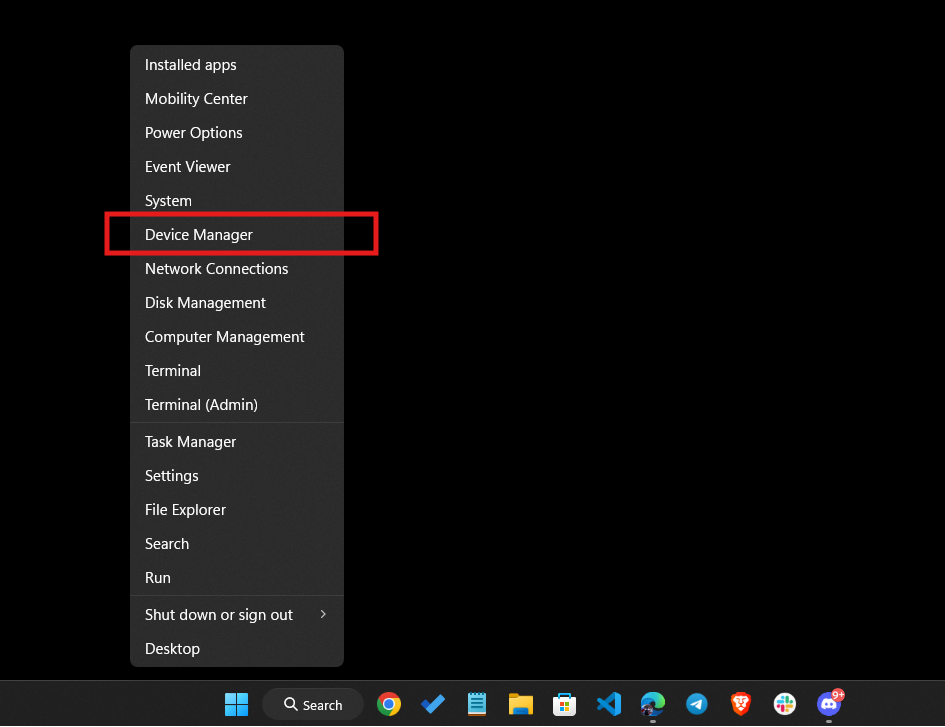
- Select Device Manager.
- Expand Sound, video and game controllers.
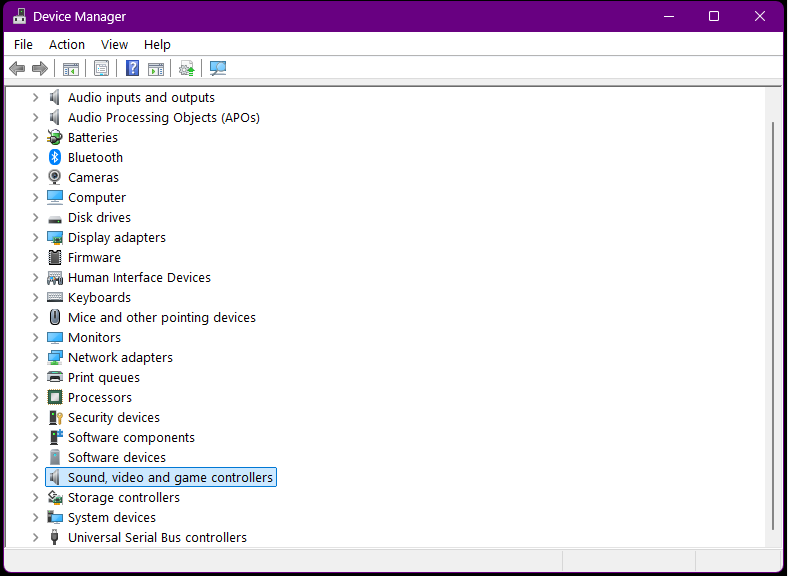
- Look for a device containing Realtek in its name.
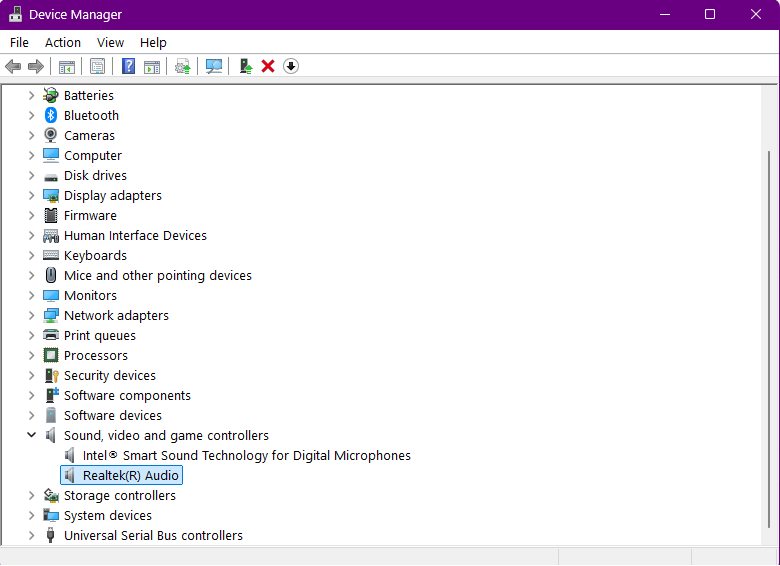
You may see a name such as Realtek(R) Audio, Realtek High Definition Audio or Realtek USB Audio. If no Realtek device is listed, Realtek Audio Console may not be intended for your computer.
1. Download Realtek Audio Console from MS Store
The Microsoft Store is the normal source for the Realtek control app on compatible Windows 11 computers.
- Open the Realtek Audio Control Microsoft Store page.
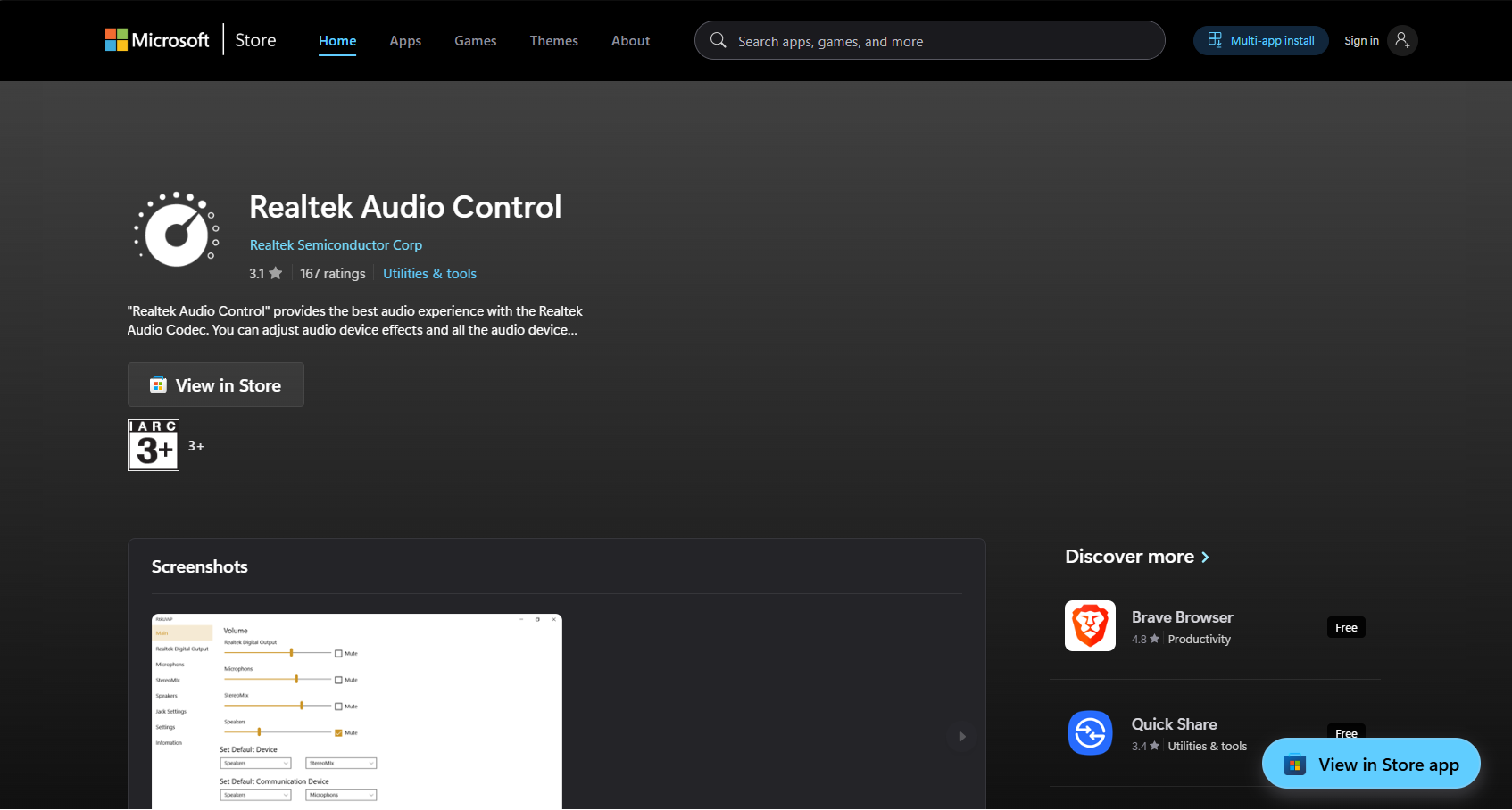
- Select View in Store or Get in Store app.
- Allow the link to open Microsoft Store.
- Select Get or Install.
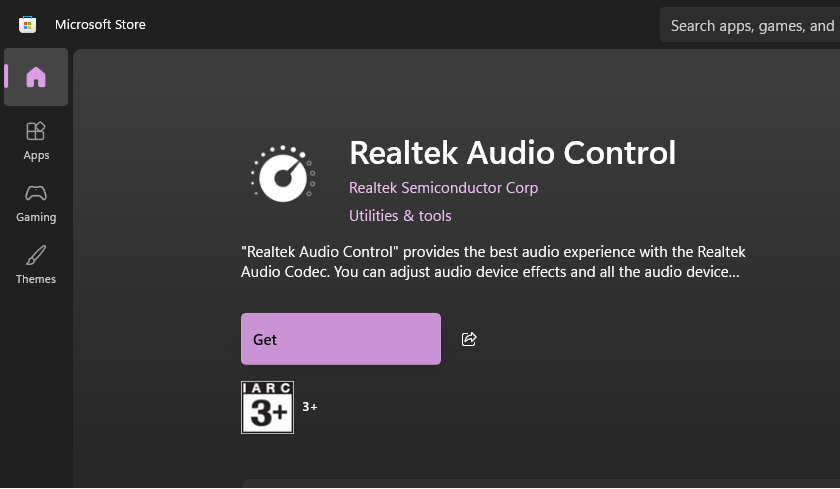
- Wait for the installation to finish.
- Open Start and search for Realtek Audio Console or Realtek Audio Control.
The Store may call the product Realtek Audio Control, while some OEM installations display it as Realtek Audio Console. The available menus and effects also vary by laptop, motherboard, driver and audio codec.
If the Store says the app is incompatible, unavailable or cannot be installed, do not use an unofficial copy. Install the complete audio package for your exact computer model first and check the Store again after restarting Windows.
2. Get the update from the official website
For most PCs, “the official website” should mean the support site of the company that built the computer or motherboard, not Realtek’s generic download page.
Manufacturers such as Dell, HP, Lenovo, ASUS, Acer and MSI often customise the Realtek package with:
- Audio-processing extensions
- Jack and port detection
- Microphone effects
- Speaker tuning
- Dolby, DTS, Waves, Nahimic or Sonic Studio components
- The service used by Realtek Audio Console
To download the correct package:
- Find the exact model number of your laptop, desktop or motherboard.
- Open the manufacturer’s official support website.
- Search for the model or enter its serial number or service tag.
- Open the Drivers or Downloads section.
- Select Windows 11 and the correct architecture.
- Download the latest recommended Realtek Audio Driver.
- Extract the package if it is supplied as a ZIP file.
- Run the installer and follow the instructions.
- Restart Windows before opening Realtek Audio Console.
Use the driver listed for the exact product. A driver intended for another motherboard or laptop may install but leave the console unable to detect the required service or hardware features.
3. Get the console from Windows updates
Windows Update primarily installs the audio driver rather than the Realtek control app. On supported PCs, installing the correct driver may also make the Store app available or trigger its installation.
Install Realtek driver updates on Windows 11
- Press Windows + I.
- Open Windows Update.
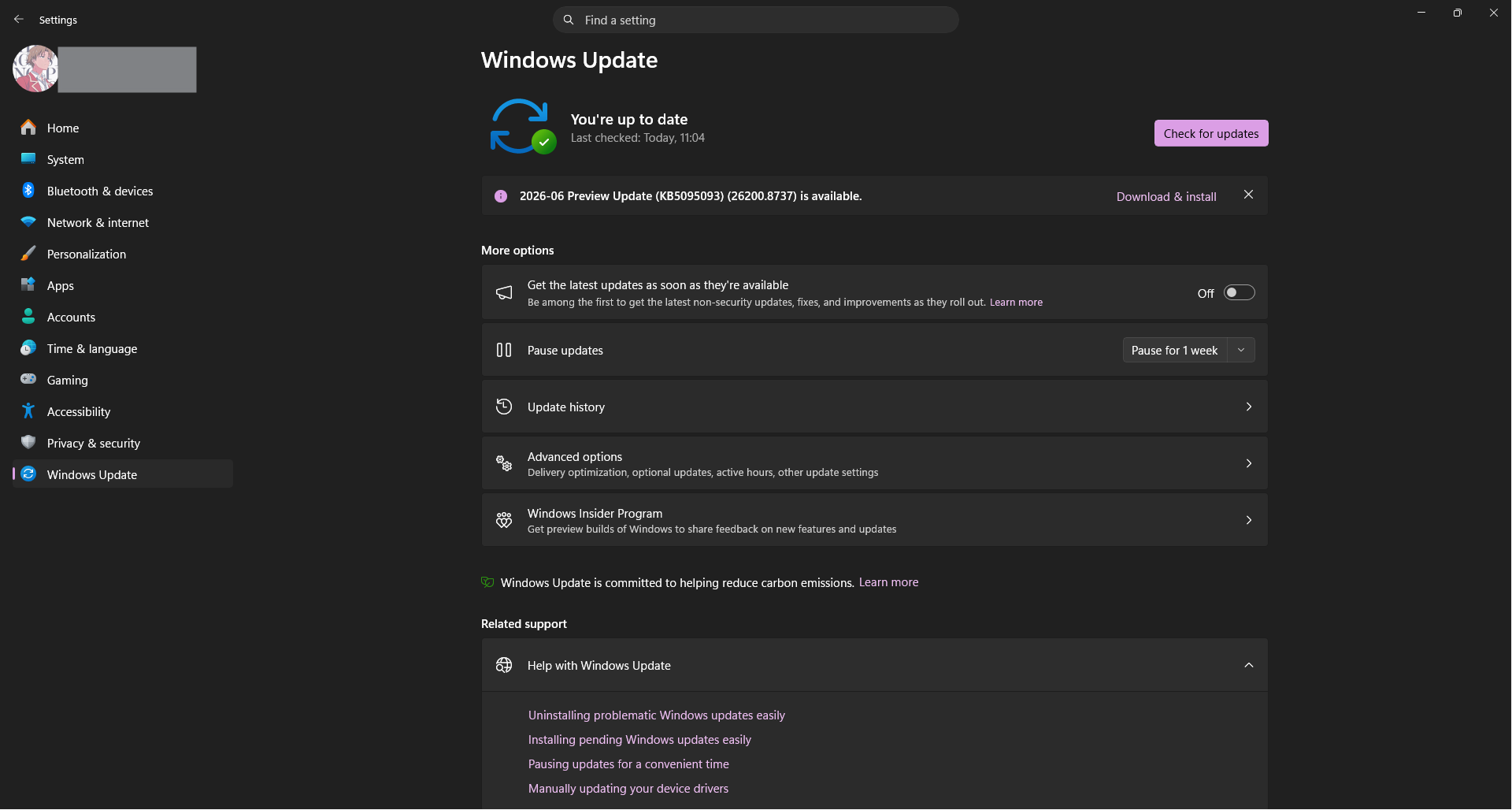
- Select Check for updates.
- Install the available recommended updates.
- Open Advanced options > Optional updates.
- Expand Driver updates.
- Select an available Realtek or manufacturer audio update.
- Choose Download & install.
- Restart the PC.
After restarting, search the Start menu for Realtek Audio Console. If it is not installed, open its Microsoft Store page manually.
Update the driver through Device Manager
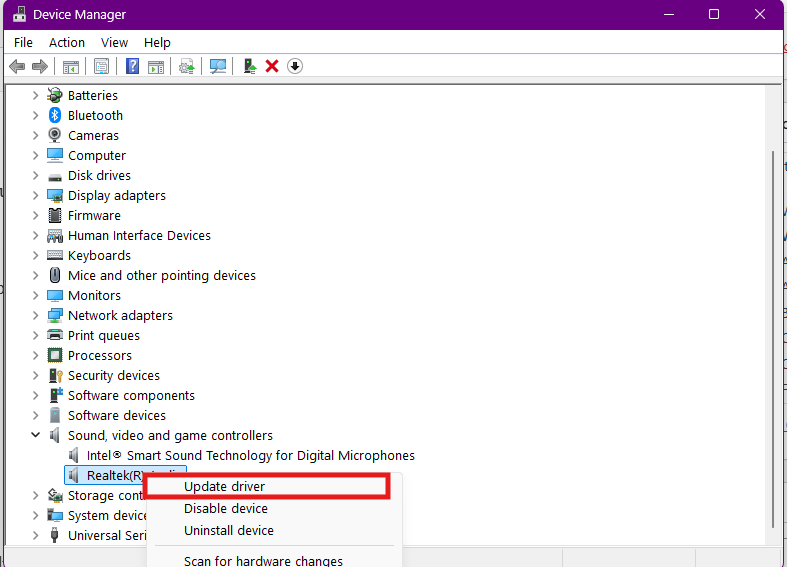
- Right-click Start and open Device Manager.
- Expand Sound, video and game controllers.
- Right-click the Realtek audio device.
- Select Update driver.
- Choose Search automatically for drivers.
- Restart Windows if a driver is installed.
Device Manager may report that the best driver is already installed even when the manufacturer offers a newer or more complete package. Check the manufacturer’s support page when the console remains unavailable.
How do I download Realtek Audio Console on Windows 10?
The Microsoft Store method also works on compatible Windows 10 computers. Install the correct Realtek audio driver first, restart the PC and then install Realtek Audio Control from the Store.
Install the app from Microsoft Store
- Open Microsoft Store.
- Search for Realtek Audio Control.
- Select the official Realtek Semiconductor Corp. listing.
- Click Get or Install.
- Search the Start menu for Realtek Audio Console after installation.
Install driver updates on Windows 10
- Open Settings.
- Go to Update & Security > Windows Update.
- Select Check for updates.
- Open View optional updates if it appears.
- Expand Driver updates.
- Select the relevant Realtek audio driver.
- Click Download and install.
- Restart the computer.
Windows 10 reached the end of normal Microsoft support on October 14, 2025. Realtek audio hardware can continue working, but new drivers and manufacturer support may increasingly focus on Windows 11.
Why Is Realtek Audio Console Missing?
Realtek Audio Console may be absent even when the speakers work. Common reasons include:
- Windows installed a basic Microsoft audio driver.
- The PC uses an older Realtek High Definition Audio package rather than a compatible modern package.
- The manufacturer bundles the controls inside another app.
- The OEM audio extensions or Realtek service were not installed.
- The Microsoft Store installation failed.
- The device does not support Realtek Audio Console.
- The computer uses another audio provider, such as Conexant, Cirrus Logic or Intel Smart Sound with an OEM control app.
Check the manufacturer’s driver page before assuming every Realtek-equipped computer should use the same console. Some older platforms use Realtek HD Audio Manager, while other systems place audio controls inside MyASUS, Dell Optimizer, Lenovo Vantage, HP Audio Control, Nahimic or another OEM utility.
Fix Realtek Audio Console Cannot Connect to RPC Service
The “Can not connect to RPC service” message usually means the app cannot communicate with the driver service it expects.
Check the Realtek Audio Universal Service
- Press Windows + R.
- Enter
services.msc. - Press Enter.
- Look for Realtek Audio Universal Service.
- Double-click it.
- Set Startup type to Automatic.
- Select Start if the service is stopped.
- Click Apply and restart the PC.
If the service is completely missing, reinstall the manufacturer’s full audio package. The Store app cannot create the missing driver service on its own.
Repair or reset Realtek Audio Console
- Open Settings > Apps > Installed apps.
- Find Realtek Audio Console or Realtek Audio Control.
- Select the three-dot menu and open Advanced options.
- Select Repair.
- Use Reset only if repairing does not work.
On Windows 10, open Settings > Apps > Apps & features, select the app and open Advanced options.
Reinstall the OEM audio package
If the error began after installing a generic or unrelated Realtek driver:
- Download the correct audio package from the computer or motherboard manufacturer.
- Disconnect unnecessary audio devices.
- Right-click Start and open Device Manager.
- Expand Sound, video and game controllers.
- Right-click the Realtek device and select Uninstall device.
- Restart Windows.
- Install the manufacturer’s downloaded audio package.
- Restart again and open Realtek Audio Console.
Do not select an option to remove every driver package unless you already have the correct replacement available.
Fix “Realtek Audio Console Does Not Support This Machine”
This message normally indicates that the installed console and audio-driver package do not match, or that the computer does not expose the Realtek components required by the app.
Try the following:
- Install the audio driver for the exact PC or motherboard model.
- Remove a generic Realtek driver installed from another website.
- Install all OEM audio extensions included with the driver package.
- Restart Windows after the driver installation.
- Check whether the manufacturer supplies a different audio-control app.
- Confirm that the audio device is actually made by Realtek.
Installing older versions of the console will not solve a machine-support error when the required driver extensions are absent.
What Can You Change in Realtek Audio Console?
Available controls depend on the hardware and manufacturer. A supported installation may include:
- Speaker and headphone volume
- Microphone level and boost
- Equalizer presets
- Environmental sound effects
- Speaker configuration
- Default audio format
- Front and rear audio-jack detection
- Connector retasking
- Noise suppression and echo cancellation
- Separate or combined input-jack behaviour
A missing option does not necessarily mean the app is broken. Manufacturers decide which controls the driver exposes for each model.
FAQs
Is Realtek Audio Console the same as a Realtek audio driver?
No. The driver lets Windows communicate with the audio hardware. Realtek Audio Console is a settings app that controls features exposed by a compatible driver.
Where can I safely download Realtek Audio Console?
Use the Microsoft Store or the support package supplied by your PC or motherboard manufacturer. Avoid third-party app and driver download websites.
Why can’t I find Realtek Audio Console in Microsoft Store search?
The listing may appear as Realtek Audio Control, may be restricted to compatible devices or may not appear in every Store search. Open the direct Store listing and install the correct OEM audio driver first.
Can I install Realtek Audio Console without the Realtek driver?
The Store may let you install the app, but it will not provide useful controls without compatible Realtek hardware, driver services and OEM extensions.
Why does Realtek Audio Console show no devices?
Windows may be using a generic driver, the Realtek service may be stopped or the installed driver may not match the console. Reinstall the audio package from the manufacturer’s support page.
Why does Realtek Audio Console say it cannot connect to RPC?
The Realtek Audio Universal Service may be stopped, missing or incompatible with the current driver. Check the service and reinstall the manufacturer’s complete audio package if necessary.
Do all Realtek audio devices support the Console app?
No. Older Realtek devices may use Realtek HD Audio Manager, and some OEM systems use their own audio-control software. Support depends on the hardware, driver architecture and manufacturer.
Should I download the driver directly from Realtek?
Use the PC or motherboard manufacturer’s driver first. Realtek’s generic package may omit device-specific tuning, extensions and services required by your computer.
Can Windows Update install Realtek Audio Console?
Windows Update usually installs the audio driver. A compatible driver package may cause the Store app to install or become available, but you may still need to download Realtek Audio Control manually from Microsoft Store.
Can I use Realtek Audio Console on Windows 10?
Yes, when the computer has compatible Realtek hardware and a supported driver package. The installation method is broadly the same as Windows 11.
Why are equalizer or jack settings missing?
The PC manufacturer may not expose those features, or Windows may be using a generic driver. Install the complete OEM package and check whether the manufacturer provides another audio utility.
Do I need a third-party driver updater?
No. Use Windows Update and the official support page for the computer or motherboard. Third-party driver updaters can install a generic or mismatched package that breaks Realtek Audio Console.
Can you download the driver directly from Realtek?
Realtek publishes generic High Definition Audio drivers, but Realtek itself notes that these packages may not include the customisations provided by the system or motherboard manufacturer.
The generic package may be useful for older hardware when the manufacturer no longer supplies a driver. However, it should not be your first choice when Realtek Audio Console is missing or unable to connect.