In Windows 10 Preview, when you open File Explorer, by default it shows ‘Favorites‘, Frequent Folders, and Recent Files. If you don’t want to see them in File Explorer, you can easily hide them, here is how.

Hiding Favorites, Frequent Folders, and Recent Files in File Explorer on Windows 10
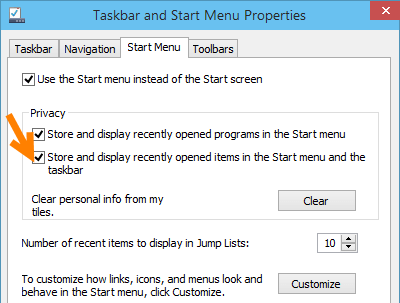
1. Right click on the taskbar, select ‘Properties’, click on the Start Menu tab and uncheck ‘Store and display recently opened items in the Start menu and the taskbar’ (second one),
- FilerFrog , Excellent File Handling Windows Explorer Shell Extension
- How to Show Hidden files, Folders and File Extension Names in Windows 8
2. Click ‘OK’ to apply.
3. This clears Frequent folders and Recent Files, but Favorites will still be shown, to hide it, click on Favorites to select, right click on it and select ‘Properties’, once the Properties dialog opens, select ‘Hidden’ and click ‘OK’
Now When you open File Explorer, it shows ‘This folder is empty’ message.
Enable Hidden Explorer UI Animations in Windows 7 & 8 with AniExplorer
Bonus tip: You can set navigation pane not to show ‘favorites’ by selecting ‘Show favorites’ from the View menu.
Have you found this Windows 10 tip useful?



How to See Recent Files in Windows 11: A Simple Guide for Beginners - Techdows
[…] To remove a folder later, right-click it and select Unpin from Quick access. For the Windows 10 version of these options, see how to hide favorites, frequent folders and recent files in File Explorer. […]