To install QuickBooks Desktop, download the installer from Intuit's official downloads page, open QuickBooks.exe, choose Express install, then activate it from Help > Activate QuickBooks Desktop.
This guide covers who can still buy Desktop, system requirements, single-computer and network installs, activation, first-time setup, reinstalling on a new PC and fixes for installs that fail.
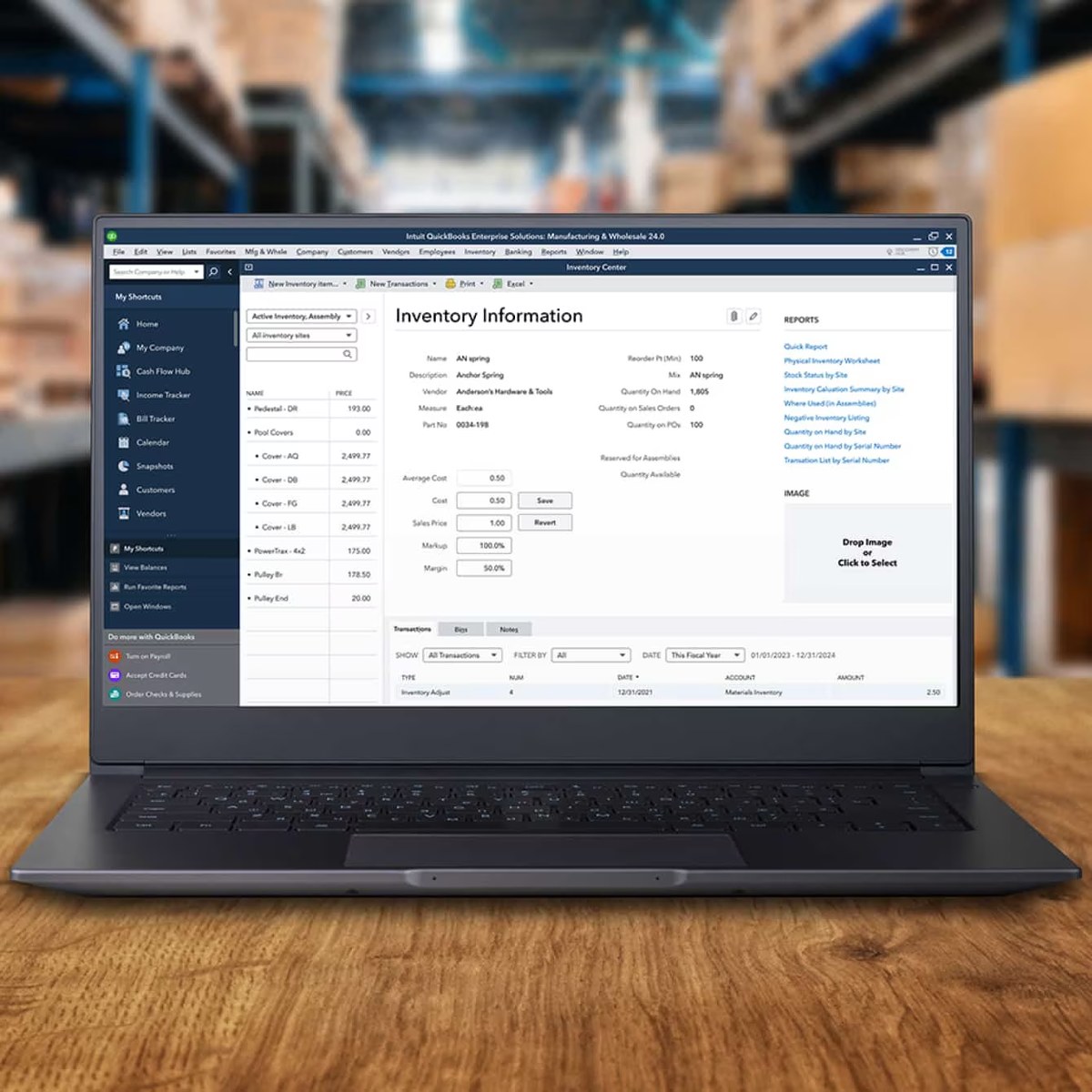
The fastest way to install QuickBooks Desktop on one computer
Use this route if QuickBooks will run on a single PC and your company file lives on that same PC. Keep your license and product numbers and an internet connection ready.
- Download the installer for your product and version from Intuit's QuickBooks Desktop downloads page.
- Save the file somewhere easy to find, such as your Windows desktop.
- Open QuickBooks.exe.
- Select Express install, then select Next.
- Select Install and wait for it to finish.
- When the install finishes, select Open QuickBooks.
- Go to Help > Activate QuickBooks Desktop and follow the on-screen steps to verify your info.
Express install keeps your preferences and installs over a previous version of QuickBooks. Use Custom and Network Options instead if you want to keep the old version or share a company file.
Express install or Custom and Network Options?
The installer offers two paths. Match your setup to a row below.
| Your situation | Choose this | Why |
|---|---|---|
| One computer, company file on the same PC | Express install | Fastest path; saves preferences and installs over the previous version |
| You want to keep an older QuickBooks version installed | Custom and Network Options | Lets you install to a different location and keep prior versions |
| This PC runs QuickBooks and also stores the shared company file | Custom and Network Options > "I'll be using QuickBooks Desktop on this computer AND I'll be storing our company file here…" | Installs the app plus hosting for a server or peer-to-peer host, including Terminal Server |
| This PC only stores the shared company file (a server) | Custom and Network Options > "I will NOT be using QuickBooks on this computer…" | Installs only Database Server Manager for hosting |
| Workstation that opens a file stored elsewhere | Custom and Network Options > "I'll be using QuickBooks Desktop on this computer" | Standard workstation install for a multi-user network |
Can you still buy QuickBooks Desktop in 2026?
Intuit changed who can buy Desktop, which affects where your installer and license come from. The rows below state the situation as Intuit's own pages state it.
| Product | Status Intuit states | What it means for installing |
|---|---|---|
| QuickBooks Desktop Pro Plus, Premier Plus, Mac Plus (US) | As of Oct. 1, 2024, Intuit no longer sells new subscriptions in the US | New US buyers cannot get a license for these editions |
| Existing Desktop Plus and Desktop Payroll subscribers | Not impacted; can continue to renew after Sept. 30, 2024 | Download and reinstall your licensed version as normal |
| QuickBooks Desktop Enterprise | Still sold as a subscription with a Monthly Plan or Annual Plan | Buy from Intuit, then install with the steps in this guide |
| Pro, Premier or Mac Desktop found for sale elsewhere | Intuit says any such listing online, including on Amazon, is not authorized and is a fraudulent product | Buy only from Intuit and download only from Intuit |
Understanding system requirements
Intuit publishes requirements per release. The figures below come from Intuit's QuickBooks Desktop 2024 requirements article and the current Desktop Enterprise technical specs, the latest requirement pages its install guide links to.
| Component | Requirement | Notes |
|---|---|---|
| Windows | Windows 11, 64-bit, natively installed; Enterprise specs also list Windows 10 (64-bit) on a Microsoft-supported version | Linux, Windows 10 S mode, emulators and virtual environments are not supported |
| Server OS | Windows Server 2016, 2019 or 2022 | Standard and Essentials editions |
| Processor | 2.4 GHz minimum, x86 (Intel or AMD) | ARM processors are not supported |
| Memory (workstation) | 8 GB minimum, 16 GB recommended | Intuit Data Protect needs at least 4 GB |
| Memory (server) | 8 GB for 1–5 users, 12 GB for 10, 16 GB for 15, 20 GB+ for 20 or more | Scale with concurrent users |
| Disk space | 2.5 GB for QuickBooks plus space for data files | Microsoft .NET 4.8 Runtime (60 MB) is included with the installer; SSD recommended |
| Display | 1280 x 1024 or higher | Enterprise supports one workstation monitor plus up to 2 extended monitors |
| Internet and browser | Internet access and Google Chrome required; 56 Kbps minimum, 1 Mbps recommended | TLS 1.2 for connected services |
| Network (multi-user) | 40 Mbps or higher | Test it before a network install |
A laptop is fine if it meets these figures. A laptop with an ARM (Snapdragon) processor does not qualify.
Preparing for installation
- If you are upgrading or moving your books, create a backup of your company file first.
- Find your license and product numbers. They are on the original packaging or in your purchase confirmation email.
- Sign in to Windows with an administrator account.
- Confirm the PC meets the requirements in the table above.
- Keep the PC connected to the internet for the whole install.
Intuit reminds users that the IRS requires 10 years of records be kept, so hold on to old backups after an upgrade.
Downloading QuickBooks Desktop
Get the installer only from Intuit. Existing subscribers can also download from their Intuit account (Customer Account Management Portal).
- Open Intuit's QuickBooks Desktop downloads page.
- Select the product, edition and version you hold a license for.
- Start the download and save QuickBooks.exe to your desktop.
- Wait for the download to finish before opening the file.
The usual rules for installing apps on a Windows PC apply: run the file from an administrator account and let it finish before you open QuickBooks.
Installing QuickBooks Desktop with Custom and Network Options
Use this path to keep a previous version, change the install folder, or set up file sharing. Express install is covered in the first section.
- Open QuickBooks.exe.
- Select Custom and Network Options, then Next.
- Choose the setup that matches this computer (see the decision table above).
- Select Next.
- To use a different folder, select Change the install location, then Browse, and pick the folder.
- Select Next to start the installation.
- When it finishes, select Open QuickBooks.
Activating QuickBooks Desktop
QuickBooks prompts you to activate and update after installing. Activate straight away if the prompt was skipped.
- Open QuickBooks.
- Select the Help menu.
- Select Activate QuickBooks Desktop.
- Follow the steps on screen to verify your info.
- Install any update QuickBooks offers after activation.
Configuring QuickBooks for first use
With a fresh install you either create a company file or open an existing one.
- Open QuickBooks Desktop.
- Select Create A New Company, or go to File > New Company.
- Select Express Start.
- Follow the on-screen prompts to enter your business details.
- If you are moving from an older version, open your existing company file instead and let QuickBooks update it to the new version.
An authorized ProAdvisor or QuickBooks Solutions Provider can set up the company file, add users and fine-tune their access if you prefer help.
Installing QuickBooks Desktop on multiple workstations
Intuit supports three layouts: client-server (a central server holds the file), peer-to-peer (one workstation hosts the file) and remote hosting on a terminal server. Every layout needs 40 Mbps or faster between machines.
- Test the network: copy a file of 150 MB or larger from the shared folder to a workstation and time it in seconds.
- Calculate speed as file size in MB × 8 ÷ seconds. For example, 150 MB × 8 ÷ 25 seconds = 48 Mbps.
- Create a shared folder for company files on the server or host PC.
- Install QuickBooks on the host with Custom and Network Options and the matching hosting option.
- Install QuickBooks on each workstation with Custom and Network Options > "I'll be using QuickBooks Desktop on this computer".
- On the host, open QuickBooks and go to File > Utilities; if Stop Hosting Multi-User Access appears, hosting is on. On a Database Server Manager-only server, scan the company file folder instead.
- Allow QuickBooks through the firewall and internet security settings on each machine.
- Map a network drive on each workstation to the server's shared folder, then open QuickBooks.
You need admin rights on the server and every workstation to create the shared folder and install. With terminal server hosting, each user reaches QuickBooks over a Remote Desktop connection instead of a local install.
Reinstall QuickBooks Desktop or install it on a new PC
A reinstall uses the same installer and license. Have both ready before removing anything.
- Back up your company file and note your license and product numbers.
- On the old or current PC, open Control Panel and select Programs and Features (or Uninstall a Program).
- Select your QuickBooks Desktop version, then Uninstall/Change, Remove and Next.
- On the PC that will run QuickBooks, download the installer from Intuit's downloads page.
- Install with Express install or Custom and Network Options, then activate from Help > Activate QuickBooks Desktop.
- Restore or open your company file on the new install.
Intuit also offers a migrator tool for moving QuickBooks to another computer; Intuit's install article in the resources table below explains it.
How to check the install worked
- Confirm the installer ended on the Open QuickBooks button without an error.
- Open QuickBooks and complete Help > Activate QuickBooks Desktop; the confirmation says QuickBooks is activated and you're ready to go.
- Create or open a company file to confirm the program reads data.
- On a network host, check File > Utilities shows Stop Hosting Multi-User Access.
- On each workstation, open the company file from the mapped drive.
Troubleshooting common installation issues
Can't install QuickBooks Desktop: the installer fails or stops
Another program or service interferes with Windows Installer; Intuit's fix is to install in Selective startup.
- Back up your company file and keep your license info handy.
- Press Windows + R, type msconfig and select OK.
- On the General tab, select Selective startup and Load system services.
- On the Services tab, select Hide all Microsoft services, then Disable all.
- Clear Hide all Microsoft services, check Windows Installer in the list, select OK and then Restart.
- Install QuickBooks Desktop again.
- Open msconfig again, select Normal startup on the General tab, select OK and restart.
Error 1646 when installing Premier or Accountant
Another QuickBooks edition is already installed, and removing its update package is not supported.
- Reinstall your current QuickBooks edition so it creates fresh install folders.
- Then install QuickBooks Premier or Accountant.
Reinstall still fails, or folders cannot be renamed
Old QuickBooks folders remain, or QuickBooks processes still hold them open.
- Uninstall QuickBooks again from Control Panel > Programs and Features.
- Open Task Manager and end QBDBMgrN.exe, QBDBMgr.exe, QBCFMonitorService.exe and Qbw32.exe if they are running.
- In File Explorer, find the QuickBooks folders under Program Files, ProgramData or AppData.
- Right-click each folder, select Rename and add "old" to the name.
- Install QuickBooks Desktop again.
Multi-user install works but company files open slowly
The network is below Intuit's 40 Mbps requirement.
- Run the copy-time test from the multiple workstations section.
- Ask your network administrator to raise the speed if the result is under 40 Mbps.
QuickBooks Desktop post-installation tips
| Tip | Why it matters |
|---|---|
| Install updates when QuickBooks prompts after activation | Intuit prompts for updates as part of the first launch |
| Keep Windows 11 on a supported build | Microsoft stopped Windows 10 security updates and support after October 14, 2025, as Intuit's requirements note |
| Keep backups for at least 10 years | Intuit points out the IRS requires 10 years of records |
| Buy only from Intuit | Intuit calls Desktop Pro, Premier or Mac copies sold elsewhere online unauthorized and fraudulent |
| Keep your license and product numbers stored safely | You need them for every reinstall or new-PC install |
Official QuickBooks Desktop install resources
| Resource | Use it for |
|---|---|
| Install QuickBooks Desktop (Intuit) | Intuit's full install article, including network setup and the migrator tool |
| QuickBooks Desktop downloads (Intuit) | Official installer for your licensed product and version |
| Activate QuickBooks Desktop for Windows | Activation steps |
| System requirements for QuickBooks Desktop 2024 | Full hardware and software requirements |
| Desktop Enterprise technical specs | Current Enterprise requirements |
| Reinstall QuickBooks Desktop | Clean reinstall steps |
| QuickBooks Desktop support directory | Contacting Intuit support and product availability notices |
QuickBooks Desktop installation FAQ
How do I install QuickBooks Desktop 2025?
Download the 2025 installer for your licensed edition from Intuit's QuickBooks Desktop downloads page, open QuickBooks.exe, choose Express install or Custom and Network Options, keep your license and product numbers ready, then activate from Help > Activate QuickBooks Desktop.
How do I install QuickBooks Desktop on a new PC?
Back up your company file, download the installer from Intuit on the new PC, install it with your license and product numbers, activate it from the Help menu, then restore or open your company file. Intuit also provides a migrator tool for moving to another computer.
How do I install QuickBooks Desktop 2024?
The steps match the 2025 release. Download the 2024 installer for your edition from Intuit's downloads page, run QuickBooks.exe, pick Express install for one computer, then activate. Check Intuit's 2024 system requirements first, since it needs 64-bit Windows 11 on an x86 processor.
Can I install QuickBooks Desktop on a laptop?
Yes, if the laptop meets Intuit's requirements: 64-bit Windows, a 2.4 GHz x86 Intel or AMD processor, 8 GB RAM (16 GB recommended) and 2.5 GB of disk space. Intuit does not support ARM processors, Windows 10 S mode or virtual environments.
How do I install QuickBooks Desktop Enterprise?
Enterprise installs with the same QuickBooks.exe process. Most Enterprise setups share a company file, so use Custom and Network Options, install Database Server Manager on the server, install QuickBooks on each workstation, and confirm multi-user hosting under File > Utilities.
Can I install QuickBooks Desktop on 2 devices?
Yes, for a shared company file: install on each workstation with Custom and Network Options and host the file on one machine. Licensing is per user, and Intuit's Enterprise buy page states each unique user requires a separate license, so check how many users your subscription covers.
Can I reinstall QuickBooks Desktop?
Yes. Uninstall it from Control Panel > Programs and Features, download the installer again from Intuit's downloads page, and reinstall with your license number. If that fails, rename the old QuickBooks folders by adding "old" to their names, then install again.
Why can't I install QuickBooks Desktop?
The usual cause is another program interfering with Windows Installer. Intuit's fix is to switch to Selective startup in msconfig with only Microsoft services and Windows Installer enabled, install QuickBooks, then switch back to Normal startup. Also confirm the PC meets the system requirements.
Can I still buy QuickBooks Desktop Pro?
Not as a new customer in the US. Intuit states that as of Oct. 1, 2024 it no longer sells new subscriptions of Desktop Pro Plus, Premier Plus or Mac Plus in the US. Existing subscribers can keep renewing, and Desktop Enterprise is still sold.
How do I get support with QuickBooks Desktop?
Use Intuit's QuickBooks Desktop support directory, which links to downloads, install instructions, system requirements and contact options. Signing in to Intuit's support site gives help matched to your product and version.

![7 best open-source PDF editors [Windows, Mac, Linux]](https://techdows.com/wp-content/uploads/2026/10/7-best-open-source-PDF-editors-Windows-Mac-Linux.jpg)