You cannot switch back to a classic Facebook Page: Facebook's Help Centre documents no setting, button or request form that restores the old Page layout.
What does exist is the switch between your profile and your Page, the Page access system that replaced Page roles, and Meta Business Suite, and this guide shows how to use each one to get the control the classic Page gave you.
Can you switch back to a classic Facebook Page?
No. Every current Facebook Help Centre article on Pages describes one layout, where you switch into the Page as if it were a separate profile. No article offers a way back to the old admin view.
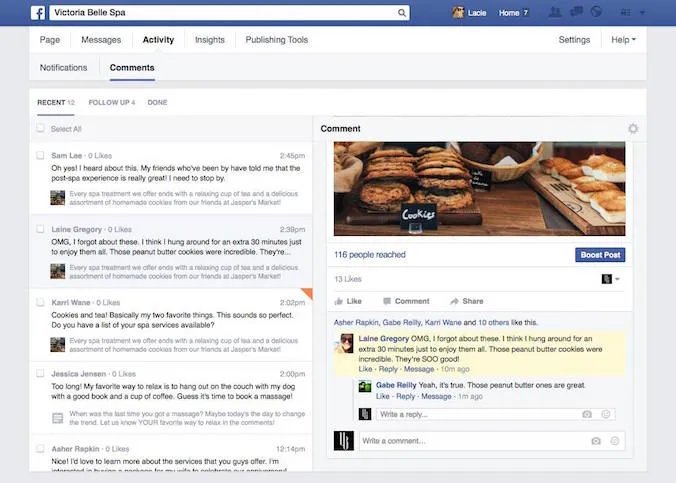
The closest thing to the classic admin panel is switching into your Page. That puts you in the Page's own Feed, with its settings, posts and messages in one place.
- Log in to Facebook on a computer.
- Click your profile photo in the top right.
- Click See all profiles, then select the Page you want to manage.
- Click your Page name in the left menu to see and manage the Page itself.
- To return to your personal profile, click your Page photo in the top right, click See all profiles and select your profile.
If your Page is not listed under See all profiles, you do not have Facebook access to it. The access section further down explains why and what to do.
Why Facebook removed the classic Page option
Facebook's help pages do not publish a reason for retiring the classic layout. They do describe the model that replaced it, and each change below is documented on facebook.com.
The stated goal of switching into a Page is to keep your Page activity separate from your personal profile activity.
| Classic Page idea | What Facebook documents now | What it means for you |
|---|---|---|
| Pages were managed from your profile | Pages work more like profiles: you switch into the Page and act as it | Likes, comments and follows happen as the Page, not as you |
| Page roles (admin, editor and so on) | Facebook access with full or partial control, task access and Community Manager access | Old role names no longer match the settings screen |
| Page tools on the Page itself | Meta Business Suite manages the Page, Instagram, Inbox, insights and ads in one place | People with task access work only from Meta Business Suite or Ads Manager |
| Separate Page layout | One layout shared with profiles, with a Featured section for pinned items | Pinning replaces much of what custom tabs used to do |
How to check whether you still have a switch-back option
The check takes two minutes and settles the question for your own Page. You are looking for a layout choice in the Page's settings; on current Facebook you will find access and setup options instead.
- Log in to Facebook, click your profile photo in the top right, click See all profiles and select your Page.
- Click your Page's profile picture in the top right to open the Page.
- Click Settings and privacy, then click Settings.
- Click Page setup and read the options listed there, including Page access.
- Open Meta Business Suite and check the All tools section, which lists Page settings alongside Ads Manager and Business Support Home.
- If neither place shows a layout or classic option, your Page has none, and no support request will add one.
If you see a “Switch back” option, read this before using it
The only switch Facebook documents for Pages is the one between your profile and your Page. It changes who you are acting as, not how the Page looks.
Treat any prompt that claims to restore the classic layout as suspicious, and use the See all profiles switch only to move between your profile and your Page. Facebook's help articles describe no classic-layout option. A message, email or page offering one is not part of Facebook's documented tools, and Facebook's own Page recovery article warns that scammers trick admins into handing over control of a Page.
If the option appears inside Facebook itself under See all profiles, it simply returns you to your personal profile. Nothing on the Page is lost when you use it.
How to make the new Pages experience feel more like a classic Page
Classic Pages put the important post and the main call to action at the top. The new layout can do the same with the Featured section and the action button.
- Switch into your Page from See all profiles, click the Page's profile picture in the top right, then click the Page name again to open the Page.
- Click Manage in the Featured section, then click Pin next to a recent post, upcoming event or recent video to show it at the top.
- To reorder pinned items, click Manage, click Options on an item and choose Move to front or Move, then click Done.
- From the Page, click Options, then click Add action button or Edit action button.
- Select a button, click Next, follow the on-screen instructions and click Save.
- Review the Page's category and tabs from Facebook's Customise a Page help topic, since the features available depend on the category.
Pinned items stay in the Featured section until you remove them, so the Page keeps its lead post without daily upkeep.
Where did classic Page features go?
Most classic features still exist under a new name or in a new place. This table maps each one to where Facebook's Help Centre now documents it.
| Classic feature | Where it lives now | Notes |
|---|---|---|
| Page roles | Settings > Page setup > Page access | Replaced by Facebook access (full or partial control), task access and Community Manager access |
| Insights | Page Insights on Facebook, and Insights in Meta Business Suite | Covers visits, post reach, followers, demographics, videos and events, with an export option |
| Publishing tools | Posts, drafts and scheduling on the Page, and the planner in Meta Business Suite | Meta Business Suite shows scheduled content in a calendar view |
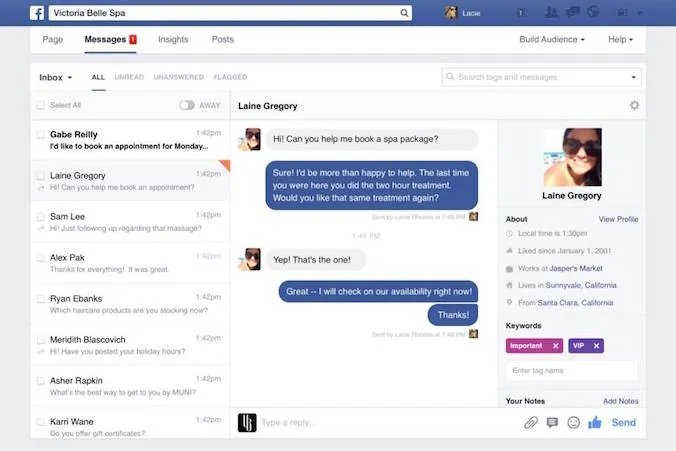
| Inbox and messages | Inbox in Meta Business Suite | Holds Page messages and comments, Messenger, Instagram and WhatsApp Business messages |
| Page likes | Followers, shown in follower insights | People who follow the Page may receive its updates in their Feed |
| Reviews | Recommendations | Page insights include a recommendations view, and visitors can report a recommendation |
| Tabs and templates | Manage tabs and sections and the Featured section | Page features vary by the Page's category |
How to confirm you are managing the Page, not your profile
Many "my Page looks wrong" reports come from viewing the Page as a visitor while logged in as a profile. Check this before changing anything.
- Look at the photo in the top right of Facebook: it should be the Page's profile picture, not yours.
- If it shows your photo, click it, click See all profiles and select the Page.
- Click Settings and privacy, then Settings, then Page setup > Page access, and confirm your name is listed with Facebook access.
- Use the Page setting See what your Page looks like to visitors to check the public view separately from the admin view.
What to do if your Page looks wrong after migration
Confirm you are viewing the correct Page
You manage several Pages, or you are still acting as your profile.
- Click your photo in the top right and click See all profiles.
- Select the Page by name and check the Page photo now shows in the top right.
- Click the Page name in the left menu to open the Page itself.
Settings or tools are missing: check your access level
Only Facebook access with full control can manage settings and access; task access cannot switch into the Page at all.
- Switch into the Page and click its profile picture in the top right.
- Click Settings and privacy > Settings > Page setup > Page access.
- If you have partial control or task access, ask someone with full control to change it.
- If you have task access only, manage the Page from Meta Business Suite or Ads Manager instead.
Features differ from before: review Page categories
Facebook ties available Page features to the Page's category.
- Open the Customise a Page topic in Facebook's Help Centre.
- Follow Edit your Page's category on Facebook to change the category.
- Check What features are available based on your Facebook Page's category for the category you chose.
Contact details or hours are wrong: update your public details
Basic information, address and business hours are edited separately in the new layout.
- Switch into the Page.
- Use the Edit Page details articles in the Customise a Page topic to add information, an address and business hours.
- Save each change and view the Page as a visitor to confirm it shows.
The top of the Page looks empty: check your pinned post and featured content
Old pinned content does not appear unless it sits in the Featured section.
- Open the Page and click Manage in the Featured section.
- Click Pin next to the post, event or video you want on top.
- Click Done.
How to contact Facebook support about your Page
Support cannot restore the classic layout, because it is not an option Facebook offers. Support can help with access, hacked Pages and business account problems, and these are the routes that reach Facebook directly for a Page issue.
| Your situation | Where to go | What to expect |
|---|---|---|
| General Page question | Chat with Meta AI support assistant, linked at the bottom of Facebook Help Centre articles | Real-time answers and help making changes |
| Page in a business portfolio, ads or Business Suite issue | Start chat with Meta AI business assistant on Meta Business Help Centre articles | Help resolving account issues around the clock |
| Someone hacked or scammed you out of the Page | The Page recovery form in Recover a hacked Facebook Page that you manage | Facebook replies by email, aiming for one day |
| You cannot log in at all | www.facebook.com/hacked, on a device you have used to log in before | Account recovery first, then the Page recovery form |
| A co-admin removed you | Anyone with Facebook access with full control of the Page | Only they can add you back |
Should you create a new Page to get the classic layout?
No. Keep your existing Page and customise it instead of creating a new one. Facebook's current Create Page flow builds a Page in the same new layout, so a fresh Page looks no more classic than the old one. You would also start with no followers, and merging two Pages is a separate process that Facebook only allows in some cases.
If you only want a public presence on your own profile, Facebook's alternative is pro mode, which adds professional tools and public followers to your existing profile without creating a Page.
Common Facebook Page problems and quick fixes
Your Page is not listed under See all profiles
You have task access or no access, so you cannot switch into the Page.
- Ask a person with Facebook access with full control to check Page access.
- Have them give you Facebook access from Settings > Page setup > Page access.
- Accept the access invitation when it arrives.
You lost access to a Page you used to manage
Another manager removed you, or the Page was taken over.
- Contact someone with Facebook access with full control and ask them to add you back.
- Ask former employees or contractors who worked on the Page to check their access level.
- If you suspect a hack, submit the form in Recover a hacked Facebook Page that you manage while logged in.
The recovery form will not let you select your Page
Facebook does not see that you recently lost access to that Page.
- Log in first if the form does not appear.
- Try opening the Page again from See all profiles.
- If you cannot log in, visit www.facebook.com/hacked on a device you have used before.
You are acting as the Page when you meant to post as yourself
The profile switch persists until you change it.
- Click the Page photo in the top right.
- Click See all profiles and select your personal profile.
- Check your own photo now shows in the top right before posting.
Practical setup for a former classic Page owner
Classic admins often relied on a role list nobody reviewed. In the new model, a Page with no one holding full control is deactivated and scheduled for deletion, so fix access first.
- Switch into the Page and open Settings and privacy > Settings > Page setup > Page access.
- Confirm at least two trusted people have Facebook access with full control.
- Remove access for anyone who no longer works on the Page.
- Give task access to people who only post, reply or run ads, so they work from Meta Business Suite without switching into the Page.
- Open Meta Business Suite and use its home screen, planner and Inbox as your daily control centre.
- Pin the post you want visitors to see first and set the action button.
- Use See all profiles to move between your profile and the Page, and check the top-right photo before you post.
Beware of fake “classic Page restore” tools
Never install an extension, sign in to a site or grant Page access to anyone promising to bring back the classic Page. Facebook documents no classic-restore feature, so such offers can only be scams. Facebook's own recovery article describes admins being tricked into giving scammers control of a Page, including through Business Manager or Meta Business Suite, and giving someone full control lets them remove you and delete the Page.
If you already granted access to such a tool, remove that person from Page access now. If you have been locked out, use the Page recovery form.
Classic Facebook Page: frequently asked questions
Can I still switch back to the classic Facebook Page layout?
No. Facebook's Help Centre documents no setting or request that restores the classic Page layout. Current Pages use one layout, where you switch into the Page from See all profiles and manage it from there or from Meta Business Suite.
How do I switch back to my personal profile from my Page?
Click your Page photo in the top right of Facebook, click See all profiles, and select your personal profile. Your own photo then shows in the top right, and likes, comments and posts are made as you rather than as the Page.
How do I switch back to my Page from my profile?
Log in to Facebook, click your profile photo in the top right, click See all profiles and select the Page. This opens the Page's Feed. Click the Page name in the left menu to see and manage the Page itself.
What happened to Facebook Page roles like admin and editor?
Page roles were replaced by Page access. Facebook now offers Facebook access with full or partial control, task access for Meta Business Suite and Ads Manager, and Community Manager access for moderating live chats. Check yours under Page setup > Page access.
Why can't I switch into a Page I help manage?
You most likely have task access. People with task access manage the Page from tools such as Meta Business Suite or Ads Manager and cannot switch into it on Facebook. Someone with full control can change your access.
Where are Page Insights now?
Page Insights are available on Facebook and in Meta Business Suite. They cover Page visits, post reach, followers, demographics, videos and events, and Facebook lets you export your Page's insights data from the Insights help topic.
Is Meta Business Suite the same as the classic Page admin panel?
It is the closest match. Meta Business Suite gathers posts, scheduling, Inbox, insights, ads and Page settings for your Facebook Page and Instagram account in one place, on desktop and in a mobile app.
Can Facebook support restore my classic Page?
No. The classic layout is not an option Facebook offers, so support cannot switch a Page back. Support can help with lost access, hacked Pages and business account issues through the Meta AI support assistant or the Page recovery form.
Classic Facebook Page layout: the bottom line
Stop looking for a classic toggle and set up the new Page properly: fix Page access, pin your lead post, set the action button and run daily work from Meta Business Suite. Facebook documents no route back to the classic layout, and the offers that claim one put your Page at risk. The access model and Business Suite cover what classic admins used, once the Page is configured.