To do an offline Xbox update, download the Offline System Update file (OSU1) on a Windows PC, put it on a USB flash drive formatted as NTFS, and install it on the console from that drive.
This guide covers the USB drive requirements, the OSU1, OSU2 and OSU3 files, the extra steps for an original Xbox One, how to confirm the new OS version, and what to do when the update or the console still fails.
How to do an offline Xbox update with a USB drive
The Offline System Update (OSU) works on Xbox Series X, Xbox Series S and every Xbox One model. An original Xbox One may need one extra file first, covered further down.
- Plug a USB flash drive with at least 6 GB of space into a Windows PC that has an internet connection.
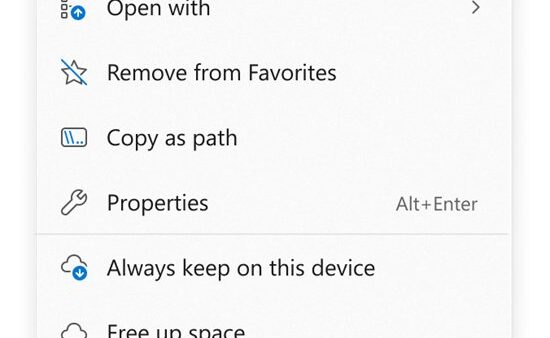
- Format the drive as NTFS in File Explorer (this erases the drive).
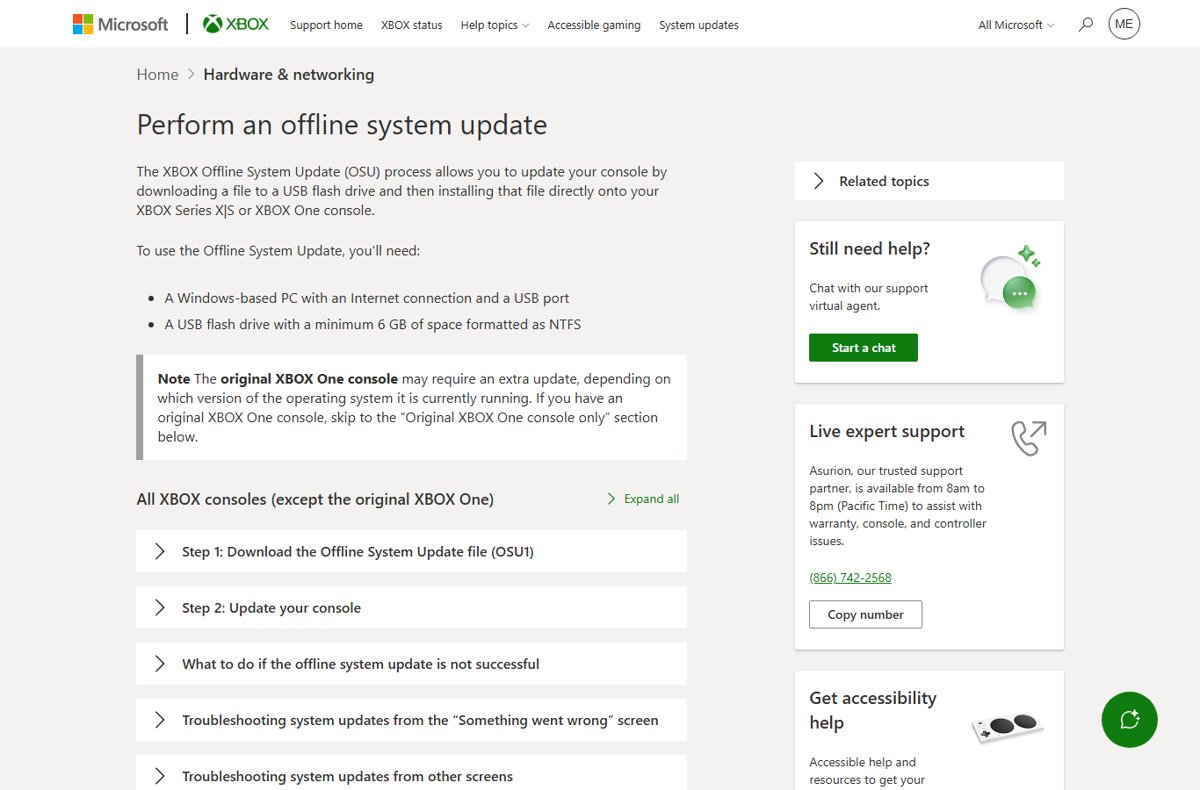
- Open the Xbox Support page Perform an offline system update and expand Step 1: Download the Offline System Update file (OSU1).
- Download the OSU1 file and copy the update to the USB drive exactly as that section describes.
- Plug the USB drive into the console.
- Expand Step 2: Update your console on the same page and follow it on the console until the update finishes and the console restarts.
The official download link and the console-side steps sit inside those two expandable sections of the Xbox Support article, so keep that page open on the PC while you work.
Reasons to perform an offline Xbox update
A normal system update downloads from the Xbox network straight to the console. An offline update moves that download to a PC, which helps whenever the console itself cannot finish the job.
| Situation | Why the offline update helps |
|---|---|
| The console shows a Something went wrong screen with code E100, E101, E106, E200, E203, E204, E207, E208 or E305 | Xbox Support lists the OSU1 file as a fix step for these startup codes |
| The console is stuck on a startup screen or a black screen after an update | The update can be reinstalled from USB without reaching the Xbox network |
| An update stops with There was a problem with the update | A clean copy of the update installs from the drive instead of a failed download |
| The console has no working internet connection | Only the PC needs to be online; the console reads the file from USB |
| An original Xbox One is on a very old OS version | OSU2 or OSU3 brings it to a version that can then take OSU1 |
Xbox offline system update files: OSU1, OSU2 or OSU3?
| Your console | File to download | Why |
|---|---|---|
| Xbox Series X or Xbox Series S | OSU1 only | Microsoft lists every console except the original Xbox One on the single OSU1 path |
| Xbox One S or Xbox One X | OSU1 only | Same OSU1 path as Series X|S |
| Original Xbox One on a recent OS version | OSU1 | No extra update is needed once the OS version check passes |
| Original Xbox One on an older OS version | OSU2 or OSU3 first, then OSU1 | The original model may need an intermediate update before OSU1 installs |
The Xbox Support article tells you whether an original Xbox One needs OSU2 or OSU3 after you check the console's OS version.
Prerequisites and preparations for an offline Xbox update
Gather everything before you start, because a half-finished USB drive is the most common reason the console finds no update.
| Requirement | Detail |
|---|---|
| Windows PC | A Windows-based PC with an internet connection and a free USB port |
| USB flash drive | At least 6 GB of free space, formatted as NTFS |
| Backup of the USB drive | Formatting deletes everything on the drive, so copy its files elsewhere first |
| Console OS version | Needed for an original Xbox One to decide between OSU2, OSU3 and OSU1 |
| Saved games synced | Connect the console to the Xbox network first if you can, in case a factory reset becomes the next step |
Choose the right USB drive for an Xbox offline update
| Drive property | What works | What to avoid |
|---|---|---|
| Capacity | 6 GB or larger | Smaller drives; Microsoft's OSU page sets 6 GB as the minimum |
| File system | NTFS | FAT32 or exFAT, which the offline update page does not list |
| Contents | An empty, freshly formatted drive | A drive holding files you still need |
| Type | A USB flash drive | A drive that cannot be formatted on the Windows PC |
Xbox Support's separate formatting article mentions a 4 GB drive, but the offline system update page asks for 6 GB, so use the larger figure.
Format the USB drive to NTFS for an Xbox update
This prepares the USB drive for the update on Windows 11 or Windows 10. Back up anything on the drive first.
- Plug the USB drive into the Windows PC.
- Open File Explorer.
- Right-click the USB drive.
- Select Format from the menu.
- Choose NTFS in the File system drop-down.
- Select Start and wait for the format to finish.
Download the Xbox offline system update file (OSU1)
Take the OSU file from Microsoft's Xbox Support article, not from a third-party download site. The official article also names the right file for each console.
- On the PC, open support.xbox.com and search for Perform an offline system update.
- Under All Xbox consoles (except the original Xbox One), expand Step 1: Download the Offline System Update file (OSU1).
- Select the download link in that section and save the file to the PC.
- Copy the update to the NTFS-formatted USB drive in the layout that section specifies.
- Remove the USB drive from the PC once Windows has finished copying.
Check the Xbox OS version before an offline update
Note the current version so you can compare it after the update. On an original Xbox One, this number decides whether OSU2 or OSU3 is needed.
- Press the Xbox button to open the guide.
- Select Profile & system > Settings.
- Select System > Console info.
- Read the OS version and Shell version in the second column.
If the console cannot reach the dashboard, the original Xbox One section of the Xbox Support article starts by asking whether you can bring up the Xbox Startup Troubleshooter, before its OS version check.
Performing the offline Xbox update on the console
This is where you start the offline update and follow the on-screen instructions. Keep the Xbox Support article open on the PC or a phone for the exact console steps.
- Plug the prepared USB drive into a USB port on the console.
- On the Xbox Support page, expand Step 2: Update your console under All Xbox consoles (except the original Xbox One).
- Follow those steps on the console to start the offline system update from the USB drive.
- Follow the on-screen instructions until the update finishes.
- Check that the console starts to the dashboard, then remove the USB drive.
Offline update for the original Xbox One (OSU2 or OSU3)
The original 2013 Xbox One has its own six-step path on the same Xbox Support page, under Original Xbox One console only.
- Expand Step 1: See if you can bring up the Xbox Startup Troubleshooter and test whether the console opens it.
- Expand Step 2: Verify the OS version on your console and note the version.
- Expand Step 3 and download the OSU2 or OSU3 file the page names for that version.
- Copy it to the NTFS USB drive as that section describes, then complete Step 4: Update your console.
- Download OSU1 in Step 5 and copy it to the USB drive as that section describes.
- Complete Step 6: Update your console to finish on the current OS.
Final checks after an offline Xbox update
A successful offline update leaves the console on the dashboard with a newer OS version than the one you noted earlier.
- Press the Xbox button and select Profile & system > Settings.
- Select System > Console info and read the OS version.
- Compare it with the latest version on Xbox Support's What's new: Xbox system updates page; the October 2026 general release is 10.0.26100.9445.
- Select System > Updates > Latest console update status > What's new? to read the release notes on the console.
Xbox post-update checklist
| Check | What to do |
|---|---|
| Network connection | Reconnect the console so later updates arrive on their own |
| Offline mode | Switch the console back online if you set it offline before the update |
| Home Xbox | If a reset removed everything, assign the console as your home Xbox again to play digital games offline |
| Saved games | Let the console sync with the Xbox network once it is online |
| USB drive | Reformat or keep the drive; the OSU file is not needed after a successful update |
Troubleshooting common issues when doing an offline Xbox update
Update fails to install
The USB drive is not NTFS, is too small, or the update was not copied as the support page describes.
- Reformat the drive as NTFS in File Explorer.
- Confirm the drive has at least 6 GB of space.
- Download the OSU1 file again from the Xbox Support article and copy it to the drive.
- Repeat Step 2: Update your console.
"There was a problem with the update" or a System Error code
The update was interrupted, or the Xbox servers were under maintenance during an online attempt.
- If the code is 8B050033, wait and try again later; it appears during Xbox server maintenance.
- Restart the console from the Power Center or power cycle it; this does not erase games or data.
- Run the offline update again from the USB drive.
Console still won't boot after update
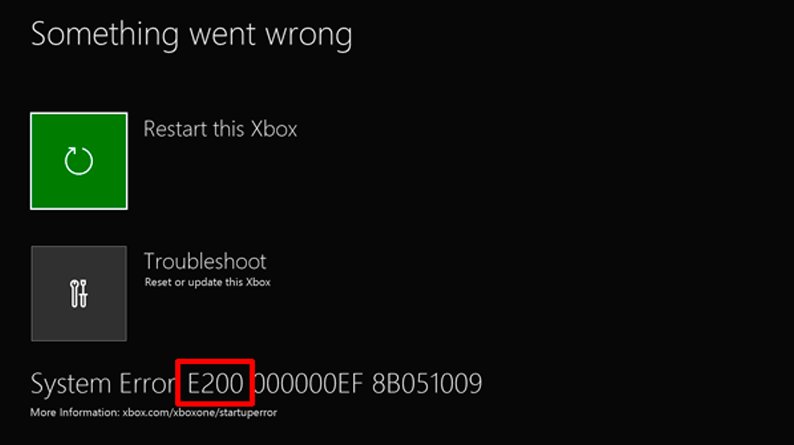
The console shows a startup screen, a black screen or a Something went wrong screen with an E code.
- Note the three digits after the E on the screen.
- Match the code in the error table below.
- Follow the listed steps in order, retrying OSU1 where the table includes it.
Update still fails or errors persist
The system software is damaged beyond what a reinstall of the update fixes.
- Connect to the Xbox network first, if possible, so saves sync.
- Reset the console to factory defaults from Settings, or with a USB flash drive if the console cannot reach the dashboard.
- If the console still fails, request a repair through Xbox Support.
Xbox Something went wrong error codes after an update
Xbox Support maps each startup code to its own sequence. Work through the steps left to right and stop when the console starts.
| Error code | Steps in order |
|---|---|
| E100, E200, E204, E207 | Restart, reset the console, download OSU1, update, factory defaults, repair |
| E101 | Download OSU1, update, repair |
| E102 | Xbox Startup Troubleshooter, factory defaults, offline factory reset, repair |
| E105 | Factory defaults, repair |
| E106, E203, E208, E305 | Reset the console, download OSU1, update, factory defaults, repair |
| E206 | Restart, reset the console, factory defaults, repair |
Additional tips and safety precautions for an Xbox offline update
| Precaution | Reason |
|---|---|
| Download OSU files only from support.xbox.com | The official Xbox Support article names the right file for each console |
| Back up the USB drive before formatting | Formatting to NTFS deletes every file on it |
| Do not cut power during the update | An interrupted system update is one of the causes of startup errors |
| Sync before a factory reset | A reset erases accounts, saved games, settings and home Xbox associations not uploaded to the Xbox network |
| Leave the console online during an outage | An online console reconnects automatically once the network or Xbox service returns |
Xbox offline update FAQ
Can you update an Xbox without internet?
Yes. The Offline System Update lets a Windows PC with internet download the OSU1 file to a 6 GB NTFS USB drive. The console then installs the update from that drive, so the console itself never needs a connection.
What size USB drive do I need for an Xbox offline update?
Use a USB flash drive with at least 6 GB of space formatted as NTFS. Microsoft's offline system update page sets 6 GB as the minimum. Formatting erases the drive, so back up its files first.
Why does my Xbox say I'm offline?
Either the console is set to offline, or your home network, internet provider or the Xbox service has an outage. Check Xbox status first. During an outage, leave the console set to online so it reconnects automatically when service returns.
Why is my Xbox offline after a network outage?
An outage of the home network, your internet provider or the Xbox service takes the console offline until the connection returns. Leaving the console set to online lets it reconnect to the Xbox service automatically as soon as possible.
How to go offline on Xbox?
Xbox consoles have an offline setting that stops the console connecting to any network. You must finish first-time setup online, update the console and add your profile before going offline. Xbox Support covers the setting in Using your Xbox console offline.
How to show offline on Xbox?
Change your online presence in your Xbox activity settings instead of disconnecting. You can set it on the console, on the web, in Game Bar or in the Xbox app, and others will not see when you are online.
How to go offline on Xbox PC?
On a Windows PC, change your online status in the activity settings of the Xbox app for Windows or Game Bar. That hides your presence from friends while you keep playing online.
How to play Xbox games offline?
Make the console your home Xbox. A home Xbox lets you play your digital games offline. Set up the console online first, because setup cannot finish without an internet connection.
How to play Xbox One offline?
Complete setup online, update the console and add your profile, then set the Xbox One to offline. Make it your home Xbox so your digital games keep working without a connection.
Bottom line: when to use an Xbox offline system update
Use the OSU1 offline update when the console cannot download an update itself or shows a startup error code that lists OSU1 as a fix. It reinstalls the system software from a 6 GB NTFS USB drive, and Xbox Support places it before a factory reset, which erases accounts, saves and settings.