Windows 11 as a product has no end of support date yet, but every Windows 11 version does: Home and Pro editions get 24 months of updates per version, Enterprise and Education get 36 months, and Windows 11 24H2 Home and Pro stop receiving updates on October 13, 2026.
This guide lists the end of support date for every Windows 11 version from 21H2 to 26H2, explains how each edition is serviced, and shows how to check your version and move to a supported one.
Windows 11 end of support dates by version
Find your version in the first column and read across to your edition. Dates are the second Tuesday of the month, when the final monthly security update ships.
| Version (OS build) | Released | End of updates: Home, Pro, Pro Education, Pro for Workstations | End of updates: Enterprise, Education, Enterprise multi-session, IoT Enterprise | Status on October 9, 2026 |
|---|---|---|---|---|
| 26H2 (26300) | September 29, 2026 | October 10, 2028 | October 9, 2029 | Supported; newest annual release |
| 26H1 (28000), new devices only | February 10, 2026 | March 14, 2028 | March 13, 2029 (IoT Enterprise not supported on 26H1) | Supported |
| 25H2 (26200) | September 30, 2025 | October 12, 2027 | October 10, 2028 | Supported |
| 24H2 (26100) | October 1, 2024 | October 13, 2026 | October 12, 2027 | Home and Pro end in four days |
| 23H2 (22631) | October 31, 2023 | November 11, 2025 | November 10, 2026 | Home and Pro ended; Enterprise and Education end next month |
| 22H2 (22621) | September 2022 | October 8, 2024 | October 14, 2025 | Ended for all editions |
| 21H2 (22000) | October 2021 | October 10, 2023 | October 8, 2024 | Ended for all editions |
Two Windows 11 versions reached end of support in 2025: 22H2 Enterprise and Education on October 14, 2025, and 23H2 Home and Pro on November 11, 2025. Windows 10 ended on the same October 14, 2025 date.
Moving to 26H2 resets the clock to the 26H2 end of support dates, October 10, 2028 for Home and Pro and October 9, 2029 for Enterprise and Education.
Windows 11 editions and support lifecycles explained
Microsoft releases one Windows 11 feature update a year, in the second half of the calendar year. Each version then gets monthly cumulative security updates on the second Tuesday until its end date.
Feature updates versus monthly updates: a feature update is the annual version change (24H2 to 25H2 to 26H2) and resets the support clock. Monthly quality updates keep a version patched but never extend its end date.
| Edition | Lifecycle policy | Support per version | What to know |
|---|---|---|---|
| Home | Modern Lifecycle | 24 months | Cannot defer feature updates, so it usually gets the next version before the end date. Needs internet and a Microsoft account at first setup. |
| Pro, Pro Education, Pro for Workstations | Modern Lifecycle | 24 months | Same dates as Home. Pro can defer feature updates through device management. |
| SE | Modern Lifecycle | 24 months | 24H2 is the last supported SE version, so SE support ends on October 13, 2026. |
| Enterprise, Education, Enterprise multi-session | Modern Lifecycle | 36 months | One extra year per version for planned rollouts. |
| IoT Enterprise | Modern Lifecycle | 36 months | Not supported on version 26H1. |
| Enterprise LTSC 2024 (based on 24H2) | Fixed Lifecycle | Until October 9, 2029 | No extended support phase after that date. |
| IoT Enterprise LTSC 2024 | Fixed Lifecycle | Until October 10, 2034 | The only Windows 11 edition with extended support. |
How to read these dates: Microsoft's Lifecycle pages show Pacific Time, so some entries appear one day earlier there (October 9, 2028 for 26H2 Home and Pro). The release information page gives the second-Tuesday date used in this guide.
Windows 11 version 26H2 is also the last version that supports PCs with Snapdragon 850 processors.
Is Microsoft ending support for Windows 11?
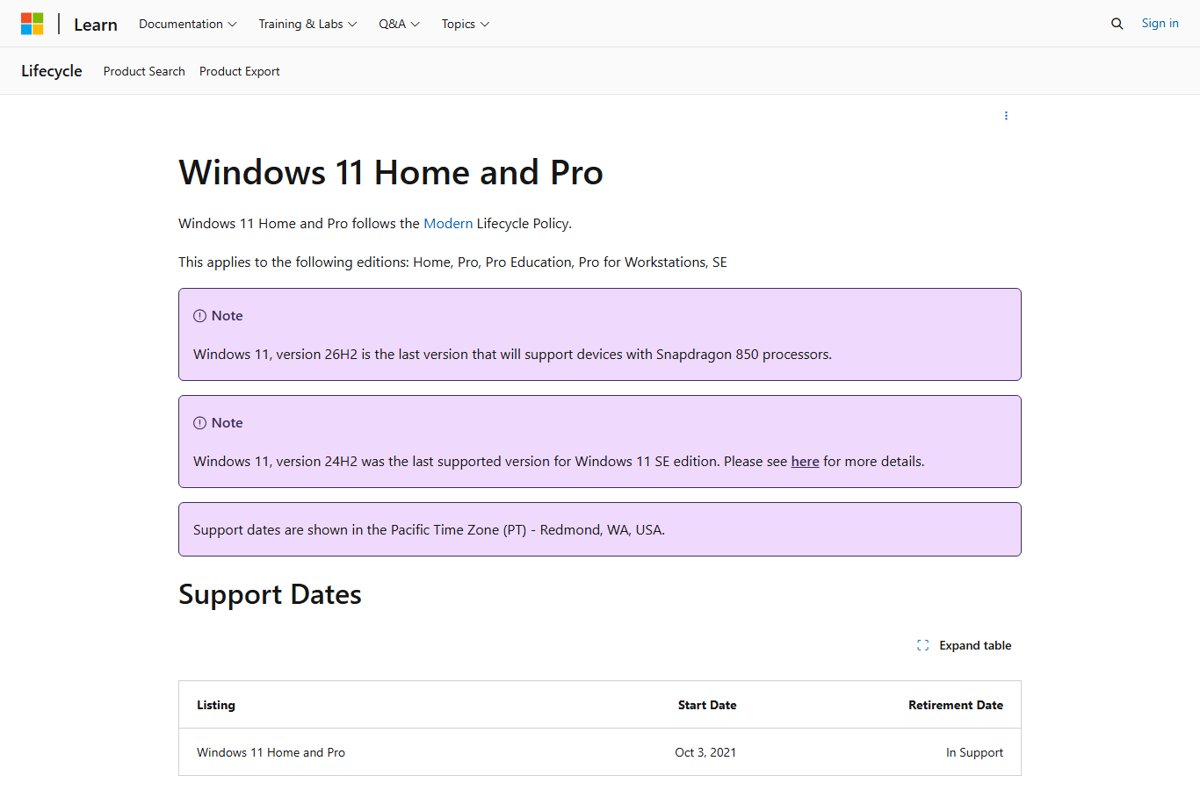
No. Windows 11 Home, Pro, Enterprise and Education are all listed as In Support with no retirement date. Only individual versions expire. As long as you install each annual feature update before your current version reaches its end date, a Windows 11 PC stays supported. The nearest deadline is October 13, 2026 for 24H2 Home and Pro.
What happens when your Windows 11 version reaches end of support
Your PC keeps booting and running apps after the end date. What stops is the flow of fixes, and the gap widens every month.
| Area | After end of support | Impact |
|---|---|---|
| Security and reliability | No monthly security updates, preview updates or fixes for known issues | New vulnerabilities stay open on that PC |
| Time zone changes | No time zone updates | Clocks and calendar entries can drift where rules change |
| Technical support | Microsoft no longer provides assisted support for that version | Support asks you to update first |
| Apps and hardware | Existing programs keep working | Vendors may drop support for older versions over time |
| Business and compliance | The device runs an unsupported OS version | Security baselines and audits that require supported software flag the device |
Home PCs that are not managed by an IT department are moved to a newer version automatically as the deadline approaches. You can choose when to restart or postpone, but not skip the update indefinitely.
How to check your Windows 11 version and edition
Check from Windows Settings first. The About page shows the edition, version and OS build in one place.
- Right-click Start and select Settings.
- Select System.
- Scroll down and select About.
- Under Windows specifications, read Edition (for example Windows 11 Pro) and Version (for example 25H2).
- Match the version and edition to the end of support table above.
Check the Windows 11 version with winver, Command Prompt or PowerShell
Use the winver command when you want the version and build without opening Settings. It works from the Start search box, the Run dialog, Command Prompt and PowerShell.
winverOpens the About Windows box with the version (for example Version 26H2) and the OS build. Type msinfo32 instead to open System Information with the full edition name and hardware details.
You should see: A small window that names Windows 11, the version and an OS build such as 26300.xxxx (26H2), 26200.xxxx (25H2) or 26100.xxxx (24H2).
Windows 11 upgrade options for Home, Pro, Enterprise, and Education devices
Versions 24H2, 25H2 and 26H2 share one servicing branch, so 24H2 and 25H2 PCs move to 26H2 through a small enablement package and a single restart instead of a full reinstall.
| Your device | Recommended upgrade path | Why |
|---|---|---|
| Home or Pro on 24H2 | Install 25H2 or 26H2 from Windows Update before October 13, 2026 | 24H2 Home and Pro updates stop on that date |
| Home or Pro on 25H2 | Take 26H2 when Windows Update offers it | Extends support from October 12, 2027 to October 10, 2028 |
| Home or Pro on 23H2 or older | Upgrade now with Windows Update or the Windows 11 Installation Assistant | Already unsupported since November 11, 2025 |
| Enterprise or Education on 23H2 | Deploy 25H2 or 26H2 before November 10, 2026 | 23H2 enterprise servicing ends next month |
| Enterprise or Education on 24H2 or 25H2 | Plan 26H2 through Windows Update policies, Intune or Windows Autopatch | 26H2 is supported to October 9, 2029 |
| New PC that shipped with 26H1 | Stay on 26H1 and keep monthly updates on | 26H1 uses a different Windows core and cannot take 26H2; Microsoft promises a path in a future release |
| Specialized device on Enterprise LTSC 2024 | Stay on LTSC | No feature updates; supported until October 9, 2029 |
| Windows 10 PC that meets Windows 11 requirements | Upgrade to Windows 11 26H2 | Windows 10 support ended October 14, 2025 |
Windows 11 pre-upgrade checklist: backups, compatibility, and requirements
Run through this list before any version upgrade or a Windows 10 to Windows 11 move. A 24H2 to 26H2 enablement package rarely fails, but a full upgrade from 23H2 or Windows 10 touches far more.
| Check | Requirement | Where to confirm it |
|---|---|---|
| Back up files and recovery options | A current copy of Desktop, Documents, Pictures and settings | Windows Backup app, or Settings > Accounts > Windows backup |
| Processor | 1 GHz or faster, 2 or more cores, compatible 64-bit CPU or SoC | Settings > System > About > Device specifications |
| Memory | 4 GB RAM or more | Settings > System > About |
| Storage | 64 GB or more available, plus room for future updates | Settings > System > Storage |
| Firmware | UEFI, Secure Boot capable | Your PC maker's firmware settings |
| TPM | Trusted Platform Module 2.0 | Your PC maker's specifications or firmware settings |
| Graphics | DirectX 12 compatible with a WDDM 2.0 driver | Your graphics vendor's driver page |
| Windows 10 starting point | Version 2004 or later with the September 14, 2021 security update or later | winver on the Windows 10 PC |
| S mode | Only Home supports S mode; other editions must switch out first | Settings > System > About |
| Apps, security tools and policies | Business apps, VPN and security agents certified for the target version | Each vendor's support page and your IT department |
| Virtual machines | Generation 2 VM with Secure Boot and a virtual TPM; Generation 1 VMs cannot upgrade in place | Your hypervisor's VM settings |
Prepare the device for installation: plug a laptop into power, sign in with an administrator account, and install pending monthly updates first so Windows Update can offer the newer version.
Back up a Windows 11 PC with Windows Backup before upgrading
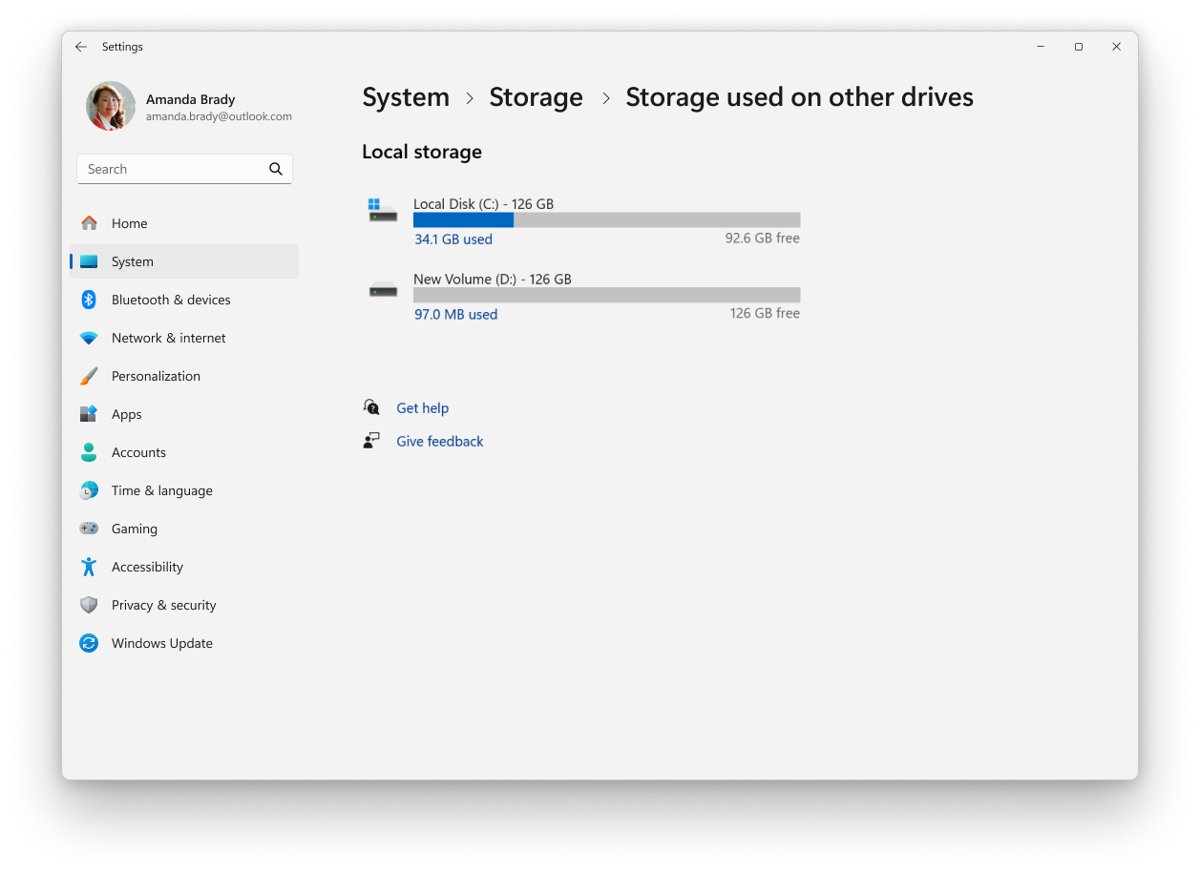
Windows Backup syncs your folders to OneDrive and saves settings and the list of installed apps to your Microsoft account. It works with personal Microsoft accounts, not work or school accounts.
- Open Settings > Accounts > Your info and select Sign in with a Microsoft account instead if you use a local account.
- Select Start, type backup and open Windows Backup.
- Expand Folders and turn on the folders you want copied to OneDrive: Desktop, Documents, Pictures, Videos and Music.
- Expand each settings group, such as Installed apps and Accessibility, and turn on the ones you want saved.
- Select Back up and wait for the backup to finish before you start the upgrade.
A free Microsoft account includes 5 GB of OneDrive storage. Copy large folders to an external drive if they will not fit.
How to update Windows 11 24H2 before October 13, 2026
This is the route for any Home or Pro PC still on 24H2, and it also works for 25H2 PCs that want 26H2 now.
- Select Start > Settings > Windows Update.
- Select Check for updates and install any pending monthly updates.
- Restart if Windows asks, then return to Windows Update and select Check for updates again.
- When the newer version appears, select Download and install.
- Save your work and restart when Windows prompts you, or schedule the restart for later.
- If no offer appears on an x64 PC close to the deadline, run the Windows 11 Installation Assistant from Microsoft's Download Windows 11 page.
The Installation Assistant and the media creation tool only work on x64 PCs. Arm-based PCs use Windows Update or the Arm64 ISO listed on the same Microsoft page.
How to confirm the Windows 11 update installed
- Open Settings > System > About.
- Check that Version under Windows specifications now reads 25H2 or 26H2.
- Press Win + R, type
winverand press Enter. - Confirm the OS build starts with 26200 (25H2) or 26300 (26H2).
- Open Settings > Windows Update and select Check for updates to pick up the latest monthly update for the new version.
Common Windows 11 upgrade problems and how to fix them
Frequent errors and practical fixes, grouped by what you see.
Windows Update does not offer 25H2 or 26H2
Microsoft rolls feature updates out in stages, and a safeguard hold blocks the offer on devices with a known compatibility issue.
- Install every pending update in Settings > Windows Update, restart and select Check for updates again.
- Open the Windows release health page for your version and read the known issues and safeguard holds.
- Update the drivers named in any safeguard hold from your PC maker's support page.
- If you are on 24H2 Home or Pro and the deadline is close, use the Windows 11 Installation Assistant on an x64 PC.
The PC fails the Windows 11 hardware check
The processor, TPM 2.0, Secure Boot, memory or storage falls below the Windows 11 minimum.
- Compare the PC against the requirements in the pre-upgrade checklist above.
- Look up your PC model on the maker's support site to see whether it has a TPM 2.0 chip.
- Check your PC maker's support page for a firmware setting that turns on the TPM or Secure Boot.
- If the hardware is genuinely below the minimum, plan a replacement PC rather than forcing an unsupported install.
Windows 11 Installation Assistant will not run
The Installation Assistant only supports x64 processors.
- Open Settings > System > About and check the processor under Device specifications.
- On an Arm-based PC, use Settings > Windows Update instead.
- For a clean install on Arm, use the Arm64 ISO linked from Microsoft's Download Windows 11 page.
Not enough disk space for the update
Windows 11 needs 64 GB or more, and feature updates need extra free space to install.
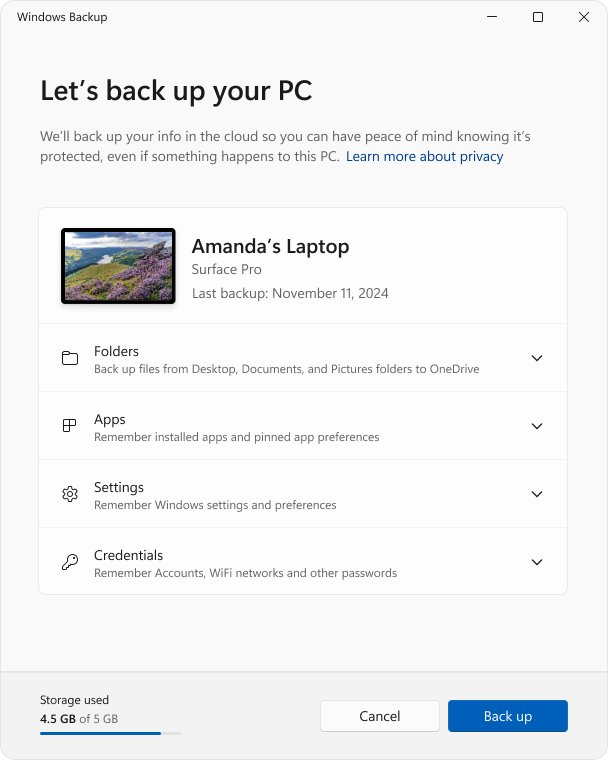
- Open Settings > System > Storage.
- Select Advanced storage settings > Storage used on other drives to see free space on every drive.
- Move large personal files to an external drive or OneDrive.
- Run Check for updates again once space is freed.
Windows 10 Pro in S mode cannot upgrade to Windows 11
Windows 11 supports S mode on the Home edition only.
- Confirm the edition in Settings > System > About.
- Switch the PC out of S mode while it has an internet connection.
- Run the upgrade again from Settings > Windows Update.
- Plan for the change being permanent: a PC cannot return to S mode after switching out.
A 26H1 PC never gets the 26H2 update
26H1 is built on a different Windows core and is not offered an in-place update to 26H2.
- Leave the PC on 26H1; it is supported until March 14, 2028 on Home and Pro.
- Keep Windows Update on so monthly security updates install.
- Wait for the future release Microsoft has said will give 26H1 devices an update path.
A Windows virtual machine cannot upgrade to Windows 11
Generation 1 virtual machines cannot be upgraded in place.
- Create a Generation 2 virtual machine with Secure Boot and a virtual TPM turned on.
- Give it at least 2 virtual processors, 4 GB of memory and 64 GB of storage.
- Install Windows 11 from the ISO and move your data across.
Windows 10 end of support date and Extended Security Updates
Windows 10 reached end of support on October 14, 2025. Version 22H2 was its final version, and Microsoft's Modern Lifecycle Policy ends support when the final version's servicing period ends.
| Question | Windows 10 | Windows 11 |
|---|---|---|
| Support status | Ended October 14, 2025 | In support; each version has its own end date |
| Free security updates | No | Yes, monthly, on a supported version |
| Paid extension | Extended Security Updates (ESU) for version 22H2, sold one year at a time | Not needed; install the next annual version |
| ESU for organizations | $61 per device for Year One, doubling each year, for up to three years | Not applicable |
| What ESU includes | Critical and Important security updates only; no new features or general technical support | Not applicable |
A Windows 10 PC keeps working without ESU, but it receives no security fixes. Upgrade it to Windows 11 if it meets the requirements.
Windows 11 end of support FAQ
Is Microsoft ending support for Windows 11?
No. Microsoft lists Windows 11 Home, Pro, Enterprise and Education as in support with no retirement date. Only individual versions reach end of support, so installing each annual feature update keeps a Windows 11 PC supported.
When is Windows 11 end of support?
It depends on your version and edition. Windows 11 24H2 Home and Pro end on October 13, 2026, 25H2 on October 12, 2027 and 26H2 on October 10, 2028. Enterprise and Education get one extra year for each version.
When does Windows 11 24H2 support end?
Windows 11 24H2 Home and Pro editions reach end of updates on October 13, 2026. Enterprise, Education and IoT Enterprise editions of 24H2 stay supported until October 12, 2027. Enterprise LTSC 2024, which is based on 24H2, runs until October 9, 2029.
When does Windows 11 25H2 support end?
Windows 11 25H2 Home and Pro editions are supported until October 12, 2027. Enterprise, Education and IoT Enterprise editions of 25H2 are supported until October 10, 2028. Installing 26H2 extends both dates by a year.
When did Windows 11 23H2 support end?
Windows 11 23H2 Home and Pro editions reached end of updates on November 11, 2025. Enterprise and Education editions of 23H2 remain supported until November 10, 2026, so organizations still on 23H2 should deploy 25H2 or 26H2 now.
Which Windows 11 versions reached end of support in 2025?
Two did. Windows 11 22H2 Enterprise and Education ended on October 14, 2025, and Windows 11 23H2 Home and Pro ended on November 11, 2025. Windows 10 also reached end of support on October 14, 2025.
What happens if I keep using a Windows 11 version after support ends?
The PC keeps working, but it stops receiving monthly security updates, fixes for known issues, time zone updates and technical support. New vulnerabilities stay unpatched, and app and hardware vendors may stop supporting that version over time.
Is Windows 10 end of support?
Yes. Windows 10 reached end of support on October 14, 2025, and version 22H2 was its final release. PCs still receive security updates only if they are enrolled in the paid Extended Security Updates program, which requires version 22H2.
Why did Windows 10 reach end of support?
Windows 10 follows Microsoft's Modern Lifecycle Policy, and version 22H2 was announced as its final feature update. Support ended when the 22H2 servicing period closed on October 14, 2025, and Microsoft directs users to Windows 11 for continued updates.
Can an older PC upgrade to a supported Windows 11 version?
Yes, if it meets the Windows 11 requirements: a compatible 64-bit processor with two or more cores, 4 GB of RAM, 64 GB of storage, UEFI with Secure Boot and TPM 2.0. A Windows 10 PC also needs version 2004 or later.
What should I do before upgrading Windows 11 in a business or school environment?
Confirm your line-of-business apps, VPN and security agents support the target version, check release health for safeguard holds, and pilot the update on a small group first. Then deploy through Windows Update policies, Intune or Windows Autopatch before the current version's end date.
Bottom line: when to upgrade before Windows 11 end of support
Move every Windows 11 24H2 Home and Pro PC to 25H2 or 26H2 before October 13, 2026, and move Enterprise and Education PCs off 23H2 before November 10, 2026. Windows 11 itself is not ending, but each version is. 26H2 gives the longest runway, to October 2028 on Home and Pro and October 2029 on Enterprise and Education, and on 24H2 or 25H2 it installs as a small enablement package with one restart.