To update Microsoft Teams on Windows 11 or Windows 10, select Update at the top of the Teams window, then select Update and restart Teams; with no banner showing, open Settings and more > Settings > About Teams and select Update now.
This guide covers the manual and Microsoft Store routes, what to do about classic Teams, how updates work on managed work or school PCs, how to confirm the new version, and fixes for Teams that will not update.
Update Microsoft Teams with Update and restart Teams
Teams downloads updates on its own and installs them when the app is idle. When an update is waiting, a notice appears at the top of the Teams window, and you can apply it straight away.
- Open Microsoft Teams on your Windows 11 or Windows 10 PC.
- Look for the update notice at the top of the Teams window.
- Select Update.
- Select Update and restart Teams.
- Wait for Teams to close, install the update and reopen.
- If Teams does not reopen by itself, open it again from the Start menu.
A restart of the app is required for any Teams update to take effect, so the new version is not active until Teams reopens.
Which Microsoft Teams update method fits your PC?
| Your situation | Use this | Why |
|---|---|---|
| An update notice shows at the top of Teams | Update > Update and restart Teams | The update is already downloaded and only needs a restart |
| No notice, but you want to check now | Settings and more > Settings > About Teams | Shows your version and an Update now option when one is waiting |
| Teams was installed from Microsoft Store | Microsoft Store > Library > Get updates | Pulls any pending Store app updates in one pass |
| You still have classic Teams | Install the new Teams app | Classic Teams stopped working on July 1, 2025 and gets no updates |
| Work or school PC managed by IT | Let Teams update itself, or ask your IT admin | Updates arrive automatically; install rights may be locked |
| Teams says it needs an update and blocks you | Select Update now, or use Teams on the web meanwhile | Clients more than three months old see a blocking page |
Check which version of Microsoft Teams you have
Microsoft Teams (free) and Microsoft Teams (work or school) show the version in the same place. Classic Teams reached end of availability on July 1, 2025, so a Teams desktop app that still signs you in on Windows is the new Teams.
- Open Microsoft Teams.
- Select Settings and more (…).
- Select Settings.
- Select About Teams.
- Read the number under Version.
- Note whether an Update now option appears below it.
If Teams opens only a notice that classic Teams is no longer available, you are on the old client and need the new app instead of an update.
Update the new Microsoft Teams app manually
The new Teams checks for updates when it starts and every few hours in the background, whether it is running or not. You must be signed in to Windows for those checks to happen. Use this route when you want the latest build now instead of waiting for an idle period.
- Open Microsoft Teams and sign in.
- Select Settings and more > Settings > About Teams.
- Select Update now if it appears under Version.
- If a Restart button appears next to the Settings and more (…) button, select it to apply the downloaded update sooner.
- Let Teams close and reopen, then return to About Teams to confirm the version changed.
No Update now option and no Restart button usually means you already have the latest version available to your PC. Microsoft releases a new Teams desktop build twice a month and staggers the rollout, so a colleague can receive a build a few days before you do.
Update Microsoft Teams through the Microsoft Store
The new Teams is packaged as an MSIX app, and Microsoft Store can install pending updates for Store apps in one pass. Teams still runs its own updater, so the Store route is a second check rather than a replacement for the in-app update.
- Select Start, then search for and open Microsoft Store.
- Select Library.
- Select Get updates.
- Wait for the list of pending updates to install.
- Open Teams and check About Teams for the new version.
To keep Store apps current without visiting the Library page, select your profile picture > Store Settings and make sure App updates is turned on. The same Library page lets you update Microsoft Store apps manually when automatic updates are paused.
Update classic Microsoft Teams on Windows 11/10
Classic Teams cannot be updated any more. Microsoft ended support for it on July 1, 2024, and from July 1, 2025 the classic client no longer works, including in VDI. The only way forward is to install the new Teams app.
- Right-click the Teams icon on the taskbar and select Quit to close classic Teams.
- Download the new Teams installer from Microsoft's official Teams download page.
- Run the installer and follow its prompts.
- Open the new Microsoft Teams from the Start menu and sign in with the same account.
- Select Settings and more > Settings > About Teams to confirm you are on the current version.
The Microsoft Teams download for Windows 11/10 page lists the official installers if you need a fresh copy. After the new app is installed, it keeps itself up to date automatically.
If you cannot install software on a work PC, ask your IT admin to deploy the new Teams, and use Teams on the web in a supported browser until then.
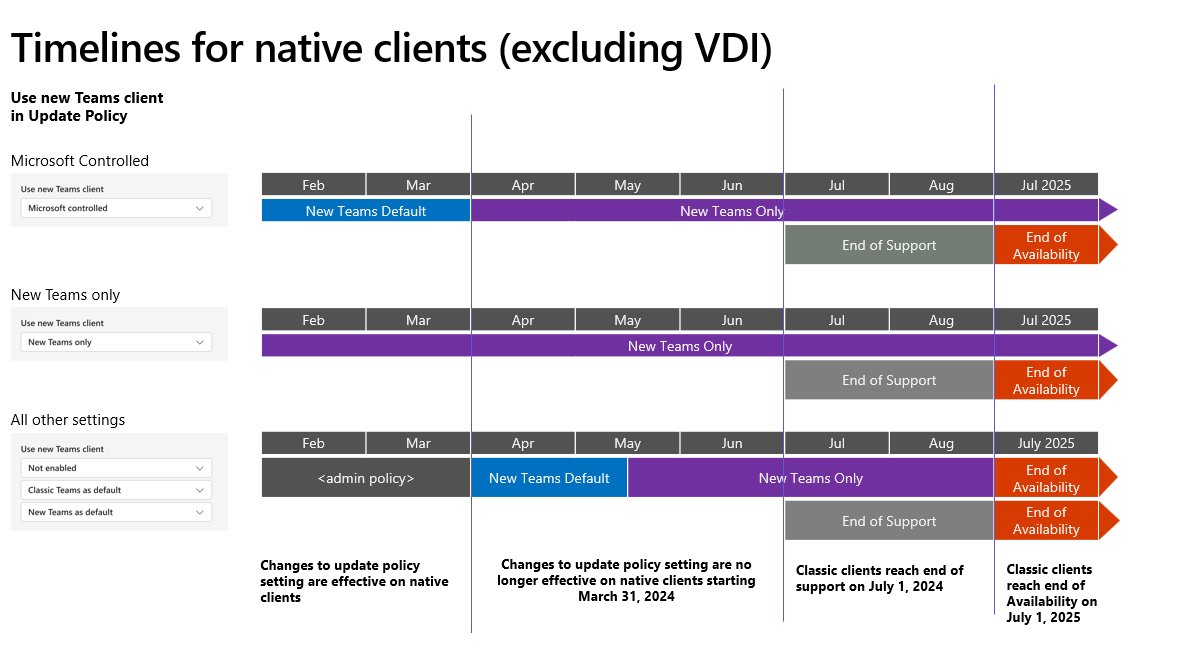
Verify the installed Teams version after updating
- Close Teams fully and open it again so the update is active.
- Select Settings and more > Settings > About Teams.
- Compare the number under Version with the one you noted before updating.
- Confirm that no Update now option is shown and no update notice sits at the top of the window.
- Select Help > What's new to see the features delivered with recent builds.
On a managed PC, your IT admin can compare your version against the build announced in the Microsoft 365 admin center Message Center.
Update Teams in work or school managed environments
On a work or school PC, Teams still updates itself, but company network and device settings decide whether the download succeeds. These are the conditions Microsoft documents for reliable Teams updates on Windows.
| What affects updates | What Microsoft requires | Who fixes it |
|---|---|---|
| Windows version | Windows 10 version 10.0.19041 or later; Windows LTSC is not supported for the desktop app | IT admin |
| Windows patches | The latest Windows updates installed before Teams is deployed | You or IT admin |
| Delivery Optimization | Service running and not set to Download Mode 100 (Bypass) | IT admin |
| Network and firewall | Microsoft 365 endpoints allowed and not SSL-inspected | IT admin |
| WebView2 | Kept on the latest version and not blocked | IT admin |
| Teams app files | Files under %programfiles%\windowsapps left unchanged | IT admin |
| Install rights | A user without install permission needs IT to deploy the new Teams | IT admin |
If Teams on a managed PC shows an update notice, apply it with Update and restart Teams like any other user. If the notice keeps returning or Teams warns that it is out of date, report it to your IT admin with the version from About Teams.
Fix Microsoft Teams not updating
Microsoft Teams says it needs an update
Your Teams build is between one and three months old, or older than three months, which triggers a blocking page.
- Select Update now on the alert or blocking page.
- Let Teams restart and check About Teams for the new version.
- If the update cannot run, select the option to continue to Teams on the web so you can keep working.
- On a work or school PC, select the option to contact your IT admin and give them your current version.
The manual update option is not visible in Teams
New Teams has no permanent Check for updates menu item; it only shows Update now or a Restart button when an update is ready.
- Open Settings and more > Settings > About Teams and read the Version.
- Quit Teams from the taskbar icon, then reopen it to trigger a fresh update check.
- Return to About Teams after a few minutes and look for Update now.
- If nothing appears, you already have the newest build released to your PC.
Teams downloads an update but stays on the old version
The update applies only after Teams restarts, and it waits for the app to be idle.
- Select the Restart button next to Settings and more (…) if it is showing.
- Or right-click the Teams icon on the taskbar and select Quit.
- Open Teams again from the Start menu.
- Check the version in About Teams.
Teams update fails or the app crashes after updating
Outdated Windows, a blocked Delivery Optimization service or a damaged Teams package stops the updater.
- Select Start > Settings > Windows Update > Check for updates and install everything offered.
- Open Settings > Apps > Installed apps (on Windows 10, Apps > Apps & features).
- Find Microsoft Teams, select the More options button (…) and select Advanced options.
- Select Repair if it is available, then reopen Teams.
- If Teams still fails, select Reset on the same page; this deletes the app data, including your personal Teams settings.
- If the problem continues on a work PC, ask your IT admin to check Delivery Optimization and network settings.
Teams keeps loading the old interface after an update
Stale local cache files, which Microsoft recommends clearing only for local client problems, not for missing chats or messages.
- Right-click the Teams icon on the taskbar and select Quit.
- Press Windows logo key + R to open the Run dialog box.
- Enter
%userprofile%\appdata\local\Packages\MSTeams_8wekyb3d8bbwe\LocalCache\Microsoft\MSTeamsand select OK. - Delete all files and folders in that directory.
- Restart Teams and allow extra time while the cache rebuilds.
Teams says classic Teams is no longer available
Classic Teams reached end of availability on July 1, 2025, and the move to new Teams did not complete on your PC.
- Install the new Teams app from Microsoft's official download page.
- If the message mentions your operating system, install Windows updates or move to a supported Windows version.
- If the message mentions org policy, contact your IT department to deploy new Teams.
- Use Teams on the web in a supported browser until the new app is installed.
Microsoft Teams update FAQ for Windows
How do I update Microsoft Teams on Windows 11?
Select Update at the top of the Teams window, then Update and restart Teams. If no notice is showing, open Settings and more > Settings > About Teams and select Update now. Teams closes, installs the update and reopens.
How do I update Microsoft Teams on Windows 10?
The steps are the same as on Windows 11: use the update notice at the top of Teams or About Teams > Update now. Your PC needs Windows 10 version 10.0.19041 or later, and Windows 10 LTSC editions are not supported for the Teams desktop app.
How do I update Microsoft Teams on a laptop?
A Windows laptop updates Teams exactly like a desktop PC. Keep the laptop signed in and connected so Teams can check for updates in the background, then select Update and restart Teams when the notice appears at the top of the window.
Does Microsoft Teams update automatically?
Yes. Teams checks for updates when it starts and every few hours in the background, downloads them, and installs them when the app is idle. A new desktop build is released twice a month, and critical fixes can arrive outside that schedule.
Does Windows Update update Microsoft Teams?
No, Teams uses its own updater, which downloads only the changed parts of the app through Windows Delivery Optimization. Keeping Windows Update current still matters, because an unpatched or unsupported Windows version lowers the success rate of Teams updates.
What does 'Microsoft Teams needs an update' mean?
It means your Teams desktop app is out of date. Builds between one and three months old show an in-app alert, while builds older than three months show a blocking page with options to update now, contact your IT admin, or continue in Teams on the web.
Can I update Teams on a work or school computer?
Yes, if Teams shows an update notice you can apply it yourself with Update and restart Teams. If you cannot install software, or company network settings block the download, your IT admin has to deploy or fix the update.
Do I need to update the Teams web app?
No. Teams on the web is always on the current version, so there is nothing to install. It is a useful fallback when the desktop app is blocked by an outdated version.
Does updating Teams also update Microsoft Office?
No. The Teams desktop app updates itself separately from Word, Excel and Outlook, which follow their own Microsoft 365 update channel.
Bottom line on updating Microsoft Teams in Windows 11/10
Leave Teams to update itself, and select Update and restart Teams whenever the notice appears; use About Teams to force a check and the Microsoft Store Library as a backup. Teams installs a new build twice a month and blocks clients more than three months old, so applying the waiting update promptly keeps calls, chats and meetings working without interruption.

![OneDrive icons meaning [all symbols explained in 2026]](https://techdows.com/wp-content/uploads/2026/10/OneDrive-Files-On-Demand-setup-screen-showing-cloud-and-green-check-icons-518x338.jpg)