To disable Nahimic service in Windows 11 or 10, open Services, set the Nahimic entry's Startup type to Disabled and click Stop; to remove it for good, uninstall the Nahimic app, its software component and its driver package.
This guide covers the Services and PowerShell routes, startup entries, a full uninstall, and the two policies that stop Windows Update putting Nahimic back.
Disable Nahimic service from Windows Services
This is the quickest reversible fix. The service stops now and does not start again at the next boot, while the app and driver stay on the PC.
- Press Win + R, type
services.mscand press Enter. - Click the Name column header to sort the list, then find the entry with Nahimic in its name.
- Double-click it to open its properties.
- Set Startup type to Disabled.
- Click Stop under Service status, then click Apply and OK.
- Restart the PC. The service should show a blank status and a Disabled startup type.
A disabled service cannot be started by a user or an app until you change its startup type again, so the Nahimic app may report that it cannot connect. That is expected.
What is Nahimic service and is it safe?
Nahimic is SteelSeries audio software that PC makers preinstall on selected gaming laptops and motherboards, including MSI, Lenovo Legion and ASRock models. The nahimicservice.exe process explained in more depth covers the file itself, so this table only keeps what matters for removal.
| Part | What it is | Safe to remove? |
|---|---|---|
| Nahimic app | The control panel for sound effects, surround and voice settings | Yes. Your speakers and headset keep working through the base audio driver. |
| Nahimic service | A Windows service that runs in the background for the app and its effects | Yes to disable. Nothing in Windows depends on it. |
| Software component | A separate driver package Windows installs alongside the audio driver to deliver the app and service | Yes. Microsoft states software components are not needed for basic device functionality. |
| Audio processing object (APO) | The plug-in that applies Nahimic effects inside the Windows audio engine | Yes, but it is removed with the driver package, not from Services. |
Nahimic itself is legitimate OEM software, not malware. A copy running from an unusual folder on a PC that never shipped with Nahimic is a different matter and deserves a Microsoft Defender scan.
When you should disable or remove Nahimic
Common signs Nahimic is active are a Nahimic entry in Services, a Nahimic app in Installed apps, and Nahimic devices in Device Manager. Good reasons to act depend on what you want to keep.
| Your situation | Do this | Why |
|---|---|---|
| You want to test whether Nahimic causes crackling, stutter or app conflicts | Disable the service only | One change, fully reversible in a minute |
| You never use the Nahimic app and want it gone | Uninstall the app and its software component | Removes the service and the app together |
| Sound effects still apply after the app is gone | Delete the Nahimic driver package with pnputil | The effects live in a driver package, not the app |
| Nahimic returns after every Windows Update | Block the device ID or exclude drivers from Windows Update | Windows treats the component as a driver and reinstalls it |
| You use Nahimic surround or mic effects | Leave it installed, or turn individual effects off in the app | Removal takes those features away |
Disable Nahimic service using Windows Terminal or PowerShell
Use this when Services will not let you change the startup type, or when you set up several PCs. Right-click Start, select Terminal (Admin) or Windows PowerShell (Admin), and run the command. It finds the service by display name, so you do not need its exact service name.
Get-Service -DisplayName *Nahimic* | Stop-Service -PassThru | Set-Service -StartupType DisabledGet-Service finds every service whose display name contains Nahimic, Stop-Service stops it, and Set-Service sets its startup type to Disabled so it stays off after a restart. To check the result, run Get-Service -DisplayName *Nahimic* | Select-Object Name, StartType, Status. From Command Prompt, the equivalent is sc.exe config <service name> start= disabled, with the space after the equals sign that sc.exe requires.
You should see: No error is returned, and the check command lists the Nahimic service with StartType Disabled and Status Stopped.
Stop Nahimic from launching at startup
Some Nahimic builds add a tray or companion app to startup on top of the service. Turn that off as well, or the app relaunches at sign-in and complains that the service is missing.
- Select Start > Settings > Apps > Startup.
- Find any entry with Nahimic in the name.
- Set its toggle to Off.
- Alternatively, right-click Start, select Task Manager and open the Startup apps tab.
- Select the Nahimic entry and click Disable.
- Sign out and back in. The Nahimic app should no longer appear in the notification area.
Uninstall Nahimic apps, components, and audio drivers
A full uninstall has three parts: the app, the software component that delivers the service, and any Nahimic audio device entries. Do all three in this order, then restart once at the end.
- Uninstall Nahimic from Settings: select Start > Settings > Apps > Installed apps, find Nahimic, select More (the three dots) > Uninstall.
- If it is missing there, use Control Panel for older driver packages: open Control Panel > Programs > Programs and Features, right-click the Nahimic entry and select Uninstall or Uninstall/Change.
- Remove Nahimic audio devices from Device Manager: right-click Start and select Device Manager.
- Expand Software components, right-click each entry with Nahimic in the name and select Uninstall device. If the dialog offers to remove the driver as well, tick that box before you confirm.
- Expand Sound, video and game controllers and repeat for any Nahimic entry there. Leave your main Realtek, Intel or other audio device alone.
- On Windows 11, also check any audio processing object category in Device Manager for a Nahimic entry and uninstall it the same way.
- Restart the PC. Your normal speakers and headphones should still appear in Settings > System > Sound.
Microsoft's driver documentation states that a software component can be uninstalled by the user independently from the parent audio device, so removing it does not take your sound driver with it.
Delete the Nahimic driver package with pnputil
Uninstalling a device in Device Manager can leave its driver package in the Windows driver store, and Windows reinstalls from there on the next hardware scan. pnputil deletes the package itself. It needs an administrator Terminal and Windows 10 version 1607 or later.
First run pnputil /enum-drivers and find each package whose original name or provider mentions Nahimic. Note its published name, which looks like oem12.inf.
pnputil /delete-driver oem12.inf /uninstallReplace oem12.inf with the published name you noted. /delete-driver removes the package from the driver store, and /uninstall first removes it from any device still using it. Repeat for every Nahimic package. Avoid /force unless the command refuses, because it deletes a package even while devices use it.
You should see: pnputil reports that the driver package was deleted, and running /enum-drivers again no longer lists it.
Prevent Nahimic from reinstalling after updates
Nahimic comes back because PC makers publish it through Windows Update as a driver attached to your audio hardware. Microsoft's driver documentation describes software components and audio processing objects as separate driver packages that Windows services like any other device. Two Group Policy settings stop that; both need Windows 11 or 10 Pro, Enterprise or Education.
The first blocks only Nahimic. Before you uninstall the component, open its Properties in Device Manager, go to the Details tab, choose Hardware Ids and copy the most detailed value.
- Press Win + R, type
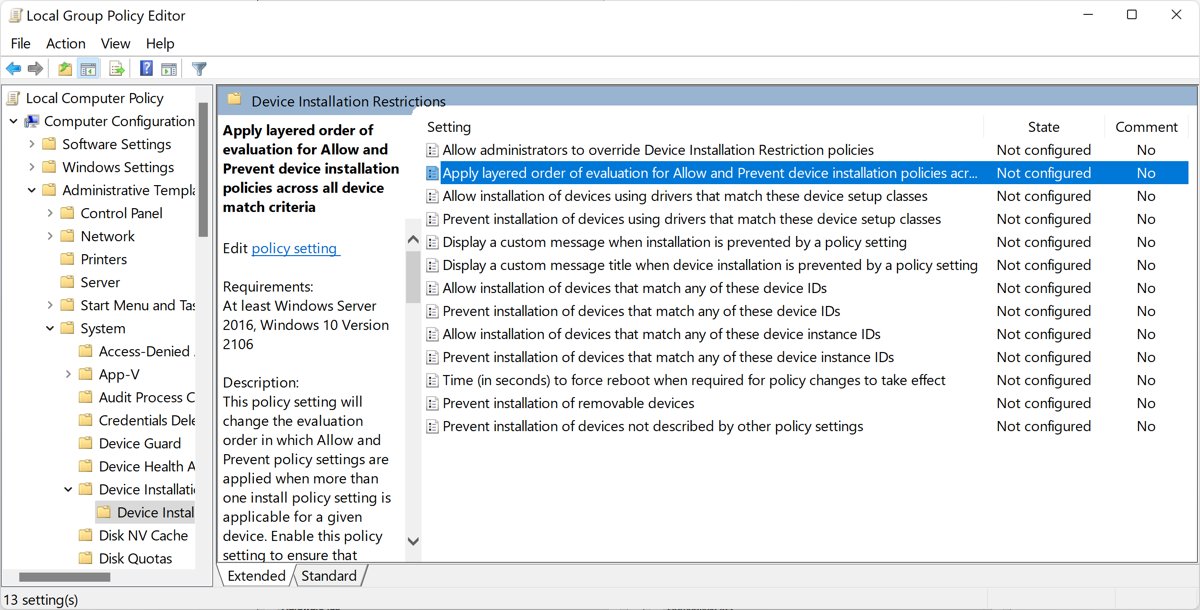
gpedit.mscand press Enter. - Go to Computer Configuration > Administrative Templates > System > Device Installation > Device Installation Restrictions.
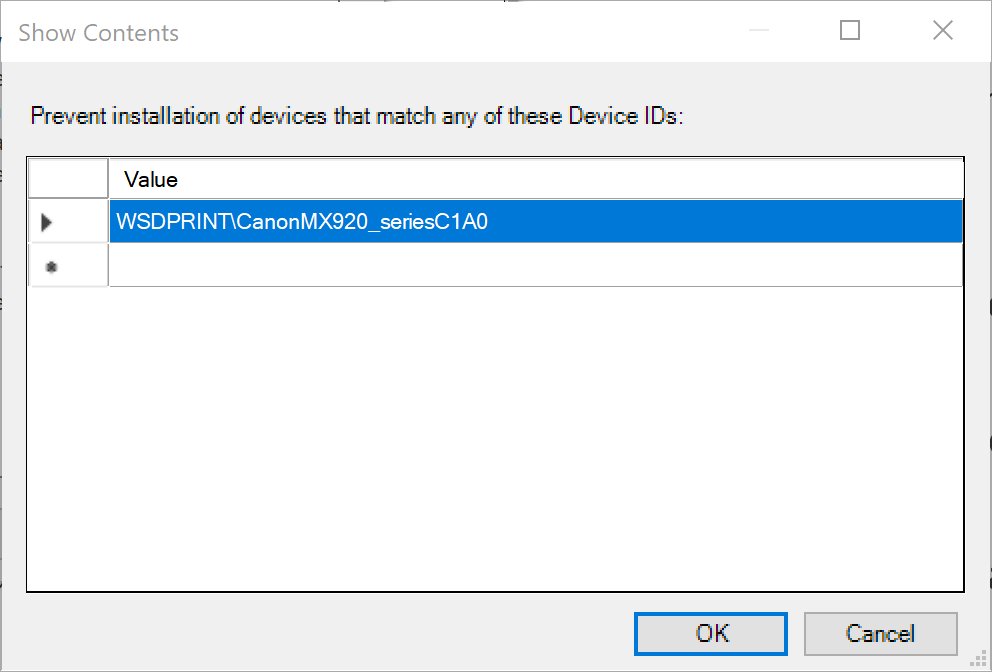
- Open Prevent installation of devices that match any of these device IDs, select Enabled, click Show and paste the Nahimic hardware ID.
- Tick Also apply to matching devices that are already installed if the component is still present, then click OK.
- To stop all driver installs from Windows Update instead, go to Computer Configuration > Administrative Templates > Windows Components > Windows Update > Manage updates offered from Windows Update and enable Do not include drivers with Windows Updates.
- Restart the PC so both policies apply.
The second policy is a blunt tool: it also stops graphics, Wi-Fi and chipset driver updates from Windows Update, so you then update those from your PC maker's support page. On Windows Home, there is no Group Policy Editor; after a removal, avoid installing Nahimic entries listed under optional driver updates in Windows Update, because optional drivers are not installed automatically.
Check that Nahimic service is disabled or removed
- Open
services.msc. A disabled service shows Disabled; a fully removed one no longer appears in the list. - Run
Get-Service -DisplayName *Nahimic*in PowerShell. No output means the service is gone. - Open Task Manager, go to the Details tab and confirm no Nahimic process is running.
- In Device Manager, expand Software components and Sound, video and game controllers. No Nahimic entry should remain.
- Run
pnputil /enum-driversand confirm no Nahimic package is listed. - Play a video or song to confirm sound still works through your normal output device.
Nahimic keeps coming back or sound breaks after removal
Nahimic reinstalls itself after a restart or Windows Update
The driver package is still in the driver store, or Windows Update delivered the component again.
- Run
pnputil /enum-driversand delete every Nahimic package withpnputil /delete-driver <oem#.inf> /uninstall. - Enable Prevent installation of devices that match any of these device IDs with the Nahimic hardware ID.
- Restart and check Software components in Device Manager again.
No sound after uninstalling Nahimic audio drivers
The main audio device was removed along with the Nahimic entries, or its driver was damaged.
- Open Device Manager, expand Sound, video and game controllers, right-click your audio device and select Uninstall device, then confirm.
- Restart the PC. Windows automatically reinstalls the audio driver.
- If sound is still missing, right-click the device, select Update driver > Search automatically for drivers, or install the audio driver from your PC maker's support page.
Nahimic service cannot be deleted or the Uninstall option is missing
Nahimic was installed as a driver component, not as a normal program, so it has no uninstaller entry.
- Disable the service in Services so it stops running immediately.
- Remove the Nahimic entries under Software components in Device Manager.
- Delete the driver package with pnputil. The service is removed with the package that installed it.
Startup type is greyed out or Access is denied
The console or Terminal is not running with administrator rights.
- Close Services or Terminal.
- Right-click Start and open Terminal (Admin), then approve the User Account Control prompt.
- Run the PowerShell command from the Windows Terminal section again.
Re-enable Nahimic service or reinstall Nahimic
- If you only disabled it, open
services.msc, set the Nahimic entry's Startup type back to Automatic and click Start. - Or run
Get-Service -DisplayName *Nahimic* | Set-Service -StartupType Automaticin an administrator Terminal, thenGet-Service -DisplayName *Nahimic* | Start-Service. - If you blocked the hardware ID, set Prevent installation of devices that match any of these device IDs back to Not Configured.
- Reinstall the audio driver package from your PC or motherboard maker's support page; it brings the Nahimic component and app back.
- Restart the PC and open the Nahimic app to confirm it connects.
Nahimic service removal FAQ
How do I disable Nahimic service?
Press Win + R, run services.msc, open the Nahimic entry, set Startup type to Disabled, click Stop and then OK. From an administrator PowerShell, Get-Service -DisplayName *Nahimic* piped to Stop-Service and Set-Service -StartupType Disabled does the same.
How do I delete Nahimic service?
The service is installed by a Nahimic driver package, so it goes when the package goes. Uninstall the Nahimic entries under Software components in Device Manager, then delete the package with pnputil /delete-driver and its oem number from an administrator Terminal.
How do I uninstall Nahimic in Windows 11?
Open Settings > Apps > Installed apps, select More next to Nahimic and choose Uninstall. Then remove Nahimic entries under Software components in Device Manager and restart. If Nahimic is not listed in Installed apps, Device Manager and pnputil handle the whole removal.
How do I completely uninstall Nahimic?
Uninstall the app, remove the Nahimic software component and device entries in Device Manager, delete the driver package with pnputil, and block its hardware ID with Group Policy. Skipping the last two steps is why Nahimic usually reinstalls itself.
How do I permanently remove Nahimic?
Remove the app and driver package, then enable the Prevent installation of devices that match any of these device IDs policy with the Nahimic hardware ID. Windows Update can then no longer reinstall that component, while your other drivers keep updating normally.
Can I delete Nahimic?
Yes. Nahimic is optional audio enhancement software, and Microsoft describes software components like it as not necessary for basic device functionality. Your speakers and headphones keep working through the base audio driver; you only lose Nahimic's surround, equaliser and voice effects.
Will disabling Nahimic service break my audio?
No. Disabling the service stops the Nahimic app and its background features, but sound keeps playing through your normal audio driver. If sound stops after a full uninstall, the main audio device was removed by mistake; restarting usually makes Windows reinstall it.
Why does Nahimic come back after I remove it?
PC makers ship Nahimic through Windows Update as a driver component linked to the audio hardware. When Windows finds the hardware without that driver, it installs the component again. Deleting the driver package and blocking its hardware ID stops the cycle.
Is Nahimic service needed on Windows 10?
No. Windows 10 plays sound without it. On Windows 10 the Nahimic effects plug-in installs as a software component; on Windows 11 it installs as an audio processing object. In both cases removing it leaves the basic audio driver in place.
Bottom line: disable or uninstall Nahimic service?
Disable the Nahimic service first; uninstall the app, component and driver package only if you never use its effects, and add the hardware ID block if it keeps returning. Disabling is a one-minute, reversible test that shows whether Nahimic causes your audio or performance problem. A full removal is permanent only when the driver package is deleted and Windows Update is stopped from delivering it again.

![OneDrive icons meaning [all symbols explained in 2026]](https://techdows.com/wp-content/uploads/2026/10/OneDrive-Files-On-Demand-setup-screen-showing-cloud-and-green-check-icons-518x338.jpg)