Windows takes forever to shut down when it is installing updates, when an app or service will not close, or when a driver or device does not respond to the power-off request.
This guide explains each cause, then shows how to find the culprit with Task Manager and Event Viewer and fix it with updates, power settings, a clean boot, SFC and DISM on Windows 11 and Windows 10.
The fastest way to fix a slow shutdown
Start with the checks that solve most cases and need no special tools.
- If the screen says Windows is working on updates, leave the PC on and plugged in until it finishes.
- Next time, save your work and close every open app before you shut down.
- Select Start > Settings > Windows Update > Check for updates and install everything, then restart.
- Unplug USB drives, docks and other peripherals you do not need, then shut down again.
- If shutdown is still slow, run a clean boot as described below to find the app or service that holds it up.
Common Reasons Windows Takes Forever to Shut Down
Microsoft notes that multiple factors can make Windows shut down more slowly than usual. They fall into four groups.
| Cause | What you usually see | Where to fix it |
|---|---|---|
| Background apps and services are still running | "This app is preventing shutdown" or a long Shutting down screen | Task Manager, clean boot |
| Updates are pending or stuck | Working on updates or a percentage counter | Windows Update and its troubleshooter |
| Drivers and hardware may not respond quickly | Delay only with a dock, drive or device attached | Device Manager, unplug peripherals |
| Power features can create unexpected delays | Delay only on shutdown, not on restart | Fast startup setting in Power Options |
| Damaged system files | Slow shutdown plus other errors and freezes | DISM and SFC |
How Background Apps and Services Delay Shutdown
Before Windows powers off, it asks every app to close and every service to stop. An app with unsaved work, a sync client mid-upload, or a service that ignores the request makes Windows wait.
| Background activity that commonly slows shutdown | Safe step to reduce the delay |
|---|---|
| Apps with unsaved documents | Save and close them yourself before shutting down |
| Cloud sync and backup clients | Let the sync finish, or pause it, before shutting down |
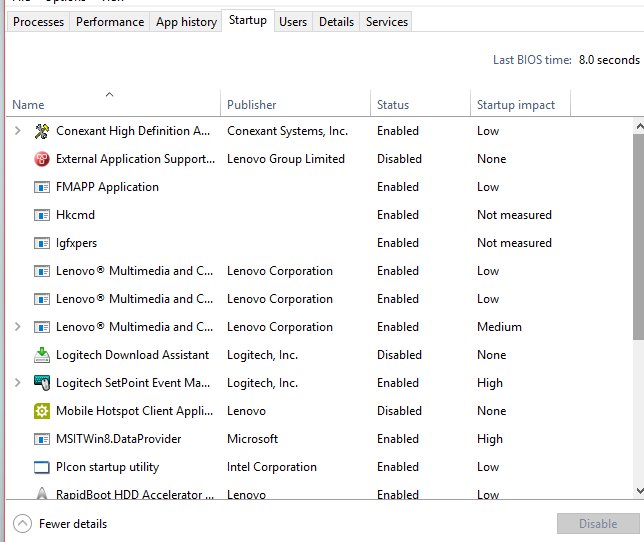
| Third-party startup apps | Disable the ones you do not need on the Startup apps tab in Task Manager |
| Third-party services | Test with a clean boot to see whether one of them is the cause |
| Services slow to stop | Windows waits for each one up to a timeout before it moves on |
Windows Updates, Fast Startup, and Power Settings to Check
- Select Start > Settings > Windows Update > Check for updates and install pending updates.
- If updates keep failing, go to Settings > System > Troubleshoot > Other troubleshooters and run Windows Update.
- Make sure the drive has free space: Microsoft lists 20 GB for a 64-bit feature upgrade.
- To review fast startup, open Control Panel > System and Security > Power Options.
- Select Choose what the power buttons do, then Change settings that are currently unavailable.
- Under Shutdown settings, clear the fast startup check box, select Save changes, and test a shutdown.
- If shutdown is no faster, turn fast startup back on the same way.
With fast startup on, Windows runs a full shutdown sequence and then saves a hibernation file, Hiberfil.sys, so the next start is quicker. Turning it off is a useful test when shutdown alone is slow, because it removes that extra step.
Driver, Hardware, and Peripheral Issues That Can Slow Shutdown
During shutdown, Windows tells each driver to power down its device. A driver that does not answer holds up the whole sequence.
| Hardware and peripherals to check first | Driver fix that is safe to try |
|---|---|
| External USB drives and card readers | Eject them, unplug, and test a shutdown |
| Docks and USB hubs | Shut down undocked to compare |
| Printers, webcams, game controllers | Unplug, then reconnect one at a time to find the slow one |
| Graphics, network and storage drivers | In Device Manager, right-click the device and select Update driver > Search automatically for drivers |
| A driver updated just before the problem began | Open the device's Properties > Driver tab and select Roll Back Driver |
Get drivers through Windows Update or the PC maker's own site, never from driver updater tools.
Fixes Using Task Manager, Event Viewer, and System Tools
- Press Ctrl + Shift + Esc to open Task Manager before you shut down.
- On the Processes tab, close apps you do not need; select a frozen one and select End task.
- On the Startup apps tab, disable startup programs you do not use.
- After a slow shutdown, open Event Viewer and go to Windows Logs > System.
- Select Filter Current Log, enter 1074, and select OK.
- Read the latest entries: each names the process that started the shutdown and the reason.
- Note any errors or warnings logged just before the shutdown time; the source column points to the driver or service involved.
For a precise answer, Microsoft's slow-shutdown guide uses Windows Performance Recorder with the Shutdown performance scenario, then Windows Performance Analyzer from the Windows ADK to see which process or driver used the time.
Repair Windows Files with SFC and DISM
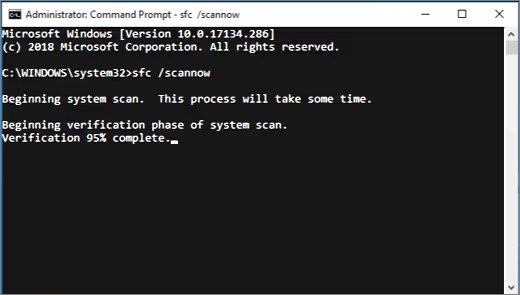
Run DISM first, because it provides the files that System File Checker uses for repairs. Open Command Prompt with Run as administrator.
DISM.exe /Online /Cleanup-image /Restorehealth
sfc /scannow
DISM repairs the Windows component store using Windows Update as the source. sfc /scannow then scans all protected system files and replaces damaged ones with a cached copy. Keep the window open until it reaches 100%.
You should see: Windows Resource Protection did not find any integrity violations, or Windows Resource Protection found corrupt files and successfully repaired them.
Advanced Solutions: Clean Boot, SFC, DISM, and Registry Tweaks
Use Clean Boot to find software conflicts when shutdown is slow every time
A third-party service or startup app does not stop in time.
- Select Search, type msconfig, and open System Configuration.
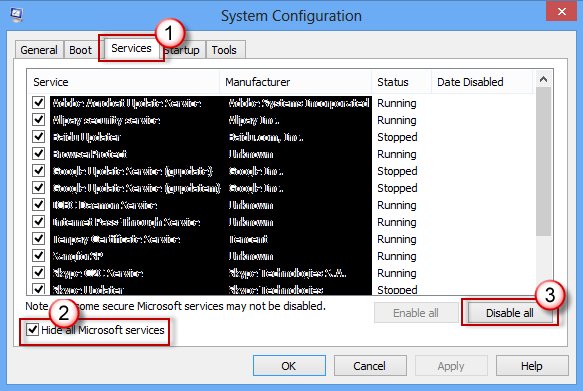
- On the Services tab, select Hide all Microsoft services, then Disable all, then Apply.
- On the Startup tab, select Open Task Manager and disable each enabled startup app.
- Close Task Manager, select OK, restart, and test a shutdown.
- If shutdown is now fast, re-enable half the services at a time until the slow one returns.
- Return to normal with General > Normal Startup and Enable all on the Services tab.
SFC reports it could not perform the requested operation
Files are in use or pending operations block the scan.
- Open Windows RE and select Troubleshoot > Advanced options > Startup Settings > Restart.
- Choose Enable Safe Mode.
- Run
sfc /scannowagain from an administrator Command Prompt.
Adjust shutdown timeout values carefully
Windows waits for services to stop up to the WaitToKillServiceTimeout value before it continues.
- Fix the slow service first; changing the timeout hides the problem rather than solving it.
- Know where the value lives:
HKEY_LOCAL_MACHINE\SYSTEM\CurrentControlSet\Control, string valueWaitToKillServiceTimeout, in milliseconds. - Microsoft documents it for giving services more time to stop cleanly; lowering it can cut off services that are still saving data.
- Values over one hour are ignored and Windows falls back to its default.
- Back up the registry key before any change, and remove a custom value if problems follow.
Why is Windows update taking forever on the shutdown screen?
Large updates install during shutdown, and time depends on connection speed and update size.
- Leave the PC on and plugged in while it shows update progress.
- If it stays at the same percentage for a long time, restart, then run Check for updates again.
- Run the Windows Update troubleshooter from Other troubleshooters.
- Free up drive space if the troubleshooter reports a space problem.
Frequently Asked Questions
Why is my Windows update taking forever?
Update time depends on your connection speed, network settings and the size of the update. If progress stays at the same percentage, restart, check for updates again, and run the Windows Update troubleshooter.
Why does getting Windows ready take so long?
Windows is finishing an update installation. Leave the PC on and plugged in. Turning it off mid-install can leave the update incomplete, so wait unless progress has stopped for a very long time.
Why is Windows 11 taking forever to install?
Large feature updates need time and free space: Microsoft lists 20 GB free for a 64-bit upgrade. A slow connection or a nearly full drive stretches the install considerably.
What should I do first if Windows is stuck on Shutting down?
Wait a few minutes in case updates or a service are finishing. If nothing changes, hold the power button to turn the PC off, then check Event Viewer and run a clean boot to find the cause.
Can Fast Startup make Windows shut down slower?
Fast startup adds a step to shutdown: Windows saves a hibernation file after closing your session. Turn it off in Power Options and compare shutdown times to see whether it matters on your PC.
How can I find which app or service is delaying shutdown?
Use a clean boot and turn services back on half at a time until the delay returns. Event Viewer's System log and Windows Performance Recorder's Shutdown scenario also point to the slow process.
Bottom Line
Install pending updates, unplug unneeded peripherals, then use a clean boot to find the app or service that will not stop. Most slow shutdowns come from updates or third-party software, and finding the exact culprit fixes the problem without risky registry timeout changes.