To move the taskbar in Windows 11 26H2, open Settings > Personalization > Taskbar > Taskbar behaviors and set Taskbar position to Top, Left, Right or Bottom.
This guide covers the steps, what still works in each position, the smaller taskbar option, how the feature got from Insider builds to 26H2, and what to do when the setting is missing.
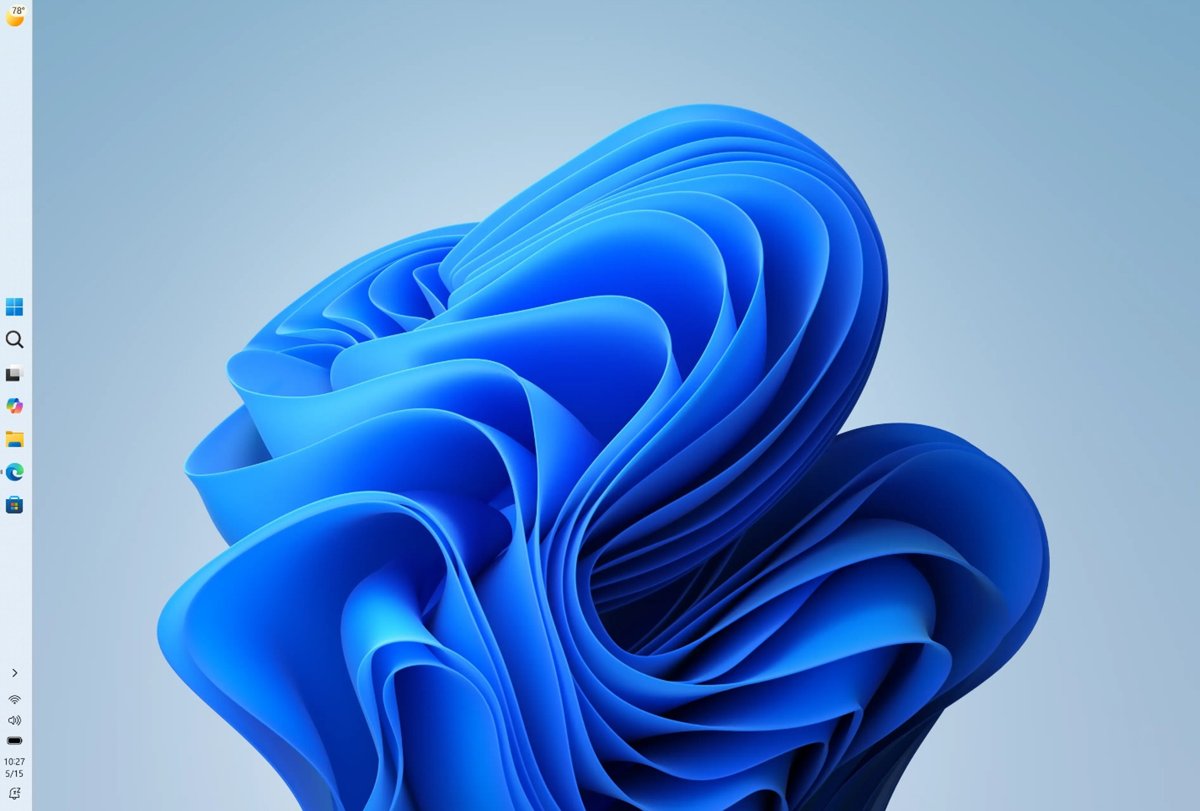
How to move the taskbar to the top or side in Windows 11 26H2
The change applies straight away, with no restart or sign-out.
- Right-click an empty part of the taskbar and select Taskbar settings, or open Settings > Personalization > Taskbar.
- Scroll to Taskbar behaviors. It is expanded by default on current builds.
- Open the Taskbar position list.
- Select Top, Left or Right.
- Close Settings. The taskbar moves to the edge you picked.
The same setting exists on Windows 11 24H2 and 25H2 PCs that have the August 27, 2026 update (KB5120998) or later, because it arrived through monthly updates before 26H2 shipped. Microsoft rolled it out gradually, so a few PCs may not show it yet.
What’s new with the Taskbar on Windows 11 26H2
Every position keeps the core taskbar. Tooltips, flyouts and animations come out of the taskbar wherever it sits, and settings such as never combining taskbar buttons work in all four locations. Two features are limited to the top and bottom.
| Position | Best for | Search box | Small taskbar size |
|---|---|---|---|
| Bottom (default) | Most users; every taskbar feature works | Supported | Supported |
| Top | People coming from macOS or Linux desktops, or who want the bottom edge free | Supported | Supported |
| Left | Widescreen and ultrawide monitors where vertical space is scarce | Not supported | Not supported |
| Right | Widescreen monitors, or keeping the taskbar near a right-hand mouse | Not supported | Not supported |
How to make the taskbar smaller
The smaller taskbar reduces icon size and taskbar height while keeping Start, Search and the system tray. It only works with the taskbar at the top or bottom.
- Open Settings > Personalization > Taskbar.
- Go to Taskbar behaviors.
- Open the Taskbar size list.
- Select Small. Both the icons and the taskbar height shrink.
Early Insider builds called this option Show smaller taskbar buttons with an Always setting. Current builds use Taskbar size instead.
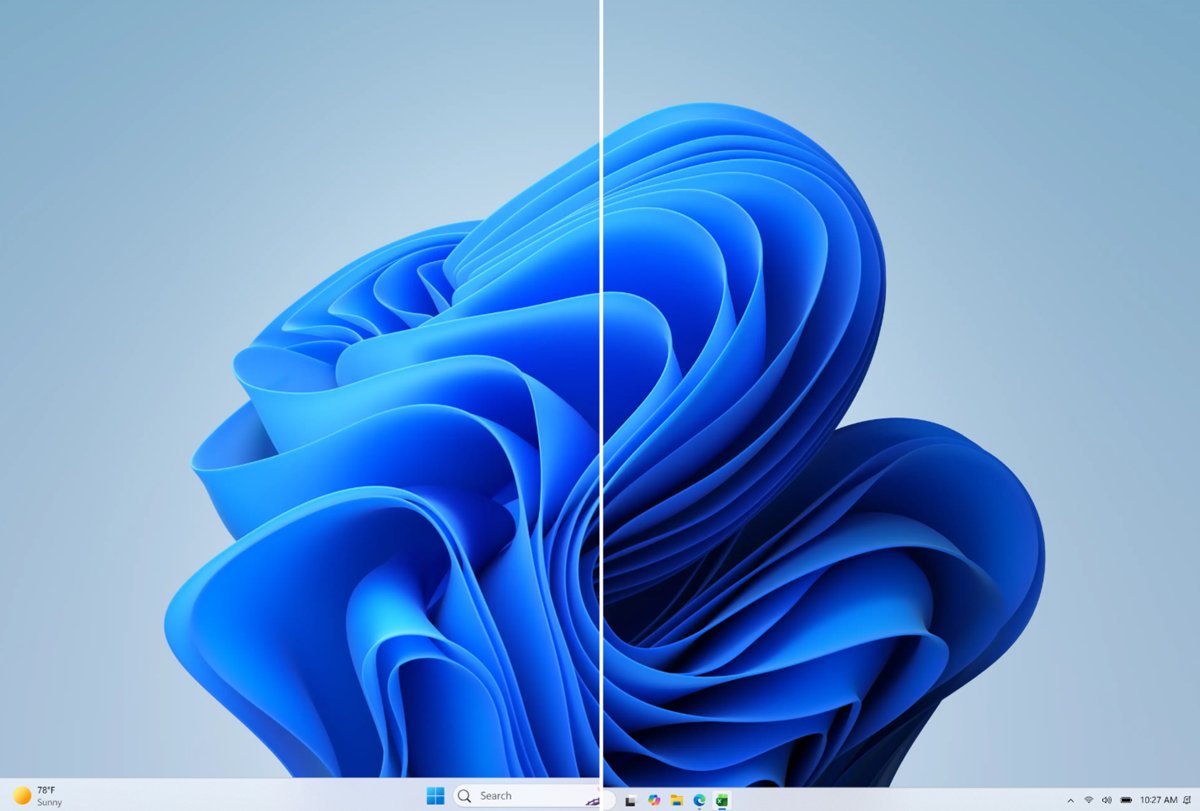
How to move the taskbar back to the bottom
- Right-click the taskbar and select Taskbar settings.
- Go to Taskbar behaviors.
- Set Taskbar position to Bottom.
- Set Taskbar size back to its default if you changed it.
How to check the taskbar setting is available on your PC
- Press Windows + R, type
winverand press Enter. - Check for Version 26H2 (build 26300), or 24H2 or 25H2 with a revision of 9278 or higher, the August 27, 2026 update.
- Open Settings > Personalization > Taskbar > Taskbar behaviors and look for Taskbar position.
If the version is right but the setting is absent, the gradual rollout has not reached the PC yet. The troubleshooting section below covers that case.
Taskbar changes
Position is the headline, but the 26H2 cycle changed several other taskbar details.
| Change | Where to find it |
|---|---|
| Taskbar position: bottom, top, left or right | Taskbar behaviors > Taskbar position |
| Smaller taskbar with smaller icons and reduced height | Taskbar behaviors > Taskbar size > Small |
| Taskbar behaviors section expanded by default | Settings > Personalization > Taskbar |
| Widgets badge on the taskbar uses your accent color instead of red, and is quieter for people who rarely open Widgets | Taskbar Widgets button |
| More reliable system tray loading on non-touch PCs | System tray |
| App-specific actions from the taskbar enabled by default on business PCs | Taskbar app entries |
| Progress of supported AI agents, starting with Researcher in Microsoft Copilot, shown on the taskbar | Taskbar |
The rest of the release is summarized in what changed in 26H2.
What’s new on Windows 11 build 26300.8493 (Experimental)
The movable taskbar first appeared on 15 May 2026 in Experimental Preview Build 26300.8493, the channel formerly called Dev. It then moved through Release Preview into a monthly update and finally into 26H2.
| Date | Build or update | Taskbar status |
|---|---|---|
| 15 May 2026 | Experimental build 26300.8493 | Alternate taskbar position and smaller taskbar introduced; auto-hide and touch-optimized taskbar not yet supported in the new positions |
| 15 May 2026 | Beta build 26220.8474 | No taskbar change; the build added Fluid Dictation in Spanish and French |
| 14 August 2026 | Release Preview builds 26100.9267 and 26200.9267 | Final setting names: Taskbar position and Taskbar size |
| 27 August 2026 | KB5120998 for Windows 11 24H2 and 25H2 | Gradual rollout to the public |
| 29 September 2026 | Windows 11 26H2 general availability | Listed as a 26H2 feature |
Other items in the May Experimental build included accent-colored Widgets badges, file and app results ranked ahead of web suggestions in the Search box, new progress spinners and early logon performance work.
Download the Windows 11 update with the movable taskbar
There is no reason to install the old Insider build 26300.8493 today. The feature ships in public updates.
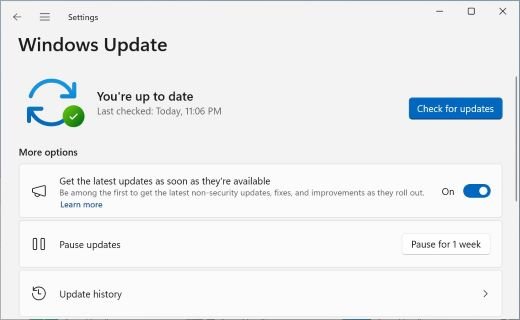
- Open Settings > Windows Update.
- Turn on Get the latest updates as soon as they're available to be offered new features and 26H2 sooner.
- Select Check for updates and install everything offered.
- If Windows 11, version 26H2 is available appears, select Download & install and restart.
- Open Settings > Personalization > Taskbar and check for Taskbar position.
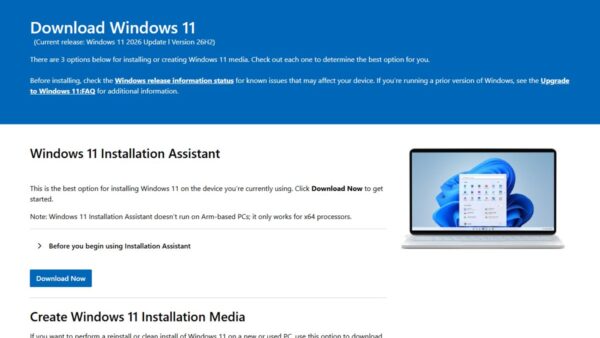
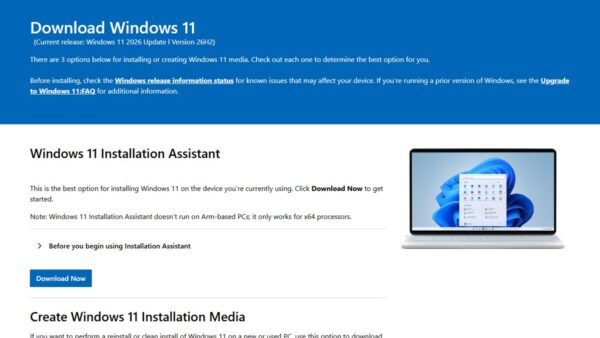
Other official routes, including ISO media, are in the 26H2 download and install guide.
Start menu improvements
The same August update that delivered the taskbar options also changed Start.
| Change | Setting |
|---|---|
| Choose a small or large Start menu, or keep Automatic | Settings > Personalization > Start > Start menu size |
| Recommended renamed Recent | Start menu and Start settings page |
| Hide your name and profile picture on Start | Hide your name and profile picture on Start |
| Show or hide Pinned, Recent and All independently | Section toggles on the Start settings page |
| Scrollable All section with category and grid views | Start menu |
Search changes
| Change | Setting or effect |
|---|---|
| Simplified Search home | Easier return to recent searches |
| Labels show whether a result is an app, setting, file, web result or Microsoft Store suggestion | Clearer results before you select one |
| Choose whether web and Store suggestions appear with local results | Settings > Privacy & security > Search |
| Automatic indexing of your most used folders | Automatically find additional relevant locations |
| Search box on the taskbar | Available only when the taskbar is at the top or bottom |
Fix the taskbar position setting when it does not work
Taskbar position is missing from Taskbar behaviors
The PC lacks the August 27, 2026 update or later, or the gradual rollout has not reached it.
- Run
winverand confirm 26H2, or 24H2 or 25H2 at revision 9278 or higher. - Open Settings > Windows Update, select Check for updates and install everything offered.
- Turn on Get the latest updates as soon as they're available.
- Restart and check Taskbar behaviors again.
The search box disappeared after moving the taskbar to the side
The search box is supported only on top and bottom taskbars.
- Select Start and start typing to search.
- Move the taskbar to Top or Bottom if you want the box back.
Taskbar size will not switch to Small on a side taskbar
The smaller taskbar works only at the top or bottom.
- Set Taskbar position to Top or Bottom.
- Set Taskbar size to Small.
26H2 itself is not offered in Windows Update
26H2 is rolling out in phases and some PCs have safeguard holds.
- Install the latest cumulative update first; the taskbar setting does not need 26H2.
- Follow the steps to fix 26H2 not showing in Windows Update.
More resources
- Release Preview Build 26100.9267/26200.9267 — Microsoft's notes with the final Taskbar position and Taskbar size settings
- Experimental Preview Build 26300.8493 — Where the alternate taskbar position first appeared
- What's new in Windows 11, version 26H2 — Full 26H2 feature list
- Configure the Windows taskbar — Taskbar policy settings for IT admins
Frequently Asked Questions
Can you move the taskbar in Windows 11 26H2?
Yes. Windows 11 26H2 lets you place the taskbar at the bottom, top, left or right of the screen from Settings > Personalization > Taskbar > Taskbar behaviors > Taskbar position.
Where is the taskbar position setting in Windows 11?
It is in Settings > Personalization > Taskbar, under Taskbar behaviors, in a list called Taskbar position. Right-clicking the taskbar and choosing Taskbar settings opens the same page.
Can I move the taskbar on Windows 11 24H2 or 25H2?
Yes, if the PC has the August 27, 2026 update KB5120998 or later and the gradual rollout has reached it. The option arrived through monthly updates before 26H2, so 26H2 is not strictly required.
Does the search box work with the taskbar on the left or right?
No. Microsoft supports the taskbar search box only on top and bottom taskbars. With a side taskbar, open Start and type to search instead.
Can I make the Windows 11 26H2 taskbar smaller?
Yes. Set Taskbar behaviors > Taskbar size to Small to reduce icon size and taskbar height. The smaller taskbar works only when the taskbar is at the top or bottom.
Is the movable taskbar available to everyone on 26H2?
It is rolling out gradually, so availability varies by device even on current builds. Installing all updates and turning on Get the latest updates as soon as they're available helps it arrive sooner.
Bottom line
Use a top taskbar if you want a new layout with every feature intact, and a left or right taskbar only on a wide monitor where you can live without the search box and small size. Microsoft supports the search box and smaller taskbar only at the top and bottom, while tooltips, flyouts and never-combine settings work in every position.
Everything else in the release is covered in the Windows 11 26H2 overview.