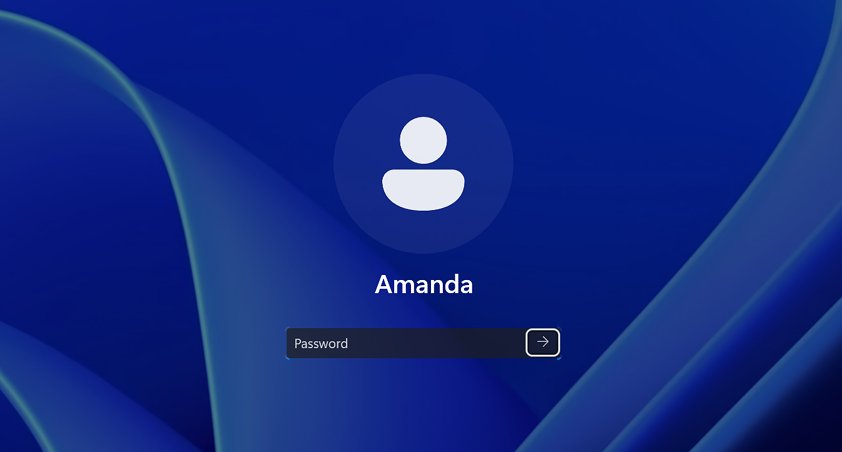
To reset a forgotten password in Windows 11 or Windows 10, select I forgot my password on the sign-in screen for a Microsoft account, or select Reset password and answer your security questions for a local account.
This guide covers every Microsoft-documented route: online recovery, the sign-in screen, a password reset disk, another administrator account, Command Prompt, and Reset this PC when nothing else is left.
Reset Windows 11 or Windows 10 password
The route depends on the type of account you sign in with. An account created with an email address is a Microsoft account; one created with only a user name is a local account.
| Your account | Fastest reset | What you need |
|---|---|---|
| Microsoft account (email address) | Select I forgot my password on the sign-in screen, or reset it at account.live.com from any browser | Access to the recovery email or phone number on the account |
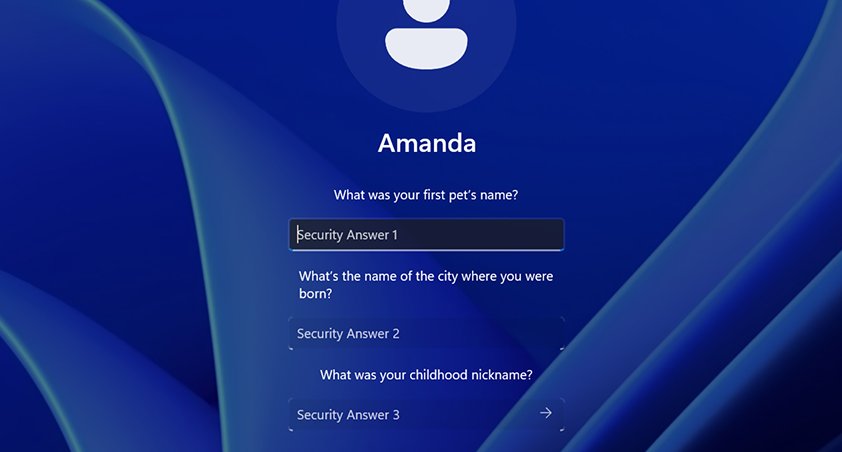
| Local account with security questions | Select the password arrow, select OK, then Reset password | The answers you set when the account was created |
| Local account with a reset disk | Select Use a password reset disk on the sign-in screen | The USB drive you created earlier |
| Local account, no questions or disk | Sign in to another administrator account and set a new password | A second account with administrator rights on the PC |
| Work or school account | Use Can't access your account? or ask your IT department | Self-service reset turned on by your organization |
| None of the above works | Reset this PC from the sign-in screen | Your BitLocker recovery key if the drive is encrypted |
Microsoft support states that it cannot retrieve or get around a lost password for you, so these routes are the complete set.
Preparing for a password reset
A few details decide which method will work before you start. Check them on a phone or a second PC if you are locked out.
| Check | Why it matters | Where to find it |
|---|---|---|
| Account type | Microsoft accounts reset online; local accounts reset on the PC | You sign in to a Microsoft account with an email address |
| Recovery email and phone | The Microsoft account reset sends a code to one of them | The masked contact options shown during the reset |
| Security question answers | Local accounts reset from the sign-in screen with them | Only you know them; they were set when the account was created |
| Password reset disk | Replaces the security questions for a local account | A USB drive you created while signed in |
| Second administrator account | Lets you set a new password for the locked account | Other accounts shown on the sign-in screen |
| BitLocker recovery key | Needed for Startup Settings and Reset this PC on encrypted devices | Your Microsoft account online, a printout, or a USB drive you saved it to |
1. Resetting Password Using Microsoft Account Credentials
If your PC signs in with a Microsoft account, the Windows password is the Microsoft account password. Reset it from any phone, tablet or computer, then use the new password on the locked PC.
- On another device, open a browser and go to https://account.live.com/ResetPassword.aspx.
- Enter the user name of the account, usually its email address, then select Next.
- Choose where Microsoft should send a verification code, then select Next.
- Retype the first part of the email address or the last four digits of the phone number, then select Get code.
- Enter the code you received and select Next.
- Type a new password and select Next.
- Connect the locked PC to the internet and sign in with the new password.
If you do not recognize any of the contact options, or no longer have access to them, use Microsoft's Sign-in helper tool instead of guessing.
2. Resetting Password with Microsoft’s “Forgot Password” Feature
The sign-in screen has its own reset link for both account types. A Microsoft account shows I forgot my password; a local account shows Reset password after a wrong attempt.
- On the sign-in screen, select your account.
- Microsoft account: select I forgot my password, verify the code sent to your email or phone, and type a new password.
- If that link is missing, select Sign-in options > Web sign-in, follow the prompts, and select Forgot my password.
- Local account: select the password entry arrow.
- Select OK, then select Reset password.
- Answer the security questions you set up when the account was created.
- Type a new password, confirm it, and sign in.
Already signed in but want a new password? Open Settings > Accounts > Sign-in options, select Password > Change, and enter your old password first.
3. Using a Password Reset Disk or USB Drive
A password reset disk is a USB flash drive that resets a local account password. Create it while you can still sign in; it does not work for Microsoft accounts, and one disk keeps working after later password changes.
- Sign in with the local account and plug in a USB flash drive.
- Type Control Panel in the taskbar search box and open it.
- In the Control Panel search box, type create password reset.
- Select Create a password reset disk and follow the wizard.
- Remove the drive and store it somewhere safe.
- When you forget the password, plug the drive into the PC and select the password entry arrow on the sign-in screen.
- Select Use a password reset disk and follow the instructions to set a new password.
4. Resetting Password via Safe Mode: What It Can and Cannot Do
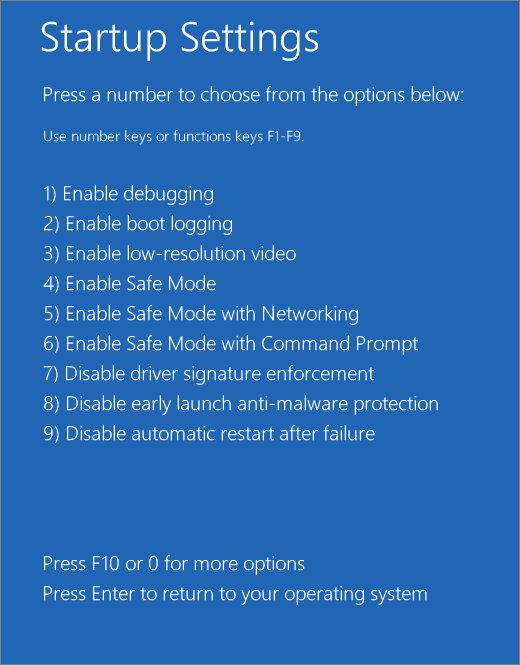
Safe Mode does not reset or remove a password. It asks for the same account password, and PIN or fingerprint sign-in is not available there.
Use it when you know your password but Windows will not accept your sign-in normally. If you can sign in to Safe Mode, basic drivers and default settings are not causing the problem.
- On the sign-in screen, hold Shift while you select Power > Restart.
- On the Choose an option screen, select Troubleshoot > Advanced options > Startup Settings > Restart.
- Enter your BitLocker recovery key if Windows asks for it.
- When the list of options appears, press 5 or F5 for Safe Mode with Networking.
- Sign in with your account password, not your PIN.
- Restart normally when you finish troubleshooting.
5. Resetting Password with Administrator Account
Any administrator account on the same PC can set a new password for a local account. This is the route when the security questions and reset disk are missing.
- On the sign-in screen, select the administrator account and sign in.
- Type Computer Management in the taskbar search box and open it.
- Expand Local Users and Groups > Users.
- Right-click the locked account and select Set Password….
- Enter the new password, confirm it, and select OK.
- Sign out and sign in to the locked account with the new password.
The Command Prompt section below does the same job with one command from that administrator account.
6. Resetting Password Using Built-in Windows Recovery Options
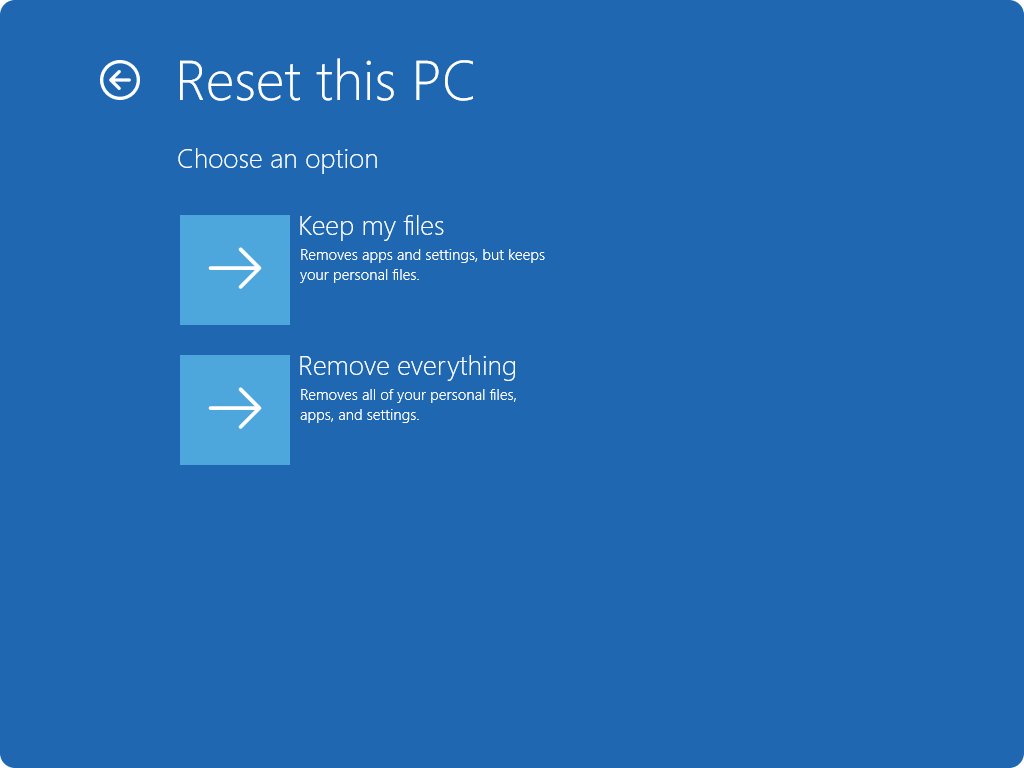
When there is no Microsoft account, no security answers, no reset disk and no other administrator, Microsoft's answer is to reset the PC. Keep my files keeps your documents but removes apps and settings; Remove everything wipes the PC.
- On the sign-in screen, hold Shift while you select Power > Restart.
- On the Choose an option screen, select Troubleshoot > Reset this PC.
- Select Keep my files or Remove everything.
- Enter your BitLocker recovery key if Windows asks for it.
- Choose Cloud download or Local reinstall and follow the prompts.
- Keep the PC plugged in until setup starts, then create a new account and password.
Read what a full reset removes and how to back up first before you choose between the two options.
Reset a local account password from Command Prompt
This is the command-line version of method 5. It only works from an account that already has administrator rights, so sign in to that account and open Command Prompt with Run as administrator.
Type net user on its own first to list the exact account names on the PC.
net user "User Name" *Replace User Name with the locked account's name. The asterisk makes Windows prompt for the new password twice without showing it on screen, which is safer than typing the password into the command.
You should see: No error appears, and the account signs in with the new password at the sign-in screen.
On a PC joined to a domain, add /domain to run the change on the domain controller; that needs domain administrator rights.
How to check the new password works
- Lock the PC or sign out.
- Select Sign-in options and choose the password option, not the PIN.
- Sign in with the new password.
- For a Microsoft account, sign in at account.microsoft.com on another device with the same password to confirm the online change.
- Open Settings > Accounts > Sign-in options and set up a new PIN if Windows asks for one.
Best Practices and Security Tips
Most lockouts become a Reset this PC job only because nothing was prepared in advance. Five minutes now keeps you on the easy routes.
| Do this now | What it saves you from |
|---|---|
| Keep the recovery email and phone on your Microsoft account current | Being unable to receive the verification code |
| Create a password reset disk for each local account | Relying on security answers you may forget |
| Keep a second administrator account on shared PCs | Needing Reset this PC when one person is locked out |
| Save your BitLocker recovery key somewhere off the PC | Being blocked from Startup Settings and Reset this PC |
| Set up a Windows Hello PIN or fingerprint | Typing the password daily, while the password stays as a fallback |
| Use only Microsoft's own reset routes | Handing full drive access to unknown software |
When to Seek Professional Help
Some lockouts cannot be fixed with the steps above, and Microsoft support agents are not allowed to send reset links or change account details.
| Situation | Who can help |
|---|---|
| Work or school PC, or a domain account | Your organization's IT department or domain administrator |
| Work or school account with self-service reset | Can't access your account? at mysignins.microsoft.com/security-info |
| Microsoft account with no working verification option | Microsoft's Sign-in helper tool and account recovery form |
| Local account with no answers, disk or other admin | Nobody can recover it; use Reset this PC |
| BitLocker asks for a key you cannot find | The person or organization that set up the device |
Fix problems resetting your Windows login password
You forgot your PIN, not your password
The PIN is a separate sign-in method, and I forgot my PIN appears only for Microsoft accounts.
- Select I forgot my PIN below the PIN box if it appears, and follow the prompts.
- If it does not appear, select Sign-in options and choose the password option.
- Sign in with your password.
- Open Settings > Accounts > Sign-in options and set a new PIN.
- If you forgot both, reset the password first with method 1 or 2.
The Microsoft verification code never arrives
The recovery email or phone on the account is out of date, or the code went to a contact you no longer use.
- Check the spam folder of the recovery email address.
- Restart the reset and pick a different contact option if one is listed.
- If none of the options are yours, open Microsoft's Sign-in helper tool and follow its questions.
No Reset password link on the sign-in screen for a local account
The account has no security questions, or the PC is not locked at the sign-in screen yet.
- Lock the PC and try again from the sign-in screen.
- Plug in your password reset disk and select Use a password reset disk if you made one.
- Sign in to another administrator account and use method 5.
- If there is no other administrator, use Reset this PC in method 6.
Resetting Password with Third-Party Tools
Do not use third-party password removal or cracking tools; use one of the six Microsoft routes above, ending with Reset this PC if you must. These tools work by going around Windows sign-in, so they need full access to your drive, the same access an attacker wants. Microsoft does not document or support them, and states that it cannot help anyone get around a lost password.
Frequently Asked Questions
How do I reset my password on Windows 11 if I forgot it?
On the sign-in screen, select I forgot my password for a Microsoft account, or select Reset password and answer your security questions for a local account. If neither works, sign in to another administrator account or use Reset this PC.
How do I reset a Windows 11 password using CMD?
Sign in to an administrator account, open Command Prompt with Run as administrator, and type net user "User Name" * to set a new password. Command Prompt cannot reset a password without an administrator account you can already sign in to.
How do I reset a Windows 11 password with a USB drive?
Use a password reset disk made earlier on the same local account. Plug it in, select the password arrow on the sign-in screen, choose Use a password reset disk, and follow the wizard. A USB drive created after you are locked out will not work.
How do I set a password in Windows 11?
Open Settings > Accounts > Sign-in options, select Password, and follow the prompts. To change an existing password, select Change and enter the old password first. The ms-settings:signinoptions shortcut in the Run box opens the same page.
Is there a shortcut to the Windows 11 password settings?
Yes. Press Windows logo key + R, type ms-settings:signinoptions, and press Enter to open Sign-in options directly. From there, select Password > Change. There is no keyboard shortcut that resets a forgotten password.
How do I reset the administrator password in Windows 11?
If the administrator uses a Microsoft account, reset it online at account.live.com. For a local administrator, answer its security questions on the sign-in screen, use a reset disk, or have a second administrator set a new password in Computer Management.
Is the process different on a Windows 11 laptop or desktop?
No. Laptops and desktops use the same sign-in screen, Settings pages and recovery options. The only practical difference is that a laptop should stay plugged in during Reset this PC, which can take a long time.
How do I reset a password on Windows Server or a domain PC?
Domain passwords are managed by your domain administrator, not on the PC. An administrator can reset one with net user and the /domain switch, or with the organization's own reset tools. Local Server accounts follow the same administrator routes as Windows 11.
Can Microsoft support reset my Windows password?
No. Microsoft states that its support agents cannot send password reset links, access account details, or get around a forgotten password. Use the Microsoft account reset page or the Sign-in helper tool for a Microsoft account.
Does Reset this PC remove the password?
Reset this PC removes the old accounts only with Remove everything, and then you create a new account. Keep my files keeps your personal files and user accounts, so it is a last resort rather than a password tool.
Final Words
Your path to regaining access starts with your account type: reset a Microsoft account online, a local account with its security questions or reset disk, and fall back to another administrator before you reset the PC. Each step down that list costs more: the online reset changes nothing on the PC, an admin reset keeps every file and app, and Reset this PC removes your installed apps even with Keep my files.