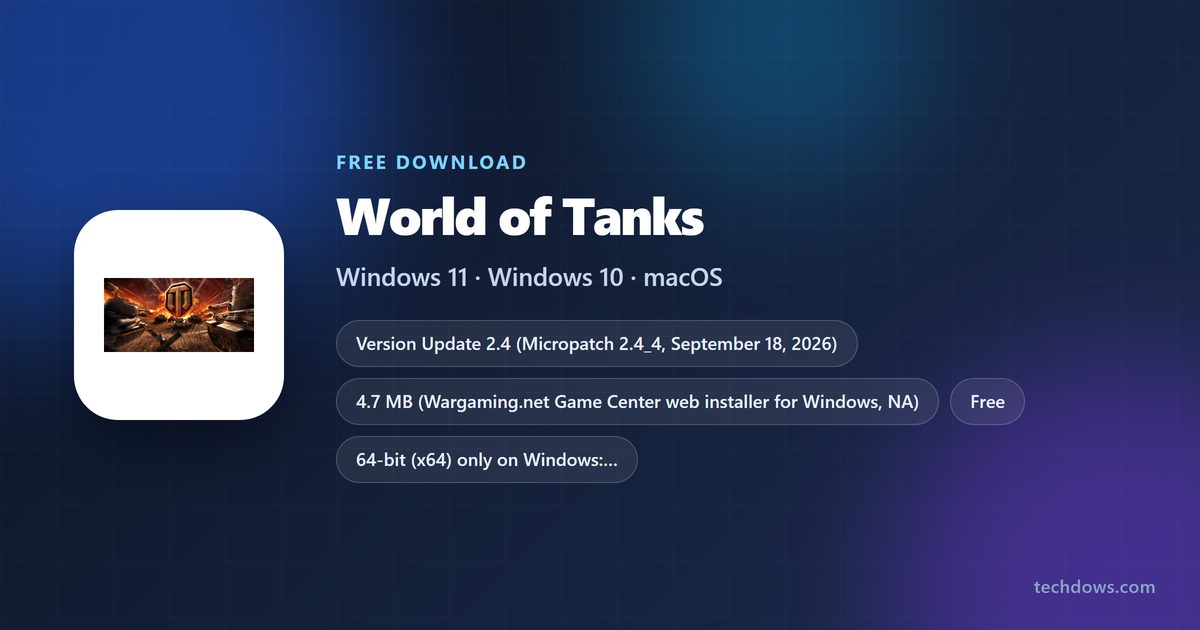
The World of Tanks download is a free installer from worldoftanks.com that sets up Wargaming.net Game Center, which then installs the game on Windows 11 or Windows 10. Steam carries the same free-to-play game, and the official page also offers a macOS installer.
Below: the official links, install steps for Game Center and Steam, the PC requirements, update and preload settings, install fixes and clean removal.
Which World of Tanks download do you need?
Every route installs the same free game. What changes is which launcher manages it.
| Your situation | What to download | Size |
|---|---|---|
| Windows 11 or 10 PC, no Steam | Game Center installer for Windows | 4.7 MB |
| Windows PC that already uses Steam | World of Tanks on Steam | Through Steam |
| Mac | Game Center installer for macOS | 402 MB |
| Want shorter matches instead | World of Tanks Blitz on Steam | Separate game |
Both Windows routes need 70 GB of free space for the game files.
Download World of Tanks for Windows 11 and Windows 10
The Windows file is world_of_tanks_install_na.exe. It installs Game Center, and Game Center fetches the current Update 2.4 client.
- World of Tanks official download page — Download Now button, North America region
- Game Center installer for Windows — 4.7 MB · web installer
- World of Tanks on Steam — Free to Play, Windows only
How to install World of Tanks on Windows 11 and 10
Check that your game drive has at least 70 GB free before you start.
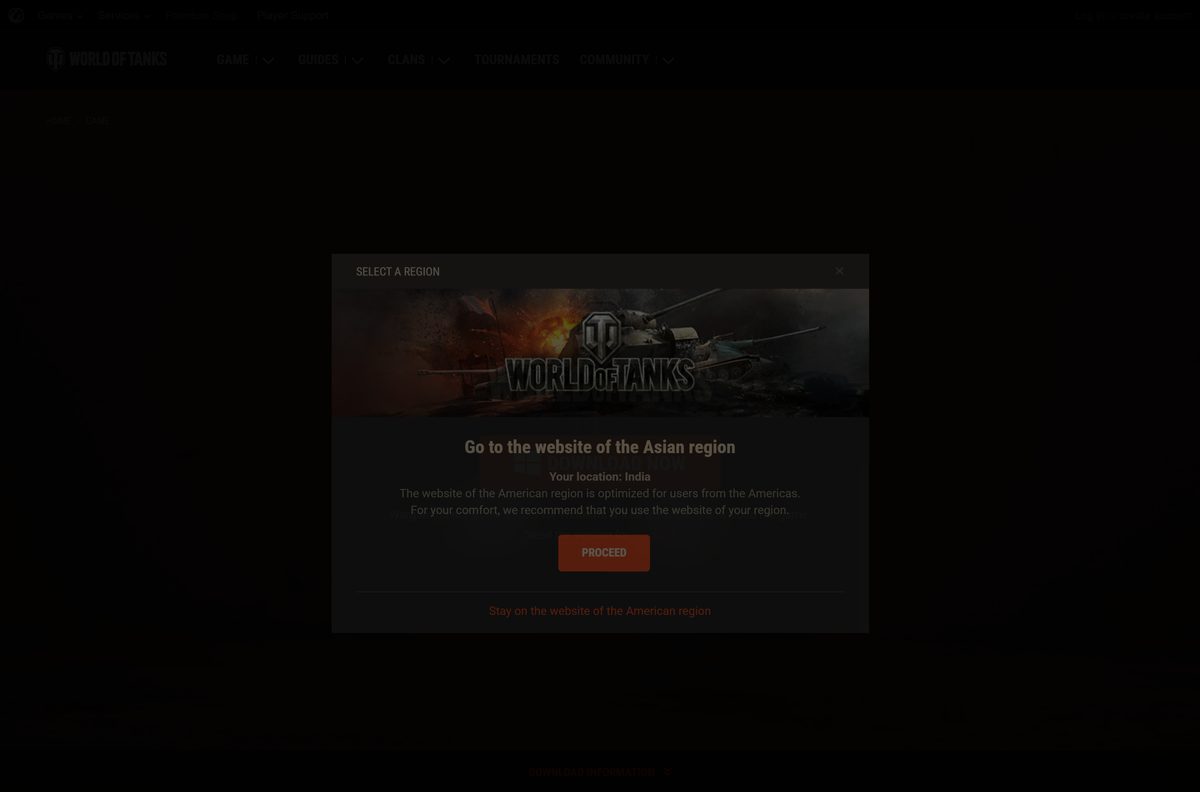
- Open the World of Tanks download page on worldoftanks.com.
- Select Download Now to save world_of_tanks_install_na.exe.
- Run the file and select Yes at the User Account Control prompt.
- Let the installer set up Wargaming.net Game Center.
- Choose the install folder in Game Center. The default is C:\Games\World_of_Tanks.
- Wait for Game Center to download the game files.
- Sign in with your Wargaming account, or create one at the registration page.
- Select Play to launch World of Tanks.
Creating the game account can wait until the install finishes.
Install World of Tanks from Steam
Steam installs and patches the game itself, so Game Center is not needed on this route.
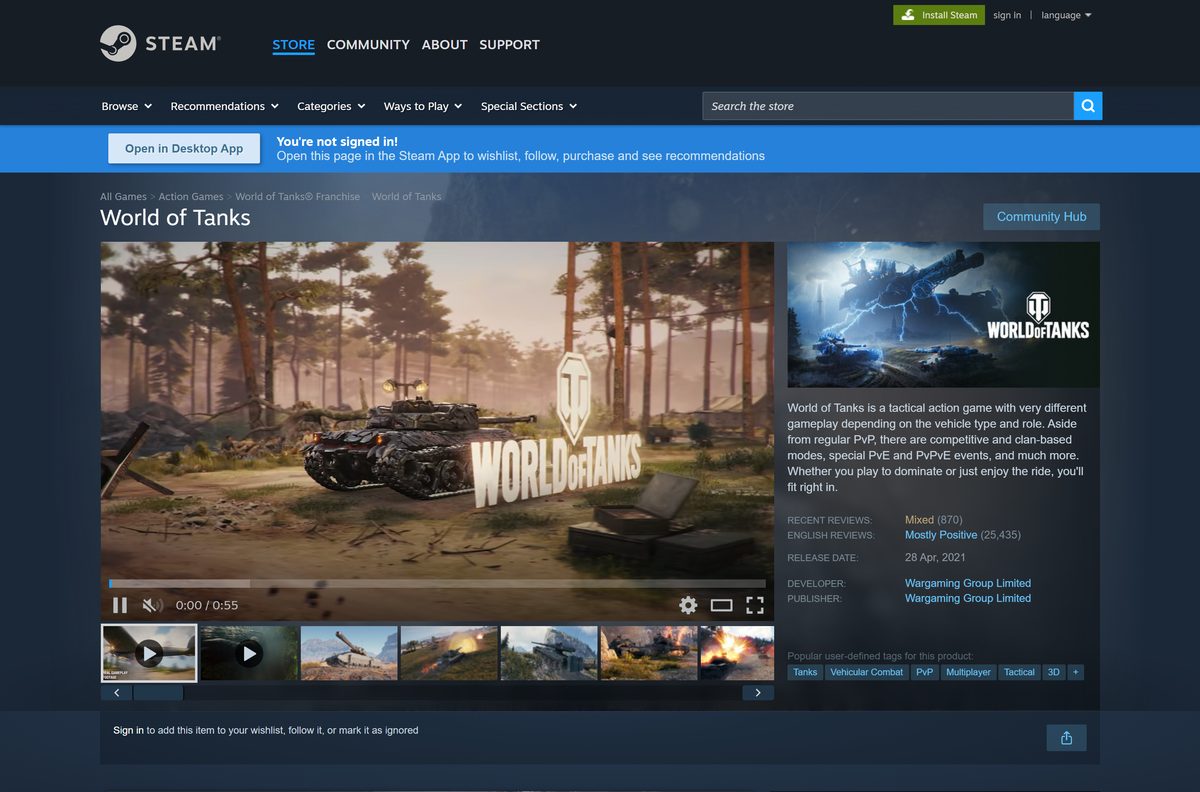
- Open the World of Tanks page on the Steam store.
- Select Play Game.
- Choose a Steam library drive with at least 120 GB free, the figure Steam lists.
- Select Install and wait for the download to finish.
- Select Play in your Steam library.
- Sign in or link your Wargaming account when the game asks.
Which World of Tanks download do you need for your Mac?
The official download page switches to a macOS installer when you open it on a Mac, or when you select the macOS link under Download Now.
| Your Mac setup | What to download | Size |
|---|---|---|
| Any Mac, desktop World of Tanks | Game Center installer for macOS | 402 MB |
| Mac with Steam | World of Tanks Blitz on Steam | Mac build listed |
The Steam listing for World of Tanks shows Windows only, and the requirements page lists no Mac hardware. Check the page on your Mac before you download.
Is World of Tanks free?
Steam lists World of Tanks as Free to Play, and the ESRB rating flags in-game purchases, including random items.
Yes. Download and play every mode for free. Pay only if you want a Premium Account, WoT Plus, premium tanks or packs. Any site that charges for the World of Tanks installer, or asks for card details before the download, is not Wargaming.
Check the World of Tanks PC requirements
Wargaming raised these figures with Update 2.3.1. Older PCs that met the previous minimum still launch the game, but Wargaming no longer guarantees stable performance on them.
| Field | Value |
|---|---|
| Game | World of Tanks |
| Developer | Wargaming Group Limited |
| Latest version | Update 2.4 (Micropatch 2.4_4) |
| Price | Free to play, optional purchases |
| Operating system | 64-bit Windows 10 or Windows 11 |
| Minimum CPU | Intel Core i5-3330 or AMD FX-6300 |
| Recommended CPU | Intel Core i3-9100F or AMD Ryzen 3 3100 |
| Memory | 8 GB minimum, 16 GB recommended |
| Minimum GPU | Nvidia GTX 660 or AMD Radeon R9 270 |
| Recommended GPU | Nvidia GTX 1650 or AMD Radeon RX 580 |
| DirectX | Version 11 |
| Free disk space | 70 GB minimum, 120 GB recommended |
| Internet | 256 kbps minimum, 1 Mbps or more for voice chat |
| Installer size | 4.7 MB Windows web installer, 402 MB macOS installer |
| Offline installer | No |
| Official source | worldoftanks.com and Steam |
| Last verified | 2026-09-25 |
Press Windows + R, type dxdiag and press Enter to see your processor, memory and graphics card.
How to update World of Tanks and preload patches
Game Center downloads each patch before the game launches. Preloading pulls large updates in advance, so the client is ready on release day.
- Open Wargaming.net Game Center.
- Open the settings.
- Tick Download updates in advance.
- Select Save.
- Leave Game Center running. It pauses the preload while you play and resumes when you quit.
Preloaded files land in the Updates folder inside your install folder, for example C:\Games\World_of_Tanks\Updates. Steam users get patches through Steam automatically.
Fix World of Tanks not installing on Windows 11 or 10
The installer stops with a disk space error
The target drive has less free space than the game needs.
- Open Settings > System > Storage.
- Free at least 70 GB on the target drive, or 120 GB for the recommended setup.
- Run the installer again and pick that drive.
The installer will not start or closes at once
A damaged download or an antivirus block.
- Download world_of_tanks_install_na.exe again from worldoftanks.com.
- Right-click the file and select Run as administrator.
- Allow the file in your antivirus if it quarantined it.
The game crashes or shows a black screen after install
An old graphics driver or a PC below the minimum.
- Compare your PC with the minimum requirements above.
- Install the latest driver from AMD, Intel or NVIDIA.
- Restart the PC and launch the game from Game Center or Steam.
If none of these works, open Wargaming Player Support and search the knowledge base for your error.
How to uninstall World of Tanks
- Close World of Tanks and Game Center.
- Open Settings > Apps > Installed apps.
- Find World of Tanks, select the three-dot menu and select Uninstall.
- Uninstall Wargaming.net Game Center the same way if no other Wargaming game uses it.
- Delete the C:\Games\World_of_Tanks folder if it remains, including preloaded updates.
On Steam, right-click the game in your library and select Manage > Uninstall.
Should you install World of Tanks or World of Tanks Blitz?
| Game | Platforms on Steam | Best for |
|---|---|---|
| World of Tanks | Windows | The full PC game with clans and every mode |
| World of Tanks Blitz | Windows and Mac | Shorter matches and Mac players |
Install World of Tanks for the full PC game. Choose Blitz only if you play on a Mac through Steam or want shorter battles.
Frequently asked questions
Is World of Tanks free?
Yes. World of Tanks is free to play on Windows through Wargaming.net Game Center and on Steam. You pay only for optional extras such as a Premium Account, premium vehicles and item packs.
Where is the official World of Tanks download?
The official download is the Download Now button on worldoftanks.com. It installs Wargaming.net Game Center, which then downloads and updates the game. Steam also lists the game for free.
Does World of Tanks work on Windows 11?
Yes. Wargaming lists 64-bit Windows 10 and Windows 11 in both the minimum and recommended requirements. Windows 7, Windows 8 and 32-bit systems are not listed.
How big is the World of Tanks download?
The Windows installer is only 4.7 MB because it installs Game Center first. The game itself needs 70 GB of free disk space at minimum and 120 GB for the recommended setup.
Is there a World of Tanks offline installer?
No. Wargaming ships a small web installer that sets up Game Center, and Game Center downloads the game files. You need an internet connection to install, update and play.
Can you play World of Tanks on a Mac?
The official download page offers a macOS installer for Wargaming.net Game Center, a 402 MB file. The Steam version is Windows only, and the requirements page lists no Mac hardware.
Does World of Tanks support ARM64 or 32-bit Windows?
No. The game requires a 64-bit processor and a 64-bit edition of Windows 10 or 11. Wargaming lists no 32-bit or ARM64 build.
Is the World of Tanks installer safe?
Yes, when it comes from worldoftanks.com or Steam. The official Windows file is world_of_tanks_install_na.exe, served from wargaming.net servers. Skip sites that bundle the game in their own downloaders.
What is the latest version of World of Tanks?
The live version is Update 2.4, which arrived on September 1, 2026, and Micropatch 2.4_4 followed on September 18. Update 2.4.1 is in the Common Test.
Why won’t World of Tanks install?
The usual causes are too little free space, a blocked Game Center download or an old graphics driver. Free at least 70 GB, allow the installer through your antivirus, and update your GPU driver.
Should I install World of Tanks through Steam or Game Center?
Either works and both are free. Pick Steam if you already use it. Pick Game Center if you want the setting that preloads large updates in advance.