Microsoft Authenticator is a free download for iPhone and Android, and it is the app that gets you into your PC. Install it on your phone, add your account, and every Windows, Microsoft 365 and Outlook sign-in can be approved from your lock screen.
On the computer itself, Windows Hello and passkeys cover the same ground without a phone in your hand. Passkeys work on Windows 10 and newer, and Windows 11 gets the newest handling.
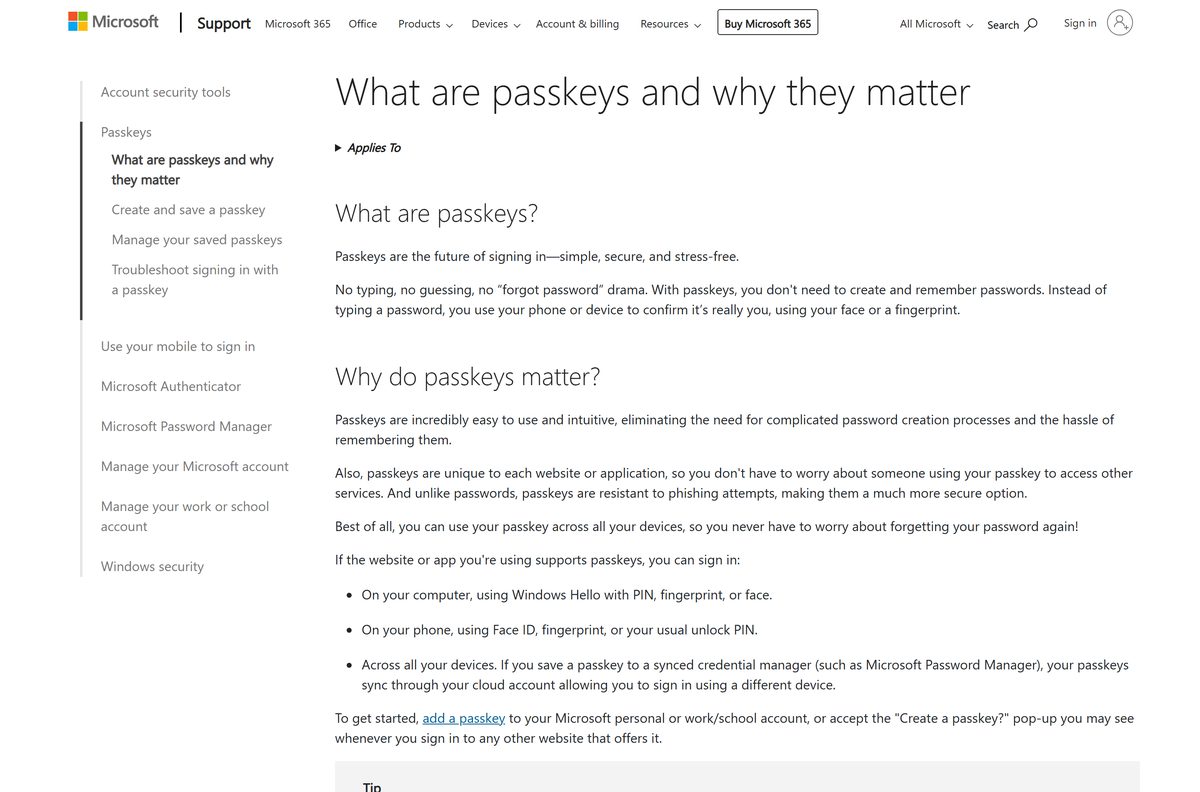
Below: the official store links, setup on the phone, passkey sign-in on a Windows PC and a Mac, Windows Hello setup, and fixes for approvals that never arrive.
Which Microsoft Authenticator download do you need?
Match the device in your hand to a row. The app itself is a phone app, so the PC rows point at the sign-in method a computer actually uses.
| Your device | What to install | Size |
|---|---|---|
| iPhone or iPad on iOS 17.0 or later | Microsoft Authenticator on the App Store | 223.0 MB |
| Android phone, tablet or Chromebook | Microsoft Authenticator on Google Play | Google Play states no size |
| Windows 11 or Windows 10 PC | A passkey saved with Windows Hello | Built in, nothing to download |
| Mac | A passkey in the browser, or the one on your phone | Nothing to download |
| A work or school account that demands phishing-resistant sign-in | A passkey created inside the phone app | Included with the app |
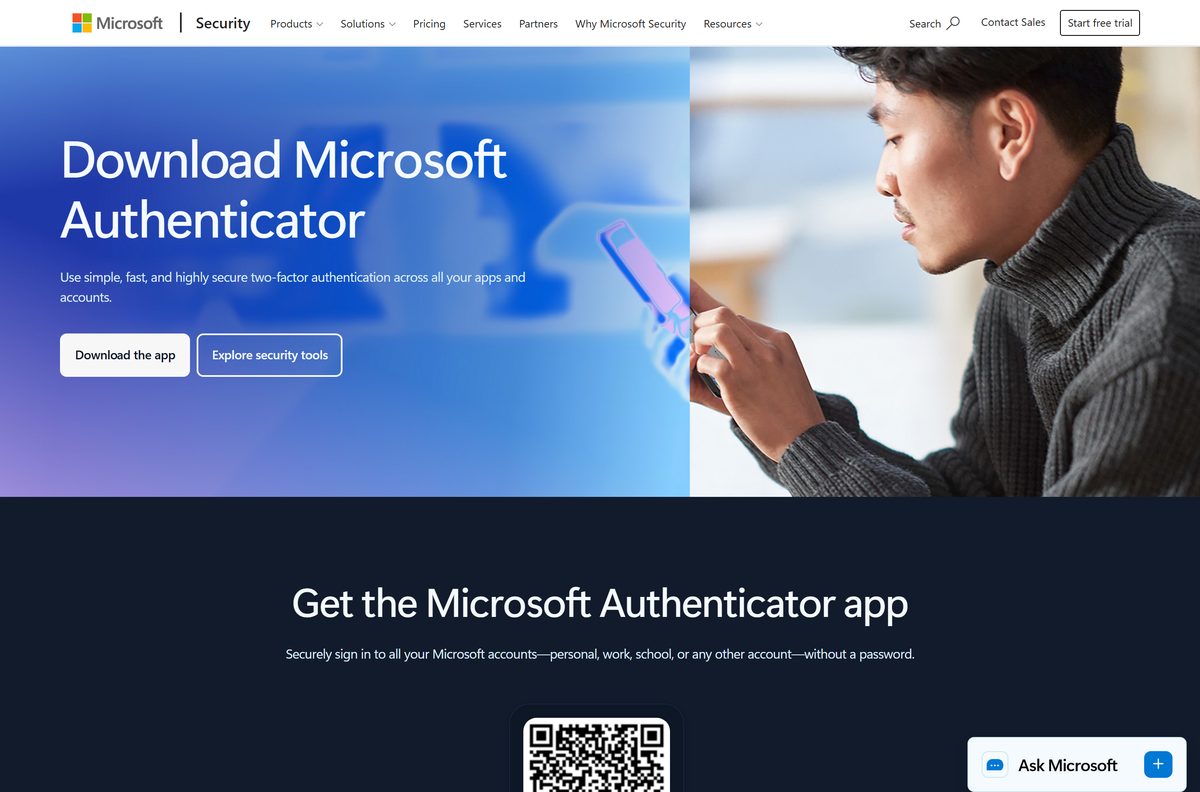
Download Microsoft Authenticator from Microsoft’s official links
Microsoft publishes the app at two addresses and points at both from its own security page. An APK or setup file from anywhere else is not Microsoft’s build.
- Microsoft Authenticator on the App Store — 223.0 MB · version 6.8.55, released 10 September 2026, iOS 17.0 or later
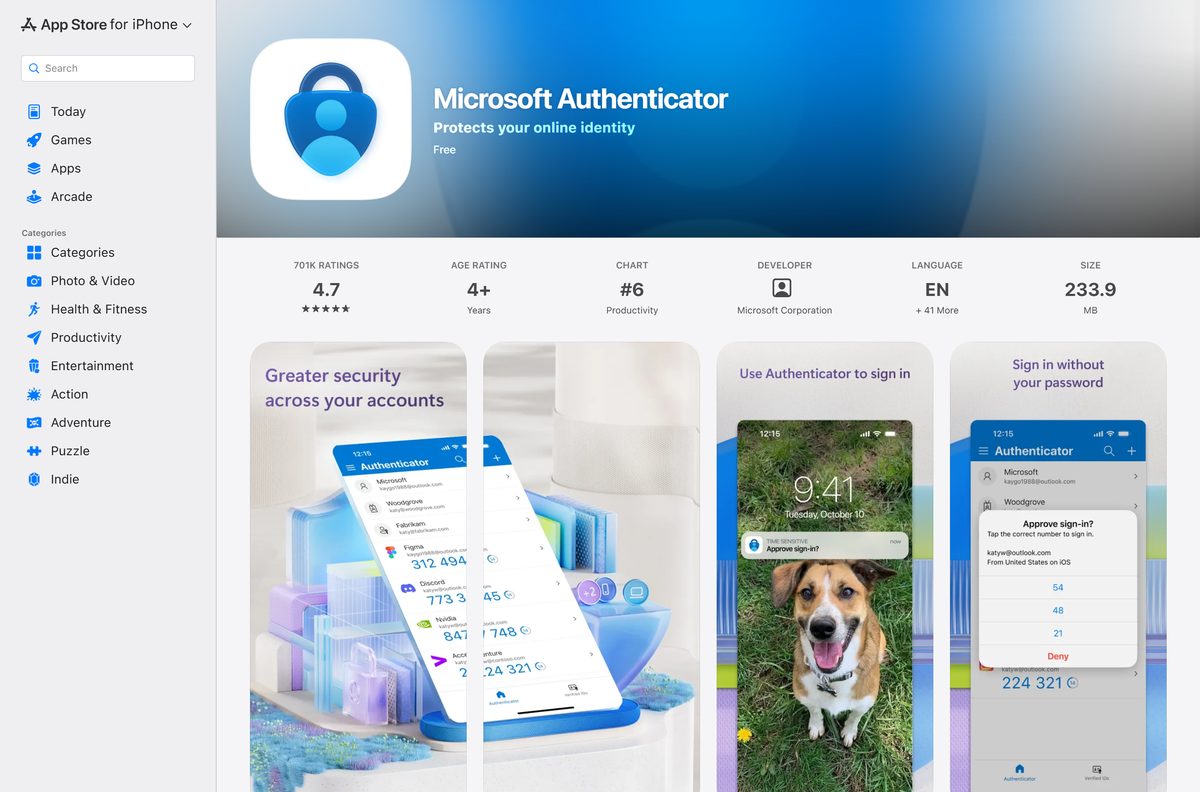
- Microsoft Authenticator on Google Play — Microsoft Corporation, 100M+ downloads, listing updated 21 September 2026
- Microsoft’s own app page — carries the store buttons and a QR code to scan from a computer
- Microsoft’s install instructions — states the app is not available for PC or Mac
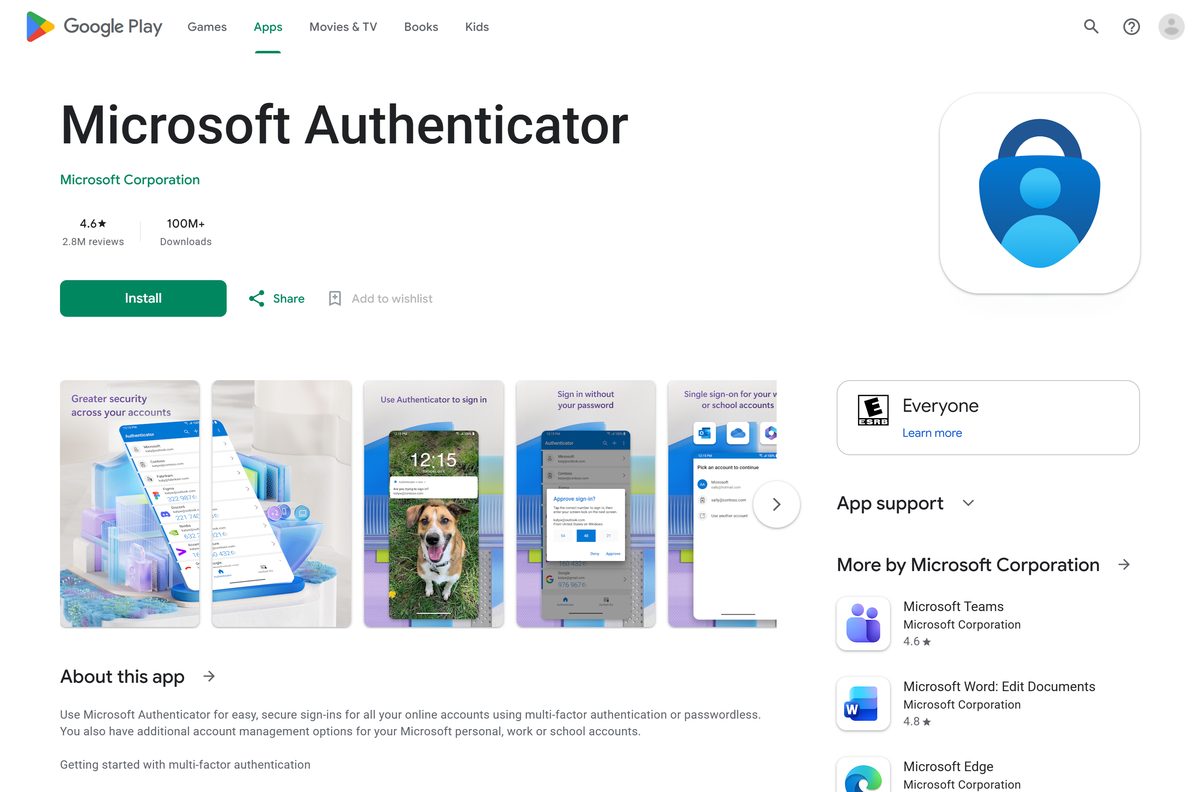
Check the Microsoft Authenticator requirements before you install
The app sets a floor on the phone operating system, and passkeys raise it a little further.
| Field | Value |
|---|---|
| Developer | Microsoft Corporation |
| Latest version | 6.8.55 on iPhone and iPad; Google Play publishes no version number |
| Price | Free |
| Supported OS | iOS 17.0 or later; Android phones, tablets and Chromebooks |
| Passkey minimum | iOS 17 or later, or Android 14 or later |
| Windows and macOS | No desktop build; Windows 10 and newer handle passkeys natively |
| Architecture | Mobile only, no PC binary |
| Download size | 223.0 MB on iPhone and iPad |
| Offline installer | None |
| Microsoft Store package | None |
| Android release | Listing updated 21 September 2026, 100M+ downloads |
| Last verified | 2026-09-22 |
Install Microsoft Authenticator on your phone from the store
Start here even if your goal is a PC sign-in. The account lives in the phone app, and the computer borrows it.
- Open the App Store or Google Play listing on your phone.
- Check the publisher reads Microsoft Corporation, then tap Get or Install.
- Open the app and move through the privacy screens.
- Tap Add account or the + button, then select Work or school account or Personal account.
- Tap Sign in and enter the account you want to protect.
- Scan the QR code shown by Security info if you are setting this up from a computer.
- Confirm the account tile now shows a six-digit code that changes every 30 seconds.
Codes keep working with no signal. Push approvals need a data connection on the phone.
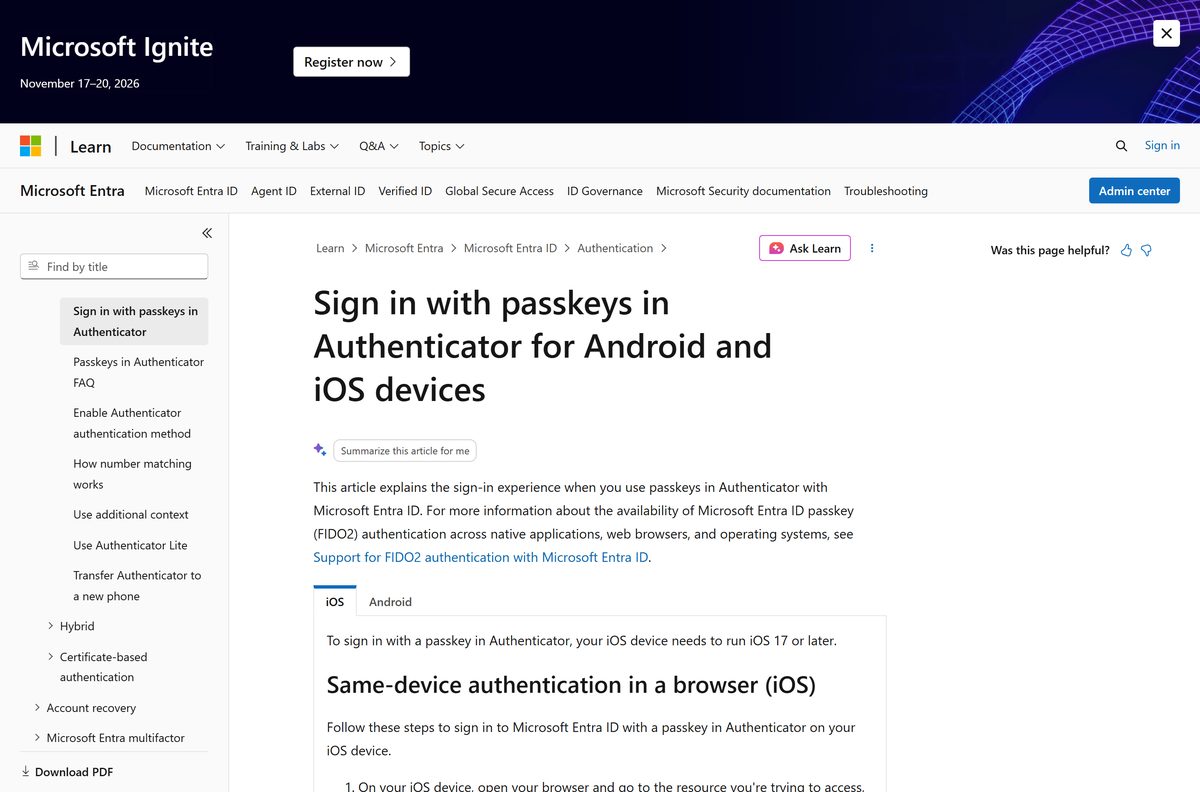
How to sign in on Windows 11 and 10 with Microsoft Authenticator
This is the passkey route, and it replaces the password outright. Keep Bluetooth on for both machines.
- Open the app on your phone, tap your account, then tap Create a passkey.
- Complete multifactor authentication, and set a screen lock if the app asks for one.
- Tap Settings and turn the app on as a passkey provider on the phone.
- On the PC, open the sign-in page and enter your username.
- Select Other ways to sign in, then Face, fingerprint, PIN or security key.
- Select iPhone, iPad, or Android device on Windows 11 23H2 or later.
- Scan the QR code with the phone camera, not the camera inside the app.
- Unlock the passkey with your face, fingerprint or device PIN to land on the desktop.
Skip the username entirely by selecting Sign-in options on the first screen.
How to set up Windows Hello and a passkey on the PC itself
A passkey stored on the computer removes the phone from the loop. Windows Hello unlocks it with a face, a fingerprint or a PIN.
- Open Settings on the PC, then Accounts, then Sign-in options.
- Set up PIN (Windows Hello), and add face or fingerprint if your hardware supports it.
- Open your Microsoft account security options in a browser.
- Choose Add a new way to sign in or verify.
- Select Face, Fingerprint, PIN, or Security Key and follow the prompts on the device.
- Choose to save the passkey to this Windows device so Windows Hello holds it locally.
- Open Settings, then Privacy & security, then Passkey access to control which apps may use it.
The same screen also offers a password manager, a phone or a security key as the store for the passkey.
Run a sign-in from your phone on a PC you do not own
A borrowed laptop never needs your credential. The passkey stays on the phone and the laptop only sees the result.
- Open the resource you want on the borrowed PC, such as Office.
- Select Sign-in options, then Face, fingerprint, PIN or security key.
- Choose the option for a phone or tablet when Windows asks where the passkey lives.
- Turn on Bluetooth on both devices and check each one has an internet connection.
- Scan the QR code with the phone camera, then tap Sign in with passkey.
- Verify yourself with a face scan, a fingerprint or the device PIN.
- Close the browser and sign out when you finish, because nothing was stored on that PC.
On a locked-down network, an administrator has to allow cable.ua5v.com for Android or cable.auth.com for iPhone.
Which Microsoft Authenticator sign-in do you need on a Mac?
Apple lists the app for iPhone and iPad only, so a Mac has no app to install. Pick the row that matches your setup.
| Your Mac setup | What to do | Result |
|---|---|---|
| An iPhone nearby with the app installed | Scan the sign-in QR code with the iPhone camera | Face ID or Touch ID finishes the sign-in on the Mac |
| No phone to hand | Save a passkey to the Mac from your account security page | Touch ID unlocks the passkey locally |
| Chrome on macOS | Register the passkey and allow the browser to reach your device | Allow login.microsoft.com to use the security key when prompted |
| An iPad used as a second screen | Microsoft Authenticator on the App Store | 223.0 MB, iOS 17.0 or later |
Is Microsoft Authenticator free?
Every sign-in method in the app costs nothing, on either store.
Yes, it is free, and a paid download is a warning sign. The App Store lists the price as Free and Google Play offers a free install. Passkeys, push approvals and one-time passcodes all arrive at no cost, and a work or school account adds nothing to your bill. A listing that asks for money, or a website selling a Windows setup file, is not Microsoft’s.
How to verify you installed the genuine app
Sign-in secrets are worth stealing, so copycat listings exist. Four checks settle it.
- Open the store listing and confirm the seller reads Microsoft Corporation.
- Check the Android package name is com.azure.authenticator on Google Play.
- Check the App Store listing carries the identifier id983156458.
- Reach both listings through the buttons on Microsoft’s own page rather than a search result.
- Reject any site offering an EXE, MSI or APK, because Microsoft ships neither a PC build nor a sideload file.
- Delete a suspect copy, then add your accounts again from Security info.
Administrators can go further and pin the app by its identifier: de1e552d-db1d-4423-a619-566b625cdc84 on Android and 90a3ccdf-635c-4729-a248-9b709135078f on iPhone.
How to check your Microsoft Authenticator version and update it
An old build stops working rather than warning you first. Microsoft retires versions more than a year old.
- Open the app, tap the menu button, then tap Settings.
- Scroll to the bottom of the settings screen to read the version number.
- Compare it with the App Store listing, which shipped 6.8.55 on 10 September 2026.
- Open your store’s updates list and tap Update if a newer build is waiting.
- Turn on automatic updates for the app so a retired build never locks you out.
- Open the app once after updating and approve any pending request.
FIPS-validated cryptography needs 6.6.8 or later on iPhone and 6.2409.6094 or later on Android.
What Microsoft Authenticator can sign you in to
The app is not limited to Microsoft accounts. Anything that speaks the standard code format works.
| Sign-in method | Where it works | Needs a network? |
|---|---|---|
| Passkey in the app | Work and school accounts, and any device including a Windows PC | Yes, plus Bluetooth for a second device |
| Passwordless phone sign-in | Microsoft personal, work and school accounts | Yes, push notification |
| Push approval with a number match | Multifactor prompts on any signed-in device | Yes |
| One-time passcode | Facebook, Amazon, Dropbox, Google, LinkedIn, GitHub and more | No |
| Certificate-based sign-in | Organisations that issue a certificate to the device | Yes |
| Single sign-on | Other Microsoft apps on the same phone | Yes |
A single account can hold up to five hardware tokens or authenticator apps at once.
Fix Microsoft Authenticator not working on Windows 11 and 10
Most PC-side failures trace back to one of four causes.
The QR code scan never completes
Cross-device sign-in runs over Bluetooth, and one side usually has it switched off.
- Turn Bluetooth on for both the PC and the phone.
- Confirm each device has a working internet connection.
- Use the phone’s system camera app, because the camera inside the app cannot read this code.
- Ask an administrator to allow cable.ua5v.com or cable.auth.com if a work network blocks them.
No approval notification arrives
An unanswered earlier request blocks the next one, and anomalous sign-ins no longer notify at all.
- Open the app and pull down to refresh, or tap Refresh.
- Answer any prompt that is already waiting there.
- Enter the one-time passcode from the account tile instead of waiting for a push.
- Retry the sign-in on the PC once the app shows no pending items.
The passkey option is missing on the sign-in screen
The phone has not been enabled as a passkey provider, or the operating system is too old.
- On iPhone, open Settings, then General, then Autofill & Passwords, and select Authenticator under Autofill From.
- On Android, open Passwords & accounts and select Authenticator under Additional providers.
- Update to iOS 17 or later, or Android 14 or later.
- Move to Android 15 if Android 14 refuses to list the app as a provider.
Windows refuses to create or use a passkey
Windows 11 version 24H2 asks for consent per app, and a declined prompt blocks it silently.
- Open Settings, then Privacy & security, then Passkey access.
- Find the app or browser in the list and turn its switch on.
- Set up PIN (Windows Hello) under Settings > Accounts > Sign-in options if no unlock method exists.
- Select I forgot my PIN to reset the PIN when Windows Hello stops accepting it.
Approvals fail on an Android phone in China
Google Play services carry the push notification, and that service is blocked in the region.
- Use the one-time passcode from the account tile instead of a push approval.
- Ask your administrator to enable a second sign-in method for the account.
- Use an iPhone for push approvals, because notifications still reach iOS there.
How to uninstall Microsoft Authenticator without locking yourself out
Removing the app does not remove the account’s registration. Clear the server side first, or the next sign-in has nowhere to go.
- Add a second sign-in method at Security info before touching the app.
- Open the app, tap the account name, tap Settings, then tap Delete passkey.
- Return to Security info and select Delete on the leftover passkey entry.
- Remove each remaining account tile from inside the app.
- Uninstall the app from the phone’s home screen or app list.
- Sign in once on the PC with the backup method to confirm the account still opens.
A work or school account may also leave a device registration behind, which an administrator clears.
Which Microsoft Authenticator alternative works on a PC?
Pick the one that matches how often you sign in and how much your organisation trusts a phone.
| Option | Runs on | Best for |
|---|---|---|
| Windows Hello passkey | Windows 10 and newer, Windows 11 recommended | A personal PC you sign in to every day |
| Passkey in the phone app | iOS 17 or later, Android 14 or later | Shared or borrowed computers |
| FIDO2 security key | Any PC with USB or NFC | Accounts that must not depend on a phone |
| One-time passcode in the app | iPhone and Android | Sites with no passkey support |
| Certificate-based sign-in | Managed devices | Organisations that issue their own certificates |
Passkeys in the app stay on the device that created them, so a stolen backup cannot carry them away.
Frequently asked questions about Microsoft Authenticator
Short answers to the questions that come up most on a PC.
Is Microsoft Authenticator free?
Yes. The App Store lists the price as Free and Google Play offers it as a free install. No subscription, trial or in-app purchase is needed for passkeys, push approvals or one-time passcodes.
Can I download Microsoft Authenticator on my PC?
Microsoft ships the app for phones only and states it is not available for PC or Mac. On a computer, Windows Hello and passkeys do the same job, and the phone app approves the sign-in.
What is the Microsoft Authenticator download size?
The iPhone and iPad build is 223.0 MB. Google Play states no size for the Android package, so the amount you download there depends on your device and Android version.
Is there a Microsoft Authenticator offline installer?
No. The app ships only through the App Store and Google Play, and no standalone setup file exists. One-time passcodes still work with no network once an account is added.
Is there a Microsoft Authenticator app for Mac?
No. The App Store listing covers iPhone and iPad only. A Mac signs in with a passkey stored in the browser or with the passkey held on your phone, scanned through a QR code.
Does Microsoft Authenticator have a 64-bit or ARM64 version?
The question does not apply, because no desktop build exists. The app runs as a mobile binary on iPhone, iPad, Android phones, tablets and Chromebooks.
Is it safe to download Microsoft Authenticator from other sites?
No. A third-party APK or setup file is not Microsoft’s build and cannot be trusted with sign-in secrets. Install from the App Store or Google Play and check the publisher reads Microsoft Corporation.
What is the latest version of Microsoft Authenticator?
The App Store shipped 6.8.55 on 10 September 2026. Google Play publishes no version number and updated its listing on 21 September 2026.
Which Windows version do I need for passkeys?
Passkeys work on Windows 10 and newer, and Microsoft recommends Windows 11 for the newest features. Native passkey management arrived in Windows 11 version 22H2 with KB5030310.
Why will Microsoft Authenticator not approve my PC sign-in?
Cross-device sign-in needs Bluetooth and an internet connection on both the PC and the phone. Update the app, open it and pull down to refresh, then retry the request.
Can I move my Microsoft Authenticator accounts to a new phone?
Yes, through cloud backup, but only to the same platform. Accounts backed up on an iPhone cannot be restored on an Android device. Work and school accounts back up by name and need a fresh sign-in.