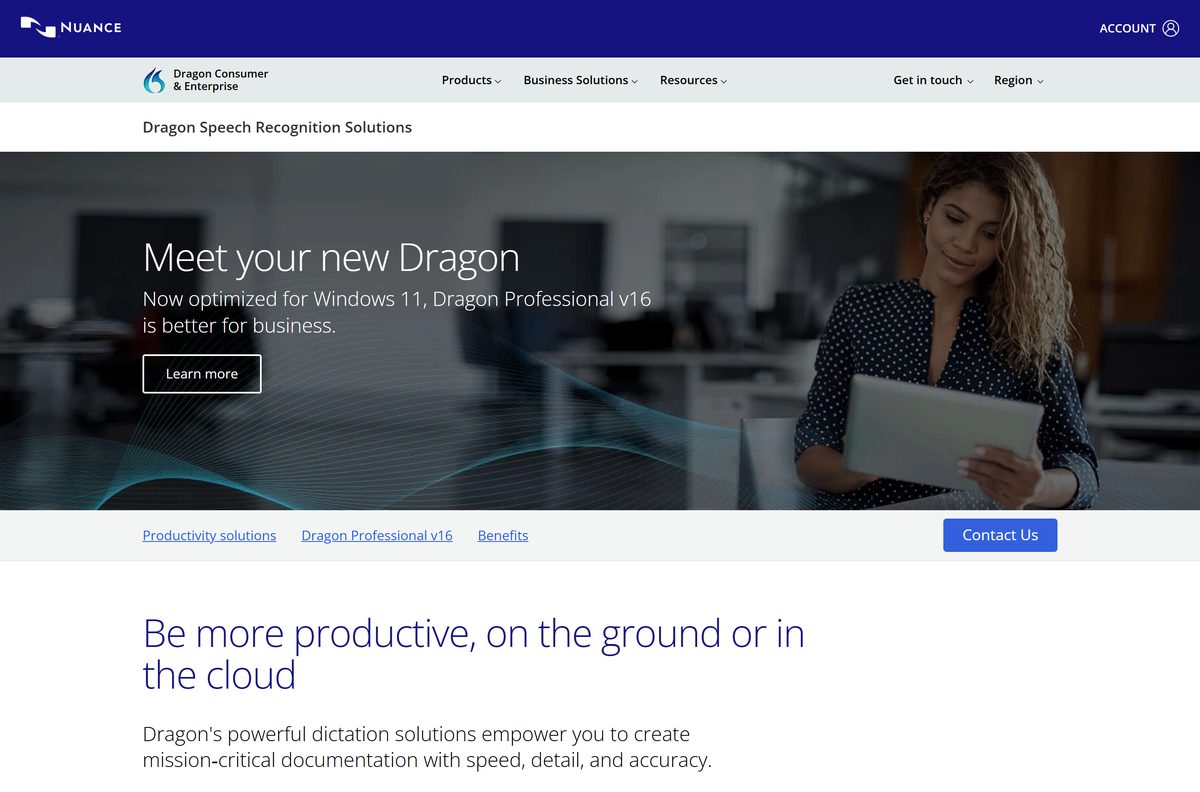
The Dragon NaturallySpeaking download for Windows 11 and Windows 10 now comes as Dragon Professional v16 from Nuance. You buy a license, then install it with the Dragon.exe installer and your serial number.
Dragon Professional 16.1 is the current release. It turns speech into text in Windows apps, transcribes recordings and runs voice commands.
Below are the official Nuance pages, the install and upgrade steps, system requirements, Mac options and fixes for setup problems.
Which Dragon download do you need?
Nuance sells Dragon as several editions today, and the right one depends on your work and your computer. Match your situation to a row.
| Your situation | Get this edition | Where |
|---|---|---|
| Windows 11 or 10 PC, general business or accessibility use | Dragon Professional v16 | Dragon Professional |
| Lawyer or legal staff on Windows | Dragon Legal v16 | Dragon Legal |
| Police officer on an in-car Windows computer | Dragon Law Enforcement v16 | Dragon Law Enforcement |
| Organization that wants cloud-hosted dictation | Dragon Professional Anywhere | Dragon Professional Anywhere |
| Dictation on a phone or tablet | Dragon Anywhere Mobile | Dragon Anywhere Mobile |
| Mac with no Windows install | No desktop edition | Use macOS Voice Control instead |
Most people searching for Dragon NaturallySpeaking want the first row. Dragon Professional v16 is the general-purpose desktop edition.
Download Dragon Professional from the official Nuance pages
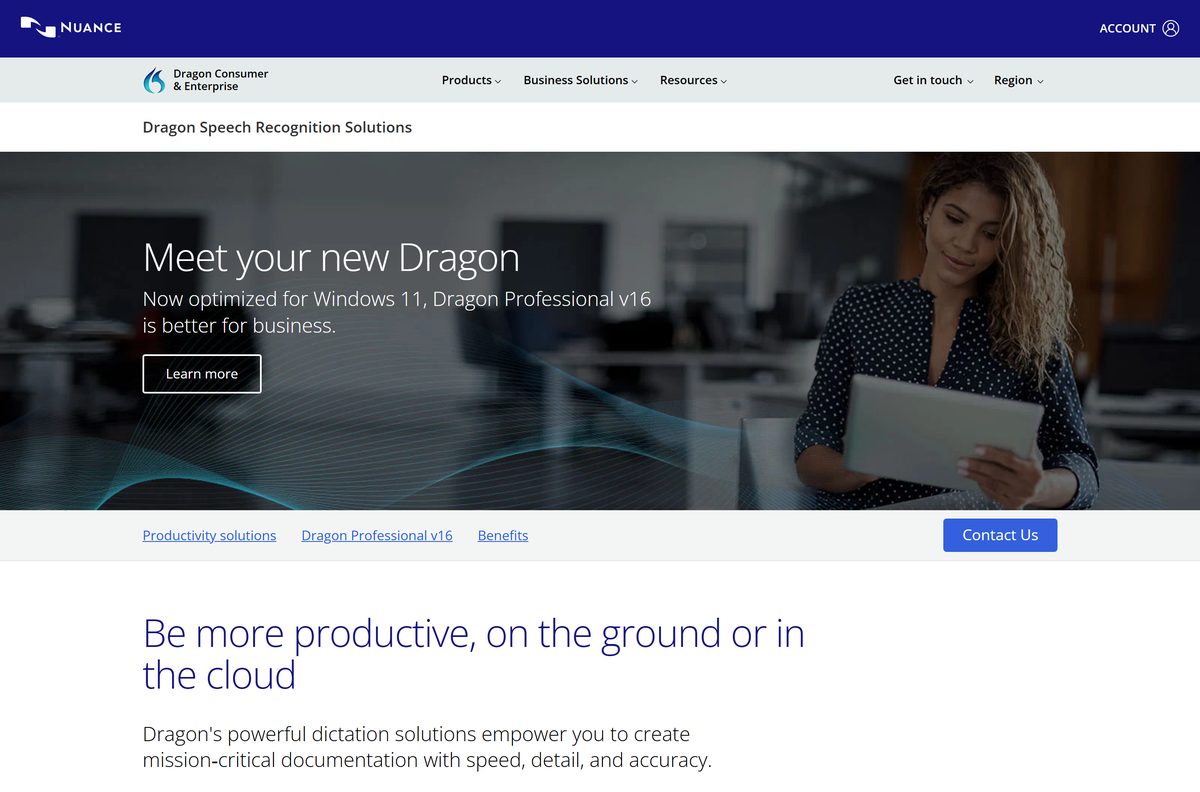
Nuance does not post a public installer link. You order Dragon first, then install from what the order provides: the Dragon.exe installer and a serial number.
The product page has no cart. Use its sales contact button, or call Nuance sales on (800) 654-1187, to buy a license.
- Dragon Professional v16 product page — its contact button reaches Nuance sales
- Contact Nuance sales — choose Ask about a product or place an order
- Nuance Shop Account sign-in — the Account link on dragon.nuance.com opens this page
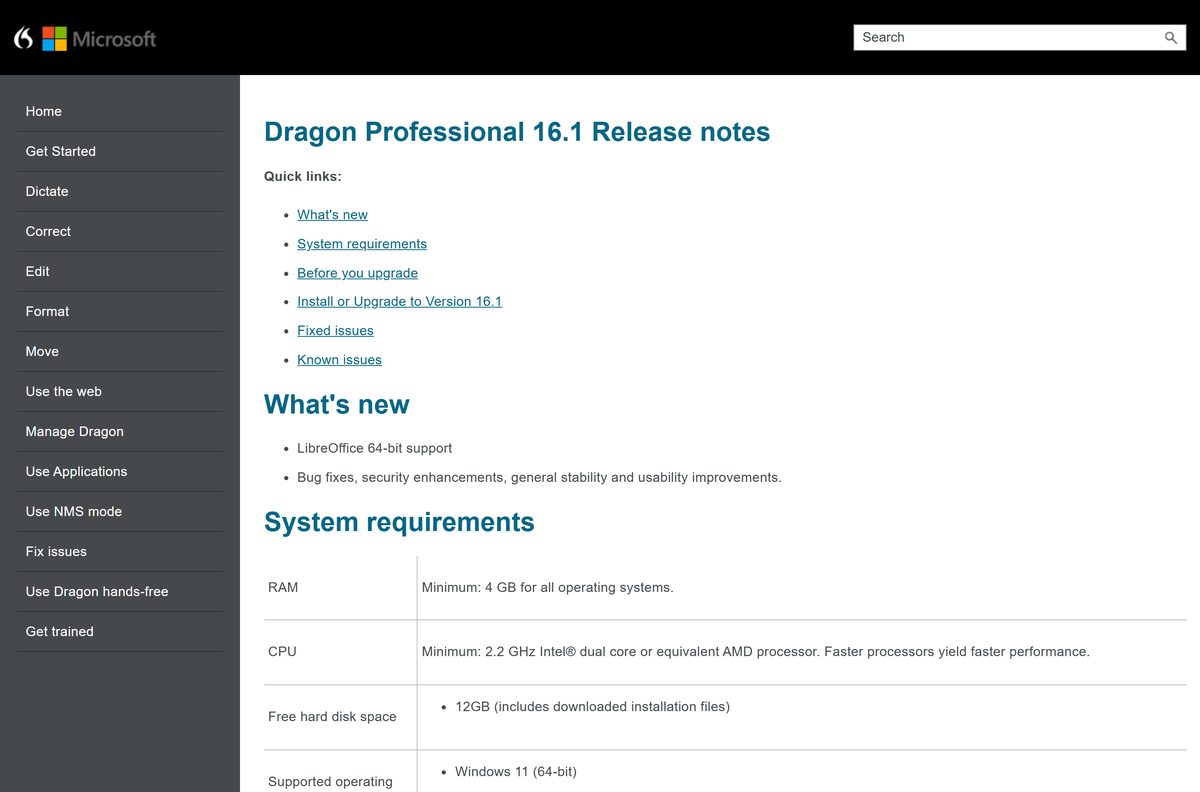
- Dragon 16.1 release notes — requirements and the full install procedure
Keep the confirmation email. For a download purchase, it holds your serial number in an attached .CSV file and an attached .HTML file.
How to install Dragon Professional on Windows 11 and 10
Dragon.exe is a web installer. It downloads the files it needs during setup, so stay online until it finishes.
- Close every open program.
- Turn off your antivirus program until the installation completes.
- Double-click Dragon.exe. The requested files download and the installation starts.
- Install the Microsoft .NET Framework 4.8 if prompted, then restart the PC if Windows asks.
- Click Next in the Dragon InstallShield wizard.
- Read the license terms, select the option that accepts them, then click Next.
- Enter your Dragon 16.1 serial number and click Next.
- Select your region. Tick Advanced only if you want a different install folder, then click Next.
- Click Install and wait for the wizard to finish.
- Turn your antivirus back on, open Dragon and create your user profile.
Microsoft hosts free Dragon Professional learning modules for the first days of use. Open Learn Dragon Professional for dictation basics and the DragonBar.
Which Dragon option do you need on a Mac?
The Dragon desktop editions Nuance sells today are Windows programs. Pick the route that matches how your Mac is set up.
| Your Mac | What to use | Start here |
|---|---|---|
| macOS only, you need dictation and voice commands | macOS Voice Control, built in | Use Voice Control on your Mac |
| You also run a licensed copy of Windows 10 or 11 | Dragon Professional v16 inside Windows | Dragon Professional |
| You dictate away from the desk | Dragon Anywhere Mobile | Dragon Anywhere Mobile |
Voice Control lives under Apple menu > System Settings > Accessibility > Voice Control. It dictates, edits text and runs commands such as “Open Mail”.
Is Dragon NaturallySpeaking free?
Dragon has always been paid software, and the current edition is sold through Nuance’s sales team.
Dragon Professional v16 is paid, and there is no free edition on dragon.nuance.com. The product page lists no price and no buy button. Buyers go through the sales contact form or call (800) 654-1187, and the license covers individuals as well as groups. Organizations buying several seats manage them through Nuance Management Center. Any site offering a free full copy, a serial generator or an activator is not a Nuance license. For free dictation, Windows voice typing opens with Windows logo key + H on Windows 11 and 10.
Should you install Dragon Professional 16 or keep NaturallySpeaking 13?
Nuance’s documentation now files Dragon NaturallySpeaking 13 Home, Premium and Premium Student/Teacher under older products. The desktop editions on sale are all version 16.
Install Dragon Professional 16.1 and retire an older NaturallySpeaking copy. Dragon 16 is optimized for Windows 11 and Office 2021, and 16.1 adds LibreOffice 64-bit support. A copy of Dragon 14, 15 or 16 upgrades in place and keeps custom words and commands. Dragon 13 or earlier does not upgrade automatically, so export custom words and commands first, uninstall it, install 16.1 and import them into a new profile.
How to check your Dragon version and upgrade to 16.1
The installer handles the upgrade. You do not need to uninstall Dragon 14, 15 or 16 first.
- Click the Help icon on the DragonBar and select About Dragon to see your version and serial number.
- Select Vocabulary Center > Export custom word and phrase list and save the text file.
- Select Tools > Command Center, then Mode > Manage.
- Choose User-defined in the Group list, tick your commands and click Export.
- Run the 16.1 Dragon.exe. It removes the previous version as it installs.
- Open each user profile once, so Dragon upgrades it to 16.1.
Moving from Dragon Professional or Dragon Legal to Dragon Law Enforcement 16 does not carry profiles over. Export custom words and commands first, then import them.
Check the Dragon Professional system requirements
These are Nuance’s minimums for Dragon 16.1. Open Settings > System > About in Windows to compare your RAM, processor and system type.
| Field | Value |
|---|---|
| Software | Dragon Professional v16 (Dragon NaturallySpeaking 13 is listed as an older product) |
| Developer | Nuance Communications, Inc., a Microsoft company |
| Latest version | Dragon Professional 16.1 |
| License | Paid, sold through Nuance sales |
| Operating system | Windows 11 (64-bit), Windows 10 (32-bit and 64-bit), Windows Server 2016, 2019 and 2022 |
| Architecture | x64 and x86; ARM64 not listed |
| Processor | 2.2 GHz Intel dual core or equivalent AMD |
| Memory | 4 GB RAM minimum |
| Free disk space | 12GB, including the downloaded installation files |
| Software needed | .NET Framework 4.8 or later, Visual C++ 2019 Runtime, Microsoft Edge or your default browser |
| Microphone | Any audio input capable of 16-bit recording; Apple AirPods not officially supported |
| Offline installer | No; Dragon.exe downloads files during setup |
| Official source | dragon.nuance.com |
| Last verified | 2026-09-24 |
Fix Dragon not installing on Windows 11 or 10
Each problem below has one cause and one fix.
Setup stops and asks for the .NET Framework
Dragon needs Microsoft .NET Framework 4.8 or later, and Nuance does not bundle it.
- Accept the prompt to install .NET Framework 4.8, or get it from microsoft.com.
- Restart the PC when Windows asks.
- Run Dragon.exe again.
The installer stalls while downloading files
Dragon.exe fetches its files during setup, and an antivirus program or a dropped connection interrupts it.
- Close every open program.
- Turn off your antivirus program until the installation completes.
- Check that at least 12GB of disk space is free.
- Run Dragon.exe again on a stable connection.
The wizard rejects your serial number
The serial belongs to a different product or edition, or it was mistyped.
- Open Nuance’s confirmation email and copy the serial from the attached .CSV or .HTML file.
- Paste it into the wizard instead of typing it.
- Contact Nuance through Get help with my order on the contact page if it still fails.
An old Dragon 13 profile will not open in 16.1
Automatic profile upgrades only cover Dragon 14, 15 and 16.
- Export custom words and commands from Dragon 13.
- Uninstall Dragon 13 and install 16.1.
- Create a new profile and import the exported files.
Dragon installs but will not take dictation from AirPods
Apple AirPods are not officially supported for dictation with Dragon.
- Plug in a headset or USB microphone capable of 16-bit recording.
- Select it as the dictation source in your Dragon profile.
- Turn the microphone on from the DragonBar and dictate a test sentence.
How to uninstall Dragon Professional
Export anything you built before removing Dragon. Custom words and commands are gone once the profile is deleted.
- Export custom words from Vocabulary Center > Export custom word and phrase list.
- Export custom commands from Tools > Command Center, then Mode > Manage > Export.
- Note your serial number from Help > About Dragon for a later reinstall.
- Close Dragon and open Start > Settings > Apps > Installed apps.
- Find Dragon in the list, select the … menu and choose Uninstall.
- Confirm, then restart the PC.
Which Dragon alternative fits your setup?
The built-in options cost nothing and suit short dictation. Dragon stays the pick for custom vocabularies, transcription of recordings and voice macros.
| Option | Platform | Price | Start here |
|---|---|---|---|
| Dragon Professional v16 | Windows 11 and 10 | Paid | Dragon Professional |
| Windows voice typing (Windows logo key + H) | Windows 11 and 10 | Free, built in | Use voice typing |
| macOS Voice Control | Mac | Free, built in | Use Voice Control |
| Dragon Professional Anywhere | Cloud-hosted, for organizations | Paid | Dragon Professional Anywhere |
Windows voice typing needs an internet connection, because it runs on Azure Speech services.
Frequently asked questions
Short answers on getting and installing Dragon.
Is Dragon NaturallySpeaking free?
No. Dragon Professional v16, the current desktop edition, is paid software sold through Nuance sales. Nuance lists no free edition and no price on its site. Windows voice typing, opened with Windows logo key + H, is the free built-in option on Windows 11 and 10.
Where is the official Dragon NaturallySpeaking download page?
Nuance sells the current edition, Dragon Professional v16, from dragon.nuance.com/en-us/dragon-professional. Buyers get the Dragon.exe installer and a serial number with their order. Nothing on a third-party download site is a licensed Nuance copy.
Does Dragon work on Windows 11?
Yes. Dragon Professional 16.1 supports Windows 11 64-bit and is optimized for it. It also runs on Windows 10 in 32-bit and 64-bit form, and on Windows Server 2016, 2019 and 2022.
How big is the Dragon download?
Nuance publishes no download size for Dragon.exe, because it is a web installer that fetches its files during setup. Plan for 12GB of free disk space, which Nuance states includes the downloaded installation files.
Is there an offline installer for Dragon Professional?
No public one. Dragon.exe starts the installation and downloads the requested files as it goes, so keep the PC online until setup finishes. Organizations on volume licensing deploy through Nuance’s volume license installation guide instead.
Is Dragon NaturallySpeaking available for Mac?
No. Every locally installed edition Nuance sells today, Dragon Professional, Dragon Legal and Dragon Law Enforcement, is a Windows program. On a Mac, macOS Voice Control handles dictation and voice commands, found under System Settings, then Accessibility.
Is Dragon 32-bit or 64-bit?
Both, depending on Windows. Dragon 16.1 runs on 64-bit Windows 11 and on 32-bit or 64-bit Windows 10. ARM64 does not appear in Nuance’s system requirements, so ARM-based Windows laptops are not a listed platform.
What is the latest version of Dragon?
Dragon Professional 16.1. It added LibreOffice 64-bit support and fixed commands that stopped working after installing the Dragon web extensions for Edge or Chrome. It upgrades Dragon 14, 15 and 16 automatically.
Is Dragon NaturallySpeaking safe to download?
Yes, when it comes from Nuance with a serial number from your own order. Copies on download portals, cracked builds and serial generators are not licensed and carry malware risk. The official product pages live on dragon.nuance.com.
Where do I find my Dragon serial number?
Open the DragonBar, click the Help icon and select About Dragon. For a download purchase, Nuance’s confirmation email carries the serial in both the attached .CSV file and the attached .HTML file.
Why won’t Dragon install on my PC?
The usual causes are a missing .NET Framework 4.8, an antivirus program blocking the download, or a lost internet connection mid-setup. Install .NET when prompted, restart, pause the antivirus and run Dragon.exe again.
Can I upgrade from Dragon NaturallySpeaking 13 to Dragon 16?
Yes, with a manual step. Export your custom words and commands from Dragon 13, uninstall it, install Dragon 16.1, create a new profile and import them. Automatic upgrades only cover Dragon 14, 15 and 16.