You can download Kindle for PC free from the Microsoft Store on Windows 11, and Kindle for Mac free from the Mac App Store. Sign in with your Amazon account and every Kindle book you bought appears in your library.
This guide covers the official Kindle download links for Windows and Mac, installation, the Kindle for Web option for other computers, updates, fixes for failed installs, and removal.
Which Kindle download do you need?
Match your computer in the first column, then open the link beside it. Every route is free and uses the same Amazon library.
| Your device | What to get | Download size |
|---|---|---|
| Windows 11 PC (x64) | Amazon Kindle: Reading App on the Microsoft Store | 492.3 MB |
| Mac on macOS 11 or later | Amazon Kindle on the Mac App Store | 99.3 MB |
| Windows 10 PC, ARM-based PC or a shared computer | Kindle for Web in a browser | None |
| iPhone or iPad on iOS 17 or later | Amazon Kindle on the App Store | 205.4 MB |
Press Windows + R, type winver and select OK to see which Windows version your PC runs. On a Mac, open the Apple menu and choose About This Mac.
Download Kindle for Windows 11 and Mac from the official links
Amazon distributes the Kindle desktop app through two stores. Its Free Kindle Reading Apps page lists every platform in one place.
- Amazon Kindle: Reading App on the Microsoft Store — 492.3 MB x64 package · product 9P8JQ0JJSTLL, publisher AMZN Kindle, free
- Amazon Kindle on the Mac App Store — 99.3 MB · seller AMZN Mobile LLC, free
- Amazon’s Free Kindle Reading Apps page — links for iOS, Android, Mac and PC
- Kindle for Web — reads in the browser, nothing to install
Check the publisher line before you click Get. The Windows listing reads AMZN Kindle and the Apple listing reads AMZN Mobile LLC. A Kindle setup file offered by a download portal is not one of these two sources.
How to install the Kindle app on Windows 11
The Microsoft Store downloads and installs the package in one step. Sign in to Windows with a Microsoft account first.
- Open the Amazon Kindle: Reading App listing on the Microsoft Store.
- Select Get. If a browser opened the listing, allow it to open the Microsoft Store app.
- Wait while the Store downloads the 492.3 MB package.
- Select Open when the button changes, or find Kindle in the Start menu.
- Sign in with the email address and password of your Amazon account.
- Wait for your library to load. Books you bought on Amazon appear automatically.
- Select a book cover to download the book and start reading.
No Get button on the listing means the Store considers the PC incompatible. That points to Windows 10 or an ARM-based PC, both covered in the fixes below.
Which Kindle download do you need for your Mac?
Amazon’s current Kindle for Mac comes from the Mac App Store and needs macOS 11 or higher. The older Kindle for Mac, renamed Kindle Classic, lost support by October 31, 2023.
| Your Mac | What to do | Note |
|---|---|---|
| macOS 11 or later | Get Amazon Kindle from the Mac App Store | 99.3 MB, free |
| Older than macOS 11 | Read in Kindle for Web | Runs in the browser |
| Still running Kindle Classic 1.40.1 or higher | Install the new app | Collections move over automatically |
| Still running Kindle Classic older than 1.40.1 | Follow Amazon’s collection-copy steps | Copy the sockeye.dat file by hand |
To install, open the App Store, search for Amazon Kindle, click Get, and enter your Apple Account password if asked. Open Kindle from Applications and sign in with your Amazon account.
Personal documents from Kindle Classic do not carry over. Import them again with Send to Kindle. Copied collections show a Local badge until you open one and click Sync to account.
Is the Kindle app free?
Yes. The Kindle app costs nothing on Windows 11, Mac, iPhone and iPad. The Microsoft Store lists Amazon Kindle: Reading App at $0.00, and the App Store marks it Free. You pay only for the books you buy on Amazon. Kindle Unlimited and Amazon Prime members can pick included titles and download them directly in the app. Free samples of any Kindle book open in the app too. Any site charging for a Kindle for PC licence is selling something Amazon gives away.
Should you install the Kindle app or use Kindle for Web?
Install the app on a Windows 11 PC or a Mac you read on every day. Use Kindle for Web on Windows 10, ARM-based PCs and shared computers. The Store package is x64-only and requires Windows 11 build 22000 or later, and the Mac app requires macOS 11. Kindle for Web, formerly Kindle Cloud Reader, needs only a browser and an Amazon sign-in. It keeps the core reading tools: text size, font, layout, margins, background colour, notes, highlights, search and dictionary look-ups.
How to check your Kindle version and update it
Microsoft Store apps update automatically by default. Run a manual check when a new feature has not arrived yet.
- Open the Microsoft Store app on Windows 11.
- Select Check for updates and let the Store download any pending Kindle update.
- Open the Kindle listing to confirm the button now reads Open rather than Update.
- On a Mac, open the App Store and click Updates in the sidebar.
- Click Update next to Kindle if it appears in the list.
The current Windows package is version 1.0.25218.0. The Mac, iPhone and iPad builds are version 7.67.
Check that your PC or Mac meets the Kindle requirements
The Windows package sets a hard floor of Windows 11. The Store blocks the install on anything older.
| Field | Value |
|---|---|
| Software | Kindle (Amazon Kindle: Reading App) |
| Developer | Amazon (AMZN Kindle on the Microsoft Store, AMZN Mobile LLC on the App Store) |
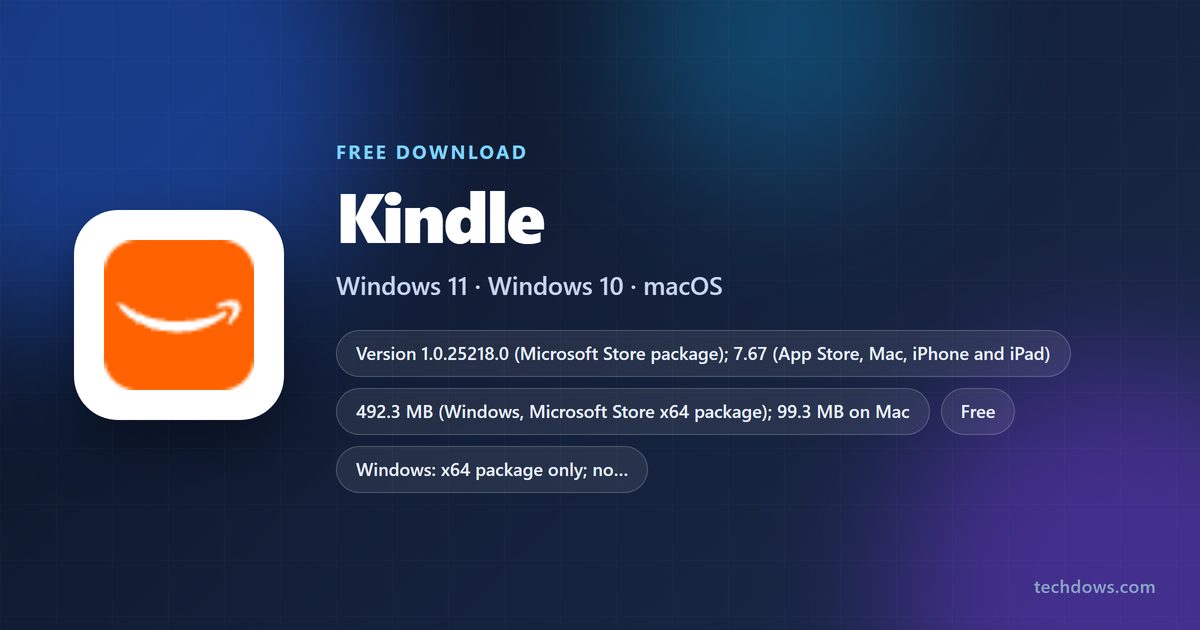
| Latest version | 1.0.25218.0 on Windows; 7.67 on Mac, iPhone and iPad |
| Price | Free |
| Windows download size | 492.3 MB (x64 Store package) |
| Mac download size | 99.3 MB |
| Minimum Windows | Windows 11 (build 10.0.22000.0) |
| Minimum macOS | macOS 11 |
| iPhone and iPad | iOS 17.0 or later, 205.4 MB |
| Architecture | x64 on Windows; no ARM64 package is listed |
| Offline installer | No; both stores download over the internet |
| Official source | Amazon, the Microsoft Store and the Mac App Store |
| Last verified | 2026-09-19 |
Fix Kindle not installing on Windows 11
The Store shows no Get button for Kindle
Microsoft Store hides or blocks the install button on apps that are incompatible with the device. The Kindle package needs Windows 11 on an x64 processor.
- Press Windows + R, type winver and select OK.
- Confirm the window says Windows 11. On Windows 10, read in Kindle for Web instead.
- Open Settings > System > About and check System type for an x64-based processor.
- On an ARM-based PC, use Kindle for Web in the browser.
Kindle does not appear when you search the Store
The Store app has a stale cache, family settings hide the app, or the listing is unavailable in your region.
- Press Windows + R, type wsreset.exe and select OK.
- Wait about ten seconds for the blank window to close and the Store to reopen.
- Check that you are signed in to the Store with the correct Microsoft account.
- Search for Amazon Kindle again, or open the listing link directly.
The download starts but the install fails
Windows installed updates recently and has not restarted, or the PC is not authorised for Store apps.
- Restart the PC to finish any pending Windows updates.
- Open Settings > Windows Update and install anything still waiting.
- Sign in to the Microsoft Store with your Microsoft account.
- Select Get on the Kindle listing again.
How to uninstall the Kindle app
Books you bought stay in your Amazon account and return as soon as you install the app again and sign in.
- On Windows 11, open Start > Settings > Apps > Installed apps.
- Find Amazon Kindle: Reading App in the list.
- Select More (the three dots), then Uninstall, and confirm.
- Alternatively, right-click Kindle in Start > All apps and choose Uninstall.
- On a Mac, open Finder and select Applications in the sidebar.
- Drag Kindle to the Trash, then empty the Trash to remove it for good.
Choose where to read your Kindle books
Every option below opens the same Amazon library and syncs your last page, bookmarks, highlights and notes.
| Where you read | Use this | Trade-off |
|---|---|---|
| Windows 11 desktop or laptop | Kindle app on the Microsoft Store | Needs Windows 11 and an x64 processor |
| Mac | Kindle app on the Mac App Store | Needs macOS 11 or later |
| Windows 10 or a work PC | Kindle for Web | Nothing to install; reads in the browser |
| iPhone or iPad | Kindle app on the App Store | Needs iOS 17.0 or later |
| Android phone or any other device | Amazon’s Free Kindle Reading Apps page | Lists the app for each platform |
Install the app on the computer you read on most. Keep Kindle for Web for machines where you cannot install software.
Frequently asked questions
Is the Kindle app free?
Yes. Amazon Kindle: Reading App is free on the Microsoft Store for Windows 11 and free on the App Store for Mac, iPhone and iPad. You pay only for the Kindle books you buy, and Kindle Unlimited or Prime members can download included titles.
Where is the official Kindle download for PC?
The official Windows download is the Amazon Kindle: Reading App listing on the Microsoft Store, product 9P8JQ0JJSTLL, published by AMZN Kindle. Amazon’s Free Kindle Reading Apps page on amazon.com lists it with the Mac, iPhone and Android apps.
Does Kindle for PC work on Windows 11?
Yes. The Microsoft Store package is built for Windows 11 and requires build 10.0.22000.0 or later on an x64 processor. Install it from the Store listing and sign in with your Amazon account.
Can I install Kindle on Windows 10?
The current Microsoft Store package requires Windows 11, so the Store blocks the install on Windows 10. On a Windows 10 PC, open Kindle for Web at read.amazon.com and read your library in the browser instead.
How big is the Kindle download?
The Windows package, version 1.0.25218.0, is a 492.3 MB x64 download from the Microsoft Store. The Mac App Store lists the Mac app at 99.3 MB, and the iPhone and iPad build is 205.4 MB.
Is there a Kindle offline installer for Windows?
No. Amazon ships the Windows app only as a Microsoft Store package, which downloads over the internet. The Store keeps the app updated automatically after the first install.
Is there a Kindle app for Mac?
Yes. Get Amazon Kindle from the Mac App Store on macOS 11 or later. It replaced the older Kindle for Mac, now called Kindle Classic, whose support ended by October 31, 2023.
Does Kindle for PC support 64-bit and ARM64?
The Windows package is x64 only, and Microsoft’s catalog lists no ARM64 package. On an ARM-based Windows PC, read your books in Kindle for Web at read.amazon.com.
Is the Kindle app safe to download?
Yes, from the official listings. The Windows app comes from the Microsoft Store under publisher AMZN Kindle, and the Apple version comes from the App Store under seller AMZN Mobile LLC. Skip setup files offered by download portals.
What is the latest version of the Kindle app?
The Microsoft Store package is version 1.0.25218.0. On Mac, iPhone and iPad the current version is 7.67, released on the App Store on September 8, 2026.
Why won’t Kindle install on my PC?
The usual cause is an unsupported PC: the package needs Windows 11 on an x64 processor, and the Store hides the Get button otherwise. On a supported PC, run wsreset.exe, restart Windows and sign in to the Store.
Is the Kindle app free for iPad?
Yes. Amazon Kindle: Reading App is free on the App Store for iPad and iPhone, and needs iOS 17.0 or later. Books you bought on Amazon appear automatically after you sign in.
How do I uninstall the Kindle app?
On Windows 11, open Settings, then Apps, then Installed apps, select More next to Amazon Kindle: Reading App and choose Uninstall. On a Mac, drag Kindle from Applications to the Trash.