To turn Windows Firewall on or off in Windows 11 or Windows 10, open Windows Security, select Firewall & network protection, pick a network profile, and switch Microsoft Defender Firewall to On or Off.
This guide covers eight routes, from Windows Security to netsh, Set-NetFirewallProfile and Group Policy, plus how to make the setting stick, how to check the real state, and why leaving the firewall off is a real risk.
Method 1: Turn Windows Firewall On or Off in Windows Security
This is the fastest route and works the same way on Windows 11 and Windows 10. You need an administrator account, because changing the firewall configuration requires admin rights.
- Select Start, type
Windows Security, and press Enter. You can also select the Windows Security shield icon in the notification area of the taskbar. - Select Firewall & network protection.
- Select the profile you want to change: Domain network, Private network or Public network. Windows Security shows which one your current connection uses.
- Under Microsoft Defender Firewall, switch the setting to Off to disable the firewall, or to On to enable it.
- Select Yes if User Account Control asks for permission.
- Repeat for the other profiles if you want all three changed.
Each profile has its own switch. Turning off Public network alone leaves the firewall running on a home network marked Private, and the reverse is also true.
To jump straight to this page, press Win + R, type windowsdefender://network/ and press Enter.
Which method should you use?
| Your situation | Use this | Why |
|---|---|---|
| You want to switch it once, by hand | Method 1: Windows Security | One switch per profile, no commands |
| You are already in the Settings app | Method 2: Settings | Opens the same Windows Security page |
| You prefer the classic interface | Method 3: Control Panel (firewall.cpl) |
Both private and public settings on one screen |
| You want a script or a batch file | Method 4: netsh advfirewall |
Works in any elevated Command Prompt |
| You manage the PC with PowerShell | Method 5: Set-NetFirewallProfile |
Microsoft's recommended command-line tool for networking |
| You need per-profile rules or default actions | Method 6: wf.msc |
Full profile properties and rule editor |
| You want the setting to stay put | Method 7: Group Policy | Policy settings override Windows Security and are reapplied |
| The firewall will not turn on at all | Method 8: check the service | A stopped firewall service blocks every other method |
Before You Turn Windows Firewall On or Off
| Check | Why it matters |
|---|---|
| An administrator account | Microsoft states that changing the Windows Firewall configuration requires administrative rights. |
| Which network profile is active | Domain applies automatically on a domain-joined PC that can reach a domain controller. Private is for home networks. Public is the default for unidentified networks such as hotels and cafes. |
| Whether the PC is managed by work or school | Settings set by Group Policy, Microsoft Intune or Configuration Manager take precedence over Windows Security, so your switch may be locked. |
| Whether another firewall is installed | Windows Security reports third-party firewalls too. A third-party firewall can turn off only the parts of Windows Firewall it needs, so you should not disable Windows Firewall yourself for it. |
| What you are really trying to fix | If one app is blocked, an exception for that app is safer than switching the whole firewall off. |
Should You Turn Windows Firewall Off?
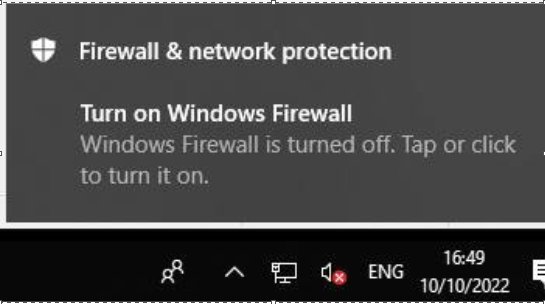
Windows Firewall is enabled by default on every Windows edition. By default it blocks unsolicited incoming traffic and allows outgoing traffic, which is what stops other devices on the same network from reaching services on your PC.
With a profile set to Off, no filtering is applied and all network traffic is allowed on that profile. Microsoft's own warning is that turning the firewall off could make your device more vulnerable to unauthorized access.
Leave Windows Firewall on. If an app or game is blocked, allow that app through the firewall instead, and if you must test with the firewall off, do it briefly on a private network and turn it back on straight away. Microsoft recommends not disabling Windows Firewall because you also lose IPsec connection security rules, protection from network fingerprinting attacks, Windows Service Hardening and boot time filters. Public Wi-Fi is exactly where an open PC is most exposed.
Method 2: Turn Windows Firewall On or Off from Windows Settings
The Settings app does not have its own firewall switch. It opens the same Windows Security page as Method 1.
- Press Win + I to open Settings.
- On Windows 11, select Privacy & security, then Windows Security. On Windows 10, select Update & Security, then Windows Security.
- Select Firewall & network protection. The Windows Security app opens on that page.
- Select Domain network, Private network or Public network.
- Switch Microsoft Defender Firewall to On or Off, and select Yes at the User Account Control prompt.
Shortcut for both versions: press Win + R, type ms-settings:windowsdefender and press Enter to open the Windows Security page in Settings.
Method 3: Turn Windows Firewall On or Off Using Control Panel
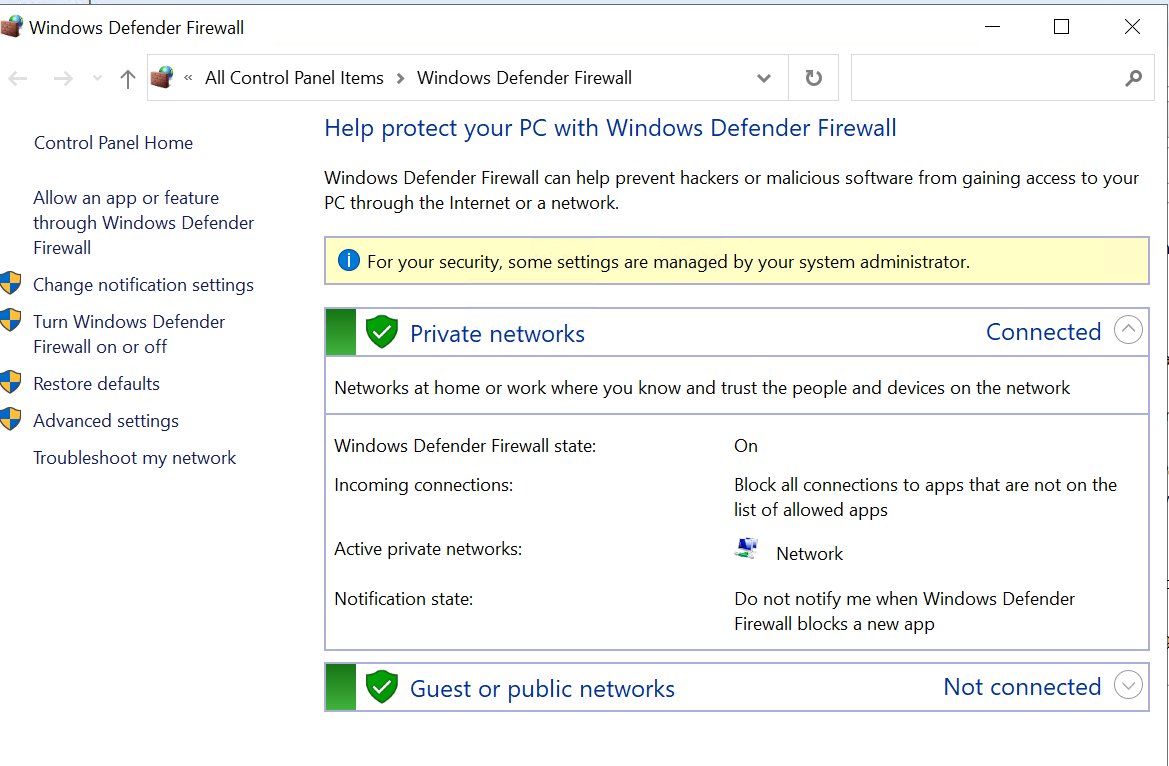
The Windows Defender Firewall Control Panel applet still ships with Windows 11 and Windows 10. It shows the private and public settings on one screen.
- Press Win + R, type
firewall.cpland press Enter. The Windows Defender Firewall applet opens. - In the left pane, select the link that turns Windows Defender Firewall on or off. Approve the User Account Control prompt.
- Under the private network settings, choose the option to turn Windows Defender Firewall on or off.
- Under the public network settings, choose the same option if you want both profiles changed.
- Leave Block all incoming connections, including those in the list of allowed apps unchecked unless you want the strictest mode.
- Select OK to save.
The Block all incoming connections box is what Microsoft calls *shields up* mode. It overrides every allowed app, including Remote Desktop, so use it only during an active threat and uncheck it afterwards.
Method 4: Turn Windows Firewall On or Off with Command Prompt
netsh advfirewall changes the firewall state per profile. Run every command below from an elevated Command Prompt: select Start, type cmd, right-click Command Prompt and select Run as administrator.
- To turn the firewall off for all profiles, run
netsh advfirewall set allprofiles state off. - To turn the firewall back on for all profiles, run
netsh advfirewall set allprofiles state on. - To change one profile only, replace
allprofileswithdomainprofile,privateprofileorpublicprofile, for examplenetsh advfirewall set publicprofile state on. - To change only the profile your current network uses, run
netsh advfirewall set currentprofile state onor... state off. - Check the result with
netsh advfirewall show allprofiles state. Each profile now reports whether it is on or off.
If netsh refuses a set command, the window is not elevated. Close it and open Command Prompt again with Run as administrator.
Method 5: Turn Windows Firewall On or Off with PowerShell
Set-NetFirewallProfile from the NetSecurity module does the same job. Microsoft recommends PowerShell over netsh for managing networking. Select Start, type PowerShell, and select Run as administrator first.
- To turn the firewall off for all profiles, run
Set-NetFirewallProfile -Profile Domain,Public,Private -Enabled False. - To turn it back on, run
Set-NetFirewallProfile -Profile Domain,Public,Private -Enabled True. - To change one profile only, list just that profile, for example
Set-NetFirewallProfile -Profile Public -Enabled True. - Check the result with
Get-NetFirewallProfile -PolicyStore ActiveStore | Select-Object Name, Enabled. Each profile shows True (on) or False (off).
Set-NetFirewallProfile returns nothing when it succeeds. Add -PassThru if you want it to print the changed profiles.
-PolicyStore ActiveStore matters when checking. Without it, Get-NetFirewallProfile reads only the local settings, not the effective state after Group Policy is applied.
Method 6: Use Advanced Security to Manage Firewall Profiles and Rules
Windows Defender Firewall with Advanced Security is the console behind every other method. Use it when you need the firewall on but want to change what each profile blocks.
- Press Win + R, type
wf.mscand press Enter. - In the Overview section of the middle pane, select Windows Defender Firewall Properties.
- Select the tab for the profile you want: Domain, Private or Public.
- Set Firewall state to On (recommended) or Off.
- Keep Inbound connections at Block (default) and Outbound connections at Allow (default) unless you have a specific reason to change them.
- Select OK. To add or change rules instead, select Inbound Rules or Outbound Rules in the left pane.
Method 7: Turn Windows Firewall On or Off Using Group Policy
Group Policy is how you make the firewall state permanent. Windows Security, Control Panel and the commands above cannot override a policy setting, and Windows reapplies policy in the background every 90 minutes plus a random offset of up to 30 minutes.
- Press Win + R, type
gpedit.mscand press Enter to open the Local Group Policy Editor. - Go to Computer Configuration > Windows Settings > Security Settings > Windows Defender Firewall with Advanced Security, and select the policy node beneath it.
- In the Overview section, select Windows Defender Firewall Properties.
- On each profile tab (Domain, Private, Public), set Firewall state to On (recommended) to force it on, or Off to force it off.
- Select OK, then run
gpupdate /forcefrom an elevated Command Prompt or restart the PC. - To hand control back to Windows Security later, set Firewall state back to Not configured on each tab.
Microsoft also documents an Administrative Templates route: disabling Computer Configuration > Administrative Templates > Network > Network Connections > Windows Firewall > Domain Profile > Windows Firewall: Protect all network connections turns the firewall off for that profile.
On a domain-joined PC, a domain Group Policy object wins over your local one. If the setting keeps reverting, your IT department controls it.
Method 8: Check or Enable the Windows Defender Firewall Service
Never turn the firewall off by stopping or disabling its service. Microsoft does not support that and lists the results: the Start menu can stop working, modern apps can fail to install or update, and phone activation of Windows fails.
The right way to turn the firewall off is to switch the profiles off and leave the service running. Use the service only to confirm it is running when the firewall will not turn on.
- Press Win + R, type
services.mscand press Enter. - Find Windows Defender Firewall in the list. Its service name is MpsSvc.
- Check the Status column. It should read Running.
- If it is not running, right-click Windows Defender Firewall and select Start.
- From an elevated PowerShell window,
Get-Service mpssvcshows the same status, andStart-Service mpssvcstarts it. - Once the service runs, turn the profiles on with Method 1, 4 or 5.
How to Allow an App Through Windows Firewall Instead
Most people switch the firewall off because one app, game or file-sharing tool cannot connect. An exception fixes that app and keeps everything else protected. An allowed app opens its ports only when it needs them, while a manually opened port stays open until you close it.
- Open Windows Security and select Firewall & network protection.
- Select Allow an app through firewall.
- Select Change settings and confirm the administrator prompt.
- Tick the box next to the app, and choose the network types it should work on: private, public or both.
- If the app is not listed, select Allow another app and enter the path to the app.
- Select OK.
Never allow an app you do not recognize. To remove an exception later, clear its checkbox and select OK.
From an elevated Command Prompt, the same exception is netsh advfirewall firewall add rule name="My Application" dir=in action=allow program="C:\MyApp\MyApp.exe" enable=yes, with your own name and path.
How to Restore Windows Firewall to Default Settings
A reset puts the firewall back to on, with its original rules. Use it when you no longer know what has been changed, or when things stopped working after someone edited the settings.
- Open Windows Security and select Firewall & network protection.
- Select Restore firewalls to default.
- Confirm the reset and approve the User Account Control prompt.
- Alternatively, run
netsh advfirewall resetfrom an elevated Command Prompt. Addexport "C:\fw-backup.wfw"to the end to save the current policy first. - Reopen any app that stops connecting, and allow it again when Windows asks.
A reset removes the exceptions you or your apps added. A saved .wfw file can be loaded back with netsh advfirewall import "C:\fw-backup.wfw".
How to Know Whether Windows Firewall Is Actually Off
Windows Security shows the switch, but the effective state is what Windows actually enforces after policy is applied. Check that when the result matters.
- Open Windows Security > Firewall & network protection. Each of the three profiles shows whether its firewall is on or off.
- Open an elevated Command Prompt and run
netsh advfirewall show allprofiles state. Each profile reports whether the firewall is on or off. - In PowerShell, run
Get-NetFirewallProfile -PolicyStore ActiveStore | Select-Object Name, Enabled. Enabled reads True or False for Domain, Private and Public. - If Windows Security and the command output disagree, trust the
ActiveStoreresult. It includes every Group Policy that applies to the PC.
What If the Firewall Toggle Is Grayed Out?
The Microsoft Defender Firewall switch is grayed out or cannot be changed
A Group Policy, Intune or Configuration Manager setting controls the firewall, or you are signed in without admin rights.
- Sign in with an administrator account and try again.
- On a work or school PC, contact the IT administrator. Policy settings from the organization take precedence over Windows Security.
- On your own PC, open
gpedit.msc, check Windows Defender Firewall Properties as in Method 7, and set Firewall state to Not configured on each profile tab. - Run
gpupdate /forceand reopen Windows Security.
Windows Firewall turns back on automatically
A policy forces the firewall on and Windows reapplies policy in the background, or a reset restored the defaults.
- Run
Get-NetFirewallProfile -PolicyStore ActiveStore | Select-Object Name, Enabledto see the enforced state. - If the PC is managed by work or school, the setting is intentional; ask IT for an app exception instead.
- On your own PC, check the Group Policy Firewall state values from Method 7. That is where a permanent on or off is set.
Windows Firewall will not turn on
The Windows Defender Firewall service (MpsSvc) is stopped.
- Open
services.mscand confirm Windows Defender Firewall shows Running. - If it is stopped, right-click it and select Start.
- Run
netsh advfirewall set allprofiles state onfrom an elevated Command Prompt. - If the settings are still wrong, use Restore firewalls to default in Windows Security.
An app or game stops connecting after you turn the firewall on
The app has no allow rule, or someone dismissed its first-run prompt and Windows created block rules.
- Open Windows Security > Firewall & network protection > Allow an app through firewall.
- Select Change settings and tick the app for private networks and, only if needed, public ones.
- If the app is listed but still blocked, check
wf.msc> Inbound Rules for a block rule with the app's name, and disable it.
Best Practices for Disabling Windows Firewall Safely
If a test or a troubleshooting step really needs the firewall off, limit how much and for how long.
| Do this | Why |
|---|---|
| Turn off only the profile you are testing | Switching off Private on a home network leaves Public protected when you move to Wi-Fi elsewhere. |
| Never turn it off on public Wi-Fi | Public is the profile for untrusted networks such as airports, hotels and cafes. |
| Switch the profile off, never the service | Stopping MpsSvc is unsupported and can break the Start menu and app installs. |
| Turn it back on as soon as the test ends | Run netsh advfirewall set allprofiles state on so nothing is left open. |
| Replace the test with an app exception | Once you know the firewall was the cause, allow that one app instead. |
| Keep a backup before large changes | netsh advfirewall export saves the policy so you can import it again. |
Common Firewall Commands
Quick reference for every command in this guide. Run them from an elevated Command Prompt or PowerShell window.
| Task | Command Prompt (netsh) | PowerShell |
|---|---|---|
| Turn on, all profiles | netsh advfirewall set allprofiles state on |
Set-NetFirewallProfile -Profile Domain,Public,Private -Enabled True |
| Turn off, all profiles | netsh advfirewall set allprofiles state off |
Set-NetFirewallProfile -Profile Domain,Public,Private -Enabled False |
| Turn on the public profile only | netsh advfirewall set publicprofile state on |
Set-NetFirewallProfile -Profile Public -Enabled True |
| Check the state | netsh advfirewall show allprofiles state |
Get-NetFirewallProfile -PolicyStore ActiveStore |
| Reset to defaults | netsh advfirewall reset |
Use the netsh command |
| Back up the policy | netsh advfirewall export "C:\fw-backup.wfw" |
Use the netsh command |
| Check the firewall service | Use services.msc |
Get-Service mpssvc |
Frequently Asked Questions
How do I turn Windows Firewall on with CMD?
Open Command Prompt as administrator and run netsh advfirewall set allprofiles state on. That turns the firewall on for the Domain, Private and Public profiles at once. To check it worked, run netsh advfirewall show allprofiles state and confirm each profile reports on.
How do I turn on the firewall in Windows 11?
Open Windows Security, select Firewall & network protection, choose Domain, Private or Public network, and switch Microsoft Defender Firewall to On. Repeat for each profile that is off. The same page opens from Settings > Privacy & security > Windows Security.
How do I turn on the firewall in Windows 10?
The steps match Windows 11. Open Windows Security from Start, select Firewall & network protection, pick a network profile, and set Microsoft Defender Firewall to On. In Settings, the page sits under Update & Security > Windows Security.
Is Windows Defender Firewall the same as Microsoft Defender Firewall?
Yes. Windows Security labels the switch Microsoft Defender Firewall, while Control Panel, the Services list and wf.msc still say Windows Defender Firewall. Both names refer to the built-in Windows Firewall, so turning on either one turns on the same feature.
Why does Windows Firewall turn on automatically?
Usually a Group Policy or management tool forces it on, and Windows reapplies policy in the background about every 90 minutes. A reset with Restore firewalls to default also turns it back on. Check the enforced state with Get-NetFirewallProfile -PolicyStore ActiveStore.
How do I disable Windows Firewall permanently?
Set Firewall state to Off on each profile tab in Group Policy, under Windows Defender Firewall with Advanced Security, as in Method 7. Microsoft recommends against it, and never stop the MpsSvc service to do it, because that breaks the Start menu and app installs.
Do I need Windows Firewall turned on?
Yes, unless another firewall product protects the PC. Windows Firewall blocks unsolicited incoming connections by default, and Microsoft warns that turning it off makes a device more vulnerable to unauthorized access, especially on public networks.
How can I tell if my firewall is turned on?
Open Windows Security > Firewall & network protection and read the status under each of the three network profiles. For the enforced state, run netsh advfirewall show allprofiles state in an elevated Command Prompt. Each profile reports on or off.
How do I use Windows Firewall without turning it off?
Keep it on and add exceptions. In Windows Security, select Allow an app through firewall, then Change settings, and tick the app for private or public networks. For port-level or outbound rules, use Inbound Rules and Outbound Rules in wf.msc.
Can I keep Windows Firewall on with another firewall installed?
A third-party firewall can switch off only the Windows Firewall rule types it needs for compatibility, and Windows Security still reports its status. Microsoft advises not disabling Windows Firewall yourself for that purpose. Follow the product's own instructions, such as the steps for permanently disabling the ESET personal firewall when you go back to Windows Firewall.