To pin any app to the taskbar in Windows 11, type its name in the taskbar search box, right-click the result and select Pin to taskbar.
This guide covers every other route too: the Start menu, an open window, EXE files, Microsoft Store apps, websites, portable apps, folders and files, plus fixes when the pin option is missing.
Pin an app using Windows Search
Search is the fastest route because it finds any installed app, including ones buried deep in the All list.
It works for desktop programs, Microsoft Store apps and installed web apps alike.
- Select the Search box or icon on the taskbar, or press Windows key + S.
- Type the name of the app you want to pin, for example Notepad.
- Right-click the app in the results.
- Select Pin to taskbar.
- Check that the app icon now sits on the taskbar, even after you close the app.
Quick reference: the best method for each app type
Match the kind of item you want on the taskbar to a row, then jump to that section.
| What you want to pin | Best method | Why |
|---|---|---|
| Any installed desktop app | Windows Search, right-click, Pin to taskbar | Finds the app by name in two seconds |
| An app you are browsing for in Start | Start menu All list, right-click, Pin to taskbar | No typing needed |
| An app that is already running | Right-click its taskbar icon, Pin to taskbar | The icon is already there; one click keeps it |
| An EXE or desktop shortcut | Right-click, Show more options, Pin to taskbar | Works for programs Start does not list |
| A Microsoft Store app | Install it, then pin it from search or Start | Store apps appear in Start like any other app |
| A website or web app | Install it as an app in Edge or Chrome, then pin it | The site gets its own taskbar icon and window |
| A portable app with no installer | Run it, then pin its taskbar icon | Portable apps never appear in Start |
| A folder | Pin it to the File Explorer jump list | Windows has no separate taskbar button for a folder |
| A file, document or spreadsheet | Pin it to the jump list of the app that opens it | One right-click opens the file from the taskbar |
What “pinning to the taskbar” means in Windows 11
Pinning keeps an app's icon on the taskbar when the app is closed, so one click starts it.
An app that is open but not pinned shows an icon only while it runs, and the icon disappears when you close it.
| Item | What pinning does | Where it shows |
|---|---|---|
| Pin to taskbar | Keeps the app icon on the taskbar at all times | Taskbar, next to Start and Search |
| Pin to Start | Adds the app to the Pinned section of Start | Start menu |
| Pin to Quick access | Keeps a folder at the top of File Explorer | File Explorer navigation pane |
| Pin to a jump list | Keeps a file or folder in an app's right-click menu | Right-click menu of the taskbar icon |
Each pinned icon also gets a position number from the left, which the Windows key + number shortcuts use to open it.
Pin an app from the Start menu
Start has two places to pin from: the Pinned area at the top and the alphabetical All list of installed apps.
Windows 11 sometimes hides Pin to taskbar behind a second menu, so the steps include that branch.
- Select Start on the taskbar, or press the Windows key.
- To pin from the Pinned area, right-click an app icon in the Pinned section.
- To pin from the All apps list, select All and scroll to the app, then right-click it.
- Select Pin to taskbar.
- If Pin to taskbar is not in the first menu, select Show more options, then select Pin to taskbar.
To put the same app on the desktop instead, drag its name from the All list onto the desktop. Windows creates a desktop shortcut for it.
Pin an app that is already open
Every running app already shows an icon on the taskbar, so pinning it takes one right-click.
- Open the app you want to keep on the taskbar.
- Right-click its icon on the taskbar.
- Select Pin to taskbar.
- Close the app and confirm the icon stays in place.
This is the most reliable route for apps that Start or search does not list, such as portable tools and some installed web apps.
Pin an app from File Explorer
Use this route for a program you can find as an EXE file or a desktop shortcut but not in Start.
In Windows 11 the pin option for files sits in the classic menu behind Show more options.
- Open File Explorer and browse to the program's EXE file, or go to the desktop shortcut for the app.
- Right-click the EXE file or the shortcut.
- Select Show more options.
- Select Pin to taskbar.
- To create a desktop shortcut first, right-click the EXE, select Show more options, then select Create shortcut.
If the program has a desktop shortcut already, pinning the shortcut keeps any start options saved in it.
Pin Microsoft Store apps
Microsoft Store apps install into Start like any other program, so you pin them the same way once they are installed.
- Open Microsoft Store and find the app.
- Select Get on the app's page and wait for the install to finish.
- Select the taskbar Search box and type the app's name.
- Right-click the app in the results.
- Select Pin to taskbar.
Several web apps are also published in Microsoft Store, so installing them there gives you a pinnable app without opening a browser first.
Pin a website or web app to the taskbar
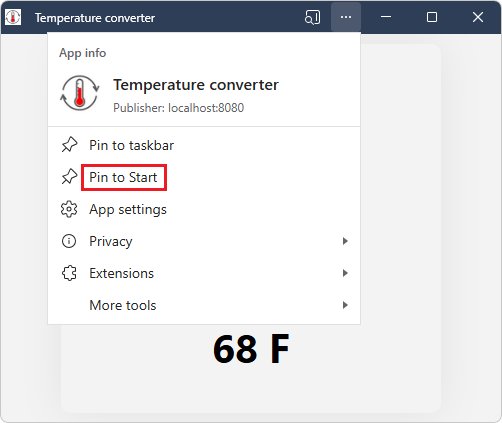
Install the site as an app in your browser first. The site then runs in its own window with its own taskbar icon, which you can pin.
Microsoft Edge can install any website this way; Chrome installs pages through its Cast, save, and share menu.
| Browser | Install the site as an app | Then pin it |
|---|---|---|
| Microsoft Edge | Open the site, select Settings and more (…) > More tools > Apps > Install this site as an app. On a Progressive Web App, select the App available icon in the address bar and then Install. | Go to edge://apps, select Details on the app card, then select Pin to taskbar. |
| Google Chrome | Open the site, select More (three dots) > Cast, save, and share > Install page as app, then follow the prompts. Some sites show an Install icon in the address bar. | Open the installed app, right-click its taskbar icon and select Pin to taskbar. |
| Installed web app (either browser) | Already installed | Inside the app window, select Settings and more (…) and choose Pin to taskbar (Edge), or right-click the taskbar icon. |
In Edge, the same app card also offers Pin to Start and Create Desktop shortcut.
Pin a portable app to the taskbar
A portable app runs straight from its folder without an installer, so it never appears in Start or search.
- Move the portable app's folder to a permanent location, such as a folder in your user profile, before you pin it.
- Open the folder in File Explorer and double-click the app's EXE to run it.
- Right-click the app's icon on the taskbar.
- Select Pin to taskbar.
- Alternatively, right-click the EXE itself, select Show more options, then Pin to taskbar.
If you move or rename the folder later, the pinned icon points at the old path and stops working. Unpin it and pin the app again from its new location.
Pin a folder to the taskbar
Windows 11 does not give a folder its own taskbar button. The built-in route is to pin the folder to the File Explorer jump list, which opens it with one right-click.
Microsoft's taskbar policy documentation confirms users can pin files, folders and websites to jump lists.
- Make sure File Explorer is pinned to the taskbar; pin it from search if it is not.
- Open the folder you want once, so it appears in the File Explorer jump list.
- Right-click the File Explorer icon on the taskbar.
- Point at the folder in the list and select the pin icon next to it.
- To keep the folder inside File Explorer as well, right-click the folder and select Pin to Quick access, or select Pin to Start to add it to Start.
Pin a file, document, or spreadsheet
Files pin to the jump list of the app that opens them, so a Word document sits under the Word icon and a spreadsheet under Excel.
The app itself must be pinned to the taskbar for its jump list to stay there.
- Pin the app that opens the file, for example Word or Excel, using any method above.
- Open the file once in that app so it appears in the app's recent list.
- Right-click the app's icon on the taskbar to open its jump list.
- Point at the file and select the pin icon next to it.
- Open the file later by right-clicking the app icon and selecting the file at the top of the list.
If no recent files appear, go to Settings > Personalization > Start and turn on Show recently opened items in Jump Lists on Start or the taskbar.
Pin Windows Settings pages and system tools
Settings, Task Manager, Terminal and other built-in tools appear in search, so the search route pins them in seconds.
A few classic tools behave differently, because Microsoft excludes certain programs from taskbar pinning by default.
| Tool | How to pin it | Note |
|---|---|---|
| Settings app | Search Settings, right-click, Pin to taskbar | Pins the app, not an individual Settings page |
| Task Manager | Search Task Manager, right-click, Pin to taskbar | Or press Ctrl + Shift + Esc, then right-click its taskbar icon |
| Terminal, Command Prompt, PowerShell | Search by name, right-click, Pin to taskbar | Hold Ctrl + Shift while selecting the pinned icon to run it as administrator |
| File Explorer | Search File Explorer, right-click, Pin to taskbar | Its jump list then holds your pinned folders |
| Control Panel and MMC consoles | Try search, right-click, Pin to taskbar | Microsoft lists control.exe and mmc.exe among programs excluded from pinning; use Pin to Start if the taskbar option is absent |
Once the Settings app is pinned, you can open it in one click and change app settings for the programs you just pinned.
Rearrange, resize, and manage pinned taskbar apps
Pinned icons keep the order you give them, and that order controls the Windows key + number shortcuts.
The Windows 11 taskbar sits at the bottom of the screen; you can change the taskbar alignment between center and left, and auto-hide it to get space back.
| Task | How to do it |
|---|---|
| Move taskbar icons | Drag an icon from its current position to a different one on the taskbar |
| Open pinned apps with keyboard shortcuts | Press Windows key + 1 for the first pinned app, Windows key + 2 for the second, and so on |
| Start a new window of a pinned app | Press Windows key + Shift + number, or hold Shift and select the icon |
| Open a pinned app's jump list | Press Windows key + Alt + number, or right-click the icon |
| Run a pinned app as administrator | Press Windows key + Ctrl + Shift + number, or hold Ctrl + Shift and select the icon |
| Cycle through taskbar apps | Press Windows key + T |
| Align icons left or center | Right-click the taskbar, select Taskbar settings, expand Taskbar behaviors, then choose under Taskbar alignment |
| Hide the taskbar when not in use | Under Taskbar behaviors, turn on Automatically hide the taskbar |
| Show pinned apps on every monitor | Under Taskbar behaviors, turn on Show my taskbar on all displays |
| Unpin an app | Right-click the pinned icon and select Unpin from taskbar |
Microsoft's Windows 11 taskbar settings list alignment, auto-hide and badges but no option to change the taskbar height, so the practical way to fit more pins is to remove the ones you rarely use.
Check an app is pinned to the Windows 11 taskbar
- Close the app completely.
- Confirm its icon is still on the taskbar after the window closes.
- Right-click the icon and confirm the menu shows Unpin from taskbar, which appears only for pinned items.
- Count the icon's position from the left and press Windows key plus that number; the app should open.
- Restart the PC and confirm the icon is still in the same place.
Unpin an app from the Windows 11 taskbar
- Right-click the pinned icon on the taskbar.
- Select Unpin from taskbar.
- To remove a pinned file or folder instead, right-click the app icon, point at the item in the jump list and select the pin icon again to unpin it.
Unpinning removes only the shortcut on the taskbar. The app stays installed and stays in Start.
What to do if “Pin to taskbar” is missing
Find the symptom that matches what you see, then work through its fix in order.
Pin to taskbar is not in the right-click menu
Windows 11 shows a shortened menu first, and the pin option for files and shortcuts is in the classic menu.
- Right-click the app, EXE or shortcut again.
- Select Show more options.
- Select Pin to taskbar in the classic menu.
- If it is still absent, run the app and right-click its taskbar icon instead.
The program cannot be pinned at all
Windows excludes some executables, such as setup.exe, install.exe and msiexec.exe, and shortcuts whose names include words like Setup, Install, Readme or Help.
- Check that you are pinning the program itself, not its installer.
- Create a normal shortcut to the program's EXE: right-click it, select Show more options, then Create shortcut.
- Rename the shortcut so its name does not contain Setup, Install, Help or Readme.
- Right-click the shortcut, select Show more options, then Pin to taskbar.
The app does not show up in Start or search
The app may be installed for another user account only, or it is a portable program with no Start entry.
- Open Start, select All and look for the app.
- If it is missing, install the app while signed in to your own account, then pin it from search.
- For a portable program, use the File Explorer or running-app route instead.
Pinned apps disappear or pinning is blocked on a work or school PC
An administrator can turn on the Remove pinned programs from the Taskbar policy, which removes pins and stops users pinning programs.
- Ask your IT administrator whether the Remove pinned programs from the Taskbar policy applies to your account.
- Use Pin to Start or a desktop shortcut while the policy is in force.
The taskbar stops responding or pinned icons show blank
Windows Explorer, which draws the taskbar, has hung.
- Press Ctrl + Shift + Esc to open Task Manager.
- Find Windows Explorer in the list, right-click it and select Restart.
- If Windows Explorer is not listed, select File > Run new task, type
explorer.exeand press Enter. - Try pinning the app again.
Best practices for a clean, useful Windows 11 taskbar
| Practice | Why it helps |
|---|---|
| Keep your daily apps in the first nine positions | Windows key + 1 to 9 then opens each one without the mouse |
| Pin apps, and keep files and folders in jump lists | The taskbar stays short while documents stay one right-click away |
| Unpin apps you open less than weekly | Search opens them just as fast, and the taskbar stays readable |
| Install frequently used websites as apps | Each site gets its own icon instead of hiding among browser tabs |
| Keep portable apps in a fixed folder | Moving them breaks the pinned icon |
| Group related apps next to each other | Drag browsers, chat apps and work tools into blocks you can find by position |
Pin apps to the Windows 11 taskbar FAQ
How do I pin any app to the taskbar?
Type the app's name in the taskbar search box, right-click the result and select Pin to taskbar. If the app is already open, right-click its taskbar icon and select Pin to taskbar instead. Both routes work for desktop programs and Microsoft Store apps.
How do I pin an app to the desktop in Windows 11?
Open Start, select All, then drag the app's name onto the desktop. Windows creates a desktop shortcut for it. For a file or EXE, right-click it, select Show more options, then Create shortcut.
How do I pin an app to Start in Windows 11?
Search for the app from the taskbar or the Start menu, right-click it and select Pin to Start. The app then appears in the Pinned section at the top of Start. To remove it, right-click it there and select Unpin from Start.
How do I pin an app to the home screen in Windows 11?
Windows 11 has no home screen like a phone. The closest equivalents are the Pinned section of Start, the taskbar and the desktop. Use Pin to Start, Pin to taskbar, or drag the app from the All list onto the desktop.
What is app pinning?
App pinning in Windows keeps an app's icon in a fixed place, such as the taskbar or Start, so it stays there after you close the app. One click on the pinned icon starts the app, and its position number works with Windows key shortcuts.
How do I pin an app on a laptop or PC?
The steps are the same on any Windows 11 laptop or desktop PC. Search for the app, right-click it and select Pin to taskbar or Pin to Start. On a touchscreen, press and hold the app instead of right-clicking.
Can I pin an application to a monitor?
Windows 11 pins apps to the taskbar, not to a specific monitor. To see your pinned apps on every screen, open Taskbar settings, expand Taskbar behaviors and turn on Show my taskbar on all displays.
Why is Pin to taskbar missing in Windows 11?
For files and shortcuts, Windows 11 moves Pin to taskbar into the classic menu, so select Show more options first. Installers and some system programs are excluded from pinning, and a work or school policy can block pinning entirely.
How do I pin a website to the taskbar in Windows 11?
In Microsoft Edge, select Settings and more > More tools > Apps > Install this site as an app. Then open edge://apps, select Details on the app card and select Pin to taskbar. Chrome installs sites through More > Cast, save, and share > Install page as app.
Bottom line: the best way to pin apps to the Windows 11 taskbar
Use search and Pin to taskbar for installed apps, the running-app right-click for everything Start does not list, and jump lists for files and folders. Those three routes cover every item type Windows 11 can put on the taskbar, and each takes under ten seconds without any extra software.

![OneDrive icons meaning [all symbols explained in 2026]](https://techdows.com/wp-content/uploads/2026/10/OneDrive-Files-On-Demand-setup-screen-showing-cloud-and-green-check-icons-518x338.jpg)