Administrator protection in Windows 11 26H2 blocks apps and malware from silently gaining admin rights, and it is off by default: turn it on in Windows Security > Account protection, or with Group Policy or Intune, then restart.
This guide explains what the feature stops, each official way to enable it, how to confirm it works, and the app problems to expect.
The fastest way to turn on Administrator protection
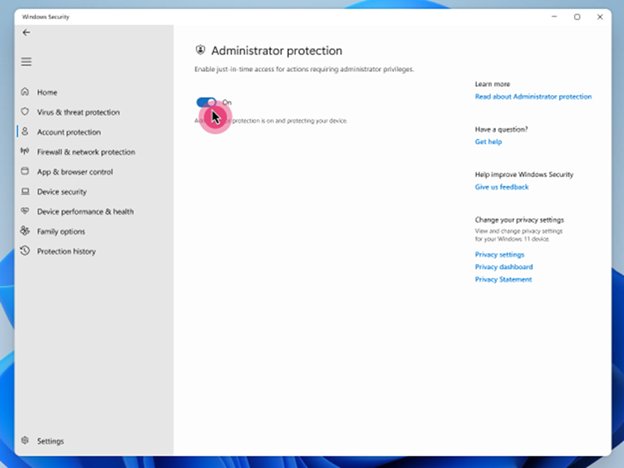
The Windows Security toggle is the simplest route on a single PC. Microsoft is rolling this toggle out gradually, so it may not appear on every PC yet.
- Select Start, search for Windows Security and open the app.
- Select Account protection.
- Find the Administrator protection settings.
- Turn the toggle on.
- Restart the PC when prompted. The feature only takes effect after a restart.
If the toggle is missing, use the Group Policy method below. Home, Pro, Enterprise and Education editions all support the feature.
Which method should you use?
| Your situation | Use this | Why |
|---|---|---|
| Your own PC, toggle visible | Windows Security app | No console or policy knowledge needed |
| Your own PC, no toggle yet | Local Security Policy (secpol.msc) |
Sets the same policy locally |
| Domain-joined PCs | Group Policy | Applies to a domain, OU or group |
| Intune-managed PCs | Intune Settings catalog | Two settings under Local Policies Security Options |
| Other MDM or custom Intune profile | LocalPoliciesSecurityOptions CSP (OMA-URI) | Works wherever a custom CSP policy can be deployed |
| Windows 365 Cloud PC or Azure Virtual Desktop host | Do not enable | Not supported there; use standard user accounts instead |
What Administrator protection blocks
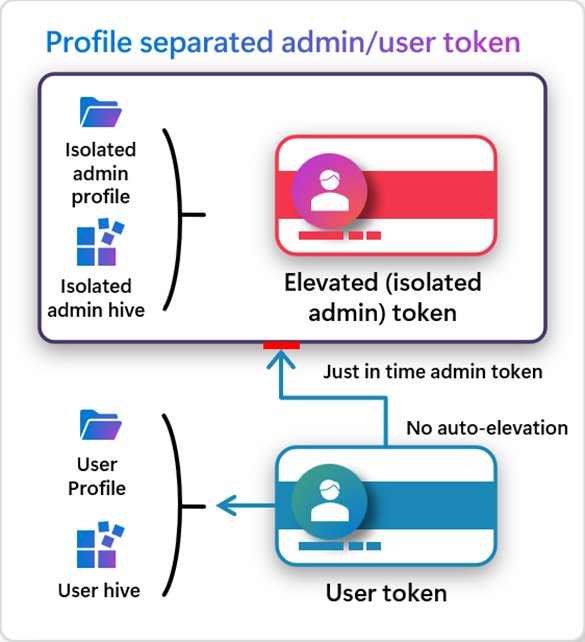
With Administrator protection on, an admin account signs in with a deprivileged token. Every admin action needs explicit approval with Windows Hello, and the admin token is destroyed when that process ends.
| What it blocks | How |
|---|---|
| Malware silently gaining admin rights | No auto-elevations: every admin operation needs interactive approval |
| Standing admin rights an attacker can reuse | Just-in-time elevation; the admin token is discarded after each task |
| User-level malware tampering with elevated apps | Elevated apps run under a hidden, system-generated, separate profile |
| Unapproved installs and system changes | Installing software, changing the time or registry, and reaching sensitive data all need Windows Hello verification |
Microsoft does not classify Administrator protection as a formal security boundary. It hardens Windows against elevation-of-privilege attacks rather than guaranteeing they fail.
Turn on Administrator protection with Group Policy
Use the Group Policy Management console for a domain, or the Local Security Policy snap-in (secpol.msc) for one PC. The policy path is the same.
- Open the policy editor and go to Computer Configuration > Windows Settings > Security Settings > Local Policies > Security Options.
- Open User Account Control: Configure type of Admin Approval Mode.
- Select Admin Approval Mode with Administrator protection and apply it.
- Open User Account Control: Behavior of the elevation prompt for administrators running with Administrator protection and choose the prompt behavior.
- Restart the device.
Turn on Administrator protection with Intune
Microsoft lists the Intune Settings catalog route as a preview that is rolling out gradually.
- In Intune, create a Settings catalog policy for Windows.
- Open the Local Policies Security Options category.
- Configure User Account Control Type Of Admin Approval Mode to enable Administrator protection.
- Configure User Account Control Behavior Of the Elevation Prompt for Administrator Protection to set the prompt.
- Assign the policy to a security group containing the target devices or users.
- Let the devices restart so the setting takes effect.
For a custom OMA-URI profile, the same two settings live in the LocalPoliciesSecurityOptions CSP as UserAccountControl_TypeOfAdminApprovalMode and UserAccountControl_BehaviorOfTheElevationPromptForAdministratorProtection.
How to check it worked
- Restart the PC after enabling the feature.
- Right-click an app such as Terminal and select Run as administrator.
- Confirm Windows asks you to verify your identity with Windows Hello before the app opens.
- Open Windows Security > Account protection and check that the Administrator protection toggle shows on, if your PC has the toggle.
Log every approved and denied elevation
Administrator protection writes two events to the Microsoft-Windows-LUA provider: event 15031 when elevation is approved and 15032 when it is denied, fails or times out.
logman start AdminProtectionTrace -p {93c05d69-51a3-485e-877f-1806a8731346} -etsStarts an event trace session for the Microsoft-Windows-LUA provider. Each event records the user's SID, the app name and path, the outcome, the system-managed admin account used and the sign-in method.
You should see: The session starts; filter the resulting .etl file for event IDs 15031 and 15032 in Windows Performance Analyzer.
What’s new on Windows 11 build 26300.7965
Administrator protection first returned to testing in this Dev Channel build on March 6, 2026. It reached 24H2 and 25H2 with KB5120998 in August 2026 and is part of the 26H2 release; the 26H2 feature list covers what else changed.
| Change in build 26300.7965 | What it did |
|---|---|
| Administrator protection | Re-enabled for testing, off by default, enabled through Intune OMA-URI or Group Policy |
| Drag tray | A smaller peek view to cut accidental opening and make it easier to dismiss near the top of the screen |
| File Explorer: voice typing | Press Windows key + H to dictate a new name when renaming a file |
| File Explorer: fewer white flashes | Removed the flash when opening windows or tabs to This PC and when resizing |
| File Explorer: downloaded files | More reliable unblocking of internet files so they can be previewed |
Download Windows 11 update KB5079385
KB5079385 was the Dev Channel package for build 26300.7965, offered only to Windows Insiders through Windows Update. There is no reason to hunt for it now.
| Update | What it is | Who needs it |
|---|---|---|
| KB5079385 (build 26300.7965) | Dev Channel preview, March 6, 2026 | Nobody now; later builds replaced it |
| KB5120998 | August 2026 update for 24H2 and 25H2 that brought Administrator protection | 24H2 and 25H2 PCs |
| KB5124010 | September 22, 2026 update that fixes missing Start menu icons and Edge extension prompts under Administrator protection | Any PC using the feature |
| KB5121794 | The 26H2 enablement package | PCs moving to 26H2 |
To get the current release, follow the 26H2 install guide.
Fix app problems after turning on Administrator protection
A newly installed app has no Start menu icon
A bug fixed in KB5124010.
- Open Settings > Windows Update and install the latest cumulative update.
- If the icon is still missing, open
AppData\Roaming\Microsoft\Windows\Start Menu\Programs\<App name>and launch the app from there.
Network drives are not reachable from an elevated app
Elevated apps run in a separate profile that does not see the standard session's network credentials.
- Install the app in the normal user context so it can show network credential prompts.
- If the app must be installed elevated, copy the installer to a local drive first, then elevate.
An app update is blocked
The updater cannot reach files or rights across the two profiles.
- Download the update while elevated.
- Run the downloaded installer and approve the Windows Hello prompt.
Apps with Edge extensions ask for admin rights when opened normally
A bug fixed in KB5124010.
- Install the latest cumulative update from Settings > Windows Update.
- Restart and open the app again.
Settings, sign-ins or WSL distros are missing in an elevated app
App settings and single sign-on do not carry over to the elevated profile.
- Sign in again inside the elevated session.
- Reinstall and configure WSL distros or developer tools separately in the elevated profile if you need them elevated.
- Elevate only the apps that truly need admin rights.
How to turn Administrator protection off
- Open Windows Security > Account protection and turn the Administrator protection toggle off, or set User Account Control: Configure type of Admin Approval Mode back to its previous value in Group Policy or Intune.
- Restart the PC.
- Open Windows Security > Account protection and confirm the Administrator protection toggle shows off, if your PC has the toggle.
When not to enable Administrator protection
| Setup | Why to leave it off |
|---|---|
| Windows 365 Cloud PCs | Not supported |
| Azure Virtual Desktop session hosts | Not supported; use standard users instead |
| PCs that require Hyper-V | Microsoft lists them as a case not to enable |
| Apps that share files across profiles | The elevated profile is separate, so shared files break |
| Roaming profiles and backup admin accounts | Not supported |
| Remote admin by domain users | Remote logons are non-elevated by default; a separate policy restores elevated remote logons |
Edition matters less than setup: Home and Pro both support the feature, and the Home vs Pro differences in 26H2 lie elsewhere.
Frequently asked questions
Is Administrator protection on by default in Windows 11 26H2?
No. Administrator protection is off by default in Windows 11 26H2, 25H2 and 24H2. You turn it on in the Windows Security app, through Group Policy or Local Security Policy, or with Intune, and then restart.
Does Administrator protection work on Windows 11 Home?
Yes. Microsoft lists Windows 11 Home, Pro, Enterprise and Education as supported editions. It does not apply to Windows 365 Cloud PCs or Azure Virtual Desktop session hosts.
Does Administrator protection need Windows Hello?
It uses Windows Hello integrated authentication to approve each admin action. The elevation log also records the authentication method used, such as password, PIN or Windows Hello.
How is Administrator protection different from UAC?
Administrator protection is a User Account Control mode, set through the Configure type of Admin Approval Mode policy. It gives each approved task an isolated admin token from a hidden, separate profile, destroys that token afterwards, and never auto-elevates.
Is Administrator protection a security boundary?
No. Microsoft says Administrator protection is not classified as a formal security boundary. It hardens Windows against elevation-of-privilege attacks by adding profile separation and just-in-time admin rights.
Do I need to restart after turning it on?
Yes. Administrator protection takes effect only after a restart, whichever method you use to enable it. Turning it off also needs a restart.
Which update added Administrator protection?
It returned in Dev Channel build 26300.7965 (KB5079385) in March 2026 and reached Windows 11 24H2 and 25H2 with KB5120998 in August 2026. Windows 11 26H2 includes it.
Bottom line
Turn on Administrator protection on any PC where you sign in as an administrator, unless it is a Cloud PC, an AVD host, needs Hyper-V or relies on apps that share files across profiles. It stops malware from silently taking admin rights at the cost of a Windows Hello prompt per admin task, and the known app glitches are fixed in KB5124010 or have documented workarounds.
For the rest of the release, see the Windows 11 26H2 overview.