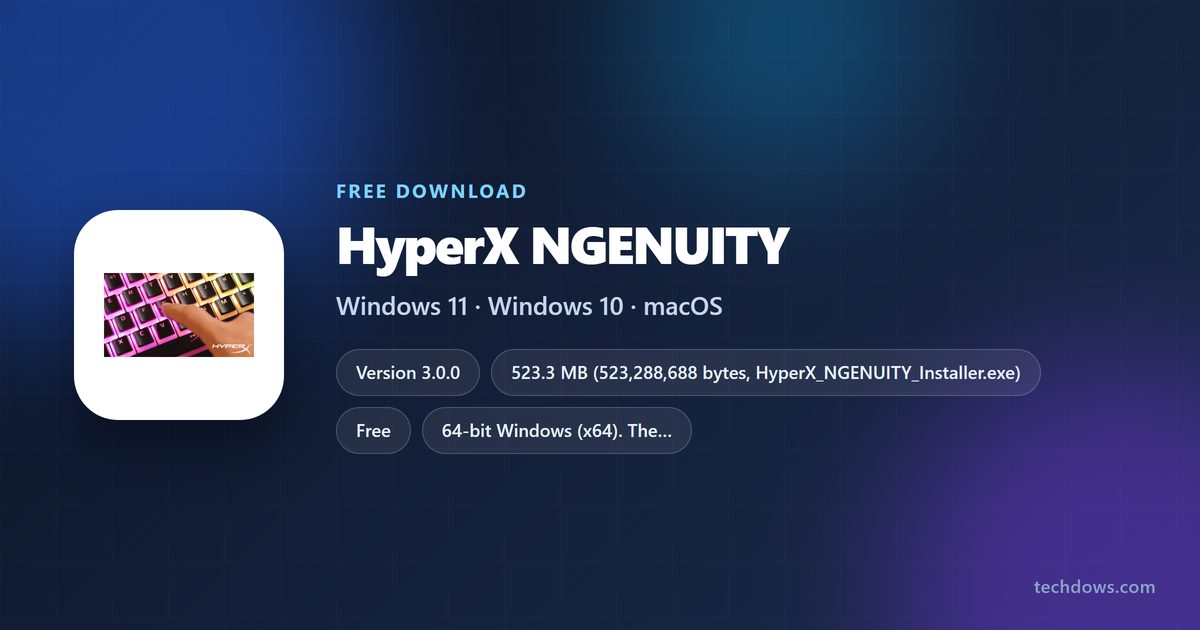
The HyperX NGENUITY download is a free Windows app that sets up lighting, macros, DPI and audio on HyperX headsets, keyboards, mice and microphones. Version 3.0.0 installs on Windows 11 and Windows 10 from hyperx.com.
HyperX also keeps NGENUITY Legacy for older gear, both as a direct installer and in the Microsoft Store. This guide covers which version fits your device, installing it, the Mac situation, and fixes for a device that does not show up.
Which HyperX NGENUITY download do you need?
The right build depends on your device, not your PC. Find your model in the supported-device table further down, then take the matching file.
| Your situation | Download | Size |
|---|---|---|
| Device released after August 2025, or listed for NGENUITY 2025 | HyperX_NGENUITY_Installer.exe (current) | 523.3 MB |
| Older device listed only for Legacy, such as Alloy Origins or Pulsefire Surge | HyperX_NGENUITY_Installer_2.38.0.0.exe (Legacy) | 435.2 MB |
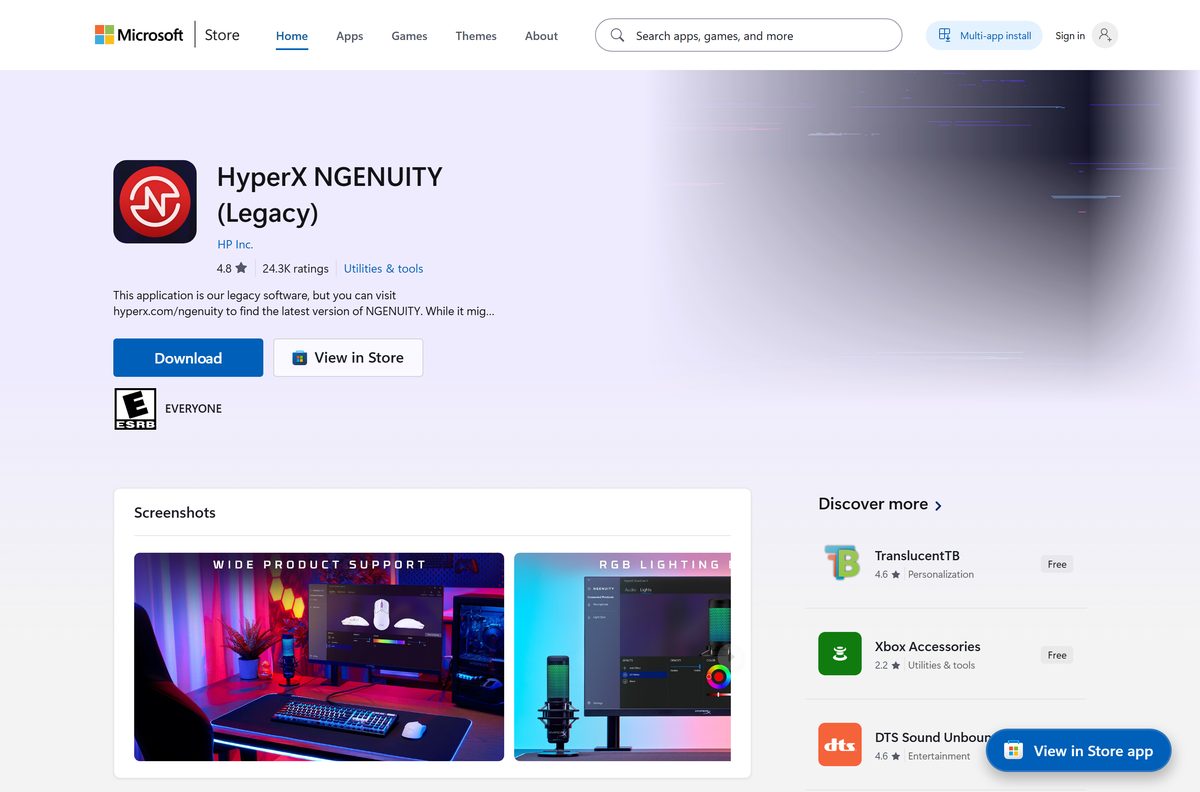
| Legacy device, and you prefer Store updates | NGENUITY (Legacy) in the Microsoft Store | 425.6 MB |
| Cloud Alpha 2 Wireless firmware only | Cloud Alpha 2 Wireless Firmware Updater | 170.9 MB |
Both installers are full setup files, so they also work on a PC with no internet connection.
Download HyperX NGENUITY for Windows 11 and Windows 10
HyperX hosts every NGENUITY installer on files.hyperx.com and links them from the NGENUITY page. The download buttons sit at the top of that page.
- HyperX NGENUITY installer (current) — 523.3 MB · current release, Windows 11 and 10
- HyperX NGENUITY Legacy 2.38.0.0 installer — 435.2 MB · devices released before August 2025
- HyperX NGENUITY (Legacy) in the Microsoft Store — 425.6 MB · published by HP Inc., free
- HyperX NGENUITY page — device lists and FAQ
How to install HyperX NGENUITY on Windows 11 and 10
Connect your HyperX device before you start, so NGENUITY finds it on first launch.
- Open hyperx.com/pages/ngenuity in your browser.
- Select the NGENUITY download and save HyperX_NGENUITY_Installer.exe .
- Open your Downloads folder and double-click the installer.
- Select Yes at the User Account Control prompt.
- Follow the setup screens and wait for the 523.3 MB package to install.
- Plug in your HyperX headset, keyboard, mouse or microphone if it is not connected yet.
- Open HyperX NGENUITY from the Start menu.
- Select your device in NGENUITY to adjust its lighting, macros, DPI or audio settings.
Uninstall any NGENUITY beta first. HyperX recommends removing the beta before installing the official release.
Install HyperX NGENUITY Legacy from the Microsoft Store or with winget
The Microsoft Store carries NGENUITY Legacy only, published by HP Inc. Use it for devices on the Legacy list; the current release comes from hyperx.com.
- Open the HyperX NGENUITY (Legacy) listing in the Microsoft Store.
- Select Get, then Install when the Store app opens.
- Wait for the 425.6 MB package to download and install.
- Select Open to launch NGENUITY Legacy.
- To use the command line instead, open Terminal and run winget install 9P1TBXR6QDCX –source msstore .
- Accept the Store agreement prompt with Y to finish the install.
Store installs update automatically through the Microsoft Store.
Which HyperX NGENUITY option works on a Mac or Linux?
HyperX states that NGENUITY and NGENUITY Legacy are only available on Windows. There is no macOS or Linux build to download.
| Your setup | What to do | Link |
|---|---|---|
| Mac or Linux, device has onboard memory | Configure it once on a Windows PC; the saved profile keeps working on the Mac | NGENUITY for Windows |
| Mac or Linux, device without onboard memory | The device works with default settings; custom lighting and macros need NGENUITY on Windows | HyperX NGENUITY page |
| Mac with Boot Camp or a spare Windows PC | Install NGENUITY on Windows and save changes to the device | NGENUITY for Windows |
Is HyperX NGENUITY free?
NGENUITY costs nothing, with no subscription, trial or licence key. The Microsoft Store lists the Legacy app at $0.
Treat any NGENUITY “premium”, “pro” or cracked build as malware. HyperX ships the app only through files.hyperx.com and the Microsoft Store.
Download NGENUITY free from hyperx.com. It is the only place that offers both the current release and the Legacy installer, and the files come straight from HyperX’s own server.
Choose between HyperX NGENUITY 2025 and NGENUITY Legacy for your device
NGENUITY Legacy (2020-2025) covers NGENUITY-enabled devices released before August 2025. It gets limited support and maintenance from August 2025 onward.
NGENUITY 2025 is the current edition. It supports devices released after August 2025 plus many older products, and it receives continued updates.
Install NGENUITY 2025 if your device is on its list; otherwise install NGENUITY Legacy 2.38.0.0. Legacy supports 40-plus older devices, including Armada monitors, FURY Ultra mousepads and the Vision S webcam, which NGENUITY 2025 does not list yet.
How to check your HyperX NGENUITY version and update it
- Open Settings > Apps > Installed apps.
- Type NGENUITY in the search box.
- Read the version number shown under HyperX NGENUITY.
- Compare it with the current release on the NGENUITY page.
- If yours is older, download the latest installer and run it over the existing copy.
- For the Store version, open Microsoft Store > Library and select Get updates.
Check the HyperX NGENUITY system requirements and specifications
| Specification | Detail |
|---|---|
| Software | HyperX NGENUITY |
| Developer | HP Inc. (HyperX) |
| Latest version | 3.0.0 (Legacy: 2.38.0.0) |
| Licence / price | Free |
| Operating system | Windows 11 and Windows 10 |
| Architecture | 64-bit (x64); no ARM64 build |
| macOS and Linux | Not supported |
| Download size | 523.3 MB (Legacy 435.2 MB; Store 425.6 MB) |
| Offline installer | Yes, the full setup file |
| Official download source | hyperx.com/pages/ngenuity |
| Microsoft Store | NGENUITY (Legacy), HP Inc. |
| Last verified | 2026-09-25 |
Check which HyperX devices each NGENUITY version supports
Find your product in the table before you download. A device missing from the NGENUITY 2025 column needs NGENUITY Legacy.
| Device type | NGENUITY 2025 | NGENUITY Legacy |
|---|---|---|
| Headsets | Cloud III S, Cloud Alpha 2, Cloud Flight 2 (wireless models) | Cloud II Wireless, Cloud III, Cloud Alpha Wireless, Cloud Flight, Cloud Stinger, Cloud MIX and more |
| Keyboards | Alloy Rise series, Origins 2 Pro/65/1800, Eve 1800 | Alloy Elite, Alloy FPS RGB, Alloy Origins, Alloy MKW100, Alloy Rise and more |
| Mice | Pulsefire Saga, Haste 2 series | Pulsefire Surge, Raid, Core, FPS Pro, Dart, Haste, Fuse Wireless and more |
| Microphones | FlipCast, SoloCast 2, QuadCast 2 S | SoloCast, DuoCast, QuadCast S, QuadCast 2, QuadCast 2 S |
| Monitors, mousepads, webcams | Not listed | Armada 25/27, FURY Ultra, Pulsefire Mat, Vision S |
NGENUITY handles 12-channel Spatial Audio, Parametric and Graphic EQ, AI Noise Reduction, macros, DPI and RGB effects, depending on the device.
Fix HyperX NGENUITY not installing or not detecting your device
NGENUITY 2025 does not show your device
The device is supported only by NGENUITY Legacy.
- Check your model in the supported-device table above.
- If it is Legacy-only, download NGENUITY Legacy 2.38.0.0.
- Install it, then reconnect the device and open NGENUITY Legacy.
The official release will not install over the beta
HyperX recommends removing the beta before upgrading.
- Open Settings > Apps > Installed apps.
- Select … next to the NGENUITY beta, then Uninstall.
- Restart the PC.
- Run the current NGENUITY installer again.
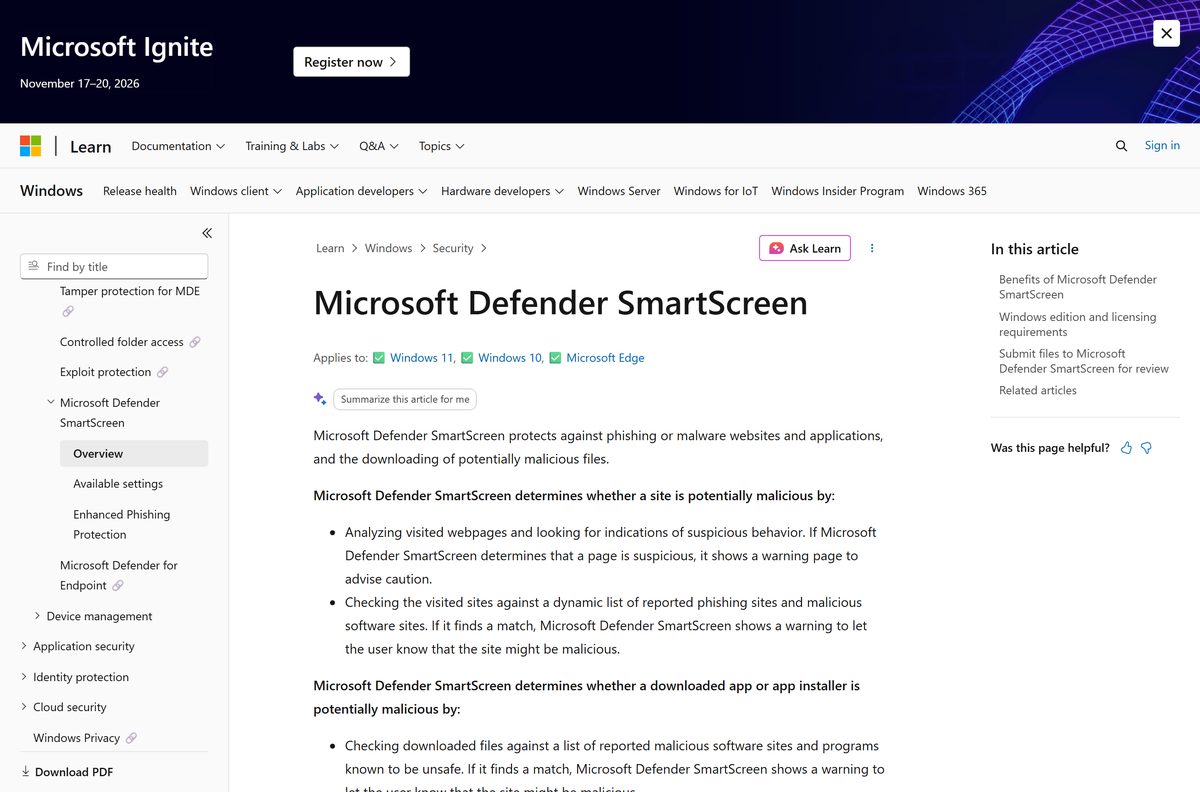
Windows shows “Windows protected your PC”
Microsoft Defender SmartScreen flagged the downloaded file.
- Confirm the file came from files.hyperx.com and is named HyperX_NGENUITY_Installer.exe .
- Select More info on the SmartScreen dialog.
- Select Run anyway only for the file from HyperX.
- Delete any copy from another site and download it again from hyperx.com.
Instant Pair fails with an Emblems device
The device dropped out of pairing mode.
- Open NGENUITY and select the device.
- Reset Emblems in NGENUITY to put the device back into pairing mode.
- Run Instant Pair again.
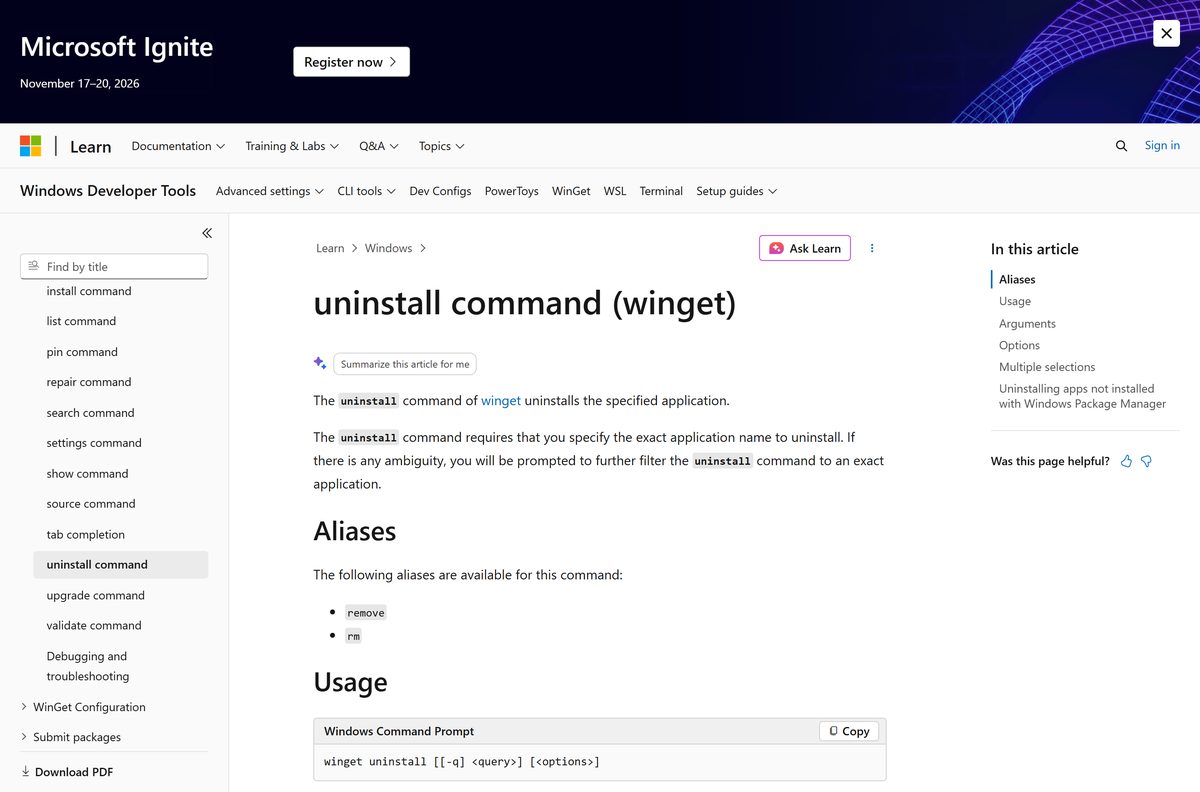
How to uninstall HyperX NGENUITY
- Open Settings > Apps > Installed apps.
- Type NGENUITY in the search box.
- Select … next to HyperX NGENUITY, then Uninstall.
- Select Uninstall again to confirm.
- To remove the Store app from Terminal, run winget uninstall 9P1TBXR6QDCX .
- Restart the PC before installing a different NGENUITY version.
Settings saved to a device’s onboard memory stay on the device after you remove the app.
Frequently asked questions
Is HyperX NGENUITY free?
Yes. HyperX NGENUITY is free to download and use with HyperX headsets, keyboards, mice and microphones. The Microsoft Store lists the Legacy app at $0, and the current installer on hyperx.com has no licence key or subscription.
Where is the official HyperX NGENUITY download?
The official page is hyperx.com/pages/ngenuity. It links the current NGENUITY installer and the NGENUITY Legacy 2.38.0.0 installer, both hosted on files.hyperx.com. The Legacy app is also in the Microsoft Store, published by HP Inc.
Does HyperX NGENUITY work on Windows 11?
Yes. NGENUITY runs on Windows 11 and Windows 10. The Microsoft Store package targets Windows 10 or later on 64-bit (x64) PCs, and HyperX publishes the current installer for the same Windows systems.
How big is the HyperX NGENUITY download?
The current NGENUITY installer is 523.3 MB. The NGENUITY Legacy 2.38.0.0 installer is 435.2 MB, and the Legacy package in the Microsoft Store is 425.6 MB.
Is there a HyperX NGENUITY offline installer?
Yes. The 523.3 MB HyperX_NGENUITY_Installer.exe carries the full app rather than a small web bootstrapper. Copy it to a USB drive to install NGENUITY on another Windows PC.
Is HyperX NGENUITY available for Mac?
No. HyperX states that NGENUITY and NGENUITY Legacy are only available on Windows. Devices with onboard memory keep their saved profiles on a Mac, but you need a Windows PC to change them.
Does HyperX NGENUITY run on ARM64 Windows?
HyperX publishes no ARM64 build. The Microsoft Store package is x64 only, so plan on a standard 64-bit Intel or AMD PC to configure your HyperX gear.
Is HyperX NGENUITY safe to download?
Yes, when it comes from hyperx.com or the Microsoft Store. The installers are hosted on files.hyperx.com, and the Store app is published by HP Inc., which owns HyperX. Avoid copies on download portals.
What is the latest version of HyperX NGENUITY?
Version 3.0.0 is the current release of NGENUITY, the 2025 edition. NGENUITY Legacy stays available as version 2.38.0.0 for HyperX devices released before August 2025.
What is the difference between NGENUITY and NGENUITY Legacy?
NGENUITY Legacy covers NGENUITY-enabled devices released before August 2025 and gets limited maintenance. NGENUITY 2025 supports newer devices plus many older ones and receives continued updates. Check your device against both lists.
Why does HyperX NGENUITY not detect my device?
Your device is probably on the Legacy list only. NGENUITY 2025 supports a shorter device list, so install NGENUITY Legacy 2.38.0.0 from hyperx.com for older headsets, keyboards, mice, monitors and webcams.
Should I uninstall the NGENUITY beta first?
Yes. HyperX recommends uninstalling the NGENUITY beta before you install the official release. Remove it from Settings, restart, and then run the current installer.