You can download Microsoft To Do free on Windows 11, Windows 10 and Mac, and sign in with a Microsoft account to sync your lists. Windows PCs get it from the Microsoft Store, Macs from the Mac App Store.
The same tasks also open in a browser at to-do.office.com, so a locked-down work laptop is covered too.
This guide covers which build to install, the official Store links and sizes, the winget command, what syncs with Outlook, and fixes for sync and reminder failures.
Which Microsoft To Do download do you need?
Match your device below. Every row points at a Microsoft or Apple source, and every one of them is free.
| Your device | What to install | Download size |
|---|---|---|
| Windows 11 or Windows 10 (version 1809 or later) | Microsoft Store, product 9NBLGGH5R558 | 86.8 MB bundle |
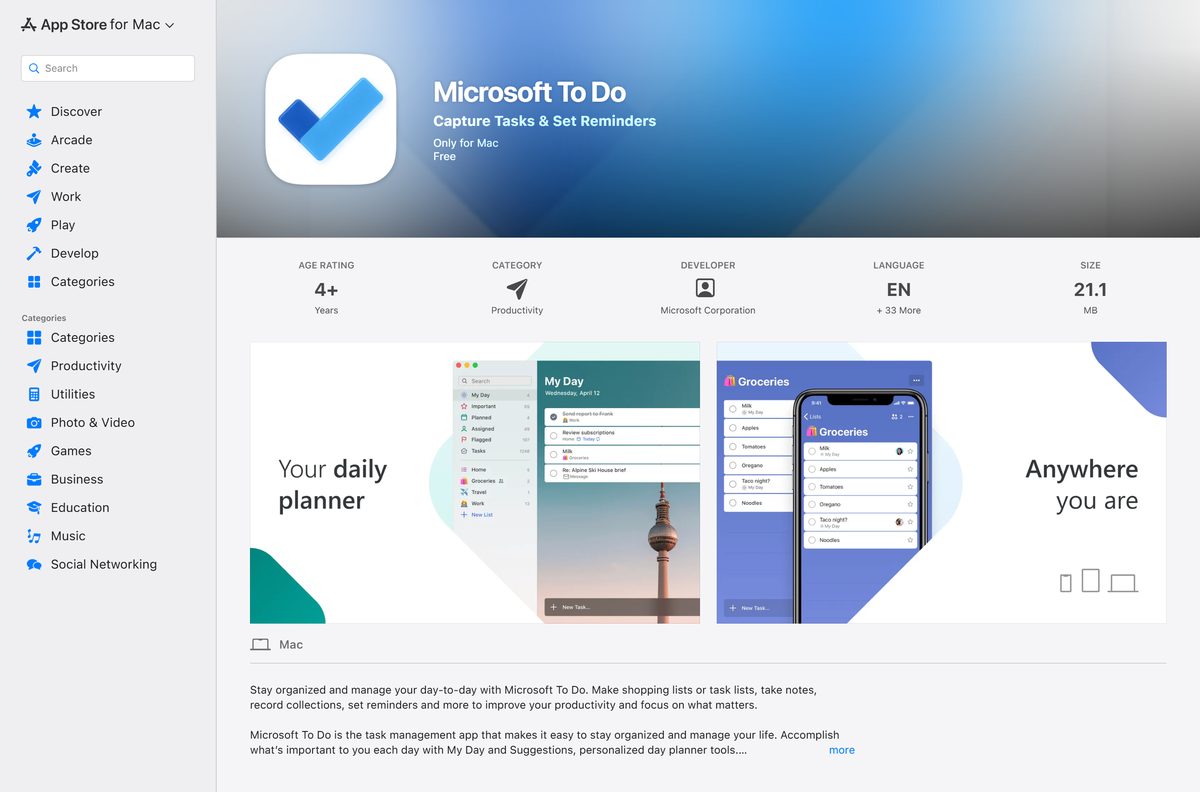
| Mac on macOS 13 or later | Mac App Store listing | 20.1 MB |
| A PC where the Store is blocked or missing | The browser version at to-do.office.com | Nothing to install |
| iPhone or iPad on iOS 17.6 or later | App Store listing | See listing |
| Android phone or tablet | Google Play listing | See listing |
The 86.8 MB figure is the full Windows bundle in Microsoft’s catalog, covering x64, x86 and ARM64. Installed, it takes about 76.3 MB.
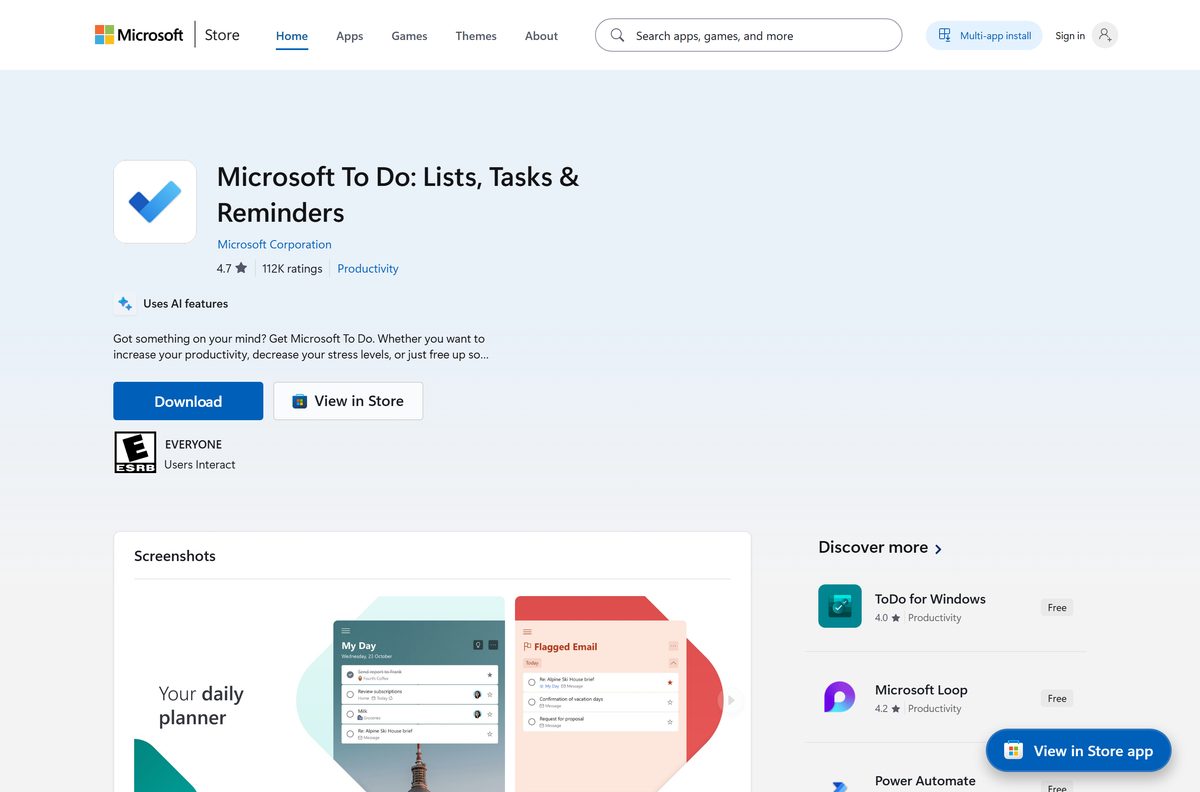
Download Microsoft To Do from the official Microsoft source
Microsoft ships the Windows app through its own Store only. The publisher line on the listing reads Microsoft Corporation.
- Microsoft To Do on the Microsoft Store, product 9NBLGGH5R558 — free, x64, x86 and ARM64
- Microsoft To Do on the Mac App Store — macOS 13 or later, 20.1 MB
- The browser version at to-do.office.com — no install, same tasks
- Microsoft’s own download page for the product — links for Windows, Mac, iOS and Android
There is no standalone .exe and no .dmg. The Windows app is an MSIX bundle the Store installs, so the PC needs an internet connection during setup.
Anything advertised as a To Do offline installer is a repackaged file from somewhere else. Microsoft’s guidance is to install apps only from official publisher sites or stores.
How to install Microsoft To Do on Windows 11 and 10
Search Start for To Do first. Some PCs already carry the app from a previous sign-in.
- Open Microsoft Store from the Start menu.
- Search for Microsoft To Do, or open product 9NBLGGH5R558 from the link above.
- Check the publisher line reads Microsoft Corporation.
- Select Get, or Install if the app already sits in your Store library.
- Wait for the download to finish, then select Open.
- Select Sign in and enter the Microsoft account, work account or school account that holds your tasks.
- Right-click the app on the taskbar and select Pin to taskbar.
Sign-in is not optional. Tasks live on Microsoft’s servers, so the list stays empty until an account is attached.
Install Microsoft To Do with winget from the command line
The Store product ID doubles as the winget ID. Use this when you set up several PCs in a row.
- Right-click Start and select Terminal.
- Run winget install 9NBLGGH5R558 -s msstore .
- Type Y the first time winget asks you to accept the Store source agreement.
- Wait for Successfully installed, then open To Do from Start and sign in.
Add –accept-package-agreements –accept-source-agreements to run the same line from a script with no prompts.
Which To Do download do you need for your Mac?
Open the Apple menu and select About This Mac to read your macOS version first.
| Your Mac says | What to do | Size |
|---|---|---|
| macOS 13 Ventura or later | Install from the Mac App Store | 20.1 MB |
| macOS 12 Monterey or older | Use to-do.office.com in Safari or Chrome | Nothing to install |
| You also want tasks on an iPhone | Add the iOS app on the same account | See listing |
The Mac build carries version 2.177. Sign in with the same account you use on Windows and both lists match within seconds.
Is Microsoft To Do free?
Yes. Every build costs nothing, and a free Microsoft account unlocks all of it. The Microsoft Store lists the app at $0.00, and the Mac, iOS and Android listings are free as well. There is no premium tier, no task limit and no licence key to buy. On a work or school tenant, a Microsoft 365 subscription grants a user-level licence that an administrator can switch off, which is when the app reports that your licence for To Do is turned off.
How to check your To Do version and update it
The Windows app updates through the Microsoft Store, not Windows Update.
- Right-click Start and select Terminal.
- Run Get-AppxPackage Microsoft.Todos | Select Name, Version to read the installed version.
- Open Microsoft Store and select Library.
- Select Get updates and let any To Do update install.
- On a Mac, open the App Store, select Updates, then Update beside the app.
Version 2.176.7601.0 is the current Windows package in Microsoft’s catalog, and the Mac build is at 2.177.
Check the Microsoft To Do system requirements
The app asks for very little beyond a supported OS and an account to sign in with.
| Field | Value |
|---|---|
| Software | Microsoft To Do |
| Developer | Microsoft Corporation |
| Latest version | 2.176.7601.0 on Windows, 2.177 on Mac |
| Store product ID | 9NBLGGH5R558 |
| Package family name | Microsoft.Todos_8wekyb3d8bbwe |
| License / price | Free, Microsoft account required |
| Supported Windows | Windows 10 version 1809 (build 17763) or later, Windows 11 |
| Supported macOS | macOS 13.0 or later |
| Architecture | x64, x86 and ARM64 in one Windows bundle |
| Windows download size | 86.8 MB (all architectures) |
| Windows installed size | About 76.3 MB |
| Mac download size | 20.1 MB |
| Offline installer | No, store delivery only |
| Official download source | Microsoft Store and Mac App Store |
| Last verified | 2026-09-22 |
Windows 10 reached end of support on 14 October 2025. The app still installs there, but the operating system no longer gets security updates unless the PC is enrolled in Extended Security Updates. See Microsoft’s end-of-support page.
What Microsoft To Do syncs with
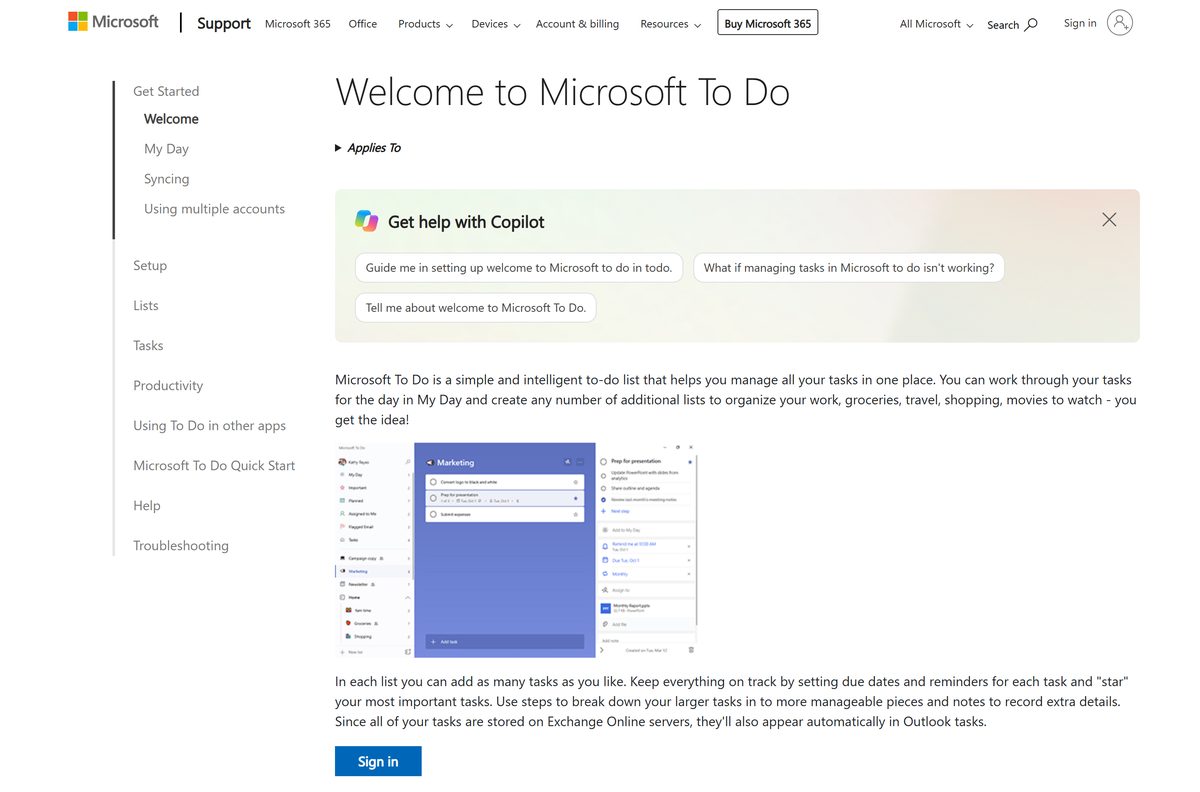
Tasks are stored on Exchange Online servers, which is why they turn up in other Microsoft apps without any setup.
| Where your tasks appear | What shows up | Setup needed |
|---|---|---|
| Outlook tasks | Every list and task on the account | None, sign in with the same account |
| Outlook.com and Outlook on the web | My Day and your lists beside mail | None |
| Flagged email in Outlook | Flagged messages as tasks in a Flagged email list | Turn the list on in To Do settings |
| The browser version | The same lists, no install | Sign in at to-do.office.com |
| iPhone, iPad and Android | The same lists and reminders | Install the mobile app, sign in |
Changes push every five seconds across signed-in devices, so a task ticked on a phone clears on the PC almost at once.
How to pin To Do and keep it running on Windows 11
A pinned window is the difference between a task list you read and one you ignore.
- Open the app, right-click its taskbar icon and select Pin to taskbar.
- Select Start > Settings > Apps > Startup and switch Microsoft To Do on so it opens with Windows.
- In the app, select your profile picture, then Settings, and switch Smart due date on to type dates in plain words.
- Still in Settings, switch Flagged email on to pull flagged Outlook messages into a list.
The startup entry only appears after the app has run once, so install and sign in first.
Fix To Do not installing, not syncing or not signing in
Work through the symptom that matches. On Windows 10 the app list sits under Settings > Apps > Apps & features instead of Installed apps.
The Store install fails or stalls
Pending Windows updates or an outdated Microsoft Store are blocking the package.
- Select Start > Settings > Windows Update > Check for updates and install everything offered.
- Restart the PC.
- Open Microsoft Store, select Library > Get updates to update the Store itself.
- Try the install again, or run winget install 9NBLGGH5R558 -s msstore .
A firewall is preventing your data from syncing
A VPN, proxy or corporate firewall is blocking the endpoints the app talks to.
- Turn the VPN or proxy off and reopen the app to confirm the cause.
- Ask your IT admin to allow microsoft.com, live.com, office.com, office.net, office365.com, microsoftonline.com, graph.microsoft.com and todo-web-endpoint.azureedge.net.
- Ask for ports 443, 80 and 587 to be opened as well.
- Sign out and sign back in once the rules are live.
Sign-in on the web returns a 503 error
The local or corporate network is restricting the same endpoints.
- Try the site on a different network, such as a phone hotspot.
- If it loads there, send your IT admin the list of URLs from Microsoft’s error-message page.
- Clear the browser cache and sign in again.
- Use the installed app in the meantime, since it takes a different route.
Sync failed due to an issue with local storage on the app
The local task database on a Mac is damaged.
- Uninstall the app on the Mac.
- Open Finder and press Command + Shift + G.
- Enter ~/Library/Group Containers/UBF8T346G9.com.microsoft.to-do-mac/AccountData/userdatabase.db and delete that file.
- Install the app again from the Mac App Store and sign in.
- On iPhone or iPad, reinstall the app from the App Store instead.
The app says your licence for To Do is turned off
An administrator has removed the To Do licence from your Microsoft 365 account.
- Confirm you signed in with the work account rather than a personal one.
- Ask your IT admin to re-enable the To Do licence on your user.
- Sign out, close the app, then sign in again.
- Use a personal Microsoft account for private lists in the meantime.
How to uninstall Microsoft To Do
Removing the app never deletes your tasks. They stay on the account and return at the next sign-in.
- Select Start > Settings > Apps > Installed apps.
- Select the three dots beside Microsoft To Do.
- Select Uninstall, then Uninstall again to confirm.
- To remove it from a terminal instead, run Get-AppxPackage Microsoft.Todos | Remove-AppxPackage .
- On a Mac, drag the app from Applications to the Bin and empty it.
Your lists stay reachable at to-do.office.com and in Outlook tasks after the app is gone.
What you can use instead of Microsoft To Do
Check what your account already includes before adding another task app.
| Tool | Where it comes from | Best for |
|---|---|---|
| Outlook tasks | Outlook on Windows, Mac and the web | Managing the same tasks beside your mail |
| Microsoft Planner | Microsoft 365 | Team boards and assigned work |
| Microsoft OneNote | Free app, every platform | Notes with checkboxes rather than due dates |
| Microsoft Sticky Notes | Microsoft Store, Windows only | Quick reminders on the desktop |
| Apple Reminders | Built into macOS and iOS | Mac-only lists with no Microsoft account |
For one list that follows you between a PC, a Mac and a phone on a single free account, stay with To Do.
Frequently asked questions
Is Microsoft To Do free?
Yes. The Windows, Mac, iOS and Android listings all cost $0.00, with no premium tier and no licence key. You need a free Microsoft account, a work account or a school account to sign in and store your lists.
What is the official Microsoft To Do download page?
The Microsoft Store listing for product 9NBLGGH5R558 on Windows, and the Mac App Store listing on macOS. Microsoft’s support site links to both, and hosts no separate installer file.
Is there a Microsoft To Do offline installer or .exe?
No. The Windows app ships only as an MSIX bundle through the Microsoft Store, so setup needs an internet connection. Files sold as an offline setup are unofficial repackages and should be avoided.
Does Microsoft To Do work on Windows 11?
Yes. It runs on Windows 11 and on Windows 10 version 1809 (build 17763) or later, from the same Store listing. The bundle covers x64, x86 and ARM64 PCs.
How big is the Microsoft To Do download?
Microsoft’s catalog lists an 86.8 MB Windows bundle covering every supported architecture, which takes about 76.3 MB once installed. The Mac App Store build is 20.1 MB.
Is there a Microsoft To Do app for Mac?
Yes. Microsoft publishes a Mac app on the Mac App Store for macOS 13 or later, currently version 2.177. It syncs with Windows and mobile through the same account.
Can I use Microsoft To Do without installing anything?
Yes. Sign in at to-do.office.com and the same lists open in any browser. This is the route to take on a managed PC where the Microsoft Store is blocked.
Does Microsoft To Do sync with Outlook?
Yes, automatically. Tasks are stored on Exchange Online servers, so every list appears in Outlook tasks and in Outlook on the web with no setup beyond signing in with the same account.
Is Microsoft To Do safe to download?
Yes, from the Microsoft Store or the Mac App Store. Both listings are published by Microsoft Corporation and install a signed package. Copies from download portals are not the same file.
What is the latest Microsoft To Do version?
Version 2.176.7601.0 is the newest Windows package in Microsoft’s Store catalog, and the Mac build is 2.177. Check yours with Get-AppxPackage in Terminal and update from the Store library.
Why are my tasks not syncing?
Usually a VPN, proxy or firewall blocking Microsoft endpoints, or a second account signed in. Confirm the account, disable the VPN, then ask your admin to allow the endpoints Microsoft lists.
Why won’t Microsoft To Do install?
Usually pending Windows updates or an outdated Microsoft Store. Install waiting updates, restart, refresh the Store from Library, then retry the install or run the winget command.
Can I uninstall Microsoft To Do?
Yes. Remove it from Settings, Apps, Installed apps, or run Remove-AppxPackage in a terminal. Your tasks stay on your account and come back whenever you sign in again.