Download Epson Scan 2 for Windows 11 from your scanner's or all-in-one's own support page on epson.com: search the model, open the Downloads tab and pick Windows 11 in the Operating System drop-down.
This guide covers finding the right model page, installing the software, adding the scanner, running a first scan, the errors Epson documents, and the Windows Scan app for models with no Windows 11 download.
The fastest way to get Epson Scan 2 on Windows 11
Epson does not publish one universal Epson Scan 2 installer. Each model's support page carries the version built for that scanner or all-in-one.
- Open Epson Support on a Windows 11 PC, not a phone. Epson's product pages say downloads are not available on mobile devices.
- Type your model into the Search By Product Name box, for example ET-2800 or WorkForce ES-500W II, and open your product's page.
- Select the Downloads tab.
- Choose Windows 11 in the Operating System drop-down. Epson warns that the page may not detect your system correctly.
- Download the Drivers and Utilities Combo Package if it is listed, or the individual Epson Scan 2 entry.
- Disconnect the scanner's USB cable, open the downloaded file and follow the on-screen instructions.
- Restart the PC when setup finishes, then open Epson Scan 2 from the Start menu.
What Is Epson Scan 2?
Epson Scan 2 is Epson's scanner driver and scanning program for its current scanners and all-in-one printers. It usually arrives alongside a few companion tools, and knowing which is which saves confusion later.
| Component | What it does | When you need it |
|---|---|---|
| Epson Scan 2 | Scanning window with Main Settings and Advanced Settings tabs for document size, resolution and image options | Every scan from your PC, and any TWAIN-compliant program that scans through it |
| Epson Scan 2 Utility | Opens the Scanner Settings window where you add, delete or switch scanners and set options such as Detect Glass Dirt | Network scanners, a blank scanner list, or a changed IP address |
| Epson ScanSmart | Simpler scanning app with OCR, email and save options; the scanner's start button opens it when installed | Quick document scans and editable text |
| Epson Software Updater | Checks for newer versions of your Epson software | Keeping Epson Scan 2 current |
| Drivers and Utilities Combo Package | One installer that bundles the drivers and utilities for your model | First-time setup on a new PC |
Epson lists Epson ScanSmart, Epson Scan 2 and Epson Software Updater as the software included with models such as the WorkForce ES-500W II.
Before You Download: Check These Requirements
| Check | Where to find it | Why it matters |
|---|---|---|
| Exact model name | The label on the front or top of the scanner or printer; Epson also has a serial number locator | Each model page carries its own Epson Scan 2 build |
| Windows 11 edition | Standard Windows 11 or Windows 11 on ARM | Epson says full-featured drivers may not exist for ARM; Windows then installs a generic driver |
| Connection type | USB cable, Wi-Fi or Ethernet | Network scanners must be added in Epson Scan 2 Utility; Epson Scan 2 needs an IPv4 network |
| Internet connection | The PC you are installing on | Epson notes an Internet connection is required to download the software |
| Administrator account | An account that can approve User Account Control prompts | Setup and Enable Editing in Epson Scan 2 Utility may ask for the administrator password |
| Windows 11 listing | The Operating System drop-down on your model's Downloads tab | If no Windows 11 files appear, use the options in the section on unlisted models below |
Safest Place to Download Epson Scan 2 for Windows 11
The only source Epson points readers to is the support page for their own product. Pick the row that matches your situation.
| Your situation | Get it from | Why |
|---|---|---|
| US model with a Windows 11 listing | Your model's Downloads tab on epson.com/Support | The build matches your hardware and Windows 11 |
| Bought in Canada | epson.ca/support, which Epson names alongside epson.com | Canadian model pages carry the local downloads |
| Model not found on the US site, such as the L3110 or L3210 | The Epson website for the country where you bought it | A search for L3110 on epson.com returns no product page |
| Windows 11 on ARM without a full-featured driver | Nothing to download; connect scanner and PC to the same network | Windows 11 ARM detects the scanner and installs a generic driver |
| No Epson scanning software listed for Windows 11 | The Windows Scan app from the Microsoft Store | Epson's own Windows 11 FAQ recommends it for that case |
Skip third-party download portals and driver updater tools. They are not Epson and cannot tell which build your model needs.
How to Download Epson Scan 2 for Windows 11
Start at Epson's support home. The steps below use the US site; regional Epson sites follow the same product-page layout.
- Go to Epson Support and enter your model in Search By Product Name, or select Scanners or Printers to browse.
- Open your product's support page and confirm the model name at the top matches the label on your device.
- Select the Downloads tab.
- Open the Operating System drop-down and choose Windows 11.
- Download the Drivers and Utilities Combo Package for a complete setup, or the individual Epson Scan 2 entry if you only need the scanner software.
- Note the file name and where it saved, usually your Downloads folder, so you can find it for installation.
Downloading from Epson means accepting Epson's Software License Agreement, which the Downloads tab states under the file list.
How to Install Epson Scan 2 on Windows 11
Epson asks you to leave the product disconnected at first. The installer prompts you to connect it when it needs the device.
- Unplug the scanner's USB cable from the PC if it is connected.
- Close any open programs.
- Open the file you downloaded. Select Yes if User Account Control asks for permission.
- Follow the on-screen instructions and connect the scanner by USB or network when the installer asks.
- Let the installer finish every component it lists, including Epson Scan 2.
- Restart the computer. Epson's USB troubleshooting starts with this step, so do not skip it.
If the combo package stops with Unable to connect to the server, see the troubleshooting section below.
How to Open and Use Epson Scan 2 on Windows 11
This first scan checks that the driver, the connection and the software all work together.
- Turn the scanner on and wait for the ready light to stop flashing.
- Place the original on the glass or in the feeder.
- Select Start, type Epson Scan 2 and open it.
- On the Main Settings tab, set Document Size to Auto Detect, or pick the paper size of your original.
- Set Resolution: 96 to 200 dpi for email or screen use, 200 to 300 dpi for printing, OCR or a searchable PDF.
- Start the scan and wait for the file to save.
Epson notes that higher resolutions make much larger files. A letter-size page at 300 dpi can reach 24MB, against 1.3MB at 72 dpi.
To enlarge a scan later, raise the resolution by the same factor now. Doubling a 300 dpi image calls for a 600 dpi scan.
How to Add or Select a Scanner in Epson Scan 2 Utility
Use this when Epson Scan 2 opens with an empty scanner list, or when a Wi-Fi scanner changed its IP address.
- Make sure the scanner and PC are on the same network, then open Epson Scan 2 Utility from the Start menu. The Scanner Settings window appears.
- Select Enable Editing and select Yes. Enter the administrator password if asked and select OK.
- If Enable Editing is missing, right-click the Epson Scan 2 Utility shortcut and select Run as administrator.
- Select Add and confirm your product is chosen as the Model.
- Select your scanner's IP address from the Search for Network list, or type the address if a firewall hides it.
- Select Add, confirm the scanner appears in Scanner Settings, and select OK.
To switch to a different scanner, select it in the same list. To clear a stale entry, select it and choose Delete before adding it again.
How to check Epson Scan 2 installed correctly
- Open Settings > Apps and confirm Epson Scan 2 appears in the installed apps list.
- Open Settings > Bluetooth & devices > Printers & scanners and confirm your model is listed. On an all-in-one, open it and look for Scanner settings, which Microsoft says confirms scanner detection.
- Open Epson Scan 2 Utility and confirm your model appears in Scanner Settings.
- Open Device Manager and check that the scanner is listed under Imaging devices, as Epson's troubleshooting advises.
- Run one scan in Epson Scan 2 and open the saved file.
What If Epson Scan 2 Is Not Listed for Your Model?
An empty Windows 11 list does not always mean the scanner is unusable. Epson's Windows 11 FAQ describes three fallbacks.
| What you see | What it means | What to do |
|---|---|---|
| No Windows 11 files, but Windows 10 64-bit files exist | Epson has not posted a Windows 11 build for the model | Use the simple driver Windows 11 installs over USB or the network, and scan with Windows Scan |
| An older Epson Scan instead of Epson Scan 2 | Older models use the previous Epson Scan program | Install it; if buttons are missing, press Alt or install Epson Scan Common Updater for Windows 11 if listed |
| No Epson scanning software at all for Windows 11 | Epson offers no scanner app for your model on Windows 11 | Install Windows Scan from the Microsoft Store, as Epson recommends |
| Windows 11 on ARM, no full-featured driver | Only a generic driver is available | Put the scanner and PC on the same network with Internet access; Windows installs basic scanning |
| Model missing from epson.com entirely | It is sold in another region | Search the Epson website for the country of purchase |
Common Epson Scan 2 Problems on Windows 11 and How to Fix Them
Epson Scan 2 will not start
The scanner is off, asleep, missing from Epson Scan 2 Utility, or the software predates a Windows upgrade.
- Confirm the scanner appears in Epson Scan 2 Utility.
- Check that the scanner is on and both ends of the cable are secure.
- Wake the PC fully if it was in sleep or standby, then start Epson Scan 2 again.
- Connect the scanner directly to the PC instead of through a USB hub.
- Reinstall Epson Scan 2 if you upgraded Windows without reinstalling it.
- In a TWAIN-compliant program, select the correct product as the Scanner or Source.
Epson Scan 2 cannot find the scanner (blank Scanner Settings window)
No restart after setup, a hub in the path, or a network scanner that was never added.
- Close the window and restart the PC if you have not since installing.
- Turn the scanner off and back on, then start Epson Scan 2.
- Move the USB cable from a hub to a port on the PC. A hub must have its own power supply.
- For a network scanner, add it in Epson Scan 2 Utility with Enable Editing > Add, as shown above.
"Unable to connect to network scanner. Check the scanner, network, and connection settings."
The saved network entry no longer matches the scanner, often after an IP address change.
- Select Yes on the message. The Scanner Settings window opens.
- Select Enable Editing, then Yes, and enter the administrator password if asked.
- Select your product and select Delete.
- Select Add, confirm the Model, pick the scanner's IP address and select Add.
Windows does not recognize the scanner over USB
The software did not install cleanly, or the cable, port or hub is at fault.
- Restart the PC after installing the software.
- Turn the scanner on, then unplug and reconnect it.
- Connect directly to the PC, using the USB cable that came with the scanner.
- Try a different cable, then a different USB port.
- Uninstall and reinstall Epson Scan 2 if nothing else works.
The installer does not finish: "Unable to connect to the server. Please try again later."
The Drivers and Utilities Combo Package could not reach Epson's servers during setup.
- Check the PC's Internet connection and run the installer again.
- Save the combo package from your model's Downloads tab and note where it saved.
- Right-click the file and select Run as administrator.
- If it still fails, install the drivers and utilities individually from the same tab.
Scanning is slow
High resolution, image adjustments, a slow link, or the scanner cooling itself after long feeder runs.
- Scan at a lower resolution where the job allows it.
- Turn off slow mode if your scanner has it.
- Remove image adjustment options in Epson Scan 2 that you do not need.
- After long feeder runs, leave the scanner on and idle for 30 minutes.
- On Wi-Fi, move the scanner and PC closer to the access point, or use a USB 2.0 or 3.0 port.
Scans are cut off at the edges
The detected document size or margin settings do not match the original.
- Set Document Size to Auto Detect or Auto Detect (Long Paper).
- If detection is wrong, choose your original's size from the list, or Customize to create one.
- On Main Settings, open Document Size > Settings and adjust Crop Margins for Size "Auto".
- On Advanced Settings, set Edge Fill to None.
Lines or spots appear on every scan
Dirt on the glass or rollers.
- Clean the glass with a soft, lint-free cloth lightly moistened with glass cleaner. Never spray the glass directly.
- Remove dirt from the original.
- Turn on Detect Glass Dirt in Epson Scan 2 Utility on scanners that offer it.
How to Update Epson Scan 2
Epson dates each file on the Downloads tab, so you can compare the listed version with what you installed.
- Open Epson Software Updater from the Start menu if it was installed with your scanner software, and follow its prompts.
- Or open your model's support page and select the Downloads tab.
- Choose Windows 11 in the Operating System drop-down.
- Compare the date of the Epson Scan 2 entry with when you installed it.
- Download and run the newer file, then restart the PC.
How to Uninstall and Reinstall Epson Scan 2
Epson suggests a clean reinstall to solve problems that settings changes do not fix.
- Close all running programs and turn off the scanner.
- Disconnect the interface cable.
- Select Start, search for Settings and open it.
- Select Apps, then select Epson Scan 2 and select Uninstall. Repeat for Epson ScanSmart if you want a full reset.
- Restart the computer.
- Download the Windows 11 package again from your model's Downloads tab and install it as described above.
Can You Use Windows Scan Instead of Epson Scan 2?
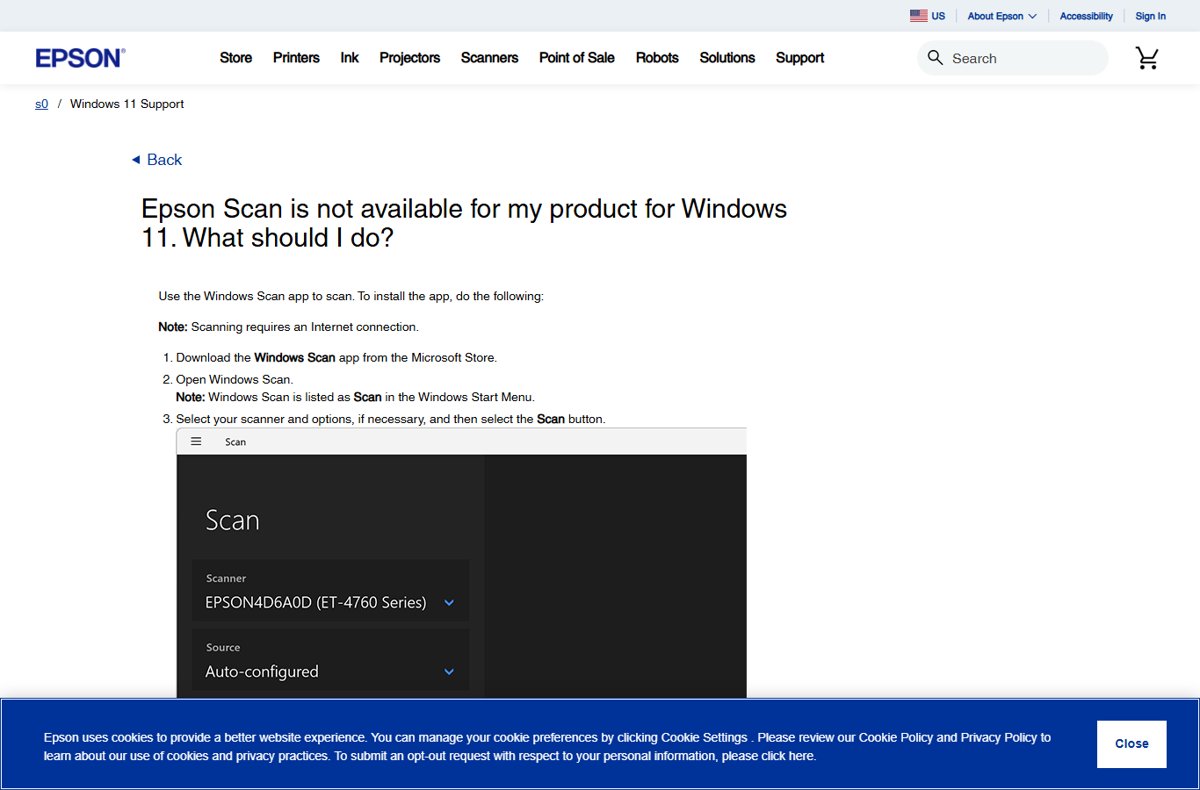
Yes. Epson's Windows 11 FAQ points to the Windows Scan app when Epson Scan is not available for a model. It needs only the driver Windows installs, but it offers fewer options than Epson Scan 2.
Microsoft lists JPEG, PNG, TIFF and Bitmap as its file types, so there is no PDF output. For a walkthrough with screenshots, see how to scan a document using the Scan app in Windows 11/10.
- Turn the scanner on and confirm it appears under Settings > Bluetooth & devices > Printers & scanners. Select Add device if it is missing.
- Search the Start menu for Windows Scan and open Scan. If it is not installed, get Windows Scan from the Microsoft Store.
- Choose your device in the Scanner drop-down.
- Set Source to Flatbed, Feeder or Auto-configured.
- Pick a File type, and select Show more to change Save file to.
- Select Scan. Files save to Pictures\Scans unless you chose another folder.
Which option to use
Install Epson Scan 2 from your own model's Downloads tab with Windows 11 selected, and fall back to Windows Scan only when Epson lists no Windows 11 scanning software. The model page carries the build matched to your hardware, plus Epson Scan 2 Utility for network setup. Windows Scan works with the basic Windows driver but saves only image files.
Frequently Asked Questions
Where can I download Epson Scan 2?
Download Epson Scan 2 from your product's support page on epson.com. Search your model at Epson Support, open the Downloads tab and choose your operating system. Epson publishes it per model, so there is no single universal installer.
How do I download Epson Scan 2 for Windows 11?
Open your model's page on Epson Support, select the Downloads tab, and choose Windows 11 in the Operating System drop-down. Download the Drivers and Utilities Combo Package or the Epson Scan 2 entry, run it, then restart the PC.
How do I download Epson Scan 2 on my computer instead of my phone?
Use a desktop browser. Epson's product pages state that downloads are not available on mobile devices, so open Epson Support on the Windows PC that will run the scanner and download the file there.
Is there an Epson Scan 2 app in the Microsoft Store?
Epson Scan 2 comes from your model's support page on epson.com, not from the Microsoft Store. The Store app Epson recommends for models without Windows 11 scanning software is Microsoft's own Windows Scan app.
Do I have to pay for Epson Scan 2 software?
No purchase step appears on the Downloads tab; you agree to Epson's Software License Agreement by downloading. Only a replacement software CD may carry shipping and handling charges, according to Epson.
How do I download Epson Scan 2 for the L3110?
Use the Epson website for the country where you bought the printer. The L3110 and L3210 are not found by a search on the US site, epson.com. Look for the same Downloads tab and operating system selector there.
How do I download Epson Scan 2 for Windows 10?
Follow the same steps as for Windows 11, but pick Windows 10 32-bit or Windows 10 64-bit in the Operating System drop-down on your model's Downloads tab. Choose the edition that matches your PC.
What is the difference between Epson Scan 2 and Epson Scan 2 Utility?
Epson Scan 2 is the window you scan from. Epson Scan 2 Utility opens the Scanner Settings window, where you add, delete or switch scanners, enter a network scanner's IP address, and turn on options such as Detect Glass Dirt.

![How To Go Full Screen On Windows 11 [5 Ways + Shortcuts]](https://techdows.com/wp-content/uploads/2026/09/Windows-11-taskbar-with-the-Show-desktop-corner-highlighted-600x210.jpg)