Cisco AnyConnect is now called Cisco Secure Client. To download it safely on Windows 11, use your employer or school’s VPN portal, or sign in to Cisco’s official Software Download site with an account that has the required entitlement.
Windows 11 does not have a 32-bit edition, so almost every Windows 11 PC needs either the standard x64 package or the separate ARM64 package for a Snapdragon-based device.
Cisco currently recommends Cisco Secure Client 5.1.18.314 as the primary maintained release. The older AnyConnect 4.x line is end-of-life and no longer receives software maintenance. Use the version approved by your organization because the VPN gateway, authentication method, posture checks, and optional modules must remain compatible.
| Download method | Who should use it | Official destination |
|---|---|---|
| Organization VPN portal | Employees, students, contractors, and other end users | The HTTPS VPN address supplied by your IT department |
| Cisco Software Download | Administrators and users with Cisco download entitlement | Cisco Software Download |
| Cisco Secure Client support page | Release notes, security notices, guides, and entitled downloads | Cisco Secure Client support |
| Umbrella dashboard | Licensed Cisco Umbrella administrators | Umbrella > Deployments > Roaming Computers |
Avoid unofficial Cisco AnyConnect downloads. Cisco Secure Client installs network drivers and services with elevated privileges. A repackaged MSI, EXE, ZIP, torrent, or “portable” copy can expose credentials, alter network traffic, or install malware. Cisco does not provide a general public direct-download link for every user.
What Cisco AnyConnect Is Called in 2026
Cisco renamed AnyConnect Secure Mobility Client to Cisco Secure Client. The current 5.x product includes the AnyConnect VPN feature along with optional endpoint-security modules.
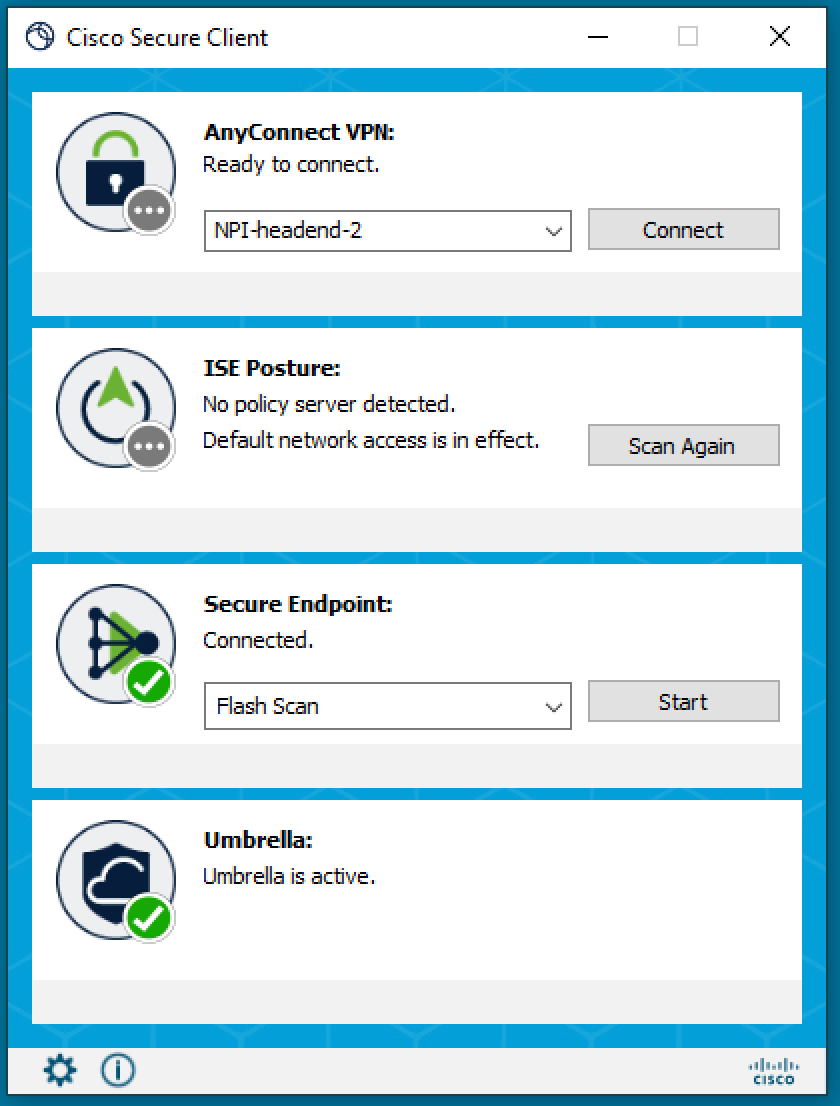
You may still encounter several names:
- Cisco Secure Client: The current product and application name.
- AnyConnect VPN: The VPN module inside Cisco Secure Client.
- Cisco AnyConnect Secure Mobility Client: The older 4.x product name.
- AnyConnect: The informal name still used by many companies, schools, setup documents, and help desks.
Cisco ended software maintenance for AnyConnect 4.x on March 31, 2024. Cisco now directs maintained deployments to Secure Client 5.1.x for current operating-system support, fixes, posture updates, and new features.
When an IT department tells you to download “AnyConnect,” it usually means the Cisco Secure Client package containing the core VPN module. Do not search specifically for an old 4.x installer unless the administrator has documented a legacy requirement.
Cisco AnyConnect for Windows 11 32-bit and 64-bit
There is no normal 32-bit edition of Windows 11. A Windows 11 computer uses one of these architectures:
- x64: Intel or AMD processor. This is the standard package used by most Windows 11 PCs.
- ARM64: An ARM-based processor, commonly a Qualcomm Snapdragon chip. Cisco provides a separate Windows ARM64 package.
A download described as “Cisco AnyConnect 32-bit for Windows 11” is incorrectly labelled, outdated, or intended for an older 32-bit edition of Windows 10. Do not install it on Windows 11.
| Windows system | Package to request | Typical Cisco package name |
|---|---|---|
| Windows 11 on Intel or AMD | Windows x64 predeploy package | cisco-secure-client-win-version-predeploy-k9.zip |
| Windows 11 on Snapdragon or another ARM processor | Windows ARM64 predeploy package | cisco-secure-client-win-arm64-version-predeploy-k9.zip |
| Legacy 32-bit Windows 10 | Only the client version supplied and supported by the organization | Not a Windows 11 package |
Cisco’s support matrix lists the VPN module for current Microsoft-supported Windows 11 and Windows 10 releases, plus supported Windows 11 ARM64 systems. Some optional modules have different ARM64 limitations, so the ARM package should come from IT rather than being chosen only by its file name.
How to Check Whether Your Windows 11 PC Is x64 or ARM64
Check in Windows Settings
- Right-click Start.
- Select Settings.
- Open System > About.
- Find System type under Device specifications.
Use the standard Windows package when the page says 64-bit operating system, x64-based processor. Request the ARM64 package when it says 64-bit operating system, ARM-based processor.
Check with System Information
- Press Windows + R.
- Enter
msinfo32. - Press Enter.
- Find System Type.
x64-based PC means the normal Intel/AMD installer. ARM64-based PC or an ARM-based description means you need Cisco’s ARM64 package.
Do not assume that every application running on an ARM laptop is an ARM64 application. Windows can emulate some x64 software, but Cisco Secure Client includes low-level networking components, so you should install Cisco’s native package for the device architecture.
Where to Download Cisco AnyConnect for Windows 11 Safely
Most end users obtain Cisco Secure Client through their organization. Cisco’s public support pages provide documentation, but software downloads generally require a registered Cisco account and an entitlement linked to the product or service contract.
Option 1: Download from Your Company, School, or Organization VPN Portal
This is the best method for most people because the portal can provide the exact version and configuration supported by the organization’s VPN gateway.
Before starting, obtain:
- The official VPN web address
- Your organization username and password
- The required multi-factor authentication method
- Any device-enrolment or compliance instructions
- Open Microsoft Edge, Google Chrome, or another current browser.
- Enter the exact HTTPS VPN address supplied by IT, such as
https://vpn.example.com. - Confirm the domain spelling and the organization shown on the sign-in page.
- Sign in with the assigned account.
- Complete Duo, Microsoft Authenticator, Okta Verify, a security key, or another MFA prompt.
- Look for Cisco Secure Client, AnyConnect, Download for Windows, or Manual installation.
- Download the Windows installer offered by the portal.
- Keep the browser page open in case the portal provides a VPN profile, certificate, setup guide, or server address separately.
Some Cisco ASA, Secure Firewall Threat Defense, or ISE deployments use web deploy. The portal checks the endpoint and installs or upgrades the supported package. Modern browser restrictions can prevent older automatic launch methods, in which case the portal should offer a manual installer.
Never guess an organization’s VPN address from its company name. Use an internal setup page, onboarding document, verified email from IT, or the help desk.
Option 2: Download from Cisco Software Central
Administrators and entitled users can download the predeployment package directly from Cisco:
- Open Cisco Software Download.
- Sign in with the Cisco.com account linked to the organization’s contract or licence.
- Search for Cisco Secure Client.
- Open the Secure Client 5 download section.
- Select the latest recommended 5.1 release supported by your environment.
- Choose the Windows x64 or Windows ARM64 predeploy package.
- Accept Cisco’s licence and export-compliance conditions when prompted.
- Download the ZIP file and verify that the browser completed the download.
As of June 25, 2026, Cisco recommends version 5.1.18.314. Cisco can publish a newer maintenance release later, so check the release-notes page rather than treating one version number as permanent.
A lock icon, missing Download button, or entitlement error means the account does not have permission to retrieve that package. Employees and students normally should not buy a Cisco contract or look for a mirror. Contact the organization that operates the VPN.
Option 3: Download from the Cisco Umbrella Dashboard
Licensed Umbrella administrators can open Deployments > Roaming Computers and use the Roaming Client download control. Cisco describes the pre-deployment package as the common choice for standalone, network, and mass installations, while the headend package is intended for deployment through a Cisco VPN headend.
An end user without dashboard access should use the organization portal or ask the administrator to provide the approved package.
Which Cisco Installer File Should You Choose?
The predeploy ZIP can contain several MSI packages. Installing every MSI is unnecessary and can introduce services your organization does not use.
Pre-deploy and web-deploy packages
| Package | Purpose | Typical user |
|---|---|---|
| Pre-deploy | Manual installation, Intune, Configuration Manager, scripts, and other software-distribution tools | Administrators or users given a ZIP/MSI package |
| Web-deploy | Installation or upgrade initiated by the VPN, Secure Firewall, or ISE web portal | Users signing in to an organization’s VPN page |
The normal Windows predeploy archive is named similarly to cisco-secure-client-win-5.1.x.x-predeploy-k9.zip. The ARM64 archive includes win-arm64. Version numbers change between releases.
VPN-only and full Secure Client installations
| Module | Purpose | Install it when |
|---|---|---|
| Core VPN | SSL and IPsec remote-access VPN plus the Secure Client interface | The organization requires AnyConnect VPN access |
| DART | Collects diagnostic logs for troubleshooting and Cisco TAC | IT includes it or expects users to submit diagnostic bundles |
| Umbrella Roaming Security | Applies Cisco DNS and secure web protections away from the company network | The organization has an Umbrella deployment |
| ISE Posture | Checks endpoint compliance before granting network access | The network requires posture assessment |
| Network Access Manager | Manages wired and wireless network access | IT explicitly deploys it |
| Network Visibility Module | Collects enterprise network telemetry | Required by the organization’s visibility policy |
| Start Before Logon | Allows VPN establishment before Windows sign-in | Required for domain sign-in or pre-logon access |
| Zero Trust Access | Provides identity- and posture-aware application access | The organization uses Cisco ZTA |
For a basic VPN connection, the core VPN MSI is the essential component. Cisco’s current predeploy documentation names it similarly to cisco-secure-client-win-version-core-vpn-predeploy-k9.msi. Install DART next when required, followed by the organization’s optional modules.
All modules in one deployment should use matching versions. Cisco installers check module versions and can reject a package that does not match the installed core client.
How to Install Cisco AnyConnect/Cisco Secure Client on Windows 11
Install through the setup utility
- Open File Explorer and go to the download location.
- Right-click the ZIP package and select Extract All.
- Open the extracted folder.
- Right-click
setup.exeand select Run as administrator. - Approve the User Account Control prompt.
- Review the list of modules.
- Select the VPN component and any additional modules required by IT.
- Accept the licence agreement.
- Select Install.
- Wait until every selected module reports success, then close the installer.
- Restart Windows when the installer or administrator requires it.
Do not remove a module only because its name is unfamiliar. Posture, Umbrella, ZTA, or Network Access Manager may be required for access. On a personally owned device, ask what each component does before allowing a broad enterprise-security deployment.
Install the core VPN MSI directly
When IT supplies only the VPN MSI, double-click it and follow the wizard. An administrator can also create a verbose installation log:
msiexec /i "cisco-secure-client-win-version-core-vpn-predeploy-k9.msi" /lvx* "%USERPROFILE%\Desktop\cisco-vpn-install.log"The log is useful when the installer rolls back or reports a generic failure. Keep module versions consistent and install the core client before optional modules.
Verify the installer before running it
- Right-click the downloaded EXE or MSI.
- Select Properties.
- Open the Digital Signatures tab when present.
- Select the Cisco or trusted signing entry.
- Open Details and confirm that Windows reports a valid signature.
Also verify the source URL and file name. A valid signature does not make an installer appropriate for your organization, architecture, or module set.
Windows SmartScreen and Mark-of-the-Web Installation Blocks
Cisco documented a Windows SmartScreen issue in May 2026 involving some Azure Code Signing-signed Secure Client installers that carry the browser’s Mark-of-the-Web identifier. Do not automatically select Run anyway for an unknown file.
First confirm that the installer came directly from Cisco, an internal software portal, Intune, or the organization’s authenticated VPN site. Cisco’s documented workarounds include downloading through an approved non-browser method or having an administrator remove the Zone.Identifier stream from a verified file.
An administrator may use:
Remove-Item -Force -Stream Zone.Identifier "C:\Path\To\CiscoInstaller.msi"Removing Mark-of-the-Web reduces a Windows security warning. Perform it only after validating the download source and signature. Do not use the command to force an unofficial installer to run.
How to Connect to Your VPN After Installation
- Open Start.
- Search for Cisco Secure Client.
- Open the app.
- Enter the VPN server address supplied by your organization.
- Select Connect.
- Select the correct connection group when the server offers several profiles.
- Enter the organization username and password.
- Complete the MFA or browser-based SAML sign-in.
- Wait until the client reports Connected.
Installing Cisco Secure Client does not provide a VPN service by itself. You need an authorized account and a Cisco-compatible remote-access gateway operated by a company, school, government body, hospital, or another organization.
Some organizations deploy a VPN profile that automatically fills in the server list. Others require the full hostname, such as vpn.example.com. Do not add https:// unless the organization’s instructions show it in the client field.
How to Verify That the VPN Is Working
Check the Cisco connection status
Open Cisco Secure Client or its system-tray icon and confirm that the VPN module reports a connected state. Use the gear or Advanced window to review connection statistics, assigned addresses, tunnel protocol, and traffic counters when available.
Open an internal resource
Test the resource the VPN is intended to provide:
- A company intranet
- An internal web application
- A private file share
- A remote desktop gateway
- A source-code or administration system
- A university library database
A green Connected status does not prove that your account is authorised for every internal service. If one resource fails while others work, the issue may involve permissions, internal DNS, routes, or the selected VPN group.
Understand full-tunnel and split-tunnel behaviour
A full-tunnel VPN sends most or all traffic through the organization, so the public IP address may change. A split-tunnel deployment sends only selected corporate destinations through the VPN. In that case, public websites can keep using the home connection and the public IP may remain unchanged.
How to Update Cisco AnyConnect on Windows 11
Many organizations update the client through the VPN gateway. When you connect, the gateway can detect an older version and deploy the approved package before completing the session.
Managed PCs may receive updates through Intune, Configuration Manager, Group Policy, Secure Client Cloud Management, or another enterprise system. Do not manually install a newer release over a managed deployment unless IT approves it, as the gateway and posture modules may require a tested version.
Check the installed version
- Open Cisco Secure Client.
- Open the gear, Advanced, About, or information menu shown by your version.
- Find the Secure Client and AnyConnect VPN module version numbers.
You can also open Settings > Apps > Installed apps and search for Cisco. The currently installed modules can appear as separate entries.
Cisco’s June 2026 release notes recommend 5.1.18.314 and state that future fixes for the 5.x line are delivered through the 5.1 path. Systems still using 5.0 should move to the maintained branch according to Cisco and the organization’s change process.
How to Uninstall Cisco AnyConnect or Cisco Secure Client
- Disconnect the VPN.
- Open Settings > Apps > Installed apps.
- Search for Cisco.
- Select the three-dot menu beside Cisco Secure Client or an AnyConnect module.
- Select Uninstall.
- Remove additional modules only when instructed.
- Restart Windows.
On a managed work PC, uninstallation can be blocked by policy or lockdown mode. Removing the core client can also remove related functionality, including Zero Trust Access in some deployments. Contact IT instead of attempting to disable services or delete Cisco folders manually.
Frequently Asked Questions
Is Cisco AnyConnect free for Windows 11?
An end user normally does not pay separately when an employer, school, or other organization provides access. Cisco Secure Client is enterprise software licensed and supported through the organization rather than a free public VPN service.
What is the latest Cisco AnyConnect version?
Cisco’s primary recommended release was Cisco Secure Client 5.1.18.314 on June 25, 2026. Check Cisco’s current release notes because a newer maintenance release may become available.
Does Cisco AnyConnect work on Windows 11 Home?
The VPN client can run on Windows 11 Home when the organization supports personally owned devices and does not require Pro-only management or security features. Posture policy can still block a device that does not meet company requirements.
Can I use Cisco AnyConnect without a company VPN server?
No. Cisco Secure Client is a client application, not a consumer VPN subscription. It needs a compatible VPN gateway, server address, and authorised account.
Why does the application say Cisco Secure Client instead of AnyConnect?
Cisco renamed the product. The current application is Cisco Secure Client, while the VPN module and older documentation still use the AnyConnect name.
Can I install both 32-bit and 64-bit Cisco clients?
No. Install the package that matches the operating-system architecture. Windows 11 uses x64 or ARM64, not a 32-bit edition.
Does Cisco Secure Client support Windows 11 on ARM?
Yes, Cisco provides a separate ARM64 package and supports the VPN module on supported Windows 11 ARM64 systems. Some optional modules have ARM-specific limitations, so use the package and module list approved by IT.
Can I download Cisco AnyConnect from the Microsoft Store?
Use the organization’s instructions. The standard enterprise desktop deployment normally comes from the VPN portal, Cisco Software Download, Umbrella, or an enterprise management platform. Do not substitute a Store application for the approved desktop package without confirmation.
Why can’t I see a public direct MSI download link?
Cisco software downloads commonly require account registration and product entitlement. End users are expected to obtain the approved package from the organization that operates the VPN.
Do I need administrator rights to install Cisco Secure Client?
Usually yes, because the installer adds services, network drivers, and optional security modules. A managed PC may install it automatically without giving the user local administrator rights.